Worflows
With workflows you can rewrite how a particular process/workflow is approved in Geer ERP
Multiple degrees of approval can be specified for a Geer ERP Workflow. Geer ERP requires you to set out the Workflow criteria so that numerous users can submit multiple requests for approval. Before submission, Geer ERP keeps track of the various permissions.
Consider a situation where a quotation needs to pass through several layers of approval. A quotation will be created by a salesperson (a user having the "Sales User" role). The sales lead (user with the "Sales Manager" status) then approves or rejects it. If accepted by the sales lead, the regional manager (a user with the position of "Regional Manager") will then approve or reject it.
Visit to create Workflow and Transition Rules.
Home > Settings > Workflow
You can perform actions on a Workflow using Workflow Actions after it has been created.
1. Prerequisites
It is recommended to first create these things before developing a Workflow:
- Workflow Actions
- Workflow States like Approved, Canceled, etc.
2. How to Create a Workflow
- Go to the Workflow list, click on New.
- Enter a name for the Workflow and select the DocType on which to be applied.
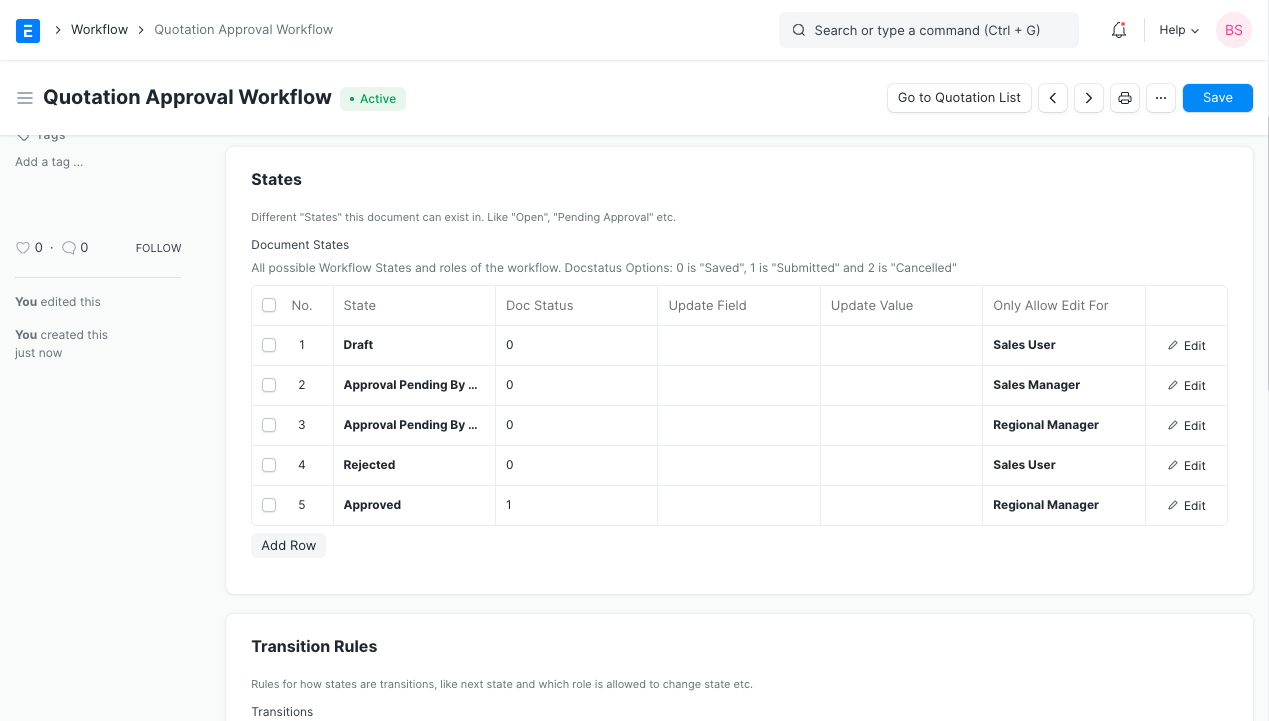
Enter the different states of the Workflow. Enter Doc Status for them, select which field to update from the Update Field column, enter what the value will be updated to under Update Value. The Workflow States can have different colors according to the state. Eg: Green for success. Document statuses: Saved = 0, Submitted = 1, Cancelled = 2. .
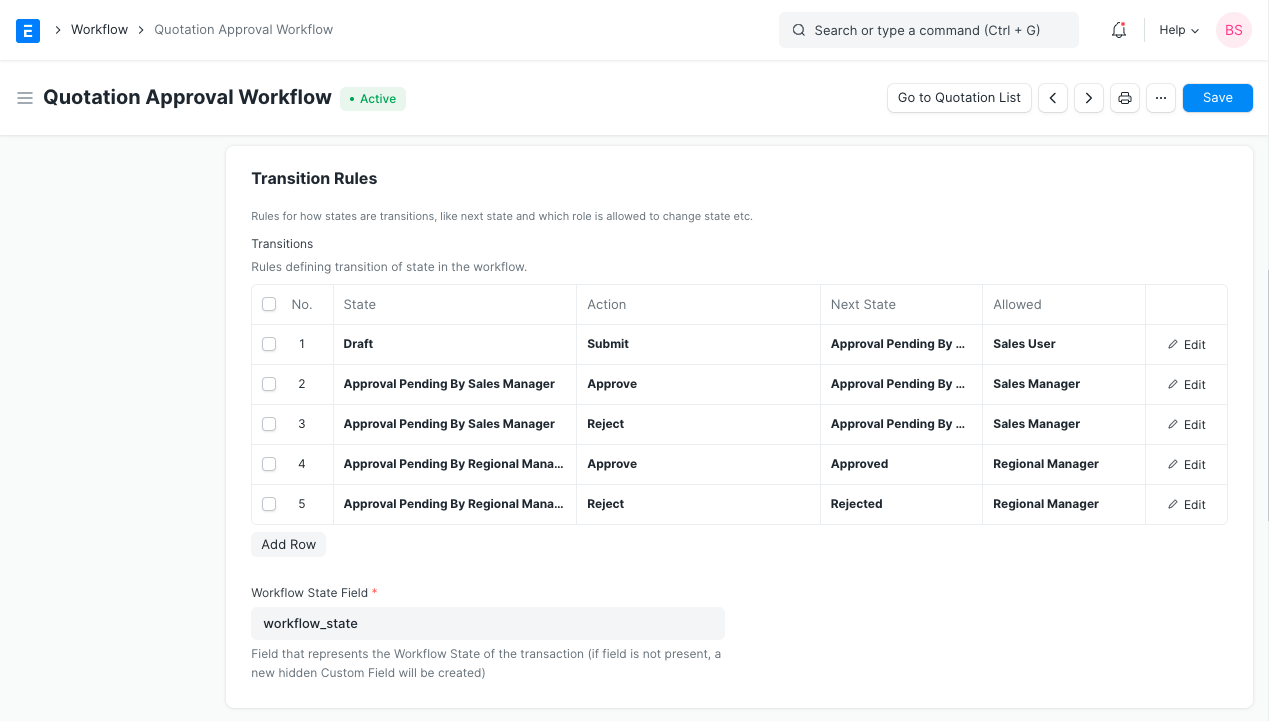
Enter the Transition Rules.
2.2 Things to note when creating a Workflow
In Geer ERP, creating a workflow effectively replaces the standard Save and Submit workflow. The page will therefore operate according to your Process rather than according to the pre-set code workflow. Therefore, if you do not specify it in the workflow you construct, there may not be a Submit button or choice.
The default workflow has the states: Draft - Submitted - Cancelled if you don't apply a workflow to a document that is submittable. If a Workflow is being applied on a submittable document, the user should handle those default states.
A document must be presented in order to be canceled.
You must create a workflow transition step that states, "From submitted, you may cancel," if you want to provide the opportunity to cancel.
A new custom field with the name you choose in the "Workflow State Field" field will be created if the fields listed in the Update Field column are not changed.
2.3 Other options for a Workflow
- When this checkbox is ticked, all other Workflows for the chosen DocType become inactive.
- Don't Override Status: The status of this workflow won't take precedence over the status of the quotation document in the list view.
- Email Alerts: The user will receive emails containing the next probable workflow activities.
3. Features
3.1 Enable/Disable Optional Workflow State
Introduced in Version 12
States that are optional Workflow states cannot participate in the final approval process.
States such as Canceled or Rejected, for instance, can be optional.
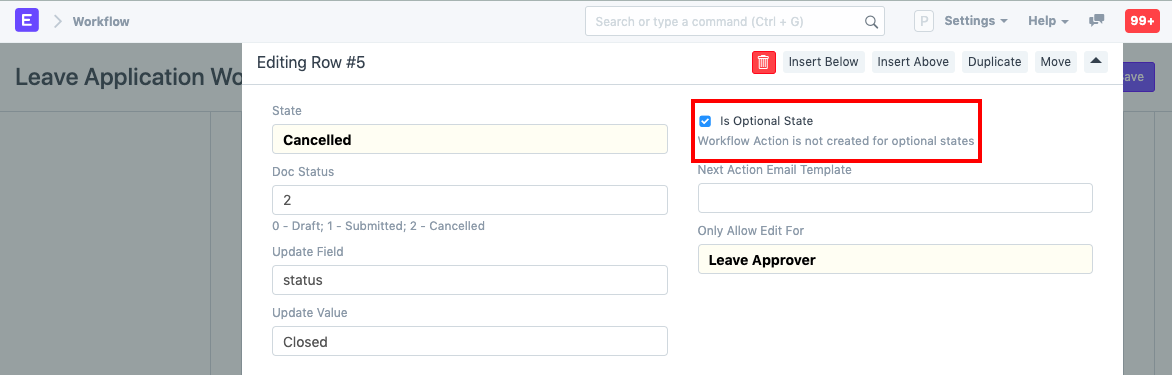
Note: Optional states do not have Workflow Actions generated for them.
3.2 Conditions
In order for the Transition to be relevant, you can also specify a condition. For instance, in this scenario, a certain position would need to approve if a sales executive created a quotation with a total of $100,000 or more. You can set a property for Condition to ensure that this occurs in the specific transition:
The field name for the Quotation's "Grand Total" field is grand total in this instance. Go to Menu > Customize to view the field names for each field.
Any document property may be covered by this.
Introduced in Version 13
You can include the date/time, session, getvalue, and getlist functions in your condition expressions with Version 13 of the library.
Allowed functions:
- frappe.db.get_value
- frappe.db.get_list
- frappe.session
- frappe.utils.now_datetime
- frappe.utils.get_datetime
- frappe.utils.addtodate
- frappe.utils.now
Example:
4. Example of a Quotation Approval Process
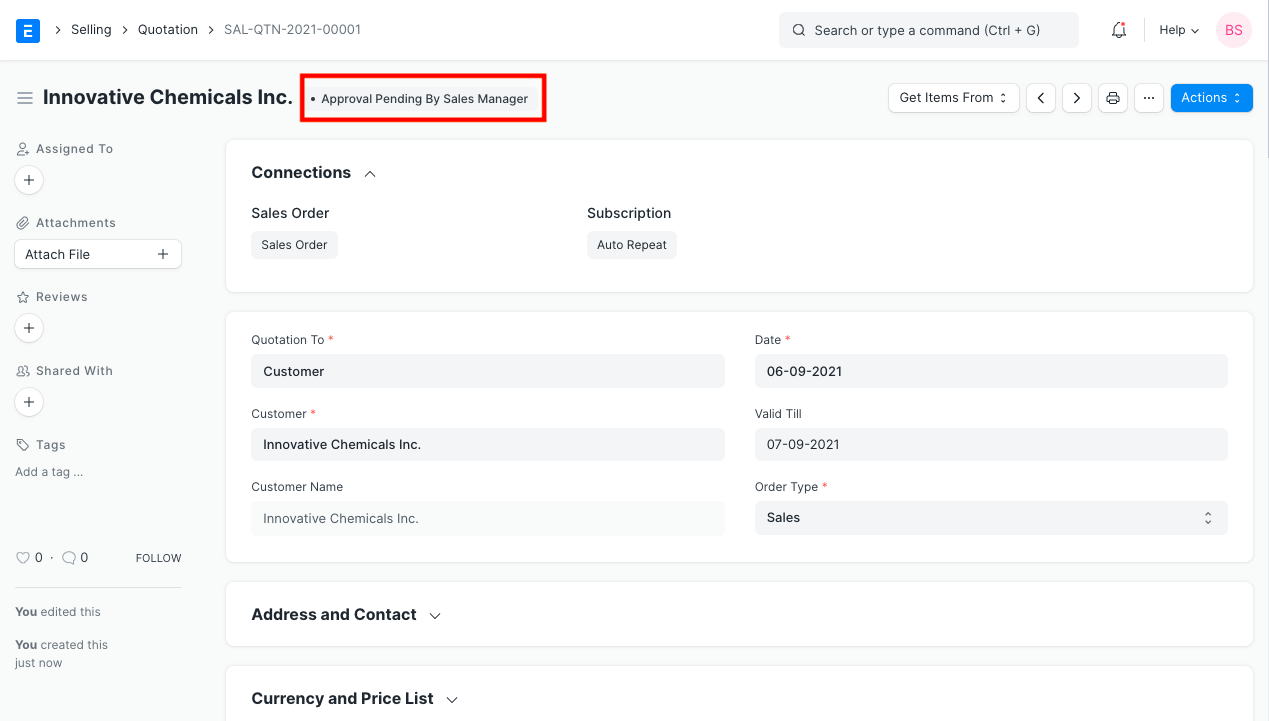
When a sales user saves a quotation, the document's state switches to "Draft," and when the user clicks "Submit," the status changes to "Approval Pending By Sales Manager":
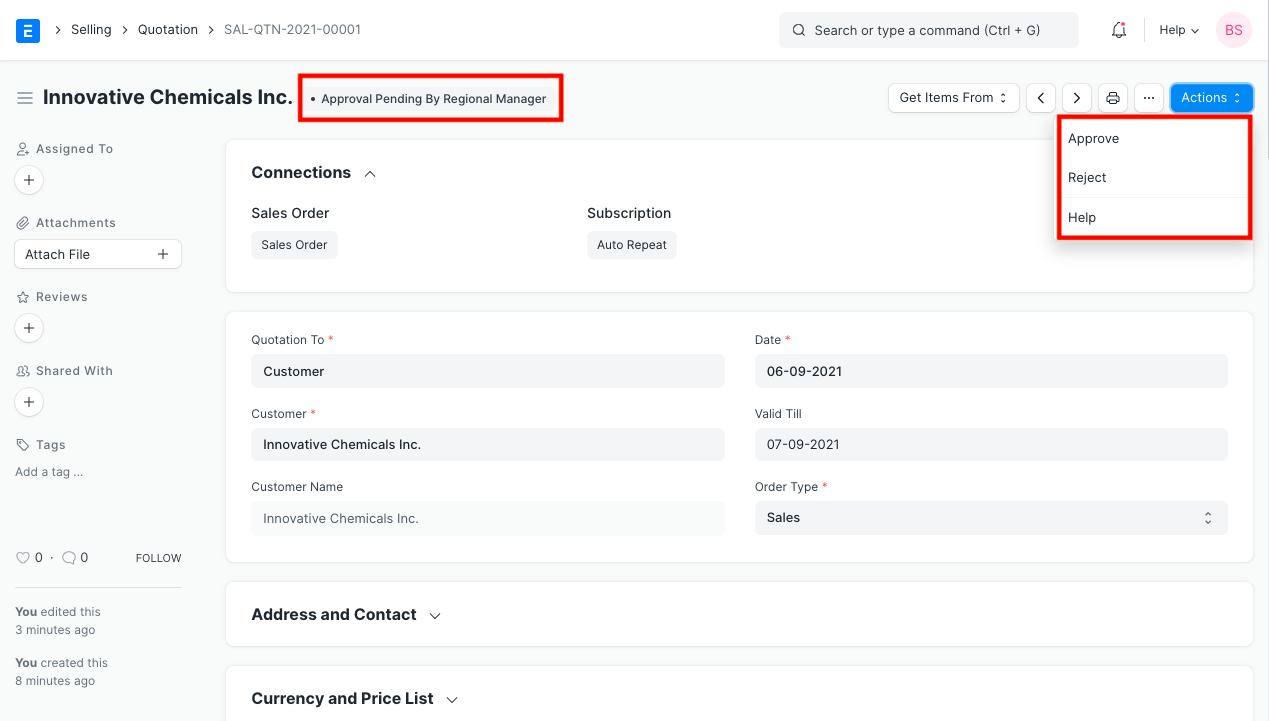
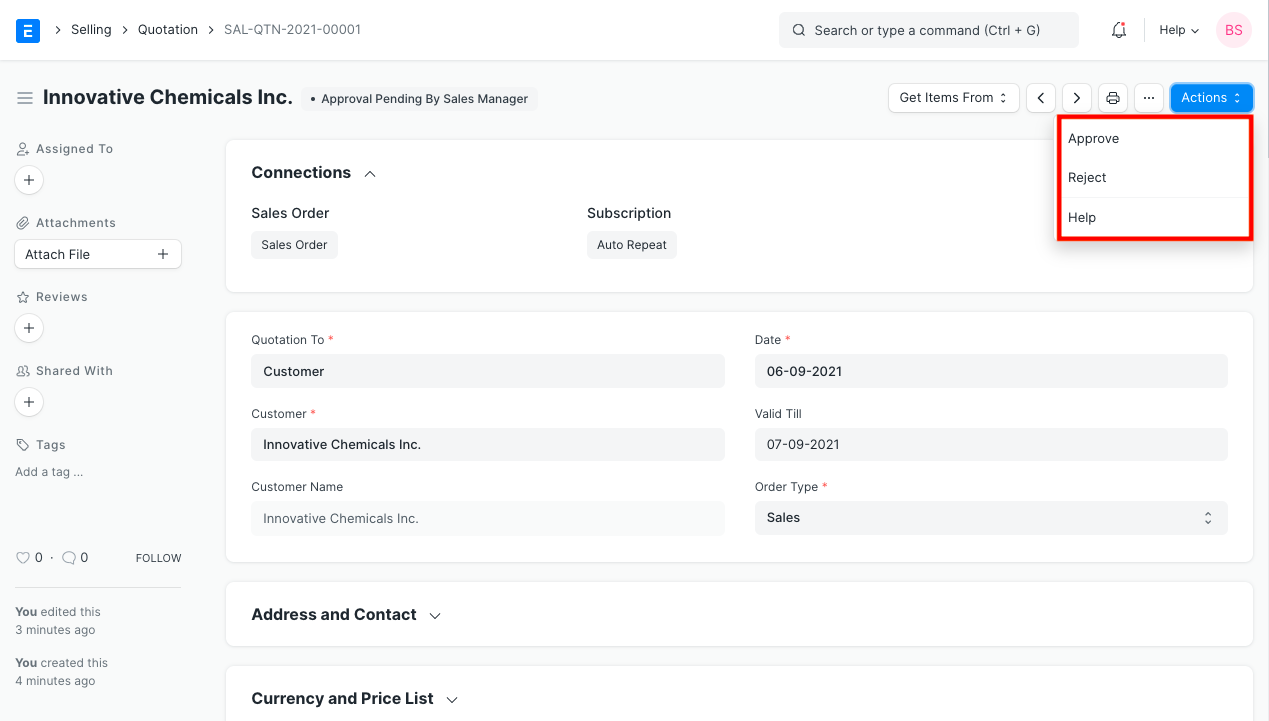
The Sales Manager has the option to accept or reject requests after logging in. If accepted, the document's status becomes "Approval Pending By Regional Manager."
The Regional Manager can finally "Approve" or "Reject" the quotation when he opens it.