Setting Up Income Tax Deduction
Setting Up Income Tax Deduction
Most firms, especially large ones, spend a lot of effort each month calculating tax deductions for employees. When configured correctly, ERPNext automates tax deduction computations while creating Pay Slips, simplifying the majority of tax-related procedures. Here's how to set up ERPNext to make processing payroll easier:
Income Tax Exemption
Regulations in many nations, particularly India, let individuals to avoid adding some (or all) of their personal expenditures to their taxable income for the year. Such expenditures could include gifts to philanthropic organizations, money spent on children's education, certain investments, etc. People must provide proof of these expenses in order to be excluded from paying taxes on their income.
Using ERPNext, you may set up Income Tax Slabs, and the tax is computed depending on the employee's anticipated yearly earnings. It is necessary to report the amount of the exemption you intend to claim at the beginning of the fiscal year so that your tax deduction can be computed based on the predicted earnings of your business. Employee Tax Exemption Declaration allows employees to register their tax exemption.
The monthly deductions will be calculated without any exception from the employee's annual earnings if no declaration is filed by the employee. The tax exemption, however, will begin to apply starting with the following payroll if the employee submits a declaration between payroll periods. The last payroll or when utilizing Deduct Tax For Unsubmitted Tax Exemption Evidence in Payroll Entry or Salary Slip will modify any additional tax received in preceding payrolls.
Also, employees submit actual evidence of their expenditures for filing via Employee Tax Exemption Proof Submission at the end of the year. In the last paycheck of the Payroll Period, ERPNext checks for proof submissions of employees, and if not discovered, tax for the exempted income will be added to the standard deduction component.
Employee Tax Exemption Category
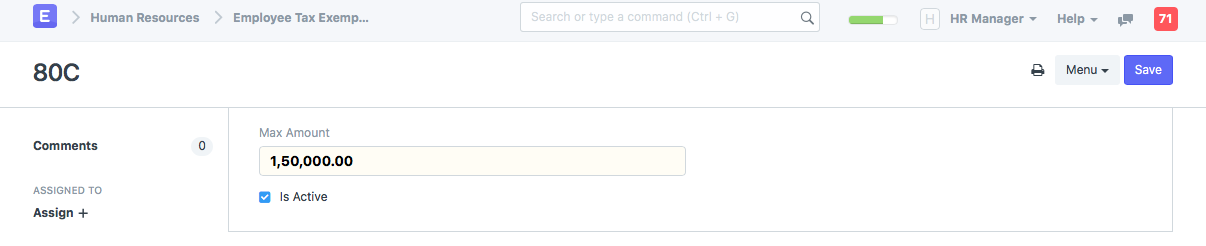
Exemptions from taxable pay are often limited to expenses for specific categories chosen by regulatory or governmental bodies. You can set up different categories that can be exempted with ERPNext. For India, some examples of this could be 80G, 80C, B0CC, etc.
By heading here, you may configure Employee Tax Exemption Category.
Human resources > Payroll Setup > Employee Tax Exemption Category > New Employee Tax Exemption Category
Employee Tax Exemption Sub Category
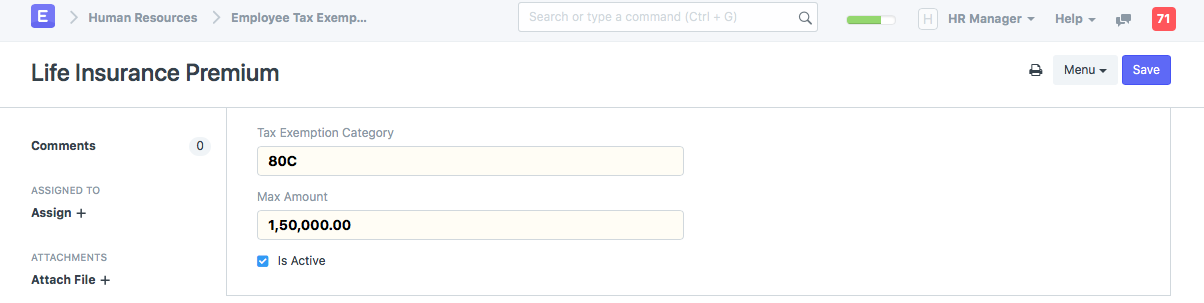
There may be several heads under each category for which exclusions are permitted. For instance, Life Insurance Premium could be a subcategory under 80C in India.
By heading here, you may configure Employee Tax Exemption Sub Category.
Human resources > Payroll Setup > Employee Tax Exemption Sub Category > New Employee Tax Sub Exemption Category
HRA Exemption - Regional, India In India, the Home Rent Allowance (HRA) is exempt from taxation for the fiscal year 2018–19 if it at least equals: * The actual sum provided by the employer as the HRA. Real rent payments are deducted by 10% from base pay. * If the employee is staying in a metropolis, 50% of the base salary (or 40% in a non-metropolis).
As part of the Employee Tax Exemption Declaration, employees shall also fill out the HRA Exemption. ERPNext will determine the HRA exemption amount and exclude it when determining taxable income.
Note: Basic and HRA salary component shall be configured in Company for HRA exemption to work
Options in Payroll Entry and Salary Slip By automating payroll processing in bulk via Payroll Entry, ERPNext makes payroll processing simpler.
- Deduct Tax for Unclaimed Employee Benefits: Employees' taxable income does not include flexible benefits (salary components that are flexible benefits). However, if the employee fails to submit an Employee Benefit Claim when calculating taxes in the last paycheck of the Payroll Period, the sum received for these components will be counted as part of her taxable earnings.
If this option is selected, ERPNext will recalculate the tax and apply the tax for all perks that were not previously taxed when generating the Pay Slip.
- The following is a list of the items that can be used to calculate the cost of a given item. It should be noted that if this option is selected, ERPNext will not take into account the employees' Employee Tax Exemption Declaration when determining their annual exemption from taxes; rather, it will only evaluate the employees' Employee Tax Exemption Proof Submission.
Note: If necessary, you can still manually create a new Salary Slip and execute payroll for each person separately. All of these choices are provided in the Salary Slip.
Income Tax Slab Income Tax Slab makes it simpler to manage changing regulations by assisting you in defining the Tax slabs that apply for the time period. Depending on the tax requirements, you can add a number of tax slabs for the payroll period. Keep in mind that you can apply tax slabs based on employee characteristics using fields in the Employee document's Condition field.
Salary Component You must specify a salary component of type Deduction with the Variable Based On Taxable Salary option enabled if you want to enable automatic tax deduction based on tax slabs configured in income tax slabs. This option permits automatic income tax calculation taking into account the tax brackets and the employee's declaration. The remaining taxable salary will be divided equally among the remaining 12 months, with the tax determined annually.
Important Information: If you create a condition and formula for this deduction component, the configured tax slabs for the income tax slab will not be taken into account when computing the salary component. The Employee Tax Exemption Proof Submission, which will take precedence over the Tax Slab based tax deduction, can still be excluded by using the Deduct Tax For Unsubmitted Tax Exemption Proof option in Payroll Entry / Salary Slip. This is especially useful if you need to manually calculate payroll deductions for a predetermined amount rather than having ERPNext calculate them based on the predicted yearly salary of the employee following deductions as claimed by the employee via the Employee Tax Exemption Declaration. You can still use Deduct Tax For Unsubmitted Tax Exemption Evidence at the end of the fiscal year to subtract the employee's overall tax obligation.