Dunning
A document to be sent as a persistent demand for debt payment.
Dunning is a document that should be kept on hand and sent as a continuous demand for payment of a past-due Sales Invoice.
To access the Dunning list, go to:
Home > Accounting > Dunning
1. Prerequisites
Sales Invoice
Only an overdue Sales Invoice may be the subject of a Dunning.
Dunning Type In a new Dunning, a Dunning Type is utilized to pre-fill the interest, fees, and text blocks.
2. How to create a Dunning
On a list of late scheduled payments, a Dunning is made. A dunning can be produced in one of two ways:
a) Create a new Dunning
- Click "Add Dunning" while you are on the Dunning list.
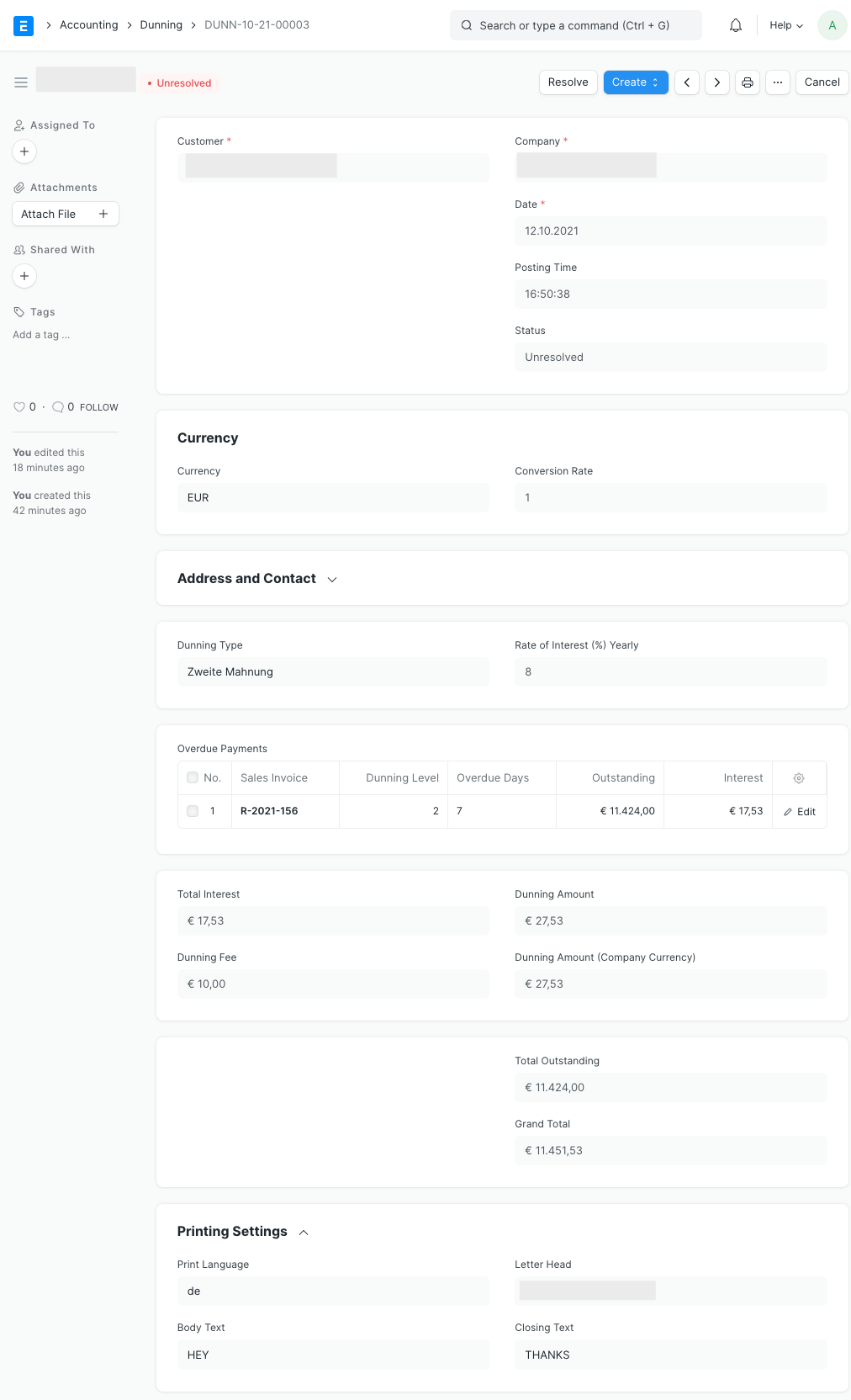
- Then click "Fetch Overdue Payments" while selecting a Customer. This will display a list of the customer's past-due sales invoices. Click "Get Items" after selecting the items you want to fetch into this Dunning.
b) Create a Dunning from an overdue Sales Invoice
- Open any past-due sales invoice by going to the list of sales invoices.
- Then select "Create > Dunning." This will populate a new Dunning with all past-due payments from the invoice's payment schedule table.
Fill the remaining fields
- To fill interest, dunning fees, and text blocks with preset values, choose a dunning type. Alternatively, you can manually set these settings.
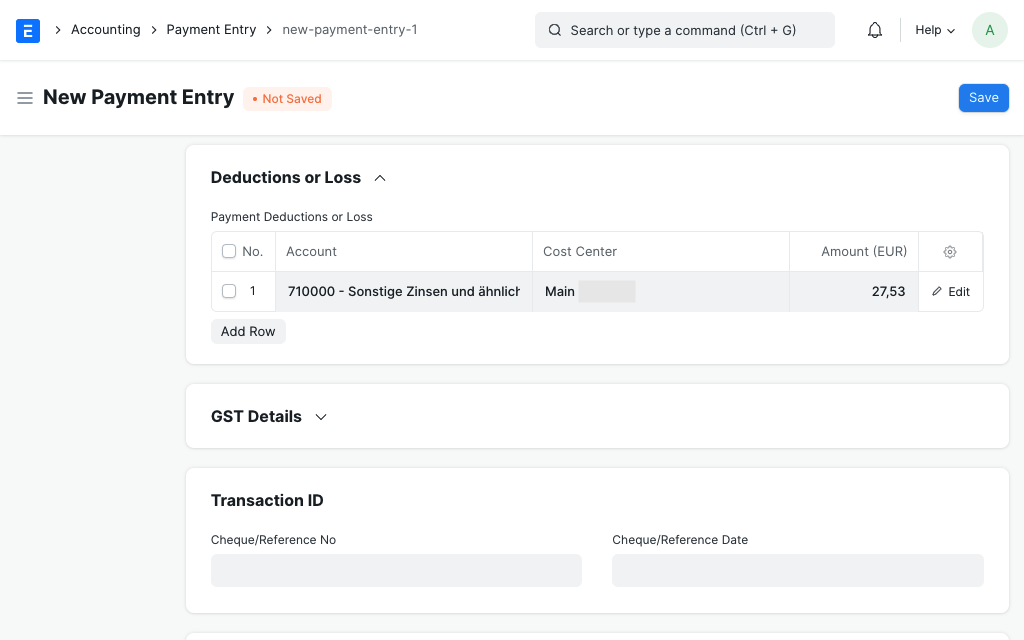
- For the income derived from interest and dunning fees, you can already set an income Account (for instance, "Other interest and comparable income") and Cost Center. Once a Payment Entry is generated from this Dunning, they will be utilized.
- Prior to submitting the Dunning to the Customer, save and submit it.
2.1 What is a Dunning Type
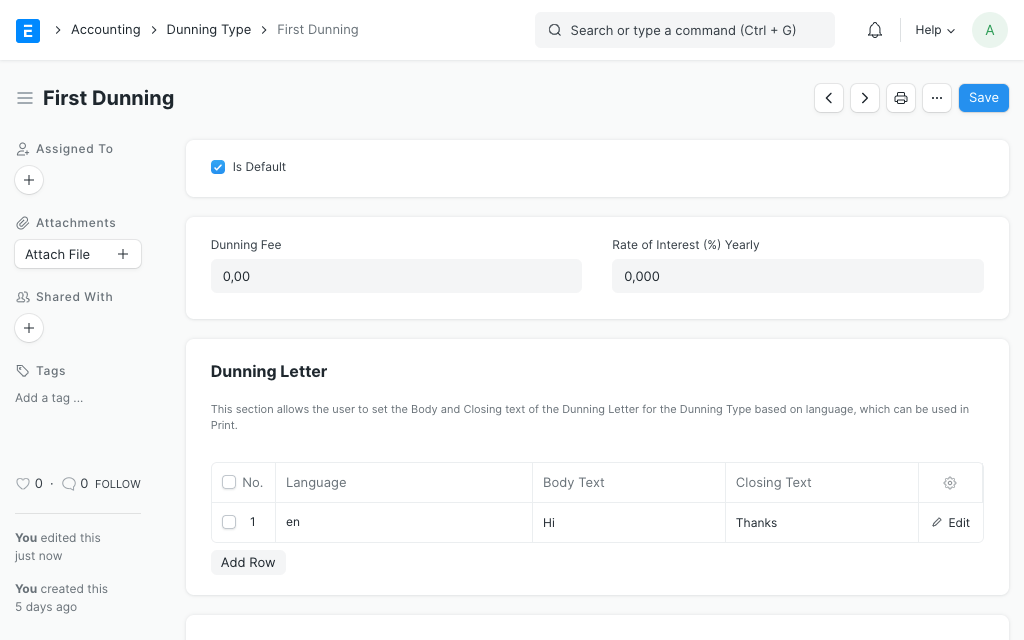
For the dunning charge, interest rate, and text blocks that will be used, Dunning Type stores default settings. A Dunning Type "First Notice," for instance, has no fees, whereas a Dunning Type "Second Notice" carries a dunning fee as well as interest on the unpaid balance.
2.2 Statuses
These are the statuses that Dunning is automatically assigned.
- Draft: Although saved, a draft has not yet been sent in.
- Unresolved: When the Dunning is submitted but no payments have been made, it remains unsettled.
- Resolved: When the unpaid balance has been received, the Dunning is over.
- Cancelled: A Dunning document with a cancelled status is also cancelled.
3. Payment
Please access the unsettled Dunning and select "Create > Payment" once you have received the entire payment, including interest and fees. By doing this, a Payment Entry will be created against the unpaid scheduled installments, and the interest and fees will be recorded as "Payment Deductions or Losses." The Dunning's status will be automatically changed to resolved upon the Payment Entry.