Item Variants
Item Variants
A version of an item with varying characteristics, such as sizes or colors, is known as an item variant.
For instance, consider a t-shirt as an item. It is available in small, medium, and large sizes, as well as red, blue, and green. Each of the variations will be treated as an item variant in ERPNext, while the t-shirt itself will be treated as an item template.
Not just a t-shirt, but a blue one, in a small. You can treat the small, medium, and large sizes of a t-shirt as different iterations of the same Item, "t-shirt," thanks to item variants.
You would have to treat the small, medium, and large sizes of a t-shirt as three separate Items if there were no Item variants.
1. Using Item Variants
There are two possible bases for variations:
- Item Attributes
- Manufacturers
Advice: After creating an item template, you can update it to reflect changes to all of the variants.
1.1 Creating the Item Variant Template
Create an item and select "Has Variants" under Variants to use item variations in ERPNext.
Then, the item will be referred to as a "Template." Such a Template is no longer the same as a typical "Item." The Template, for instance, cannot be used in a transaction (a sales order, delivery note, or purchase invoice) by itself.
It is only practical to use the Variants of the Item (blue t-shirt in size small). Determining whether an item "Has Variants" or not at the time of creation would therefore be perfect.
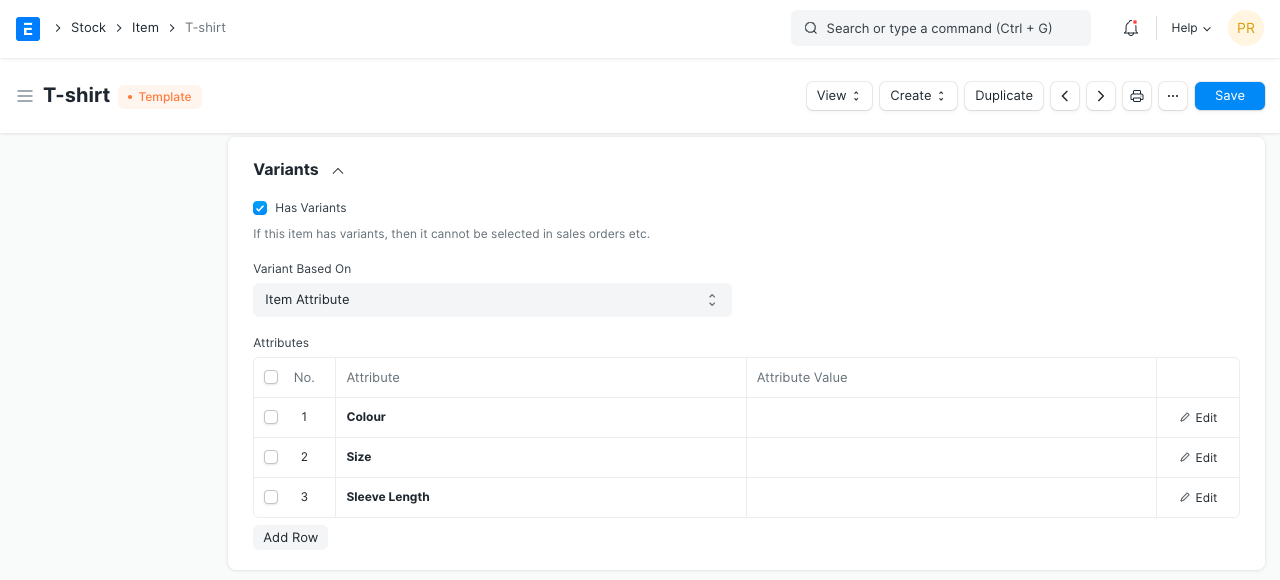
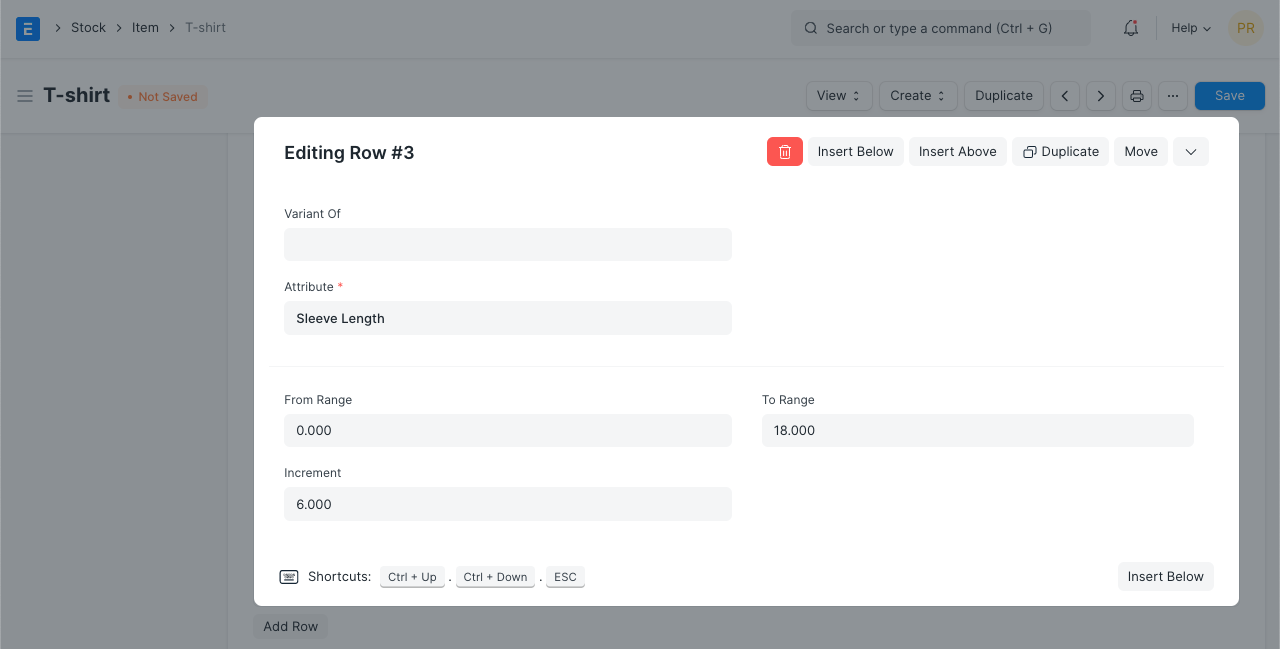
- A table will show after selecting "Has Variants." For the Item in the table, specify the variant attributes. You can set the range and construct intervals based on the increment values if the attribute supports numerical values.
Note: You cannot make Transactions against a 'Template'.
1.2 Creating the Item Variants Based on Item Attrib
Click "Create" to generate "Item Variants" in comparison to a "Template". Next, decide whether to produce a single variation or several. Single is straightforward, requiring the creation of just one item and one or more attributes. Tick the qualities to create numerous items when selecting multiple versions. Six versions will be produced, for instance, if you select Color: Red, Green, and Size: Small, Medium, Large.
ERP multiple variation creationNext
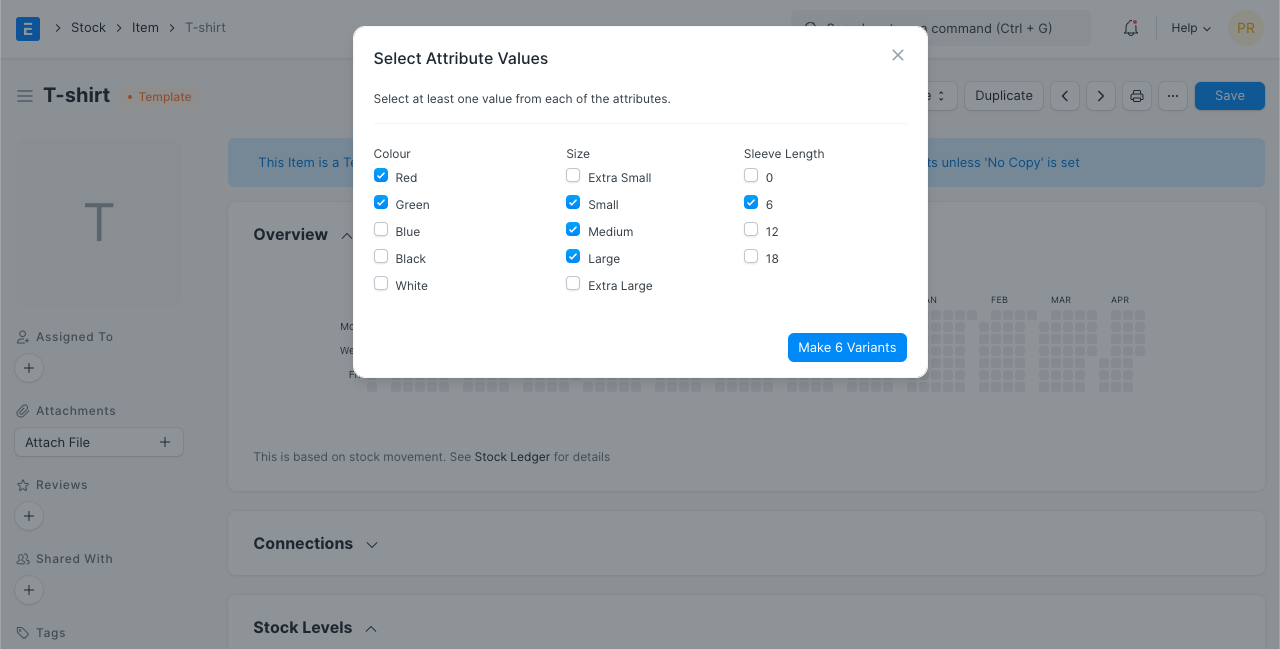
To learn more about setting attributes check out Item Attributes
1.3 Item Variants Based on Manufacturers
Set the "Variants Based On" field in your item template to "Manufacturers" to configure variants based on manufacturers. Click Create > Make Variant in this instance to generate variants. You will be prompted by the system to choose a Manufacturer. An optional Manufacturer Part Number field is also available.
The name (ID) of the template item with a number suffix will serve as the basis for the variant's naming. For instance, "Screwdriver" has a version called "Screwdriver-1."
2. Update Item Variants Based on Template
access Item Variant Settings, go to Home > Stock > Items and Prices. The fields shown here will also be transferred to the variants. If you don't want any rows to be altered from the item template to the variations, delete those that are now visible.