Maintaining Supplier's Item Code in the Item master
Maintaining Supplier's Item Code In the Item master
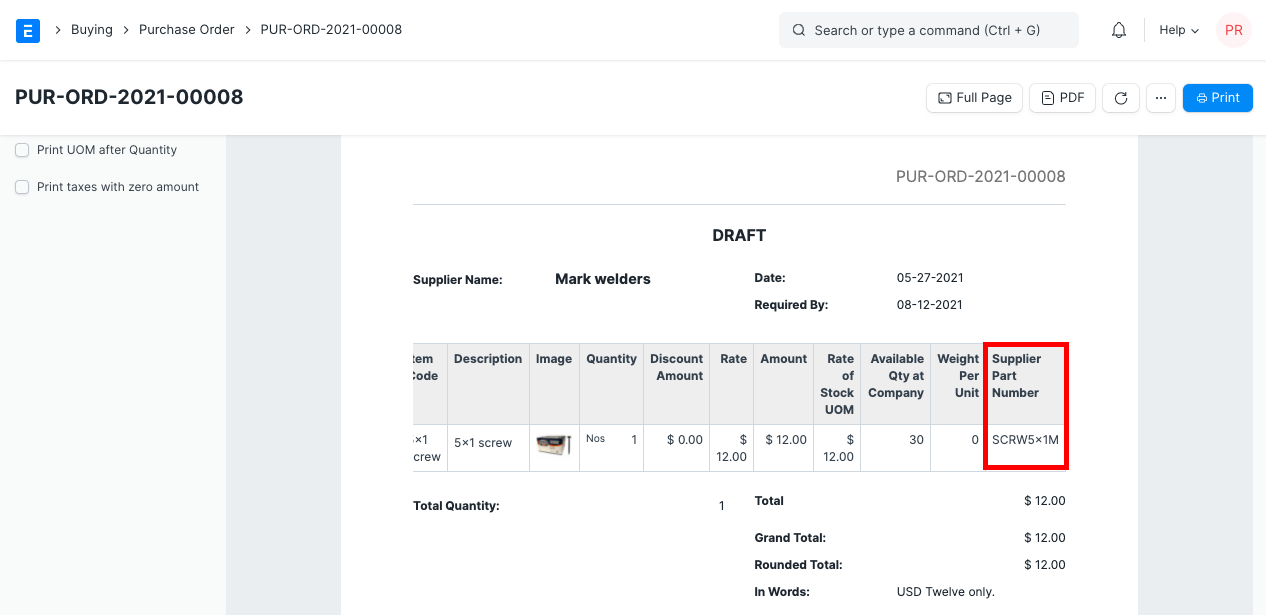
Each item may have a different code allocated to it than your supplier did for the same item. You may track a supplier's item code in the item master using ERPNext. Also, you can obtain the supplier's item code as part of your buy transactions, allowing them to quickly identify items using that code.
1. Updating Supplier Item Code In Item
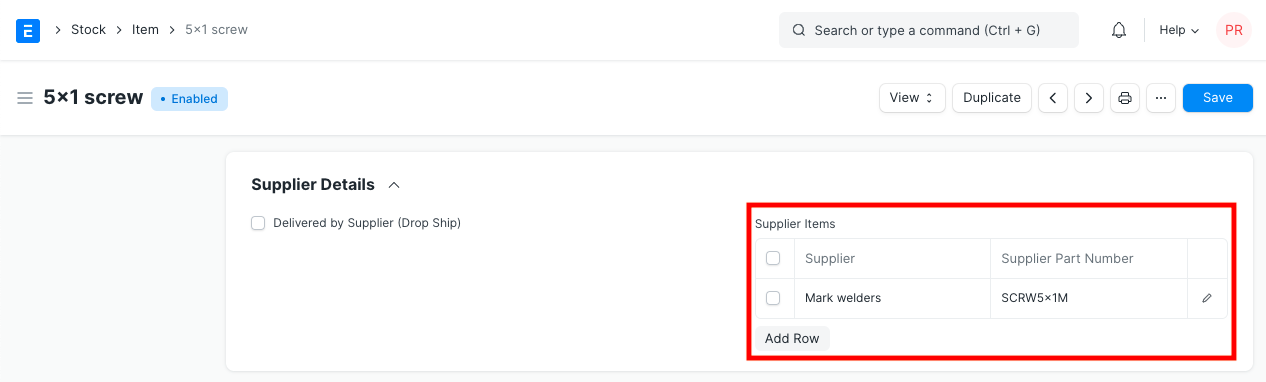
Enter the item code provided by the supplier for this item in the Item Master's Supplier Information section.
2. Supplier's Item Code In Transactions
Each purchase transaction has field in the Item table where Supplier's Item Code is fetched. This field is hidden in form as well as in the Standard print format. You can make it visible by changing property for this field from Customize Form.
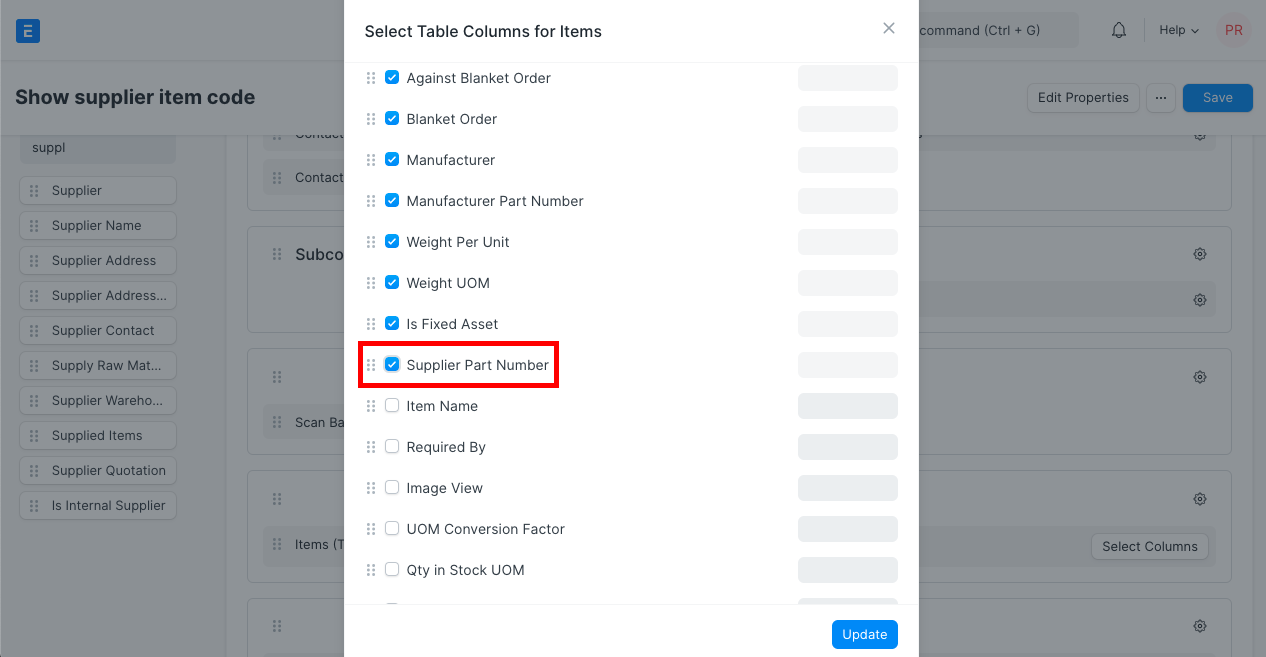
Go to print view, click on Menu > customize, enter a new print format name, look for the Items table, click on the Select columns button in it. You'll see the following screen. Now select the "Supplier Part Number" checkbox.
Only if both the supplier and the item code chosen in the purchase transaction are mapped to values specified in the item master will the supplier item code be retrieved in the purchase transaction.