Purchase Taxes and Charges Template
Purchase Taxes and Charges may be applied to any item you buy.
Similar to the Sales Taxes and Charges Template is the Purchase Taxes and Charges Template. For internal records, purchase orders and purchase invoices can be made using the templates created from this form.
You must set the Account Type field for Tax Accounts to "Tax" in order to use those accounts in tax templates.
Visit this link to access the Purchase Taxes and Charges Template:
Home > Buying > Settings > Purchase Taxes and Charges Template
1. How to add Purchase Taxes/Charges via a template
Remember that there are already templates for many of the most used taxes before generating a new one.
- Select New.
- Give the Tax a title name.
- Set the method of tax calculation and the tax rate under type. Under type, there are five options for which tax will be computed.
- Actual: on the precise quantity of each item.
- On Net Total: on the overall sum of all the things.
- On Previous Row Amount: To compound the charges, use this. Less charges than what tax was already applied to in the previous row, for instance.
- On Previous Row Amount: Similar as above, but applied to the entire cost rather than just the sum of individual items.
- Choose a tax rate-specific account head or construct your own.
- By choosing default, this template will be used automatically for new Purchase transactions.
- Save.

For India, it is Inter State. The template with "Is Inter State" checked will be set as the taxes template when a customer is selected in a sales invoice or delivery note and the GST codes of the place of supply and the customer shipping address don't match. The default taxes template will be used if the place of supply and the shipping address are the same. Additionally, while choosing a supplier, purchase invoice templates are set based on addresses. For instance, IGST.
2. Features
2.1 Purchase Taxes and Charges table
- Consider Tax or Charge for: For the sum of all elements, use total. Value assigned to each item. Apply tax or charge to both the valuation and the total. To learn the distinction, read this article.
- Add or Deduct: Whether to include or exclude the tax from the purchase.
- Reference Row #: You can choose the row number that will be used as the basis for this computation if tax is based on "Previous Row Total" (default is the previous row).
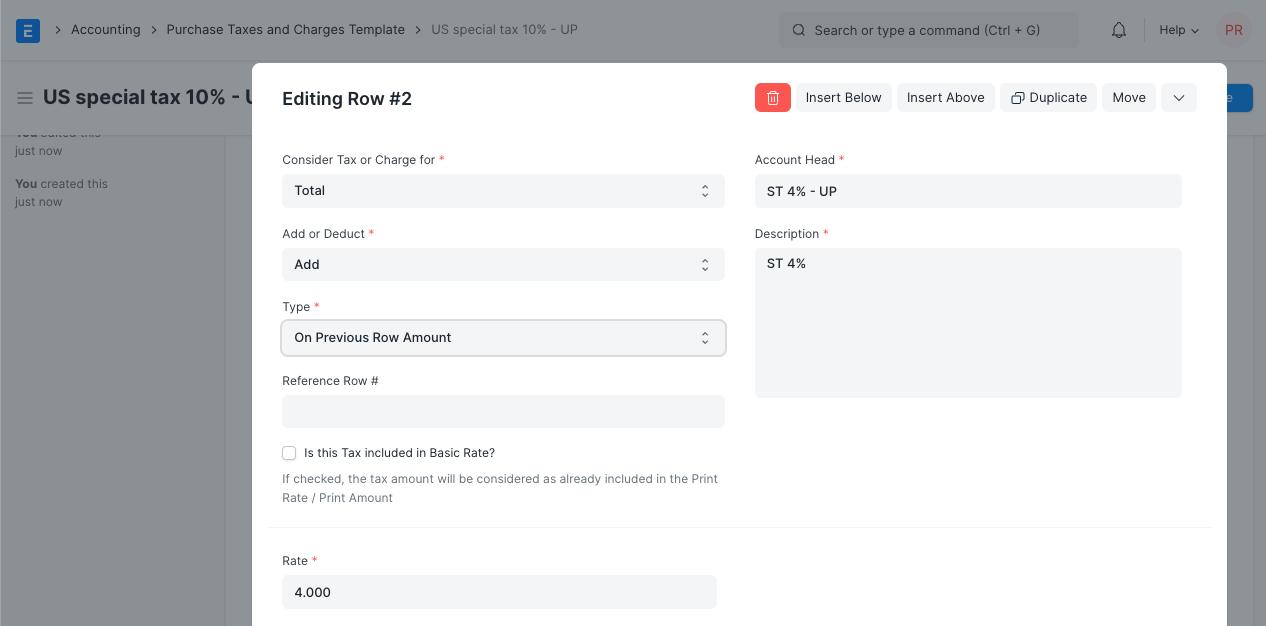
- Is this Tax included in Basic Rate?: The tax amount will be regarded as already being included in the print rate or print amount if the box is checked.
- Account Head: The ledger account in which this tax will be recorded. The rate will be filled automatically if you choose VAT or any other pre-set headings.
- Cost Center: It must be booked against a Cost Center depending on whether the tax or charge is an expense (like shipping) or an income.
- Description: Tax description (which will be printed on invoices and quotes).
- Rate: The tax rate, for example, 14 = 14% tax
- Amount: The amount of tax to be applied, for example, 100.00 = 100 tax