Sales Person Target Allocation
Sales Person Target Allocation
It involves assigning sales representatives to a product or a region.
ERPNext also enables you to designate target Sales People based on Item Group and Territory in addition to managing Sales Persons. You will receive the Target Variance Report for the Sales Person based on the target allocated and actual sales booked by that salesperson.
1. Sales Person - Target Allocation
1.1 Open Sales Person's Master
You must open a particular Sales Person master in order to designate the target.
Selling > Sales Partners and Territory > Sales Person > Edit
1.2 Allocate Target
There is a table called Sales Person Targets in the Sales Person master.
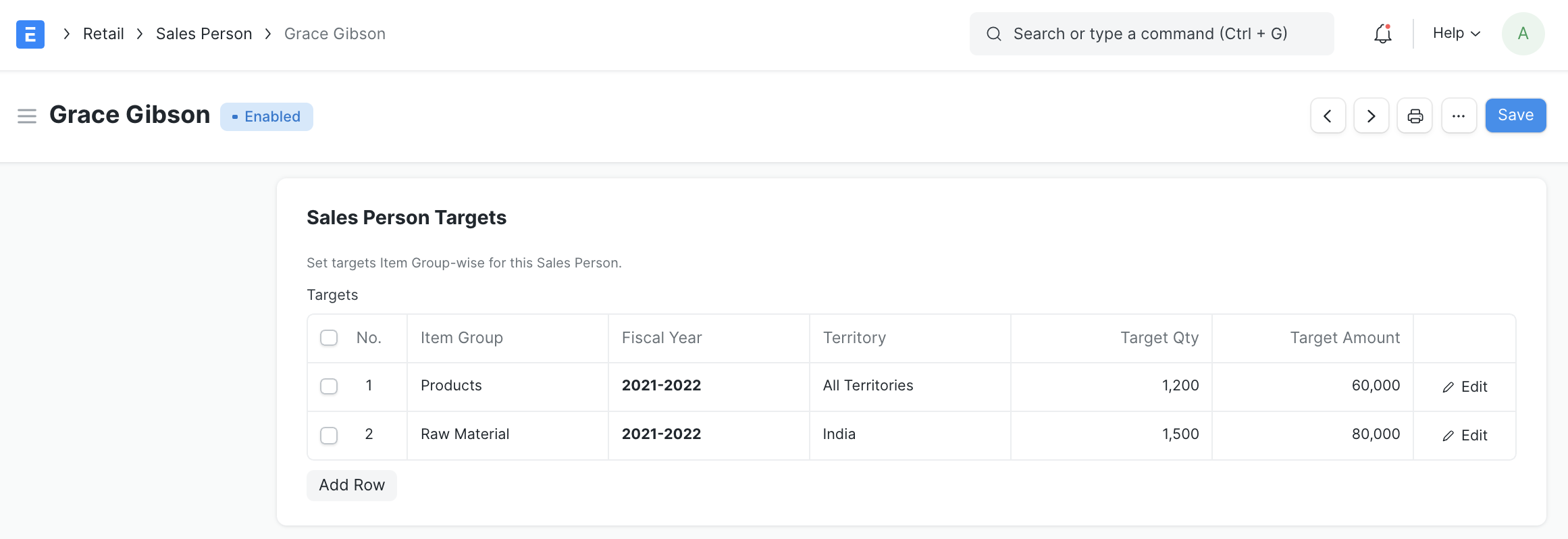
You should choose Item Group, Fiscal Year, Region, Target Qty, Target Amount, and Target Distribution from the options in this table.
The target might be given as an amount, a quantity, or both. You can exclude the item group or territory entirely. The algorithm will then determine the target based on All Item Groups or All Territories, as appropriate.
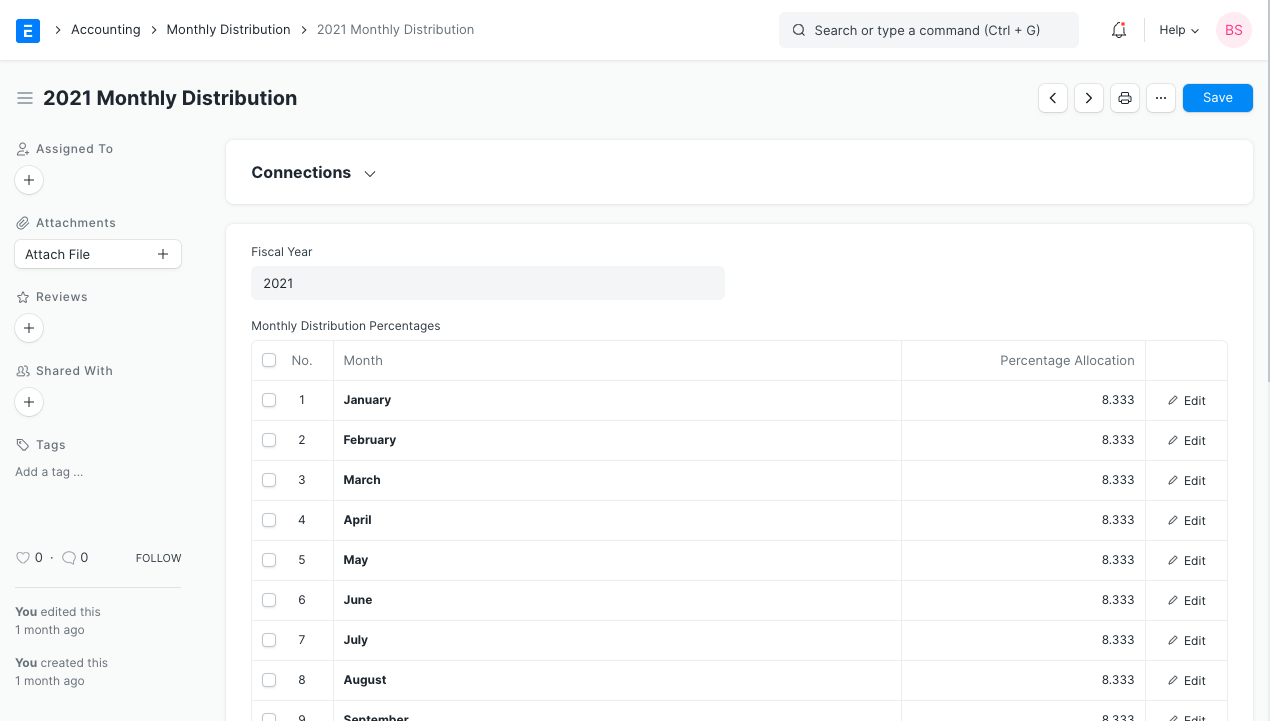
Target Distribution The goal can be spread out across several months. When you click on the Target Distribution field in the Targets table, you can see the opportunity to establish a new monthly distribution for this. For instance, the screenshot above shows a target of 1,000 unit sales for the first quarter of the fiscal year 2019–2020.
1.3 Report - Sales Person Target Variance
To check this report, go to:
Selling > Other Reports > Sales Person Target Variance
This report will show you the discrepancy between the salesperson's aim and actual performance. This report is based on a report on sales orders.
Here, according to the report, the Sales Person's monthly quantity target was around 83, but when the report is being examined, he has met a target of 80, therefore the variance report is displayed as such.

Note: You must link a sales person to a sales order in order for the report to show accurate facts; this option is available in the sales team area of the sales order. Moreover, the Sales Order needs to be provided.
2. Sales Person - Territorywise Target Allocation
Choose the specific Sales Person in the Territory master to assign Territory-wise targets to them. This Sales Person entry is being made just for reference. The Territorywise Target Allocation variance report does not contain any updated Sales Person details.
2.1 Go to Territory master
Selling > Settings > Territory > (Edit specific Territory)
You will see a field to choose the Territory Manager in the specified Territory. This field is connected to the master "Sales Person"
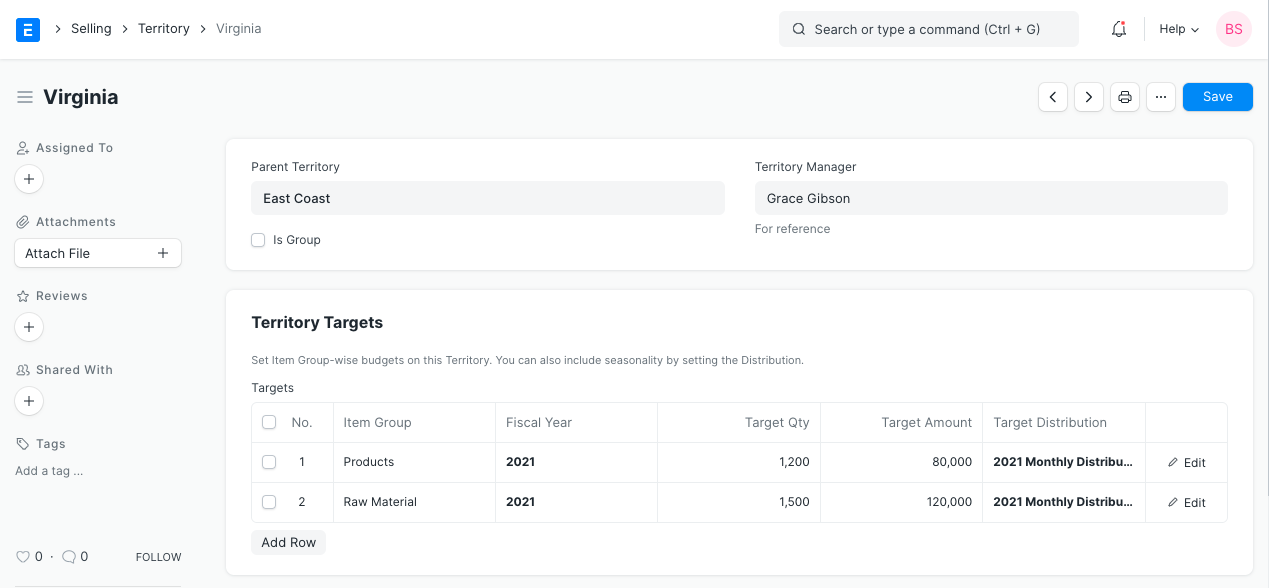
2.2 Allocating Target
The Territory master's Goal Allocation resembles that of the Sales Person master. To set target in the Territorial master as well, you can follow the same instructions as in section 1.2 Allocate Item Groupwise Target.
2.3 Report - Territory Target Variance Item Groupwise
This report will show you the difference between expected and actual sales performance in a specific territory. This report is based on a report on sales orders. Despite the fact that Sales Person is defined in the Territorial master, the report does not provide its details.
Note: Keep in mind that for this report to function, the Territory of the Customer(s) must be specified appropriately. For instance, the target was about eight units in the screenshot below, and five of those were reached, therefore the variance is three.
3. Target Distribution
To create a new Monthly Distribution, go to: Accounting > Monthly Distribution
With the Target Distribution document, you can spread out allotted targets over several months. You can distribute the sales objective properly if your goods and services are seasonal. The aim set during the monsoon season will be higher than it is during other months, for instance, if you are in the umbrella business.
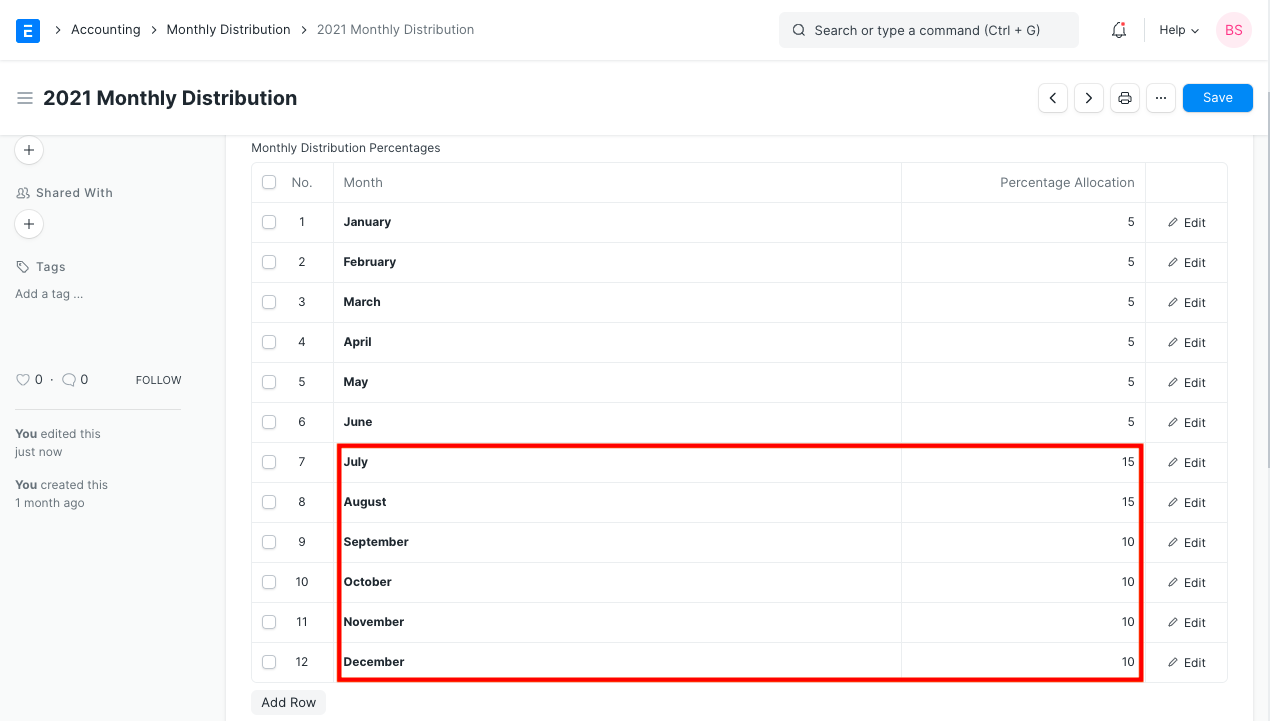
When distributing targets in Sales Person and Territory Master, you can link Monthly Distribution.