Email Campaign
Email Campaign
The Scheduled Time of the post can be altered by users. Users can change the Social Media Post document's "Scheduled Time" to postpone a post if there is a mistake.
One of the best methods to connect with and engage your customers, contacts, or leads is still through email campaigns. To introduce your product to buyers, for instance, you could set up email campaigns, with each email highlighting a unique element of your product.
Go to: to build an email campaign.
Home > CRM > Campaign > Email Campaign
1. Prerequisites
These must be made first, then Email Campaign can be made and used:
1.Campaign
2.Lead or Contact or Email Group
2. How to Create an Email Campaign
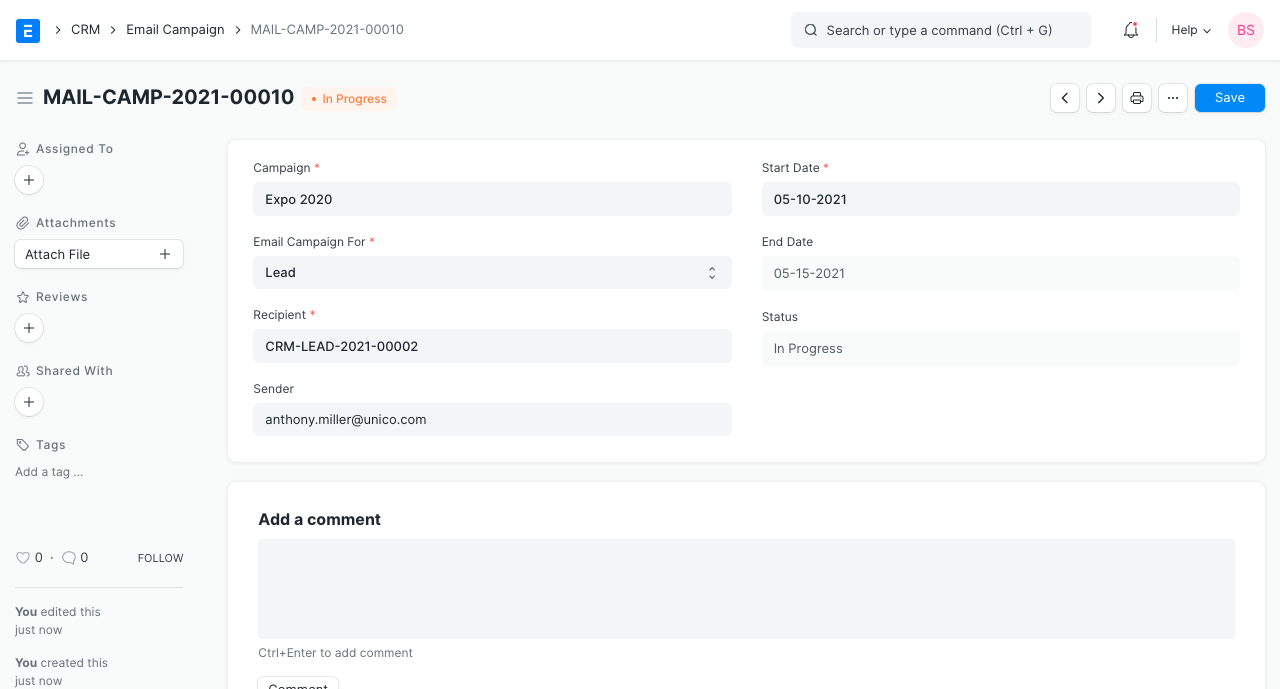
Click New from the Email Campaign list.
Choose the Campaign you wish to create an email campaign for.
Set the email campaign's "Start Date."
4.Choose whether you want to build up an email campaign for a lead, a contact, or an email group to send to several email contacts under "Email Campaign For."
5.Choose the relevant Lead, Contact, or Email Group under "Recipient" for whom you wish to launch the email campaign.
6.Choose the system user who will send the emails from the drop-down menu under "Sender."
7.Save
The campaign described in the email campaign above is:
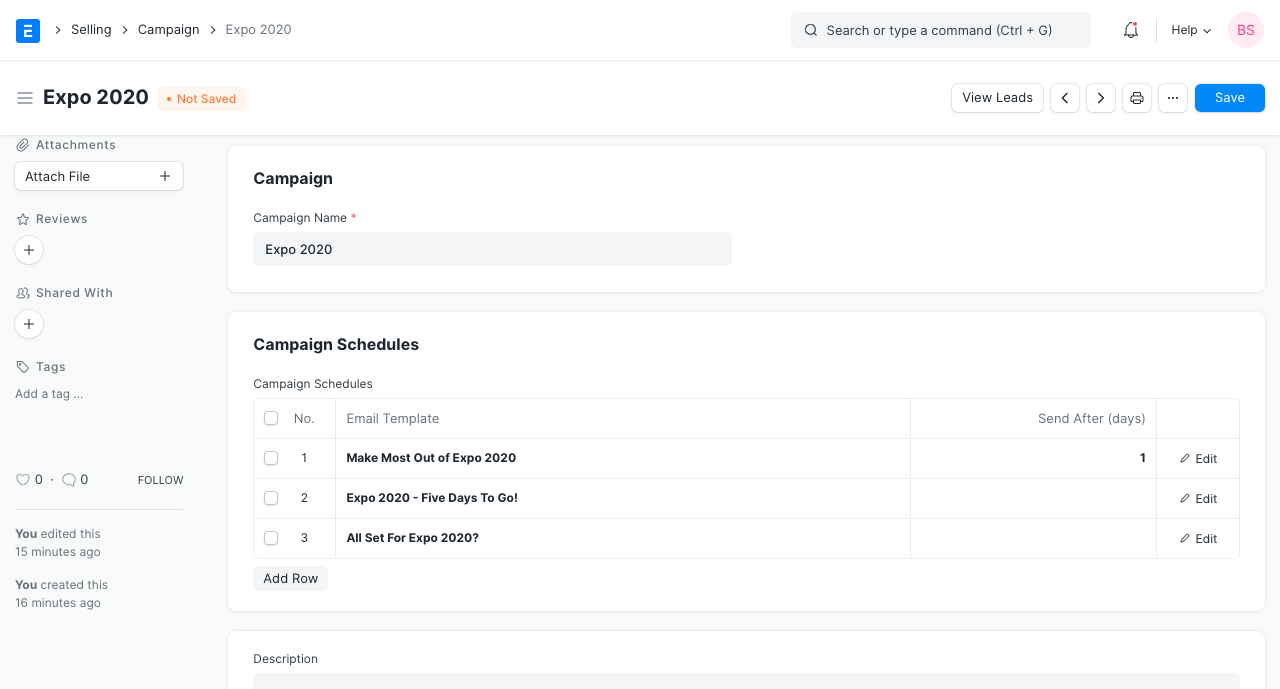
Note: The day on which an email should be sent in relation to the email campaign's start date is specified in the Send After (days) parameter in the campaign. Look at the 'End Date' in the email campaign mentioned above. The Campaign Schedule concludes on day 4, therefore it is "26-07-2019," which is 4 days after the "Start Date," "22-07-2029."
2.1 Create multiple Email Campaigns for a Campaign
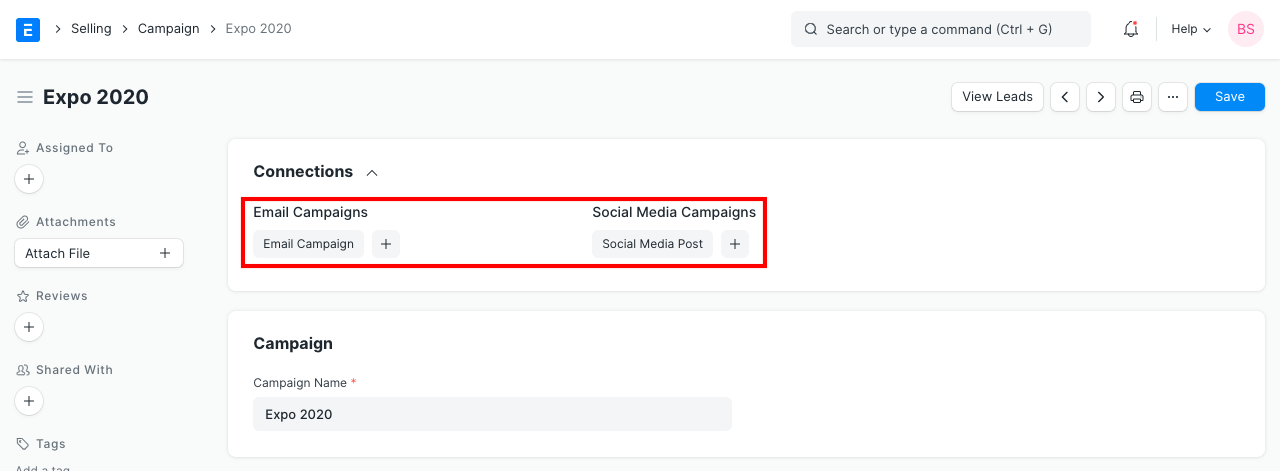
Via the Campaign Dashboard, you can also add fresh Email Campaigns for various Leads or Contacts for the same Campaign.
1.To establish an email campaign, go to the campaign you wish to.
2.To add a new Email Campaign for the Campaign, click the plus sign (+) next to Email Campaigns.
3. Features
3.1 Linked Communication
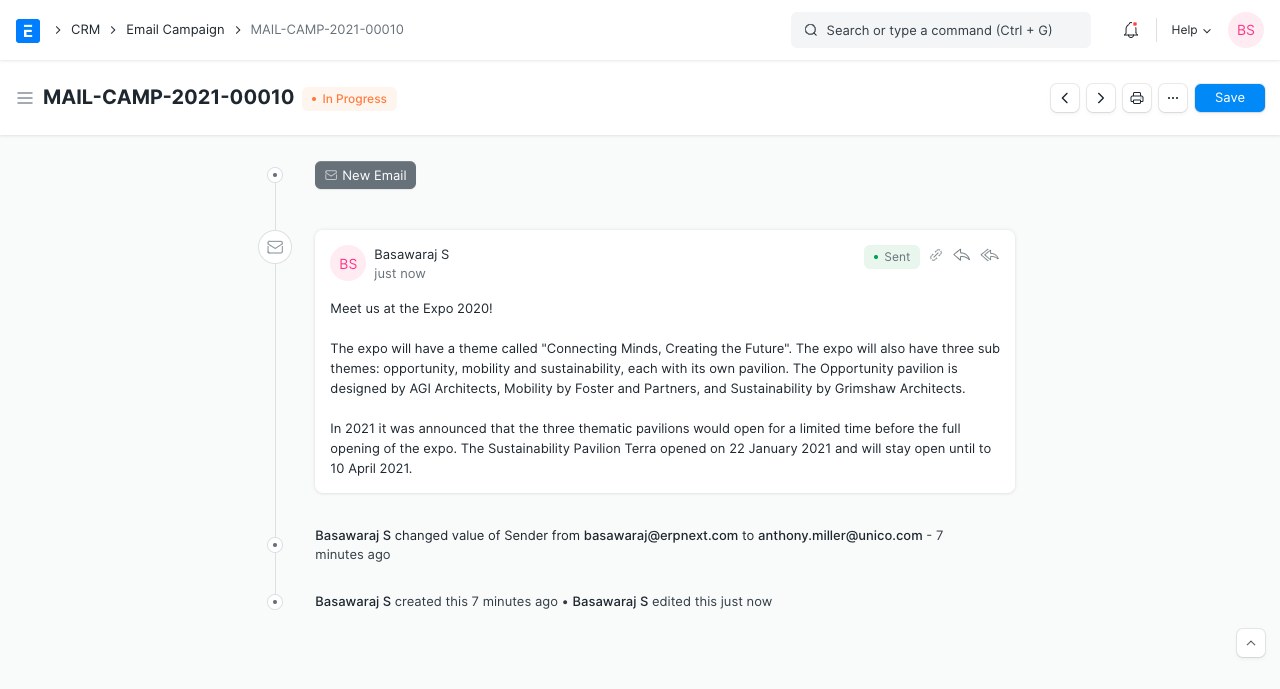
Communication is linked to the Email Campaign document when emails are sent to the relevant leads or contacts. In your document, you can see every email that was sent.
3.2 Unsubscribe from Email Campaign
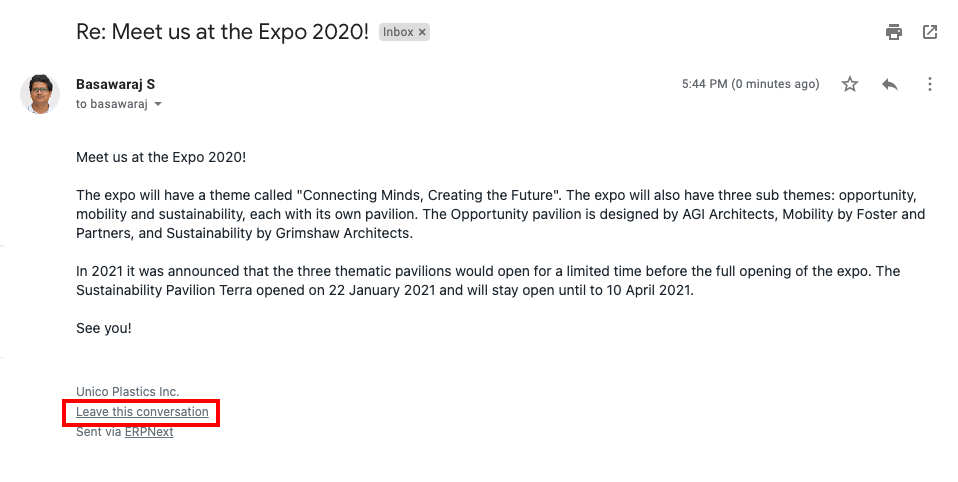
A lead or contact can unsubscribe from the email campaign by clicking the unsubscribe link included in the email if they no longer wish to receive emails about the campaign.
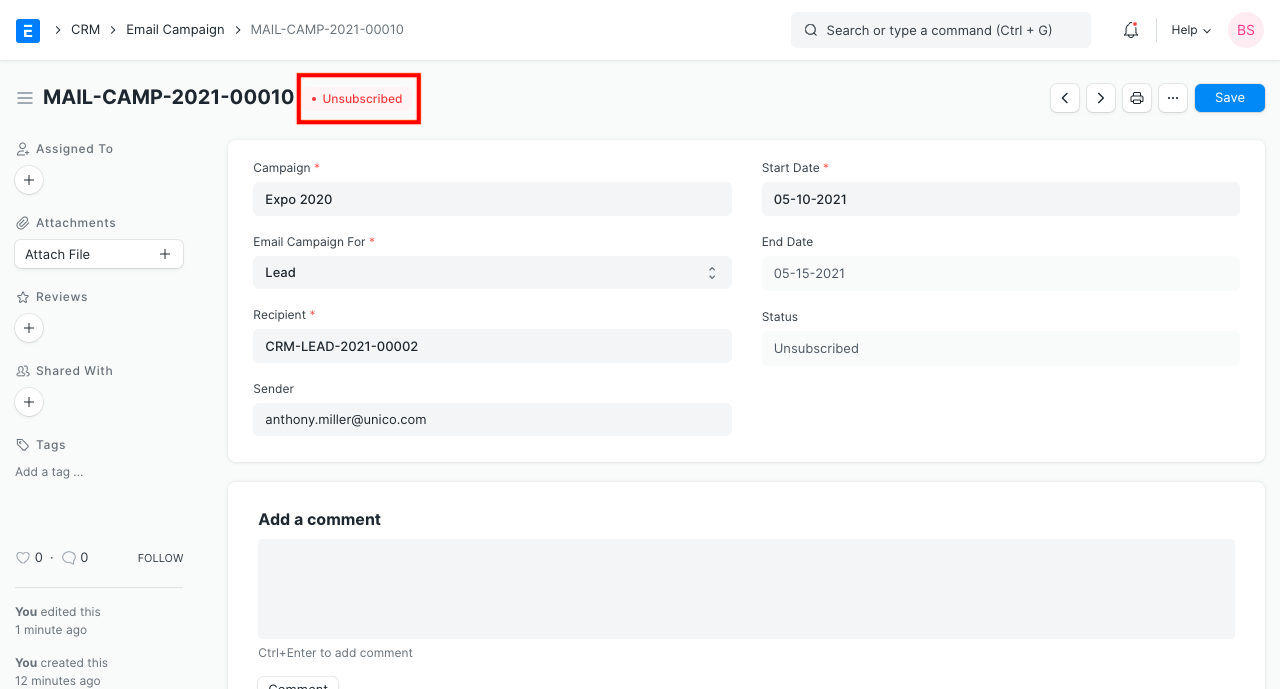
The state of the Email Campaign document changes to "Unsubscribed" when a lead or contact unsubscribes.
3.3 Use Lead or Contact fields in Email Template
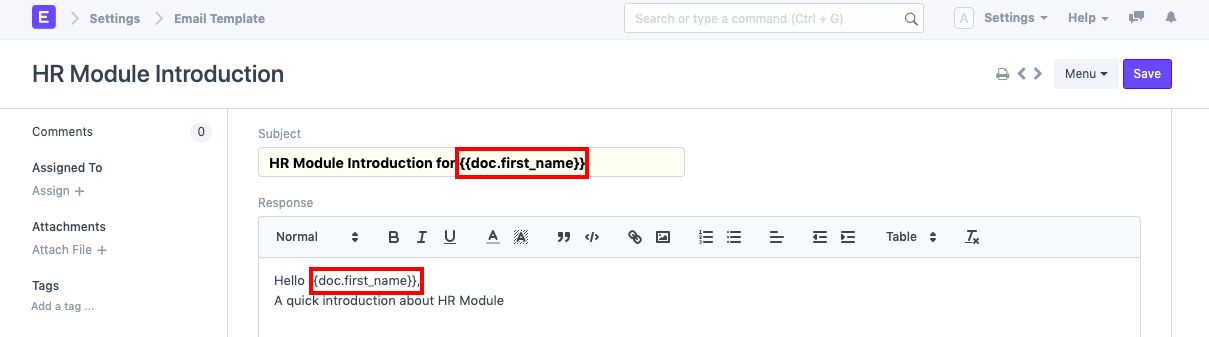
The document that you listed in the "Email Campaign For" section is referenced in the Email Template. You must use doc.fieldname if you want to display the fields from your Lead or Contact document in your email template. For instance, if "Email Campaign For" is "Contact," you can use the format doc.first name in the email template to mention your contact's "first name":
The emails sent would then seem as follows:
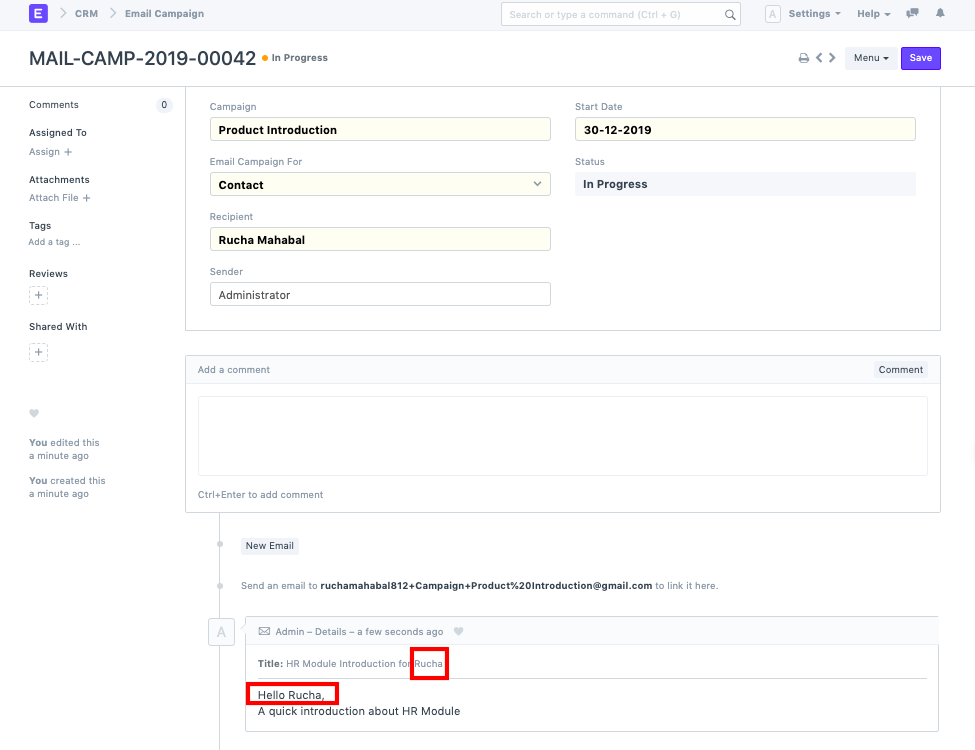
3.4 Status indication
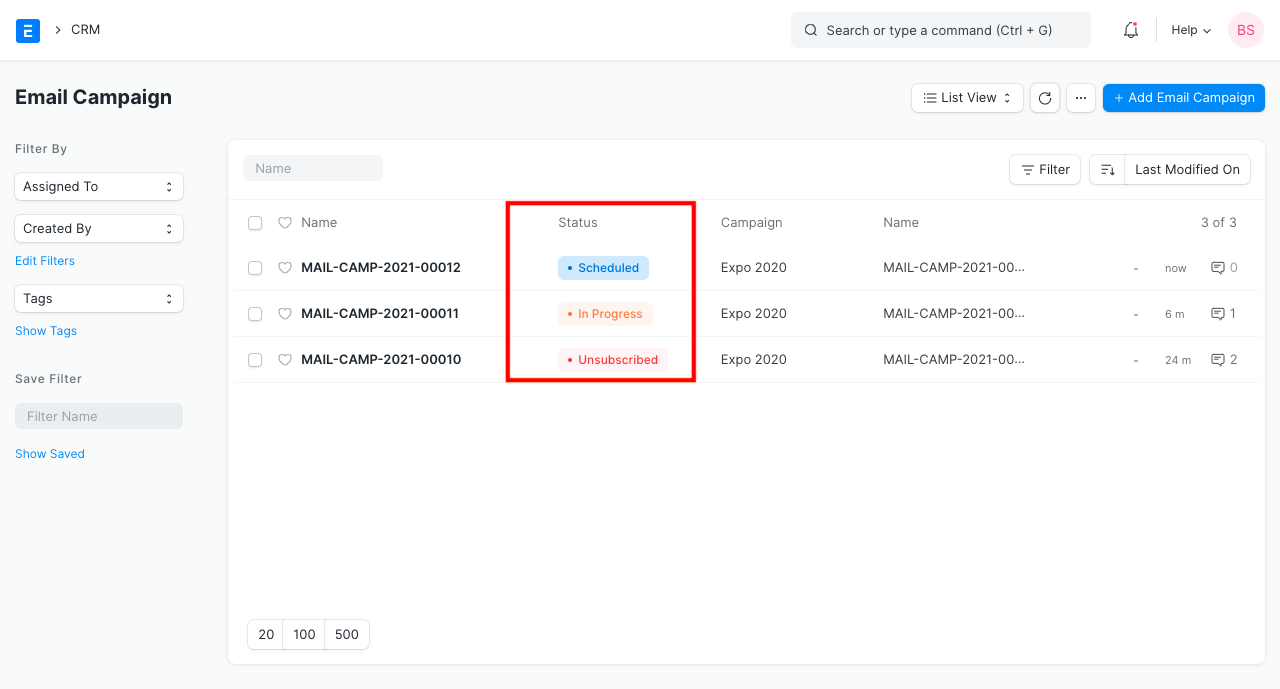
The different Statuses are: Status shows the condition of the email campaign.
- Scheduled: When the 'Start Date' for the Email Campaign has not yet arrived but has been scheduled.
- In Progress: Between the 'Start Date' and the 'End Date' of the campaign, the status would be 'In Progress.
- Completed: The campaign status will be updated to "Completed" after the "End Date."
- Unsubscribed: After a Lead or Contact has opted out of receiving Campaign updates, this event occurs.