Quality Inspection
Quality Inspection
You can designate your incoming or exiting products for quality inspection in ERPNext.
Visit this page to use this feature:
Home > Stock > Tools > Quality Inspection
1. Prerequisites
It is suggested that you complete the following steps before developing and utilizing a quality inspection:
Make a new item.
In the item master, enable Quality Inspection Criteria. Submission of a stock delivery or receipt document will only be permitted after a quality inspection has been performed on it if one of the checkboxes is enabled:
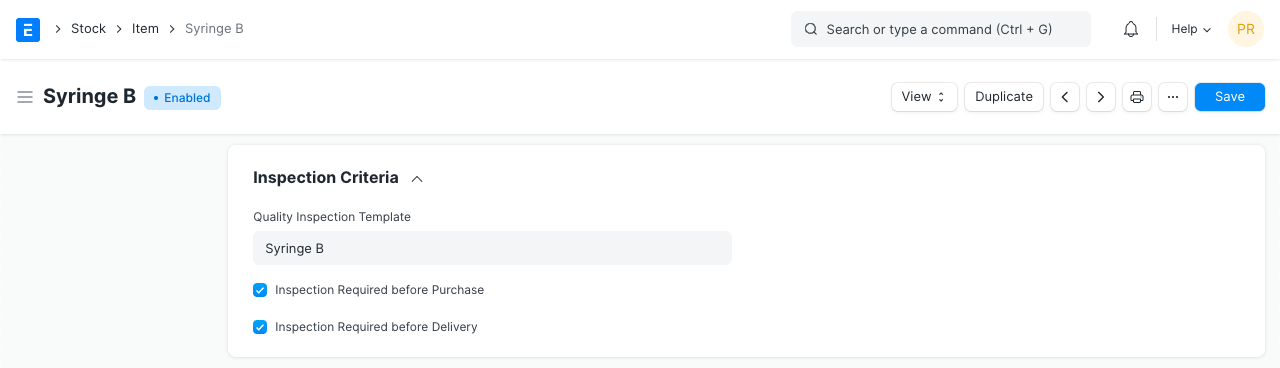
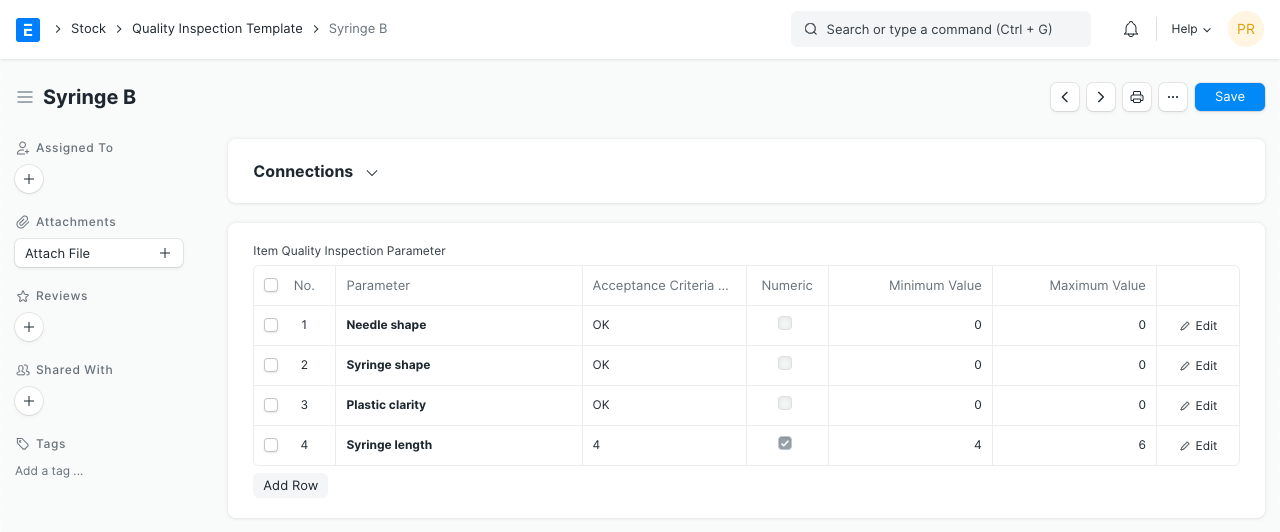
(Optional) Make a template for quality inspections. The template, which is simple to fetch into any Quality Inspection, allows you to add inspection parameters and acceptance criteria. You can set this template in the Item Master after saving it (as shown above).
2. How to create a new Quality Inspection
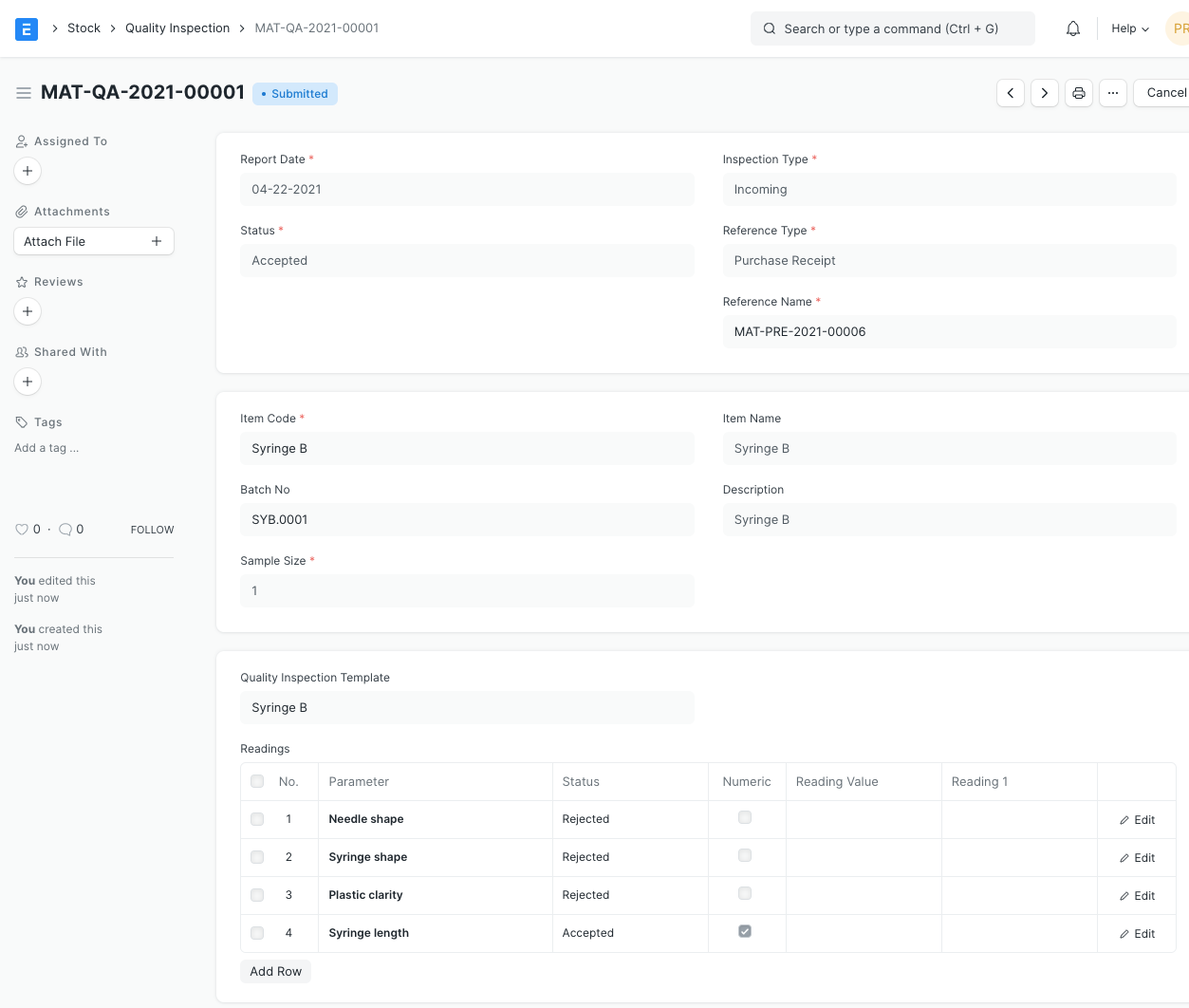
Go to the Item table's Quality Inspection field from a Draft Purchase Receipt/Delivery Note and select Create a New Quality Inspection. To keep track of the quality of products being processed, you can also construct a Quality Inspection for Work Card. In this situation, you can create a Quality Inspection in the Job Card for the Production Item.
Choose whether to have an incoming (purchase), outgoing (sales), or in-process inspection (Manufacturing).
Choose the reference document type from Stock Entry, Job Card, Delivery Note, Purchase Invoice, or Purchase Receipt.
Choose the item to be inspected and decide on the sample size. Keep in mind that only items whose Inspection Criteria have been activated in the item master will be fetched.
It will fetch the Quality Inspection Template specified in the Item Master.
You can add or remove the people who check it out and modify who inspects it.
Any additional comments regarding the inspection are welcome.
8.Save. Change the Status. Submit.
3. Features
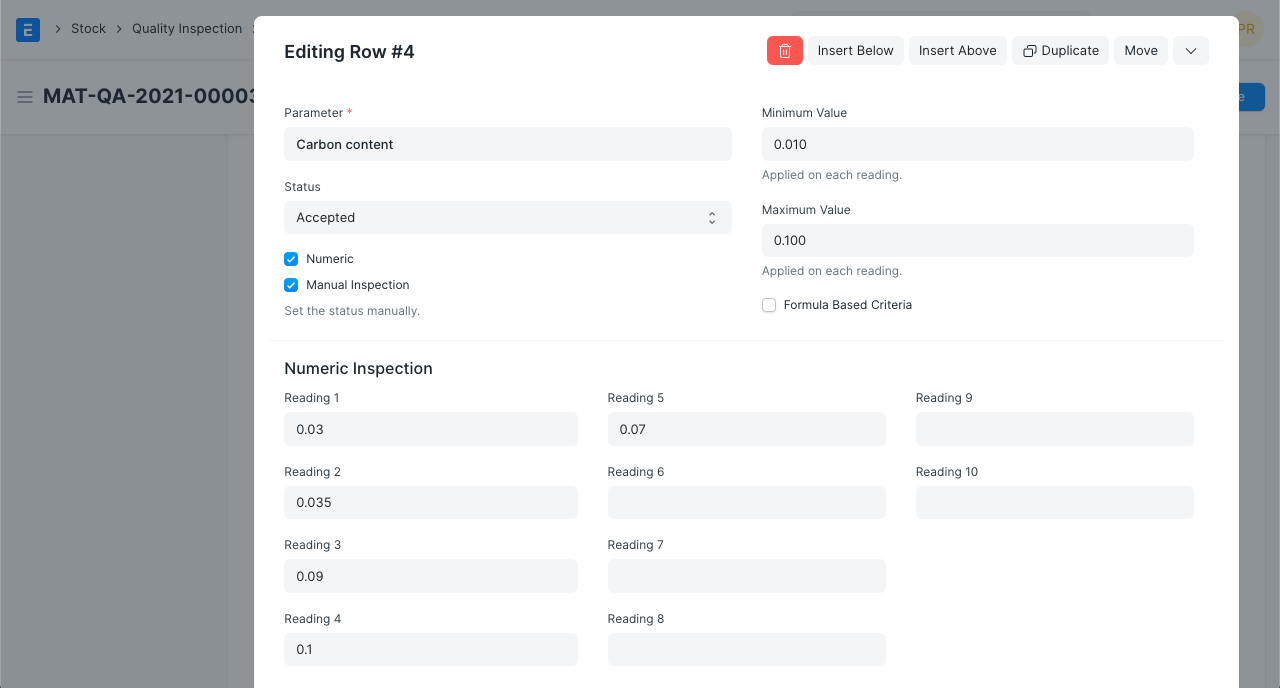
Several Quality Checks (Parameters) make up a single Quality Inspection. Any of these checks could be formula-based, non-formula-based, or both.
3.1 Numeric Quality Checks
Any quality checks that call for numerical readings and acceptance standards are categorized as numeric quality checks.
As in determining if a reading falls within a certain range.
The checks are numerical by default. In order to specify a range that each reading must fall within, there are two fields: Minimum Value and Maximum Value. Once they are established in the quality inspection template, these fields can be easily retrieved and used in the quality inspection.
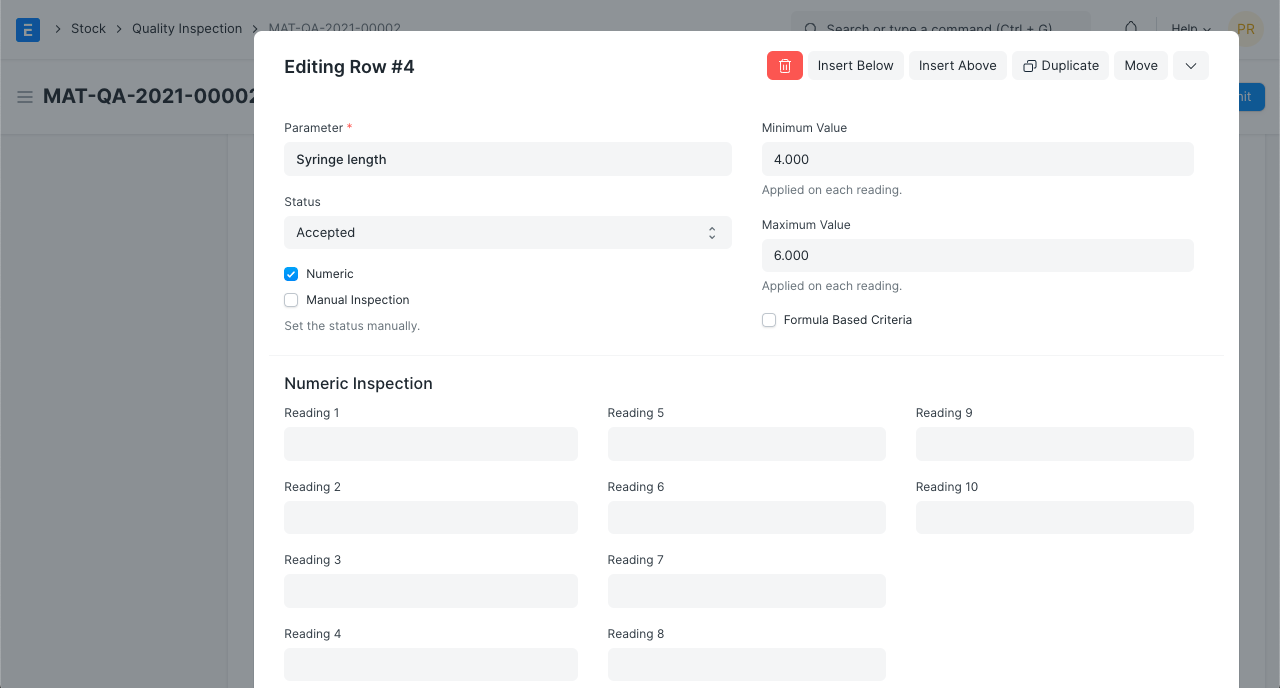
Any measurements submitted that fall outside of this range will cause the row's status to be automatically changed upon saving to "Rejected."
Non-numeric Quality Checks are those that call for alphabetical values or don't need any mathematical computations to complete.
For instance, determining if a color is white during a color quality check, determining Yes/No values for particular parameters, etc.
Enable the "Non-numeric" checkbox to use non-numeric checks. You'll see the section Value-Based Inspection and the field Acceptance Criteria Value are both present.
Fill out the Reading Value field. Once established in the quality inspection template, the acceptance criteria value can then be retrieved and used in the quality inspection.
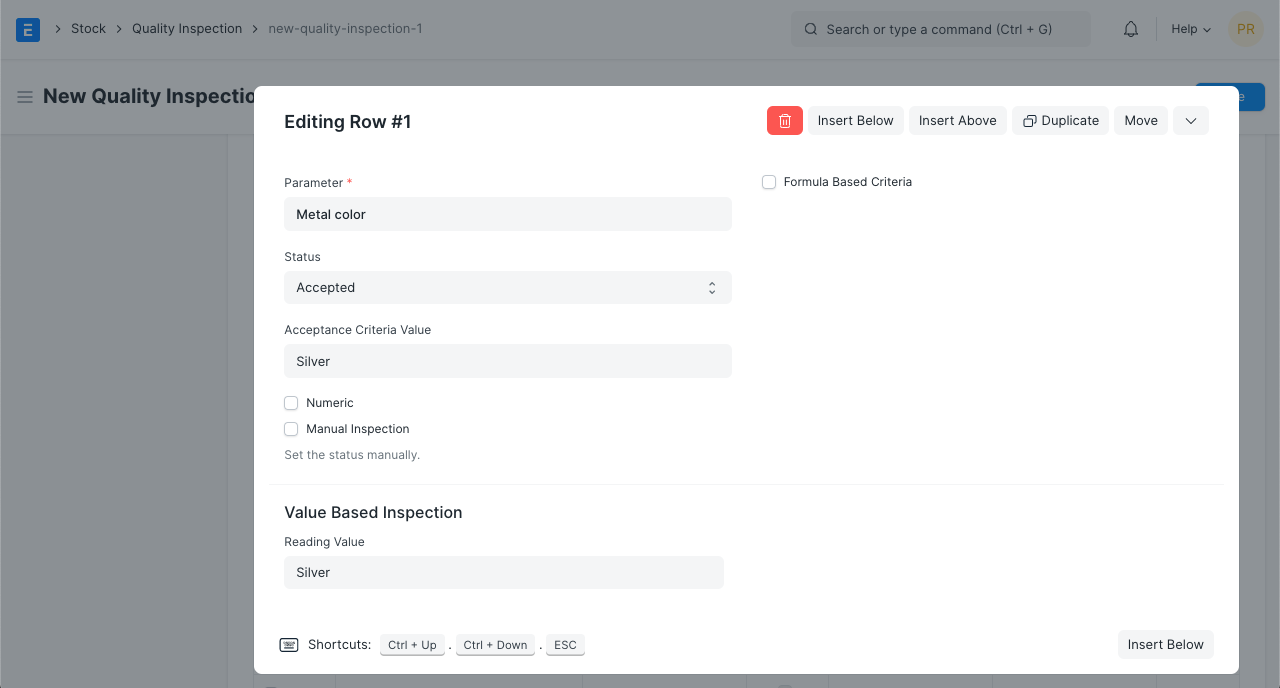
The status of the row will be immediately changed to "Rejected" on saving if the Reading Value does not match the Acceptance Criteria Value.
3.3 Formula-Based Quality Checks
For more complicated situations when merely stating a range or an accepted value is insufficient, formula-based quality checks can be helpful.
For instance, determining whether a material's grade is A, B, or C, determining whether the mean of a few readings falls within a certain range, etc.
Both numerical and non-numeric quality checks are subject to formula-based quality checks.
To execute a Formula-Based Quality Check, choose the checkbox next to "Formula Based Criteria." Then you'll see a field labeled Acceptance Criteria Formula where you may enter a formula to decide whether a specific check is Accepted or Denied. This formula can be entered into the quality inspection after being once set in the quality inspection template.
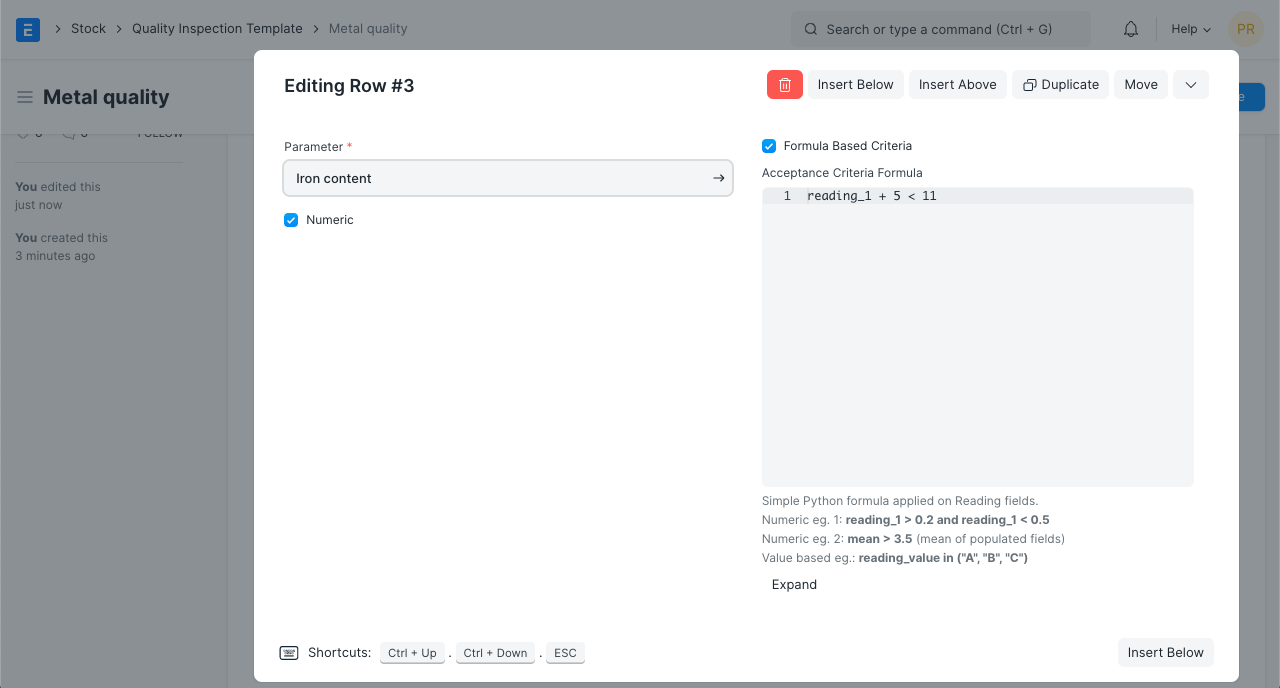
3.3 Manual Inspection
All Quality Checks have so far had immediate approval or rejection upon saving. There may be instances where a check is refused in the real world but nonetheless accepted because of some tolerance.
The user will need to ascertain the row-level status in such circumstances. The "Manual Inspection" selection should be enabled to prevent any system intervention with such tests. Now that you may manually change the status, Save will leave it unchanged.