Stock Reconciliation
Stock Reconciliation
The process of periodically counting and analyzing goods at year-end is known as stock reconciliation.
The goal of doing this is to:
Keep the book stock count and actual physical stock count in sync.
In order to prepare the accounting statements, value the stock.
Uses for ERPNext's Stock Reconciliation feature include:
- Posting opening stock
- Reconciling book and actual stock
To access the Stock Reconciliation list, go to:
Home > Stock > Tools > Stock Reconciliation
1. How to Create a Stock Reconciliation to Post Opening Stock
The amount of particular items present in a warehouse as of a particular time can be updated via stock reconciliation. Stock items with serial numbers or batch numbers can also be added.
Click on New in the Stock Reconciliation list.
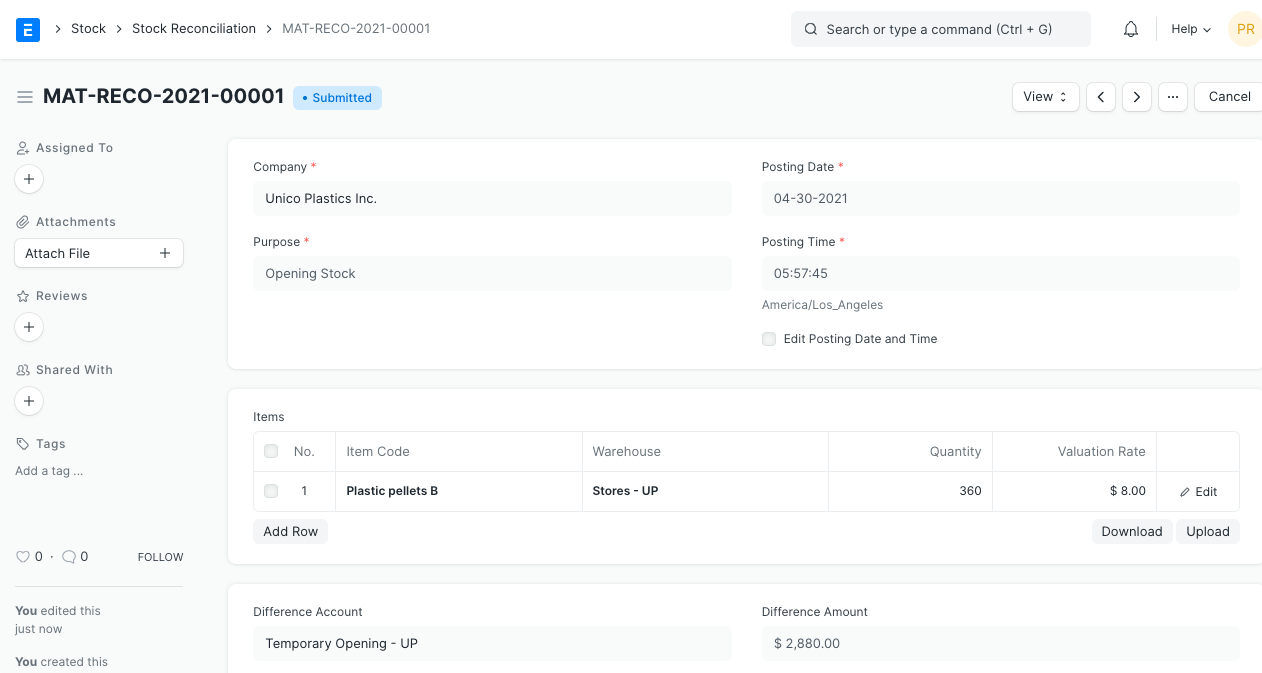
Choose "Opening Stock" for the Purpose. The posting time and date can be changed.
Choose the Warehouse, Quantity, Item Code, and Valuation Rate. Include a serial or batch number if applicable.
Keep those fields empty if you want Serial No. and Batch No. to be generated automatically.
You must set "Serial Number Series" in the Item master for Serial No. to be generated automatically.
You must check the "Automatically Generate New Batch" checkbox in the item master in order for Batch No. to be generated automatically.
It will be decided to set the Difference Account as "Temporary Opening."
Publish and save.
Note: Maintain Stock option should be enabled in Item master for this to work.
2. How to Create a Stock Reconciliation to Reconcile Book and Physical Stock Count
Stock reconciliation is the process of periodically and at year-end valuing stock-in-trade to determine the total stock for preparing financial statements. The system is examined and the real physical supplies are recorded throughout this phase. The system's stock and the actual stock should match up and be accurate. If not, you can use the Stock Reconciliation tool to compare the balance and value of your stock to what actually happened.
Stock reconciliation
Choose New from the Stock Reconciliation list by going there.
Choose "Stock Reconciliation" as the purpose. The posting time and date can be changed.
Set Warehouse and Item Code.
You can adjust the quantity as necessary after retrieving the current quantity and valuation rate.
The default setting for the expense account in the difference account is "Stock Adjustment."
Change the default Cost Center, which is set to "Main," as necessary.
Publish and save.

3. Features
3.1 Upload Data Through Spreadsheet
You can upload the information using a spreadsheet if you have a lot of items.
- Download Template
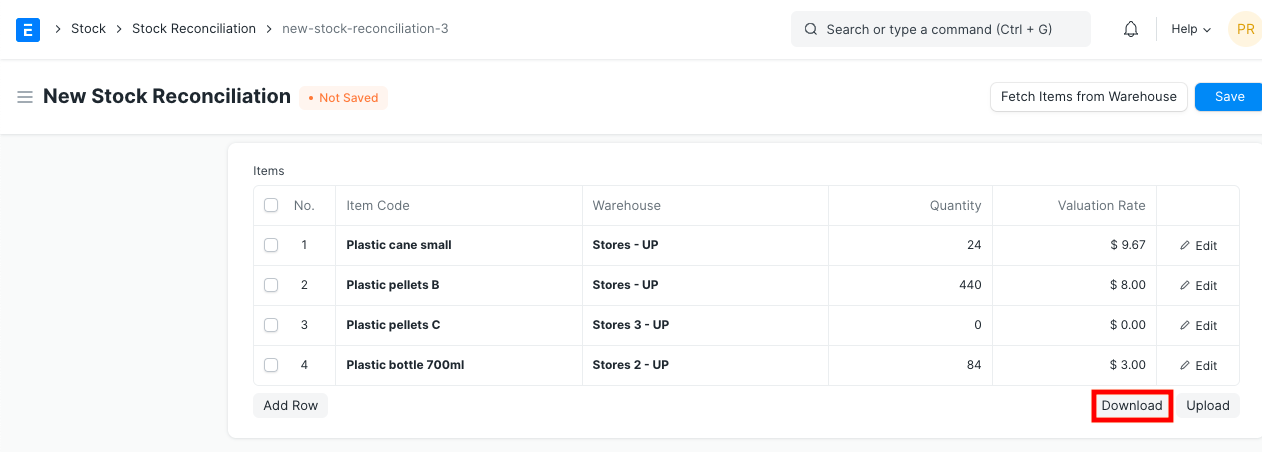
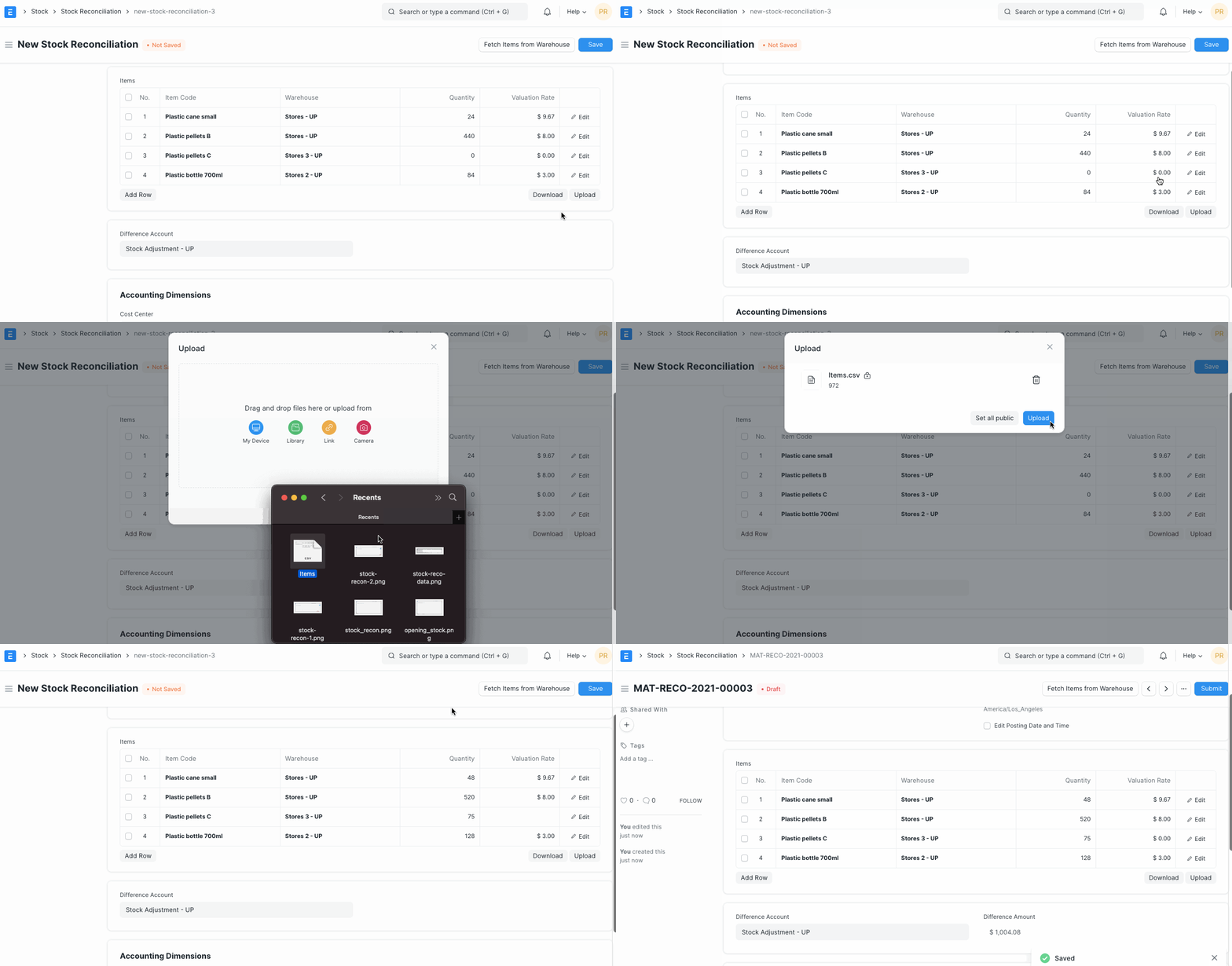
Click the Download button to obtain the template in CSV format after opening a new Stock Reconciliation.
- Enter Data in CSV Template.
The CSV format takes case into account. The template's pre-set headers should not be changed. Enter the exact Item Code and Warehouse as created in your ERPNext account in the Item Code and Warehouse column. Enter the stock level you want to set for that item in a particular warehouse under quantity.

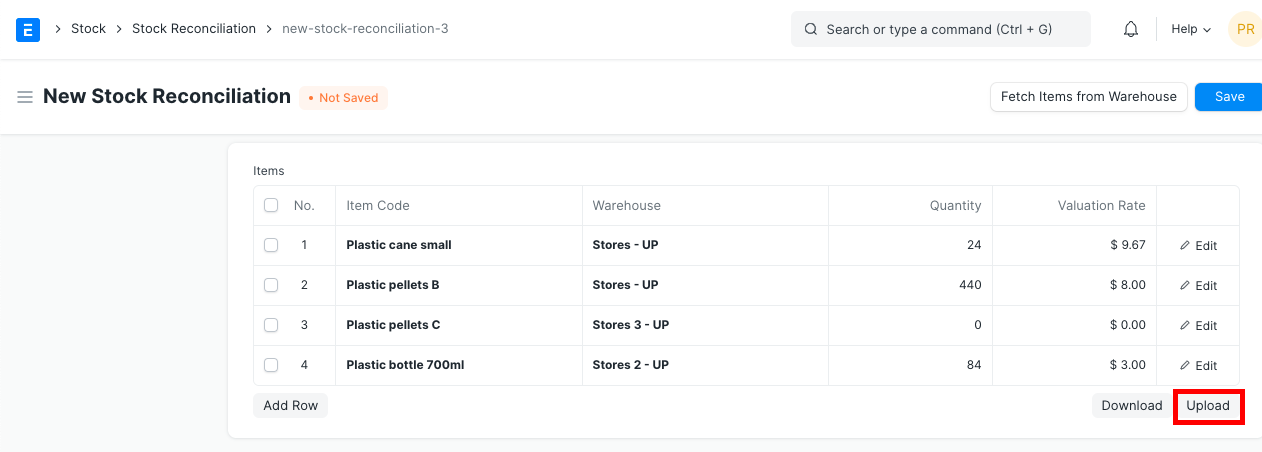
- Click the "Upload" button to add the CSV file containing the data.
- Review, Save and Submit.
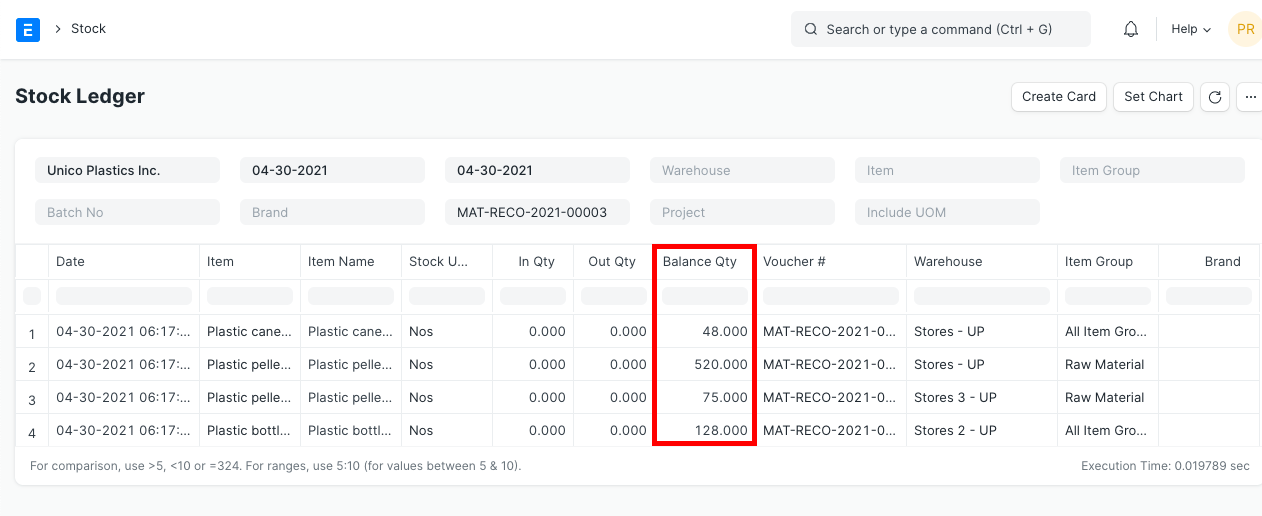
- Check Stock Ledger Report for updated stock balance.
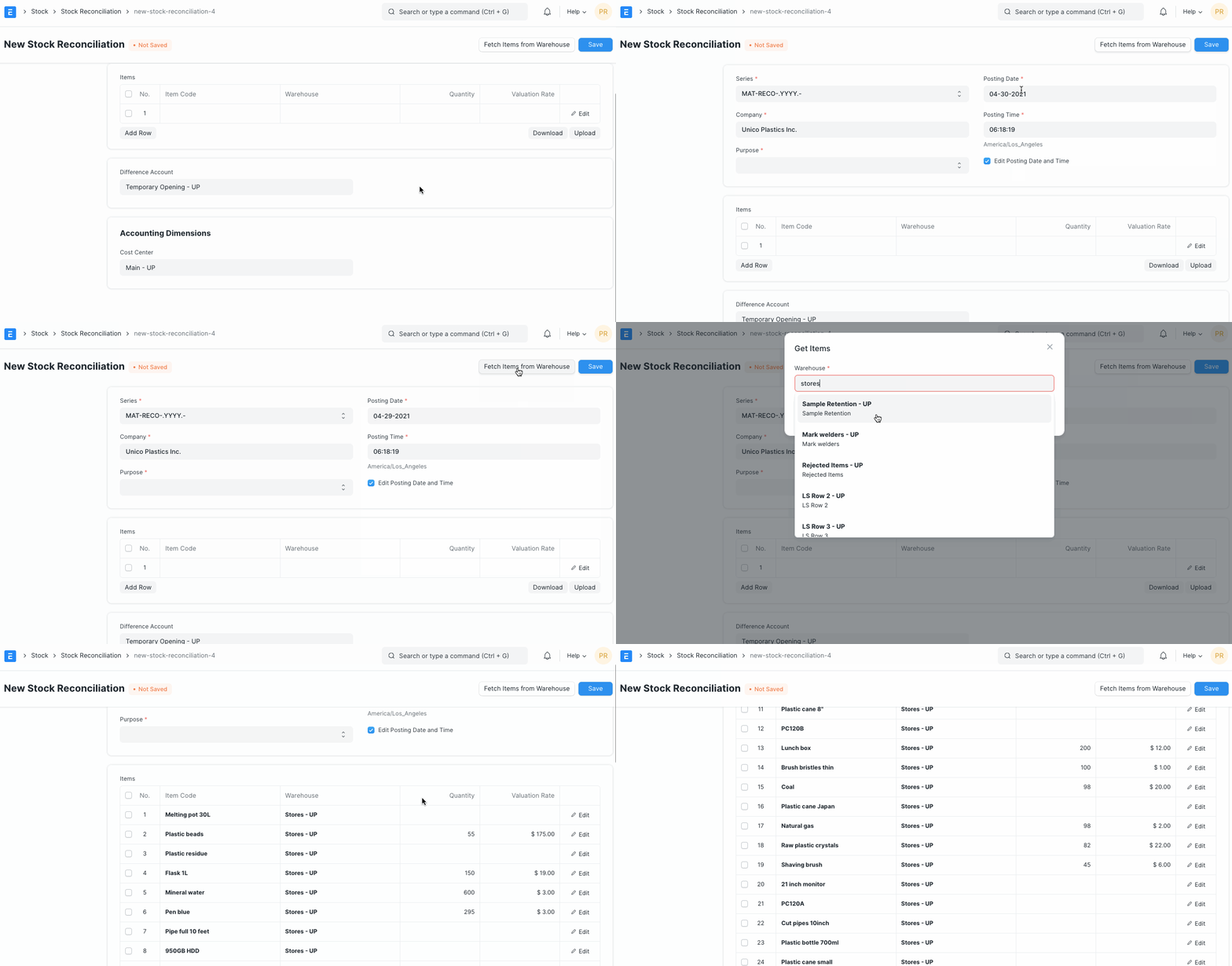
3.2 Get Stock Balance and Valuation as of Specific Date and Time
By selecting the Items button, you can import the stock value and balance as of a particular date and time from a chosen Warehouse. The Quantity and Valuation Rate can be updated as necessary.
3.3 Using barcode scanner to scan physical inventory
To reconcile physical amounts, use a barcode scanner if you've set up barcodes for your goods. Follow these steps to do this:
Default warehouse settings
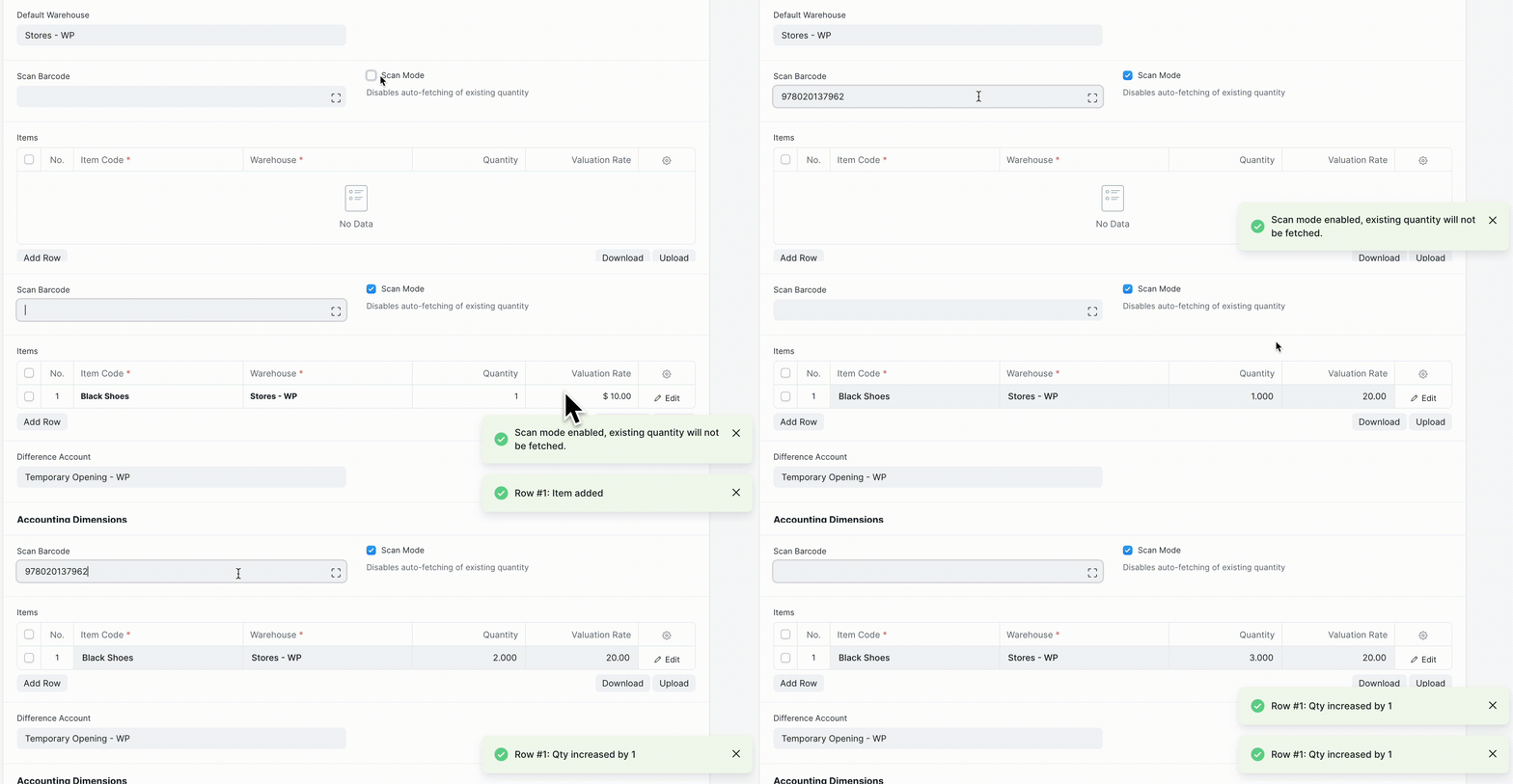
Activate "Scan Mode" to stop existing quantity fetching and start adding amounts by incrementally scanning objects.
Use your barcode scanner to send information by clicking the "Scan Barcode" section. When you scan objects, the reconciliation items table will continue to be updated. The procedure is demonstrated in the video below.
4. How Stock Reconciliation Works
Even if future stock transactions have a posting date that is earlier than the stock reconciliation date, once a stock reconciliation is posted to update the quantity on a given date and time for an item in a warehouse, it cannot be changed. In other words, after a Stock Reconciliation entry is posted, backdated entries won't affect the stock figures.
4.1 For non-serialized Items
Imagine an item in a "Mumbai" warehouse with the code "ABC001." Assume the stock was 100 units on January 10. On January 12th, a stock reconciliation is performed to put the stock balance at 150 units.
The Stock Ledger would appear as follows:
The Stock Ledger would appear as follows if a new Purchase Receipt entry was made on January 5, 2014, which is before the date of the Stock Reconciliation entry.
As you can see, the Balance Qty was adjusted from 100 to 120 as of January 10th. Yet, the Balance Quantity as of January 12th was not changed from 150 to 170.
4.2 For Serialized Items
For an item, ITEM-00225, the valuation rate is 530 per serial number and the item has 6 serial numbers: HJF00020, HJF00021, HJF00022, HJF00023, HJF00024, and HJF00025. The user discovered at the end of the year that the item only had 3 Serial Nos associated with it and a Valuation Rate of 620. Stock Reconciliation can be used as follows to remove the old serial numbers HJF00020, HJF00021, HJF00022, HJF00023, HJF00024, and HJF00025 and add the new serial numbers with the new valuation rate:
When you choose ITEM-00225 in the stock reconciliation, the system will automatically retrieve the serial numbers that are currently in use. Then, set the quantity to 3 and the serial numbers HJF00026, HJF00027, and HJF00028.
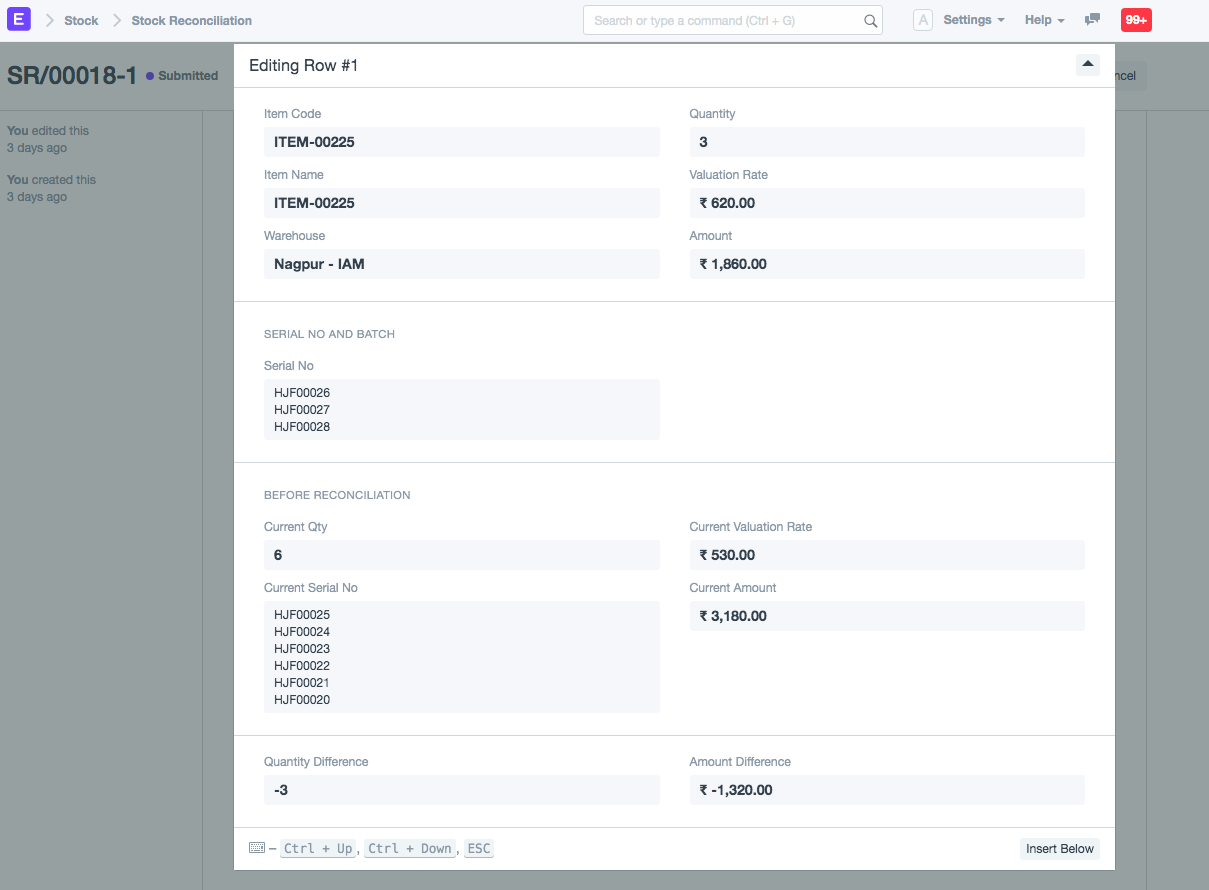
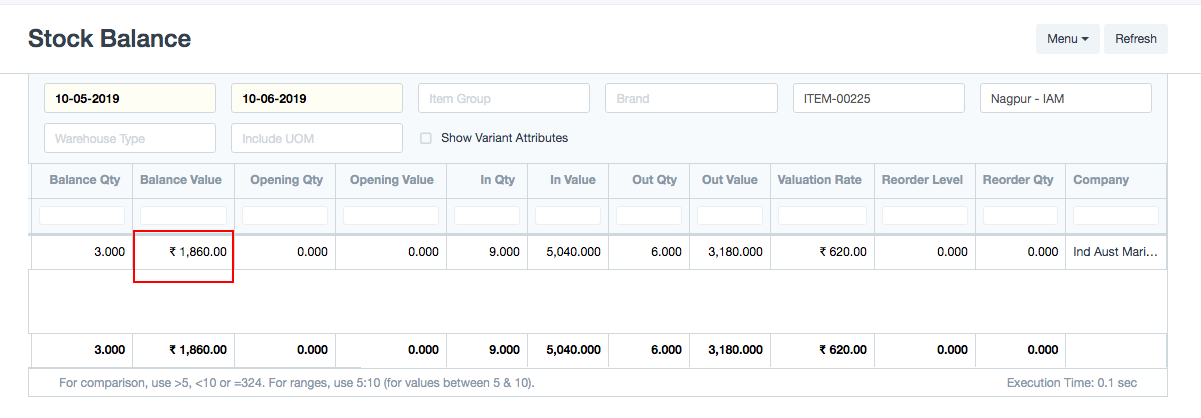
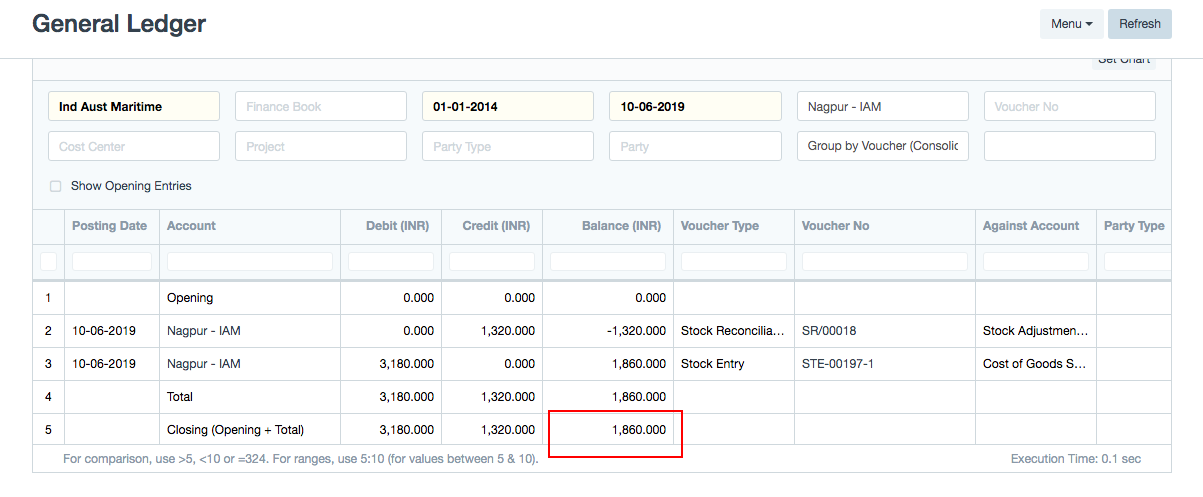
The total stock value was 3,180 prior to reconciliation because the available quantity was six and the valuation rate was 530. Following reconciliation, the available quantity has increased to 3 and the valuation rate has decreased to 620, resulting in a new stock value of 1,860. The system has credited an extra sum of $3,180 - $1,860 = 1,320 to the Warehouse's account and debited a stock adjustment account to change the stock value in the accounting. The following are the GL entries for the above entry:
Click the View > Accounting Ledger button to view GL entries.

The stock balance following the stock reconciliation submission:
the general ledger for the Nagpur warehouse account following the stock reconciliation submission:
4.3 For Batch Items
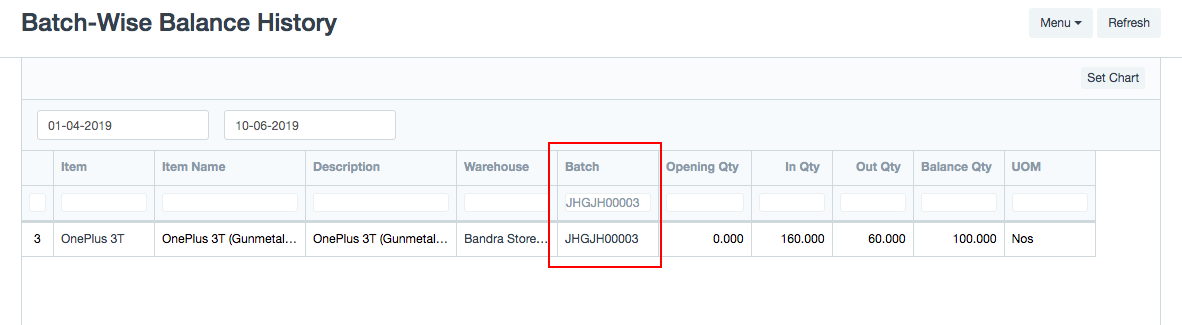
To create a new batch or change the quantity of an existing batch, stock reconciliation for batch items will be used. For instance, the batch JHGJH00003 now has a quantity of 60; however, if the user wants to increase it to 100, they can do so by using stock reconciliation.
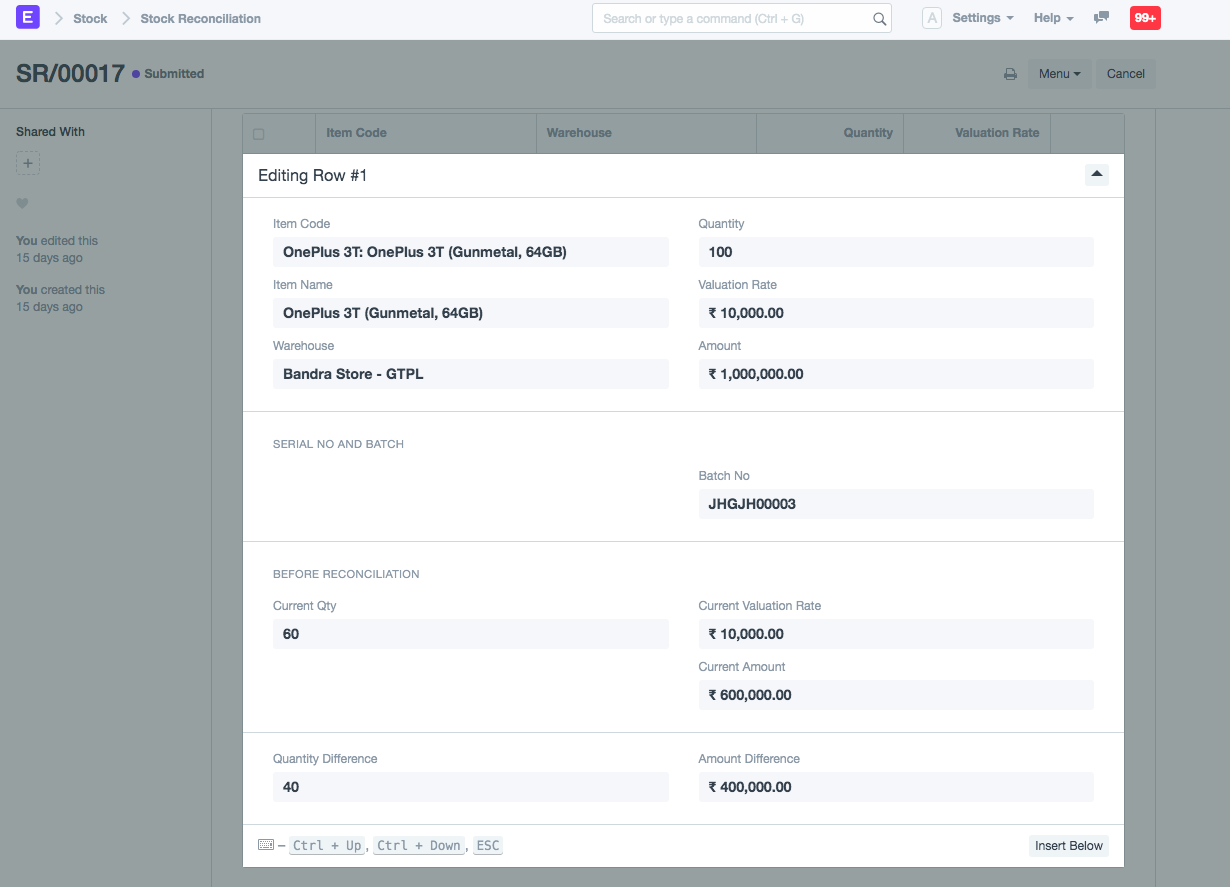
Batch-Wise Balance History report after submission of the stock reconciliation: