Shipment
Shipment
A Shipment is a record that catalogs actual Shipments made in response to a Delivery Notice or on their own.
Introduced in version 13
Shipments are especially helpful for shippers that wish to monitor all of their shipment data within ERPNext, including AWB Number, Shipment Status, Carrier, etc.
Go to: to access the shipment list.
Home > Stock > Stock Transactions > Shipment
1. Prerequisites
It is recommended that you first create the following items before generating and using a shipment:
- Company and Customer Address with Postal Code, Email Address and Phone Number set.
- Customer Contact
2. How to create a Shipment
A delivery note or manually creating a shipment are both options:
2.1. Manual Shipment
Follow these procedures to manually create a shipment:
- Click New from the Shipment list.
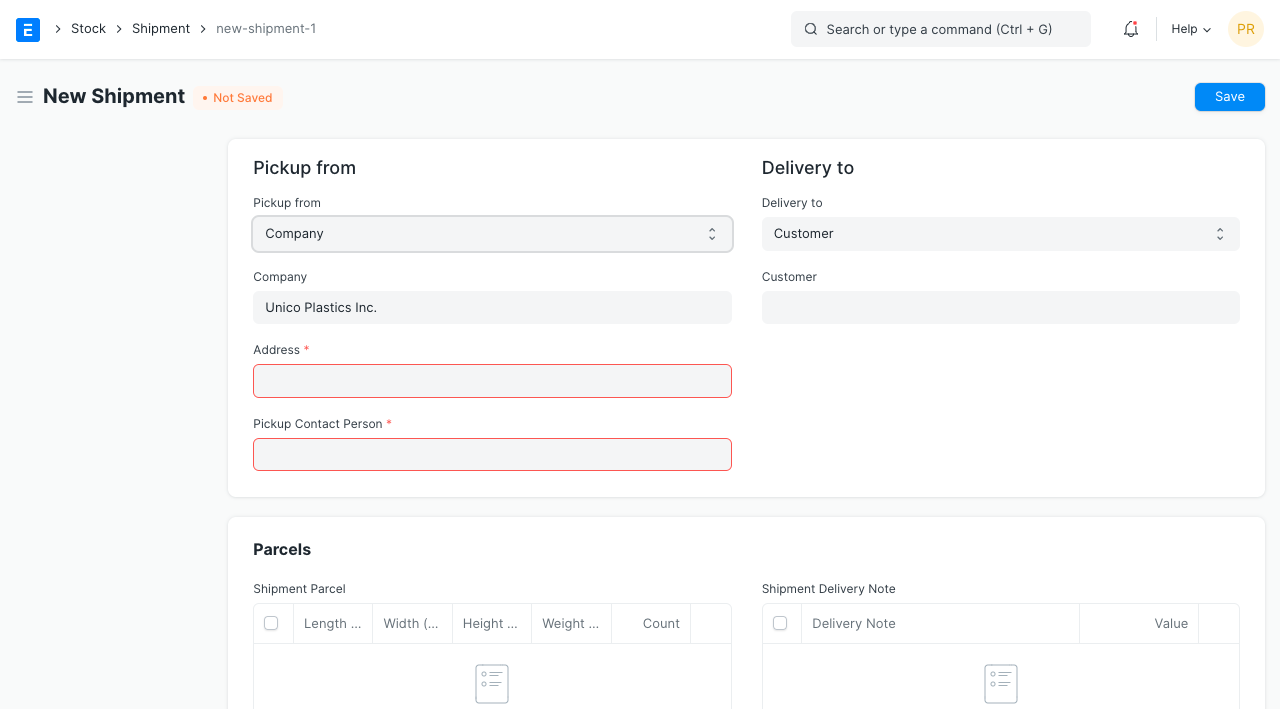
In the Pickup from field, pick a choice. You will be asked to choose a company/supplier/customer after choosing one of the three possibilities.
With ERPNext, if you choose "Company" for the Pickup from option, you also need to choose a Pickup Contact Person who will be a member of your company. Verify that this user's Last Name, Email Address, and Phone Number are all set.
Similarly, you can complete the Delivery To section.
In the Shipment Parcel database, add Shipment Parcel Information.
Enter the value of the goods.
Choose a date for pickup.
Provide a description of the shipment's contents.
If you are manually tracking Shipments, you may choose to fill out the Shipment Details area.
Publish and save.
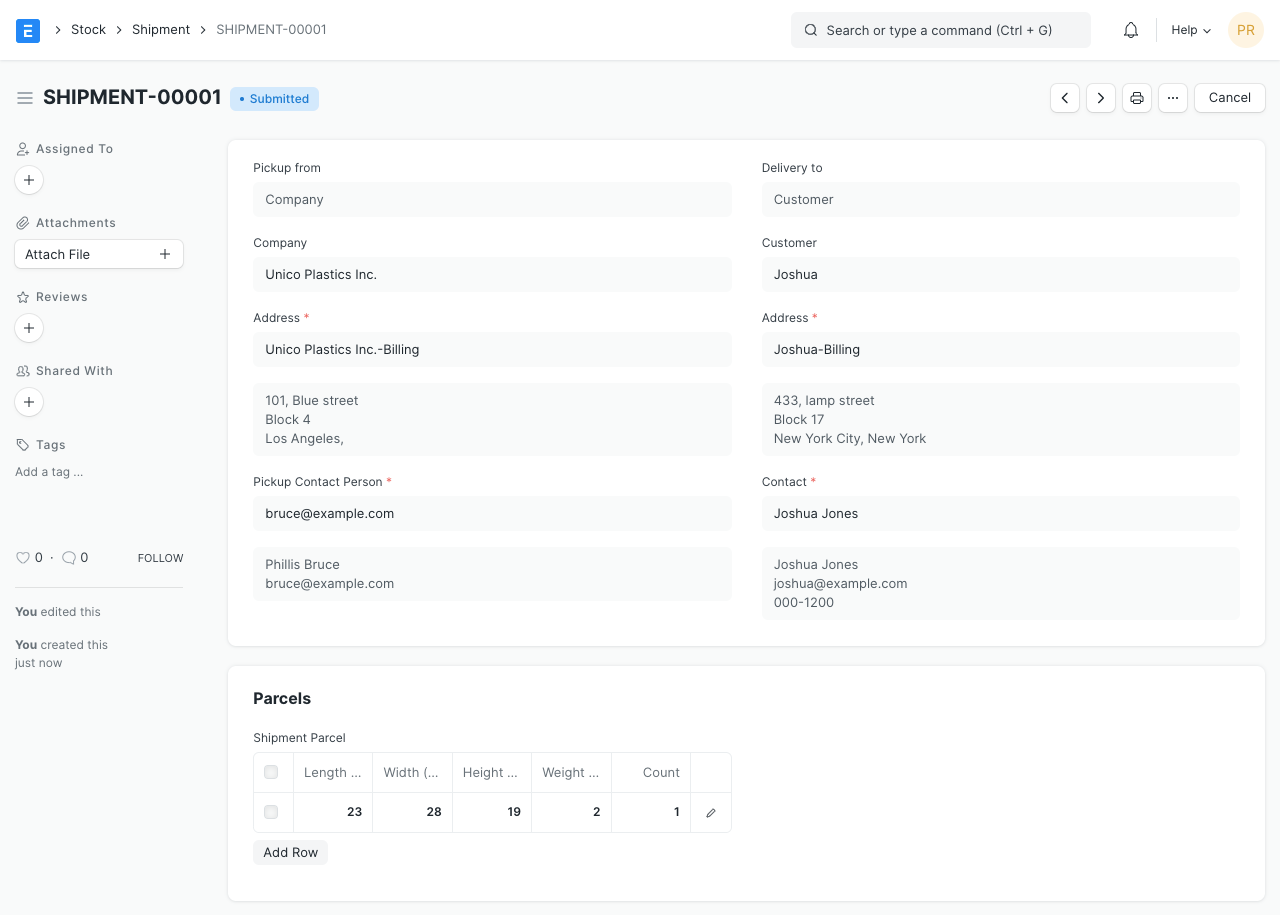
2.1. Shipment from Delivery Note
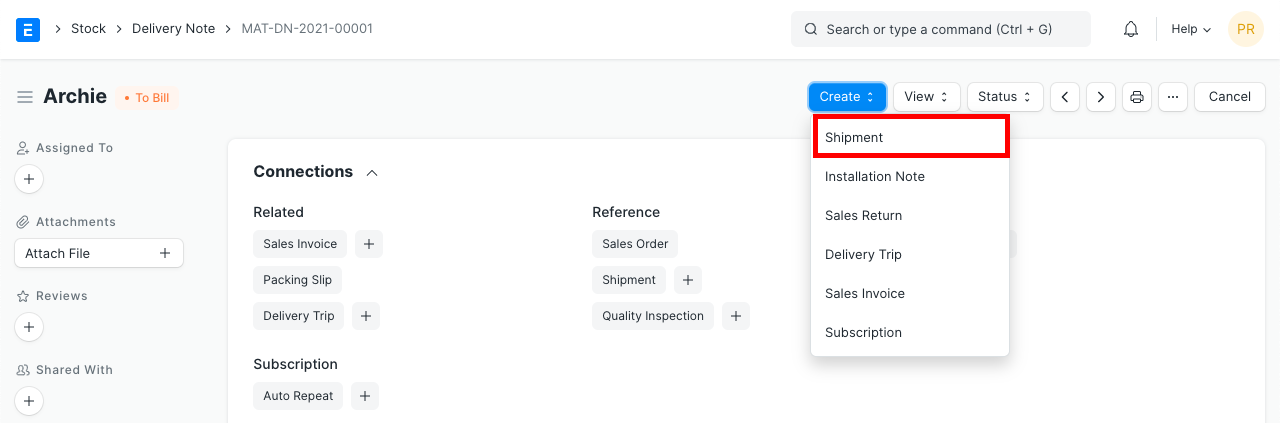
Making a Shipment out of a Delivery Notice
- Under the Delivery Note, select Shipment by clicking New.
- As specified in the preceding section, complete the form.
3. Features
3.1. Shipment Parcel
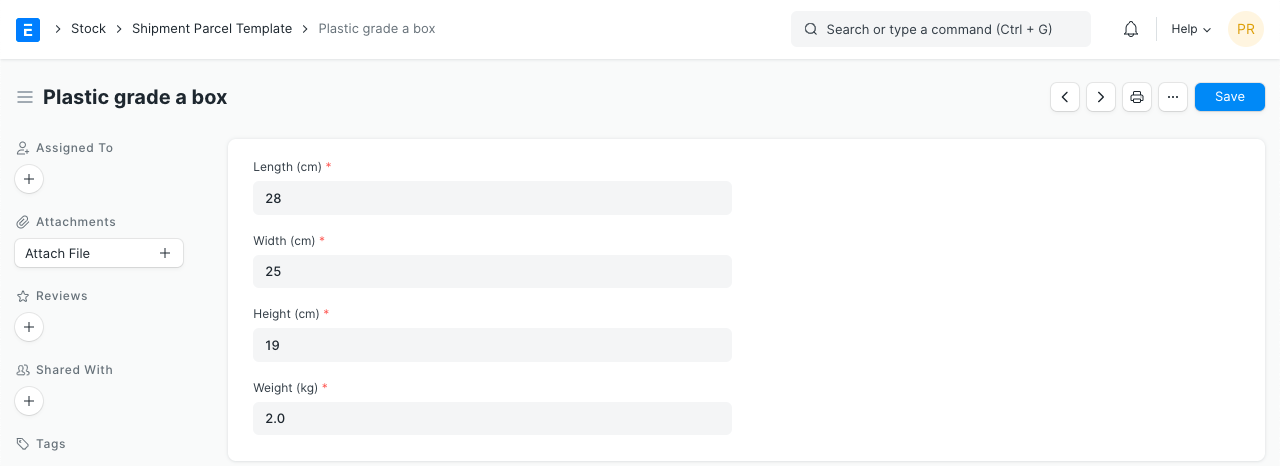
The length, width, height, and weight of a package can all be specified in the shipment. The count field can be adjusted if more than one parcel has identical dimensions.
A Parcel Template can be constructed and set in the Parcel Template field to automatically retrieve frequently used parcel dimensions. Click the Add template button after adding the template.
3.2. Shipment Information / Details
A user can manually track shipment details in the optional Shipping Information section. Some of the fields are as follows:
- Service Provider An optional third-party service that offers shipping services from several carriers can be a service provider.
- Shipment ID: your shipping platform's distinctive Shipment ID.
- Shipment Amount: Total expense for shipping.
- Carrier: The Transporter who manages and delivers your shipment.
- Carrier Service The type or category of service that the carrier offers (optional). For instance, several companies have sections for Economical, Express, etc.
- AWB Number: International air freight is transported with an air waybill (AWB). An air courier is typically identified and tracked easily thanks to its distinctive AWB Number.
- Incoterm: They are a set of accepted international laws outlining the obligations of both buyers and sellers. Learn more about it right here.
3.3 Automation
Using our Shipping Integration, you can automate rate comparison, label creation, tracking, and other tasks.