Purchase Invoice
Purchase Invoice A purchase invoice is a statement that you receive from your suppliers and must pay. The Sales Invoice is exactly the opposite of the Buy Invoice. In this case, you accrue costs to your Supplier. Creating a purchase order and a purchase invoice are fairly comparable processes.
Go here: to retrieve the list of purchase invoices.
Accounting > Payable Accounts > Purchase Invoice

1. Prerequisites
It is suggested to first create the following before making and using a purchase invoice:
1.Item 2.Supplier 3.Purchase Order 4.Purchase Receipt (optional)
2. How to create a Purchase Invoice:
Often, a purchase order or a purchase receipt is used to create a purchase invoice. The Purchase Invoice will be filled out with the Supplier's Item information. You can, nonetheless, simply produce a purchase invoice.
Click the Obtain Items from button to have the information pulled up automatically in a purchase invoice. The information is accessible via a purchase order or receipt.
Do the following actions for manual creation: 1.Go to the Purchase Invoice list, click on New. 2.Select the Supplier. 3.The posting date and time will be set to current, you can edit after you tick the checkbox below Posting Time. 4.Set the Due Date for payment. 5.dd Items and quantities in the Items table. 6.The Rate and Amount will be fetched. 7.Save and Submit.
.png)
2.1 Additional options when creating a Purchase Invoice
1.Is Paid: You can tick 'Is Paid' if the amount has already been paid via an Advance Payment Entry. This should be ticked if there is full or partial payment. 2.Is Return (Debit Note): Tick this if the customer has returned the Items. To know more details, visit the Debit Note page. 3.Apply Tax Withholding Amount: If the selected Supplier has a Tax Withholding Category set, this checkbox will be enabled. For more information, visit the Tax Withholding Category page.
2.2 Statuses
1.Draft: A draft is saved but yet to be submitted to the system. 2.Return: The Items have been returned to the Supplier. 3.Debit Note Issued: The Items have been returned and a Debit Note has been issued against the invoice. 4.Submitted: The Purchase Invoice has been submitted to the system and the general ledger has been updated. 5.Paid: Supplier has been fully paid the invoice amount and the corresponding Payment Entries have been submitted. 6.Partly Paid: Supplier has been paid a part of the invoice amount and the corresponding Payment Entries have been submitted. 7.Unpaid: The Purchase Invoice is yet to be paid. 8.Overdue: The due date has passed for payment. 9.Canceled: The invoice has been canceled due to some reason.
3. Features
3.1 Accounting Dimensions
Accounting Dimensions enables you to tag transactions according to a certain Region, Branch, Client, etc. This makes it easier to view accounting statements individually depending on the criteria you've chosen. Visit the Accounting Dimensions page to find out more.
Remember that by default, Project and Cost Center are viewed as dimensions.
3.2 Holding the Invoice
You might occasionally need to prevent the submission of an invoice. Check this box to "Hold Invoice" in order to postpone processing of the Purchase Invoice. Just prior to sending the invoice is this possible. When "Hold Invoice" is activated and the purchase invoice is submitted, the status is changed to "Temporarily on Hold."
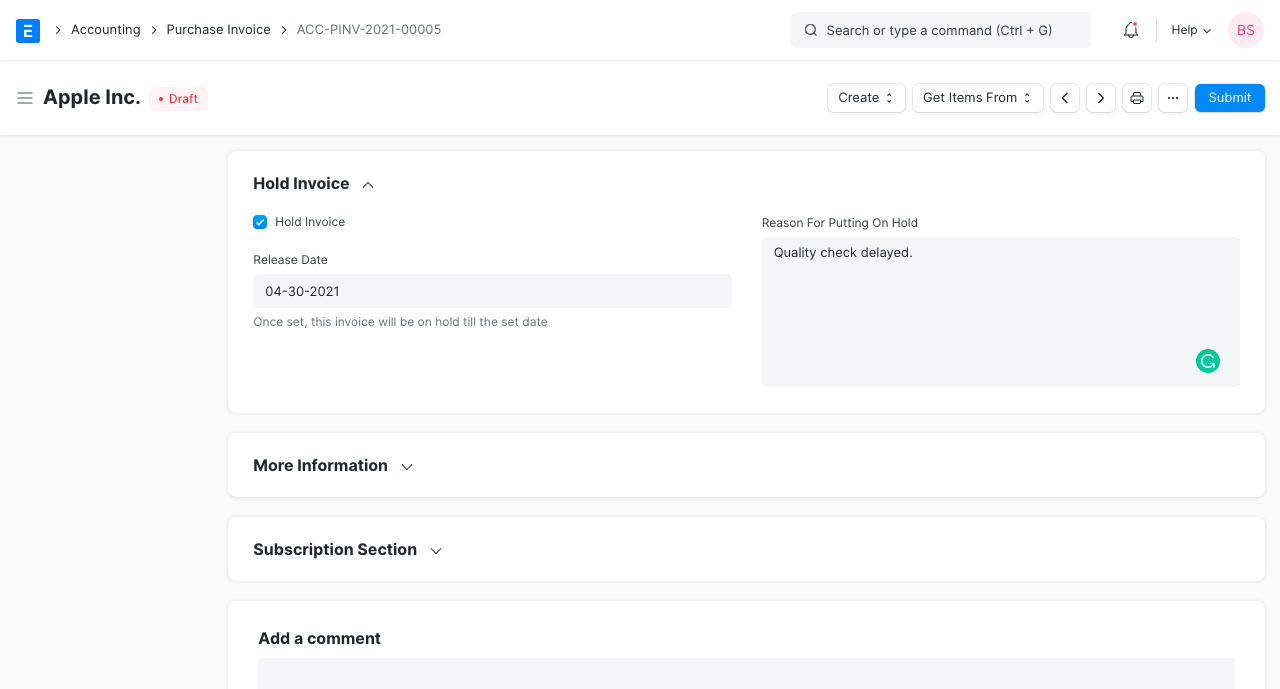
The "Hold Invoice" button, which is located at the upper right, can be used to amend the "Release Date" after the purchase invoice has been submitted.
You can utilize the "Block Invoice" option to delay a submitted purchase invoice, and the "Unblock Invoice" option to resume processing.
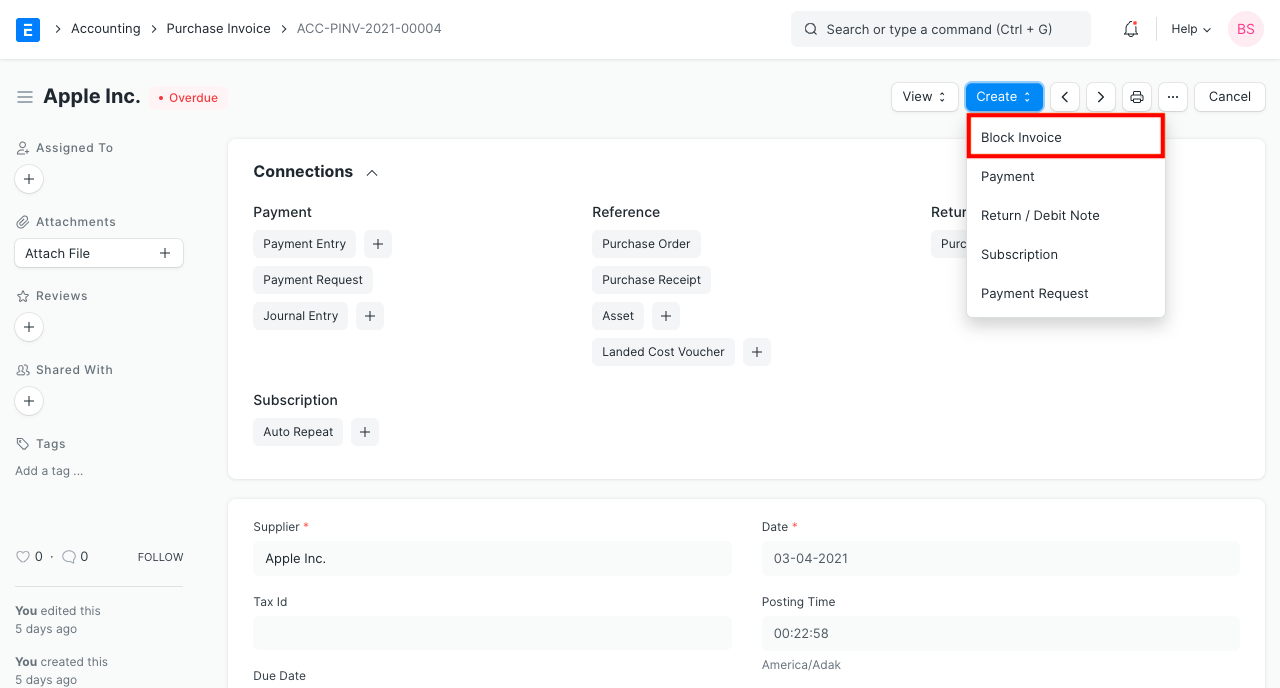
Suppliers may be put on hold, and this is holding at the invoice level. Find out more here.
3.3 Supplier Invoice Details
1.Supplier Invoice No: The Supplier may identify this order with a number of his own. This is for reference. 2.Supplier Invoice Date: The date on which the Supplier placed/confirmed your order from his end.
3.4 Address and Contact
1.Supplier Address: This is the Billing Address of the Supplier. 2.Contact Person: If the Supplier is a Company, the person to be contacted is fetched in this field if set in the Supplier form. 3.Shipping Address: Address where the items will be shipped to.
For GST purposes, the following information can be reported for India: 1.Supplier GSTIN 2.Place of Supply 3.Company GSTIN
3.5 Currency and Price list
The currency in which the order for the purchase invoice will be sent can be chosen. This information was taken from the purchase order. The item prices will be obtained from a pricing list if one has been set. The Pricing Rules defined in Accounts > Pricing Rule will not be followed if "Ignore Pricing Rule" is checked.
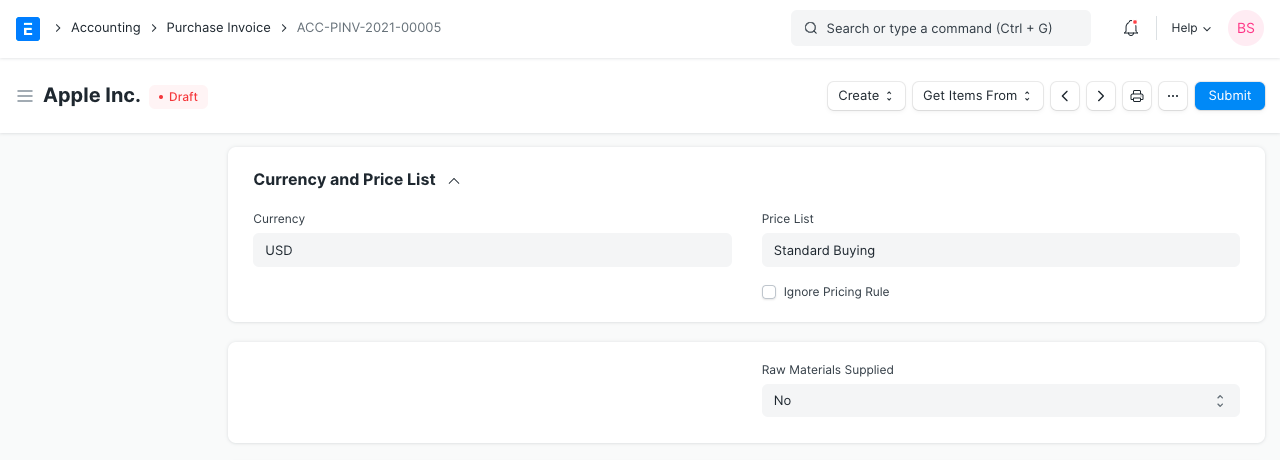
To learn more, read about Price Lists and Multi-Currency Transactions.
3.6 Subcontracting or 'Supply Raw Materials'
For subcontracting where you supply the raw ingredients to manufacture an item, setting the "Supply Raw Materials" option is helpful. Visit the Subcontracting page to learn more.
3.7 Items table
1.scan barcode: You can add Items in the Items table by scanning their barcodes if you have a barcode scanner. Read documentation for tracking items using barcode to know more.
2.The Item Code, name, description, Image, and Manufacturer will be fetched from the Item master.
3.Manufacturer: If the Item is manufactured by a specific manufacturer, it can be added here. This will be fetched if set in the Item master.
4.Quantity and Rate: When you select the Item code, its name, description, and UOM will be fetched. The 'UOM Conversion Factor' is set to 1 by default, you can change it depending on the UOM received from the seller, more in the next section.
5.'Price List Rate' will be fetched if a Standard Buying rate is set. 'Last Purchase Rate' shows the rate of the item from your last Purchase Order. Rate is fetched if set in the item master. You can attach an Item Tax Template to apply a specific tax rate to the item.
6.Item weights will be fetched if set in the Item master else enter manually.
7.Discount on Price List Rate: You can apply a discount on individual Items percentage-wise or on the total amount of the Item. Read Applying Discount for more details.
8.Item Weight: The Item Weight details per unit and Weight UOM are fetched if set in the Item master, else enter manually.
9.Accounting Details: The Expense account can be changed here you wish to.
10.Deferred Expense: If the expense for this Item will be billed over the coming months in parts, then tick on 'Enable Deferred Expense'. To know more, visit the Deferred Expense page.
11.Allow Zero Valuation Rate: Ticking on 'Allow Zero Valuation Rate' will allow submitting the Purchase Receipt even if the Valuation Rate of the Item is 0. This can be a sample item or due to a mutual understanding with your Supplier.
12.BOM: If there is a Bill of Materials created for the Item, it'll be fetched here. This is useful for reference when subcontracting.
13.Item Tax Template: You can set an Item Tax Template to apply a specific Tax amount to this particular Item. To know more, visit this page.
14.Page Break will create a page break just before this Item when printing.
Update Stock
Note: Starting with version 13, we included an immutable ledger, which modifies the guidelines for erasing stock entries and publishing transactions for stock that was purchased in the past. Find out more here.
If you want your inventory to be updated automatically by ERPNext, make sure the Update Stock checkbox is selected. Hence, a Delivery Notice won't be required.
3.8 Taxes and charges
The Purchase Order or Purchase Receipt will be used to get the Taxes and Charges.
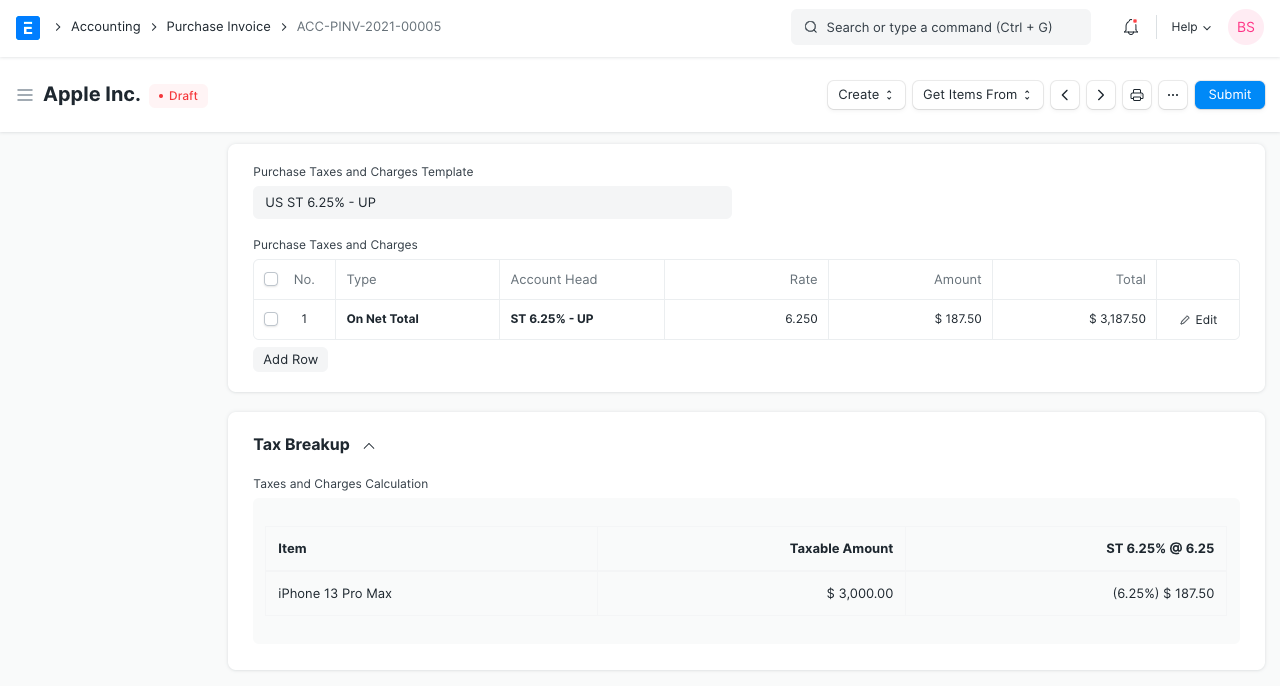
To learn more about taxes, go to the Purchase Taxes and Charges Template page.
Below the table, the total taxes and fees will be shown.
Visit this page to learn how to automatically add taxes using a Tax Category.
For a correct valuation, ensure that all of your taxes are accurately marked in the Taxes and Charges table.
Shipping Rule A shipping rule aids in determining an item's shipping cost. The price will often rise as shipping distance increases. See the Shipping Rule page for further information.
3.9 Additional Discount
This area can be used to set any additional discounts that apply to the entire invoice. This discount may be based on either the Gross Total (i.e., after taxes and fees) or the Net Total (i.e., before taxes and fees). A percentage or dollar amount may be used to apply the additional discount.

For further information, go to the Applying Discount page.
3.10 Advance Payment
Prior to executing an order for high-value items, the vendor may want an advance payment. A window is opened when you click the Obtain Advances Received button, allowing you to get the orders for which an advance payment was received. Visit the Advance Payment Entry page to learn more.
3.11 Payment Terms
Depending on your agreement with the Supplier, you may pay an invoice in installments. If specified in the Purchase Order, this is fetched.

See the Payment Conditions page for additional information.
3.12 Write Off
When the customer pays less than the invoice amount, a write-off occurs. That might only be a 0.50 difference. This might build up to a significant sum over the course of multiple orders. This amount of the difference is "written off" for accounting purposes. See the Payment Conditions page for additional information.
3.13 Terms and Conditions
There may be specific Terms and Conditions in Sales/Purchase transactions on the basis of which the Supplier supplies goods or services to the Customer. The Terms and Conditions can be applied to transactions, and they will show up when you print the paper. Click here to learn more about the terms and conditions.
3.14 Printing Settings
Letterhead Your purchase invoice can be printed on letterhead from your business. Find out more here.
The option "Group same items" will group identical items added more than once to the Items table. When you print, this will be evident.
type headings While printing the document, the heads on the purchase invoice can also be modified. This can be accomplished by choosing a Print Heading. Go to Home > Settings > Printing > Print Heading to add new print headings. Find out more here.
When the item is expensive, there are additional checkboxes that allow you to print the purchase invoice without the price. When printing, you can also arrange related items into a single row.
3.15 GST Details (for India)
For GST, the following information can be set: 1.GST Category 2.Invoice Copy 3.Reverse Charge 4.E-commerce GSTIN 5.Eligibility For ITC 6.Availed ITC Integrated Tax 7.Availed ITC Central Tax 8.Availed ITC State/UT Tax 9.Availed ITC Cess
3.16 More Information
1.Is Opening Entry: Check the box if this is an opening entry that will have an impact on your accounts. For instance, you could wish to use an Opening Entry to update account balances in ERPNext if you're migrating from another ERP in the middle of the year. 2.Comments: Feel free to include any extra comments regarding the purchase invoice below.
3.17 After Submitting
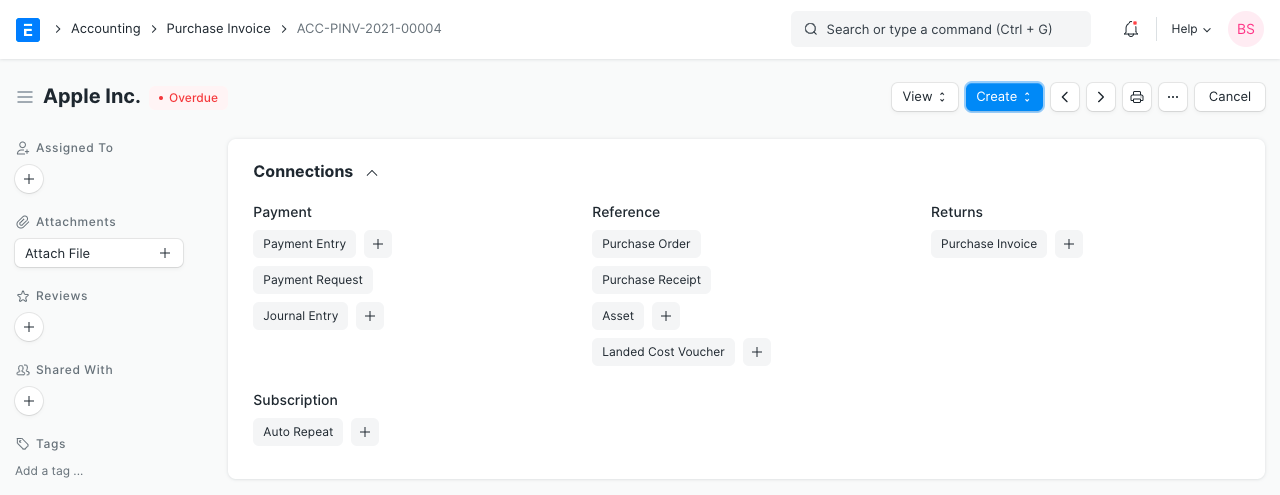
The following papers can be generated in response to a purchase invoice: 1.Journal Entry 2.Payment Entry 3.Payment Request 4.Landed Cost Voucher 5.Asset
4. More
4.1 Effect on Accounting On a purchase invoice, you must create an expense or asset account for each row in your items table, just like in a sales invoice. This aids in determining whether the item is an expense or an asset. The Cost Center can also be altered. In the item master, these can also be set. At the Company level, the Cost Center can be modified.
The Purchase Invoice will have the following effects on your accounts: 1.Accounting entries (GL Entry) for a typical double entry “purchase”: 2.Debits: a.Expense or Asset (net totals, excluding taxes) b.Taxes (/assets if VAT-type or expense again) 3.Credits: 4.Supplier

4.2 Accounting When Is Paid is checked
The following accounting entries will also be made by ERPNext if Is Paid is checked:
1.Debits:
a.Supplier b.Credits:
2.Bank/Cash Account
To see entries in your Purchase Invoice after you “Submit”, click on “View Ledger”.
4.3 Is purchase an “Expense” or an “Asset”?
A purchase is considered a "Expense" if the item is consumed right away or if it is a service. An "Expense" is anything that has already been used, such a phone bill or trip expenses.
These purchases are not yet considered "Expenses" for inventory items with a value because they continue to have value while they are still in your stock. They are "Assets." If they are raw materials, they will turn into an expense the instant they are used up in the process. When you ship them to the customer if they are to be sold, they are considered a "Expense."
4.4 Deducting Taxes at Source
When paying your suppliers, you may be required by law in many nations to withhold taxes. These taxes might be calculated using a fixed rate. In these types of programs, you can be required to deduct some tax (which you then reimburse your government on your Supplier's behalf) if a Supplier passes a specific payment level and the type of goods is taxable.
To accomplish this, you must create a new Tax Account under "Tax Liabilities" or something similar and credit it with the percentage you must deduct from each transaction.
4.5 Hold Payments For A Purchase Invoice
A purchase invoice may be put on hold in one of two ways: 1.Date Span Hold 2.Explicit Hold
Clearly Hold The purchase invoice is kept indefinitely under explicit hold. Simply tick the "Hold Invoice" checkbox in the purchase invoice form's "Hold Invoice" section to do so. Provide a comment describing the reason the invoice needs to be put on hold in the "Reason For Placing On Wait" text section.
Click "Create" and then "Block Invoice" to temporarily halt a submitted invoice. In the dialog box that appears, you should also provide a comment outlining the reason the invoice needs to be delayed before clicking "Save."
Hold Date Span The purchase invoice is kept in date-span hold until a particular day. Check the "Hold Invoice" checkbox in the purchase invoice form's "Hold Invoice" section to accomplish this. Enter the release date in the dialog box that appears after clicking "Save." The release date is the day the document's hold is released.
By selecting "Change Release Date" from the "Hold Invoice" drop-down menu after the invoice has been saved, you can modify the release date. A dialog box will open as a result of this action.
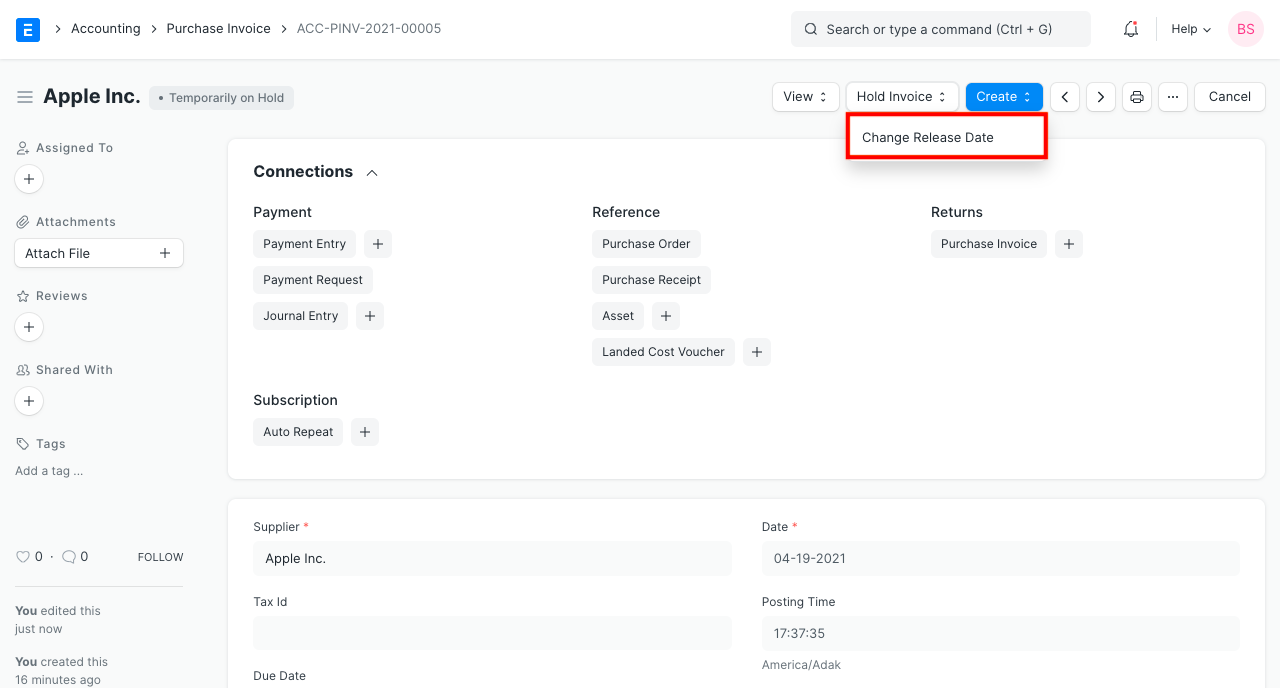
Click "Save" after choosing the new release date. Under the "Reason For Placing On Hold" area, you must also include a comment.
Keep in mind the following:
1.All purchases that have been placed on hold will not be included in a Payment Entry's references table 2.The release date cannot be in the past. 3.You can only block or unblock a purchase invoice if it is unpaid. 4.You can only change the release date if the invoice is unpaid.