Lead
Lead
The term "lead" refers to a prospective customer who may be interested in your goods or services.
You might be carrying out all or some of the following to bring the client through the door:
1.creating a directory listing for your goods.
2.keeping a website current and searchable.
3.chatting with individuals at trade shows.
4.promoting your goods and services.
People will come in to look at your stuff after word gets out that you are in the area and have something worthwhile to offer. You have these leads.
Because they might lead to a sale, they are known as leads. Sales representatives typically contact prospects by phone, establish a rapport, and send information about goods or services. It is crucial to keep track of every discussion in order to make it easier for someone else to follow up with that contact. The new individual can then learn about the past of that specific Lead.
Go to: to access the Lead list.
Home > CRM > Sales Pipeline > Lead
1. How to Create a Lead
1.Choose New from the Lead list.
2.Check the "Lead is an Organization" item if the person represents an organization. Take note that the "Business Name" field becomes required after you tick. the name of the company.
3.Leave the item unchecked and input the person's name and gender if they are an individual.
4.Type the "Email Address" here.
5.The most crucial field in a lead is status. The status can be manually established, and it can also be updated automatically based on how you respond to the lead.
*Lead: This is the standard status given when a Lead is formed and it shows that action must be taken in response to the Lead.
*Open: The sales professional must get in touch with the Lead.
*Replied: Lead's answer is pending after a sales executive provided the necessary details.
*Opportunity: The status is changed to Opportunity if an Opportunity is established against the Lead. It implies that the Lead is suitable and might result in a sale.
*Creating a quotation in response to a lead changes the status to "Quotation."
*Lost Quote: The status is set to "Lost Quotation" if the quotation provided to the lead has been tagged as lost.
*The lead is enthusiastic about the goods or services.
*Converted: The status is changed to Converted if the lead's quotation resulted in an order confirmation and a sales order was made in response to the quotation.
*Avoid Contact: There is no need for additional contact because the lead is uninterested.
6.In the Source section, you can specify the Lead Source.
7.Enter your email address to communicate.
8.Hit "Save."
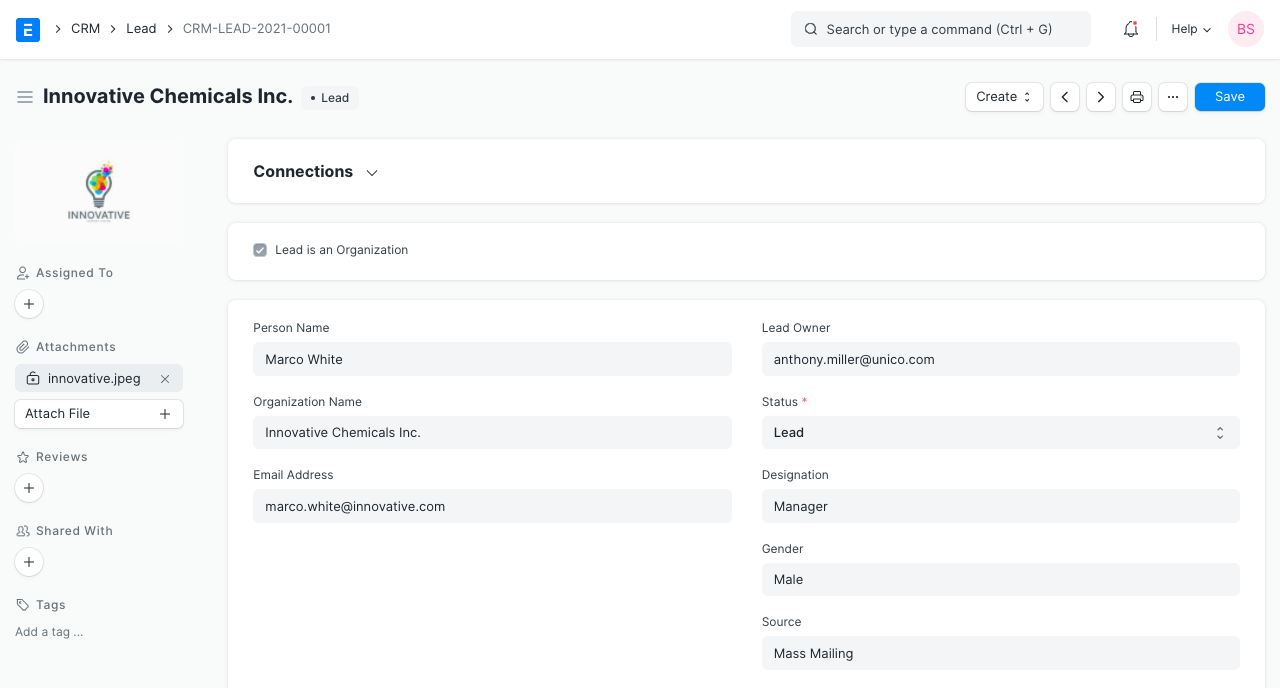
The NOTES area also allows you to document the conversation's specifics.
In the "MORE INFORMATION" area, further information can be supplied, such as the lead kind, market segment, and industry.
All of this information will assist you in prioritizing the leads you can explore if you have a sufficient number of leads.
By selecting the "Assign" button in the left bar, you can assign the Lead to a user. By selecting the "Attach File" button, you can also attach files or photos.
2. Features
2.1 Reminders to Follow Up on the Leads
It's critical to periodically contact leads and establish a relationship. A calendar event will be added for the user selected in the "Next Contact By" area, and a notification will be displayed on the date you choose in the "Next Contact Date" and "Next Contact By" fields.
2.2 Adding Multiple Addresses and Contacts
In a business-to-business (B2B) setting, you will need to get in touch with several employees of the potential organization in order to close a sale. All of these people's information can be added to a single lead. Once a lead has been saved, you have the opportunity to add contacts by selecting the "New Contact" button. Similarly, by selecting "New Address," you may add the address information.
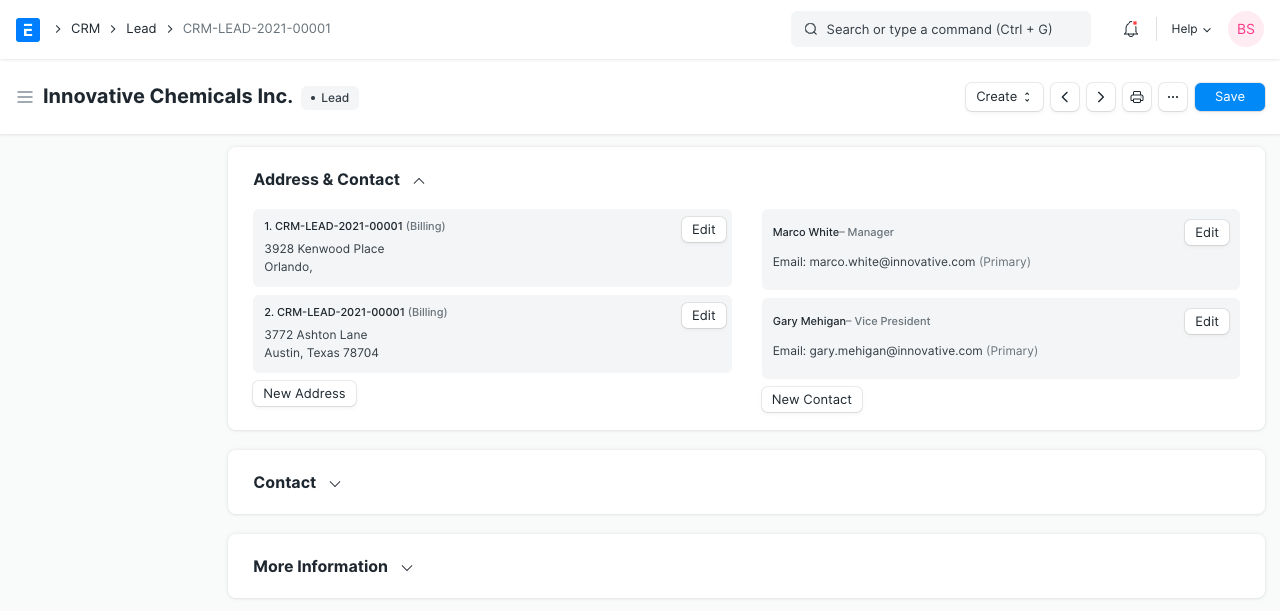
2.3 Recording Comments, Emails and Events
Comments: You can enter your feedback in the "Add a remark" box and then click "Comment."
Emails: By selecting the "New Email" button, you can send the lead an email. When the lead responds, their response will be added to your email, starting an email thread.
Events: By selecting "New Event," you may also keep track of the meetings, calls, and other interactions you have with the Lead.
2.4 Creating Opportunity, Customer and Quotation
From the Create option, you can create an Opportunity, Customer, or Quote. Field values that are pertinent will be transferred.
2.5 Automatically distributing leads to sales representatives
Introduced in Version 12
To automatically assign the leads to sales leaders, you can specify assignment rules.
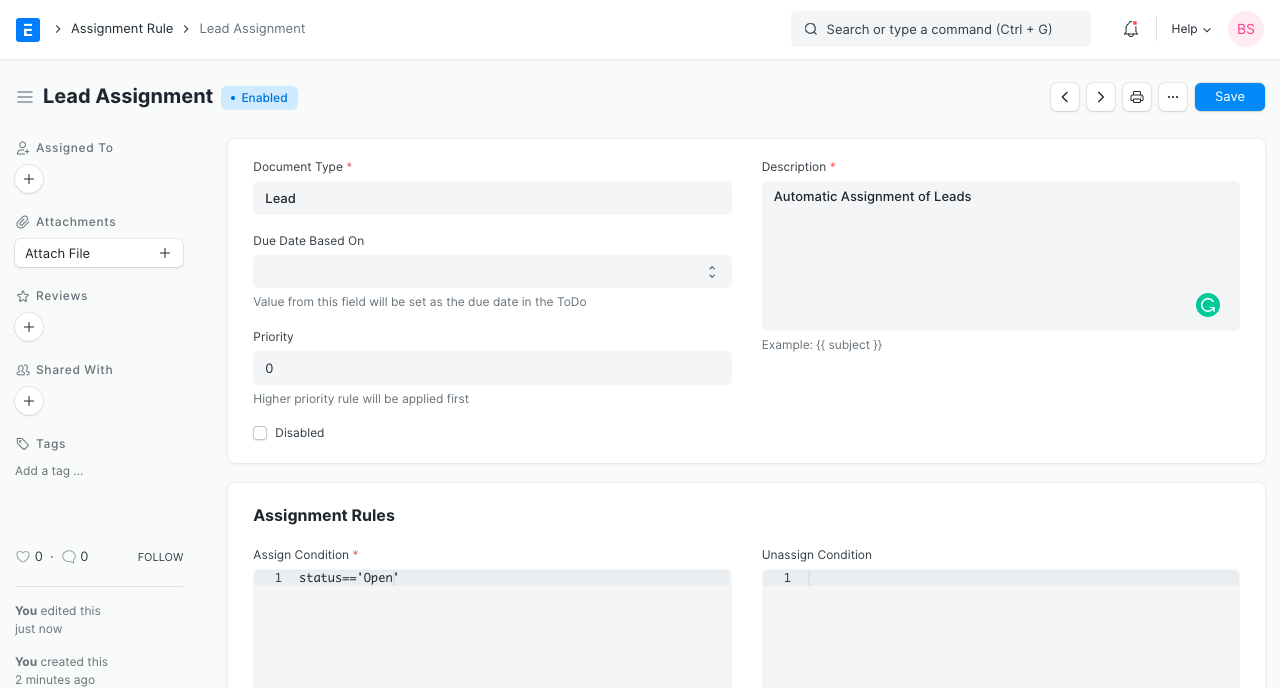
3. Adding Custom Fields
You may need to add custom fields to capture additional details as per your needs.
You can customize the Lead DocType using Customize Form tool.