Employee Onboarding
Employee Onboarding
There are a number of standard procedures that must be followed when recruiting an employee. With the aid of this tool, you can keep track of who is in charge of these responsibilities and establish a list of assignments for each new employee.
A job application that is approved for employment results in the creation of Employee Onboarding.
Use Case: Assume that the actions listed below must be taken as soon as a job candidate is given the go-ahead to be hired.
- Perform a legal and professional
- background check
- Create an Employee master
- Create an Email Account
- Create an identity card
- Allocate leaves
The Employee Onboarding Template in ERPNext allows for the tracking of these common tasks. Go to: to access Employee Onboarding.
Human Resources > Employee Lifecycle > Employee Onboarding
1. Prerequisites
The following documents should be created before you create an employee onboarding:
- Job Applicant
- Employee
- Department
- Designation
- Employee Grade
2. How to create an Employee Onboarding
1.Click on New under Employee Onboarding.
2.Choose the job candidate. Upon the selection of the Job Applicant, the associated Employee will be retrieved automatically.
3.The Employee Onboarding Template should be chosen. Information like Department,
3.Designation, and Employee Grade will be automatically collected based on the template chosen (if already mentioned in the Onboarding Template).
4.Enter the joining date.
5.Publish and save.
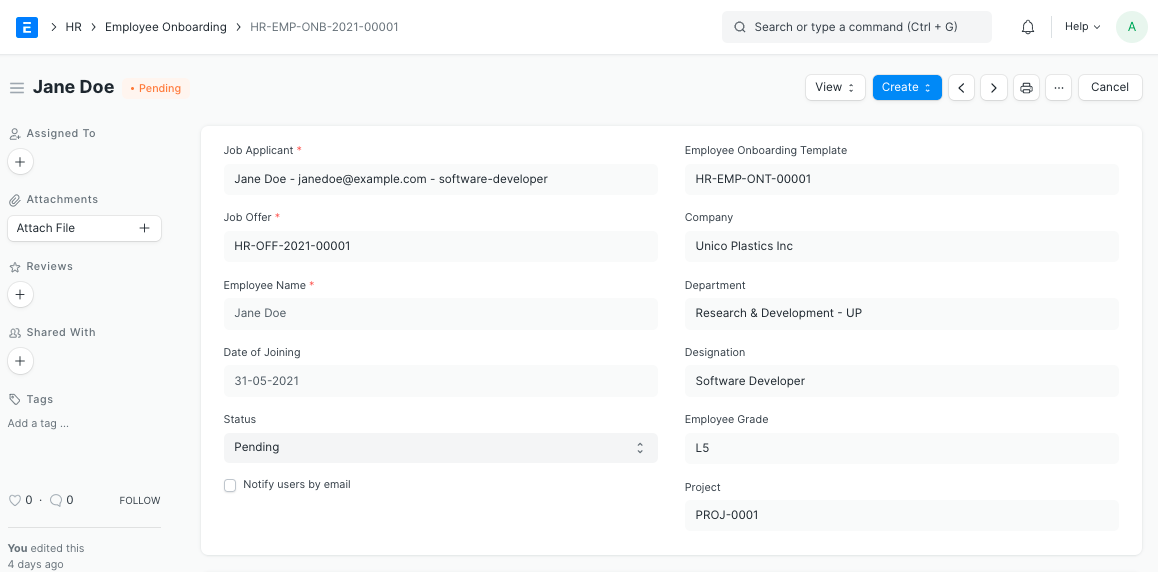
Note 1: You can fill out the onboarding details directly in the Employee Onboarding doctype itself if an employee onboarding template is not generated.
Note 2: As soon as all the related Tasks are finished, the 'Status' of the Employee Onboarding will change to Done.
3. Features
3.1 Employee Onboarding Template
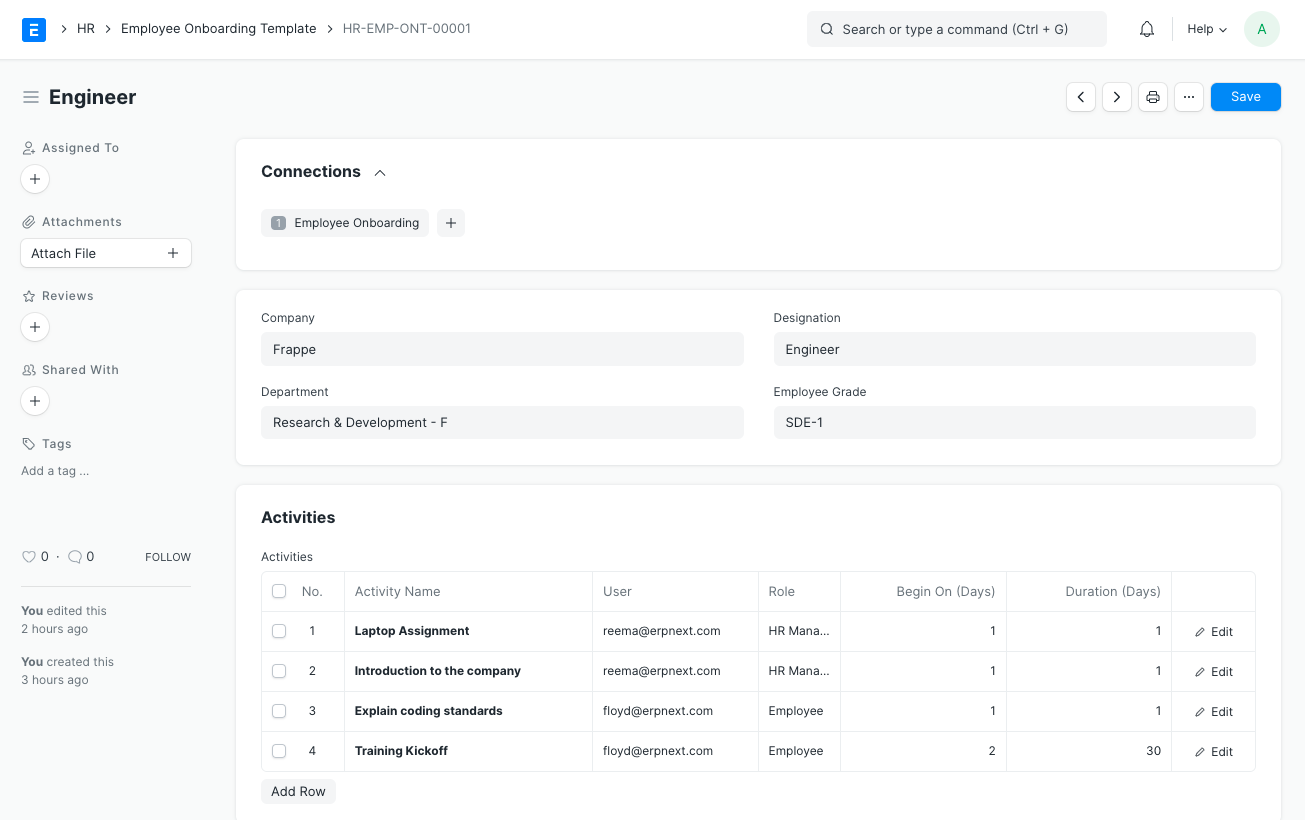
A preset list of Tasks for Employee Onboarding is contained in the Employee Onboarding Template, which is a blueprint. You can construct an employee onboarding template for a certain department, designation, and employee grade.
New Employee Onboarding Template creation instructions:
1.Navigate to Employee Lifecycle > Employee Onboarding Template > New in Human Resources.
2.Fill in the Department, Designation, and Employee Grade fields (optional).
3.Specify the onboarding activities. You may additionally mention the User or Role, or a combination of both, to whom the Activity will be allocated for each Activity.
4.Also, you can plan the onboarding activities by indicating the Begin On (Days), or the time the activity must begin, and the Duration (in Days).
3.2 Tasks and Assignments
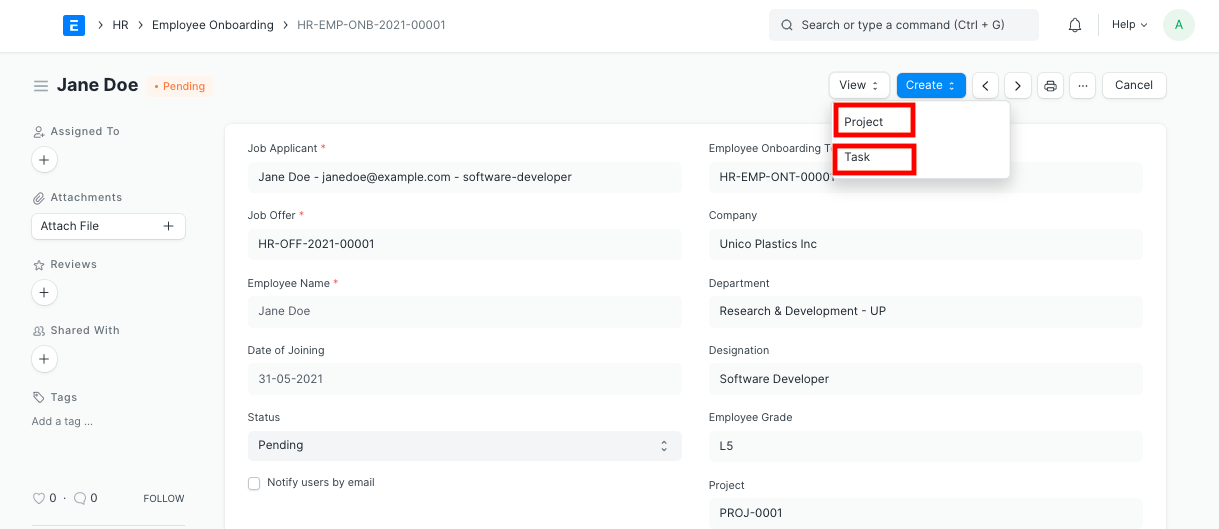
A project will be started once the Employee Onboarding has been submitted. For each Activity, Tasks will also be created within the Project. Tasks will be produced with the proper Start and End Dates, excluding holidays, if you have chosen the date and duration for the activity.
The projects and tasks you've created can be seen as follows:
Moreover, weights based on each Activity's significance might be assigned.
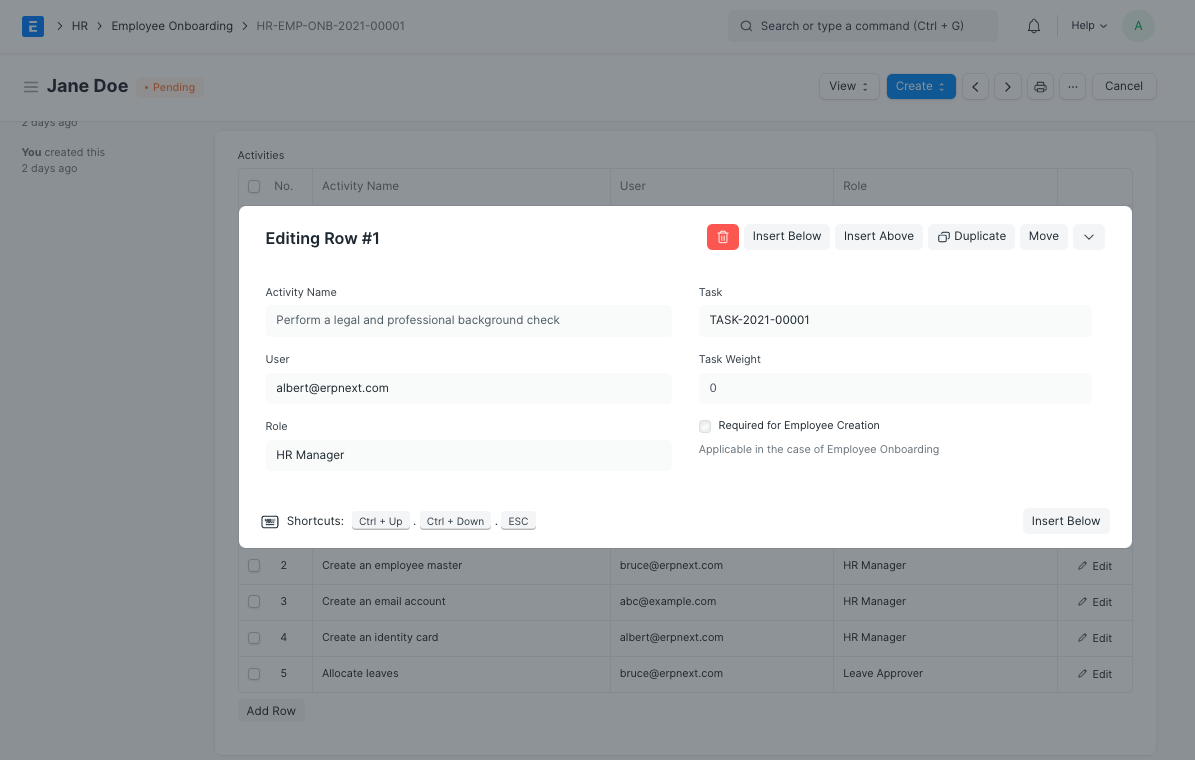
Progress in the Employee Onboarding process can be modified based on how well the Tasks are going.
3.3 Employee Development
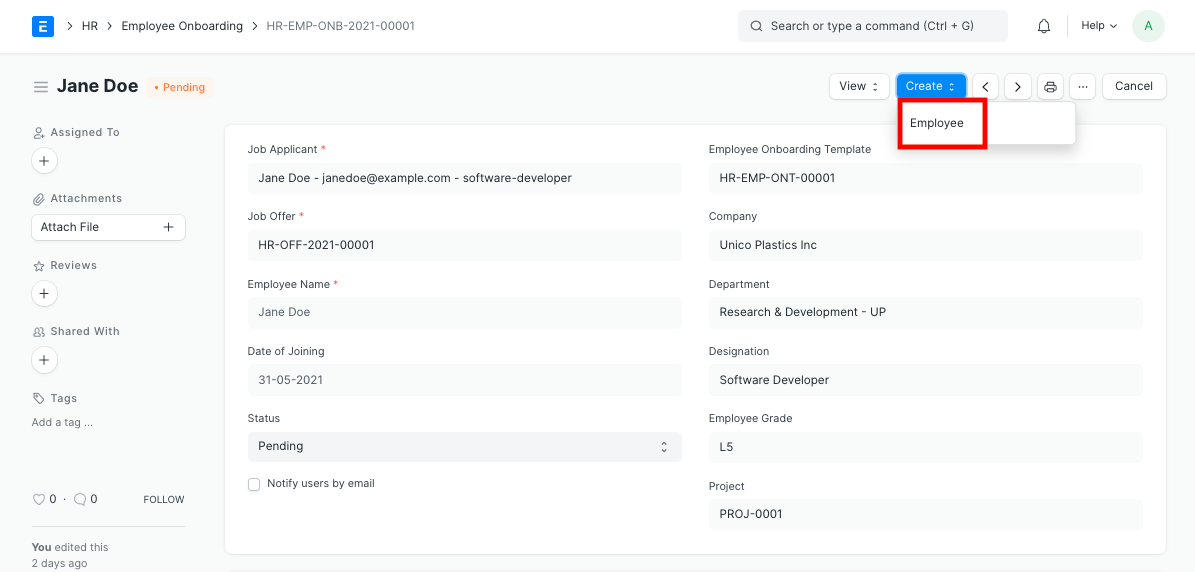
Once all the required onboarding procedures have been completed, you can directly create an Employee through the Employee Onboarding doctype (assuming one has not already been established).