Opportunity
Opportunity
An opportunity is an appropriate lead.
You can turn a lead into an opportunity when you discover that the lead appears to be interested in a good or service you provide. Also, you can develop a chance against an existing client. A lead or a customer may be the subject of multiple opportunities.
Go to: to access the Opportunities list.
Home > CRM > Sales Pipeline > Opportunity
1. How to Create an Opportunity
1.Choose "Add Opportunity" from the Opportunity list.
2.If the opportunity comes from a lead, choose Lead under "Opportunity From."
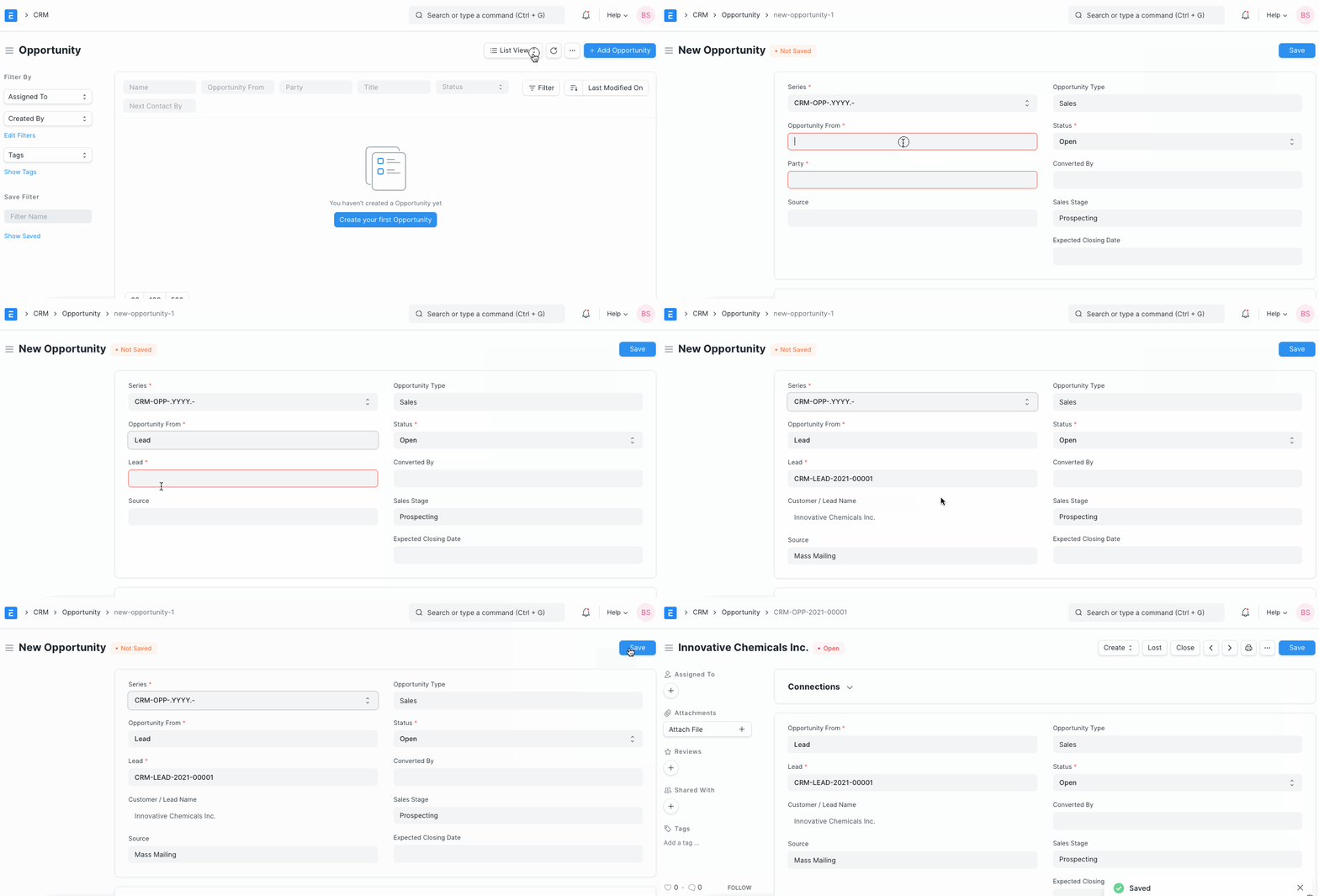
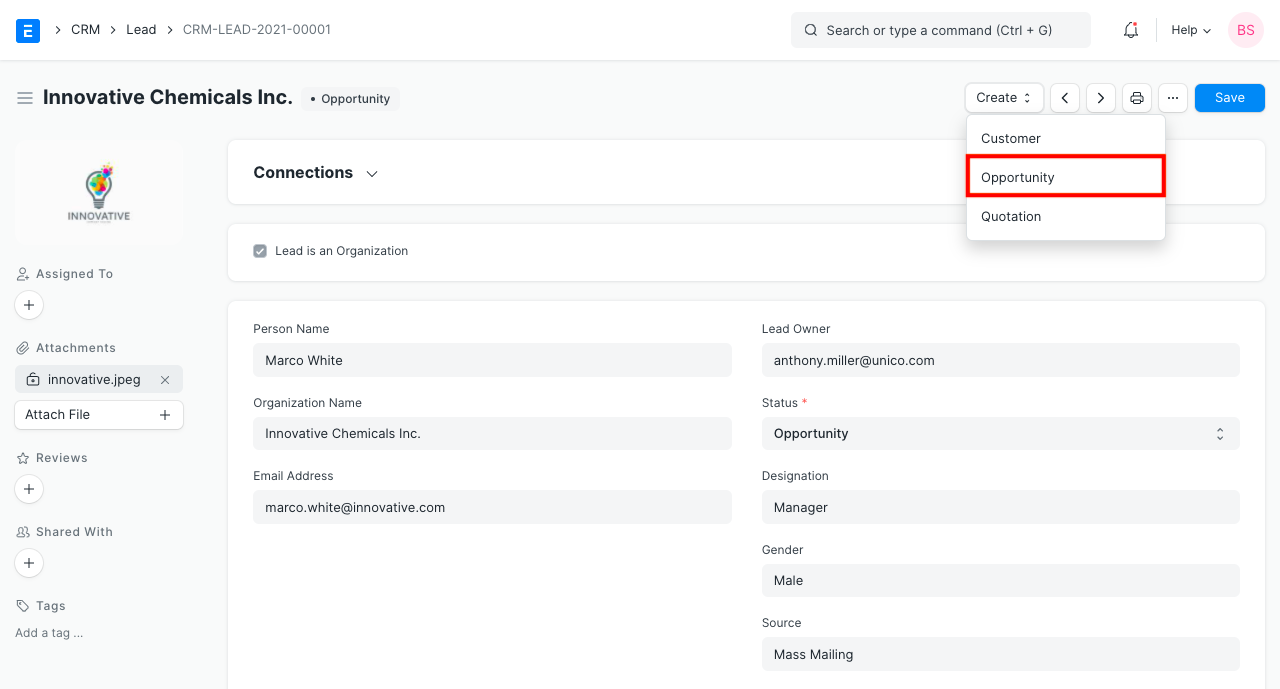
3.Additionally, you can go to a lead that has the status "Open" and choose "Opportunity" from the Create dropdown menu, as seen below.
If the opportunity comes from a client, choose Customer under "Opportunity From."
Decide on the opportunity kind. The broad category of potential, such as sales, support, maintenance, etc., is indicated by this.
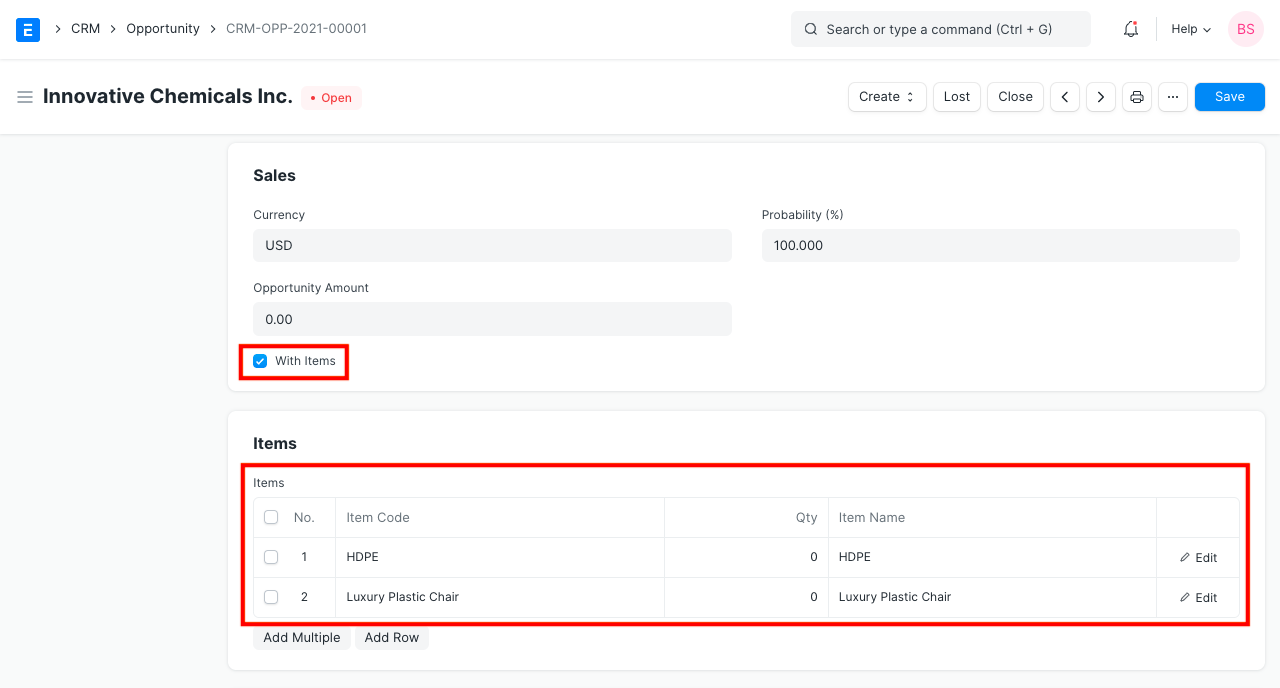
In the "SALES" area, you can add additional information like the opportunity amount, conversion probability, and currency.
By selecting the "With Items" checkbox and entering the item and quantity information in the "Items" section, you can record the specifics of the requested goods or services.
- In the SOURCE section, enter the opportunity's source.
2. Features
2.1 Reminders to Follow Up on Opportunities
It's crucial to occasionally take advantage of opportunities and forge connections. The "Next Contact Date" and "Next Contact By" columns allow you to specify the user for whom a calendar event will be added and a notification will be displayed on that day.
2.2 Auto-assign Opportunities to Sales Executives
Introduced in Version 12
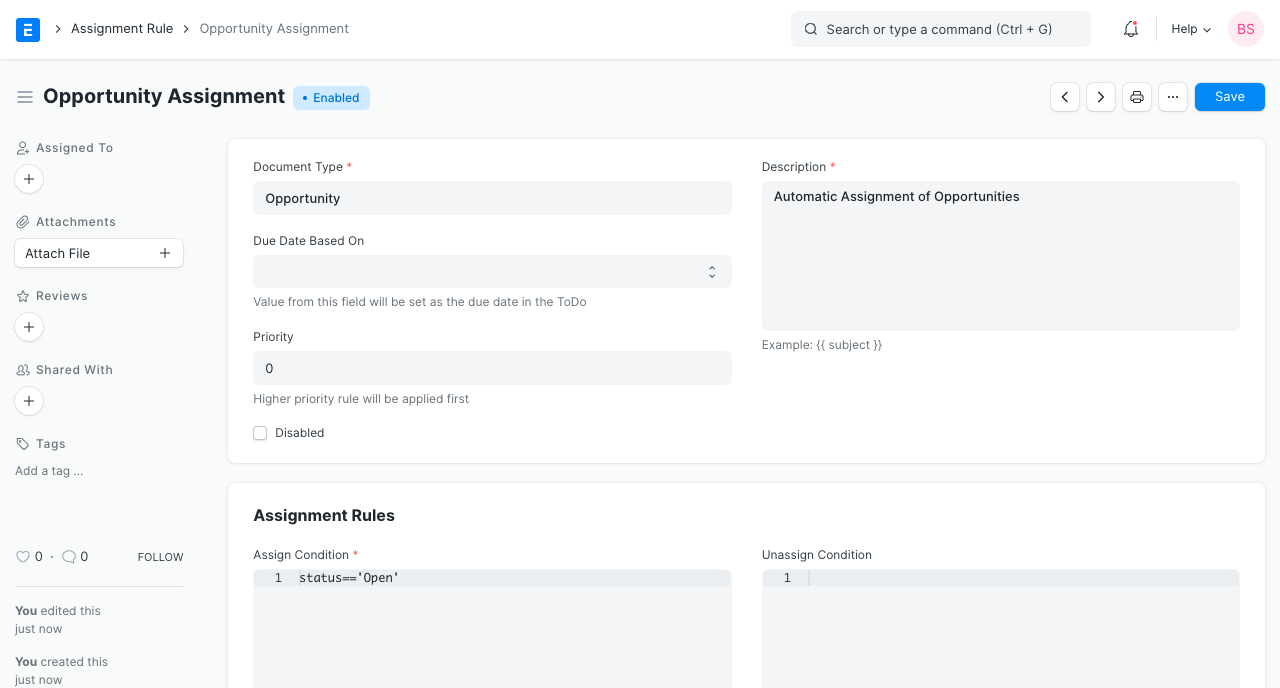
To automatically assign the possibilities to sales leaders, you can set assignment rules.
2.3 Auto-close Opportunities
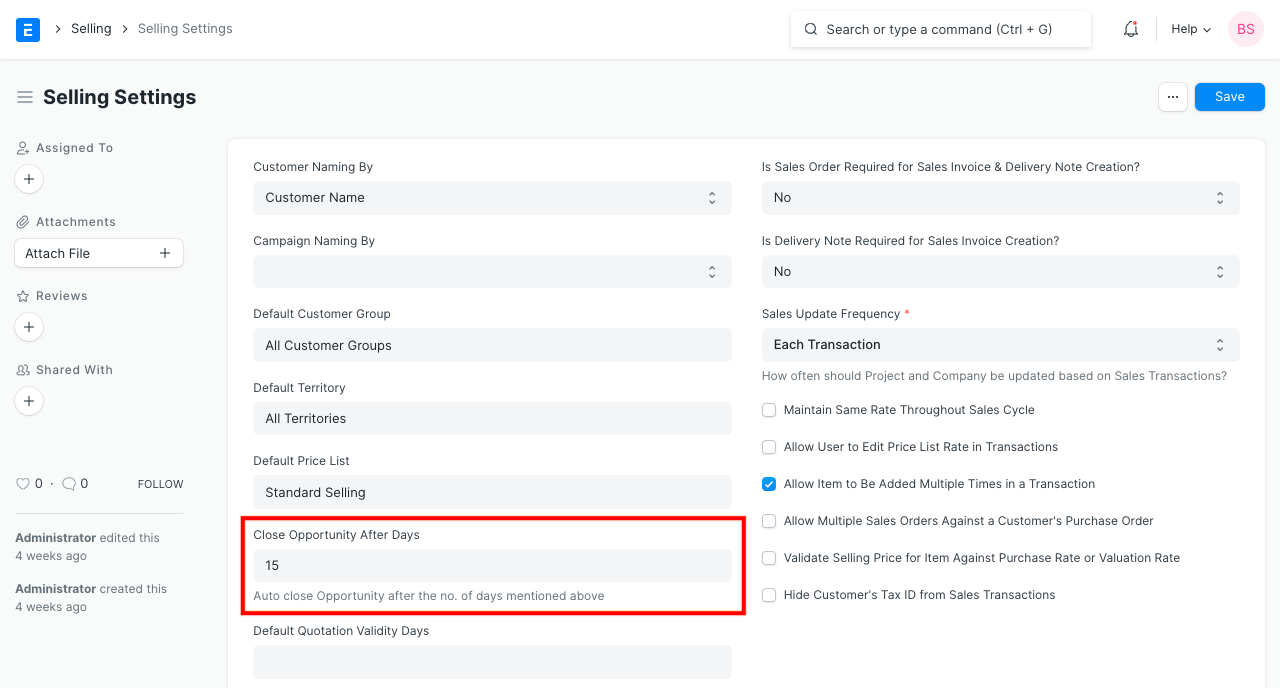
You could want an opportunity to be automatically closed if you don't hear back from it after a particular amount of time.
The number of days can be modified in the selling settings.
2.4 Create a Quotation
From the Create dropdown menu, you may generate a quotation. Field values that are pertinent will be transferred.
.png)
2.5 Create a Supplier Quotation
To prepare the quotation for your customer, you may need to obtain a quote from your supplier depending on the customer's requirements. Making a Supplier Quote with ERPNext is possible right from the start.
Best Practice: Leads and opportunities are frequently referred to as your "Sales Pipeline," and this is what you need to track in order to be able to forecast how much business you will receive in the future. In order to modify your resources, it is always a good idea to be able to track what is coming.
2.6 Capture the Reasons and Competitors for Lost Opportunities
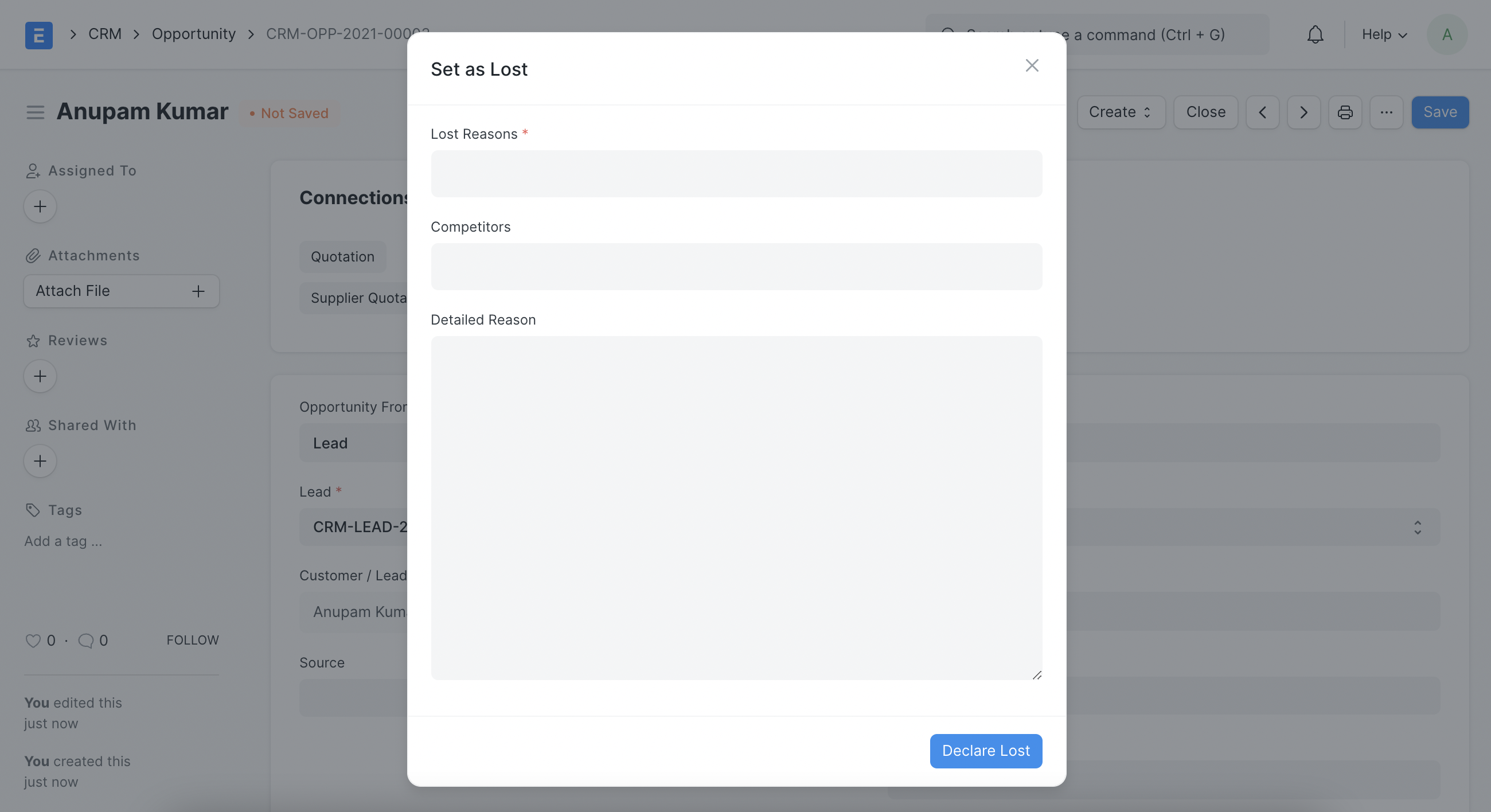
You can record the factors, rivals, and specific reasons why an opportunity was lost. This will assist you in analyzing long-term patterns and locating the information required to make improvements to various organizational areas.
2.7 Minutes to First Response
It calculates the Mins to First Response and displays it in a field when you send the first email response to an opportunity.
The "Minutes to First Reaction for Opportunity" report is produced. To learn more, read CRM Reports.