Sales Order
Sales Order
An order from your customer is confirmed with a sales order.
Typically, it is a legal contract with your customer. You can turn your quotation into a sales order once your client accepts it.
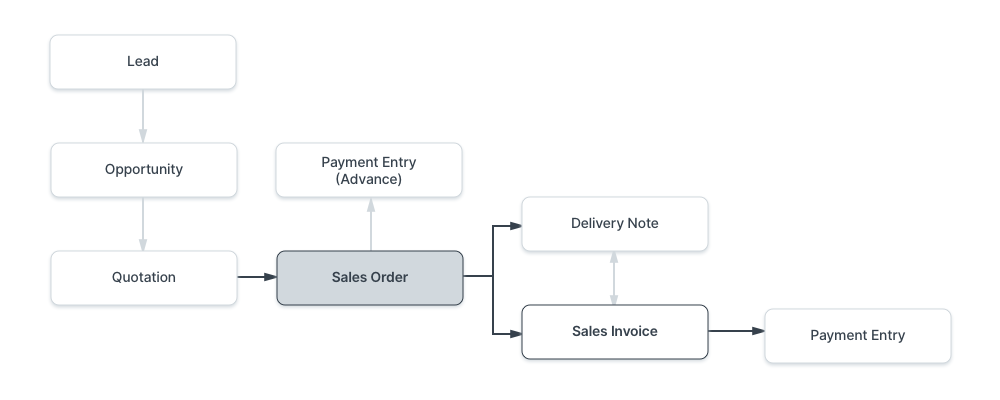
To access Sales Order, go to:
Home > Selling > Sales > Sales Order
1. Prerequisites
It is suggested that you first create the following before producing and using a sales order:
- Customer
- Item
2. How to create a Sales Order
Click New in the Sales Order list.
Choose the client.
The "Delivery Date" setting will be applied to the entire order.
You can specify whether an order is a sales order, maintenance order, or one that comes from your website's online shopping cart using the Order Type field. This value is set to "Sales" by default.
You can put the customers purchase order number or other information that can be helpful as a reference in the "Customer's Purchase Order" field.
In the Item table, enter the items and quantities that will be delivered. The Rate field will automatically be filled with data if Item Prices are configured for the products. If not, manually enter the item rate. If you want to adjust the item rate, you may also overwrite the value that is automatically entered.
To save a draft of the Sales Order, click "Save."
To enter the Sales Order into the system, click "Submit."
2.1 Other ways to create a Sales Order
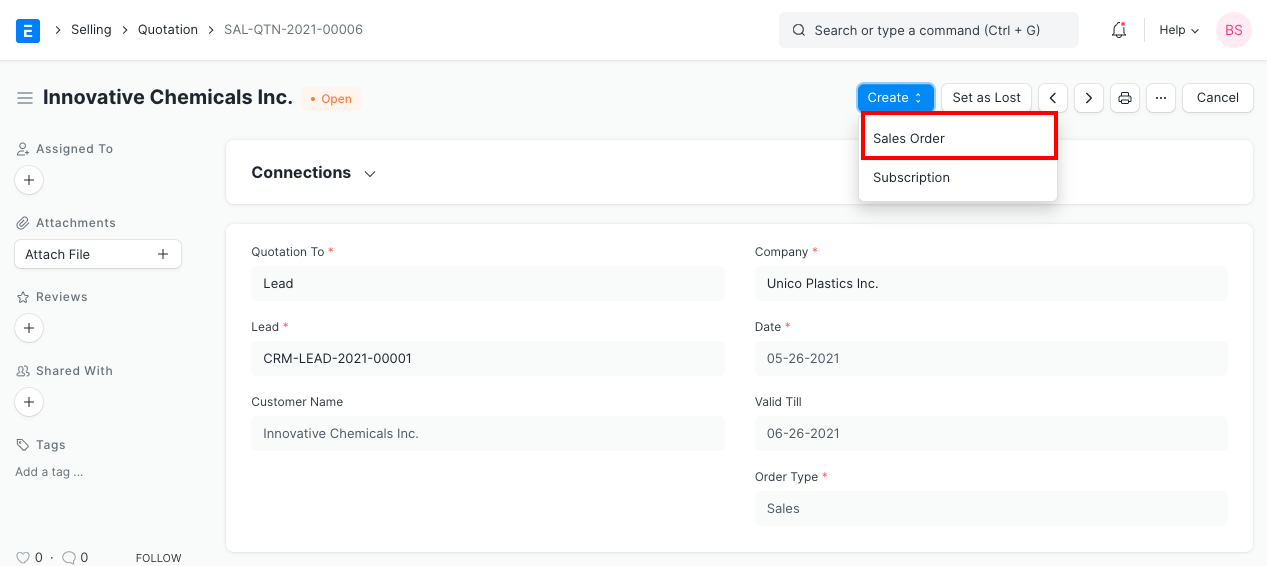
- The Create button in the top right allows you to create a Sales Order from a submitted Quotation as well.
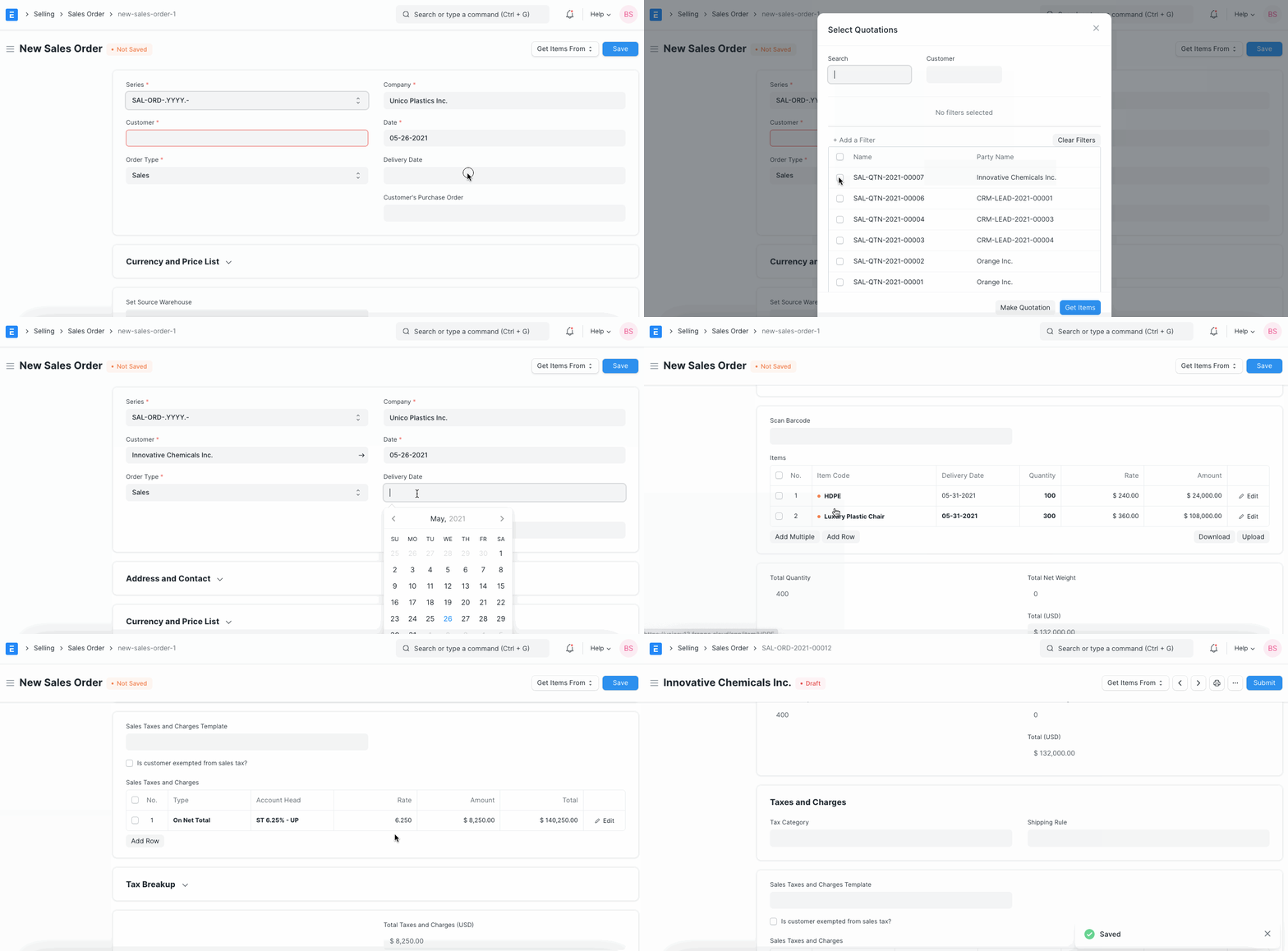
- Alternately, you might make a fresh Sales Order and use information from a Quotation.
There is a checkbox named "Let User to Change Price List Rate in Transaction" in the Selling Options that enables per-Customer, per-Item pricing rules (e.g., "Customer A" pays $1.00 for "Item 1" whereas "Customer B" pays $1.25 for "Item 1"). This makes it possible to save the specific item price for each customer when a price in the Sales Order changes.
3. Features
3.1 Currency and Price List
The quotation or sales order's intended currency can be set. The item prices will be obtained from a pricing list if one has been set. The Pricing Rules defined in Accounts > Pricing Rule will not be followed if "Ignore Pricing Rule" is checked.
To learn more, read about Price Lists and Multi-Currency Transactions.
3.1 Set Source Warehouse
Setting a warehouse here will allow all the items from the item table to be pulled from this warehouse if you have the same stock in several warehouses. You must have inventory on hand in this "source warehouse" you are establishing. Keep in mind that selecting this option will override the 'Default Warehouse' setting you made in the item master.
3.2 The Items Table
- Delivery Date against each item: If there are numerous products and a delivery date is entered in the first row, it will also be duplicated to any subsequent rows that are blank. If these aren't set worldwide at the top of the Sales Order, you'll need to set them.
When you click on the inverted triangle to expand a row in the items table of a sales order, the billed amount, valuation rate, and gross profit are displayed.
If you have a barcode scanner, you can additionally add items to the items table by scanning their barcodes. For further information, consult the barcode tracking documentation for products.
Delivery Warehouse: The stock will be selected from this warehouse and delivered to your customer.
Drop Ship: In this case, a distributor delivers goods directly to a consumer rather than keeping them on hand at your own warehouse. Choose "Supplier delivers to Customer" to enable drop shipping for that product. The Delivery Warehouse option will vanish once you check this box because you won't be shipping the item. In the "Supplier" field, choose your supplier.
Also, only the items that qualify for drop shipping will be created for the supplier you chose here if you build a purchase order from this sales order.
- Planning: To find out more about the fields being planned, read Projected Quantity.
As stated in Quotation, the other fields in the item table are comparable.
3.3 Packing List
This is associated with the Product Bundle and only displays when a product bundle is part of the transaction.
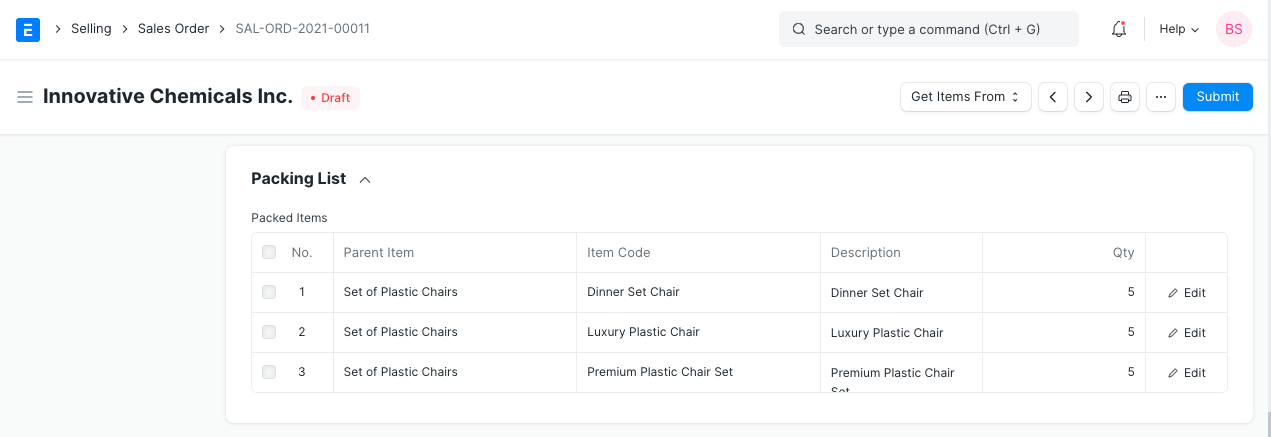
After you "Save" the Sales Order, the "Packing List" table will be automatically updated. The "Packing List" will include an exploded (detailed) list of your Items if any of the Items in your table are Product Bundles (packets).
Even for a product bundle item, you will be prompted to choose a delivery warehouse; this warehouse will subsequently be updated in the packing list items. In the event that various warehouses supplied various components of your product bundle, you can alter the warehouse, serial number, and batch in the packing list items.
This is an example of a packing list:
3.4 Taxes and Charges
You can choose a Sales Taxes and Charges Template or manually enter the taxes in the Sales Taxes and Charges table to add taxes to your sales order.
Below the table, the total taxes and fees will be shown. When you select Tax Breakup, all the elements and amounts are displayed.
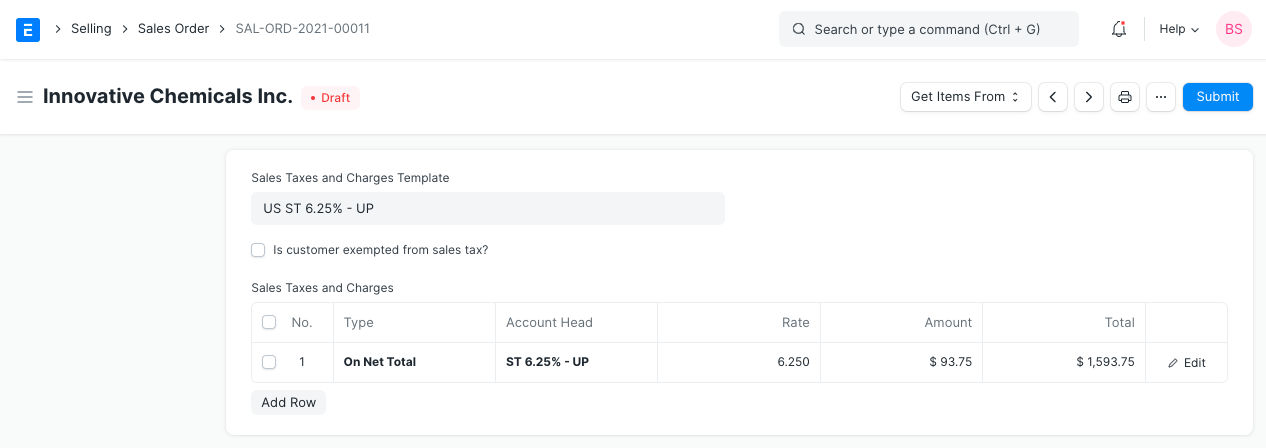
Shipping Rule A shipping rule aids in determining an item's shipping cost. The price will often rise as shipping distance increases. Visit the Shipping Rule page to learn more.
The template and tax table will be automatically filled out if a tax category is chosen. Please visit this page to learn more.
3.5 Additional Discount
You can add a discount to the entire sales order in this section in addition to offering discounts per item. This discount may be based on either the Gross Total (i.e., after taxes and fees) or the Net Total (i.e., before taxes and fees). A percentage or dollar amount may be used to apply the additional discount.
For further information, see Applying Discount.
3.6 Payment Terms
Payment is not always made in full. Depending on the terms of the arrangement, you can pay half before shipping and the other half once you've received the goods or services. In this section, you can manually enter the terms or add a Payment Terms template.
For further information, see Payment Terms.
3.7 Terms and Conditions
There may be specific Terms and Conditions in Sales/Purchase transactions on the basis of which the Supplier supplies goods or services to the Customer. The Terms and Conditions can be applied to transactions, and they will show up when you print the paper. Click here to learn more about the terms and conditions.
3.8 Print Settings
Letterhead Your sales order and quote can be printed on letterhead from your business. Find out more here.
The option "Group same things" will group identical items added more than once to the items table. When you print, this will be evident.
Print Headings Proforma invoices and proposals are other names for quotations. This can be accomplished by choosing a Print Heading. Go to Home > Settings > Printing > Print Heading to add new print headings. Find out more here.
3.9 More Information
Campaign: The quotation may be related to a sales promotion. A collection of quotes may be used in a promotional effort.
Source: If quoting to a lead, regardless of whether it came from a campaign, a supplier, an exhibition, etc., a Lead Source type can be linked. If you are quoting a customer, choose Existing Client.
Inter Company Order Reference: You can link a purchase order to this sales order if two of your businesses are affiliated with one another or have a parent-child relationship. Find out more information on inter-company billing here.
Project: You can link your sales order here if it is a component of a project, and the project's progress will be updated.
3.10 Billing and Delivery Status
Status: Any of the following states can apply to a sales order: draft, on hold, to deliver and bill, to deliver and bill, completed, canceled, or closed.
Amount Billed and Delivered percent: the portion of the total invoiced money and the sales order goods actually delivered.
3.11 Commission
If the sale was made through one of your sales partners, you can provide the sales partner's compensation information here. The commission amount will be shown below after you enter the commission rate.
3.12 Sales Team
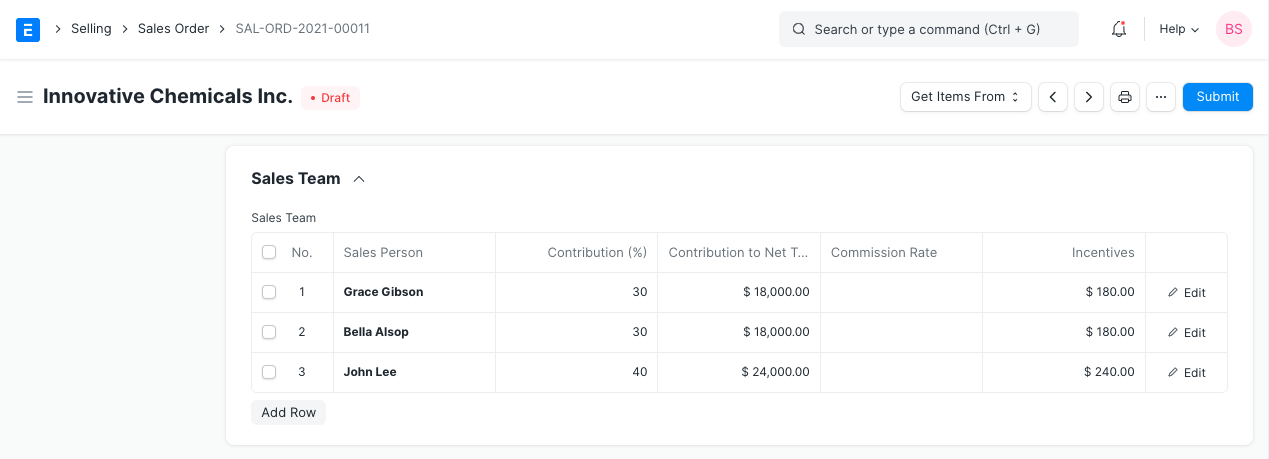
Sales Persons: You can add numerous salespeople who may have contributed to this deal using ERPNext. You can alter the salespersons' percentage of the deal's contribution and keep track of the incentives they received.
3.13 Auto Repeat Section
A subscription-like feature is auto-repeating sales orders. Configure the auto-start repeat's and end dates. Choose the newly established Auto Repeat. Click here to learn more about auto repeat.
3.14 After Submitting
A "Submittable" transaction is a sales order. Only after "Submitting" a Sales Order will you be able to carry out subsequent actions (such creating a Delivery Note).
When you "Submit" your sales order, you can start the following processes:
By selecting the Update Items button, you can Add, Update, or Remove items from the Sales Order. Items that have been delivered or to which a work order has been assigned, however, cannot be deleted.
Status: After submitting a sales order, you can hold it or close it.
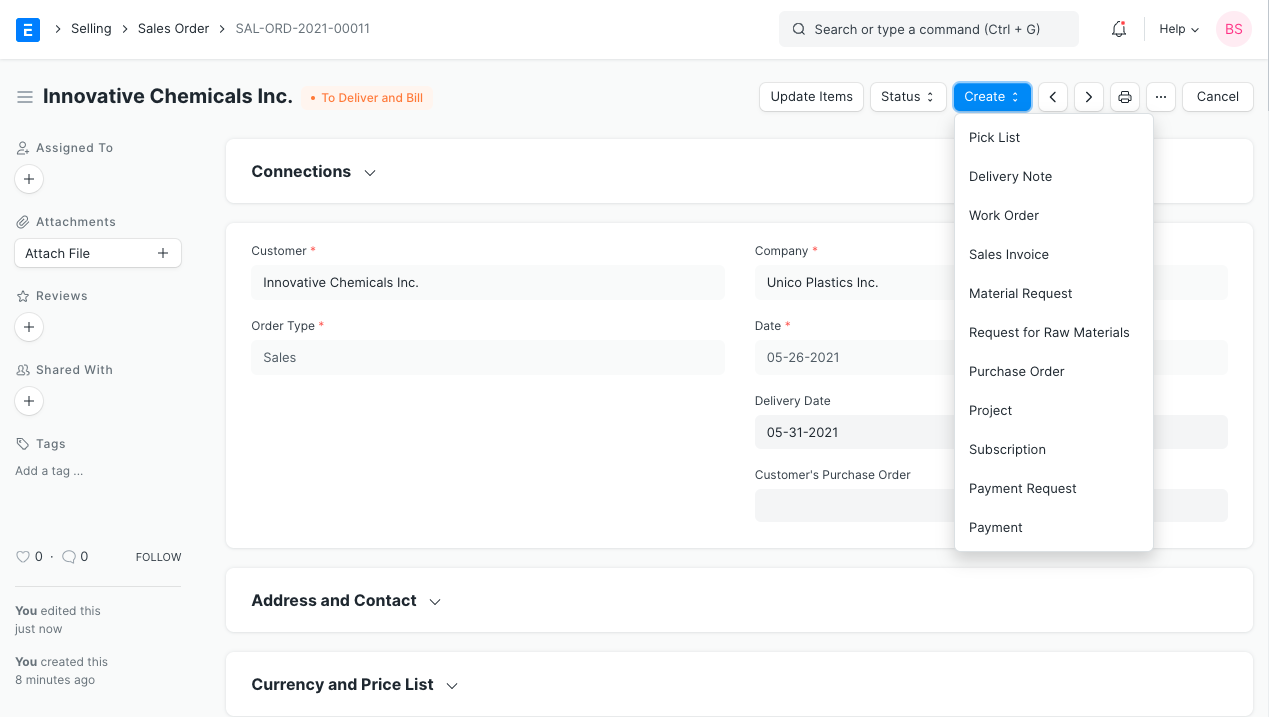
Create: The following can be produced from a submitted sales order:
Making a shipment entry with a delivery * note. Based on the delivery date, you can also create Delivery Notes for certain items.
Work Order: Using the raw supplies, begin a Work Order.
Billing the Order using a sales invoice.
In the event that materials are out of stock, submit a material request.
Request for Raw Materials: To make a request for the raw materials needed for production.
Project: A project should be made based on the sales order.
To automatically repeat the sales order, i.e., to turn it into a subscription.
Make a payment request in order to get payment.
Payment: To associate the payment with the Sales Order.
Moreover, these actions are visible at the Dashboard's top. On the basis of the sales order, you may also create an accounting journal entry from the dashboard
3.15 Sales Order with Order type 'Maintenance'
Follow these steps if the sales order's "Order Type" is "Maintenance":
Input the Item information, Price list, and Currency.
Include taxes and other details.
Save the form, then send it.
Following submission of the form, these options relevant to the maintenance Order Type will be available when you click the Create button.
i) Maintenance Visit ii) Maintenance Schedule.
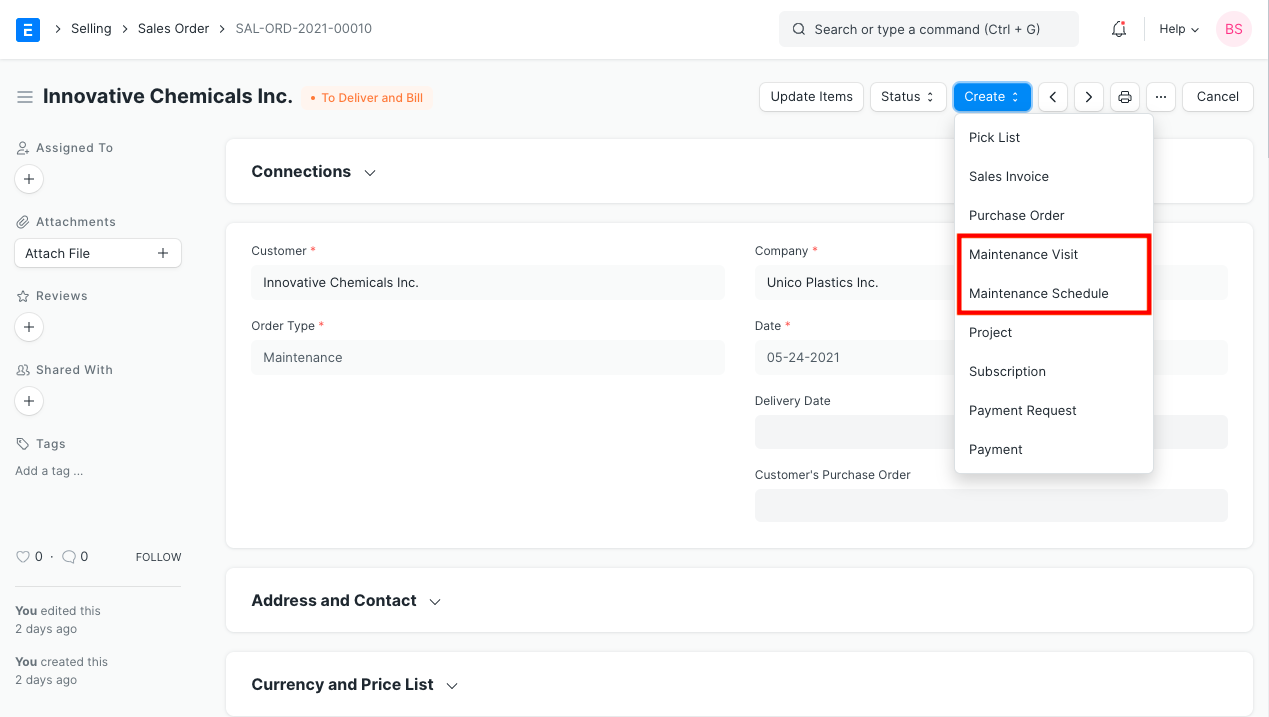
Note 1: You can fill out the visit form directly by choosing "Maintenance Visit" from the Action button. It will immediately collect the information from the Sales Order.
Note 2: You can fill up the schedule information by clicking the Action button and choosing "Maintenance Schedule." Directly fetched sales order information will be provided.
Note 3: You can create an invoice for your services by selecting the Invoice option. The details of the sales orders will be instantly obtained.