Buying Settings
Buying Settings
You can specify characteristics that will be used in the transactions of the Buying module in the Buying Settings section. Purchasing Settings are available at:
Home > Shopping > Preferences > Shopping Settings
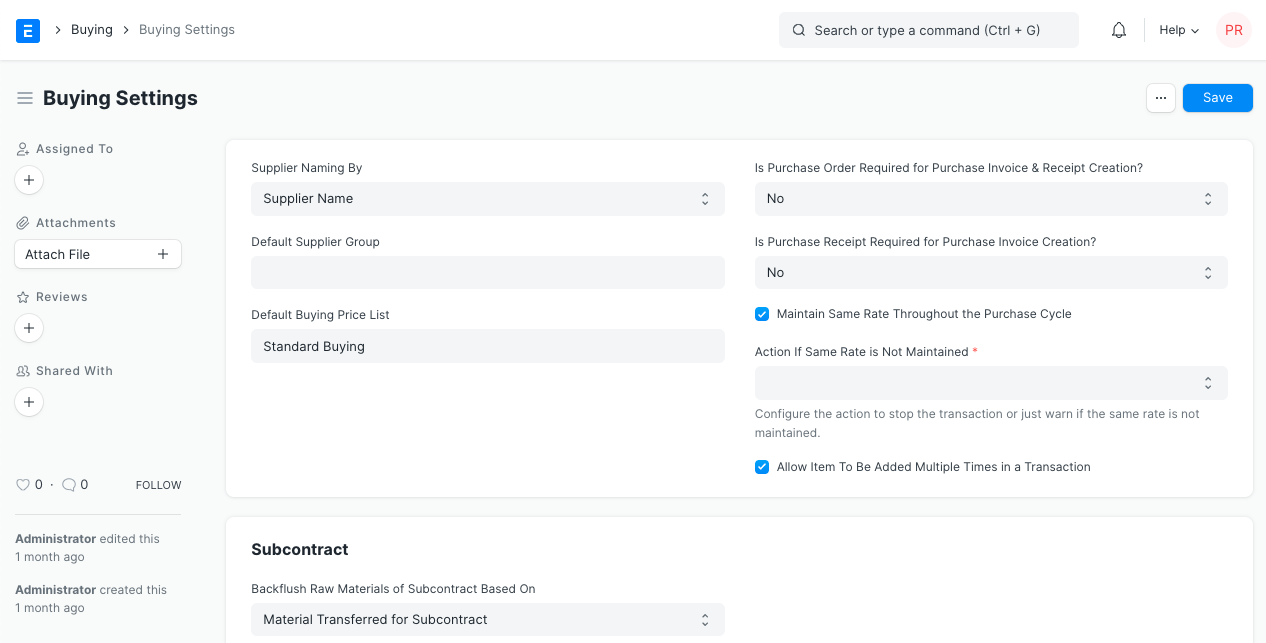
Let's examine the many configuration options available:
1. Supplier
1.1 Supplier Naming By
When a supplier is saved, the system creates a special name or identity for that supplier that may be used to refer to them in different buying transactions.
ERPNext utilizes the Supplier's Name as the unique name if it is not configured otherwise. Choose "Naming Series" as the setting for Supplier Naming By if you want to identify Suppliers using names like SUPP-00001, SUPP-00002, or other patterning series.
Settings > Data > Naming Series is where you can define or choose the naming series pattern.
To learn more about defining a Name Series, read Naming Series.
1.2 Default Supplier Group
Establish the Supplier Group default value before creating a new Supplier. You can set the default to "Hardware" for instance, if the majority of your suppliers provide you with hardware.
2. Purchasing
2.1 Default Buying Price List
Set the price list that should be used by default when starting a new buying transaction; the default is "Normal Buying." The price of each item will be pulled from this price list. Changing the currency and location of the "Price List" is possible by using the arrow at the right end of the field.
2.2 Purchase Order Required
If "Yes" is selected for this option, ERPNext will restrict you from making a purchase invoice or receipt without first completing a purchase order. Purchase orders can be missed in retail transactions where the order is placed offline. In order to obtain sample items into your warehouse, you can simply make a purchase receipt.
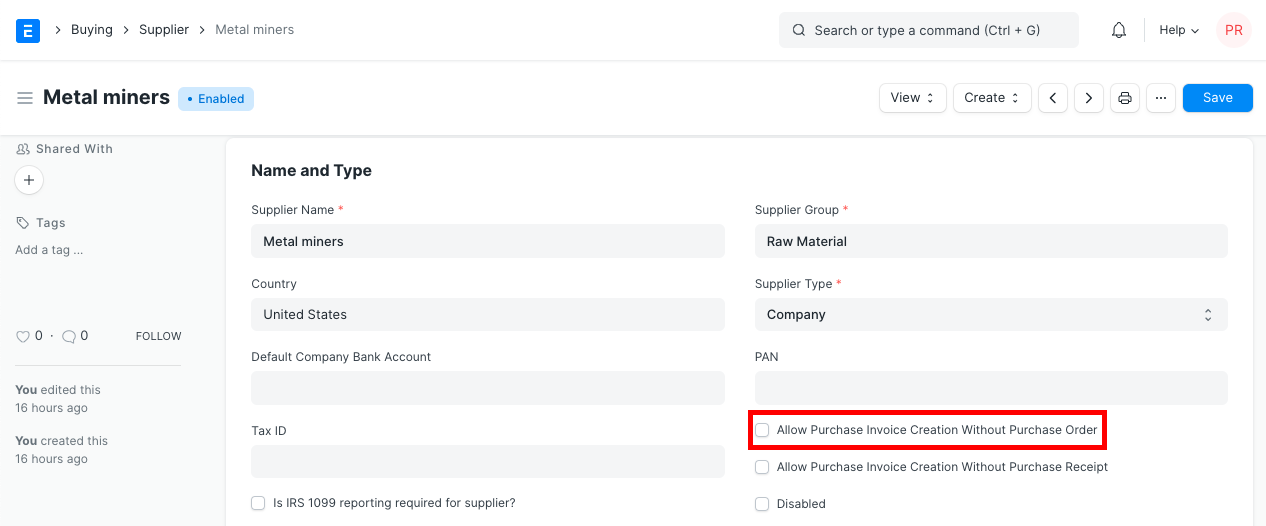
By turning on the "Allow Purchase Invoice Generation Without Purchase Order" checkbox in the supplier master, this configuration can be overridden for a specific supplier.
2.3 Purchase Receipt Required
ERPNext will restrict you from making a purchase invoice without first establishing a purchase receipt if this option is set to "Yes." If the transaction involves a service, you can simply create an invoice instead of a receipt.
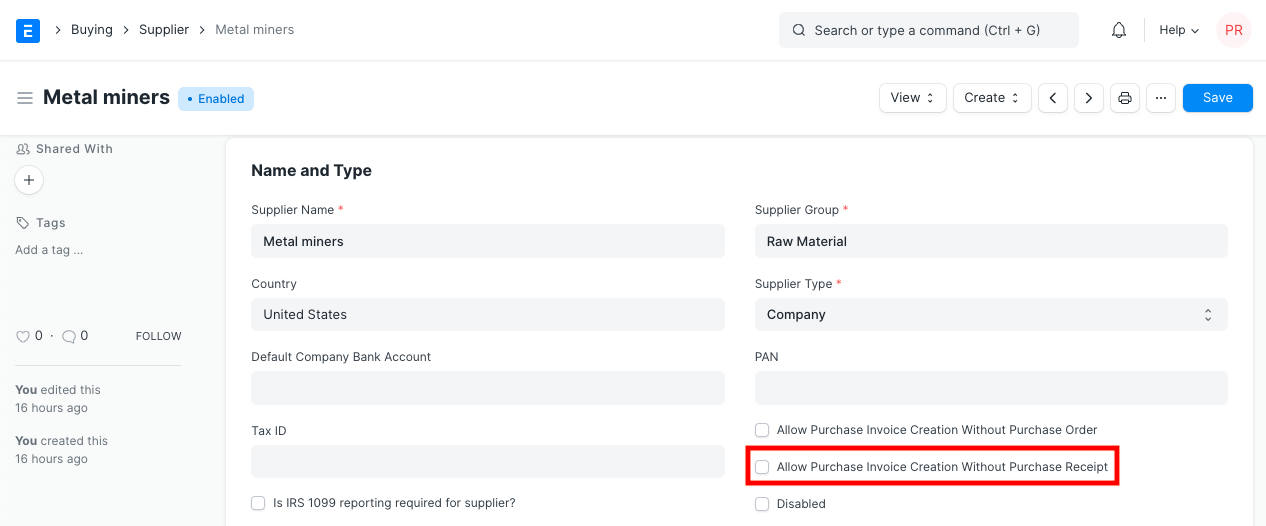
By selecting "Allow Purchase Invoice Generation Without Purchase Receipt" in the supplier master, this configuration can be overridden for a specific supplier.
2.4 Maintain Same Rate Throughout Purchase Cycle
If option is turned on, ERPNext will check to see whether the price of an item is changing in a purchase invoice or purchase receipt made from a purchase order, helping you keep the same pricing throughout the whole purchase cycle.
Under the "Action If Same Rate is Not Kept" field, you can specify what the system should do if the same rate is not maintained:
Stop: An validation fault from ERPNext will prevent you from adjusting the pricing.
Warning: If the rate changes, the system will still let you save the transaction but will send you a notice to let you know.
The option to Retain Same Rate During Buying Cycle must be activated in order for this field to be accessible.
3. Allow Item to be added multiple times in a transaction
A single item cannot be added more than once to the same Purchase Order when this checkbox is left unchecked. The quantity can still be altered explicitly, though. This checkbox serves as a validation to stop unintentional purchases of the same item. For particular use situations where there are different sources for the same material, such as in manufacturing, this can be tested.