Website Home Page
Website Home Page
Setting up a specific standard page as the default website home page is fairly doable in ERPNext. The steps to set up a website's default home page are as follows.
Step 1: Create a Web Page
Click the New button in the top right to start creating a web page by going to Website > Web Site > Web Page.
Enter the page title here.
Provide a route to the page (keep it lower case)
Fill out the Main Content area with content. You can use markdown to make a more complicated page if you'd like.
Check (Mark) the Published box.
Choose "Save" from the menu.
Step 2: Open Website Settings Page
To Open website settings page go to: Website > Setup > Website Settings
Step 3: Set Home page To the Home Page box, enter the same value as you did for the route field in the section before this.
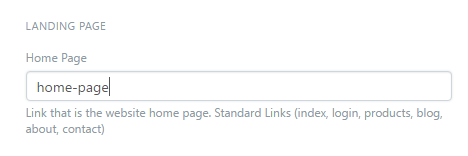
Step 4: Save Website Settings Form. After configuring the Home Page, click the Save button on the website settings page and choose Refresh from the Help menu. You may do the same with your website's default home page, which can be any ordinary page. The home page of your website will be the default landing page for visitors when they first arrive.