Purchasing in Different UoM
Purchasing in Different UoM
Each item is associated with a stock unit of measurement (UoM). For instance, UoM for pens may be numbers (Nos), whereas kilograms could be stored for sand. The UoM for an item could, however, alter once we place an order with the Supplier. For instance, we can request our supplier one truck of sand or one set/box of pens. Buy UoM for an item can be changed when making a purchase transaction.
Scenario: Pen is a stock item in Nos but can be bought in Box. So, we'll create a purchase order for the pen in the box.
Step 1: Edit UoM in the Purchase Order There are two UoM fied in the purchase order.
1.UoM
2.Stock UoM
The item's default UoM will automatically be retrieved in both fields. Edit the UoM entry, and then choose Buy UoM. (Box in this case). Updates to Buy UoM are mostly made for supplier reference. You may see the item qty in the Buy UoM in print format.
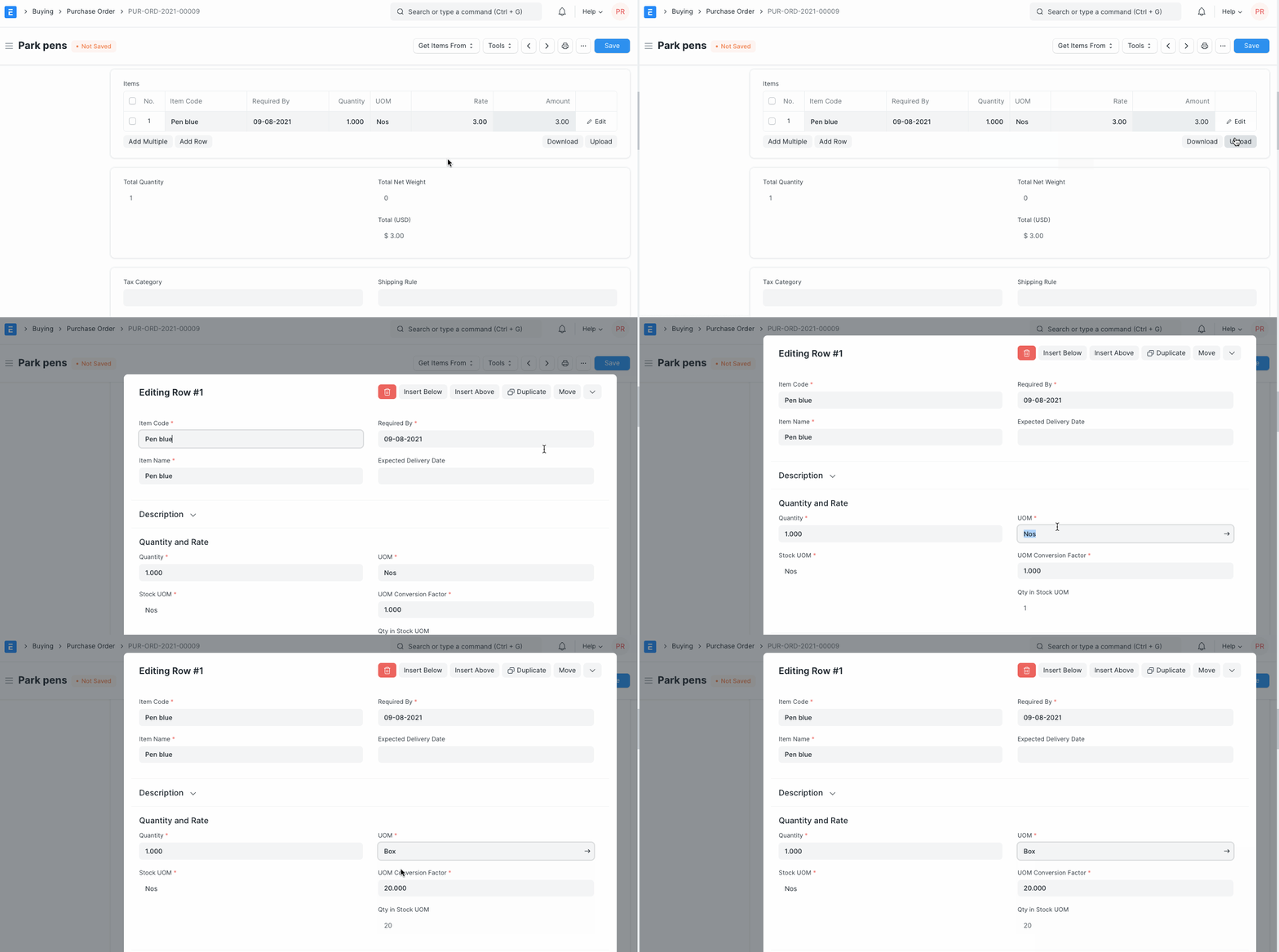
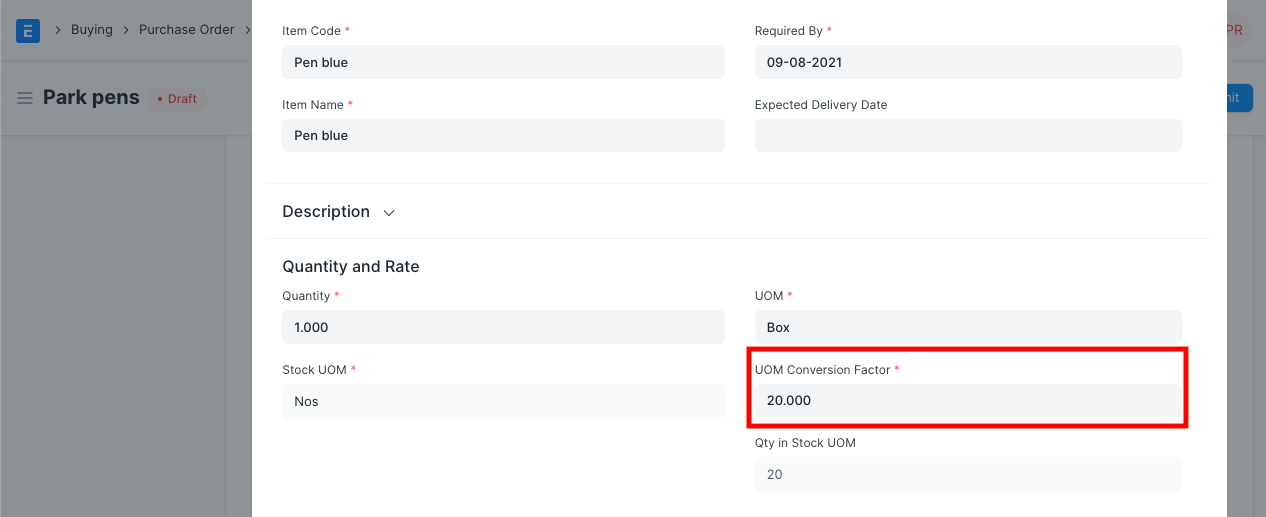
Step 2: Update UoM Conversion Factors If you receive 20 pens in one box, the UoM conversion factor would be 20.
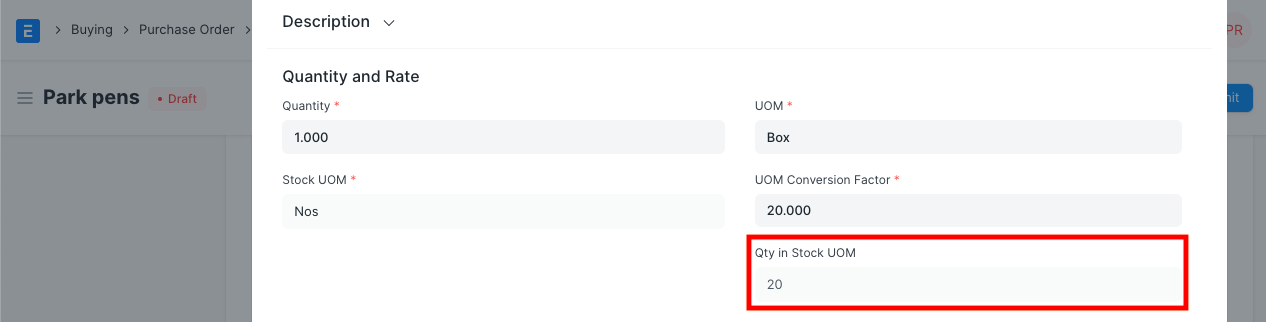
The quantity will be determined in the Stock UoM of an item based on the quantity and conversion factor. If you only buy one box, the stock UoM will have a quantity of 20.
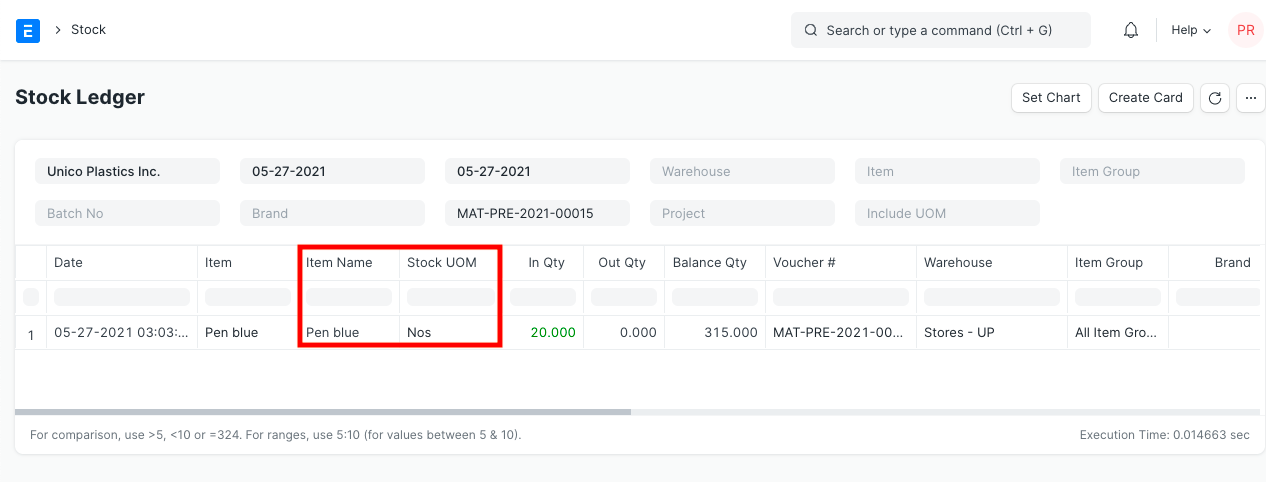
Stock Ledger Posting The default UoM of an item will be used for stock ledger posting regardless of the purchase UoM choice. So, while purchasing items in various UoM, you need make sure the conversion factor is entered appropriately.
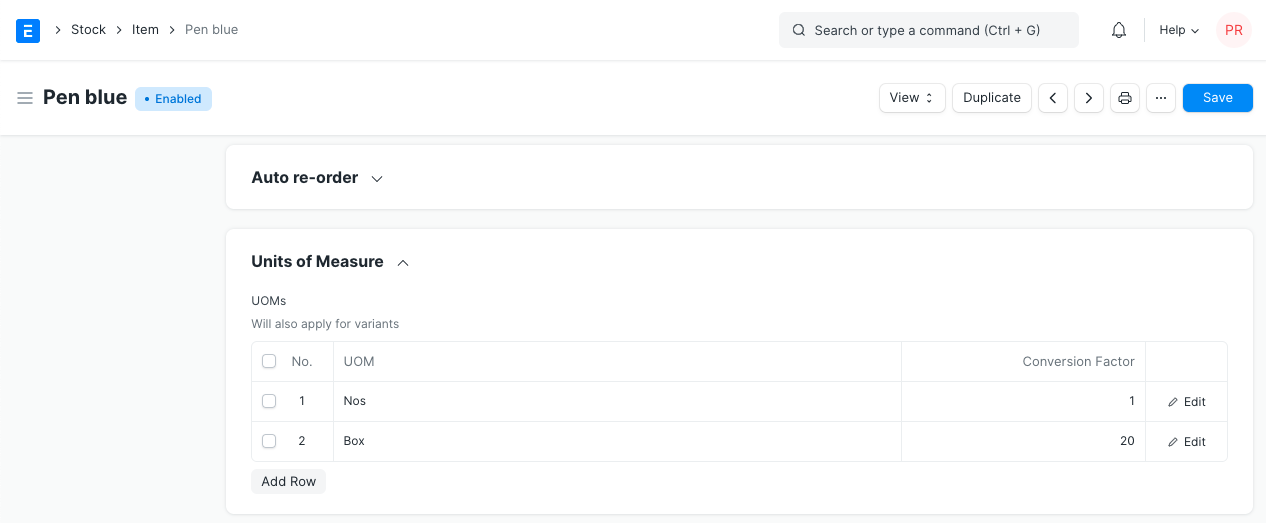
Set Conversion Factor in Item You can list every conceivable buy UoM for an item along with its UoM Conversion Factor in the Purchase section of the Item Master.