Item Group
Item Group
An Item Group is a means to categorize things according to kinds.
You can classify a product under the appropriate field based on the type of product. Assign the product to the item group "service" if it is service-oriented. Assign the item to the category of Raw Material if it is utilized as a raw material. If an item is only used for trading, you can classify it under the Trading item group.
Go to: to access the Item Group list.
Home > Stock > Items and Pricing > Item Group
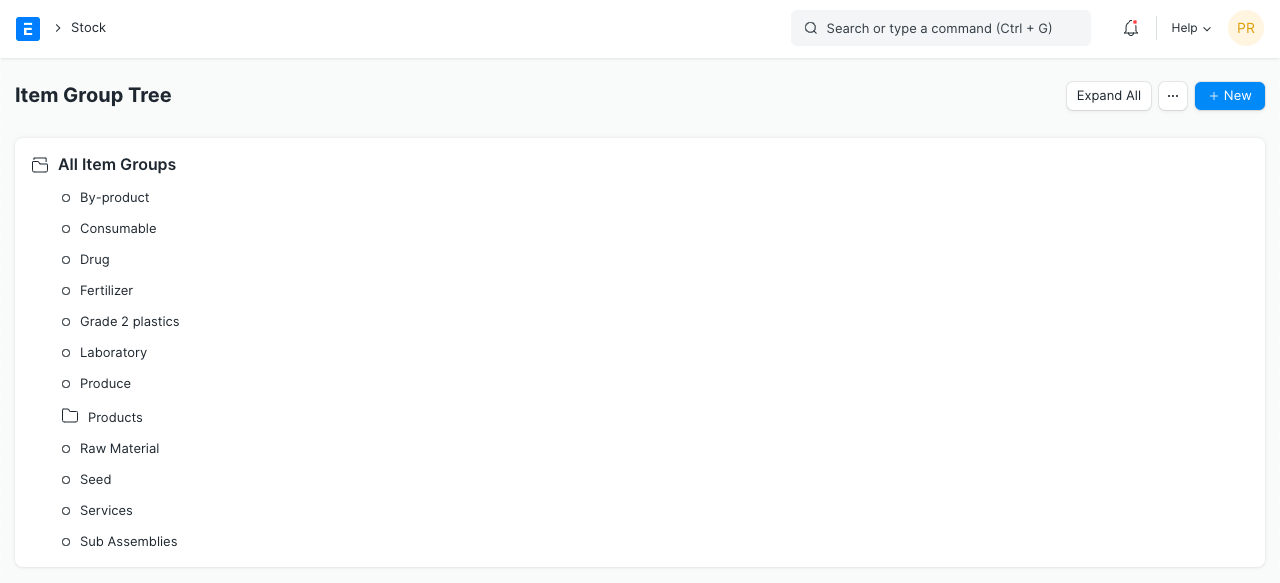
The item group tree looks like this:
1. How to create an Item Group
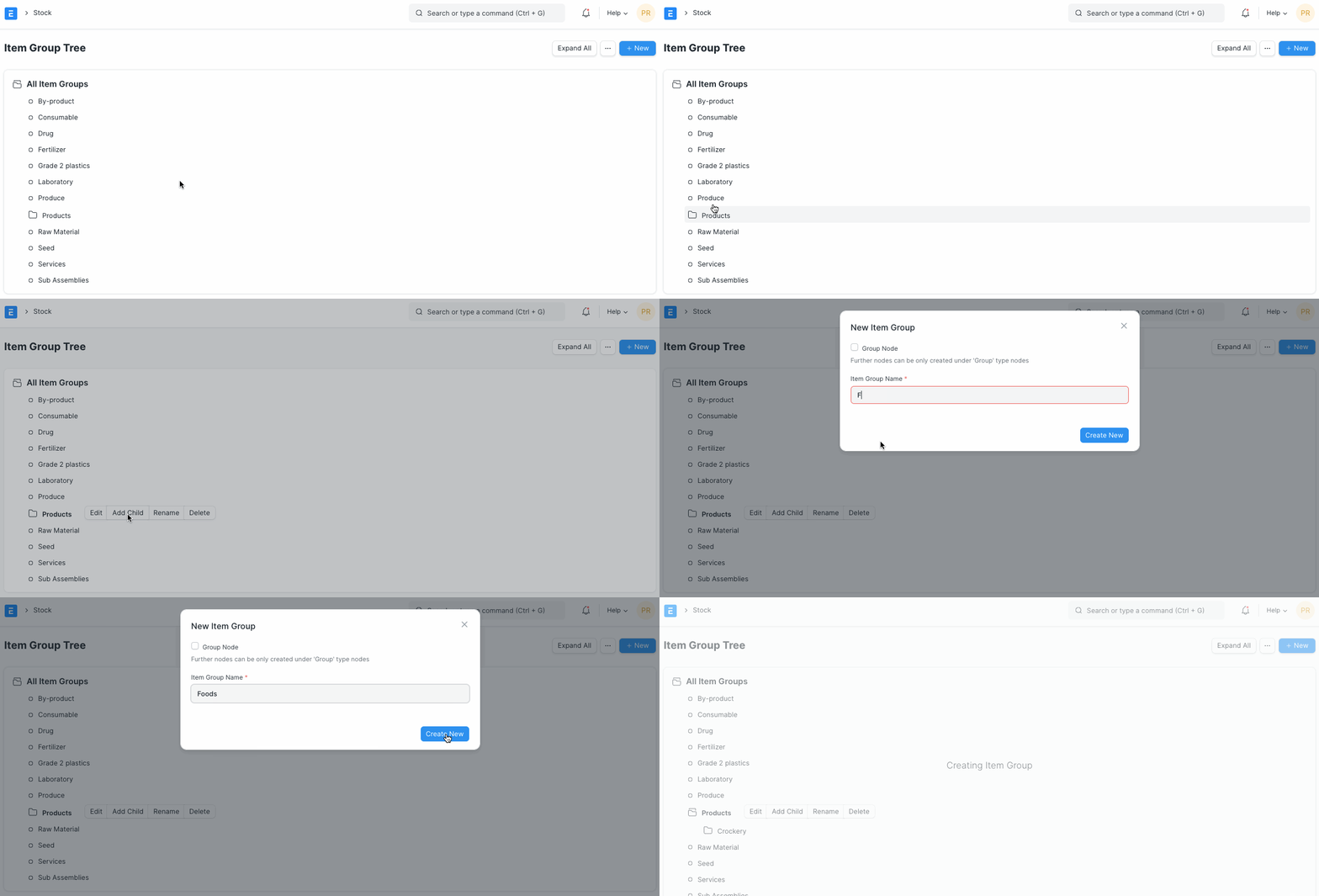
Click New from the Item Group list.
The default root is "All Item Groups," therefore choose a group node under which you want to establish the item group.
Choose "Add Child" or press the "New" button.
Choose Group Node to turn this child into a category or group node.
select "Create New"
1.2 Delete an Item Group
Choose the item group that needs to be deleted.
Choose "Delete."
Choose Yes.
2. Features
Click on an Item Group and then click Edit to view the following options.
2.1 Parent Item Group
By selecting a different option under General Options, you can alter the parent Item Group of an item.
2.2 Defaults
Default Price List: The item prices for this item group will be determined by a preset pricing list.
Default Warehouse: Transactions for the items in this group have a default warehouse specified.
Default Buying/Selling Cost Center: the standard Buying/Selling Cost Center that will be used to charge items in this category.
Default Expense/Income Account: The products that fall under this category's default accounts.
- Default Supplier: If a supplier is specified, this supplier will be picked automatically in purchase transactions for items in this group.
2.3 Item Tax
All items in this group will be subject to the default item tax template. Similar to that, a tax category can also be chosen; for more information on tax categories, go to quotation.
2.4 Website Settings
Show in Website: The Item Group section of your website will display items that are a part of this group.
Weightage: This is the weight assigned to the individual item groups; higher weighted item groups will be displayed first.
Slideshow: Like in an item, a slideshow for the item group. To learn more, go to the Homepage page of the Website module.
Description: This is going to show up on the Item Group page.
Website Specifications: For an item group, the label and its description.