Expense Claim
Expense Claim
When employees pay for things out of their own pockets on the company's behalf, an expense claim is made.
For instance, they can use the Expense Claim form to obtain payment if they take a client out to lunch.
Go to: to access an expense claim.>>Human Resources > Expense Claims > Expense Claim
Human Resources > Expense Claims > Expense Claim
1. Prerequisites
Employee
Department
Chart of Accounts
2. How to create a Expense Claim
Go to: Expense Claim > New.
Select the Employee Name in the 'From Employee' field.
Select the Expense Approver.
Enter the Expense Date, Expense Claim Type and the Amount.
Additionally, you can also enter the Expense Taxes and Charges.
In Accounting Details, select the Company's Default Payable Account.
Save and Submit.
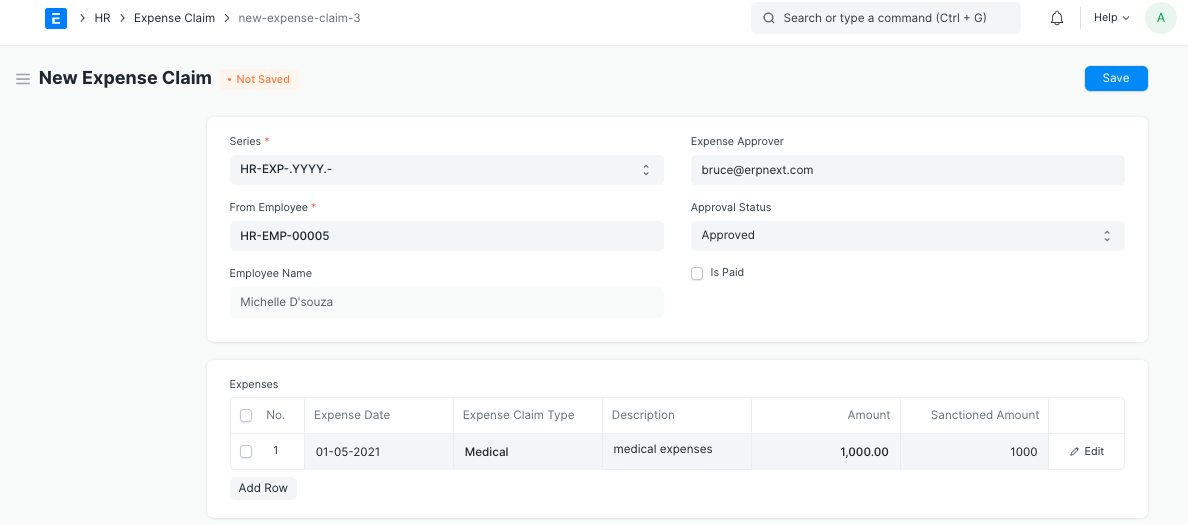
Enter the Employee ID, the date, the expenses to be claimed, along with the applicable taxes, and click "Submit" to finish the record.
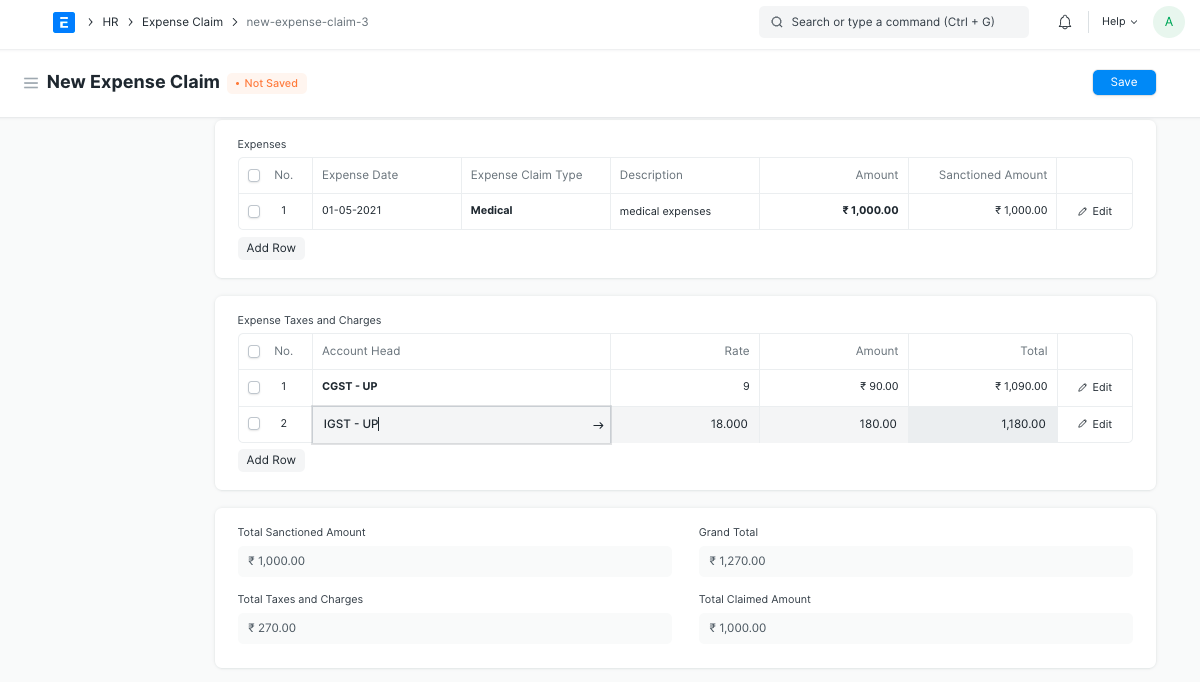
*Approving Expenses
An employee chooses the approver for his or her expense claim. The user can pick from a list of people who have been set up as their department's expense approvers.
If the chosen expenditure approver does not already have access to the newly produced Expense Claim, the document is shared with the approver with "submit" permission.
Employee should assign the expense claim document to the approver after saving it. The user who approved the assignment will also get an email notification. Alternatively, you can set up an Email Alert to automate email notification.
The "Sanctioned Amounts" against an employee's claimed amount can be updated by the expense claim approver. Approval Status should be submitted as Approved or Denied if submitting. If approved, a claim for expenses is subsequently made. If the claim is refused, the expense approver's comments describing the reason for the decision might be put in the Comments area.
Booking the Expense When an expense claim is submitted, the system records the expense against both the employee account and the expense account.

The report "Unclaimed Expense Claims" allows the user to view unpaid expense claims.
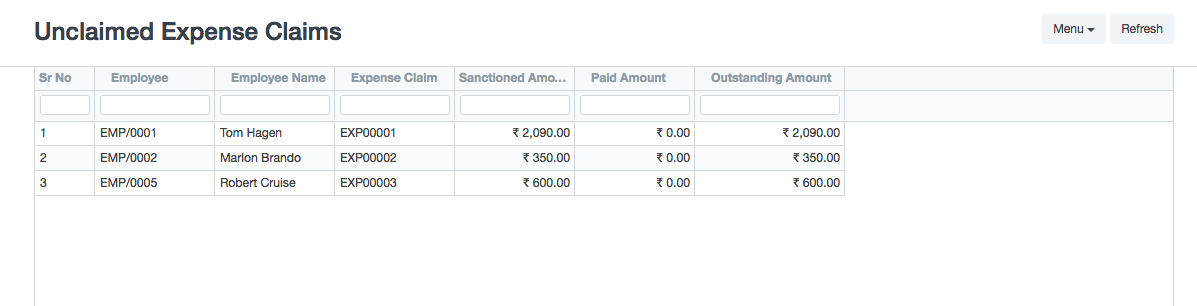
Payment for Expense Claim
The user must choose Create > Payment in order to make a payment in relation to the expense claim.
Expense Claim
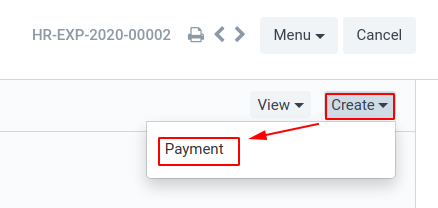
Payment Entry
Note: This amount should not be clubbed with Salary because the amount will then be taxable to the Employee.
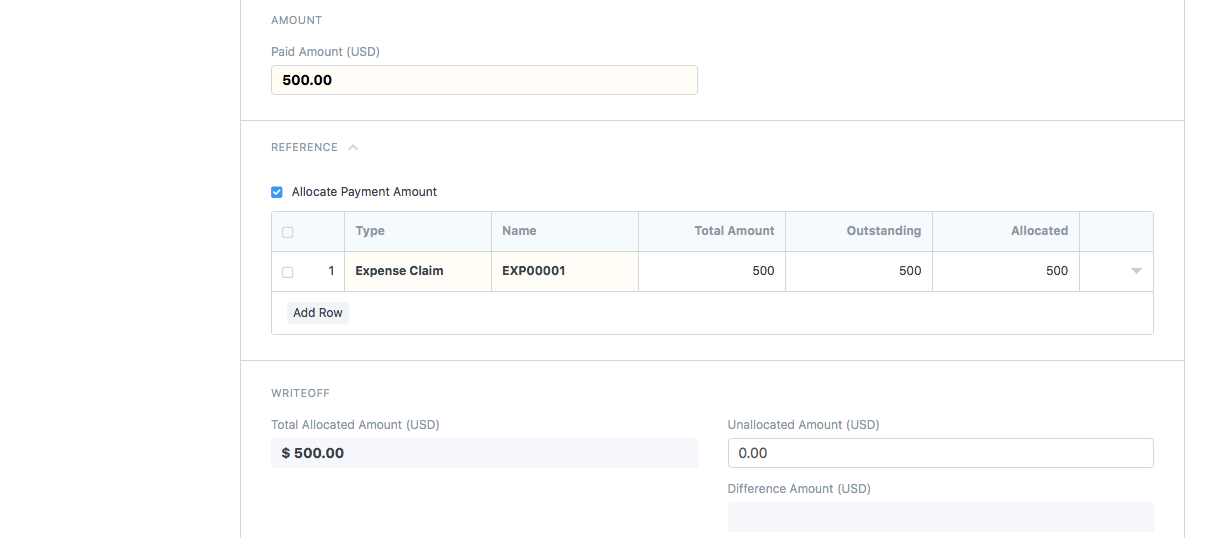
As an alternative, you can make a Payment Entry for an employee, and all pending Expense Claims will be included.
Accounting > Payment Entry > New Payment Entry
Choose "Pay", "Employee," "Party," the recipient employee, and the account from which the payment is to be made. Any pending expenditure claims will be gathered in, and money can be divided up amongst the expenses.
Linking with Task & Project * When submitting an expense claim, be sure to include the task or project in order to link the expense claim with it.
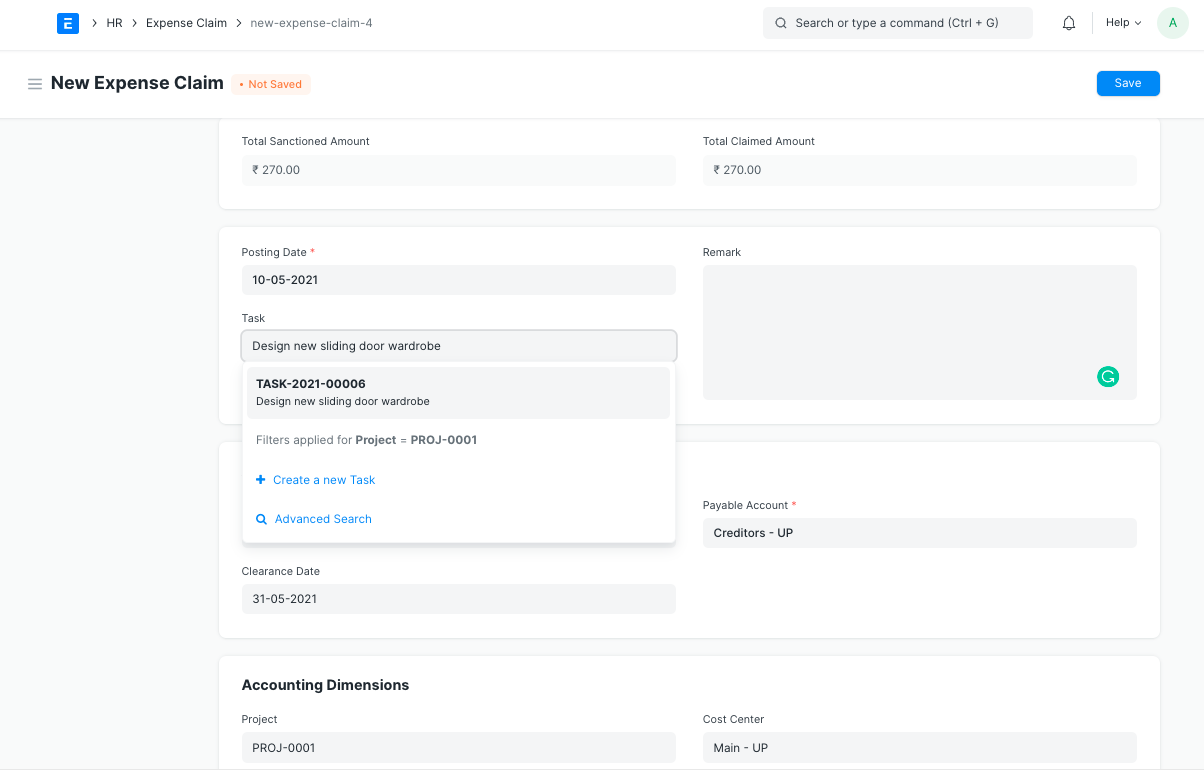
By doing so, the Project Cost will be updated with the Expense Claim Amounts.
By doing so, the Project Cost will be updated with the Expense Claim Amounts.