Shift Request
Shift Request
An employee can utilize a shift request to ask for a specific shift type.
1. Prerequisites
These must be made first in order to create a shift request:
- Employee
- Shift Type
2. How to create a Shift Request
Go to: to start a new shift request.
Human Resources > Shift Management > Shift Request
Hit New under Shift Request List.
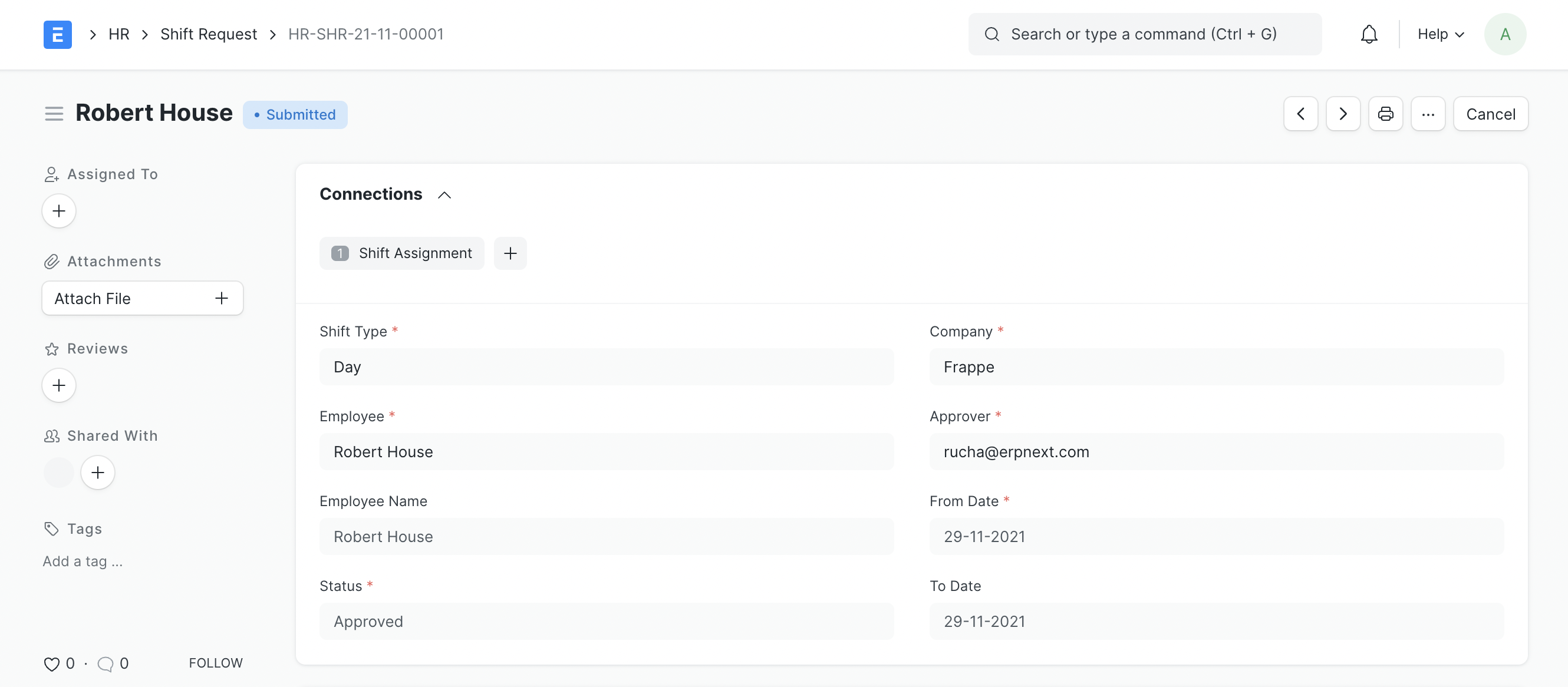
Choose Shift Type and Employee.
Using the From and To dates, adjust the Shift duration.
choosing the Approver. If the chosen approver lacks access to the
Document for a shift request is given to the approver with the "submit" authorization.
Save.
After the shift request has been approved and submitted, a shift assignment is made.
3. Setting Shift Request Approver
An employee's shift request can be approved by a user known as a shift request approver. Shift Request Approver can be configured at two levels in ERPNext version 13:
- Department Level: Each department's shift request approvers can be set up in the Department master. A department may put up more than one shift request approver.
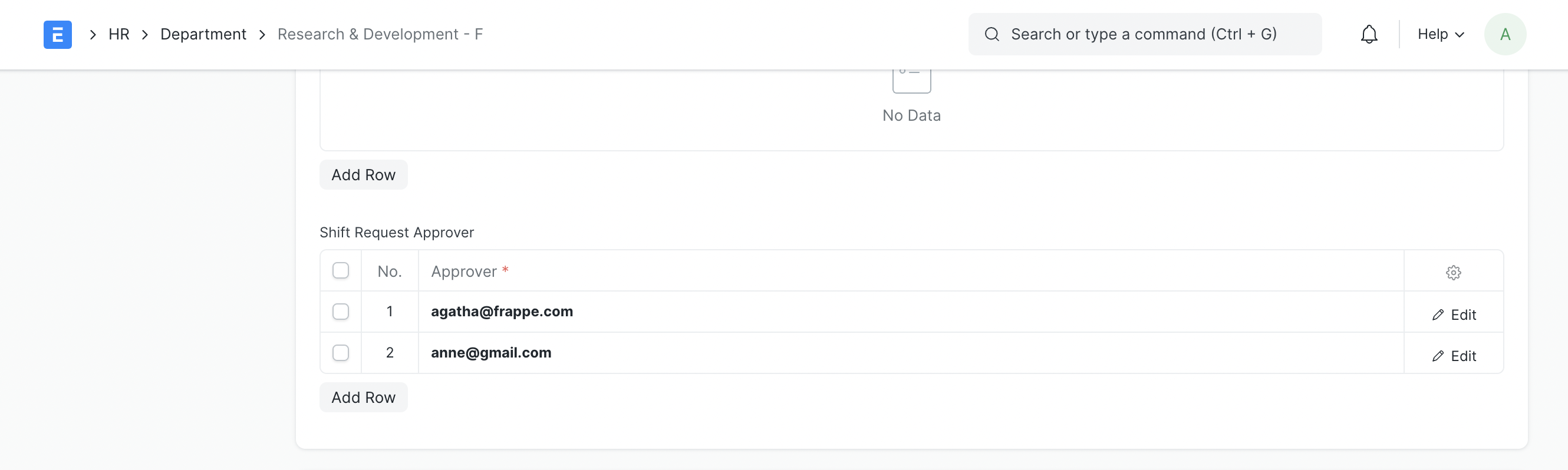
When an employee from a specific department requests a shift type, the shift request approvers listed in that employee's department master are taken into account as his approvers for that shift type.
- Employee Level: The employee master can also be used to set the shift request approver.
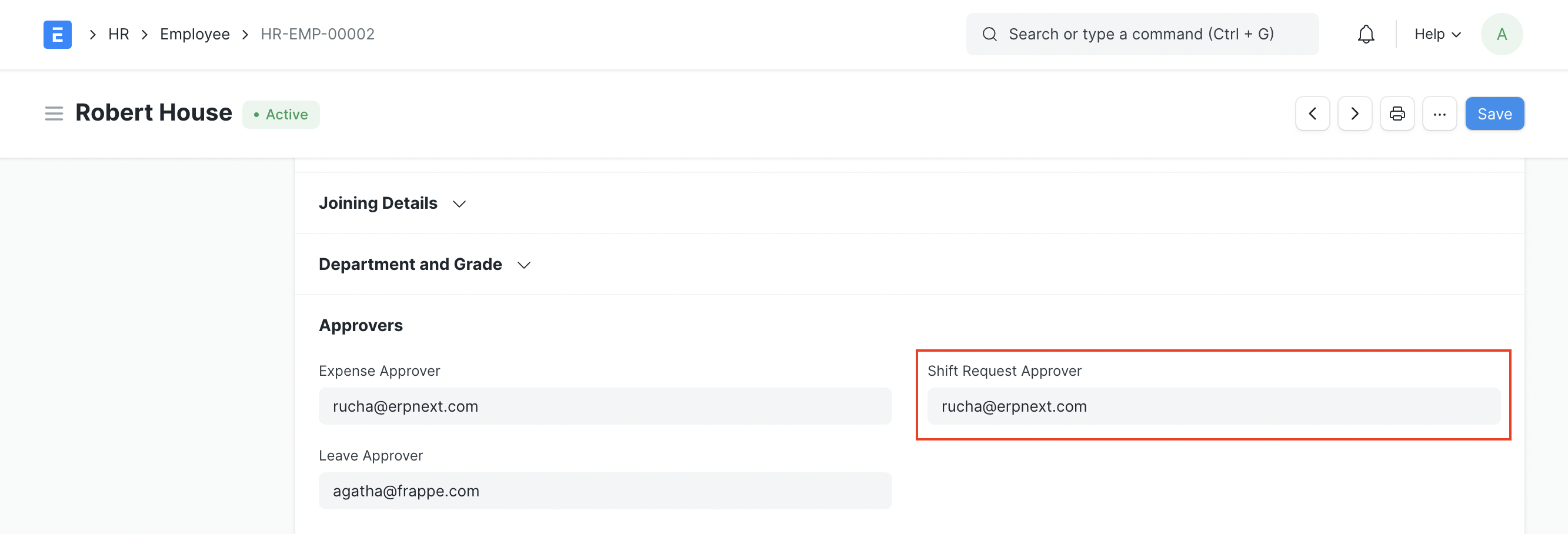
The employee level Shift Request Approver will be regarded as the default Leave Approver in this scenario if Shift Request Approver is defined both at the employee and department levels.