Sales Invoice
A sales invoice is a statement that you send to your customers and ask them to pay.
Accounting transactions include sales invoices. The system changes the receivable and records income against a customer account upon receipt of a sales invoice.
Go here: to retrieve the list of sales invoices.
Home > Accounting > Accounts Receivable > Sales Invoice
1. Prerequisites
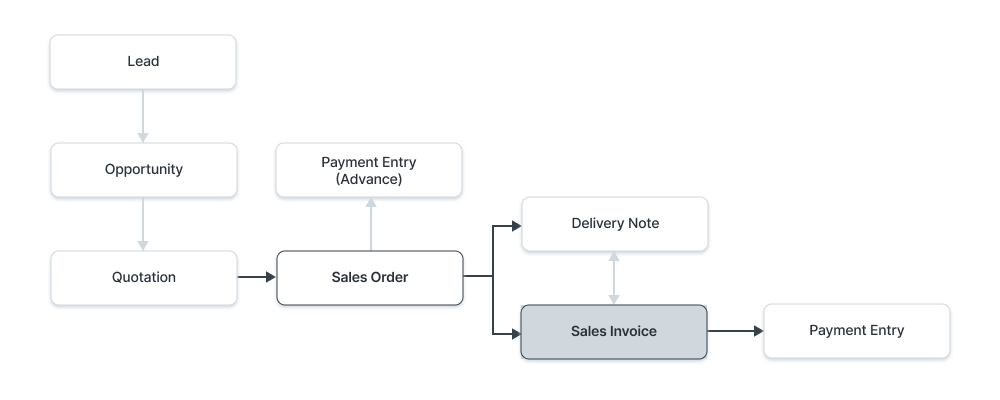
The following should be made initially before making and using a sales invoice: Item Customer Optional: Sales Order Delivery Note
2. How to create a Sales Invoice
A sales order or delivery note is typically used to construct a sales invoice. Details about the customer's item will be retrieved and added to the sales invoice. But, you can also directly create a sales invoice, like a POS invoice. Click the Obtain Items from button to have the information pulled up automatically in a sales invoice. A Sales Order, Delivery Note, or Quotation may contain the information.
For manual creation, follow these steps:
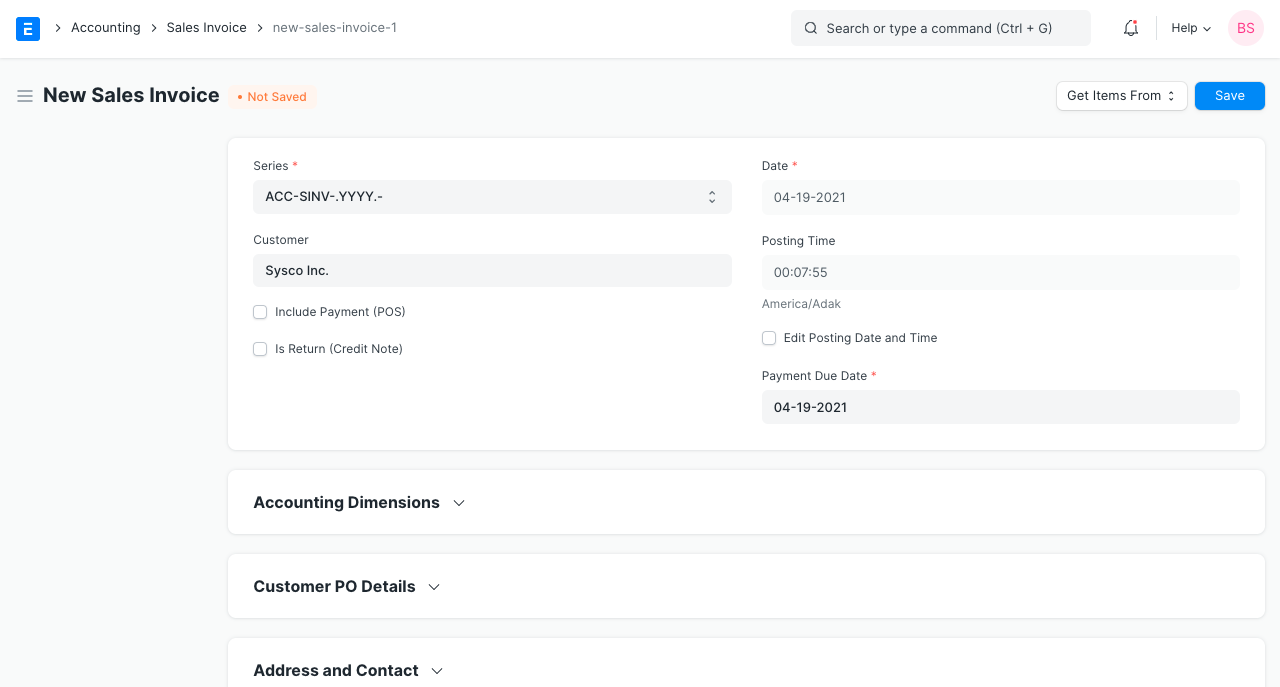
- Go to the Sales Invoice list and click on New. 2.Select the Customer. 3.Set the Payment Due Date. 4.In the Items table, select the Items and set the quantities. 5.The prices will be fetched automatically if Item Price is added, else add a price in the table. 6.The posting date and time will be set to current, you can edit after you tick the checkbox below Posting Time to make a backdated entry. 7.Save and Submit.
2.1 Additional options when creating a Sales Invoice
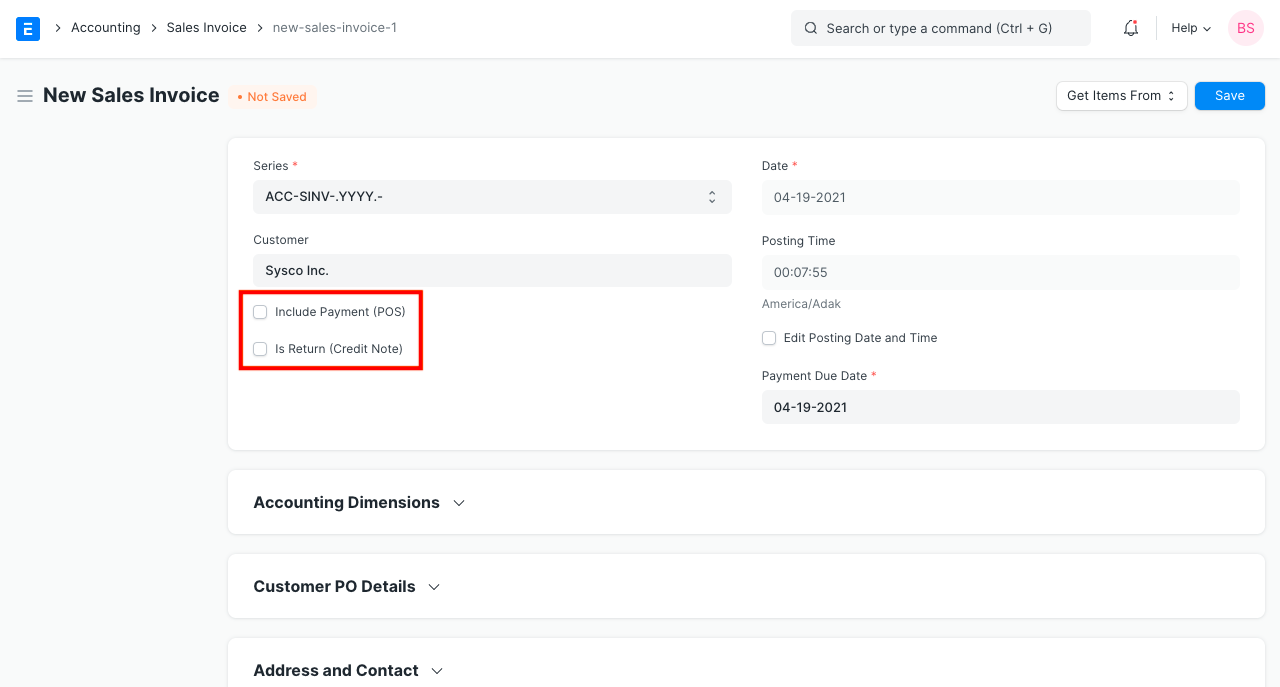
If this invoice is for retail sales or point of sale, include payment (POS). Find out more here. If the client has returned the items, check this box. Is Return Credit Note Visit the Credit Notice page to learn more.
E-Way Bill for India No, transporters must possess an e-Way Bill in accordance with GST regulations. Visit this page to learn how to generate an e-Way Bill.
2.2 Statuses
These are the statuses that the Sales Invoice is automatically allocated.
- Draft: A draft is saved but yet to be submitted.
- Submitted: The invoice is submitted to the system and the general ledger has been updated.
- Paid: Customer has made the payment and a Payment Entry has been submitted.
- Unpaid: Invoice is generated but payment is pending but within the payment due date.
- Overdue: Payment is pending beyond the payment due date.
- Canceled: The Sales Invoice is canceled due to any reason. Once an invoice is canceled, it's impact on Account and Stock is undone.
- Credit Note Issued: The Item is returned by the Customer and a Credit Note is created against this invoice. 8.Return: It is assigned to Credit Note created against the original Sales Invoice. Though you can also create a standalone Credit Note. 9.Unpaid and Discounted: Payment is pending and any ongoing subscription has been discounted using Invoice Discounting. Overdue and Discounted: Payment is pending beyond the payment due date and any ongoing subscription has been discounted using Invoice Discounting.
3. Features
3.1 Dates 1.Posting Date: The date on which the Sales Invoice will affect your books of accounts i.e. your General Ledger. This will affect all your balances in that accounting period.
2.Due Date: The date on which the payment is due (if you have sold on credit). The credit limit can be set from the Customer master.
3.2 Accounting Dimensions
You can tag transactions in Accounting Dimensions depending on a particular Region, Branch, Client, etc. This makes it possible to view accounting statements in various views according to the chosen dimension (s). See the Accounting Dimensions feature's help for further information.
Note: Project and Cost Center are treated as dimensions by default.
3.3 Customer PO Details
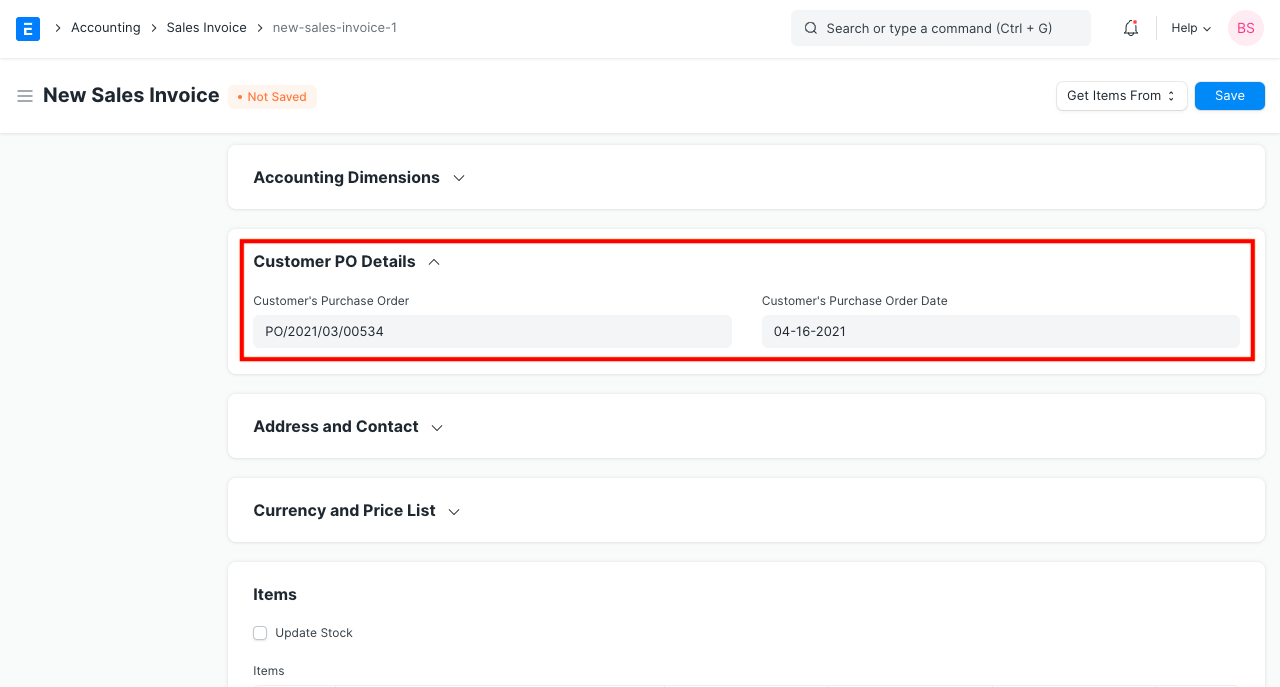
1.Customer's Purchase Order: Track customer's PO No. received, primarily to prevent the creation of duplicate Sales Order or Invoice for the same PO received from the Customer. You can do more configuration related to customer's PO No. validation in Selling Settings 2.Customer's Purchase Order Date: The date on which the Customer placed the Purchase Order.
3.4 Address and Contact
1.Customer Address: This is the Billing Address of the Customer. 2.Contact Person: If the Customer is a company, the person to be contacted is fetched in this field if set in the Customer form. 3.Territory: A Territory is the region where the Customer belongs to, fetched from the Customer form. The default value is All Territories. 4.Shipping Address: Address where the items will be shipped to.
For GST purposes, the following information can be entered for India. These specifics can be recorded in the Address and Customer master, which is retrieved from the Sales Invoice. 1.Billing Address GSTIN 2.Customer GSTIN 3.Place of Supply 4.Company GSTIN
3.5 Currency
The currency in which the order for the sales invoice will be sent can be selected. The Customer Master or earlier transactions like Sales Order can be used to retrieve this.
1.Wish to select Customer's currency just for the reference of the Customer, whereas accounts posting will be done in the Company's base currency only. Learn more here. 2.Maintain separate receivable account in the Customer's currency. The Receivable for this invoice should be posted in that currency itself. Read Multi Currency Accounting to learn more.
3.6 Price list
The item prices will be collected from the price list you choose if you do. The Pricing Rules defined in Accounts > Pricing Rule will not be followed if "Ignore Pricing Rule" is checked.
To learn more, consult the Pricing List documentation.
3.7 The Items table
Note: From version-13 onwards we have introduced immutable ledger which changes the rules for cancellation of stock entries and posting backdated stock transactions in ERPNext. Learn more here.
1.Update Stock Ticking this checkbox will update the Stock Ledger on submitting the Sales Invoice. If you've created a Delivery Note, the Stock Ledger will be changed. If you're skipping the creation of Delivery Note, tick this checkbox.
2.Scan Barcode: You can add Items in the Items table by scanning their barcodes if you have a barcode scanner. Read documentation for tracking items using barcode to know more.
3.Grant Commission: Grant a commission to Sales Person and Sales Partner on the net amount of this line item. If disabled, this line item will be ignored in the calculation of commission.
4.The Item Code, name, description, Image, and Manufacturer will be fetched from the Item master.
5.Discount and Margin: You can apply a discount on individual Items percentage-wise or on the total amount of the Item. Read Applying Discount for more details.
6.Rate: The Rate is fetched if set in the Price List and the total Amount is calculated.
7.Drop Ship: Drop Shipping is when you make the sales transaction, but the Item is delivered by the Supplier. To know more, visit the Drop Shipping page.
8.Accounting Details: The Income and Expense accounts can be changed here you you wish to. If this Item is an Asset, it can be linked here. This is useful when you're selling an Asset.
9.Deferred Revenue: If the income for this Item will be billed over the coming months in parts, then tick on 'Enable Deferred Revenue'. To know more, visit the Deferred Revenue page.
10.Item Weight: The Item Weight details per unit and Weight UOM are fetched if set in the Item master.
11.Stock Details: The following details will be fetched from the Item master:
12.Warehouse: The Warehouse from where the stock will be sent. Available Qty at Warehouse: The quantity available in the selected Warehouse. Batch No and Serial No: If your Item is serialized or batched, you will have to enter Serial Number and Batch in the Items table. You are allowed to enter multiple Serial Numbers in one row (each on a separate line) and you must enter the same number of Serial Numbers as the quantity.
13.Item Tax Template: You can set an Item Tax Template to apply a specific Tax amount to this particular Item. To know more, visit this page.
14.References: If this Sales Invoice was created from a Sales Order/Delivery Note, it'll be referred here. Also, the Delivered Quantity will be shown.
15.Page Break will create a page break just before this Item when printing.
3.8 Timesheet
Workers working on projects can fill out timesheets that include their billing rate if you want to pay them on an hourly basis (contract-based). The associated Timesheet entries for that Project will be fetched when you create a new Sales Invoice and choose the Project for which the billing is to be done.
You can make an invoice based on the timesheet if your company's workers are at a place that has to be billed.
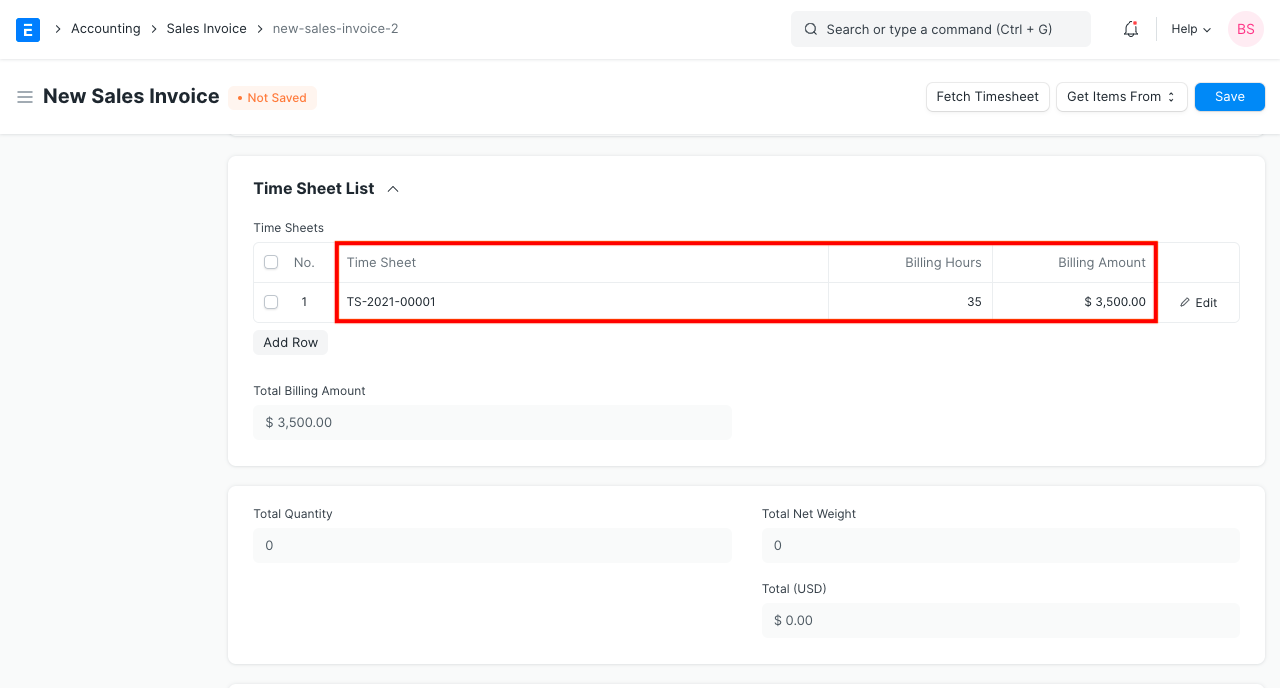
Please visit this page to learn more.
3.9 Taxes and Charges
The Sales Order or Delivery Note will be used to retrieve the Taxes and Charges. To learn more about taxes, go to the Sales Taxes and Charges Template page. Below the table, the total taxes and fees will be shown. Visit this page to learn how to automatically add taxes using a Tax Category. For a correct valuation, ensure that all of your taxes are accurately marked in the Taxes and Charges table.
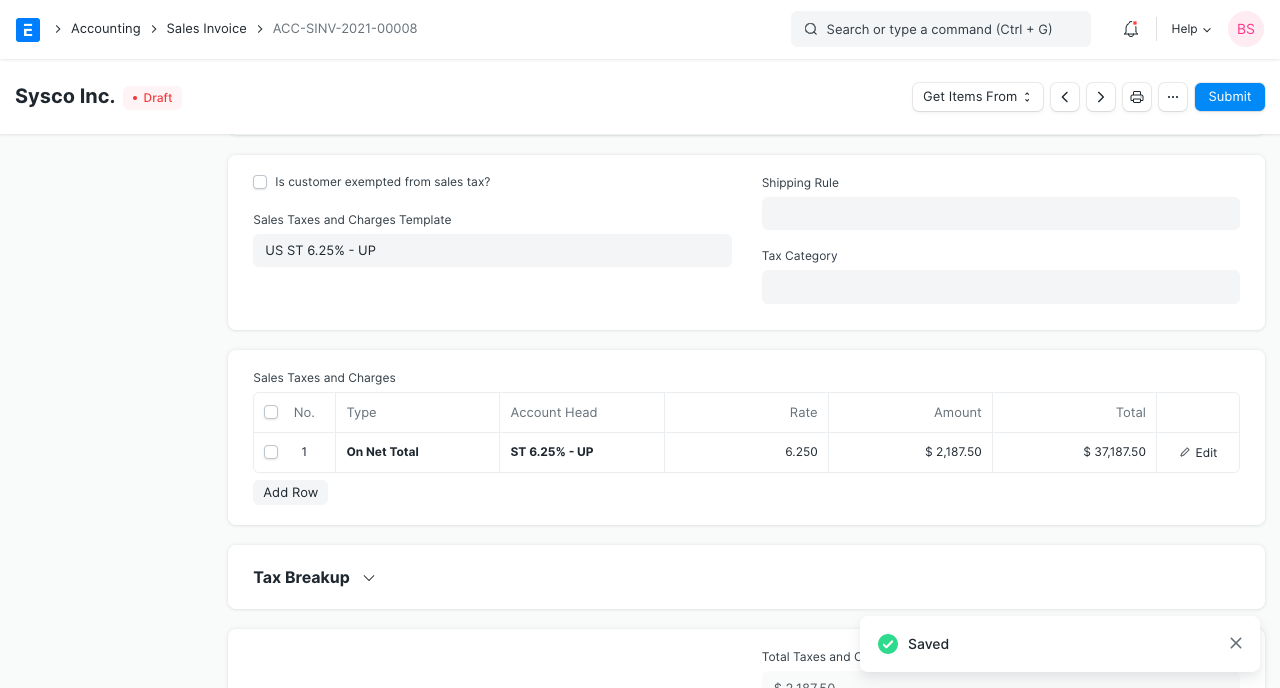
Shipping Rule A shipping rule aids in determining an item's shipping cost. The price will often rise as shipping distance increases. Visit the Shipping Rule page to learn more.
3.10 Loyalty Points Redemption
The customer has the option to redeem a loyalty program if they are a member. Visit the Loyalty Program page to learn more.
3.11 Additional Discount
This area can be used to set any additional discounts that apply to the entire invoice. This discount may be based on either the Gross Total (i.e., after taxes and fees) or the Net Total (i.e., before taxes and fees). A percentage or dollar amount may be used to apply the additional discount. For further information, go to the Applying Discount page.
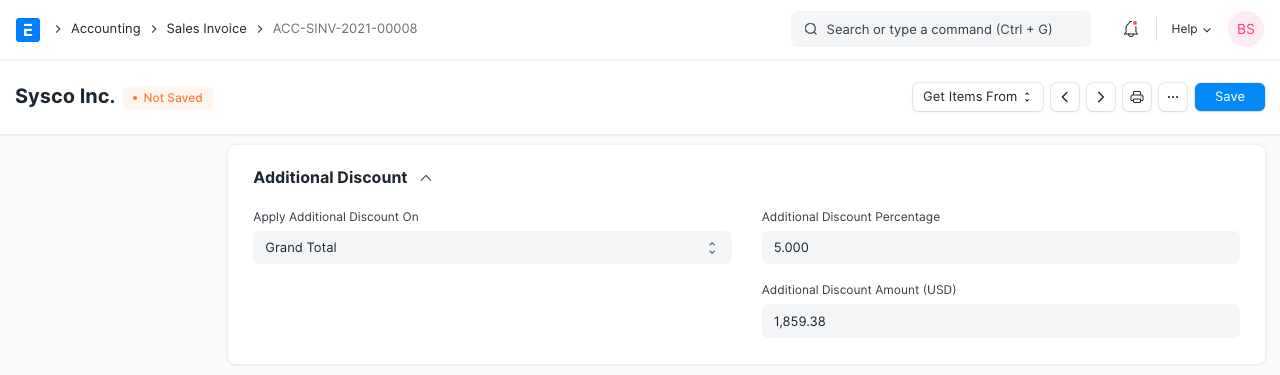
3.12 Advance Payment
Prior to executing an order for high-value items, the vendor may want an advance payment. By clicking the Obtain Advances Received button, a popup window is shown, allowing you to get the orders for which an advance payment was received. Visit the Advance Payment Entry page to learn more.
3.13 Payment Terms
Depending on your agreement with the Supplier, you may pay an invoice in installments. If specified in the Sales Order, this is fetched. See the Payment Conditions page for additional information.
3.14 Write Off
When the customer pays less than the invoice amount, a write-off occurs. That might only be a 0.50 difference. This might build up to a significant sum over the course of multiple orders. This amount of the difference is "written off" for accounting purposes. See the Payment Conditions page for additional information.
3.15 Terms and Conditions
The terms and conditions that may apply to the item you're selling may also apply here. To add terms & conditions, read the related documentation.
3.16 Transporter Information
The transporter information can be added if you contract out the movement of the Items to the place of delivery. Drop shipment is not the same as this.
1.Transporter: The Supplier who will transport the Item to your Customer. The transporter feature should be enabled in the Supplier master to select the Supplier here. 2.Driver: You can add a Driver here who will drive the mode of transport.
The Delivery Note is typically used to retrieve the information.
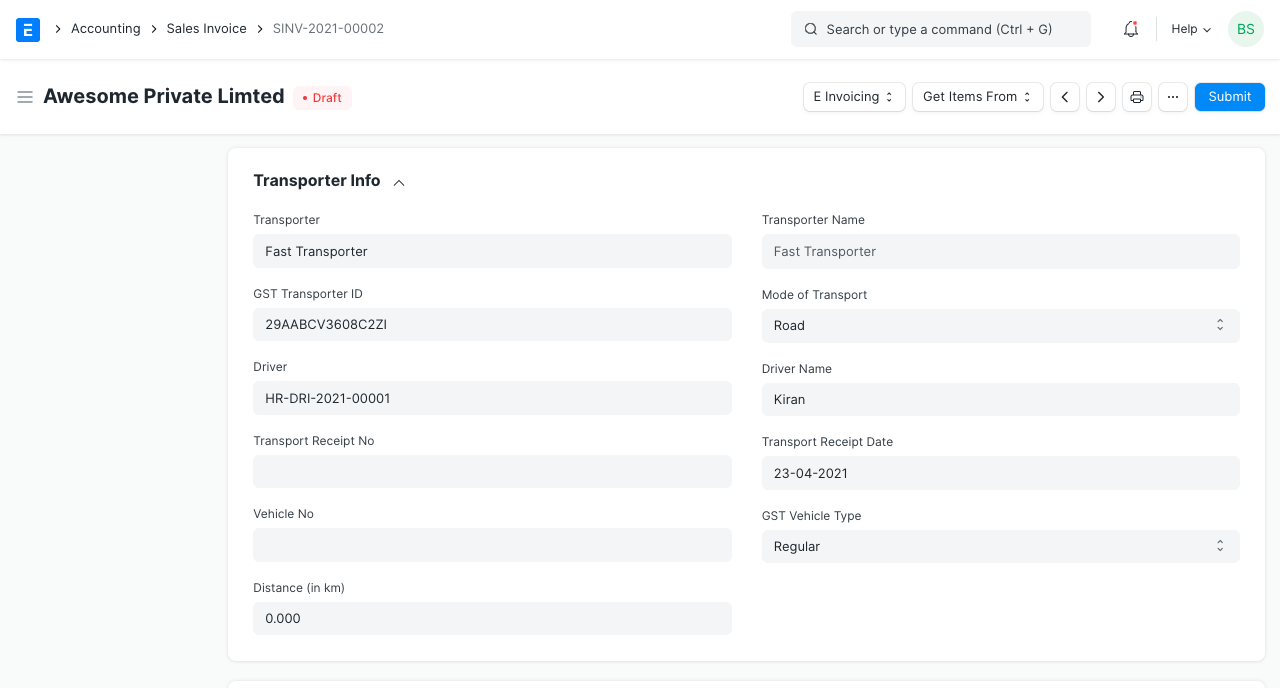
The following information can be noted: 1.Distance in km 2.Mode of Transport whether road, air, rail, or ship.
For India, GST: 1.GST Transporter ID 2.Transport Receipt No 3.Vehicle No The GST Vehicle Type can be changed
Both the Driver Name and the Transport Receipt Date will be retrieved.
3.17 Printing Settings
Letterhead Your company's letterhead may be used to print your sales invoice. Find out more here. The option "Group same items" will group identical items added more than once to the Items table. When you print, this will be evident.
Print Headings While printing the document, headlines for sales invoices can also be modified. This can be accomplished by choosing a Print Heading. Go to Home > Settings > Printing > Print Heading to add new print headings. Find out more here. When the item is expensive, there are additional checkboxes that allow you to print the sales invoice without the price. When printing, you can also arrange related items into a single row.
3.18 GST Details (for India)
For GST, the following information can be set:
GST Category 1.Invoice Copy 2.Reverse Charge 3.E-commerce GSTIN 4.Print Heading
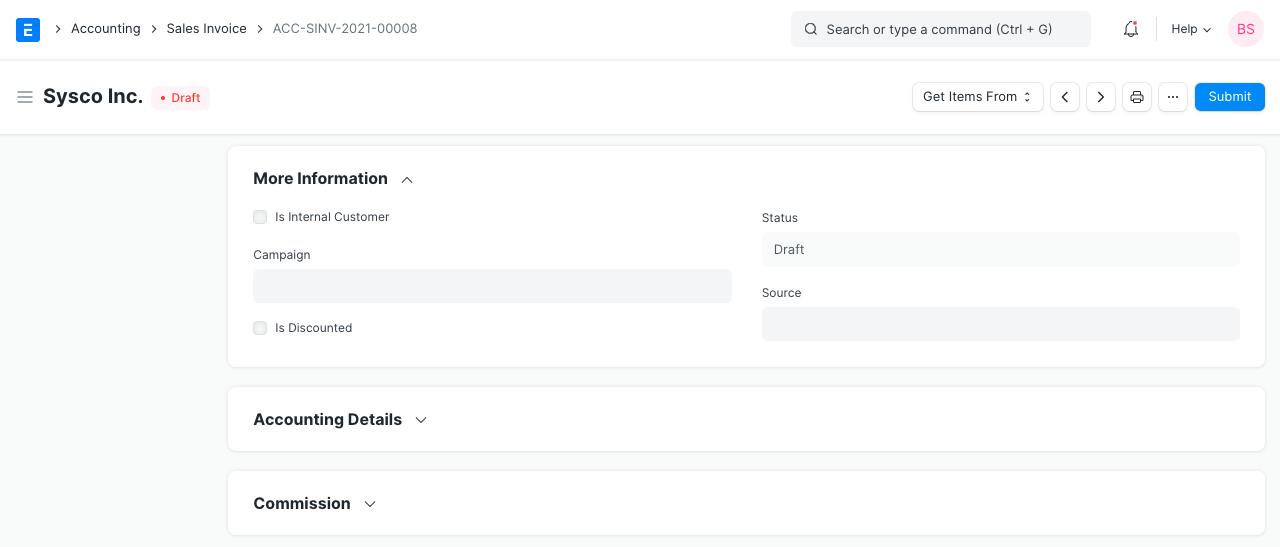
3.19 More Information
You can record the following sales information:
1.Campaign: If this invoice is a part of on ongoing sales Campaign, it can be linked. To know more, visit the Campaign page. 2.Source: A Lead Source can be tagged here to know the source of sales. To know more, visit the Lead Source page.
3.20 Accounting Details
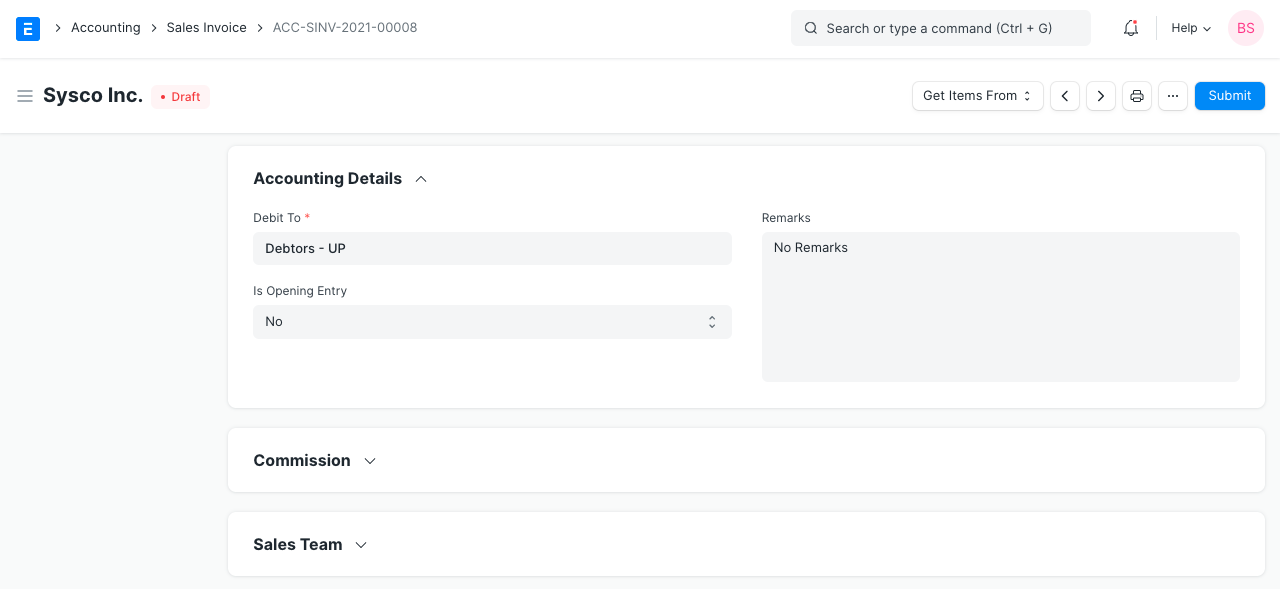
1.Debit To: The account against which receivable will be booked for this Customer. 2.Is Opening Entry: If this is an opening entry to affect your accounts select 'Yes'. i.e. if you're migrating from another ERP to ERPNext mid year, you might want to use an Opening Entry to update account balances in ERPNext. 3.Remarks: Any additional remarks about the Sales Invoice can be added here.
3.21 Commission
You can include the sales partner's commission information here if the sale was made through one of them. Usually, this information is taken from the sales order or delivery note.
3.22 Sales Team
Sales Representatives: ERPNext enables you to add several Sales Representatives who might have contributed to this deal. Also pulled from the sales order/delivery note is this information.
3.23 Automatically Fetching Item Batch Numbers
If "Update Stock" is selected, ERPNext will automatically retrieve a batch number if you are selling an item from a batch. On the basis of First Expiring First Out (FEFO), the batch number would be retrieved. The Items that are most likely to expire soon receive the greatest priority under this variation of First In First Out (FIFO).
It should be noted that the next batch in the queue that can fulfill the order on the invoice will be chosen if the initial batch in the queue is unable to. ERPNext will abandon its effort to automatically acquire an appropriate batch number if no batch can fulfill the order.
3.24 POS Invoices
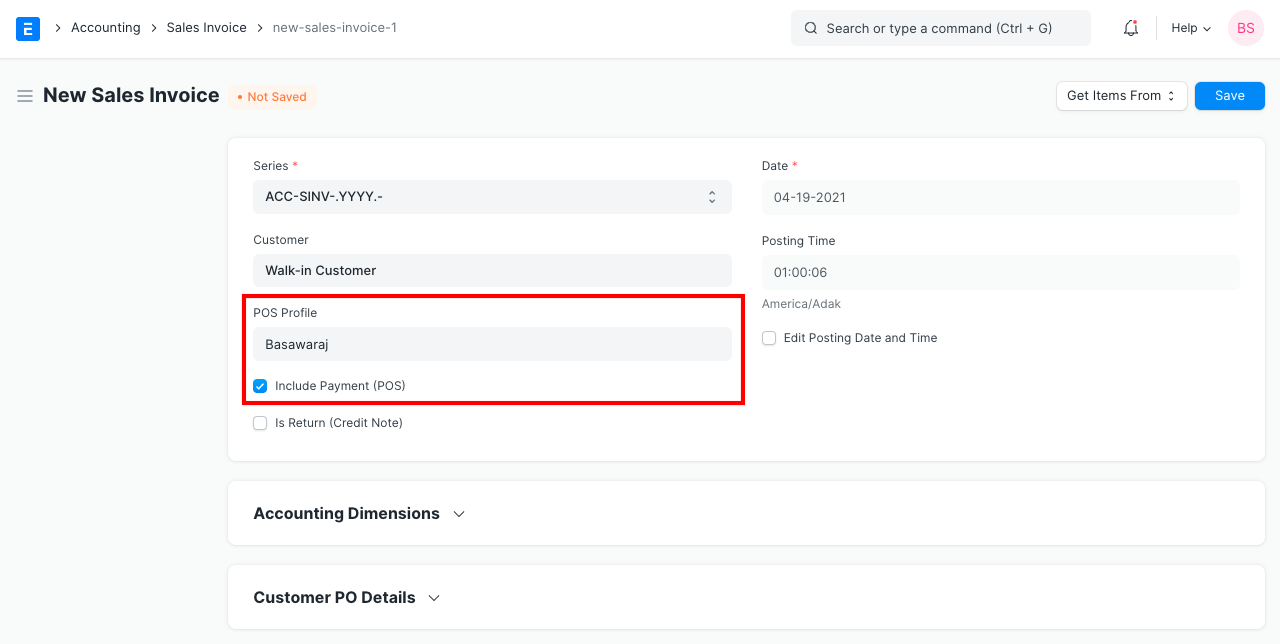
Imagine a situation when a retail purchase is made. Example: A retail store. You may quickly make payments if you select the Is POS checkbox, which pulls all of your POS Profile data into the Sales Invoice.
Also, without the requirement for a Delivery Note, the stock will automatically update if you click the Update Stock box.
3.25 After Submitting
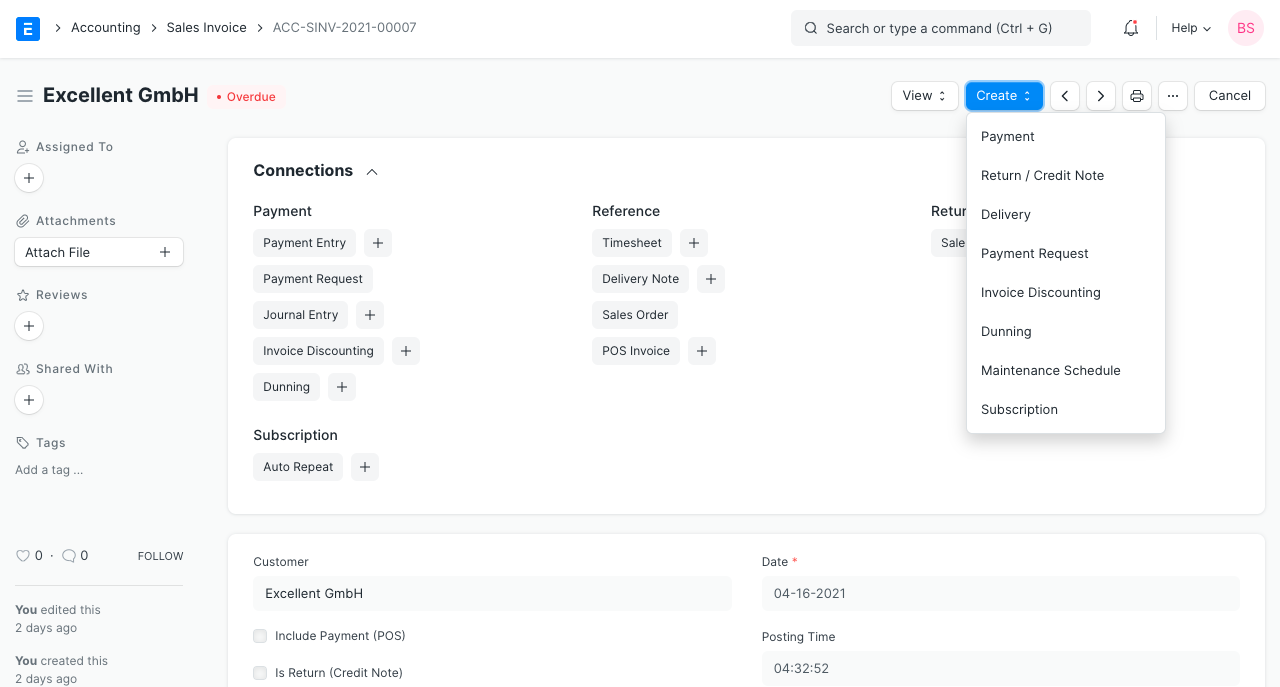
The following documents can be generated in response to a sales invoice:
1.Journal Entry 2.Payment Entry 3.Payment Request 4.Invoice Discounting 5.Delivery Note
4. More
Accounting Impact It is required to record all sales against a "Income Account." This is a reference to an account in your Chart of Accounts' "Income" section. It is a good idea to categorize your money according to type (like product income, service income, etc). Each row of the Items table needs to have its Income Account configured.
Advice: You can set the default income accounts for items in the item or item group.
The Customer's Account is the other account that is impacted. The heading section's "Debit To" field automatically sets that.
Moreover, you might identify the cost centers where your income must be recorded. Keep in mind that your cost centers will tell you how profitable each of your many product or service lines is. In the Item master, you can also set a default Cost Center. Consider accounting dimensions as well.
Accounting entries (GL Entry) for a typical double entry “Sale”:
Booking a sale (accrual) entails:
1.Debit: Customer (grand total) 2.Credit: Income (net total, minus taxes for each Item) 3.Credit: Taxes (liabilities to be paid to the government)
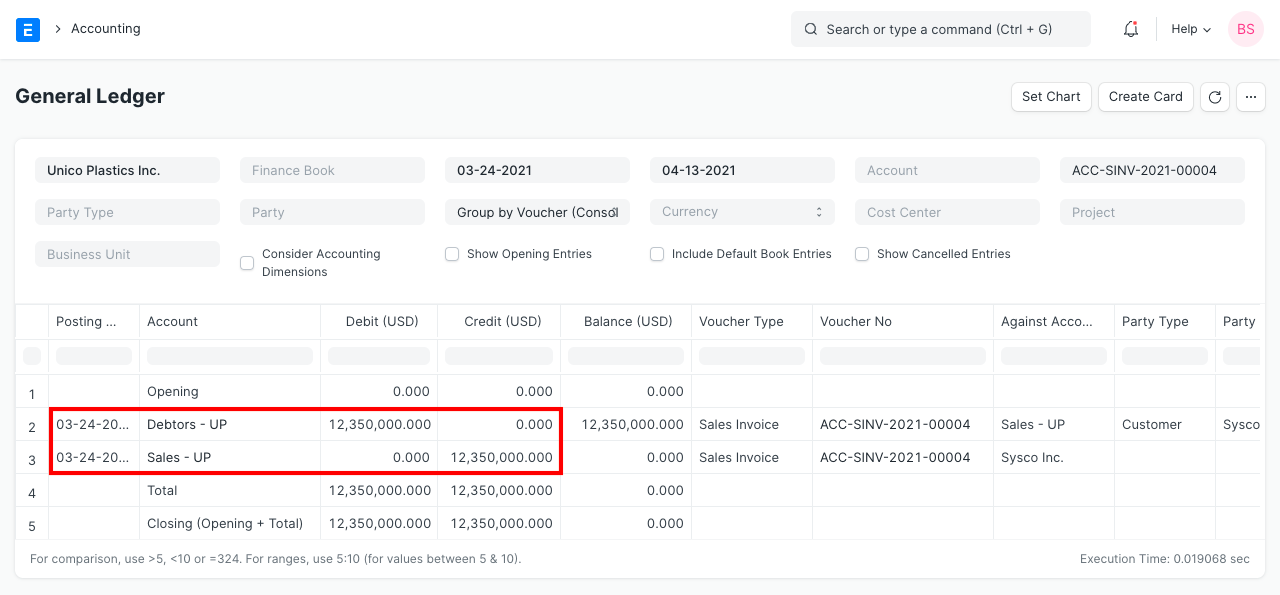
Once you've hit "Submit," select "See Ledger" to view the entries in your sales invoice.