Automating Issue Assignments in ERPNext
Automating Issue Assignments in ERPNext
Evidence suggests that customer service is improved by modern support automation solutions. By automating the assignment of support tickets to the appropriate product experts, customers can get their questions answered more quickly. Here's how to use Assignment Rule, which was added in version 12, to automate your support team's problems.
The first step is to set up an email account so that all incoming emails are appended to the "Problem" DocType of ERPNext. 1) Register for an email address: You must configure your support email address and update the email domain in ERPNext's email account. Please click this link to learn more about email setup.
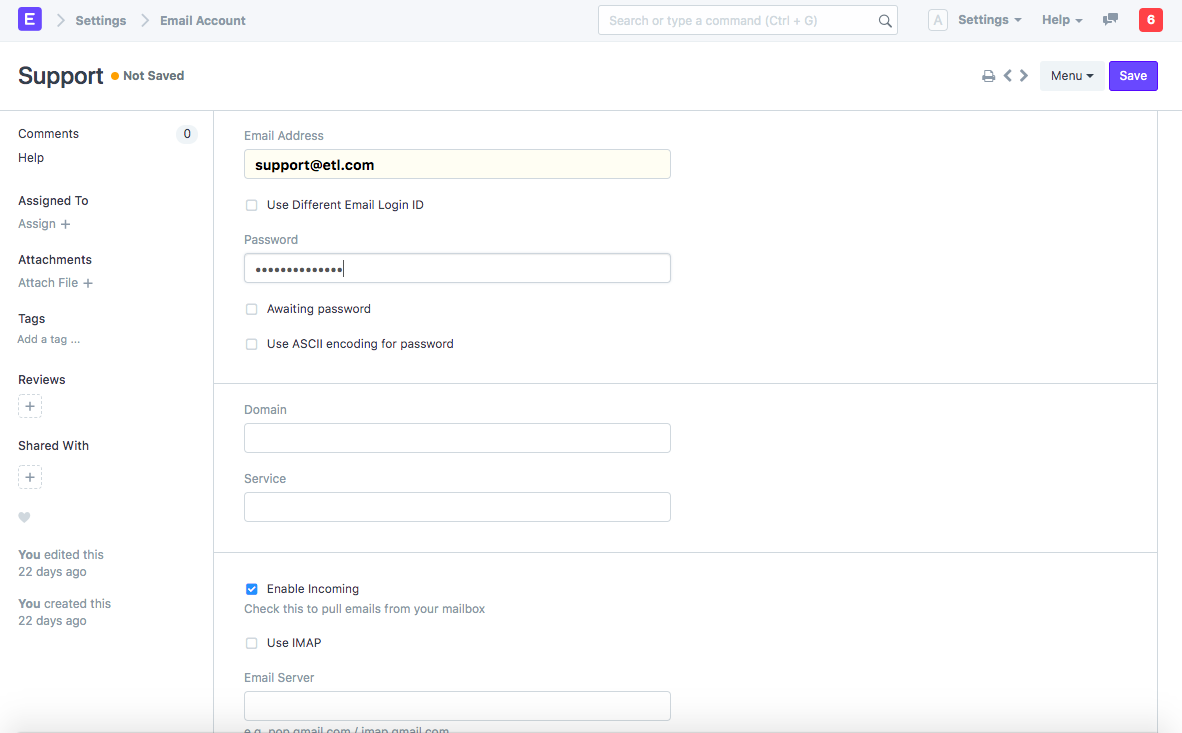
2) Append to Issue:
To allow emails sent to this email address to be received here, the "Allow Incoming" checkbox must be set. The DocType that is specified under "Appends To" is what we need to record them in. We want to add all incoming emails to Problem in this situation.
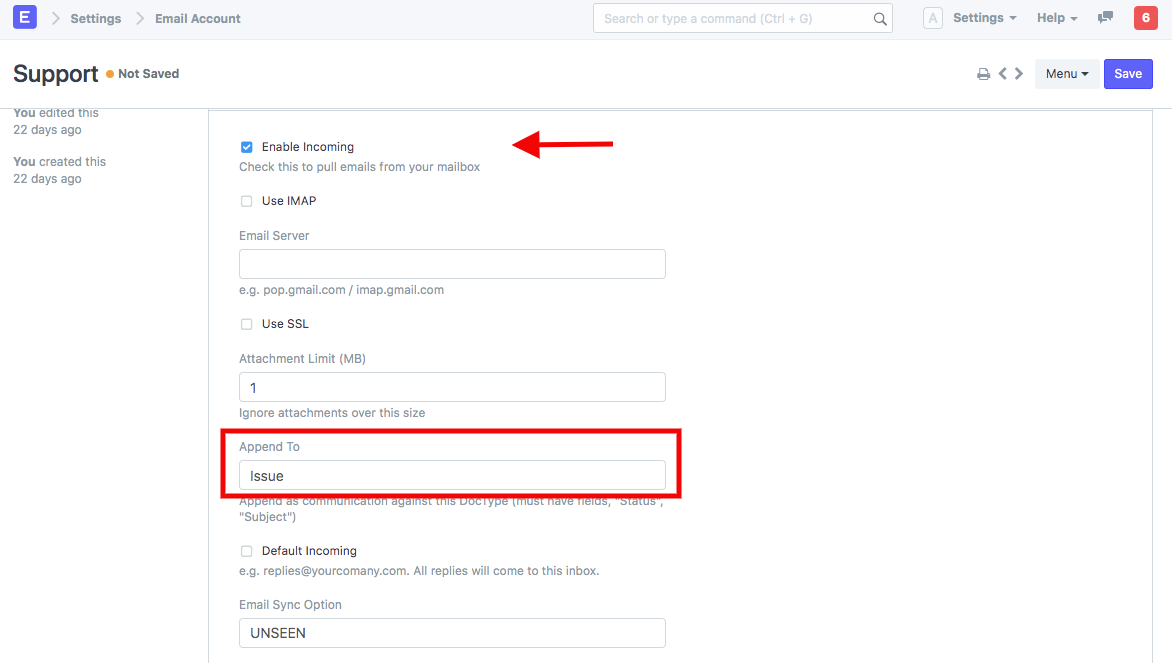
You won't need to worry about this configuration again unless you need to use third-party programs to update the password for that email address. The emails that are sent here will be added to the Problem List. We can plan the customer support team's schedule and guarantee prompt resolution of all open support tickets by using Assignment Rules.
3) Setting an Assignment Rule:
4) Based on the rule defined in step (3), the assignments will be done automatically
When an Issue is created or changed, these are carried out. See automation in action when a ticket's status is updated by viewing the GIF below:
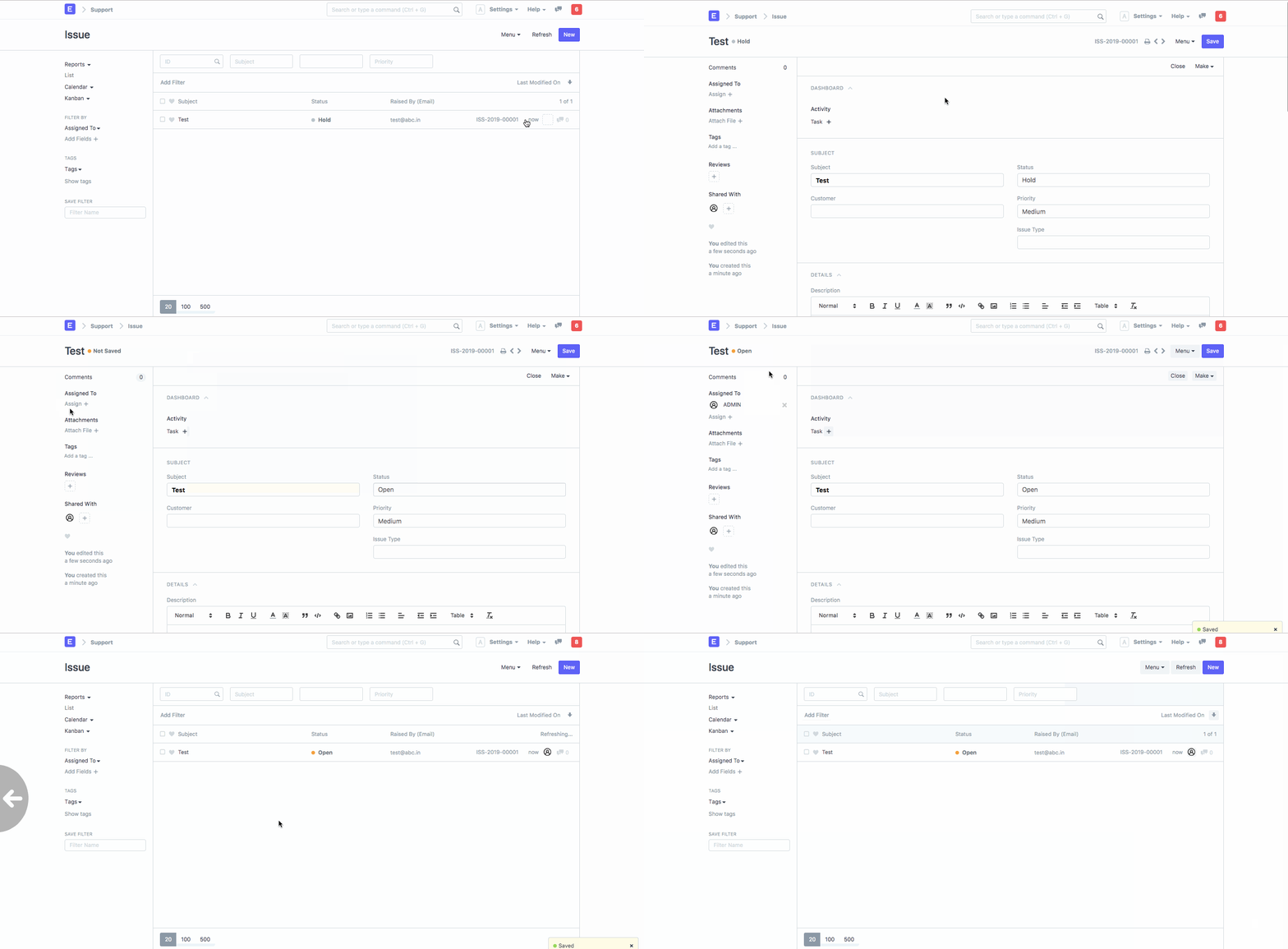
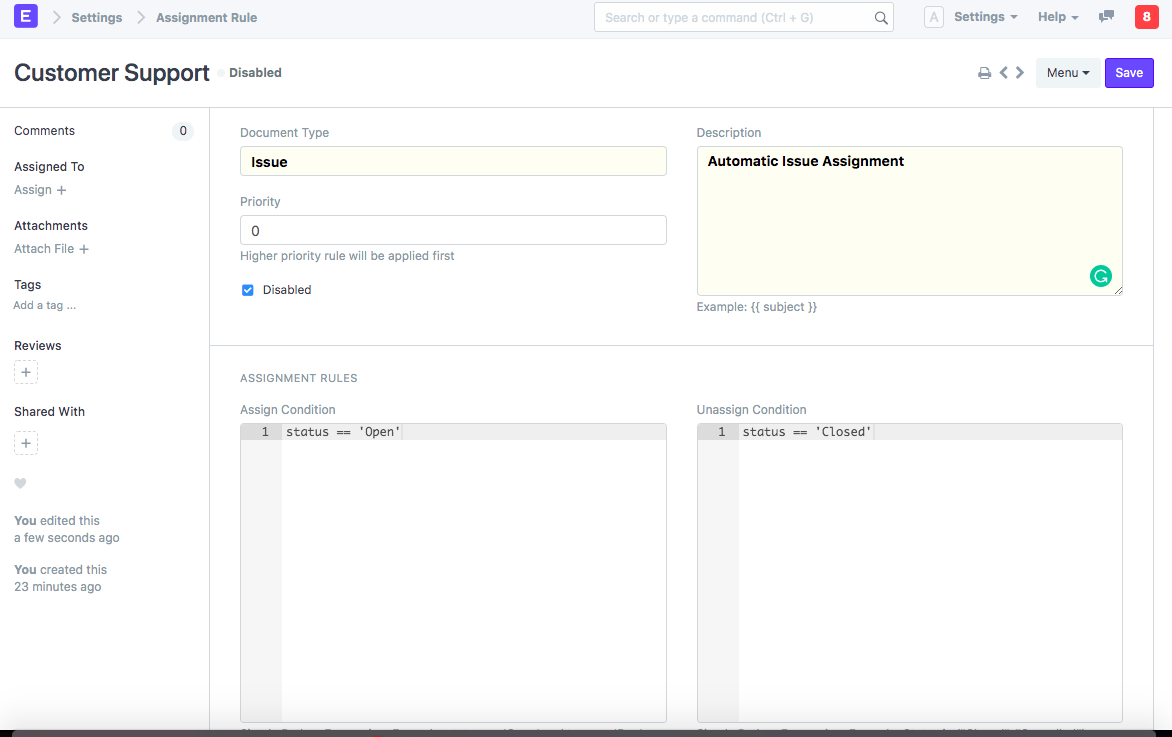
Note: The rule may also be modified or disabled as necessary:
Similar to this, you can use ERPNext's sales automation to allocate leads to your sales staff and increase conversion rates! I appreciate you reading this content. You can get in touch with our community here if you require further help with this.