Timesheet
Timesheet
A timesheet is a record of how many hours an employee spent finishing each activity.
The timesheet can also be used to track an employee's contribution to a Project or a Task, as well as to determine the billable hours owed to them and their wages.
In ERPNext, a Timesheet might provide a tabular record of a specific employee working on numerous Tasks or Projects.
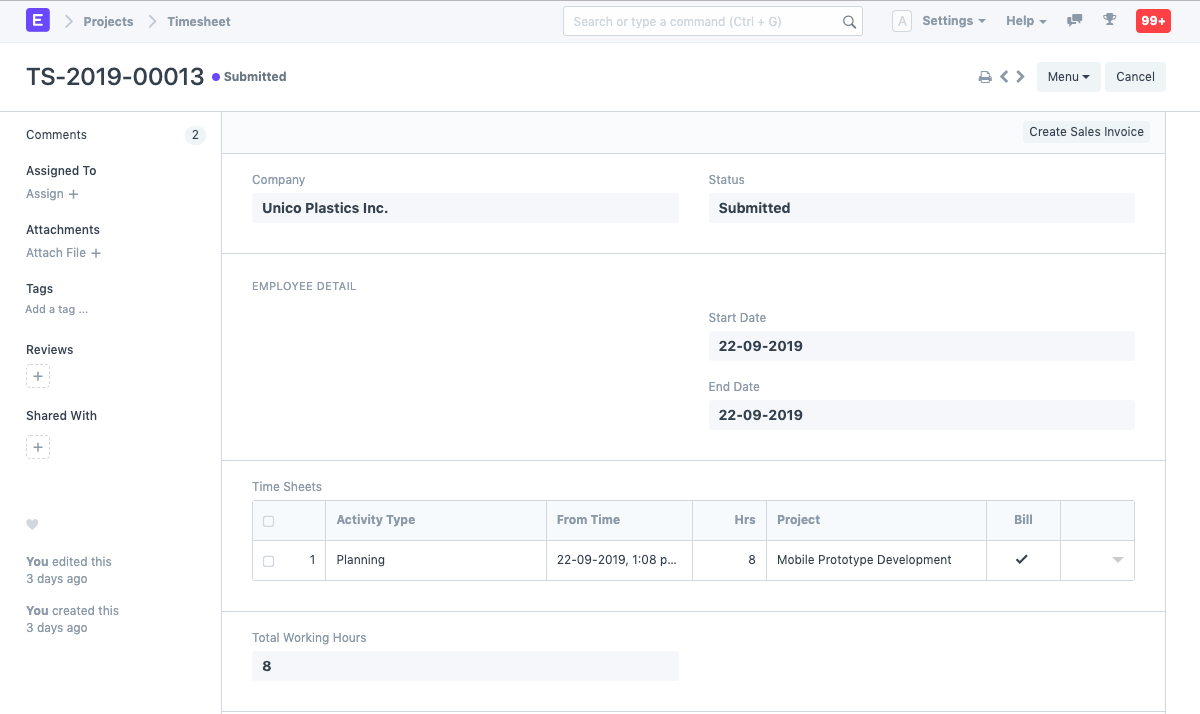
To access Timesheet, go to,
Home > Projects > Time Tracking > Timesheet
1. How to create a Timesheet
Click on Create in the Timesheet List once there.
Type in the Employee Code and the Name of the Company.
The field "Time Sheets" should now include the information below.
Activity Type: Provide the category of the activity for which the time sheet was made.
From Time: Provide the day and hour that the task was initiated.
Hrs: Indicate how many hours this time sheet was produced for. Several days' worth of work can be tracked on a single timesheet.
Project: You can enter the name of the Project here if this Time Sheet has to be associated with a specific Project.
Bill: If this particular Time Sheet is billable, then this box needs to be checked.
If you want to add more similar time sheets, click "Add Row."
Save.
The Start Date, Finish Date, and Total Working Hours will update automatically when the timesheet is saved in accordance with the information entered in the various time sheets. Hit "Submit."
1.1. Alternatively, a Timesheet can also be created from a Task in the following way:
Go to the Task for which a new timesheet has to be created.
On the Dashboard, select "Timesheet" from the Activities column. You would be taken to the Timesheet creation page if you clicked the addition sign (+) here.
To generate a time sheet, follow the steps.

1.2. Timer in Timesheet
On a timesheet, a Timer can be used to track the real amount of time an employee needs to complete a given task.
1.2.1. Steps to start a Timer:
Within a timesheet After clicking Start Timer, a dialog window appears where you must enter the following information:
Activity Type: The Task for which you are keeping time records.
Project: The Project for which the timesheet is being created.
Task: The Task that you are using the timesheet to log.
Expected Hrs: Enter the approximate number of hours needed to complete the Assignment.
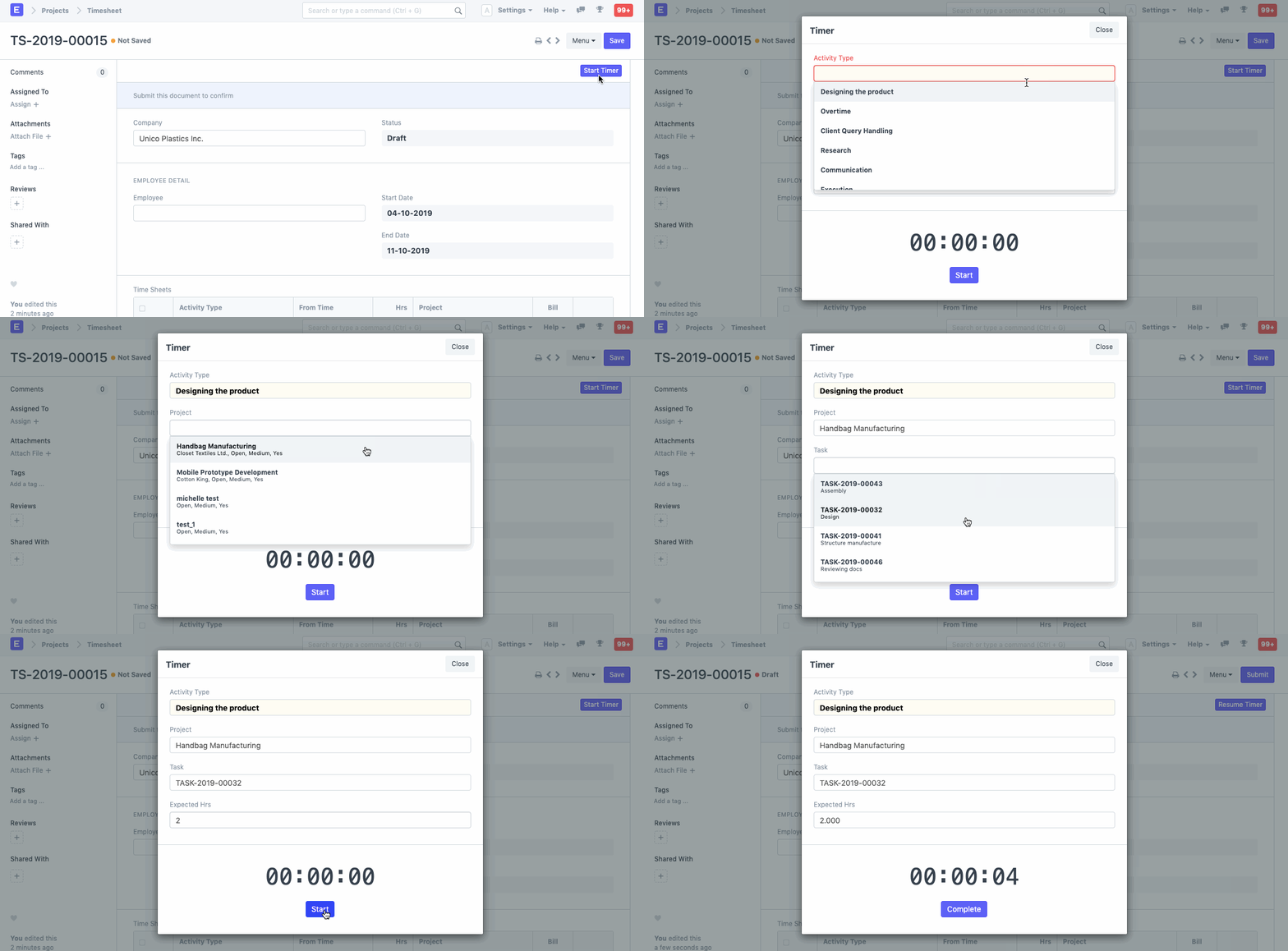
Click Finish when you've finished the task. The time will be entered as a new item in the Timesheet and recorded as a Time Sheet in the Time Sheets Table.
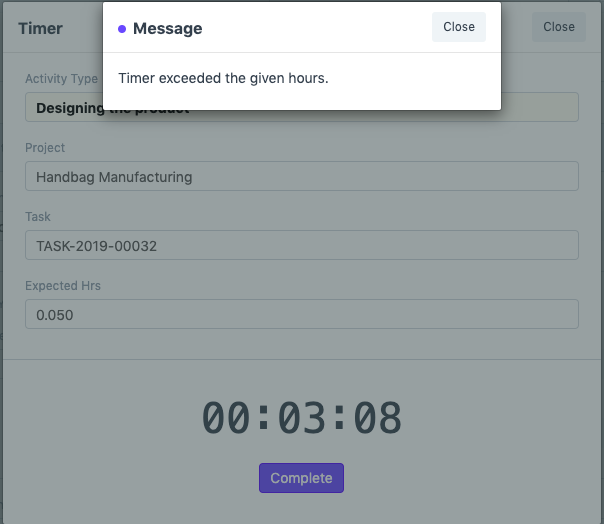
An alert box occurs if the time is longer than the "Expected Hrs."
1.3. Additional Options while creating the Timesheet
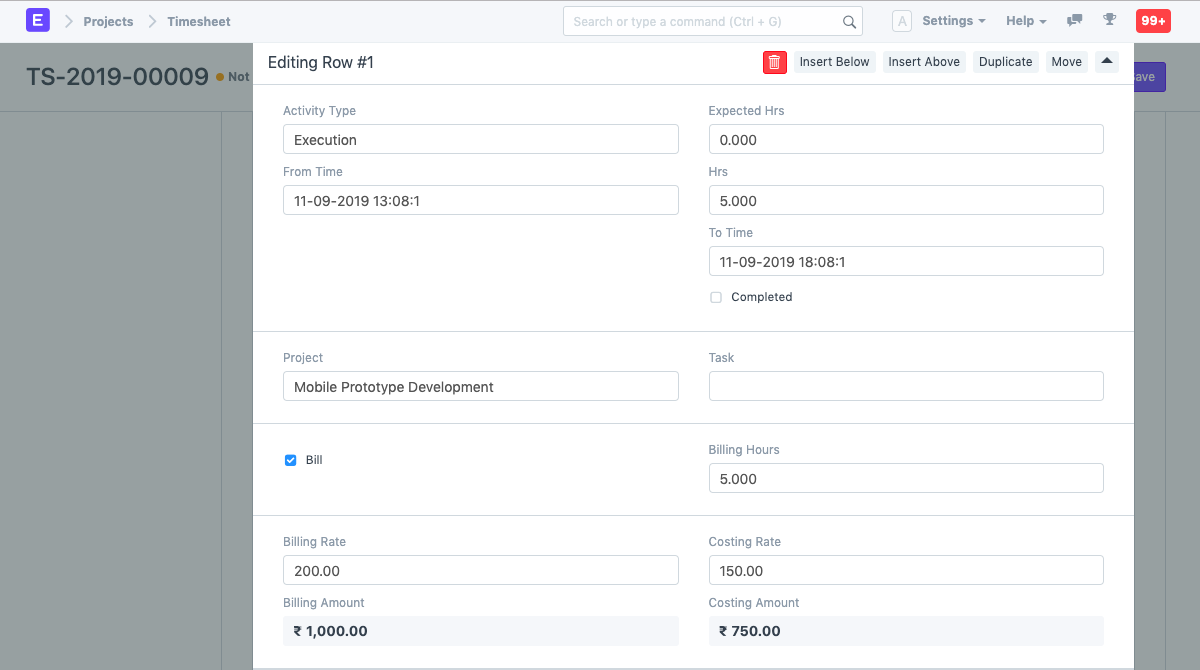
When the time sheet is extended, you can add the following information to it:
Expected Hours: On the time sheets, enter the approximate amount of time needed to finish the tasks.
To Time: Provide the day and time the work was finished.
Completed: If the Task was finished when submitting the Timesheet, this box must be checked.
Task: You can do this here if this Time Sheet has to be associated with a certain Task.
Billing Hours: The total number of hours that the customer must be billed for in order to complete this timesheet.
Billing Rate: the price that the client should be charged for this work.
Costing Rate: This represents the actual cost of the work. It can be edited and is fetched from the activity cost (per employee) or the activity type.
Billing Amount: Based on the number of billable hours and the billing rate, the billing amount is automatically determined.
Costing Amount: The costing amount is automatically determined using the costing rate and the number of hours.
2. Features
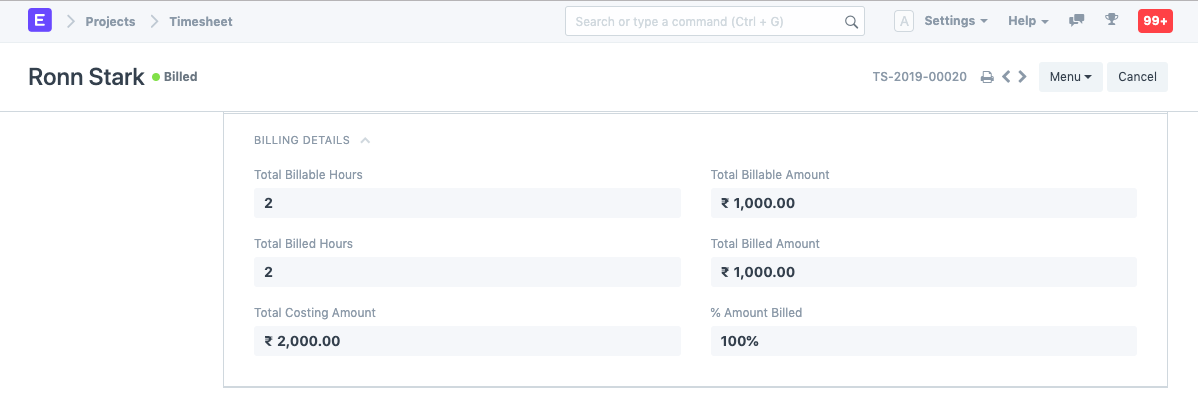
2.1 Billing Details
Total Billable Hours: The Total Billable Hours will automatically be retrieved here based on the Timesheet.
Total Billable Amount: The Overall Billable Amount will be automatically retrieved here based on the Timesheet.
Total Billed Hours: You will have the opportunity to create a sales invoice from the timesheet once it has been submitted. Once the sales invoice is submitted, the total billed hours will be retrieved. Here, the number of hours for which the customer will be invoiced will be fetched.
Total Billed Amount: The Total Billed Amount will be acquired in a manner similar to how the Total Billed Hours are fetched.
Total Costing Amount: The Total Costing Amount that the Employee has specified is marked here based on the Timesheet.
% Amount Billed: The proportion of the Amount out of the Total Billable Amount which has been calculated for the Total Billed Amount and is represented here after the Timesheet is submitted and a Sales Invoice is prepared from the Timesheet.
3. After Saving the Time Sheet
The Billing Rate and Costing Rate get locked after a timesheet is saved and submitted, and they cannot be modified. Following the submission of a timesheet, the following DocTypes can be prepared.