Shipping Rule
Shipping Rule
You can specify the price for sending a product to a client or supplier using the shipping rule.
For the same item across several countries, you can specify various shipping requirements or a set shipping fee.
Go to: to access Shipping Rule.
Home > Selling > Items and Pricing > Shipping Rule
1. How to create a Shipping Rule
Click New in the Shipping Rule list.
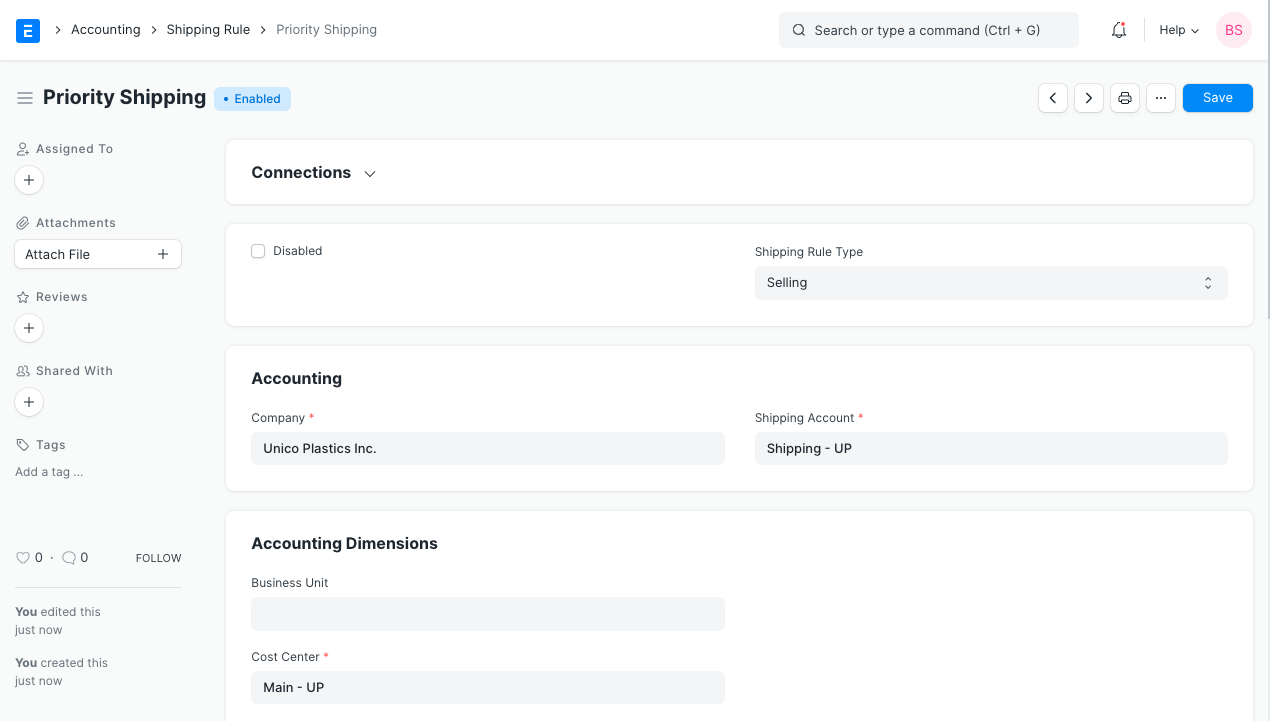
The Shipping Rule label, such as "Priority Shipping" or "Next Day Delivery," should be entered.
Continue with the accounting information, such as the shipping account, the cost center that will receive the charge, and the shipping amount.
The calculation on which the shipping rule will be applied, such as net total quantity or net total weight, can be altered under Calculate Based On; by default, it is set to "Fixed."
Save.
2. Features
2.1 Shipping Rule Conditions
A table where you can enter the from and to values for the amount or weight will show when you choose Net Total or Net Weight. For the range you entered, enter the shipping amount. As required, add more constraints. In a single Shipping Regulation, only one of the three calculating techniques may be chosen.
2.2 Restrict to Countries
By adding the nations to the table, you can limit the application of the Shipping Rule to particular nations. The Shipping Regulation will automatically be applicable on a global scale.