Service Level Agreement
Service Level Agreement
A service level agreement (SLA) is a contract that specifies the degree of service that the end user expects from a service provider (either internal or external).
SLAs are output-based, and their main goal is to specify when the customer will receive the service. SLAs do not specify how the service is actually delivered or offered.
Go here: to access the list of Service Level Agreements.
Home > Support > Service Level Agreement > Service Level Agreement
1.Prerequisites
It is suggested that you first create/update the following before developing and utilizing a service level agreement:
Holiday List
Enable Track Service Level Agreement in Support Settings

2. How to Create a Service Level Agreement
Click on New in the Service Level Agreement list.
Give the Service Level a name.
Choose a group of employees who will manage a specific service level.
Make a holiday wish list. The Service Level Agreement will not be in effect on the days that are listed as holidays.
A Service Level Agreement's "Enable" setting controls whether it is active or inactive.
If a client doesn't already have a specific SLA assigned to them, selecting "Default Service Level Agreement" will apply this SLA to them.
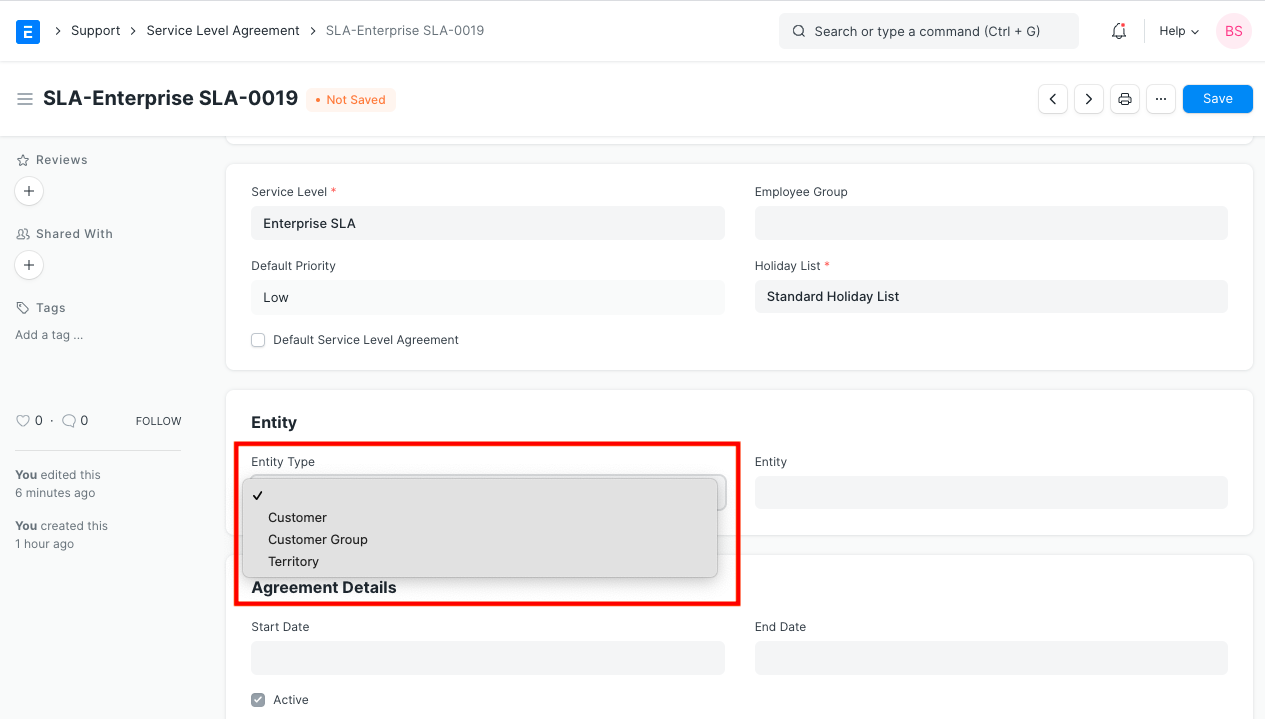
Entity Type: You can apply Service Level Agreements based on these characteristics by assigning Service Level Agreements to a Customer, Customer Group, or Territory.
Entity: Choose a particular customer, customer group, or territory.
Start / Finish Date: Establishes the agreement's legality.
Several issue priorities and their response and resolution times can be set (in hours and mins).
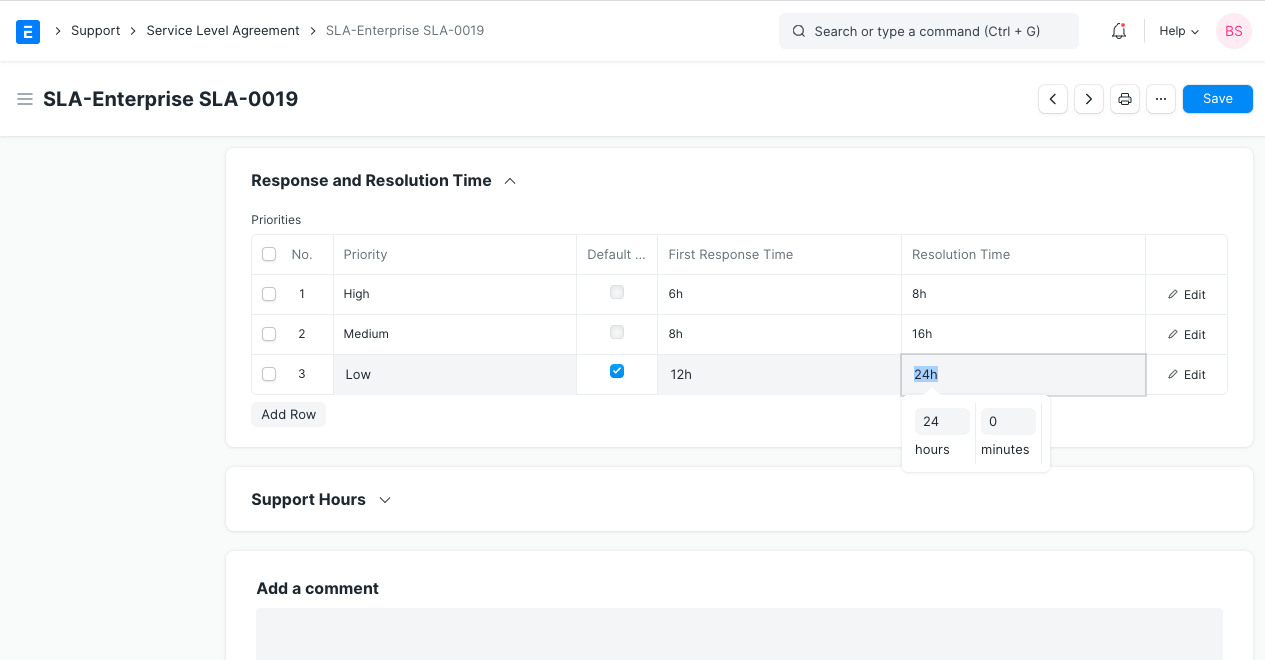
Default Priority: The priority that will be used in the service level agreement and was chosen in the Priorities table.
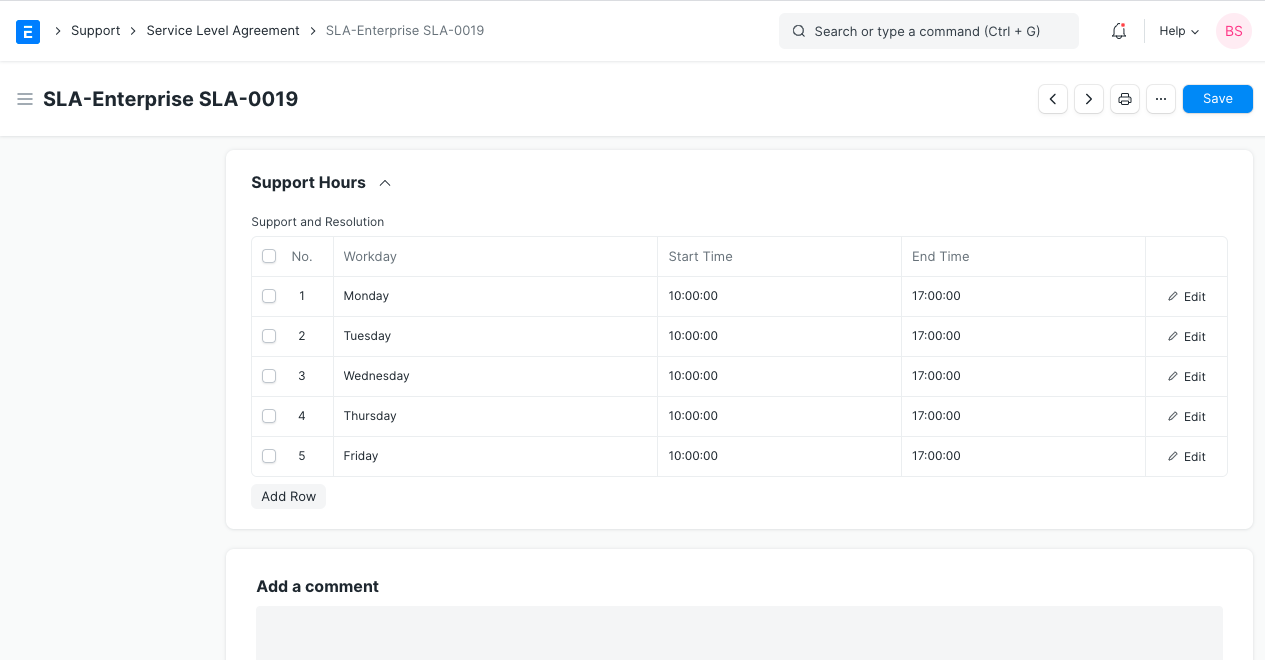
Days of the week on which support is offered are listed in the support hours section. has a working day's beginning and end times.
- Save.

3. Features
3.1 Applies to New Issues
Depending on the choice you choose under "Entity Type," a SLA will be applied to Problems raised by Customers or Territories once it has been saved.
3.2 Resetting an SLA
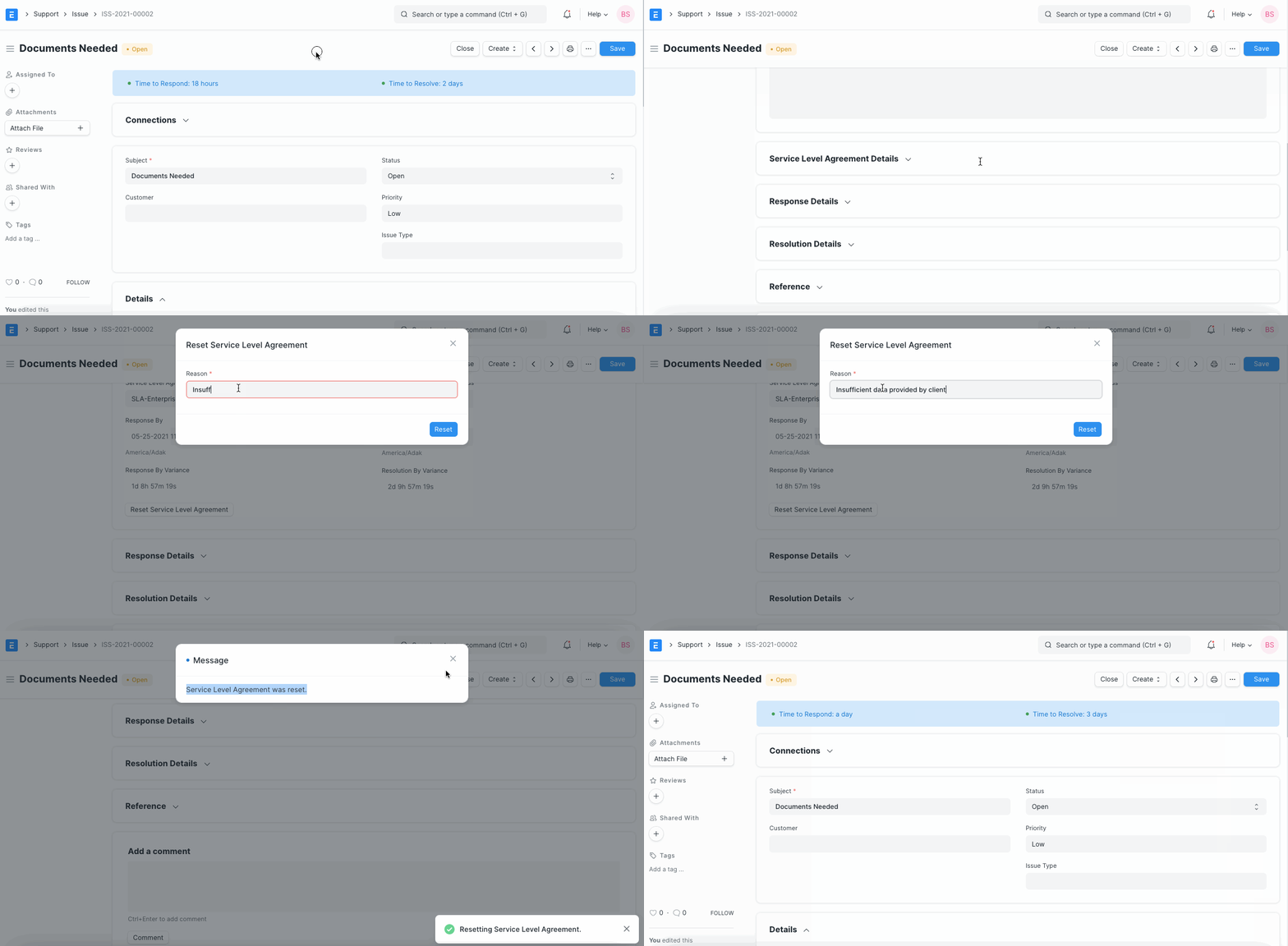
Moreover, a SLA may be reset until the time is successful. For instance, if the SLA is three days, you can only reset it within three days of the Issue's creation. The Service Level will then show failed after that.
3.3 Time respond / resolve in Issues
The amount of time it will take to respond to and address an issue will be displayed:

These times are dependent on the deadlines specified in the Service Level's Priorities table's "Priority" field.
3.4 Pause SLA on Statuses
ERPNext now supports pausing SLA on issues while you wait for an event to occur as of version 13. This can be accomplished by choosing one of the configured statuses from the "Pause SLA On" table.
- In the SLA document, specify the statuses for which you want to pause the SLA. Also available here are user-created statuses.

- Resolution and response fields are left blank when the status is changed to any of the aforementioned conditions, and the dashboard indications change to:

The Total Hold duration field in your Issue document will be set when the status of the problem returns to non-hold (which is not configured in the "Pause SLA On" table).
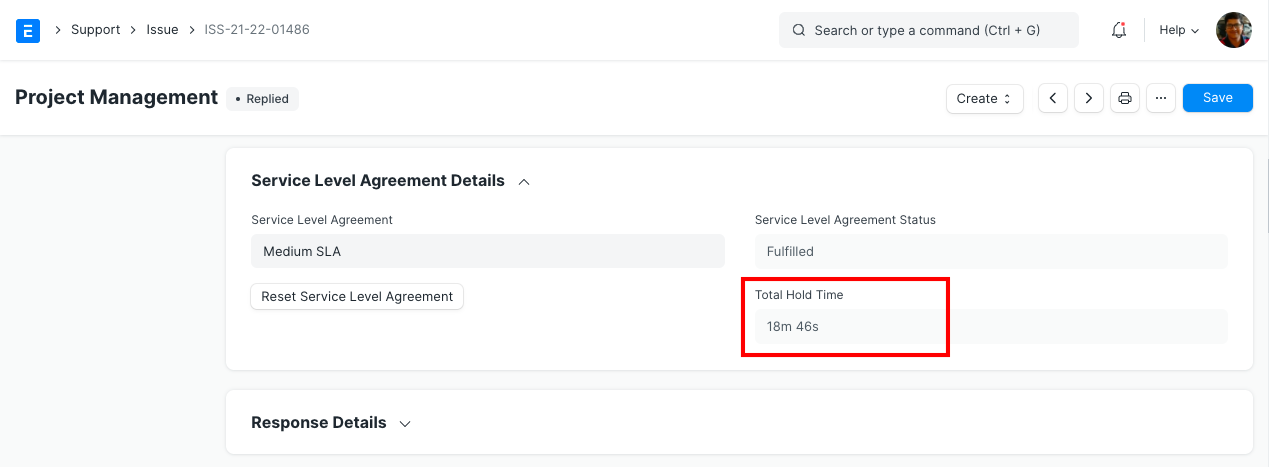
Your SLA timers will reset after adding the hold time to the Response and Resolution times.
Note: The Service Level DocType was eliminated in version 13 and the Service Level Agreement DocType is the only one that performs all duties.