Accounts Settings
To limit and configure operations in the Accounting module, Geer ERP offers a number of account settings.
Transactions Settings
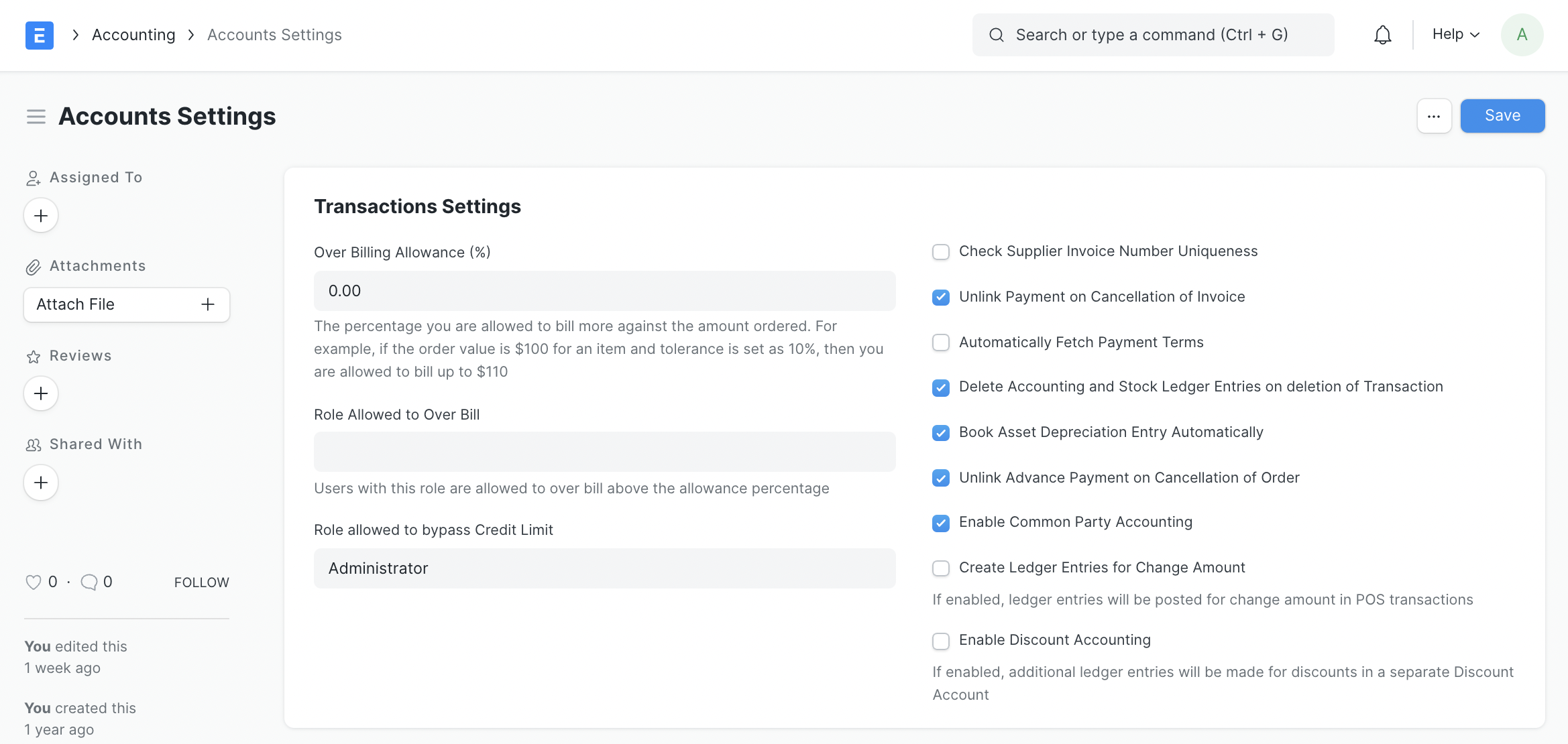
1. Over Billing Allowance (%)
the maximum overbilling percentage for transactions. For instance, if an item's order value is $100 and this percentage is set to 10%, you may bill for $110 instead of $100.
2. Role Allowed to Over Bill
Users with this job are permitted to bill more than the permitted %.
3. Role allowed to bypass Credit Limit
Choose the role that is permitted to submit transactions that go over the predetermined credit limitations. The Customer form allows the credit limit to be specified.
4. Check Supplier Invoice Number Uniqueness
When checked, it prevents the submission of purchase invoices that have the same "Supplier Invoice No." To avoid duplicate entries, this is helpful.
5. Unlink Payment on Cancellation of Invoice
The system will unlink the payment from the appropriate invoice if this box is ticked. When a Payment Entry is made, the related invoice cannot by default be cancelled until the Payment Entry has been made as well. You can now cancel and make changes to the invoices after unlinking. However, they won't be connected and will be regarded as advance payments.
6. Automatically Fetch Payment Terms from Order
By enabling this, the Payment Terms from a Purchase/Sales Order will be immediately transferred to the associated Purchase/Sales Invoice.
7. Delete Accounting and Stock Ledger Entries on deletion of Transaction
By turning this on, linked General Ledger and Stock Ledger entries can be deleted along with invoices and receipts. If you don't want the document ID to disappear after cancellation, you can tick this box. To obtain the same document ID once more, you can now cancel and remove the document.
8. Book Asset Depreciation Entry Automatically
When enabled, an automatic asset depreciation entry will be generated using the initial date specified. According to the Number of Depreciations Booked setting in the Asset master, for instance, annual depreciation for an item will be booked for the following 3/4 years. Visit the page on asset depreciation for additional information.
9. Unlink Advance Payment on Cancellation of Order
This option unlinks all advance payments made against Purchase/Sales Orders, same like the prior one did.
10. Enable Common Party Accounting
If examined, make a correction On the generation of sales or purchase invoices against a common customer or supplier, a journal entry will be posted immediately. Visit Common Party Accounting to learn more.
11. Create Ledger Entries for Change Amount
If checked, the system will post ledger entries for a Point of Sale invoice taking into account the change amount provided.
12. Enable Discount Accounting
If enabled, adding Discount Accounts to the Items table of Sales Invoices will allow you to more effectively account for Discounts applied to Items. Additionally, it enables the addition of default Discount Accounts for Items, which are automatically retrieved when the item is included in a sales invoice.
Tax Settings
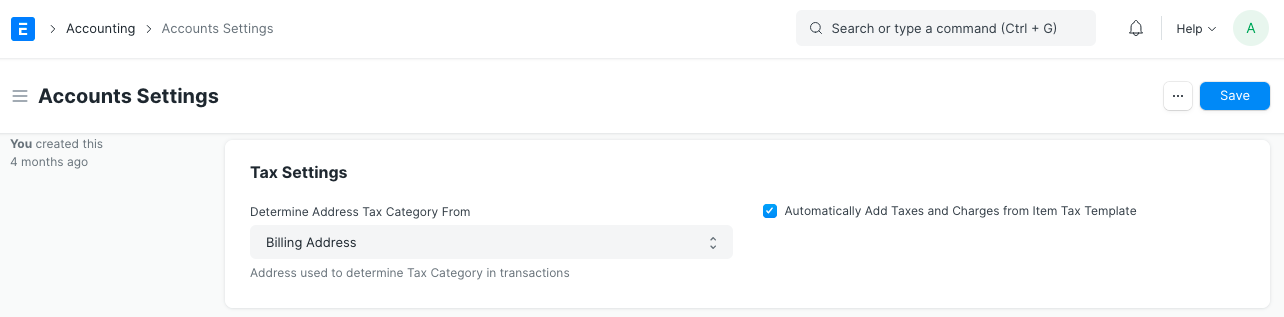
1. Determine Address Tax Category From
Addresses can have a tax category established. An address may be used for shipping or billing. Choose the address that will be used for applying the tax category.
2. Automatically Add Taxes and Charges from Item Tax Template
When enabled, the Taxes table in transactions will be filled if an item's Item Tax Template is specified and the item is chosen in the transaction.
Period Closing Settings
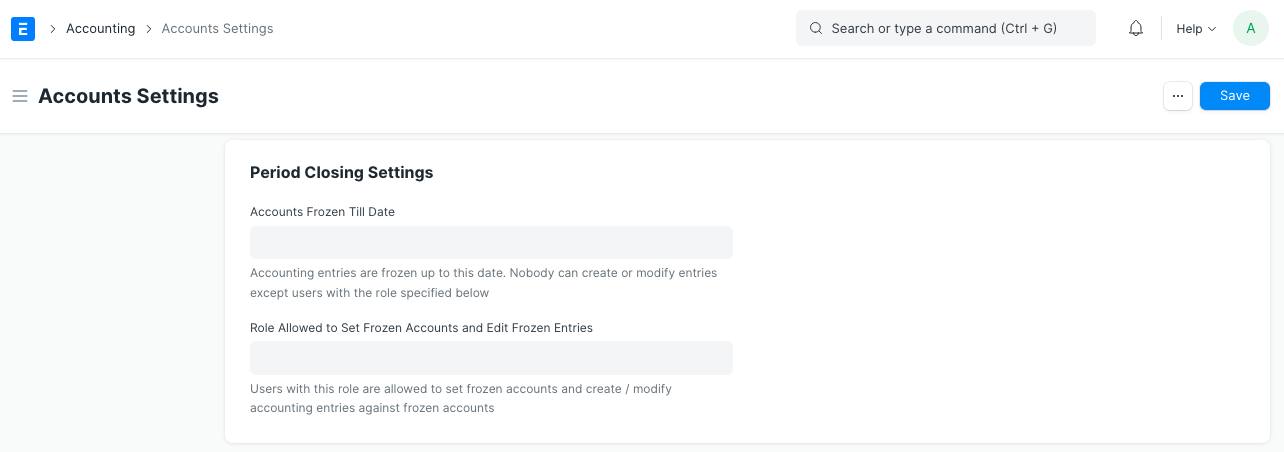
1. Accounts Frozen Till Date
Accounting transactions are frozen up to the specified date, and only the designated Role can make or alter an entry.
2. Role Allowed to Set Frozen Accounts and Edit Frozen Entries
The ability to set frozen accounts and create/modify accounting entries pertaining to frozen accounts is granted to users with this Role.
Deferred Accounting Settings
1. Book Deferred Entries Based On
Based on two factors, deferred revenue amounts might be booked. "Days" is the pre-selected option here. The deferred revenue amount will be booked depending on the number of days in each month if "Days" is chosen, or on the number of months if "Months" is chosen. For instance, if the option "Days" is chosen and $12,000 in income must be postponed over the course of 12 months, $986.30 will be booked for the month with 30 days, and $1019.17 would be scheduled for the month with 31 days. If "Months" is chosen, $1000 in delayed revenue will be booked every month, regardless of how many days there are in a month.
2. Automatically Process Deferred Accounting Entry
This option is turned on by default. You can turn off this setting if you don't want the deferred accounting entries to be posted automatically. Deferred accounting must be processed manually using Process Deferred Accounting if this setting is disabled.
3. Book Deferred Entries Via Journal Entry
Ledger entries are often posted instantly to record deferred revenue against an invoice. This option can be enabled in order to post the postponed amount via journal entry.
4. Submit Journal Entries
Only if deferred accounting items are posted via journal entry is this option relevant. The Journal Items for deferred posting are retained in Draft state by default; a user must manually verify and submit these entries. If this option is turned on, Journal Entries will be submitted without user input automatically. Only if Book Deferred Entries Via Journal Entry is selected will this option be visible.
Print Settings
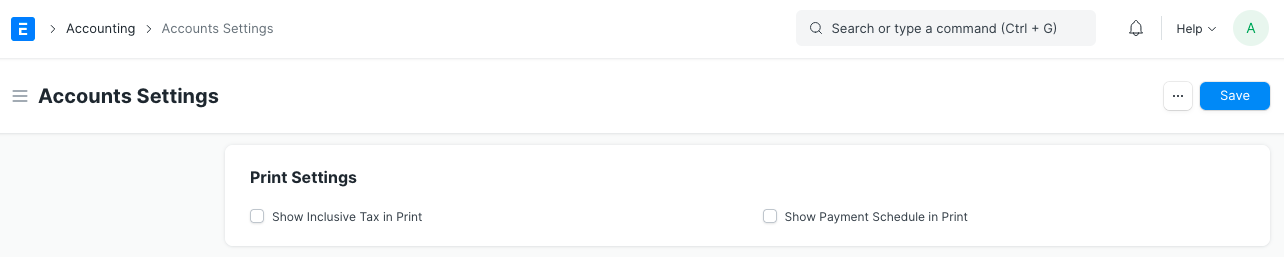
1. Show Inclusive Tax In Print
The print view will display the imposed taxes.
2. Show Payment Schedule in Print
When using Payment Terms, the Payment Schedule table is displayed. When enabled, the table will appear in print view.
Currency Exchange Settings
1. Allow Stale Exchange Rates
If you want Geer ERP to check the age of records fetched from Currency Exchange in foreign currency transactions, you should uncheck this box. The exchange rate field in documents will be read-only if it is left unchecked.
The number of days to consider when determining if a Currency Exchange record is stale is called Stale Days. When "Allow Stale Rates" is turned off, this is true. Stale rates that are 10 days old will therefore be accepted if the Stale Days setting is set to 10. The age of stale rates is not constrained by time if Allow Stale Rates is enabled.
The following is the order of fetching if stale rates are enabled:
- Newest exchange rate from the currency converter
- The most recent rate available on the market is automatically obtained if no currency exchange is discovered.
The following is the sequence of fetching if stale rates are disabled:
- Current exchange rate up to the amount of "Stale Days" days set.
- The most recent rate available on the market is automatically obtained if no currency exchange is discovered.
Report Settings
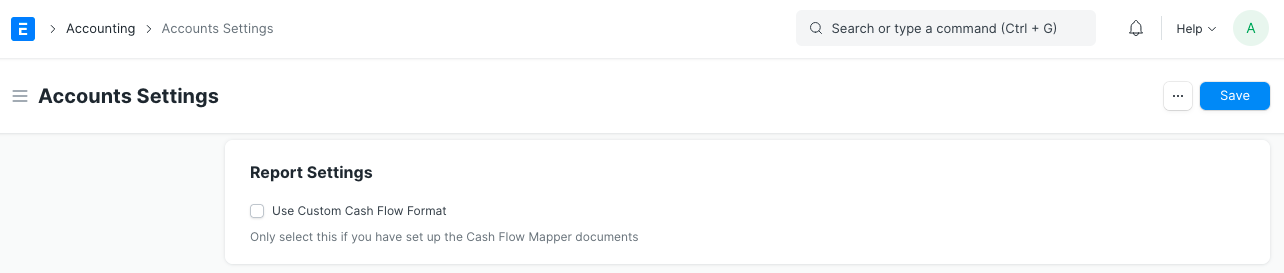
1. Use Custom Cash Flow Format
To alter how the Cash Flow report appears, you can utilize custom cash flow formats. Please visit this page to learn more.