Selling Settings
Selling Settings
You can specify characteristics and validations that will be applied to the masters and transactions involved in the sales cycle in the selling settings.
Go to: to access Selling Settings.
Home > Selling > Settings > Selling Settings
Customer Defaults
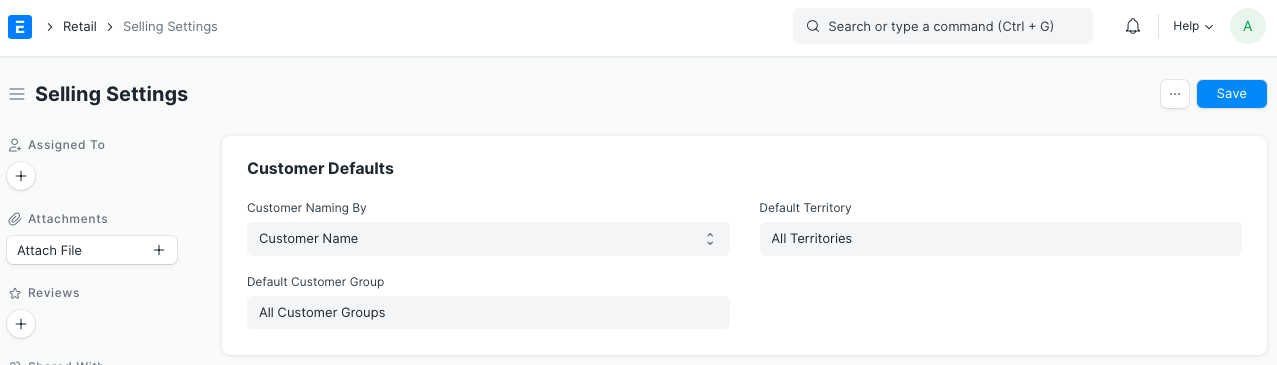
1. Customer Naming By
An exclusive ID is created for each customer when they are saved.
Client ID is automatically generated using Customer Name. If you want to save a customer using a naming series, put "Naming Series" in the field Customer Naming Series. "CUST00001, CUST00002, CUST00003," and so on are examples of customer IDs maintained in naming series.
Customers' Naming Series can be set from:
Setup > Data > Naming Series
2. Default Customer Group
Choose a default Customer Group that will be updated automatically when a new Customer is created.
Both customers and leads can have quotes produced for them. The system tries to transform a Lead into a Customer when converting a Quotation into a Sales Order that is made for a Lead. The value for Customer Group is chosen from the Selling Settings when adding a customer in the backend. You will be prompted for the Customer Group in a validation message if no default settings for the Customer Group are detected. Moreover, a Lead can be manually transformed into a Client.
3. Default Territory
Choose a default Territory that will be updated automatically when a new customer is created.
Both customers and leads can have quotes produced for them. The system tries to transform a Lead into a Customer when converting a Quotation into a Sales Order that is made for a Lead. The selling settings are used to select the value for Territory when creating a customer in the backend. You will be prompted for the Territory in a validation message if no default settings are discovered for the Territory. Moreover, a Lead can be manually transformed into a Client.
CRM Settings

1. Campaign Naming By
You may set up the naming convention for the Campaign master in the same way that you can for Customers. A campaign will by default be saved with Campaign Name.
2. Default Quotation Validity Days
Customer quotes are only good for a specific number of days. You can manually change the Valid Until Date in the Quote. The Valid Until date is automatically set by default to be 30 days after the posting date of the quotation. The number of days can be changed in this area in accordance with your business case.
3. Close Opportunity After Days
Opportunities with a large number of statuses other than Open will automatically close after the number of days specified in this field.
Item Price Settings
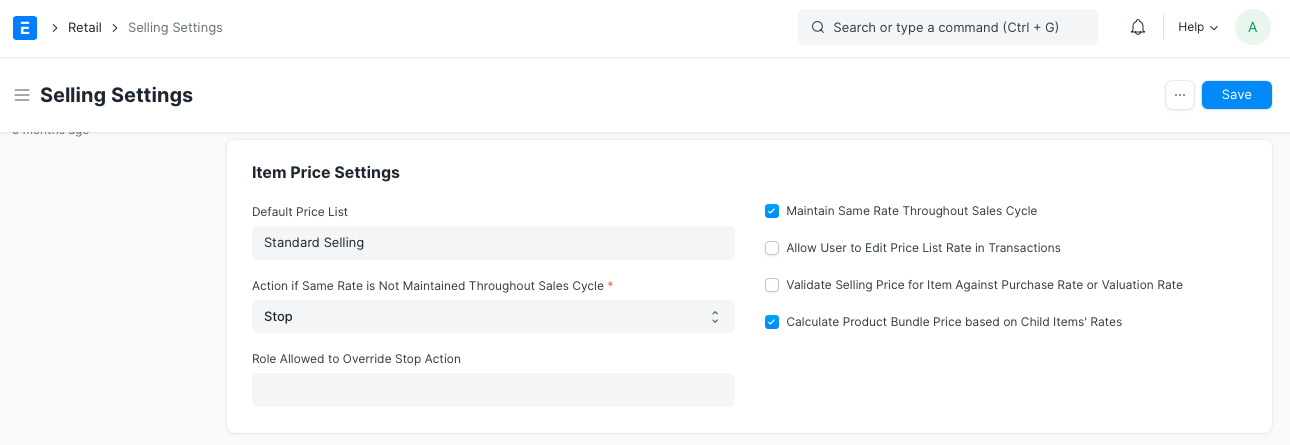
1. Default Price List
The price list you enter here will automatically change in the price list fields of sales documents including quotes, orders, delivery notes, and invoices.
2. Maintain Same Rate Throughout Sales Cycle
If option is turned on, ERPNext will check to see whether a price change is being made on an item in a delivery note or sales invoice made from a sales order, helping you to keep the same pricing throughout the sales cycle.
3. Action if Same Rate is Not Maintained Throughout Sales Cycle
In the "Action If Same Rate is Not Kept During Sales Cycle" field, you can specify the procedure the system should follow:
Stop: ERPNext will issue a validation error to prevent you from modifying the pricing.
Warn: If the rate changes, the system will still let you save the transaction but will send you a notice to let you know.
Note: Only if Keep Same Rate During Sales Cycle is enabled will this field be available.
4. Role Allowed to Override Stop Action
If the action if the same rate is not maintained was set to Stop, allow users to add roles to override the "Stop" action for Keep Same Rate Throughout Sales Cycle.
Note: It should be noted that this field will only be available if the options "Maintain Same Rate Throughout Sales Cycle" and "Action if Same Rate is Not Kept" are both checked.
5. Allow User to Edit Price List Rate in Transactions
There is a field called Price List Rate in the item table of sale transactions. All sales transactions by default prevent editing in this area. This is done to verify that an item's price is taken directly from the item price record and that the user cannot change it.
Uncheck this box if you want the Item Price obtained from Price List of an item to be modifiable.
6. Validate Selling Price for Item Against Purchase Rate or Valuation Rate
It's crucial to understand that you're not losing money when you make sales. By enabling this validation, the Selling Price of the item will be compared to its valuation/purchase price. When this checkbox is selected, a prompt will appear if an item's selling price turns out to be less than its purchase price.
7. Calculate Product Bundle Price based on Child Items' Rates
The following will occur if you enable this:
Make all Packed/Bundle Items tables' Rate column customizable.
Based on the costs of its child items, which are listed in the Packed/Bundle Items table, determine the pricing of all Product Bundles in the Items table.
Note: If option is turned on, changing the Product Bundle's rate in the Items table will not alter its cost. Upon saving the document, it will be reset to the price determined by its Child Items.
Transaction Settings
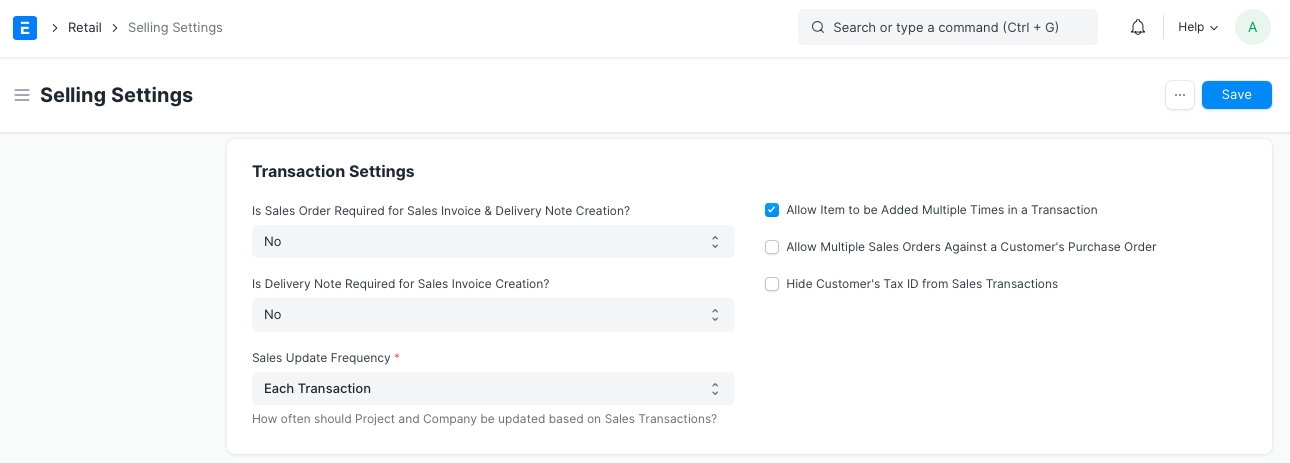
1. Is Sales Order Required for Sales Invoice & Delivery Note Creation?
Set the "Sales Order Needed" column to "Yes" if you want to require the establishment of a Sales Order before the creation of a Sales Invoice or a Delivery Note. This will by default be set to "No."
By selecting the "Allow Sales Invoice Generation Without Sales Order" checkbox in the customer master, this configuration can be overridden for a specific client.
2. Is Delivery Note Required for Sales Invoice Creation?
You should set this field to "Yes" to make the generation of Delivery Notes a prerequisite for the preparation of Sales Invoices. This will by default be set to "No."
By turning on the "Allow Sales Invoice Generation Without Delivery Note" button in the customer master, this configuration can be overridden for a specific client.
3. Sales Update Frequency
the regularity of updates to project status and business transaction information. If you have a lot of transactions per day, you can change the default setting from Each Transaction to Daily or Monthly.
4. Allow Item to be Added Multiple Times in a Transaction
When left unchecked, this validation check stops an item from being added more than once in the same transaction. If so, click this box. In rare circumstances, this might be an explicit need.
5. Allow Multiple Sales Orders Against a Customer's Purchase Order
You can change the Purchase Order ID and Date received from the Client while creating a Sales Order. With relation to the customer's PO No. and Date, only one Sales Order may be created. However, check the option labeled "Allow multiple Sales Orders against a Customer's Purchase Order" if you want to permit the generation of numerous Sales Orders against the same Customer PO No.
6. Hide Customer's Tax ID from Sales Transactions
The majority of Consumers have a unique Tax ID provided to them as per the law's requirements. Also, they need this tax ID to be retrieved for selling transactions. But, you can disable this capability by checking this property if you don't want to use it.
7. Calculate Product Bundle Price Based on Child Items' Rates
With regard to activating "Calculate Product Bundle Pricing based on Child Items' Rates":
It will be possible to alter the Rate column for packaged items. Based on the rates of its child Items, Product Bundles' rate and price in the Items table will be changed.
When the document is saved, the Product Bundle's Rate will be restored to the sum determined by the rates of its child items.