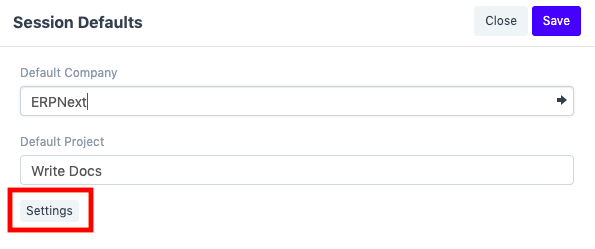
Session Defaults
Session Defaults are configurable default values set during user sessions.
Think of a situation in which you have 8 firms configured in your account and you are required to fill out the "Company" box each time you create a new sales order. When you have to deal with numerous Sales Orders each day, this is an extremely time-consuming operation.
1. How to Create Session Defaults
1.1 Set up the Session Default Settings
- Default Settings for the current session. There is a table for session defaults that you may see.
- Then, select "Add Row."
- Choose the DocType for which the Session Defaults are to be configured.
- Save.
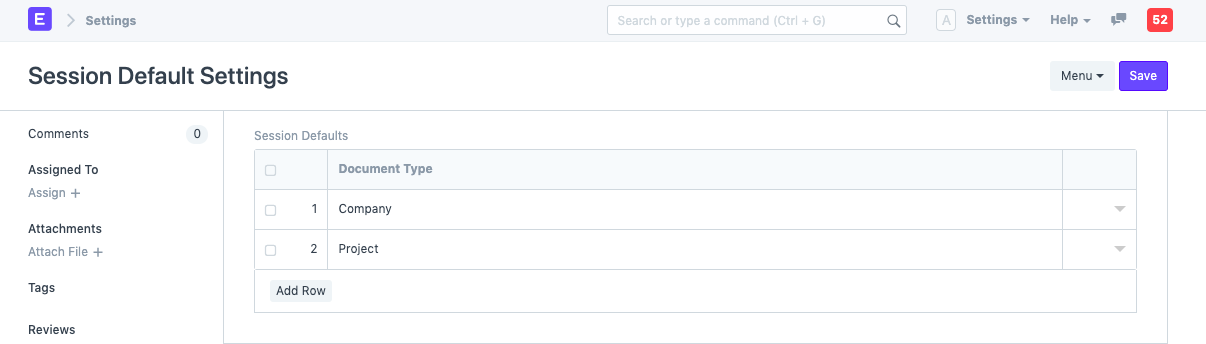
1.2 Set up the Session Default Values
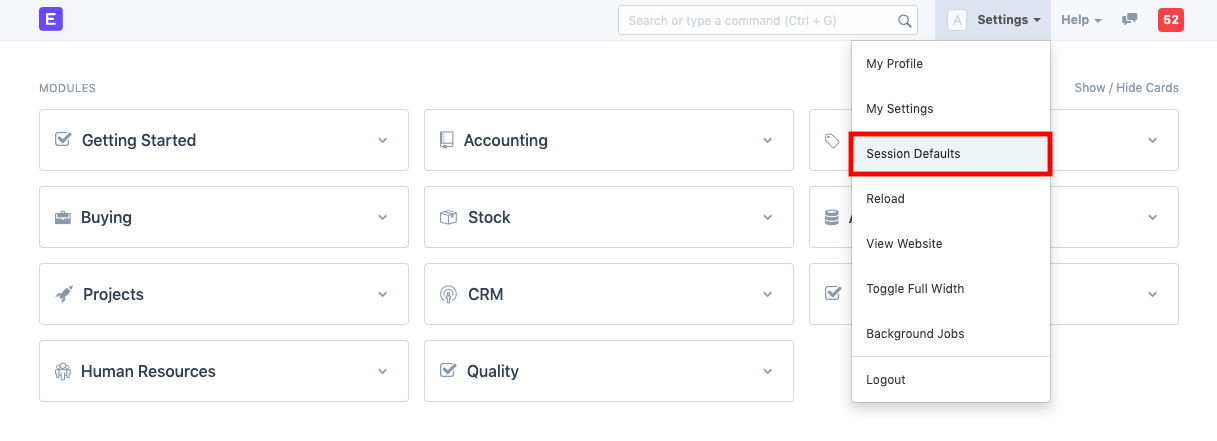
- Select "Settings" from the toolbar's menu. There is a selection called "Session Defaults" there. Just click it.
- A prompt labeled "Session Defaults" will show up. Set the corresponding fields' default values and then save.
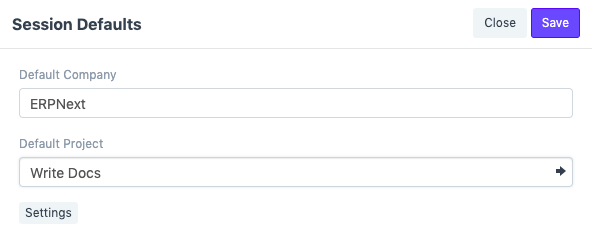
The default values will be applied everywhere after saving.
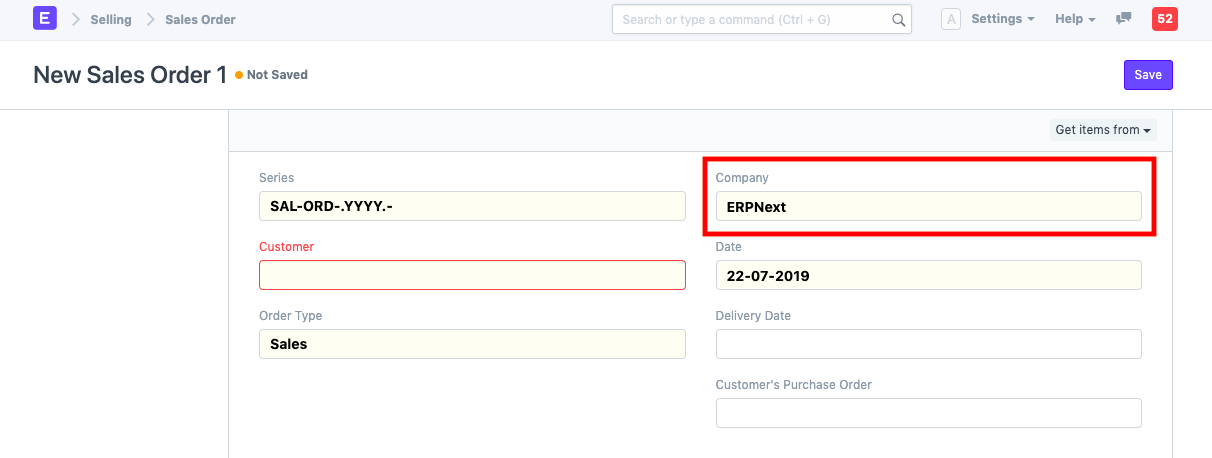
You can check by opening a new Sales Order. The default Company has been entered in the company field.
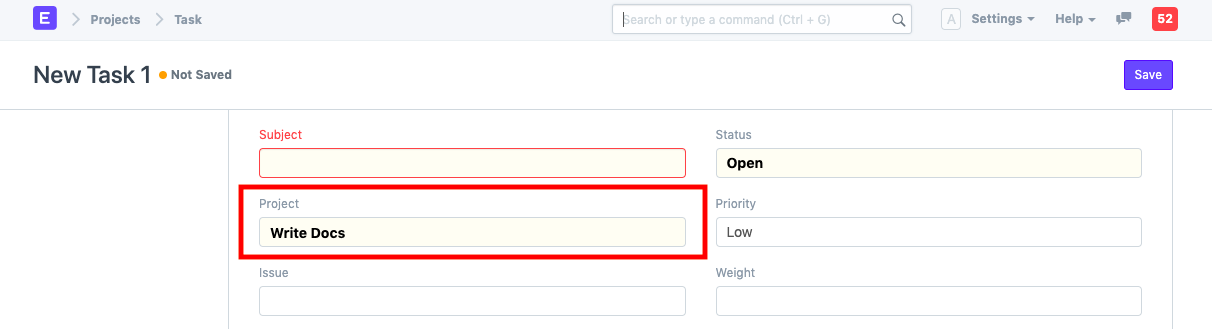
Start a fresh Task. The default Project is entered in the 'Project' field.
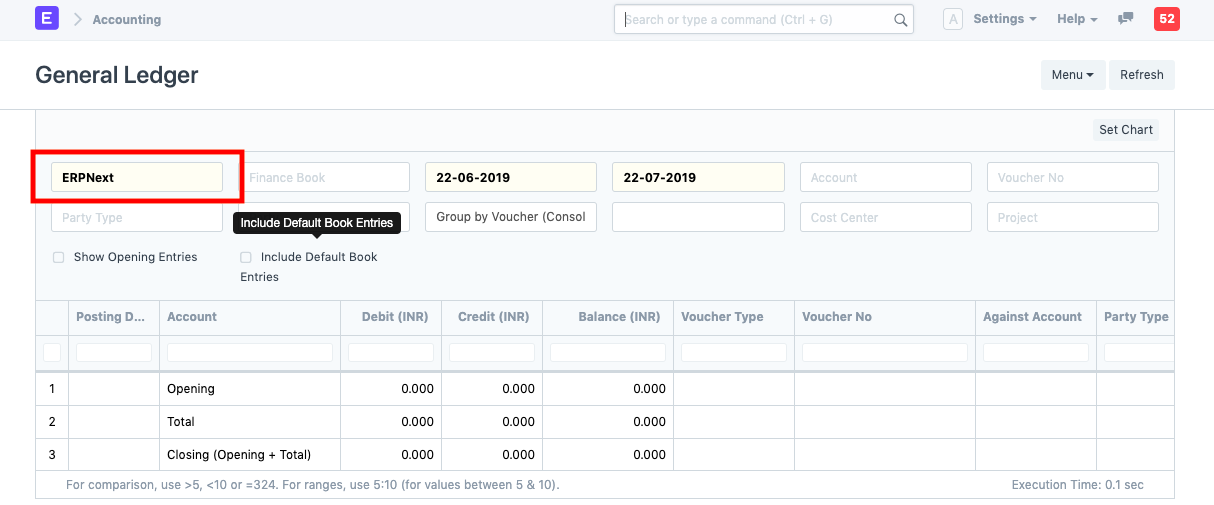
Launch a report, like General Ledger. The default Company is selected for the Company filter.
2. Features
2.1 Defaults cleared on logout
For the duration of the current session, the default values are set for that specific user. Upon logging out, these default settings are removed.
2.2 'Settings' button visibility
Only the System Manager or someone with access to "Session Default Settings" can see the Settings button. You can add or remove the document types for which you want to define session defaults by clicking this button, which takes you to the session default settings page.