Bank Reconciliation
Bank Reconciliation
ERPNext account statements and your bank account statements are compared using a bank reconciliation item.
The bank statements will not accurately reflect the dates of your entries if you receive payments or make payments using checks because it typically takes the bank some time to "clear" these payments.
Moreover, it can take a few days for your Supplier to receive and deposit a check that you sent them via mail. Using the transaction dates, you may synchronize your bank statements and journal entries in ERPNext.
1. What is a Bank Reconciliation Statement?
The bank reconciliation report shows the discrepancy between the bank balance listed on an organization's bank statement and the amount listed in the chart of accounts.
A bank reconciliation statement appears as follows:

Check the report to see if the "Balance as per bank" field corresponds to the bank account statement. If they are identical, all of the bank entries' Clearance Dates have been accurately changed. Bank entries for which the Clearing Date has not yet been updated are the cause of any discrepancies.
Go to: to access Bank Reconciliation.
Home > Accounting > Banking and Payments > Update Bank Transaction Date
2. How to Update Bank Transaction Dates
Go to Update Bank Transaction Dates.
Select your Bank Account.
Select a from and to date.
You can choose to include reconciled entries and POS transactions.
Click on the Get Payment Entries button.
6 .Now you will get all the “Bank Voucher” type entries.
- In each of the entries, on the rightmost column, update the “Clearance Date” field and click on the Update Clearance Date button.
You will be able to sync your bank statements and system entries by doing this.

3. Types of reconciliation tools
ERPNext has two reconciliation tools:
A manual reconciliation tool allowing to set clearance dates against payment entries, sales invoice payments or journal entries
A semi-automatic reconciliation tool allowing to clear bank transactions against payment entries, sales, and purchase invoices payments, journal entries or expense claims.
3.1 Manual Bank Reconciliation Tool
Go to Accounts > Banking and Payments > Bank Reconciliation Statement to view this report. Check the report to see if the "Balance as per bank" field corresponds to the bank account statement. If they are identical, all of the bank entries' Clearance Dates have been accurately changed. If there is a discrepancy, it is because the bank entries' Clearance Date has not yet been changed.
3.2 Semi-automatic Bank Reconciliation Tool
It is a two-step process:
Add Bank Transactions into ERPNext via Bank Statement Import or Bank Account Synchronization
Reconcile the Bank Statement
3.2.1 Bank Statement Import
- Download a bank statement from your bank's website

Ensure sure every row of your bank statement includes the date, the debit/credit amount, and the currency.
Go to: to upload your bank statement.
Accounting > Bank Statement > Bank Statement Import
or just use the awesomebar to search for "Bank Statement Import."
Select your Company and Bank Account
Click Save
Attach the Bank Statement
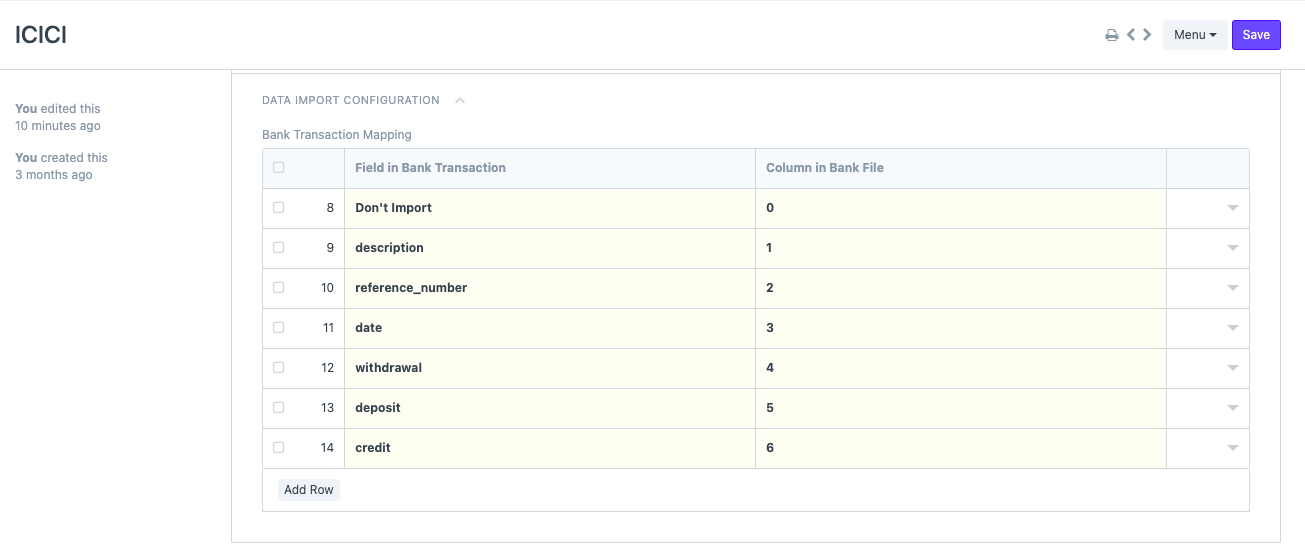
Click on 'Map Columns' to enter the mapping between columns in the uploaded Bank Statement and the Bank Transaction DocType
Click on Start Import to start the import process. The Bank Transactions will be created via a background job, although the progress will be shown here
In the bank document connected to the corresponding bank account, the mapping that was completed is recorded. In the next upload, the mapping is taken from here but the system allows the user to change it if needed. The Bank document has also been updated with the revised mapping.
3.2.2 Bank Account Synchronization
You can utilize Plaid (see the Plaid Integrations page) to have your bank account automatically synchronized with ERPNext. ERPNext will automatically import all of your bank transactions.
3.2.3 Reconcile the Bank Statement
You may reconcile all of your bank transactions with the vouchers you already have once they have been loaded into ERPNext. Go to:
Accounting > Bank Statement > Bank Reconciliation Tool
or just use the awesomebar to search for "Bank Reconciliation Tool."
Select your Company, Bank Account, Bank Statement Start and End Date.
Make sure that the opening balance from ERPNext matches the opening balance of your Bank Statement.
Enter the Closing Balance of the Bank Statement.
Saving the document will show the matching bank transactions.
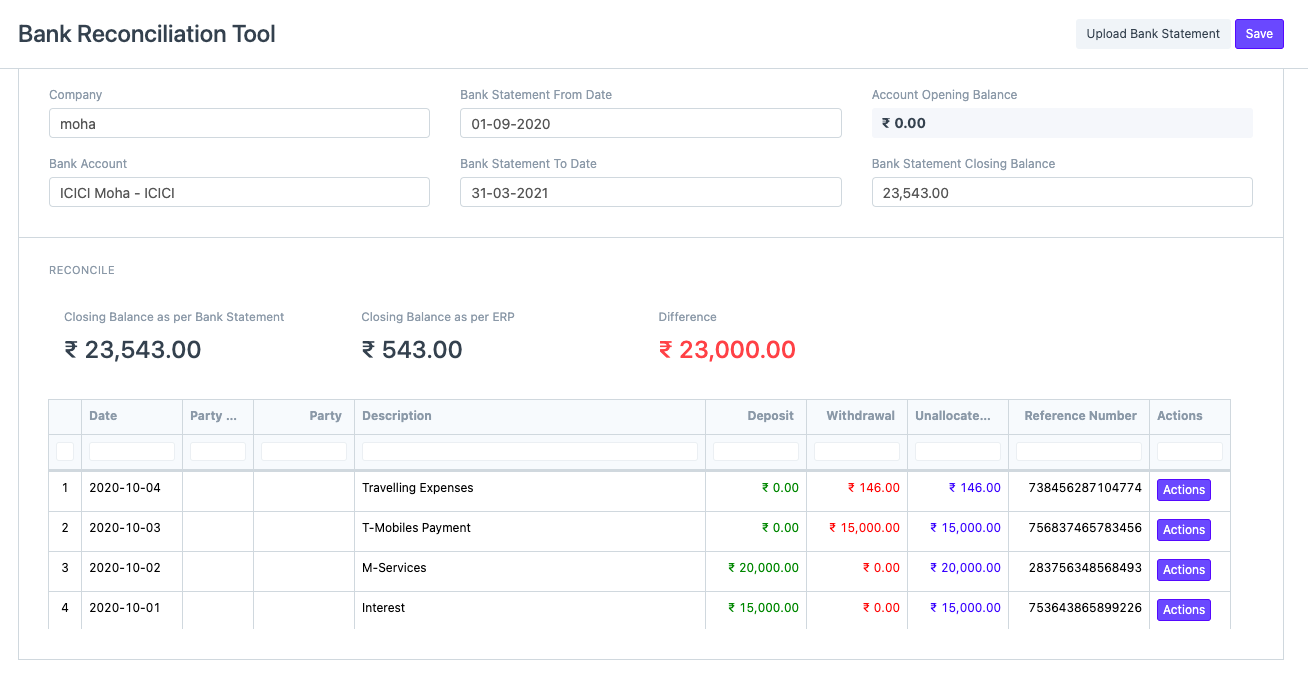
Making the difference amount zero (green) is the ultimate objective of bank reconciliation, which can be accomplished by matching to an existing voucher or by producing a new voucher.
Click the Actions Button to Match/ Generate Vouchers for any bank transactions that are listed in the Bank Statement but do not have a clearance date.
Choose "Match Against Voucher" under "Action" to match items. The associated vouchers for this transaction will be shown. Based on the highest number of fields that were successfully matched, they will be rated. Using the checkboxes, you can match one or more vouchers to the same bank transaction.
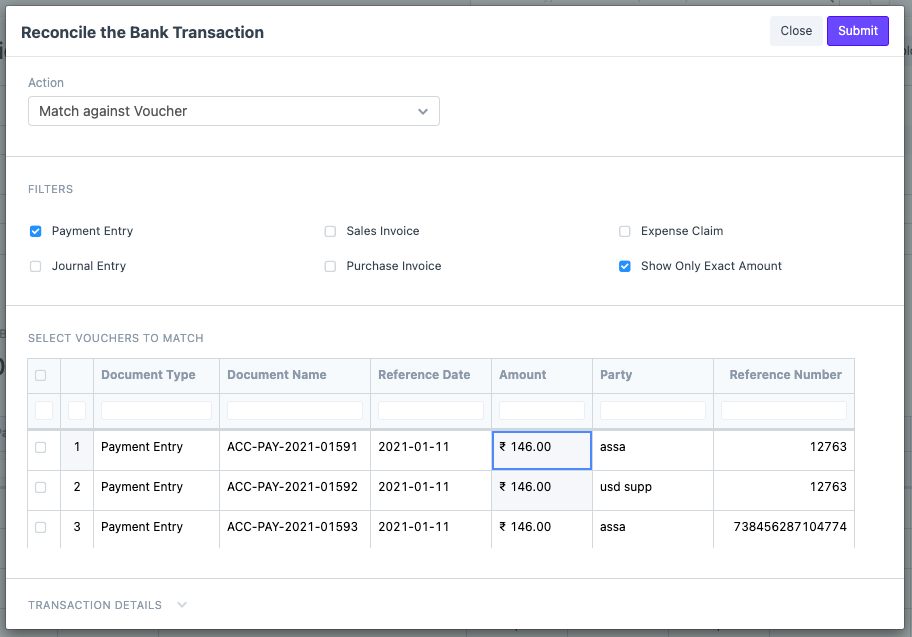
- To create a new voucher, choose 'Create Voucher' in the 'Action' and then choose the document type. Fill in the details that were not available in the Bank Transaction. Clicking on Submit will create the corresponding voucher and update its clearance date.
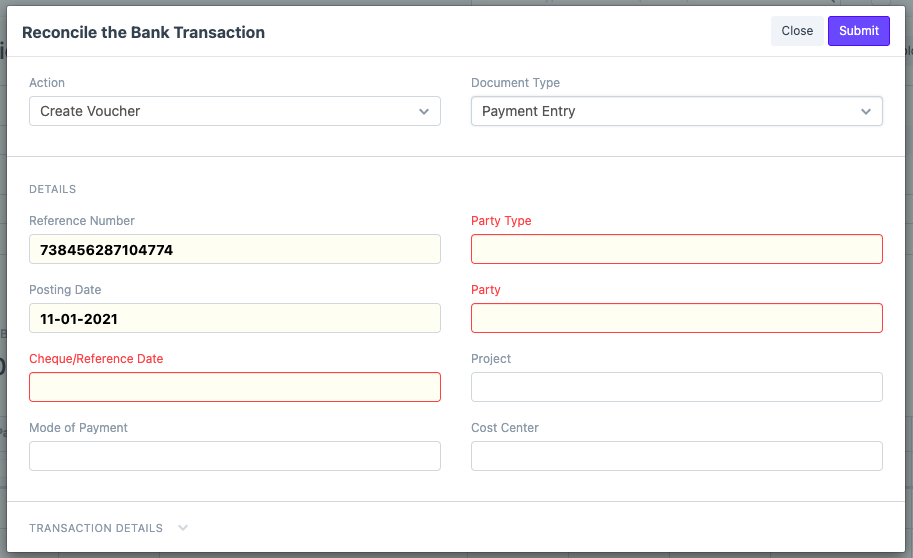
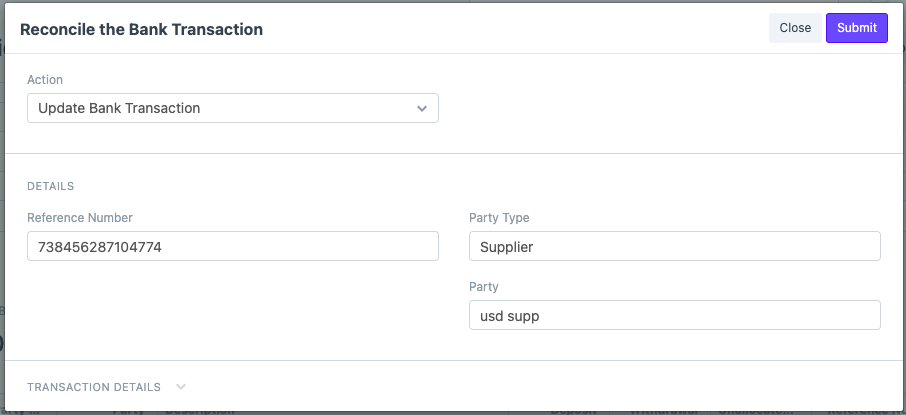
- It is also possible to update the Bank Transactions. Updating the Bank Transaction might help ERPNext in finding better matches. To Update a Bank transaction, choose 'Update Bank Transaction' in 'Action', fill in the required details, and click on Submit to save the Bank Transaction.