Stock Transfer with GST
Stock Transfer with GST
There are statutory requirements that taxes be applied to each transfer of Material in certain circumstances. It is easier to manage it in a transaction like a Sales Invoice, than in the Stock Entry. Please follow the following steps to transfer material from one branch to another using Sales and Purchase Invoice
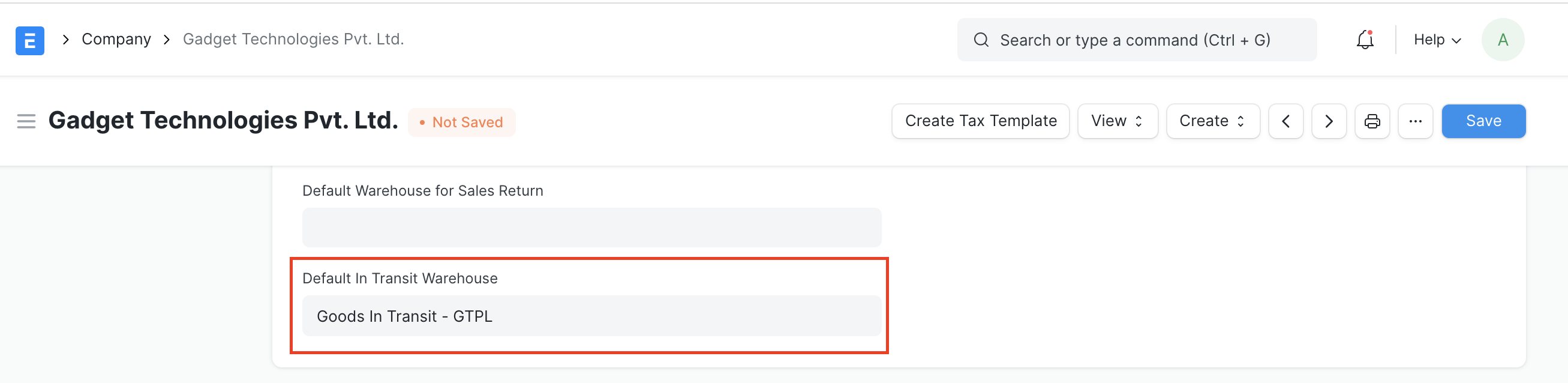
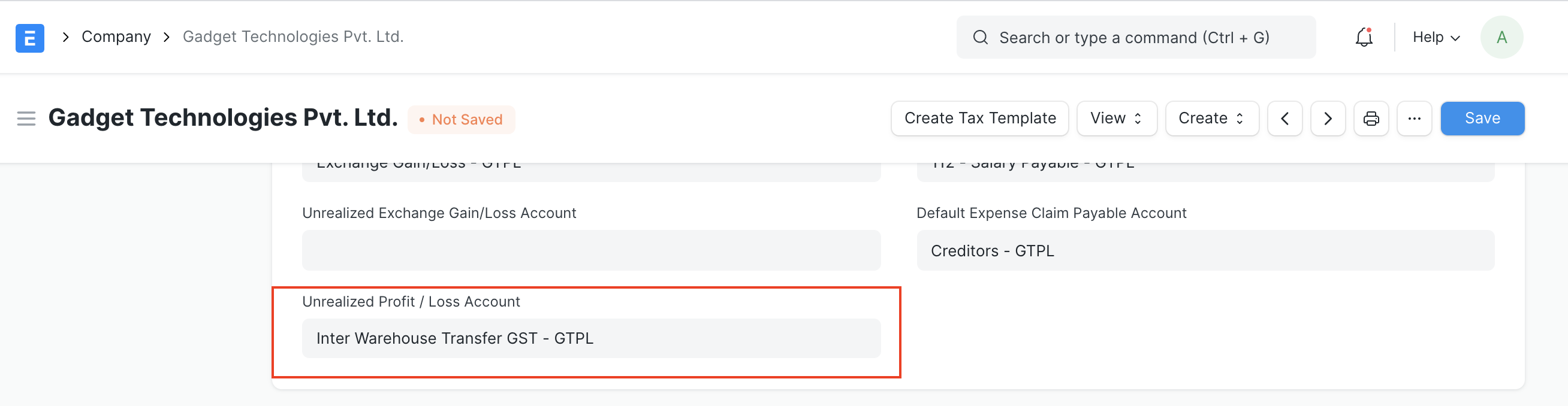
Step 1 - Add default Unrealized Profit and loss account and default In-Transit warehouse in the company master
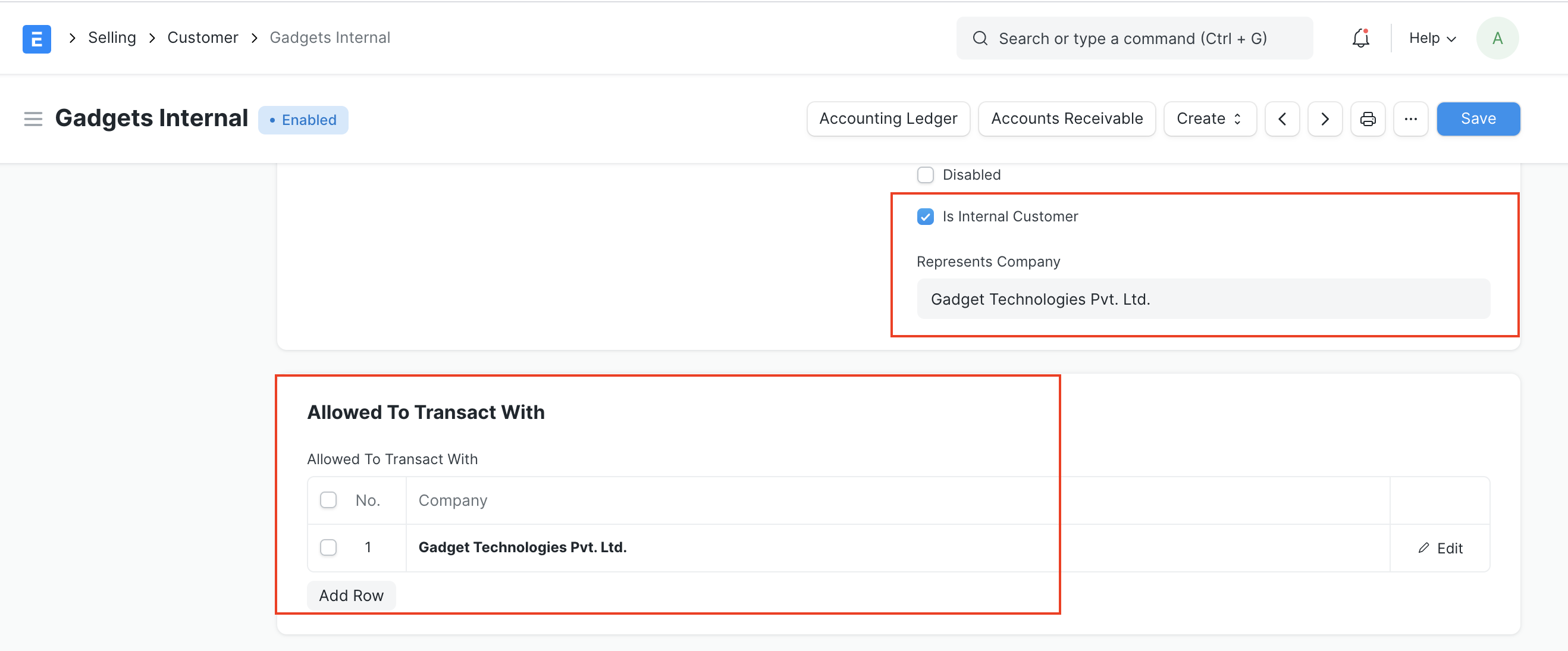
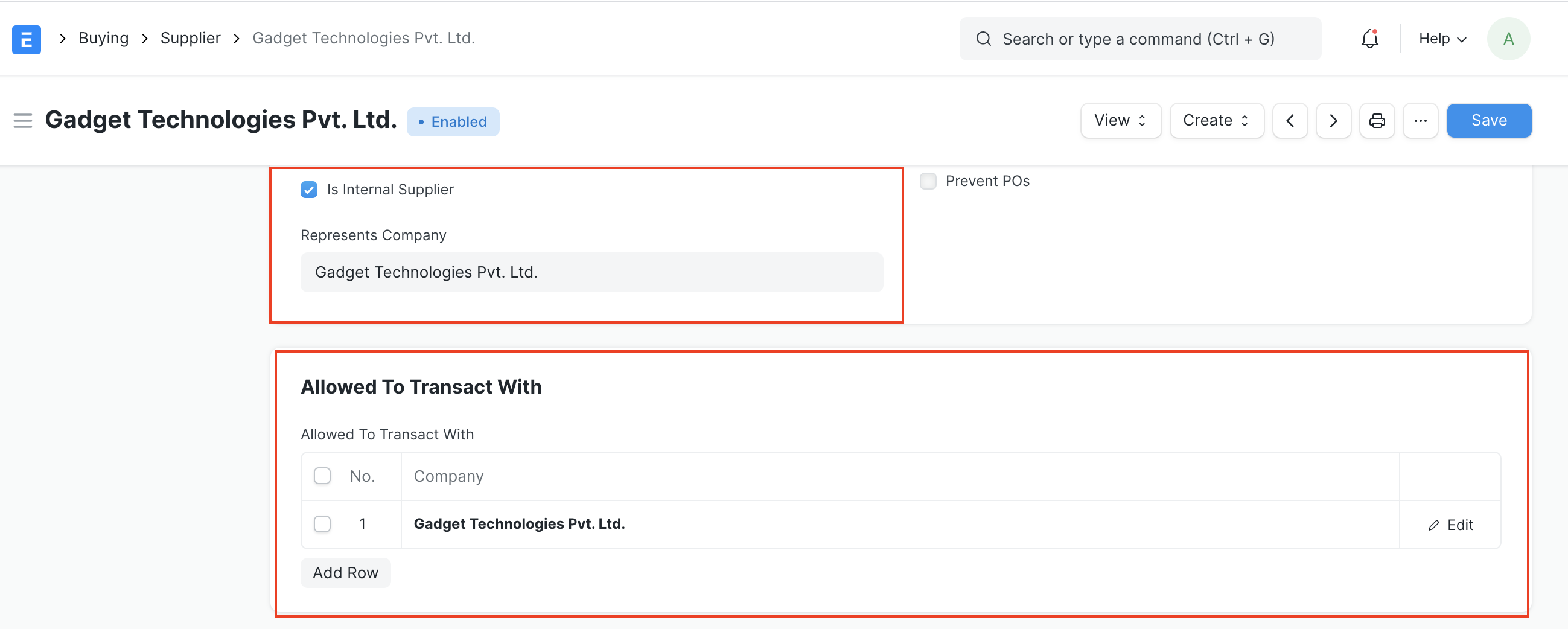
Step 2 - Create Internal Customer and Supplier and allow them to transact with the same company. Also, link appropriate address and GST details with the respective parties
Step 3 - Create Sales Invoice (Delivering the items from source)
3.1 Select the internal customer you created in your previous step
3.2 Check update stock
3.3 Add items to be transferred along with the Source Warehouse and Target Warehouse as the In-Transit warehouse
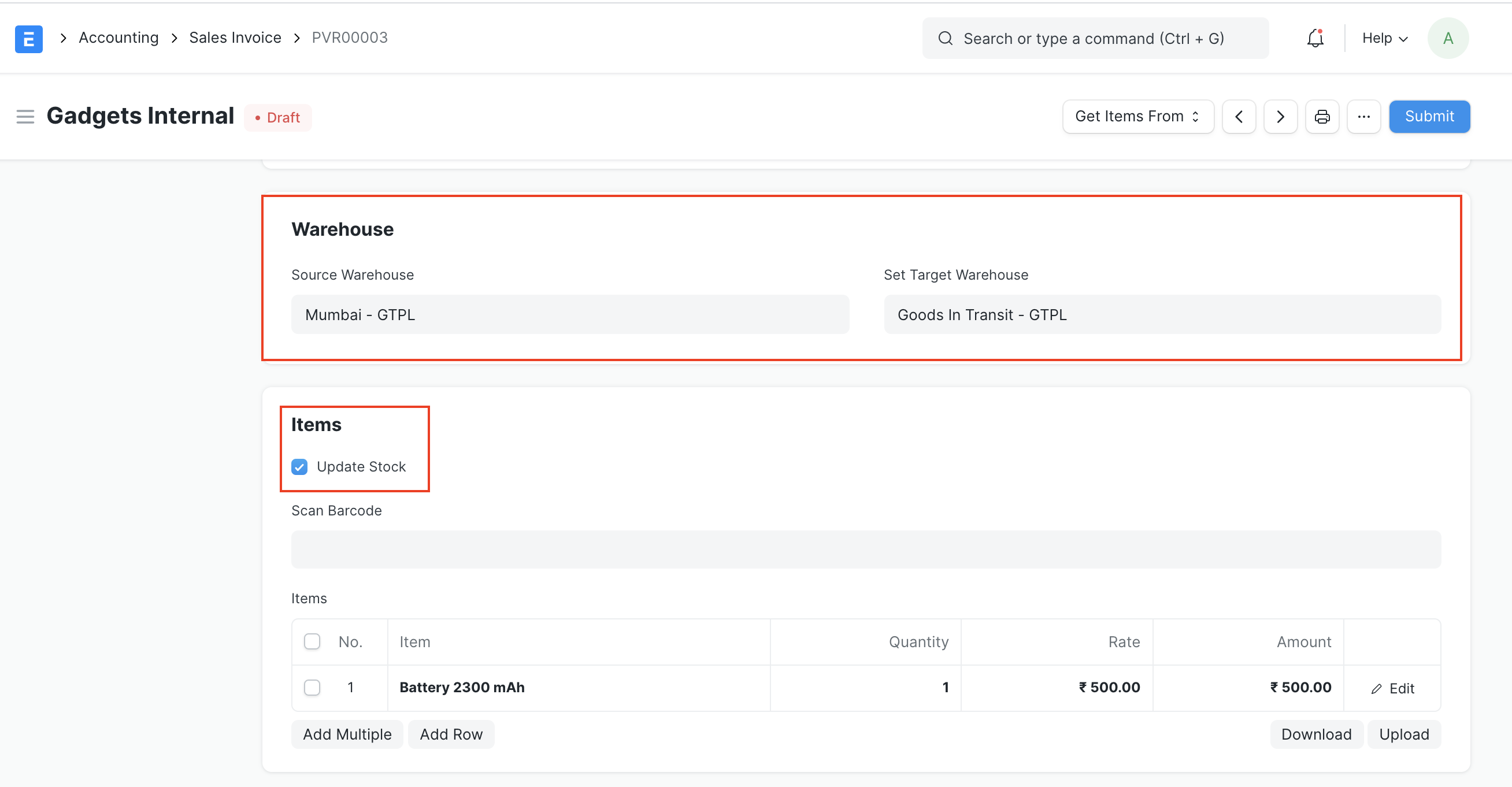
3.4 Save and Submit
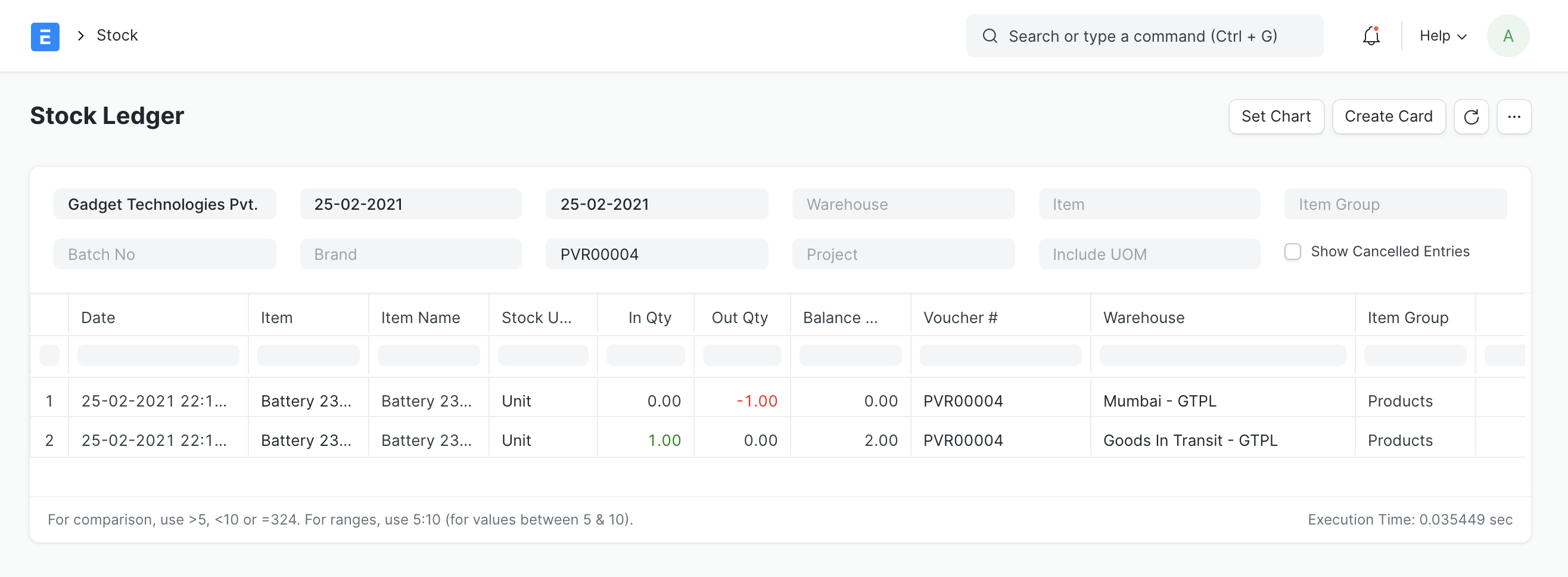
Stock Ledger
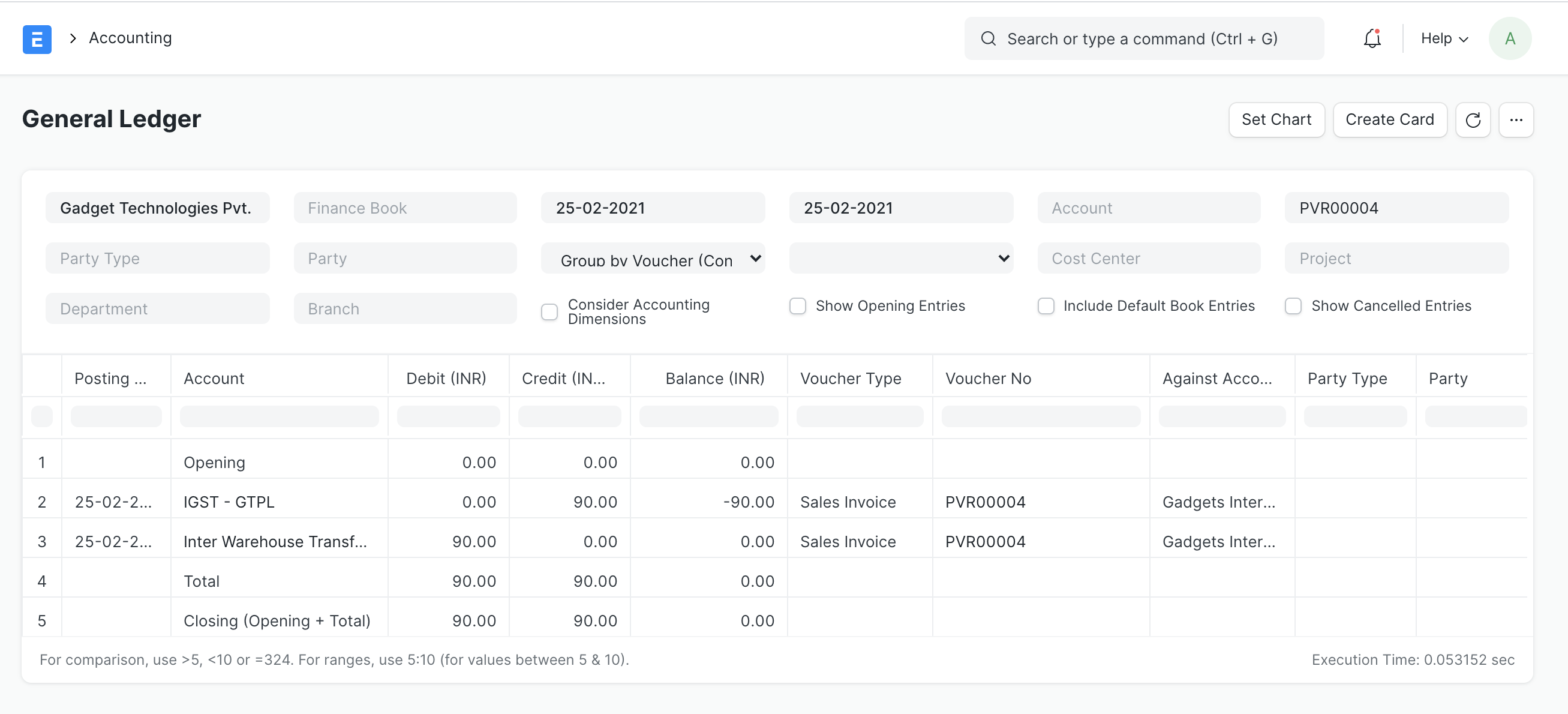
Accounting Ledger
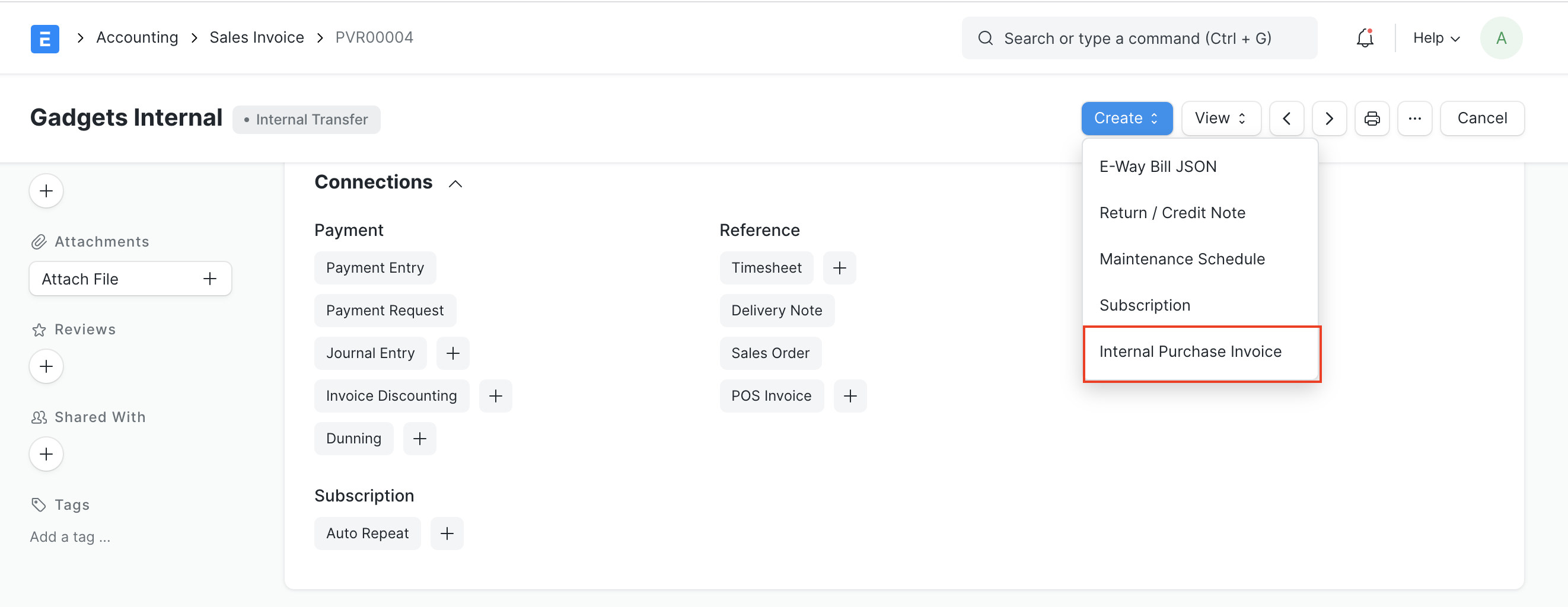
Step 4 - Create Purchase Invoice (Receiving Items at destination)
To generate a Purchase Invoice, click the "Create Internal Purchase Invoice" button on the sales invoice.
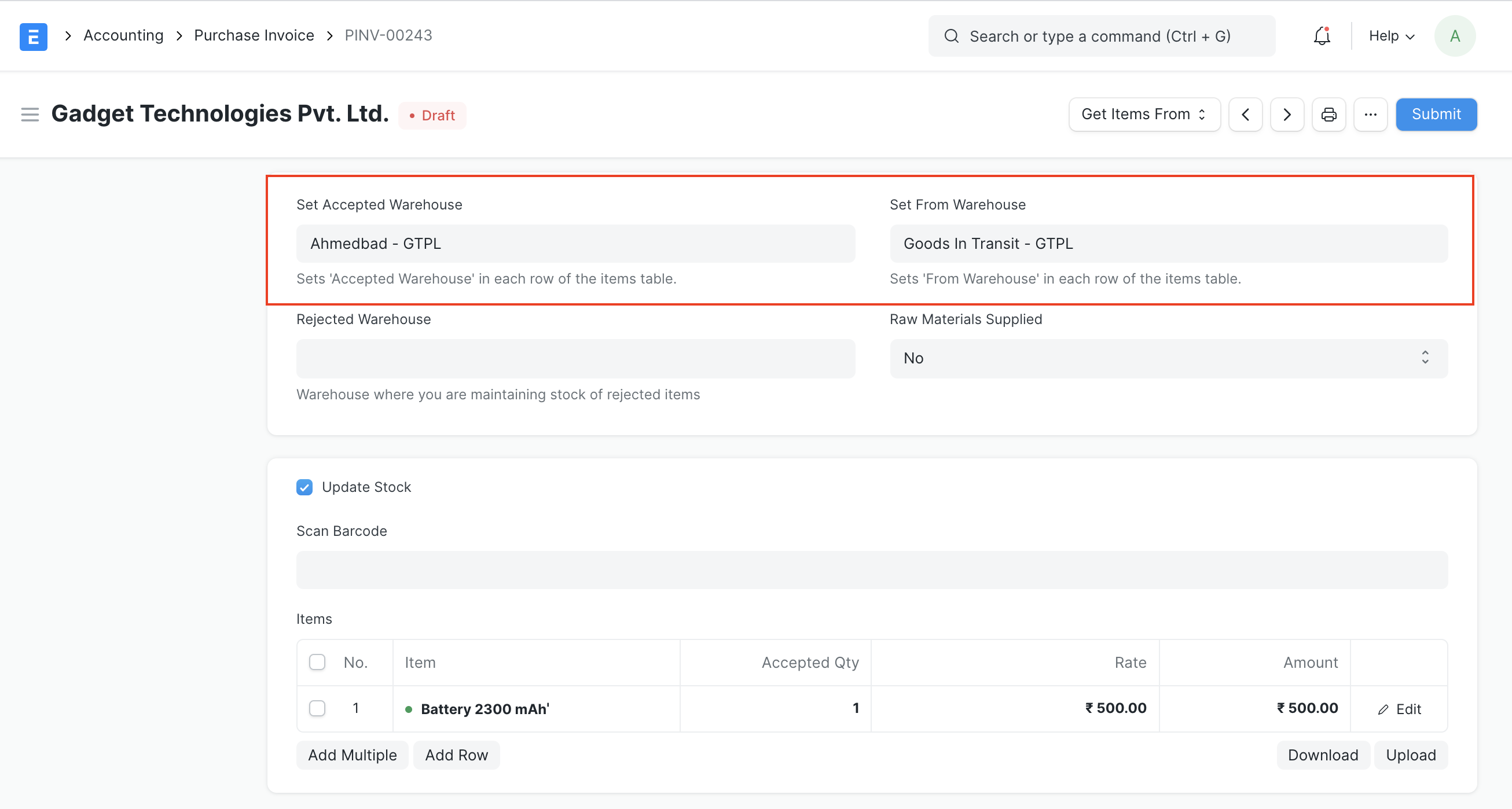
Choose the Accepted Warehouse (warehouse where inventory has been received), then save and submit the form.
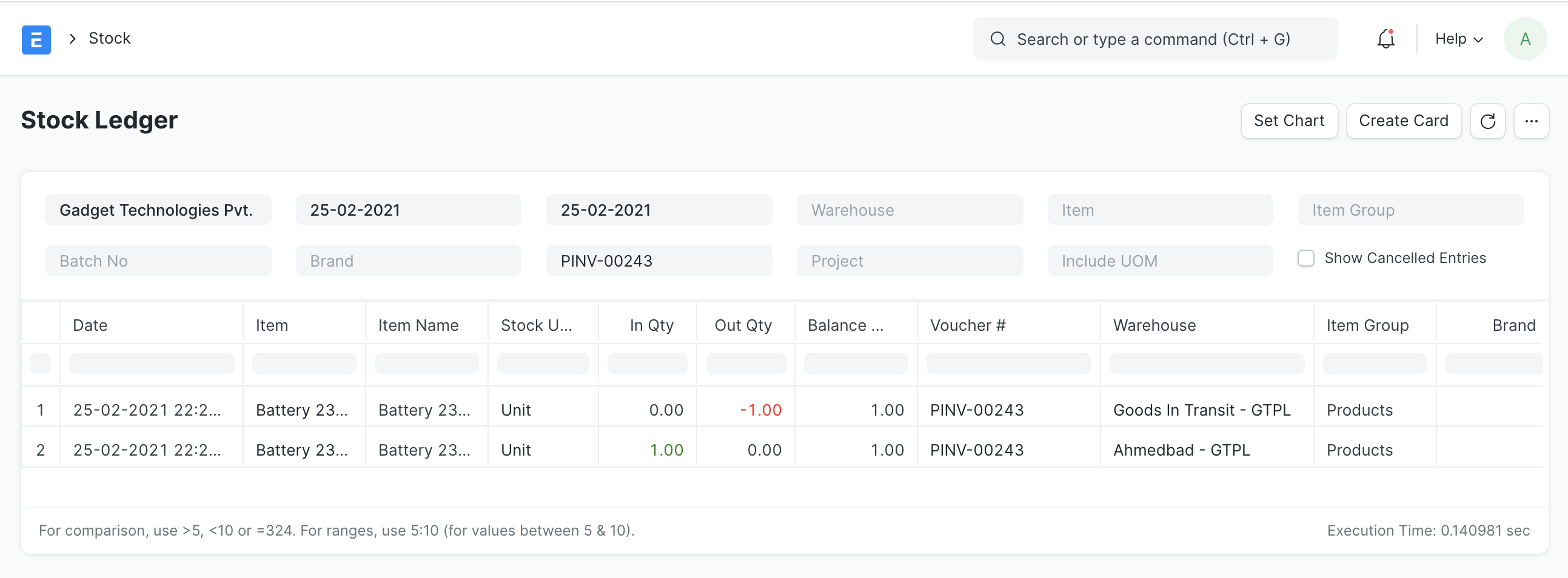
Stock Ledger
Accounting Ledger

Note: Application of GST automatically on invoices is subjective to your GST configuration. Make sure you have proper tax templates configurated and appropriate addresses and GST details linked to the internal parties