Employees Separation
*Employee Separation
When an employee's contract with their employer expires and they separate from the company, this is known as employee separation.
An Employee Separation is made for an Employee who has left the company or been fired.
Use Case: Assume that the actions listed below must be taken as soon as an employee needs to be let go by the organization.
- Collect laptop
- Clear dues
- Delete Employee Email Account
- Collect identity card
These routine tasks can be monitored in the Employee Separation Template in ERPNext. Go to: to access Employee Separation.
Human Resources > Employee Lifecycle > Employee Separation
1. Prerequisites
The following paperwork should be made before you create an employee separation:
- Employee
- Department
- Designation
- Employee Grade
2. How to create an Employee Separation
1.Click Employee Separation > New to start.
2.Decide on the Employee. When an employee is chosen, the corresponding information about that employee, including Department, Designation, and Employee Grade, is immediately collected.
3.The Employee Separation Template should be chosen. Information like Department, Designation, and Employee Grade will be automatically collected based on the template chosen (if already mentioned in the Separation Template).
4.Insert the date on the resignation letter.
5.You can also enter the summary of the exit interview.
6.Publish and save.
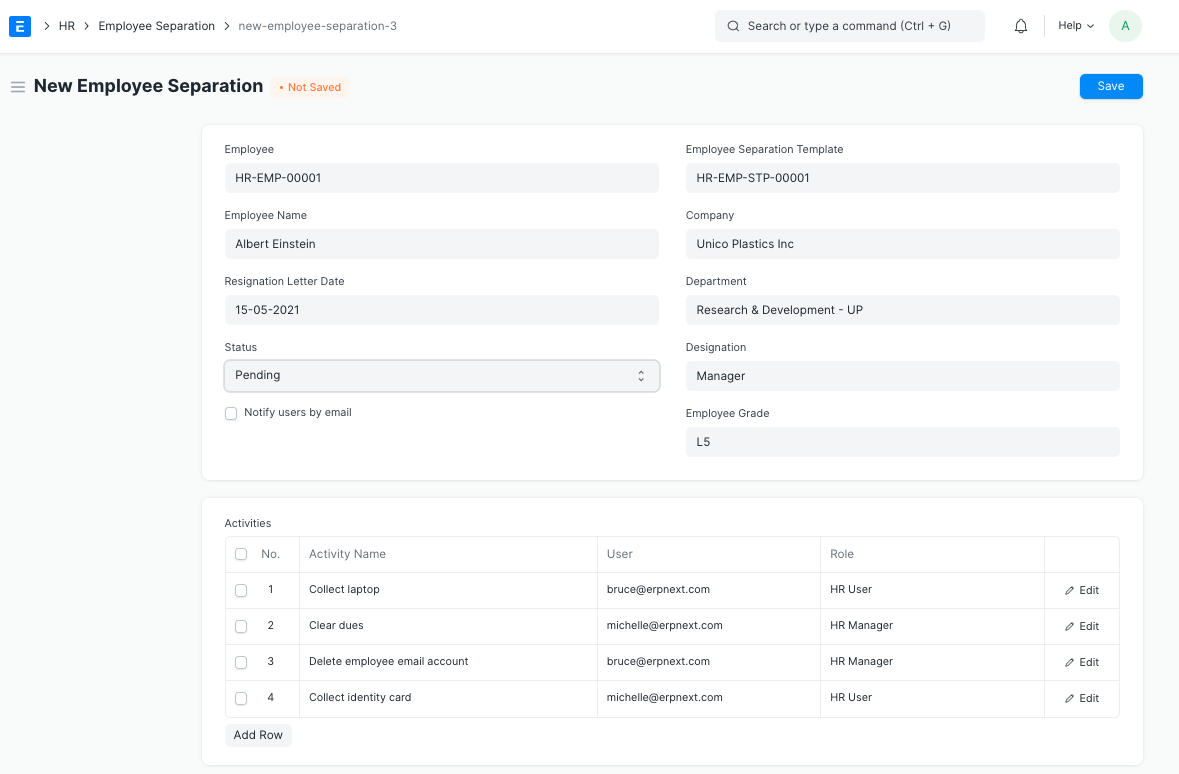
Note 1: You can fill out the separation information directly in the Employee Separation doctype itself if an Employee Separation Template is not generated.
Note 2: As soon as all the related Actions are finished, the 'Status' of the Employee Separation will change to Done.
3. Features
3.1 Employee Separation Template
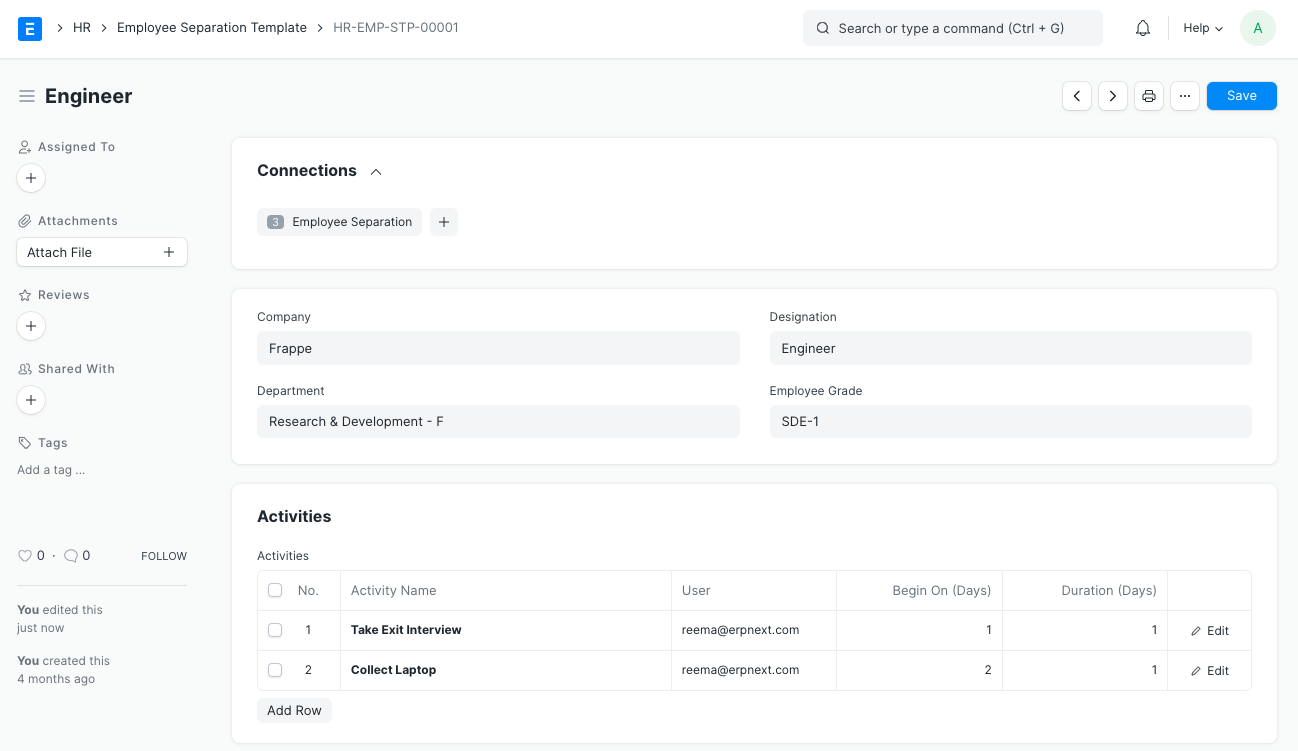
A preset list of Tasks for Employee Separation is contained in the Employee Separation Template, which is a blueprint. For a specific Department, Designation, and Employee Grade, an Employee Separation Template can be made.
New Employee Separation Template creation:
1.Get the Employee Separation Template by going to Human Resources > Employee Lifecycle > Create.
2.Fill in the Department, Designation, and Employee Grade fields (optional).
3.Specify the separation-related activities. You may additionally mention the User or Role, or a combination of both, to whom the Activity will be allocated for each Activity.
4.Separation activities can also be scheduled by stating the Begin On (Days), or the time the activity must begin, and the Duration (Days) for the same.
3.2 Tasks and Assignments
A project will be started once the employee separation is submitted. For each Activity, Tasks will also be created within the Project. Tasks will be produced with the proper Start and End Dates, excluding holidays, if you have chosen the date and duration for the activity.
Using View > Project/ Tasks, you can see the newly generated projects and tasks.
Moreover, weights based on each Activity's significance might be assigned.
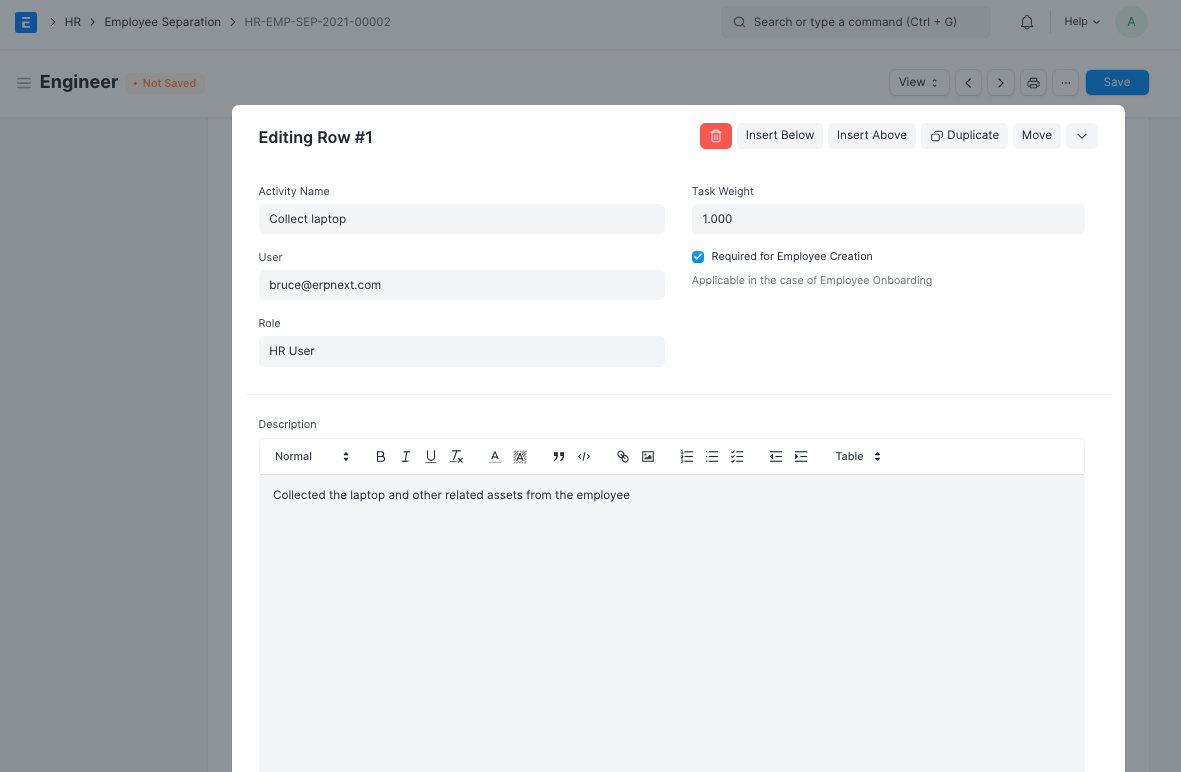
Progress in the Employee Separation process can be updated based on how well the Tasks are going.
3.3 Employee Status
Once the form has been submitted, you may view the separated Employee directly by selecting the Employee Separation doctype under View > Employee.