Tax Withholding Category
Tax Withholding Category
Tax Deducted at Source is a tax withholding category.
This states that whoever is in charge of making payments must deduct tax at source at the appropriate rates. The government wants the payers to withhold tax upfront and deposit it with the government, as opposed to getting tax on your income from you at a later time.
Go here: to obtain the list of Tax Withholding Categories.
Home > Accounting > Taxes > Tax Withholding Category
1. Prerequisites
It is suggested to first create the following before creating and using a Tax Withholding Category:
1.Supplier 2.Customer
2. How to create a Tax Withholding Category
The majority of Tax Withholding Categories in ERPNext are provided by default, however you can add more if necessary.
1.Go to the Tax Withholding Category list and click on New. 2.Enter a unique name, eg: Section 194C Individual. 3.Enter a Category Name (Dividends, Professional Fees, etc,.). 4.Enter a Tax Withholding Rate against a Fiscal Year. 5.You can set the threshold for a single invoice or sum of all invoices. 6.Select an account against your Company to which tax will be credited. 7.Add more companies and accounts as needed. 8.Save.
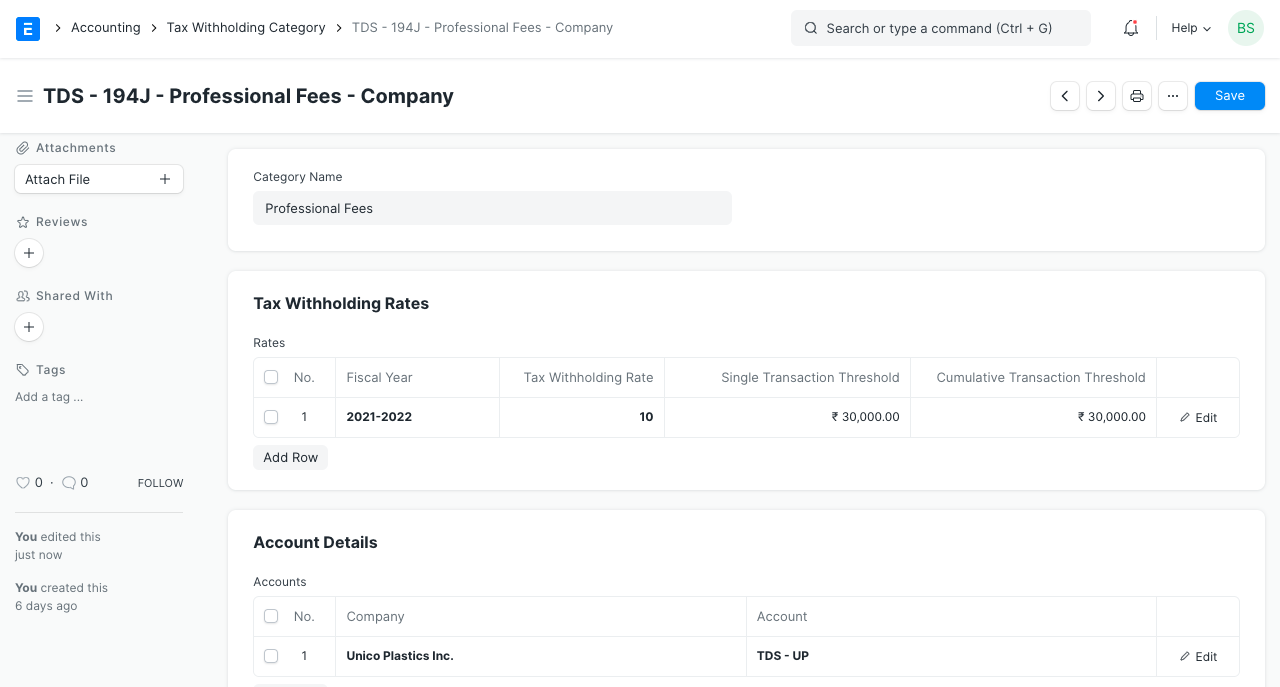
Each Firm in the system has a TDS account registered under accounting details.
2.1 Assigning Tax Withholding to Supplier
It can be assigned to a Supplier after being saved:
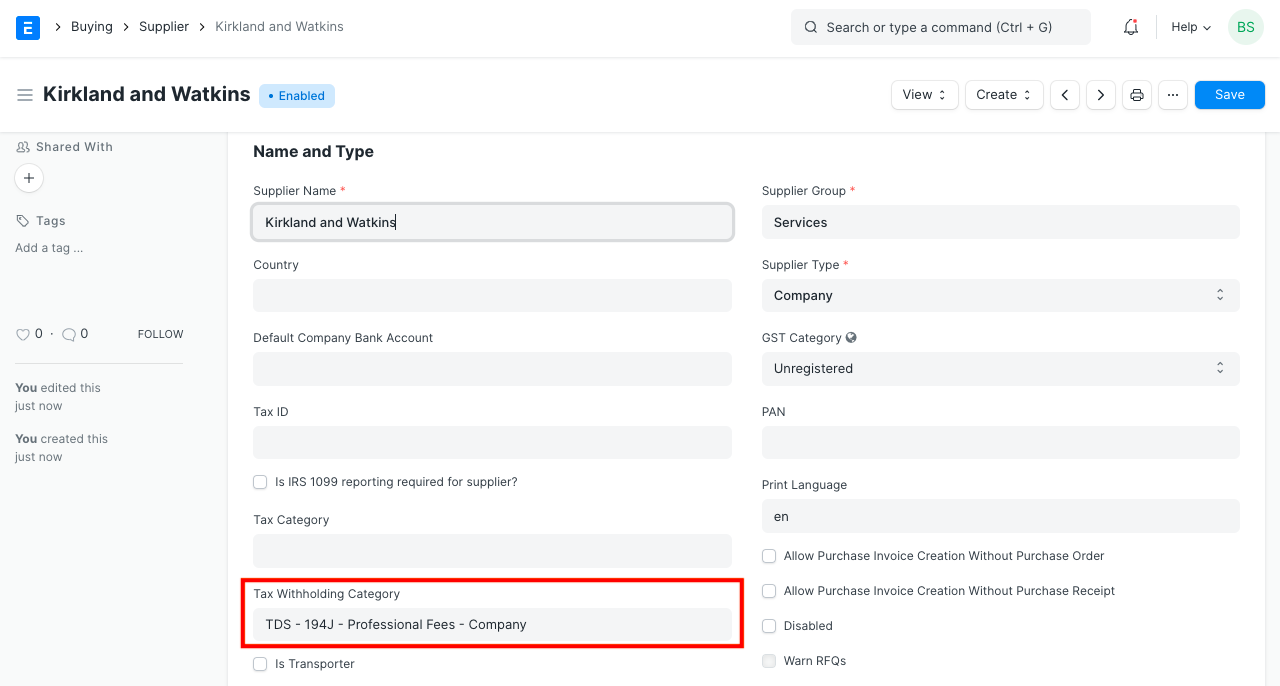
2.2 How does the threshold work?
Think about a Supplier who is subject to a Tax Withholding Category.
Let's use the example of a 5% rate being applied to invoices with a Single threshold of 20,000 and a Cumulative threshold of 30,000. The single threshold will be reached and a 5% tax will be applied if an invoice is created with a total of 20,000.
Yet, if the invoice totaled 15,000, no tax would be applied because it remained below the cutoff. Even though it didn't exceed the Single barrier, charges would still be applied if another invoice were to be produced for the same supplier with a total of 15,000 even though it did not exceed the Cumulative threshold of 30,000.
3. Using Tax Withholding
3.1 Use in Purchase Invoice
We have chosen "TDS - 194C - Individual" for the example below, which has a single threshold of 30,000, a cumulative threshold of 1,00,000, and a rate of 1%.
1.If the Supplier has the tax withholding field defined, a checkbox will appear on the Purchase Invoice to let you decide whether to apply tax or not when you select that Supplier.
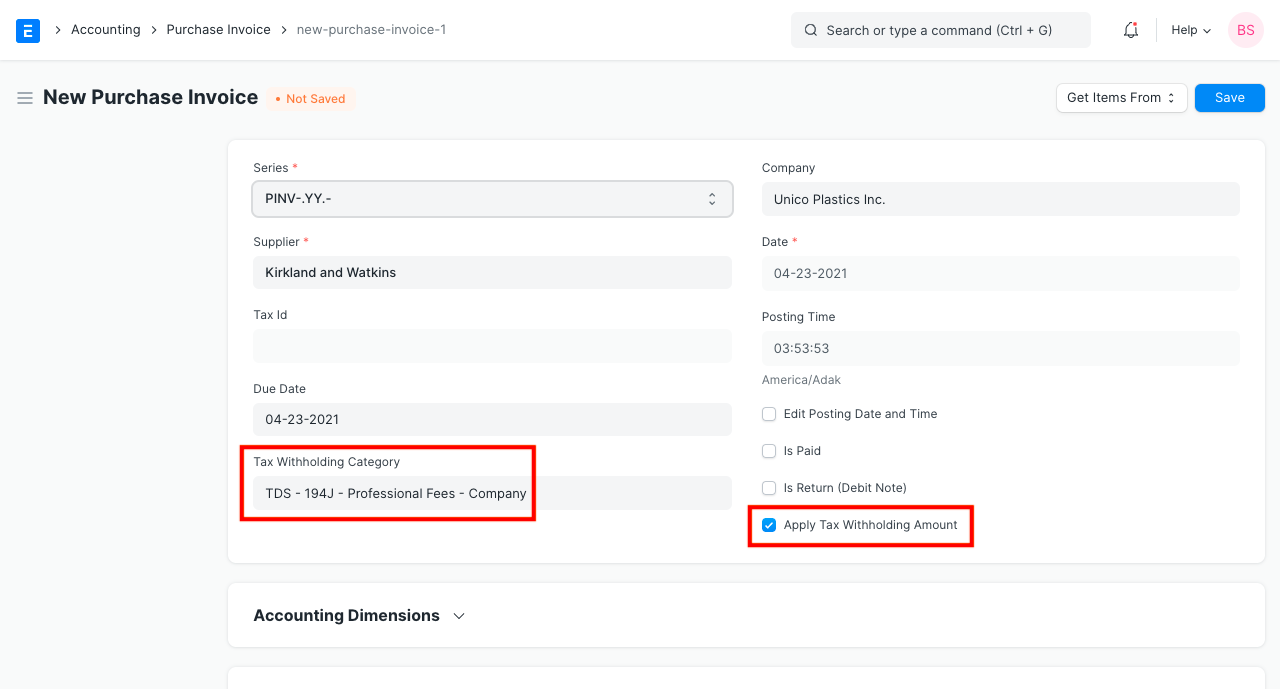
1.Make an invoice for $90,000 now. Tax is automatically calculated when saving the invoice and is added to the taxes table.
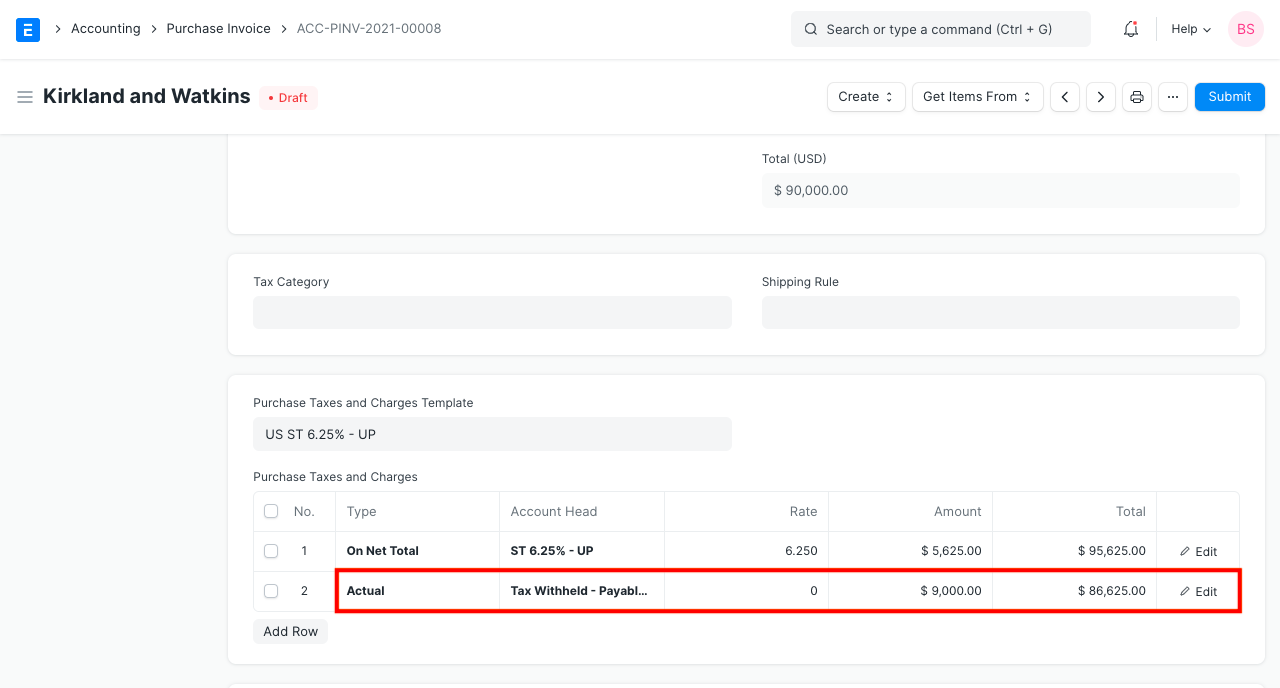
2.Let's construct and submit a bill for $10,000 to observe the impact of the cumulative threshold.
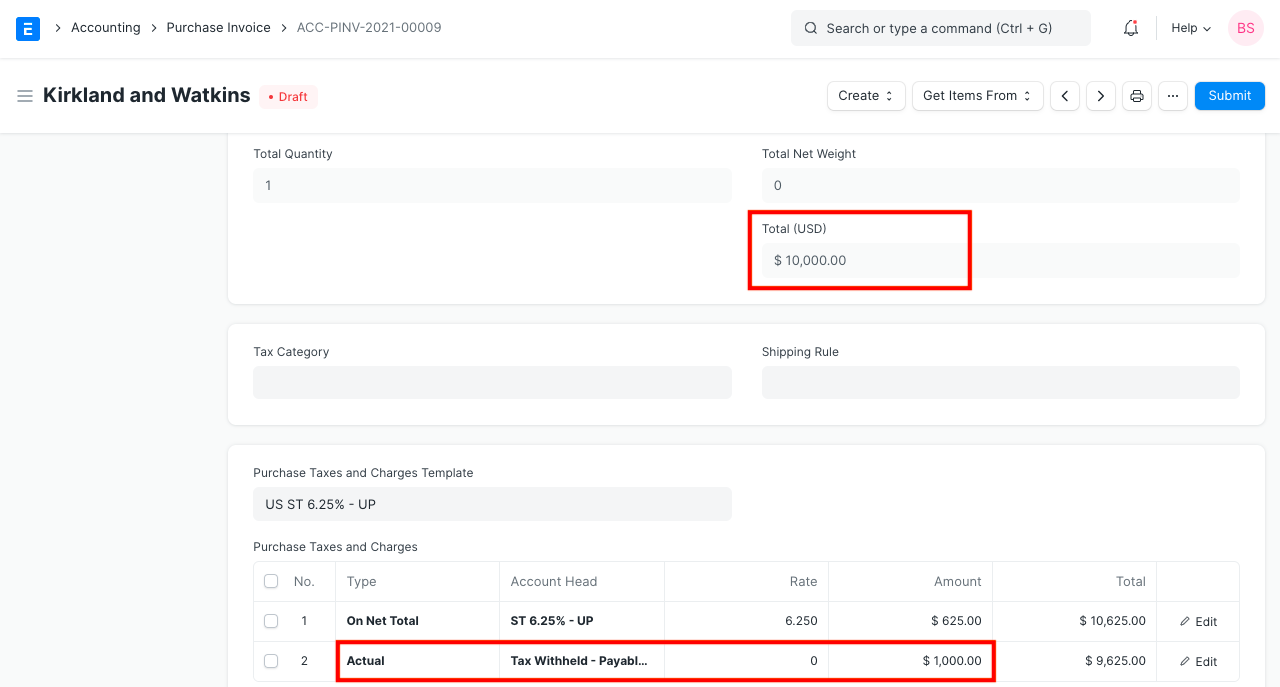
We can see that tax has been imposed even though the invoice amount did not above the Single threshold ($30,000). This is due to the fact that the sum of the prior and current invoices is 1,10,000, which is higher than the cumulative threshold. As a result, tax is imposed in accordance with the rate specified in the Tax Withholding Category.
Three GL Entries are produced when the invoice is submitted:
First for debit from the expense head Second for credit in Creditors account Third for credit in the account selected in Tax Withholding Category.
3.2 Deducting Tax at source on Advances
3.2.1 Deduction Advance TDS against Purchase Order
1.Create a Purchase Order for the supplier and add a Tax Withholding Category to it. One thing to keep in mind is that the PO must be generated for the full amount, so avoid checking the "Apply Tax Withholding" box.
2.Make a payment entry for that purchase order, turn on "Apply Tax Withholding" in the Taxes and Charges area, fill in the rest of the information, and then save and submit the entry.
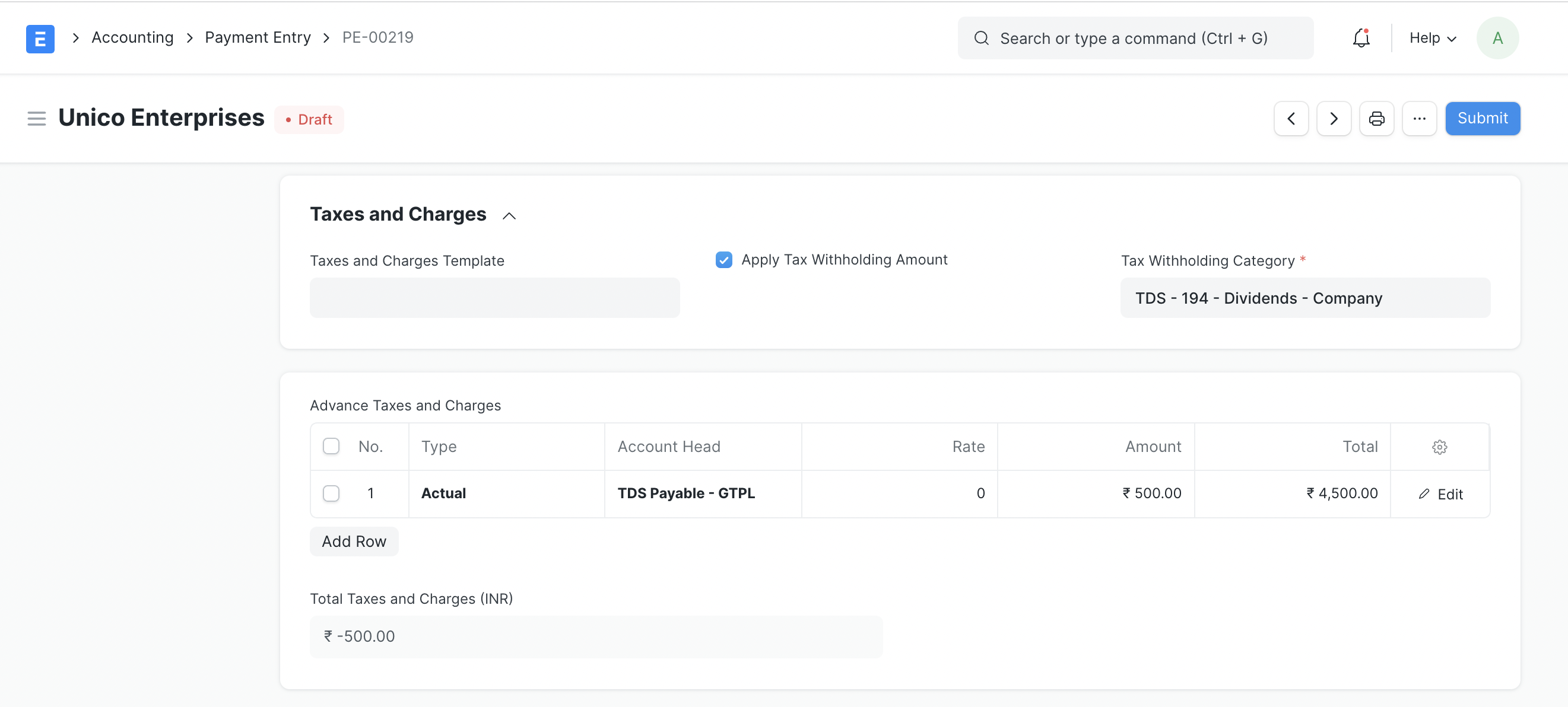
Make a purchase invoice for this order and check the "Set Advances and Allocate(FIFO)" box to have the payment associated with the relevant order applied automatically. If the tax paid in advance is greater than or equal to the tax amount on the purchase invoice, no tax will be withheld. Only for the extra amount, if applicable, will tax be withheld.
3.2.2 Deducting TDS against advances paid (Using Payment Entry)
1.Select "Payment Type" as "Pay" 2.Select "Party Type" as "Supplier" and the appropriate supplier 3.Enter paid amount, paid amount should be the amount before TDS deduction 4.Under the Taxes and Charges section check "Apply Tax Withholding Amount" and select Tax Withholding Category 5.Click on Save. TDS will be auto applied 6.Submit the entry 7.Same will also be visible in TDS payable monthly report
3.3 Setting up TCS - Section 20C(1H) for eligible customers
In the example below, we have created a Section 20C(1H) Tax Withholding Category for TCS and set it up against an eligible customer.
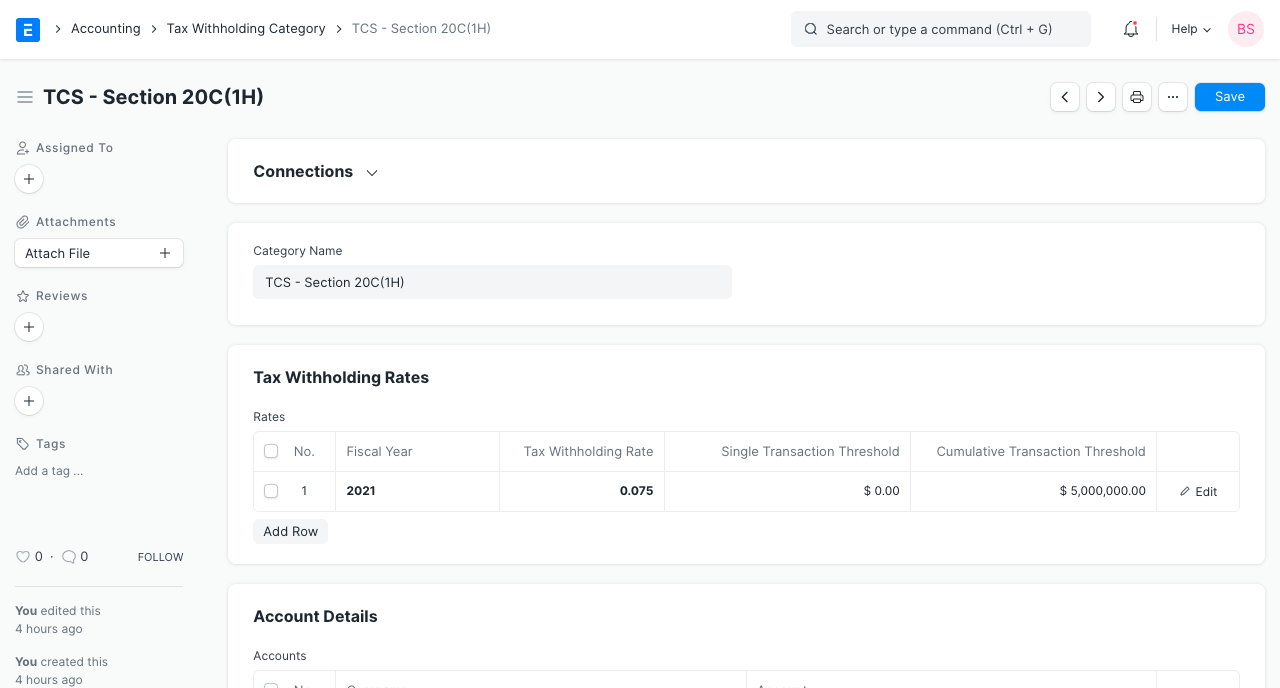
1.In accordance with the concept, we will first create a Tax Withholding Category called TCS - Section 20C(1H) and set the cumulative threshold to 50 lakhs.
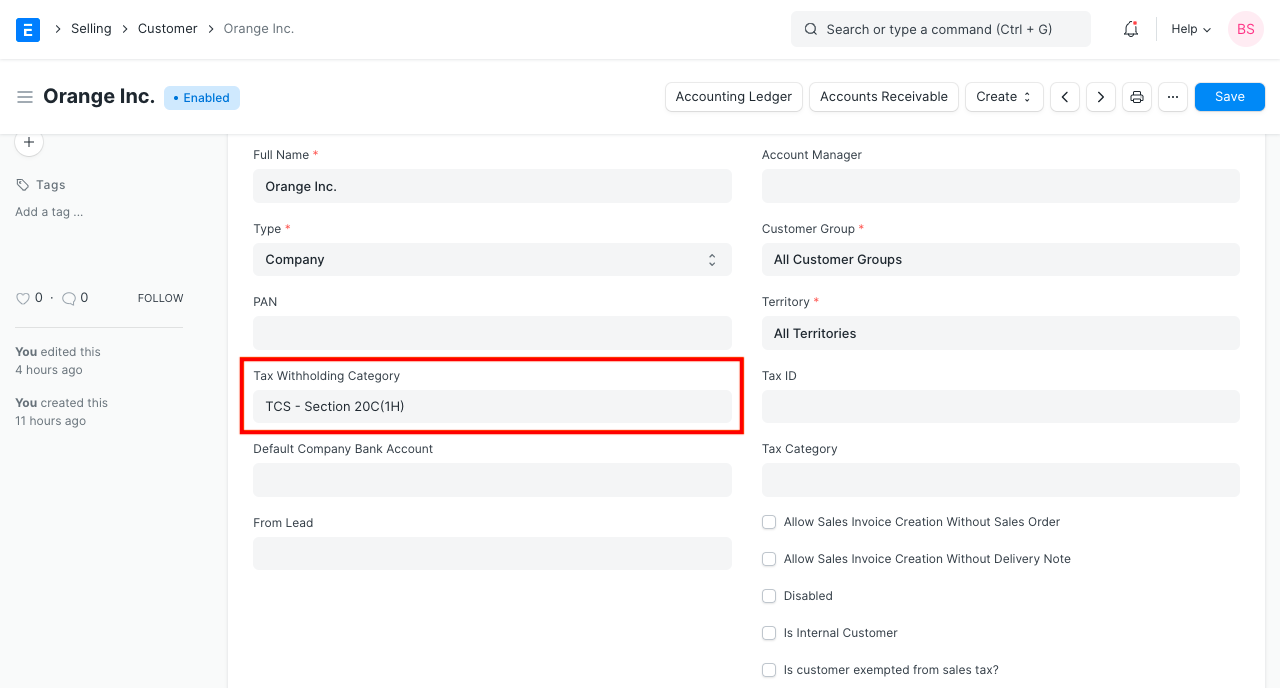
1.In order to automatically calculate TCS on sales of products against the customer's invoices, we can set the Tax Withholding Category of a Customer to TCS - Section 20C(1H) if it is anticipated that they would exceed the sales threshold of 50 Lakh in the current Fiscal Year.
2.Let's produce a 50 Lakh invoice for the qualified consumer. Tax is automatically calculated when saving the invoice and is added to the taxes table.
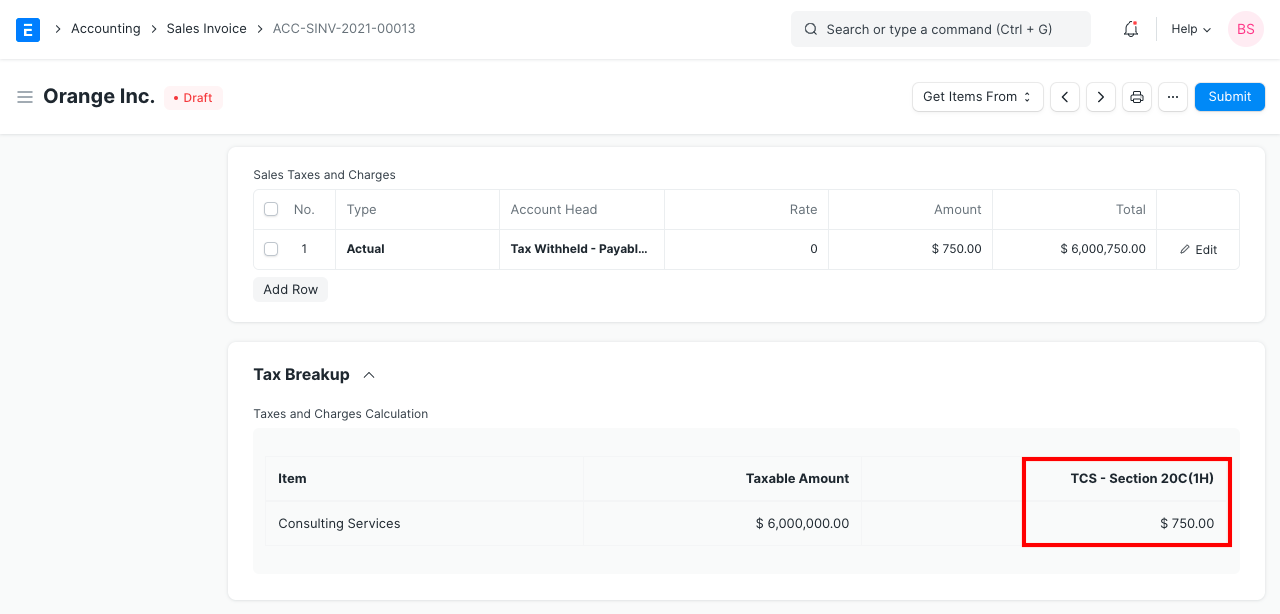
Because the invoice above the cumulative threshold (50 Lakhs), tax was imposed, as can be seen. As a result, tax is imposed in accordance with the rate specified in the Tax Withholding Category. Keep in mind that the TCS is calculated in accordance with the plan on the amount that exceeds the threshold, or 0.075% of 10 lakhs.
3.4 Advanced options in Tax Withholding Category
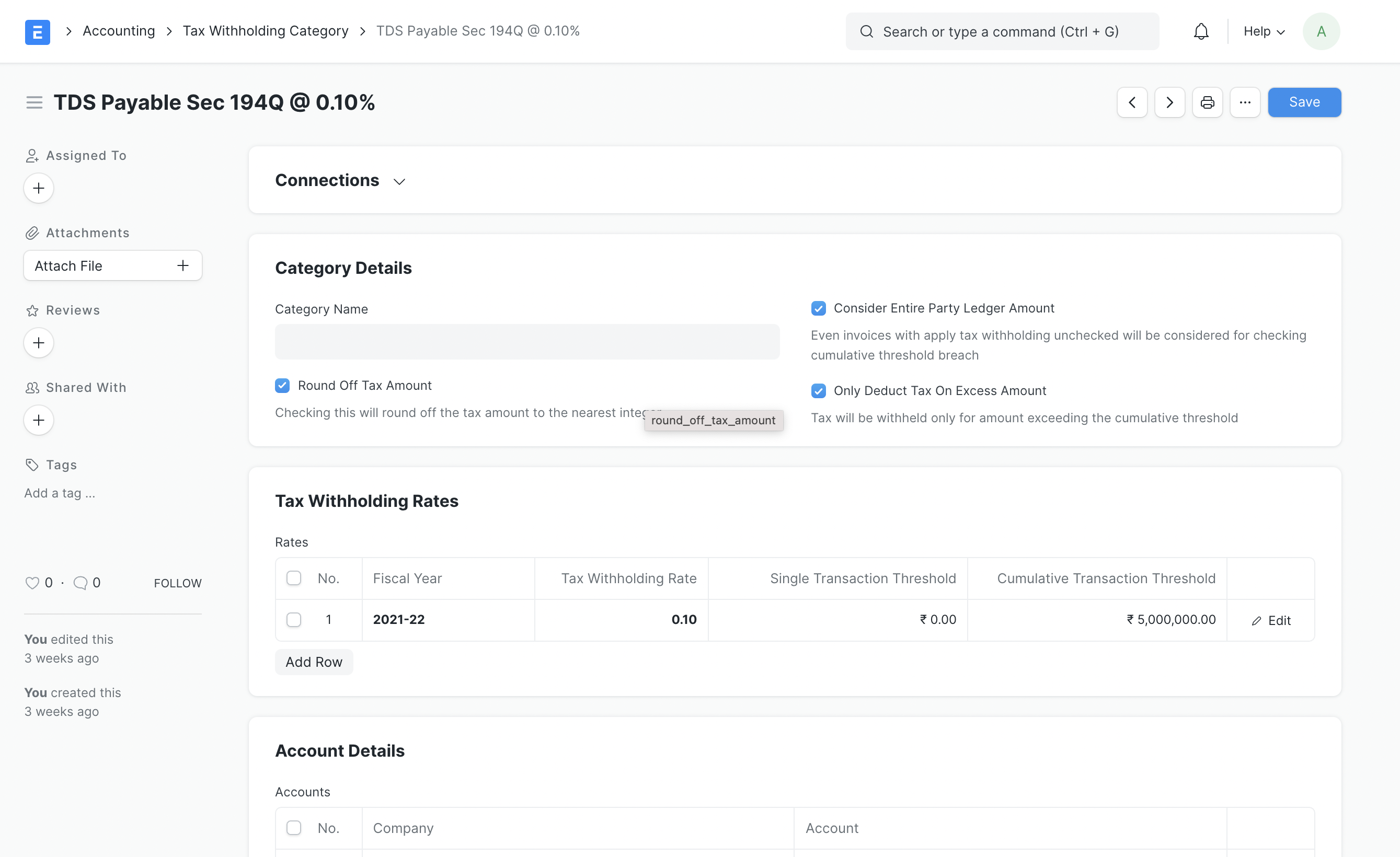
1.Consider the Total Party Ledger Amount: Rather than adding the net total of individual invoices, the threshold often has to be computed on the whole party ledger amount. When this check is enabled, the cumulative threshold will be compared to the total of all invoices submitted to a specific Supplier or Customer.
2.When this option is enabled, the tax will only be withheld from the amount that exceeds the threshold, not the total amount. The tax will only be charged to 2000, not the total 52000, for instance, if the cumulative threshold is 50000 and the cumulative amount reaches 52000.
3.Round Off Tax Amount: If you enable this box, the calculated tax amount will be rounded to the nearest integer value (Normal Rounding Method)