Dashboard
Introduced in Version 12
Dashboard provides an at-a-glance view of key performance indicators relevant to the business process.
Each Dashboard is made up of one or more Dashboard Charts, each of which is set up using a data source called a Dashboard Chart Source.
Go to to access Dashboard.
Home > Customization > Dashboards > Dashboard
1. How to Create a New Dashboard
- Click New from the Dashboards List.
- Enter the name of the module you wish to view the dashboard for.
- The Dashboard Charts that you want parameterized for this Dashboard should be entered.
- Save.
You can view the Dashboard showing a graphic depiction of your transactions when you click Show Dashboard.
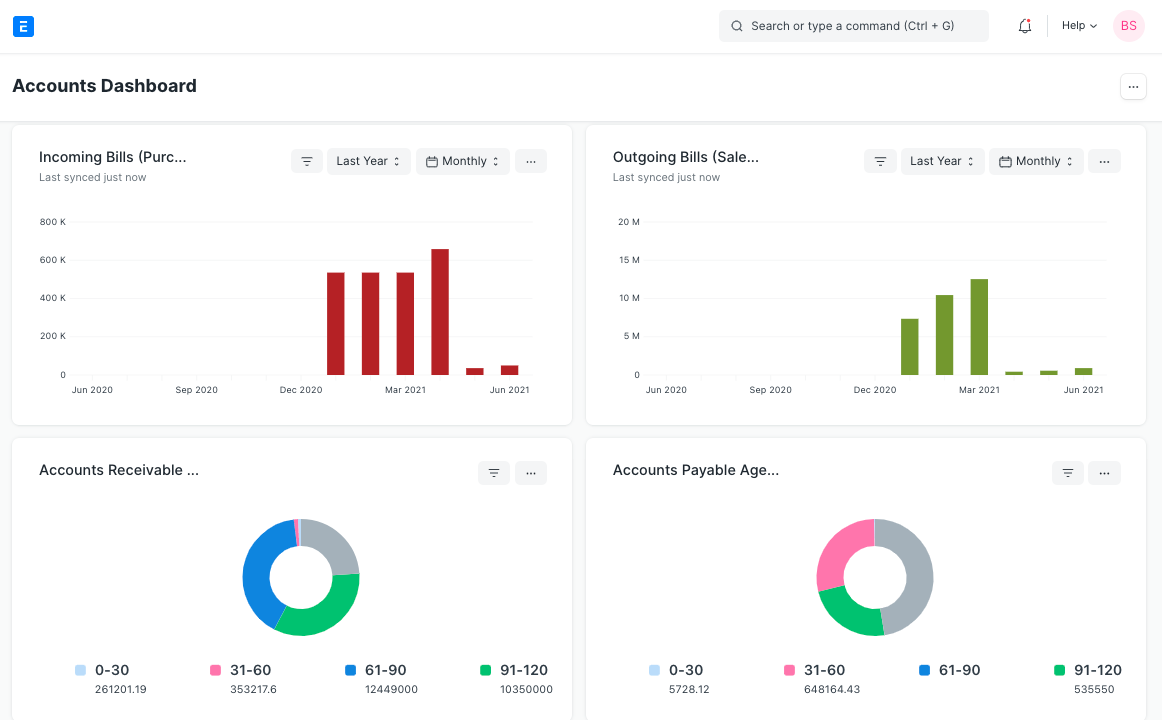
2. Adding Charts to Dashboard
Choose an existing Dashboard Chart or create a new one to add to this dashboard.
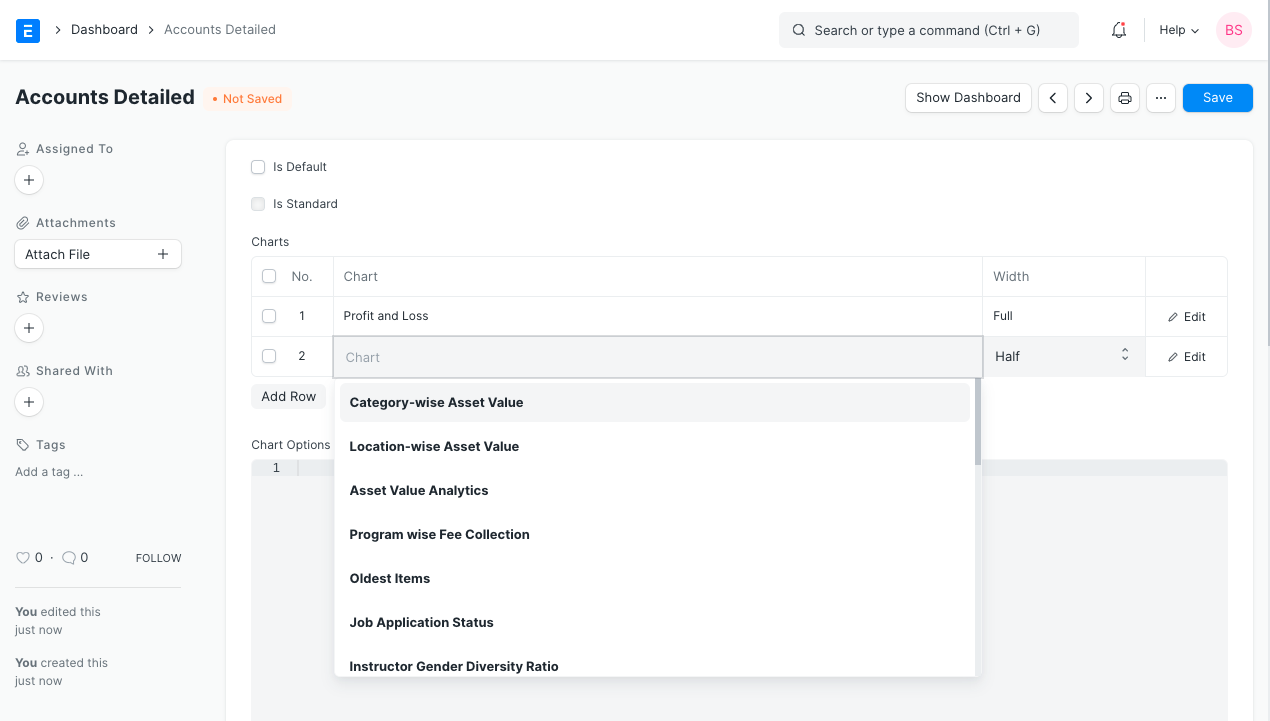
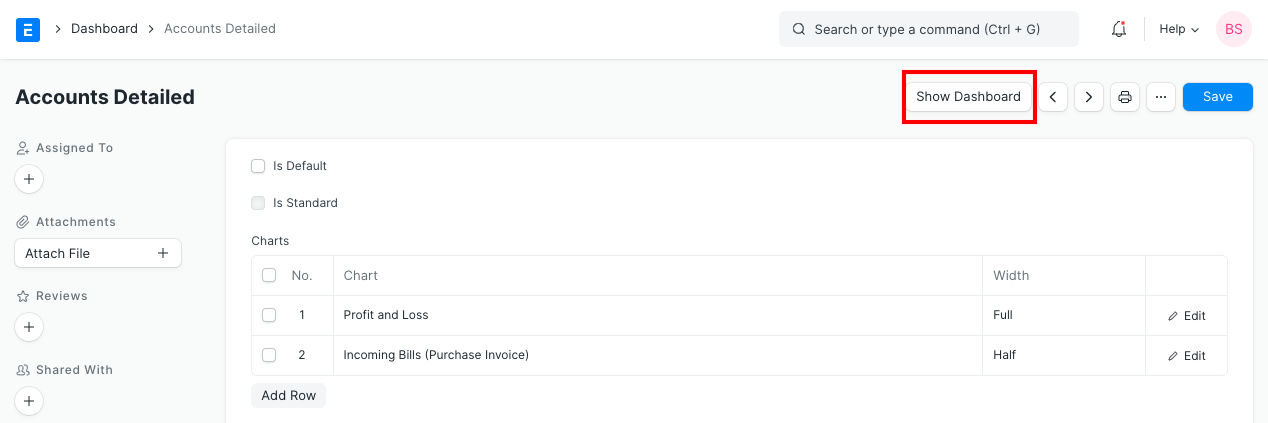
Save your adjustments, then view the dashboard by clicking the Show Dashboard button.
3. Creating a New Dashboard Chart
Visit in order to build a new Dashboard Chart.
Home > Customizations > Dashboards > Dashboard Chart > New
Give the chart a name; this will serve as the chart label on the dashboard; choose Custom as the chart type; and choose a Dashboard Chart Source as the chart's data source.
Note: Only the Administrator User in Developer Mode has the ability to establish a new Dashboard Chart Source.
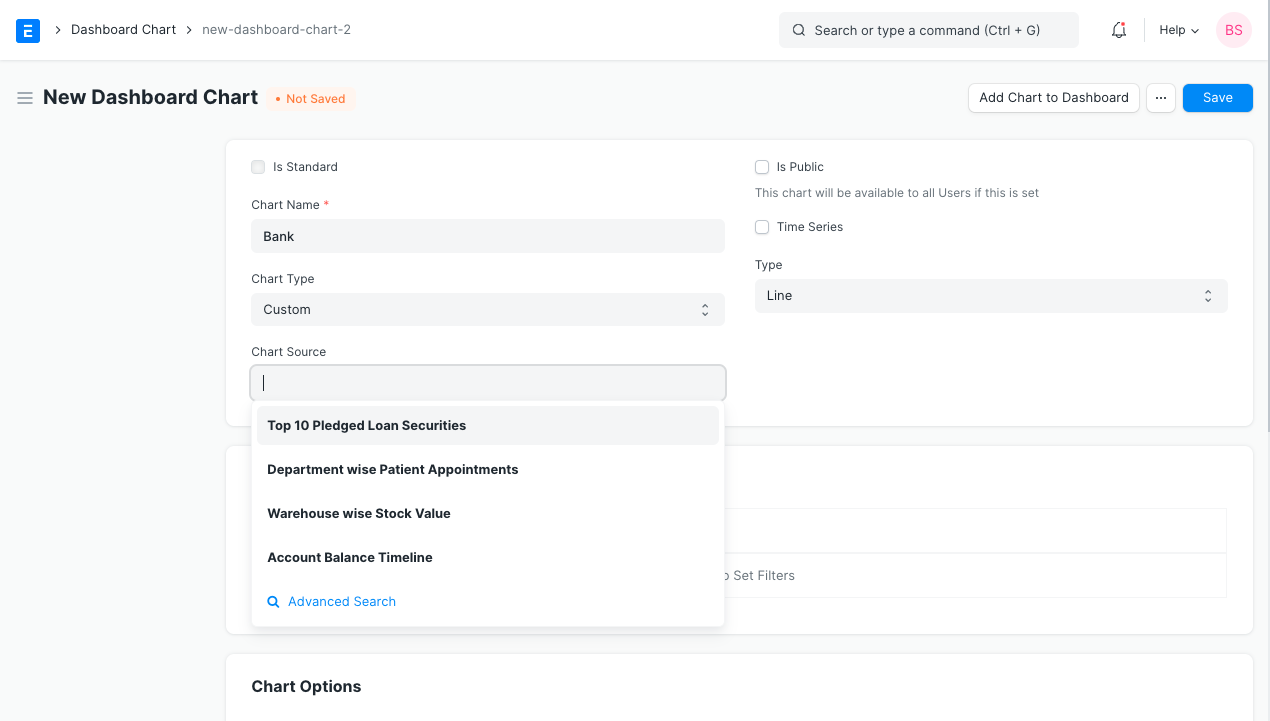
The filters table will appear after the Chart Source field has been set.
To change filters, click the table.
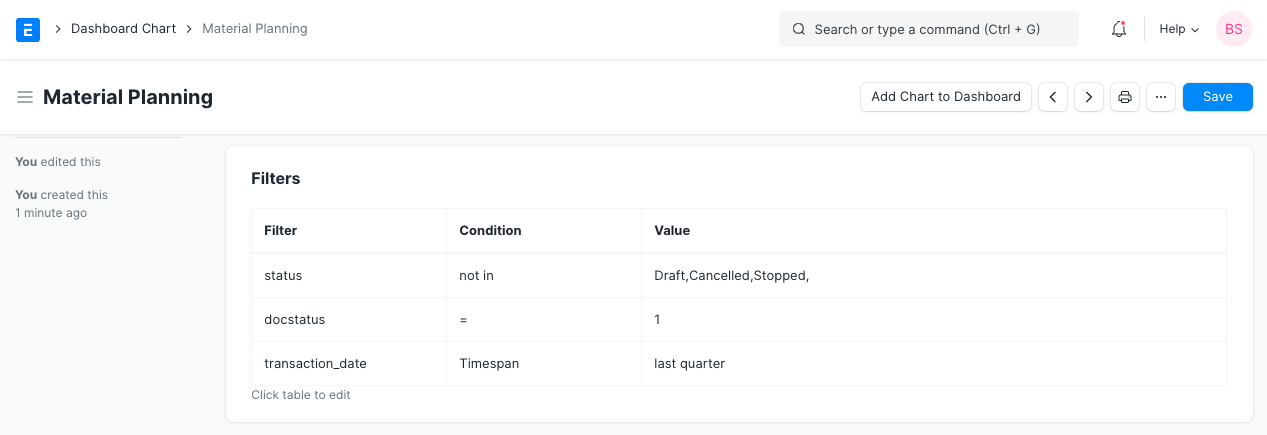
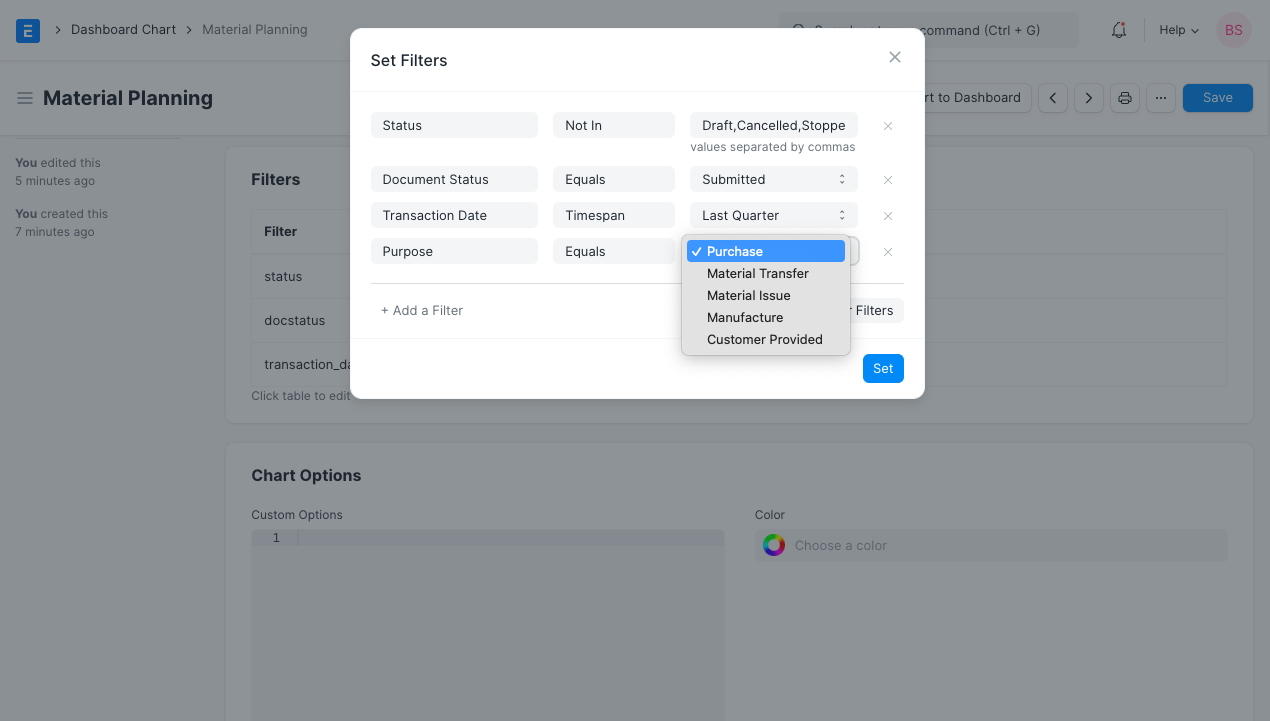
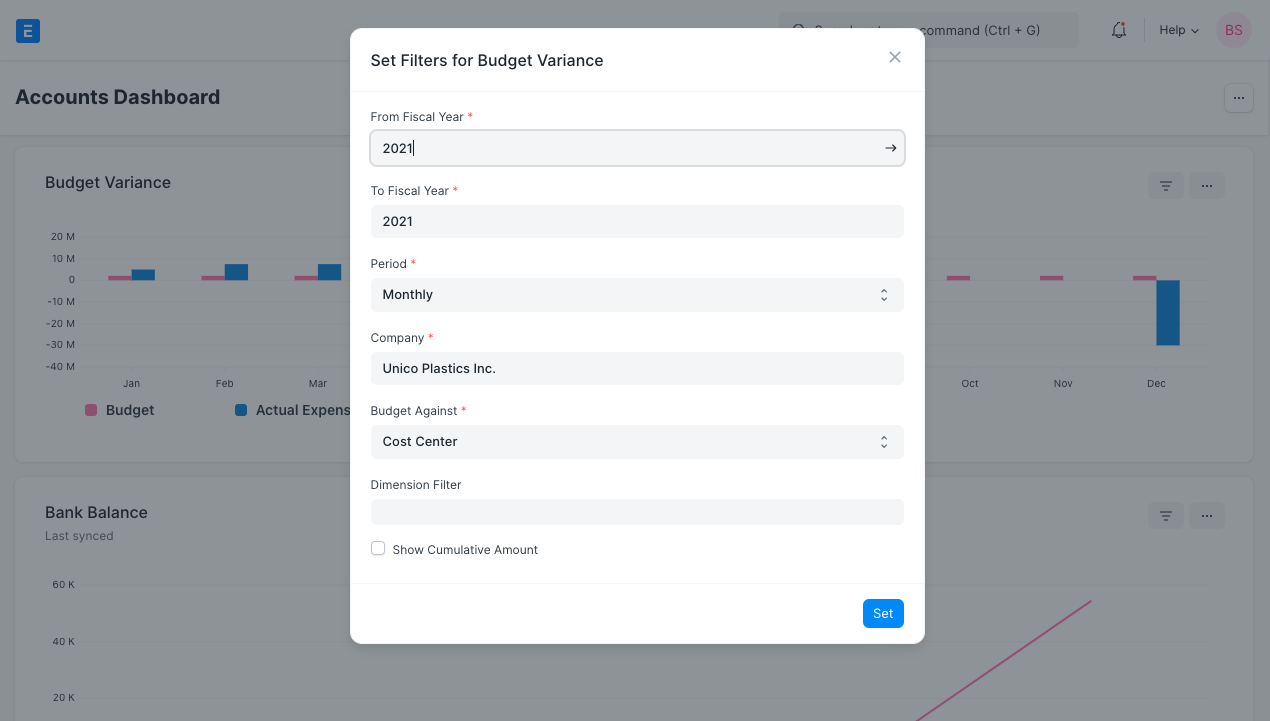
To set filters, a modal window will appear. To set the filters, click Set.
The Filters table will be updated with the chosen filter values after the Chart Source field has been specified.
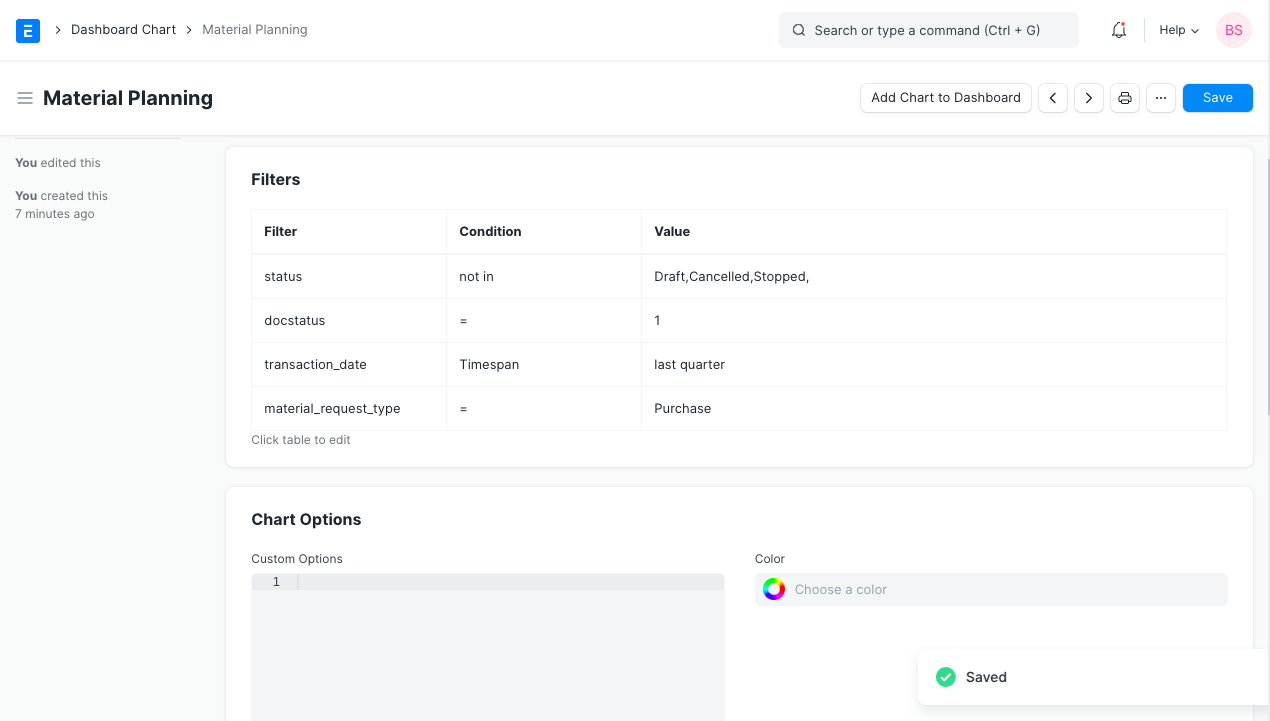
In the aforementioned illustration, we constructed a unique Dashboard Chart with an existing Dashboard Chart Source.
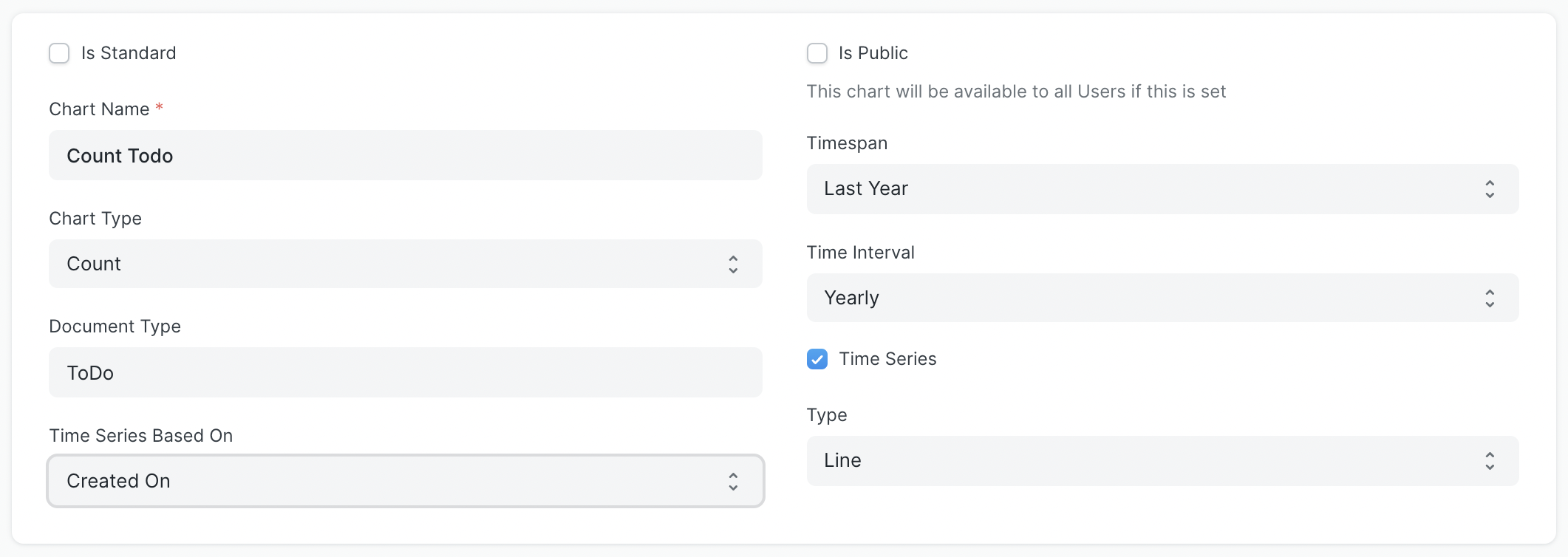
By choosing Count, Sum, Average, or Group By as the chart type, you can also create simple charts that count, sum, average, or group by to-do items based on when they were created or modified. You can also use Report as the chart type to create charts that use an existing report as a source in the Report Name field.
In the Document Type box for Count, you must choose the Doctype for which the chart is required, and in the Time Series Based On field, the Based On Date.
Note: If you choose a document type for a child table in Document Type, you must also choose a document type for that child table in Parent Document Type (this field will only be visible when you select child table doctype in Document Type field).
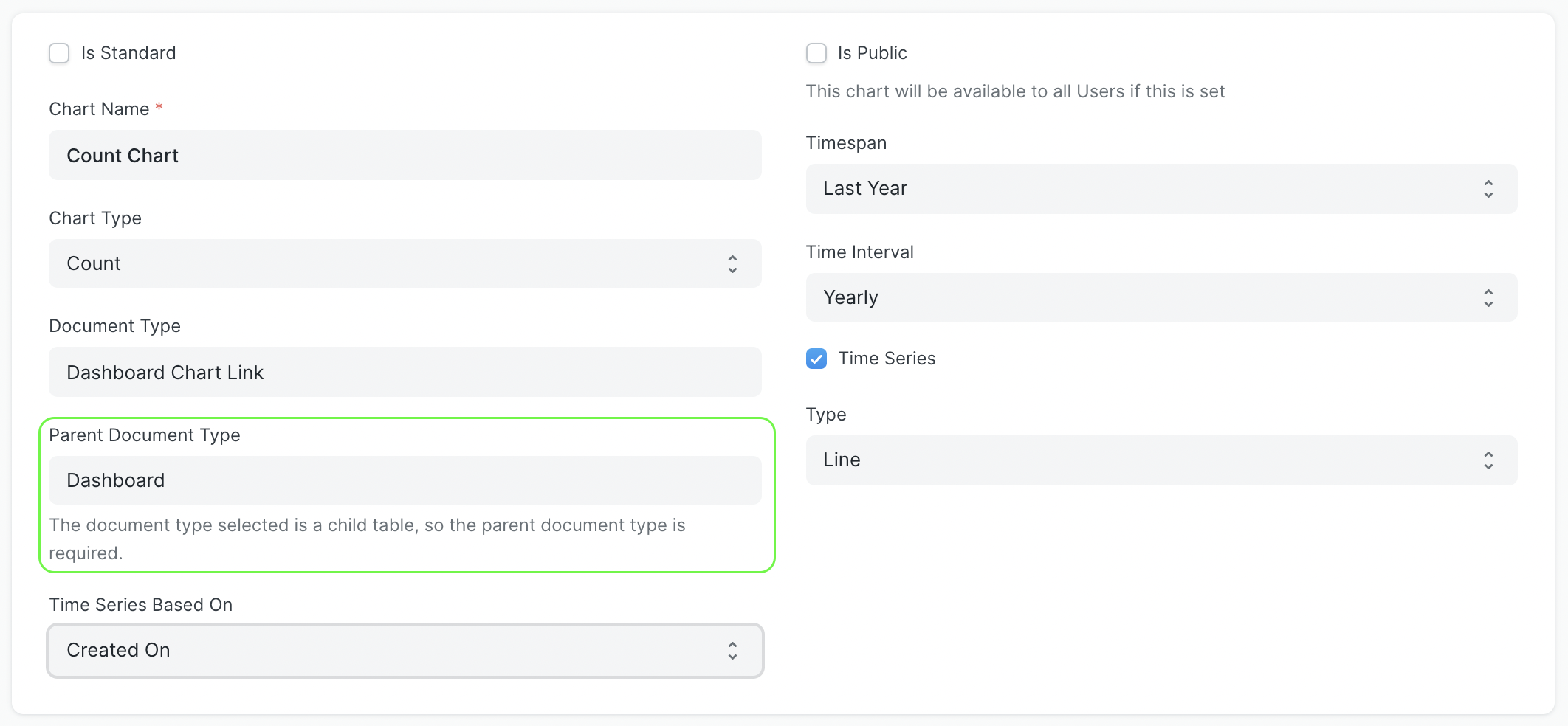
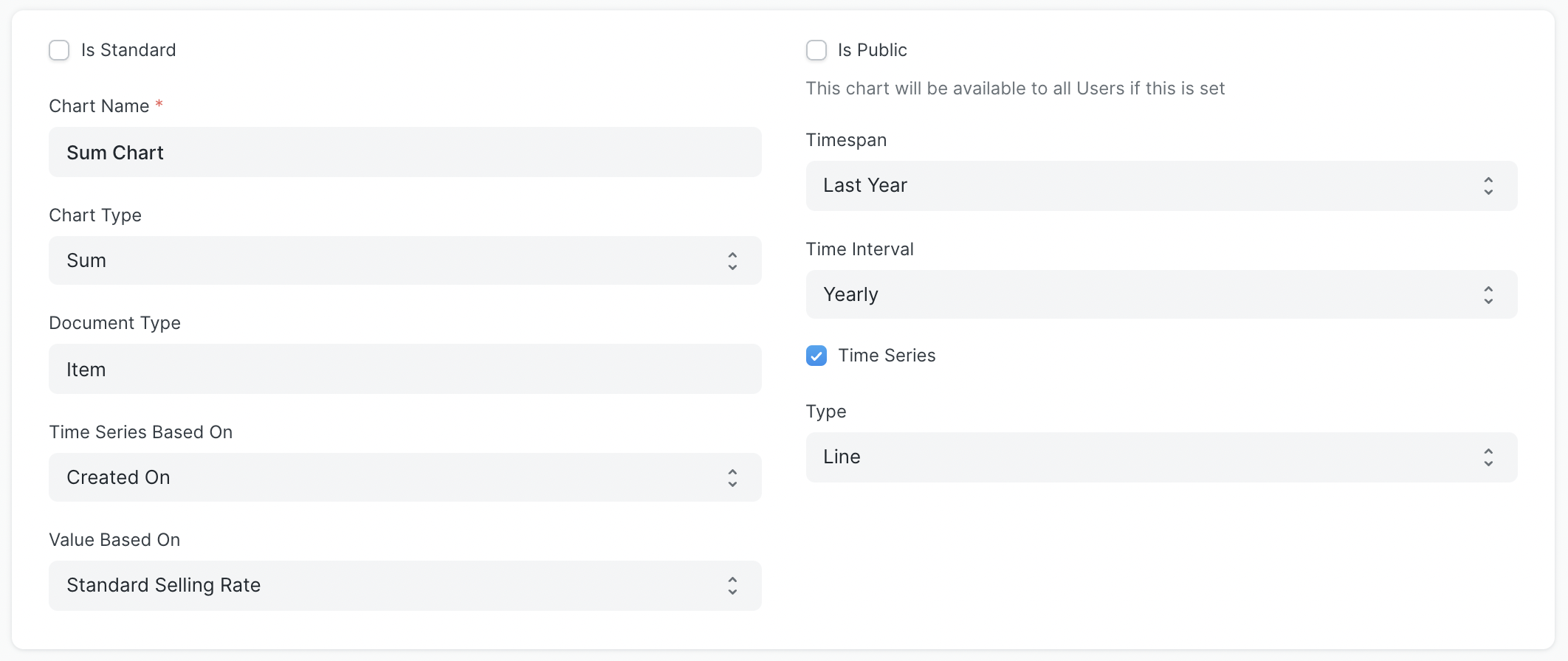
You must also choose the Based On Value column in Value Based On for Sum and Average.
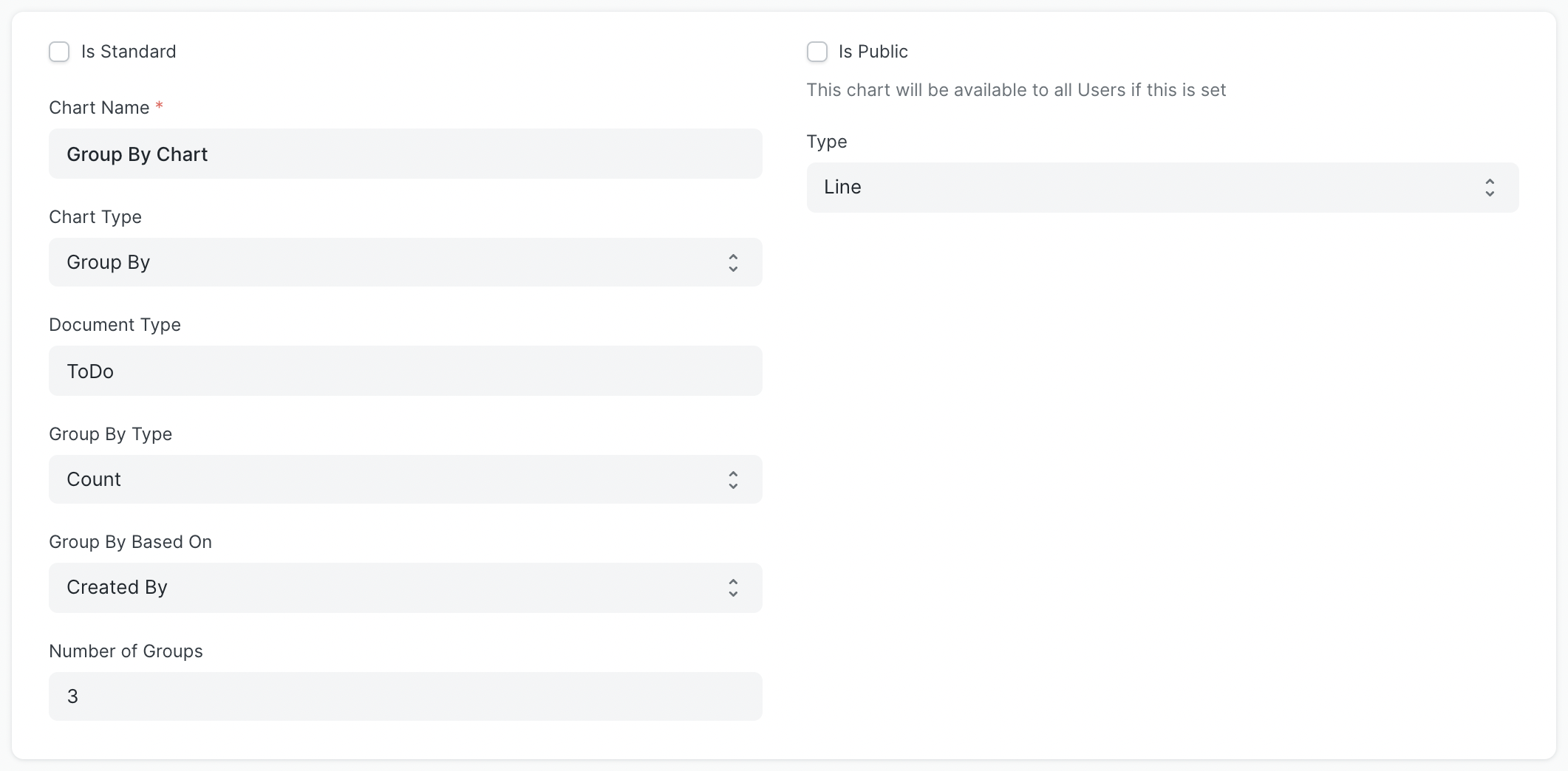
You can choose Count/Sum/Average for the Group By Type, Created By/Modified By for the Group By Based On, and Number of Groups for the Group By option.
4. Using Dashboards
Every chart will be displayed in accordance with the fields defined in the associated Dashboard Chart. To prevent repeated searches, the outcome from the source of the dashboard chart is cached. Each chart will additionally provide the most recent sync time because the chart data may become stale.
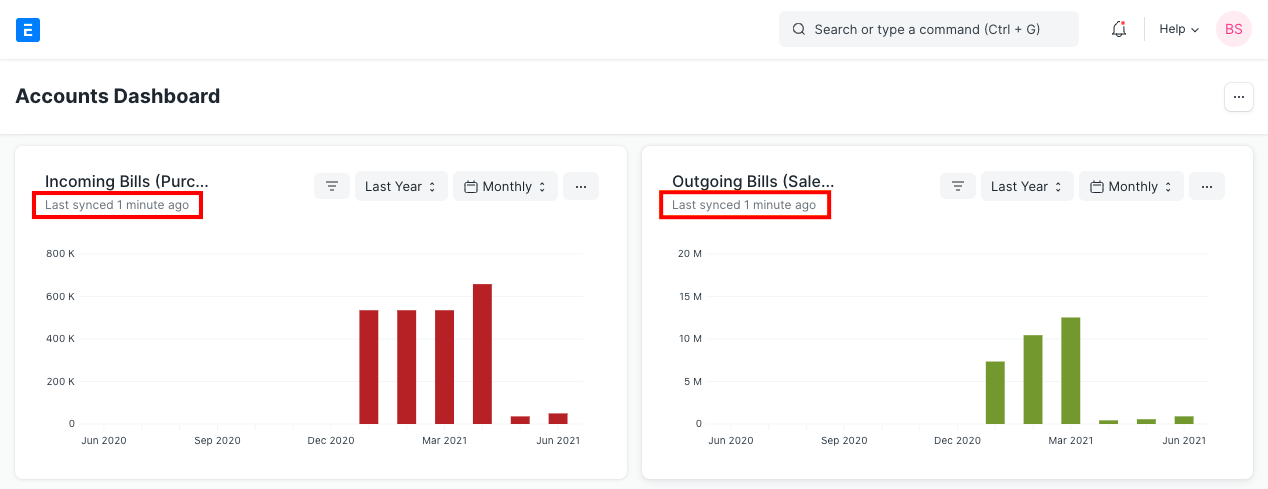
By selecting Set Filters, you may also modify the filters that were used to produce the data for the chart. The recently set filters will immediately cause the chart to refresh.
Each chart must be forced refreshed in order to display the most recent data by selecting the Force Refresh option from the dropdown menu.