Tax Rule
Tax Rule Based on predetermined rules, a tax rule automatically adds taxes to transactions.
With a tax rule, you can specify which tax template needs to be used for a sales or purchase transaction. Several variables, including the customer, customer group, supplier, supplier group, item, item group, or a combination of these, determine this.
Go here: to see the Tax Rule list.
Home > Accounting > Taxes > Tax Rule
1. Prerequisites
It is recommended to first create the following before generating and utilizing a Tax Rule:
1.Sales Taxes and Charges Template
Or
2.Purchase Taxes and Charges Template
2. How to create a Tax Rule
1.Go to the Tax Rule list and click on New. 2.Under Tax Type select whether the tax will be applied at Sales or Purchase. 3.Select the Tax Template to be applied. 4.Save.
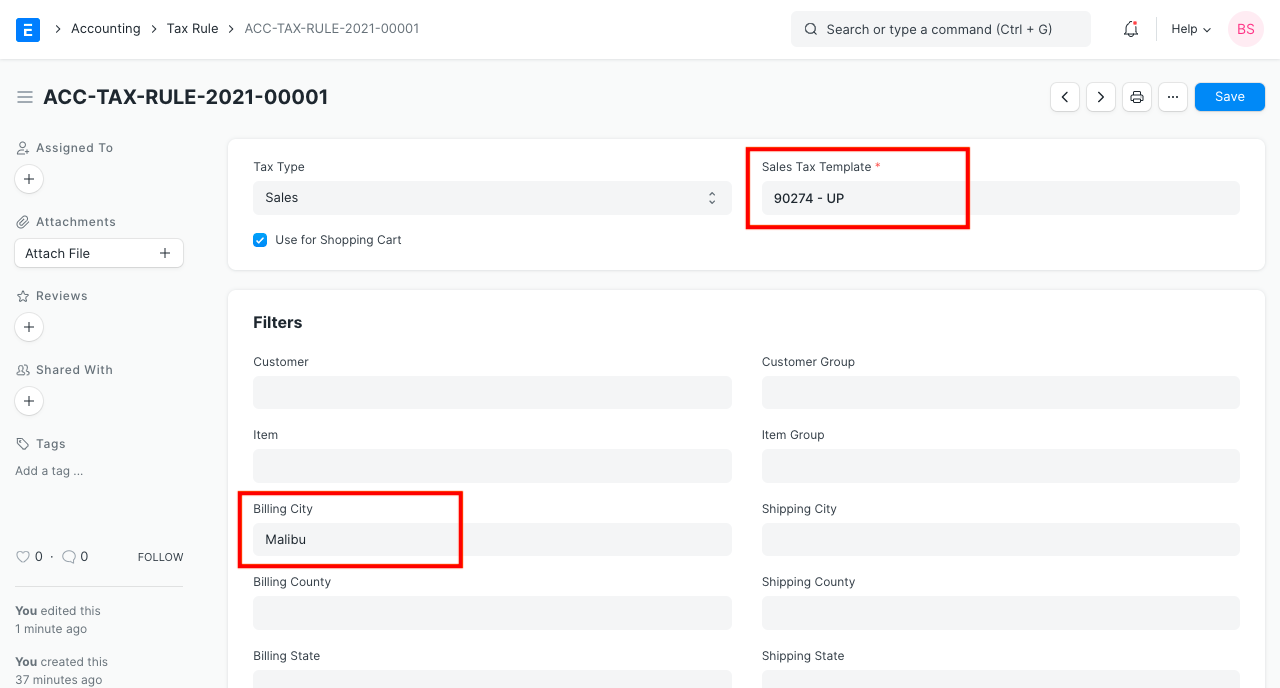
With the help of the Website module, you can list Items online. By choosing "Use for Shopping Cart," this Tax Rule will also be used for transactions made through a shopping cart. Visit the Shopping Cart page for further information.
Use of the Sales/Purchase Template chosen here in the Item Tax Template is not recommended as it might interfere. Use a different name for the Sales/Purchase Tax Templates if you wish to utilize the same tax rates for Tax Rule and Item Tax Template.
3. Features
3.1 Auto applying Tax Rule based on Customer/Supplier
If tax needs to be imposed to a specific party, either a customer or supplier. If this tax rule applies to all customers and suppliers, leave it as All Customer Groups/All Supplier Groups.
If the customer's or supplier's billing and shipping addresses are saved in the customer's or supplier's master, they will be retrieved upon selection.
3.2 Auto applying Tax Rule based on Item / Item Group
The Tax Rule will automatically be applied to new transactions that contain the selected Item/Item Group after the Item or Item Group is set in the Tax Rule.
3.3 Setting a Tax Category
A transaction may be subject to many Tax Rules depending on various criteria by setting a Tax Category. Visit the Tax Category page to learn more.
3.4 Validity
If the tax is only going to be in effect for a certain amount of time, set a Start and End Date. The Tax Rule will have no time restrictions if both dates are left empty.
3.5 Priority
If more than one tax rule has characteristics that match this one, setting a priority number will determine which tax rule is implemented in what order. Priority numbers start at 1, go down to 2, and so on.
4. How Do Tax Rules Function?
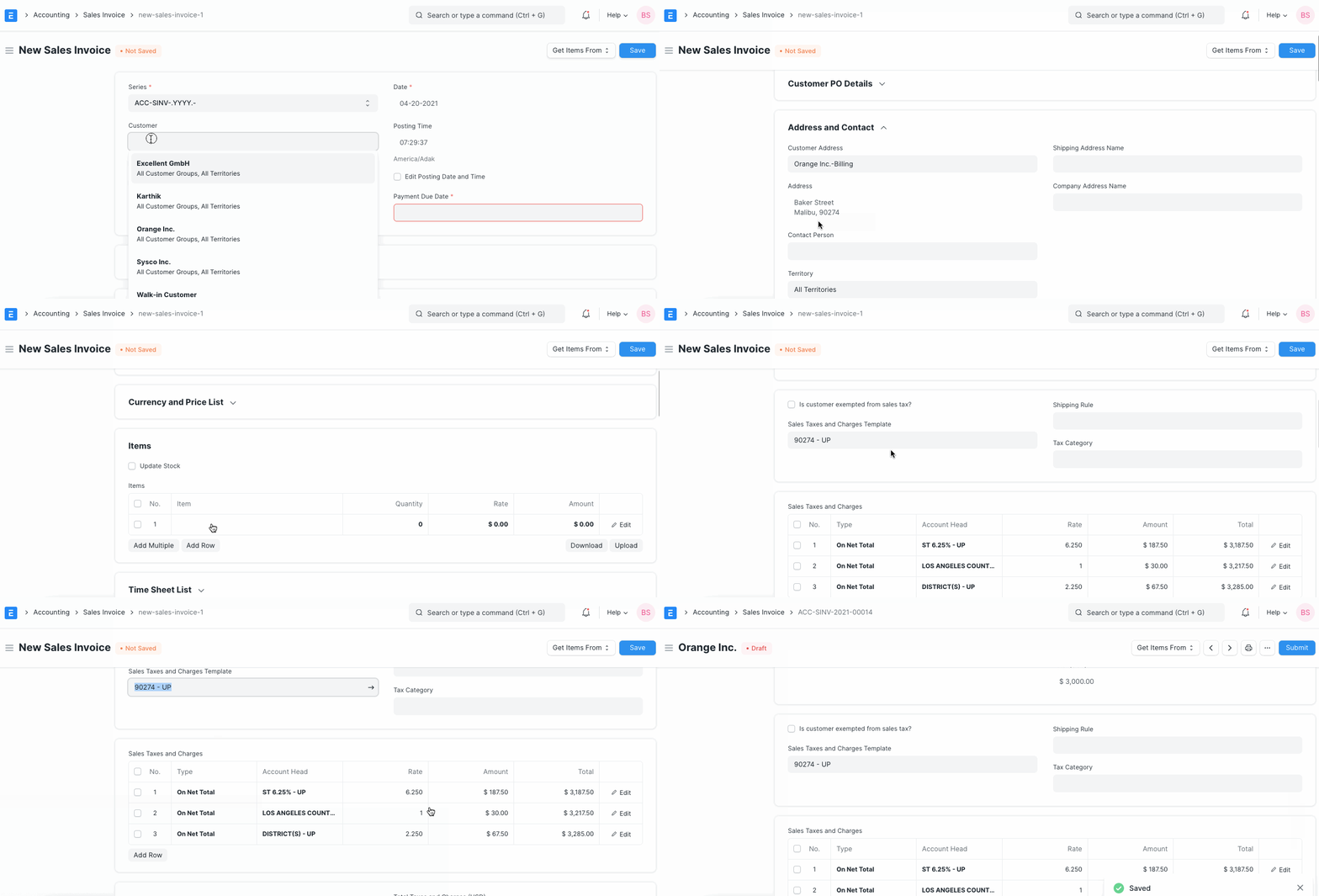
Let's set up a tax rule so that the system automatically applies particular tax rates when a certain circumstance is met. As an illustration, if the city listed in the customer's billing address is "Malibu," then 6.25% state tax, 1% county tax, and 2.25% district tax should be imposed.
As demonstrated below, create a Sales Taxes and Charges Template.
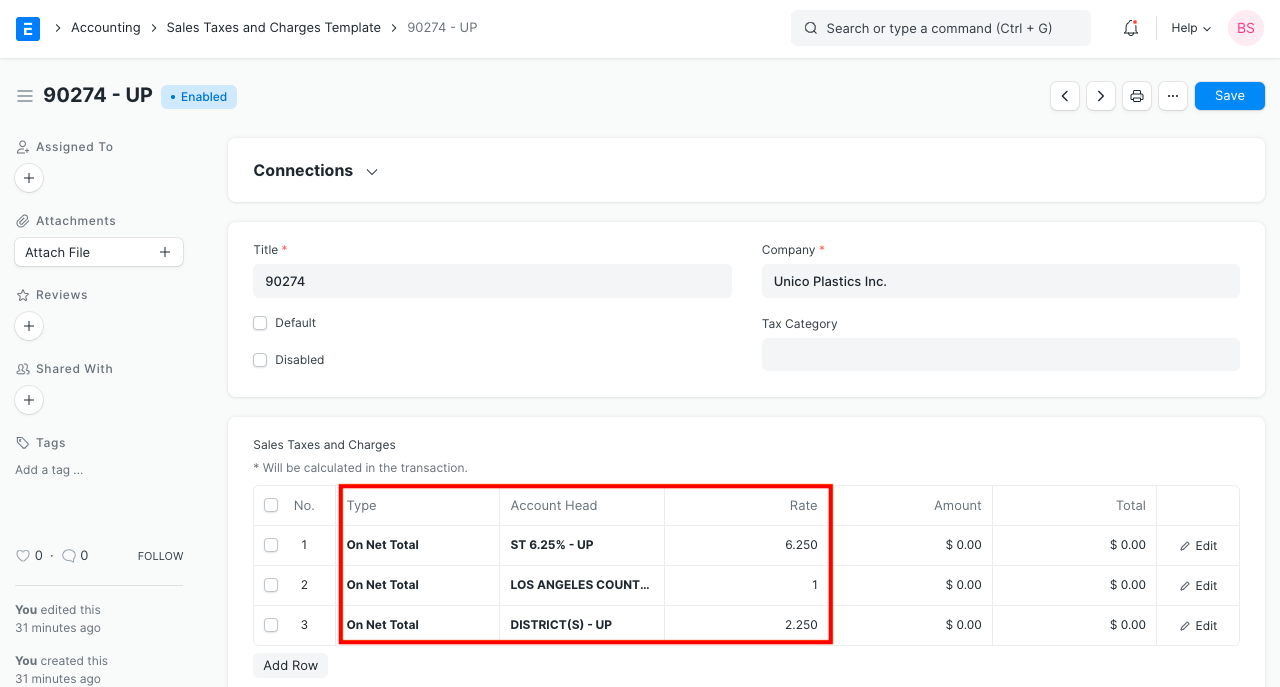
Make a tax rule as per the example below.
As soon as you choose a customer and their billing address, which has Malibu as the city, the system automatically applies the necessary taxes.