Email Account
You can sync your email account with Geer ERP to send and receive emails from Geer ERP.
Geer ERP allows you to control many receiving and outgoing email accounts. At least one default incoming account and one default outgoing account are required. If you use Geer ERP cloud, we have already set the default outgoing email address.
Go to: to access Email Accounts.
Home > Settings > Email Account
1. Prerequisites
You need an email domain before you can create an email account. If, however, you're utilizing one of the services offered, you can omit creating an Email Domain.
2. How to create an Email Account
- Click New from the Email Account list.
- Type in the domain-containing email address. In order to create an email account, domains must first be created. If you're synchronizing an email from one of the providers listed above, you don't need to create a domain.
- Put in your email password.
- Save. The email account will be synced if the login information is accurate.
Note: For some services like Gmail, you may need to turn on the settings to allow less secure apps.
2.1 Additional options when creating an Email Account
- Use a different email login ID: To access this account, use a different email address and password. Users should select this checkbox, for instance, if you have notifications@example.com and you want them to be able to access this email with a different email ID. Notifications@example.com will appear to the recipients as the sender.
- Needs password: Check this box if you're creating the account on someone else's behalf and don't know their password. The password must be entered when the other person logs in.
- Passwords should be encoded in ASCII: By checking this box, the password will be encoded in ASCII.
3. Configuration of the Email Account
3.1 Default Email Accounts
By default, Geer ERP will generate templates for a number of email accounts. They're not all enabled, though. You must enter valid email account information in order to enable them.
Email accounts come in two flavors: outgoing and inbound. Emails are fetched from your mailbox using an IMAP or POP server and sent using an SMTP service for outgoing email accounts. These services are offered by the majority of email providers, such as Gmail, Outlook, or Yahoo.
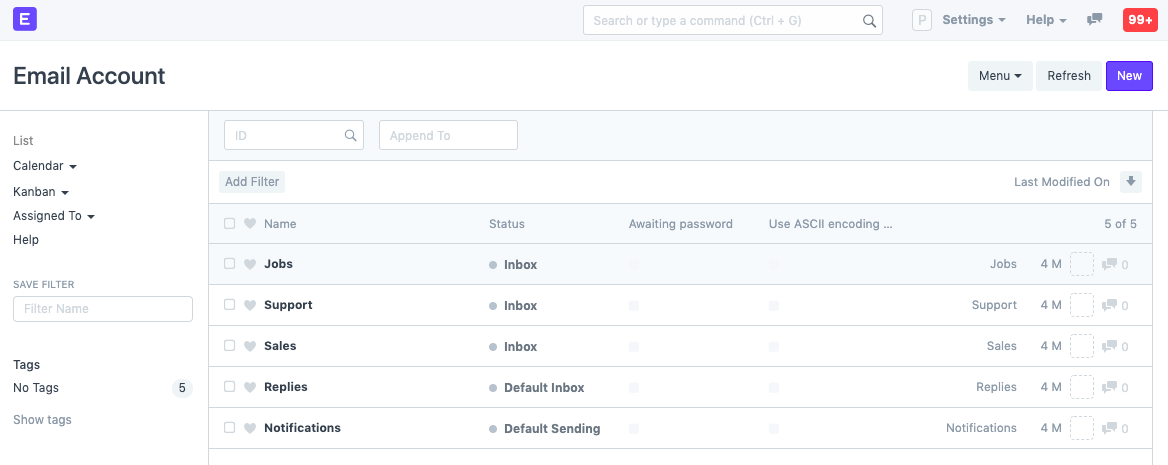
3.2 Incoming Email Accounts
If you're using a popular email provider, your POP3 settings will have be set for you. Otherwise, check Enable Incoming and set your POP3 settings to create an incoming email account.
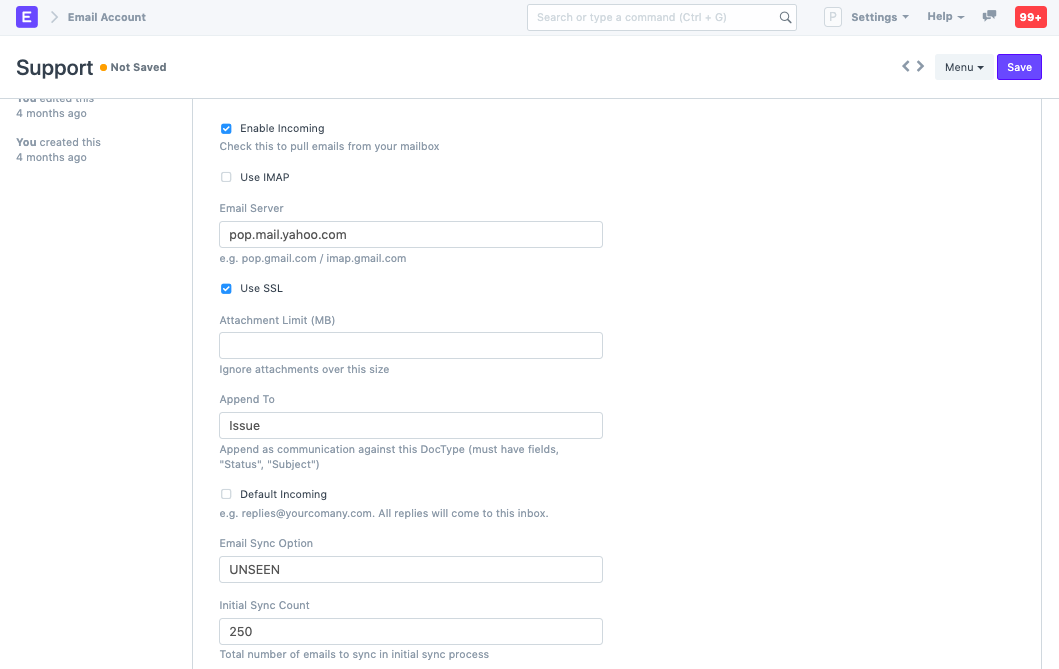
The following options are available for incoming emails:
- Use IMAP
- Use SSL
- Attachment Limit
- Default Incoming: If ticked, all replies to your company (eg: replies@yourcomany.com) will come to this account.
- Email Sync Option: Whether to sync all or only unseen emails.
- Initial Sync Count: Number of emails to sync the first time.
Appending Emails To Documents
When an email is sent to a certain email account, this feature generates documents. You may add support@example.com to the Issue DocType, for instance. By implementing this, the system will create an Issue for each email submitted to support@example.com. Similar to this, if you link jobs@example.com, a Job Applicant document is created whenever emails are sent to jobs@example.com.
To link emails to documents, enable automatic linking in documents. For more information, see here.
3.4 Outgoing Email Accounts
All emails sent from the system, whether they are sent by the user to contacts, via notifications, or as part of transactions, will come from an outgoing email account.
If you're using a well-known email service, your SMTP server settings will have be set for you. Otherwise, click Enable Outgoing to create an outgoing email account.
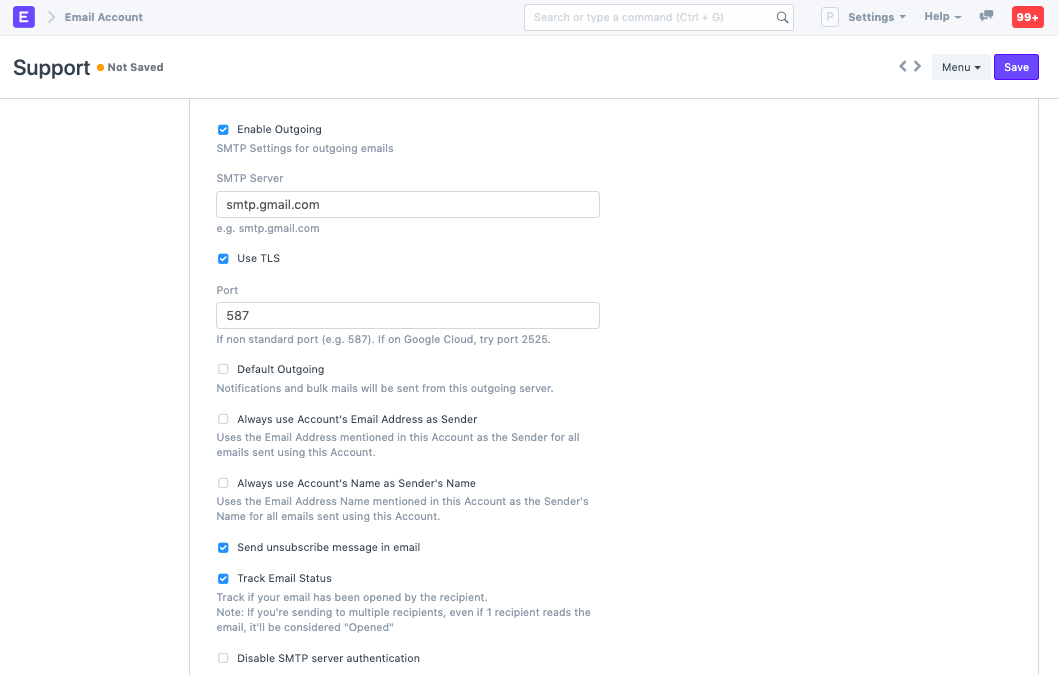
For sending emails, the following choices are available:
- Employ TLS Port
- Turn off SMTP server authentication.
- Add a Signature: Every email concludes with the standard signature.
- Notifications and bulk emails will be sent from this outgoing server by default.
- To send emails, always use the account's email address: Outgoing emails will identify the sender as this account's email address.
- Email a message asking them to unsubscribe: Provide a link to cancel receiving emails from this account.
- E-mail tracking: Keep track of whether the recipient has opened your email. It should be noted that if you send an email to numerous recipients, even one recipient reading it counts as a "Opened" status.
- Enter an auto-reply message if auto-reply is enabled.
- Send Sent Email Along with Outgoing Email: SMTP won't automatically append emails to the Sent folder if you are using a custom email server, such as Zimbra or CPanel. If this setting is activated, all emails will be explicitly added to the email account's Sent folder.
- Employ SSL as a Standard for Outgoing Emails: Employ SSL as a standard for outgoing emails. uses port 465 by default.
4. How ERPNext handles replies
When you send an email to a contact in Geer ERP, such as a customer, the sender will be that user. The default incoming account's email address will appear in the Reply-To attribute as replies@yourcompany.com. These emails will be automatically extracted from the incoming account by Geer ERP, who will then tag them with the appropriate communication.
Note for self implementers: For outgoing emails, you should set up your own SMTP server or sign up with an SMTP relay service like mandrill.com or sendgrid.com that allows a larger number of transactional emails to be sent. Regular email services like Gmail will restrict you to a limited number of emails per day.