Supplier
Suppliers are companies or individuals who provide you with products or services.
To access the Supplier list, go to:
Home > Buying > Supplier > Supplier
1. How to create a Supplier
- Click New from the Supplier list.
- Give the supplier a name.
- Choose the provider category, such as hardware, pharmaceuticals, etc.
- Save.
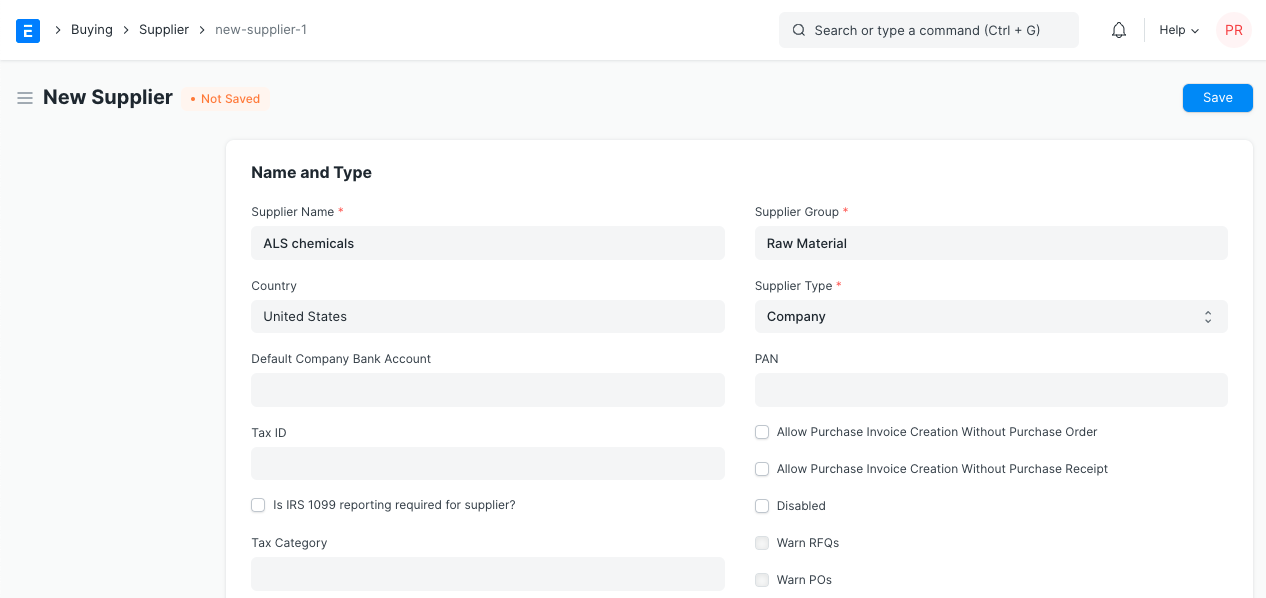
Once you build a Supplier Scorecard and transactions are completed, the options to Warn RFQs, POs, and Prevent RFQs, POs will be accessible.
2. Features
If the "Default" fields, such as Default Bank Account, Default Payment Terms Template, etc., are set in the Supplier, fields in subsequent transactions will be automatically filled up.
2.1 Tax details
- Country: You can alter it here if the provider is from another nation.
- Tax ID: The supplier's tax identification number.
- Tax Category: This has to do with Tax Rule. When you choose this supplier, the appropriate Purchase Tax and Charges template will be used if a Tax Category is set here. This template is connected to the tax rule, which is connected to the tax category. Suppliers to whom the same tax will be applied might be grouped using tax categories. Examples include the government, business, etc.
- Print Language: The language in which the document will be printed.
- Tax Withholding Category: TDS category for the Supplier for India. A category entered here will be retrieved and added to the purchase invoice. Visit the Tax Withholding Category page for further details.
- Disabled: Removes the Supplier from the Supplier List and disables them.
- Is Transporter: Check this box if the supplier is selling your transportation services. If this field is checked, the "GST Transporter ID" field will be displayed.
- Internal Supplier: Select the firm that the supplier represents if they are a sister, parent, or child company by checking the appropriate box.
For India:
- GST Category: Select a GST Category of the supplier.
- PAN: Details of the Supplier's PAN (Permanent Account Number) card for India
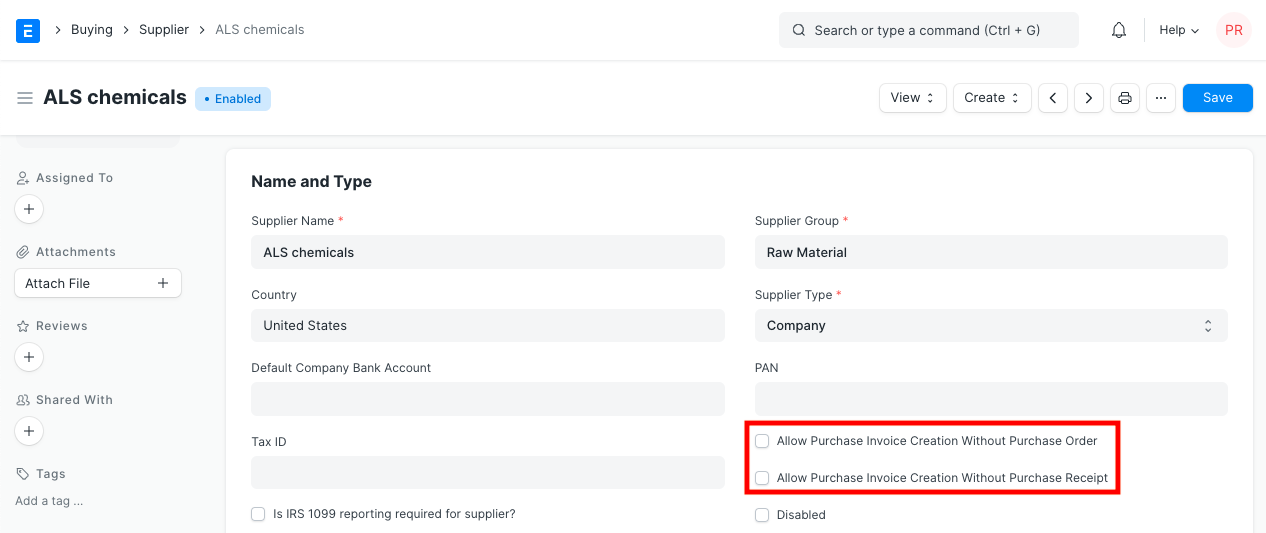
2.2 Allow creation of Purchase Invoice without Purchase Order and Purchase Receipt
Allowing "Allow Purchase Invoice Creation Without Purchase Order" or "Allow Purchase Invoice Creation Without Purchase Receipt" in the Supplier Master will override the "Purchase Order Required" or "Purchase Receipt Required" option in Buying Settings if it is set to "Yes" for a certain supplier.
2.3 Currency and Price List
Billing Currency: The currency of your supplier may not be the same as the currency of your business. The currency will be entered in as JPY and the exchange rate will be displayed for subsequent purchase transactions if you select JPY as the supplier.
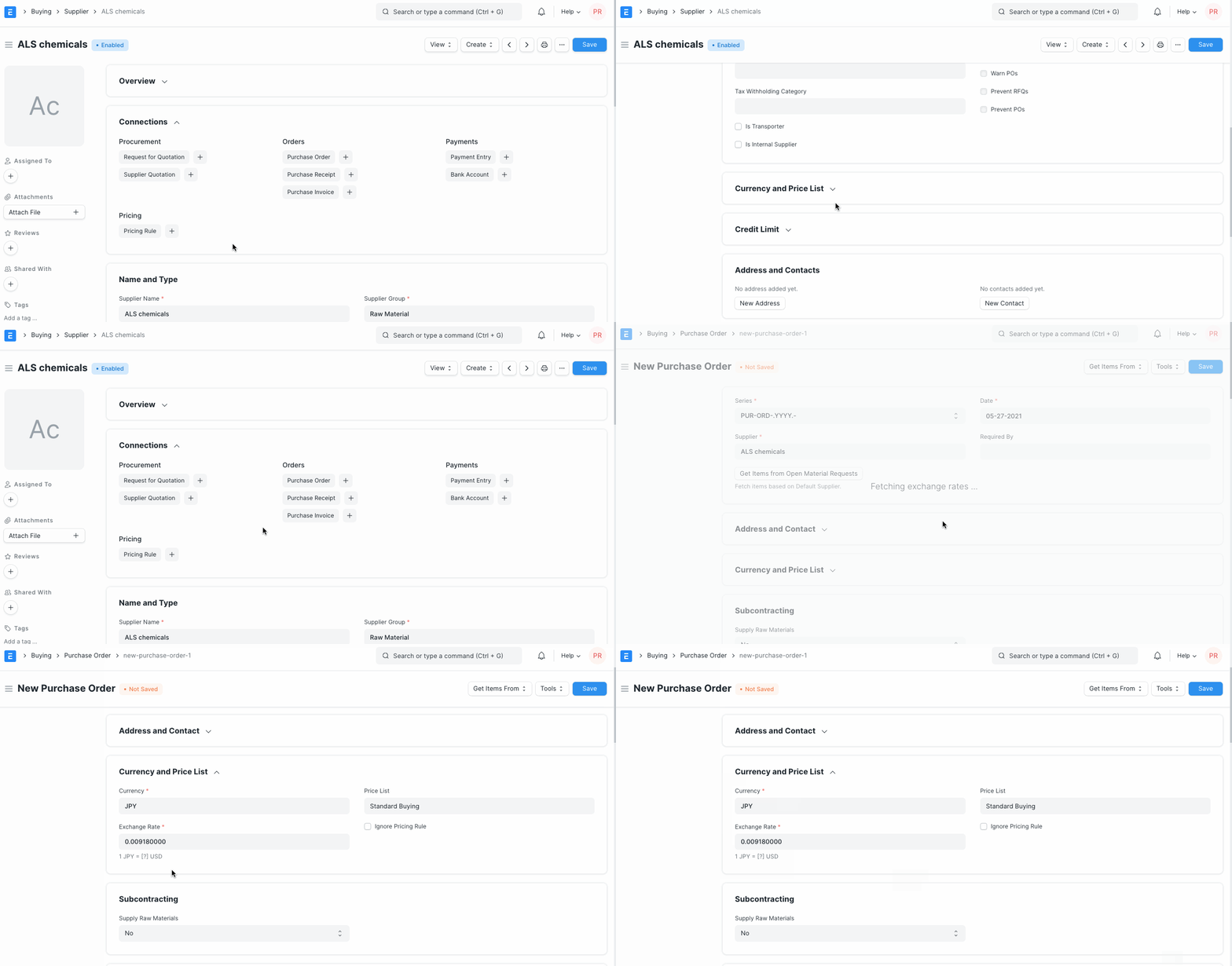
Every Supplier can have a default pricing list so that each time you purchase a new item from them at a different price, the price list linked to them would also be updated. You may view the prices in Buying > Items and Pricing > Item Price, which is located beneath the price list.
The corresponding Price List will be obtained in Purchase transactions if you choose this specific supplier.
2.4 Credit Limit
Default Payment Terms Template: The Payment Terms template will be automatically chosen for subsequent purchase transactions if it is set here. Block Supplier: A supplier's invoices, payments, or both, can be blocked until a certain date. Select "Hold Type"; if you leave it at "All," Geer ERP will set it for you. A supplier's status will be indicated as "On Hold" when they have been blocked.
The hold types are as follows:
- Geer ERP forbids the creation of Purchase Orders or Purchase Invoices for the Supplier.
- Payments: Geer ERP won't let the creation of Payment Entries for the Supplier.
- All: Geer ERP will use the two holds mentioned above. Geer ERP will retain the Supplier forever if you don't specify a release date.
2.5 Default Payable Accounts
Include the default account from which payments made on invoices incurred against this supplier. You can only choose one account per firm; add extra rows for multiple companies.
A supplier can be added to an account. The default payable Account for all Suppliers is specified to be the "Creditor" account. The amount due to the supplier is recorded against the "Creditors" account when a purchase invoice is created.
Add a payable account to the Chart of Account first, then choose that account in the Supplier master if you want to configure the payable account for the Supplier.
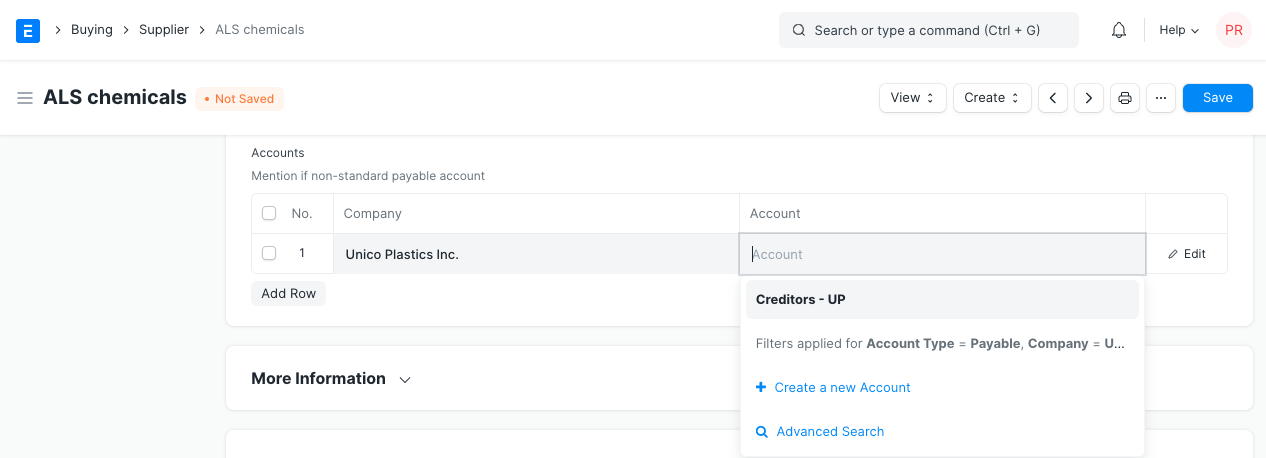
Don't change any values in the Default Supplier Account's table if you don't want to personalize the payable account and want to stick with the default payable account "Creditor".
Tip: Default Payable Account is set in the Company master. If you want to set another account as Account as default for payable instead of Creditors Account, go to Company master, and set that account as "Default Payable Account".
You can include a number of businesses in your Geer ERP instance, depending on your plan. Multiple businesses can use the same supplier. In this scenario, you should add numerous rows to the "Default Payable Accounts" table to define Company-wise Payable Account for the Supplier.
2.6 More Information
In this part, you can include the source's website and any other information about your supplier. Accounting entries for a supplier will be frozen if the "Is Frozen" option is selected. In this scenario, only the role assigned in "Role Allowed to Set Frozen Accounts & Edit Frozen Records" in Accounting > Settings > Accounts Settings will have access to entries that are older than the "freeze." This is helpful when changing the supplier's name or bank information.
2.7 Address and Contacts
Geer ERP allows you to generate many Contacts and Addresses for a single Supplier because it stores Contacts and Addresses independently. You will have the opportunity to create Contact and Address for that Supplier after saving the Supplier.
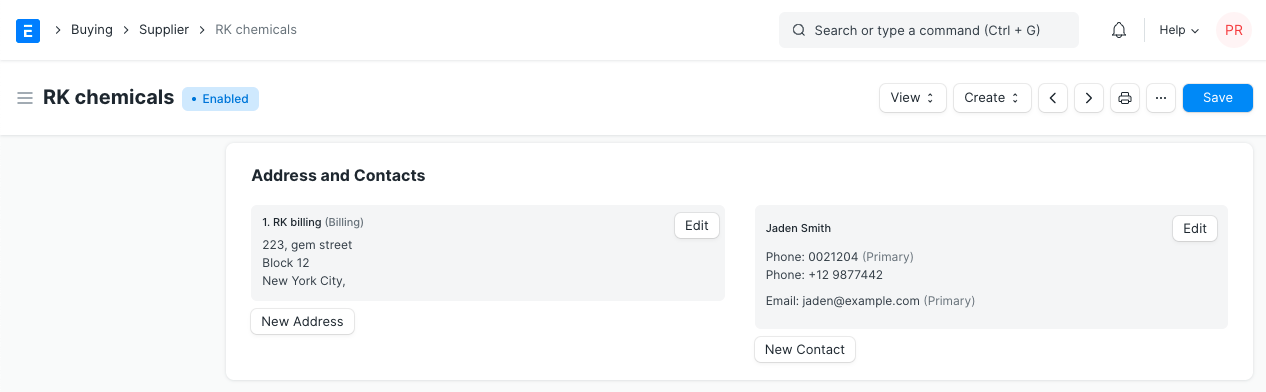
Tip: When you select a Supplier in any transaction, Contact for which "Is Primary" field id checked, it will auto-fetch with the Supplier details.
2.8 After saving
Save the document once all the relevant information has been entered. After saving, the Dashboard will offer the following alternatives for creation:
- Request for Quotation: An RFP directed at this vendor.
- Supplier Quotation: any quotes you requested from the supplier and entered into the system.
- Purchase Order: Orders you've placed against this supplier in Purchase Orders.
- Purchase Receipt: receipts for purchases made from this supplier that you have saved in the system.
- Purchase Invoice: invoices for purchases you've made from this supplier.
- Payment Entry: Entry of payments for the purchase invoices sent to this supplier.
- Pricing Rule: Pricing policies connected to this provider. To learn how it functions, refer to section 2.2 Currency and Price List.
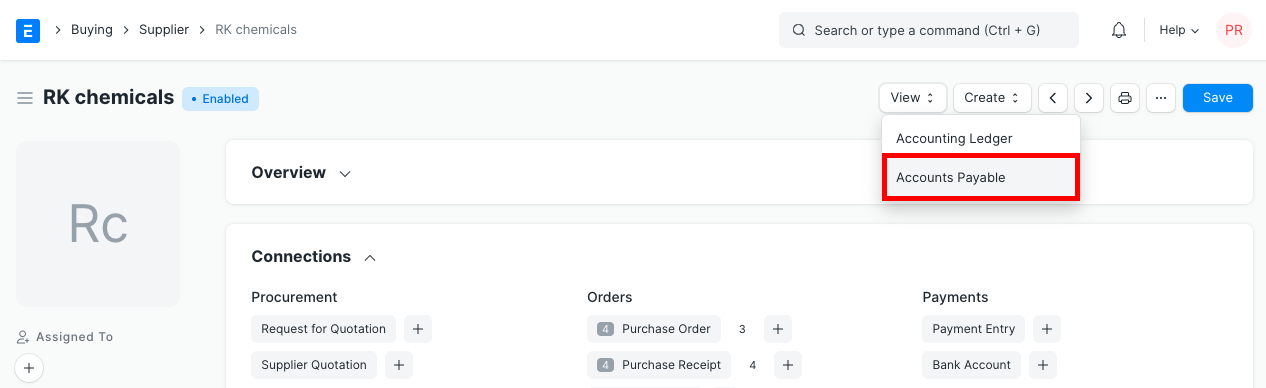
You can directly access the Accounting Ledger or Accounts Payable for this supplier by selecting the View button.
There is a button that allows you to remind the supplier about the GST update. A default email account must first be set up.