Point of Sale
Point of Sale
A Point of Sale refers to the time and place where a retail transaction takes place.
For retail operations, the delivery of the items, the recording of the sale, and the payment all take place at one time, which is referred to as the "Point of Sale" (POS).
Sales invoices can be produced from the POS in ERPNext. To set up POS, follow these two steps:
Go to: to access POS.
Home > Retail > Retail Operations > POS
1. Prerequisites
Prior to developing and utilizing Point of Sale, it is advised to first develop the following:
- POS Profile
2. How to create a POS Invoice
Starting with the POS profile setup, you can begin charging customers.
1.Go to POS and select a Customer.
2.Add Items from the list displayed on the right by clicking on them.
3.Ensure that the Item has a Selling Price set in the Item Price list. 4.Edit the quantities as needed.
5.In order to edit Rate and Discount, you need to enable them in the POS Profile.
6.A default Warehouse needs to be set to complete the transaction. If Warehouse is set in both Item and POS profile, the one in POS Profile will be given preference.
7.Do note that you need to have Items in your Warehouse before you can sell. If Items are not available, a red dot will be shown next to the Item when selected.
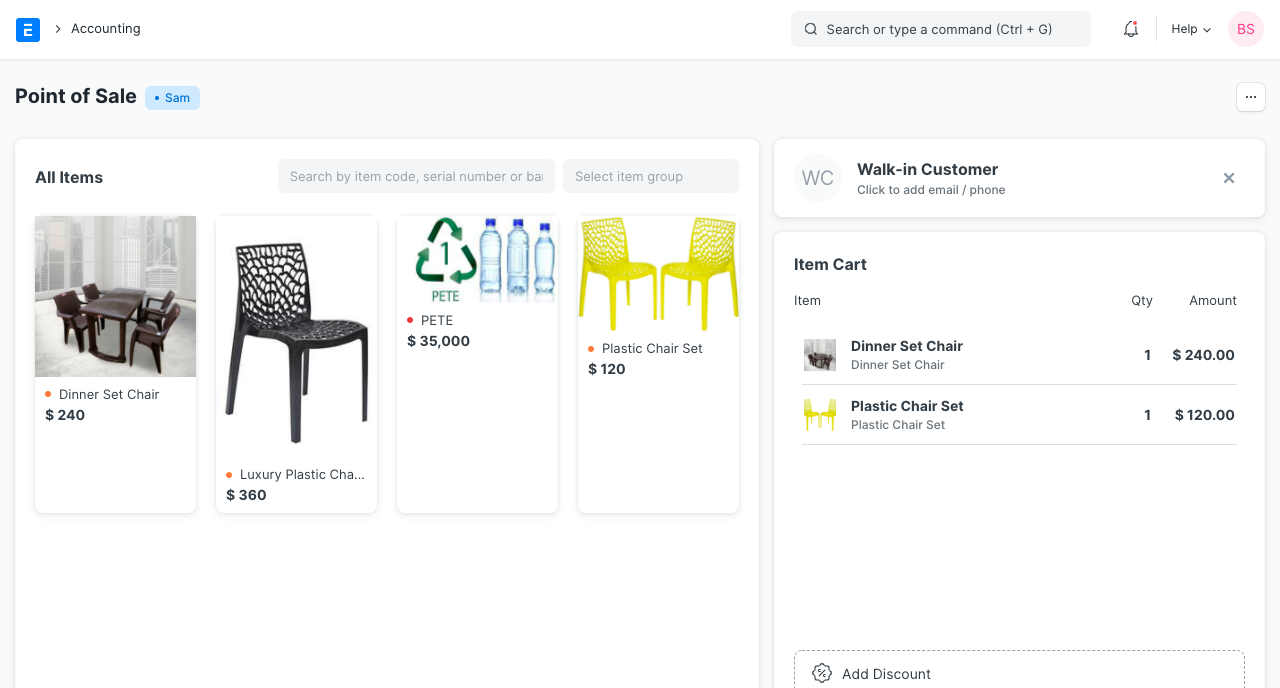
- When all Items are added, cross check the net and grand totals and also the total quantity in the summary at the bottom.
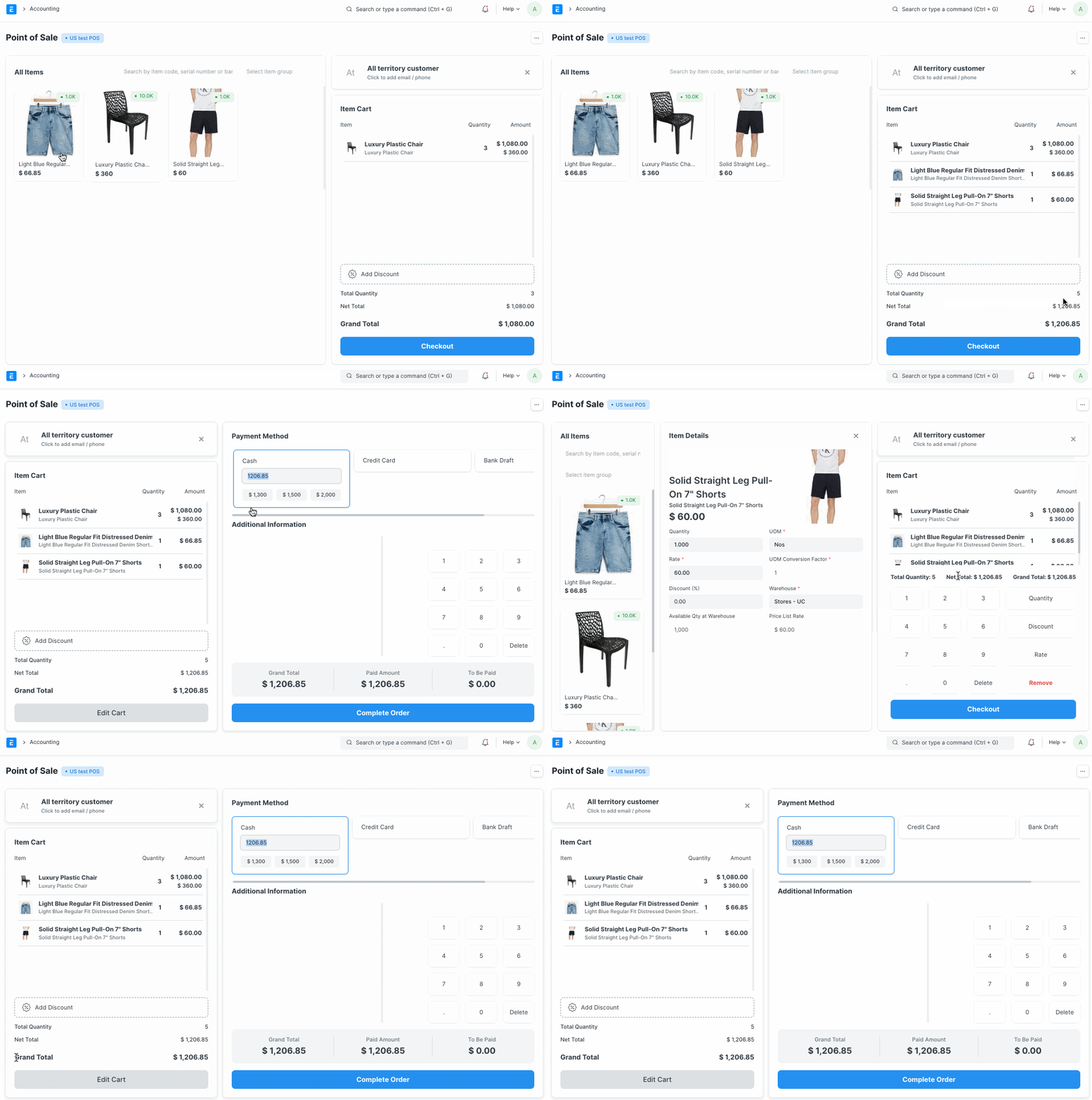
9.Select the payment mode and click on Complete Order. You'll be asked to submit the Sales Invoice.
- You can then print the POS invoice.
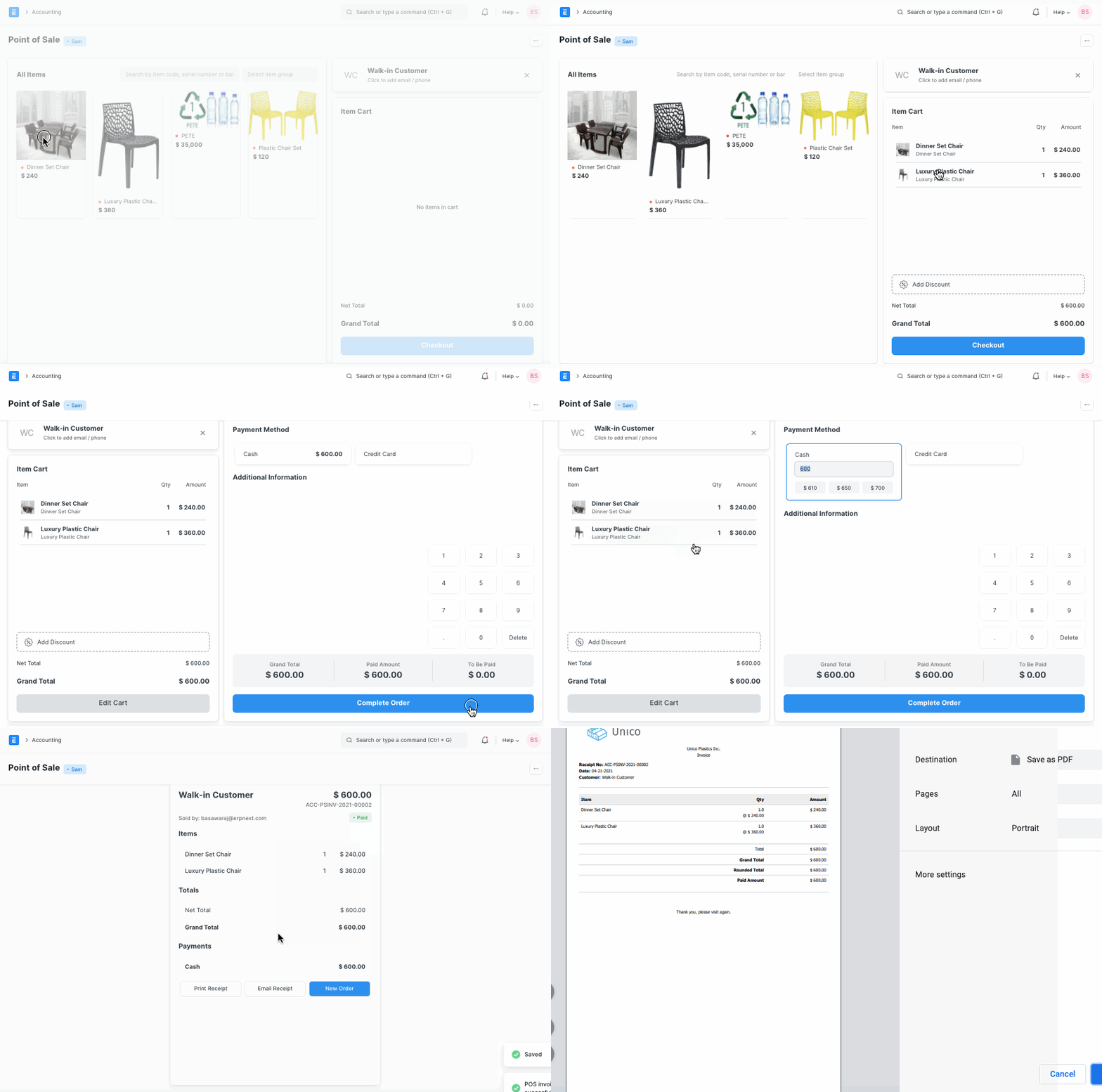
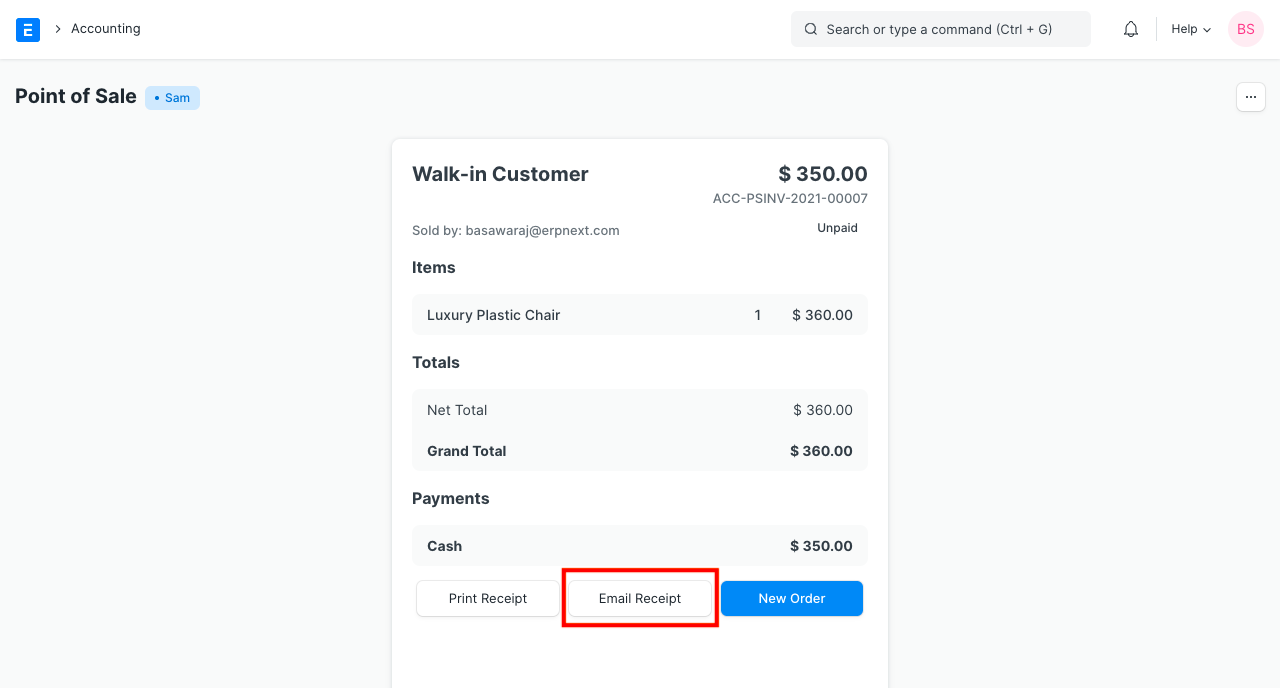
You have the option to print or email the buyer a copy of the sales invoice after it has been filed.
2.2 Adding an Item
The retailer must choose the items that the customer purchases at the cash register. There are two ways to choose an item in the POS interface. One is done by clicking on the item's image, and the other is done by using the serial number or barcode.
Select Item: Click on the item image to choose a product and add it to your shopping basket. A cart is a place where customers may amend product details, change taxes, and apply discounts to get ready for checkout.
Barcode / Serial No: An optical, machine-readable representation of information about the object to which it is connected is a barcode or serial number.
The item will be added to the cart automatically when you enter the barcode or serial number in the box as shown in the image below and pause for a while.
Tip: To modify an item's amount, put the new number in the quantity box. They are typically utilized when buying the same item in large quantities.
Use the Search form and enter the product name if your product list is quite extensive.
2.3 Removing an Item from the Cart
- Select row in the cart and click on 'Remove' button in the numeric keypad
2.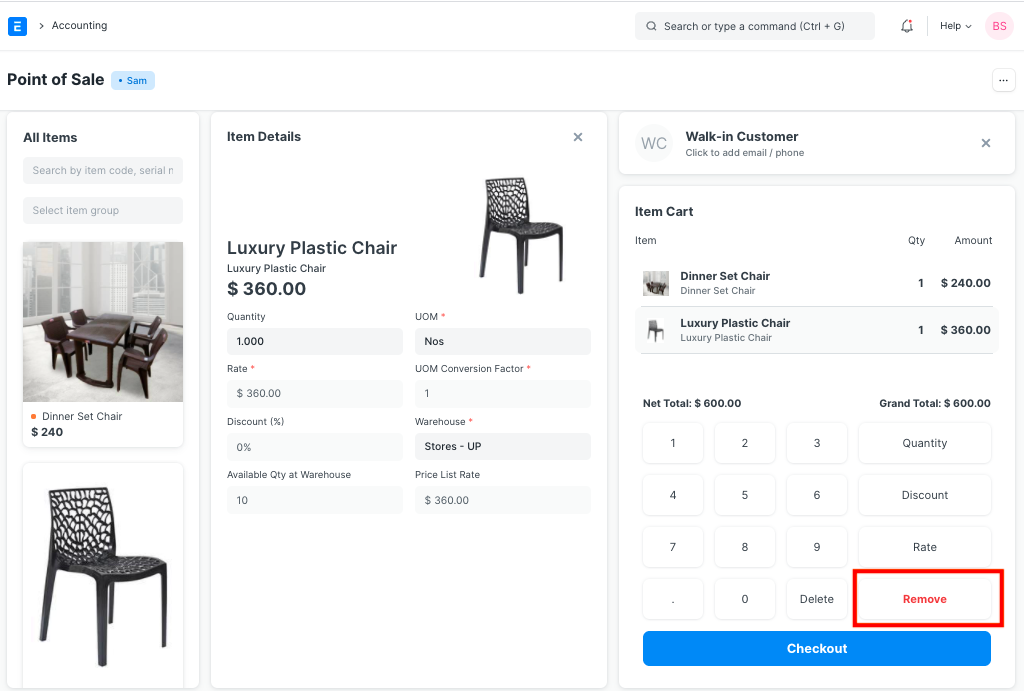
3.Set Qty as zero to remove Item from the POS invoice. There are two ways to remove an Item.
If Item's Qty is 1, click on a minus sign to make it zero.
Manually enter 0 (zero) quantity.
2.4 Change Amount
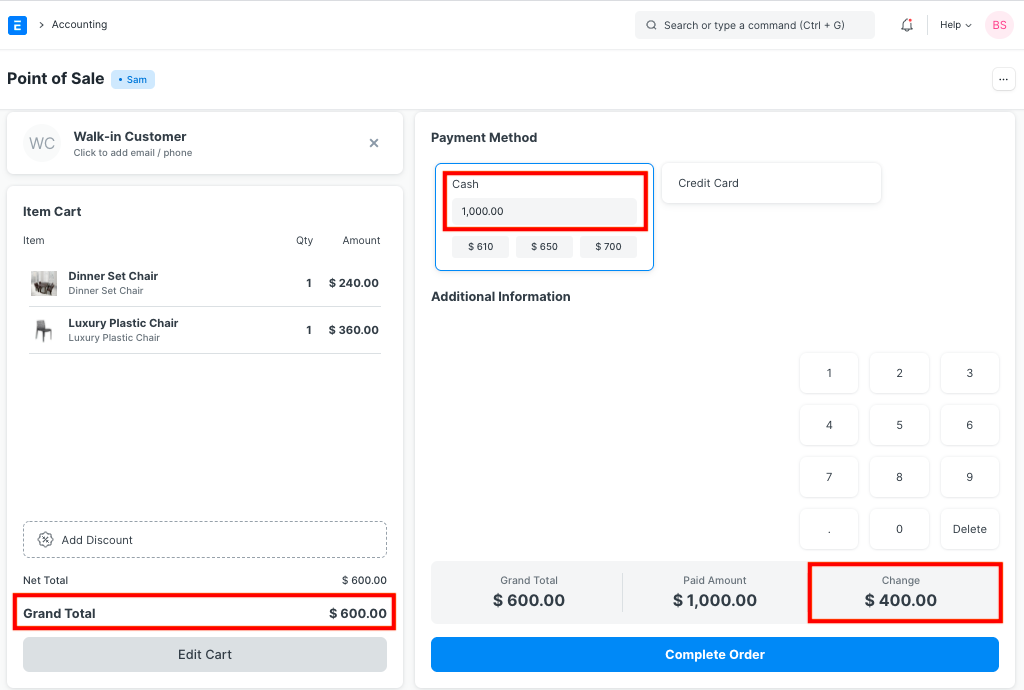
The customer's overage is calculated at the point of sale, and the user may refund it from their cash account. On the POS profile, the user must set the account for the change amount.
3. Features
3.1 Adding a new Customer
When placing an order in the POS, the user has the option of selecting an existing customer or creating a new one. The offline form of this functionality is also functional. On the form, users can also enter consumer information such as contact information (phone number, address, etc.). When the internet is connected, the Customer that was established via the POS will be synced.

3.2 Accounting entries (GL Entry) for a Point of Sale:
Debits:
- Customer (grand total)
- Bank/Cash (payment)
Credits:
1.Income (net total, minus taxes for each Item)
2.Taxes (liabilities to be paid to the government)
3.Customer (payment)
4.Write Off (optional)
5.Account for Change Amount (optional)
Click See Ledger to view entries made after the Sales Invoice has been submitted.
3.3 Email
The receipt can also be delivered through email.
3.4 Create Return Credit Note
If an item or the entire order needs to be returned, you can also create a return credit note against the POS Invoice. The procedures for writing a credit note against an invoice are as follows:
- Click on menu (3 dots) and then click on Toggle Recent Orders. Keyboard shortcut for the same is ⌘+O.

All the invoices from recent POS transactions will be displayed under the Recent Orders pane. You can either search for the invoice directly with its name or filter search results as per the status of the invoice which can be Paid, Consolidated, Draft, Return.
Select the invoice against which you need to create the credit note after which you will see the invoice details and the options to Print, Email the receipt and an option to make a Return. Click on 'Return'.
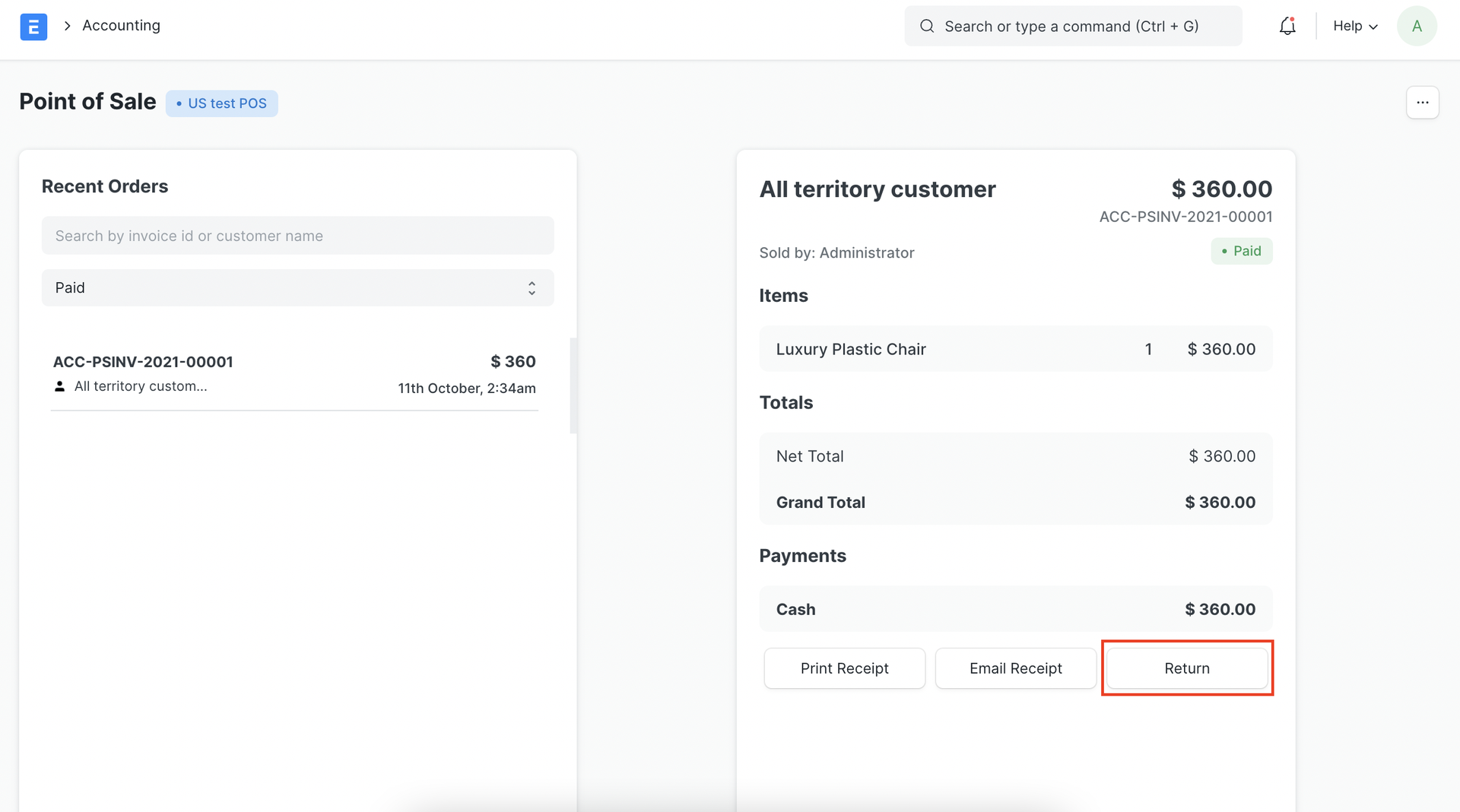
- The POS screen will display the items in the invoice, along with respective negative quantities and totals in the Item Cart which indicates that it is a return credit note.
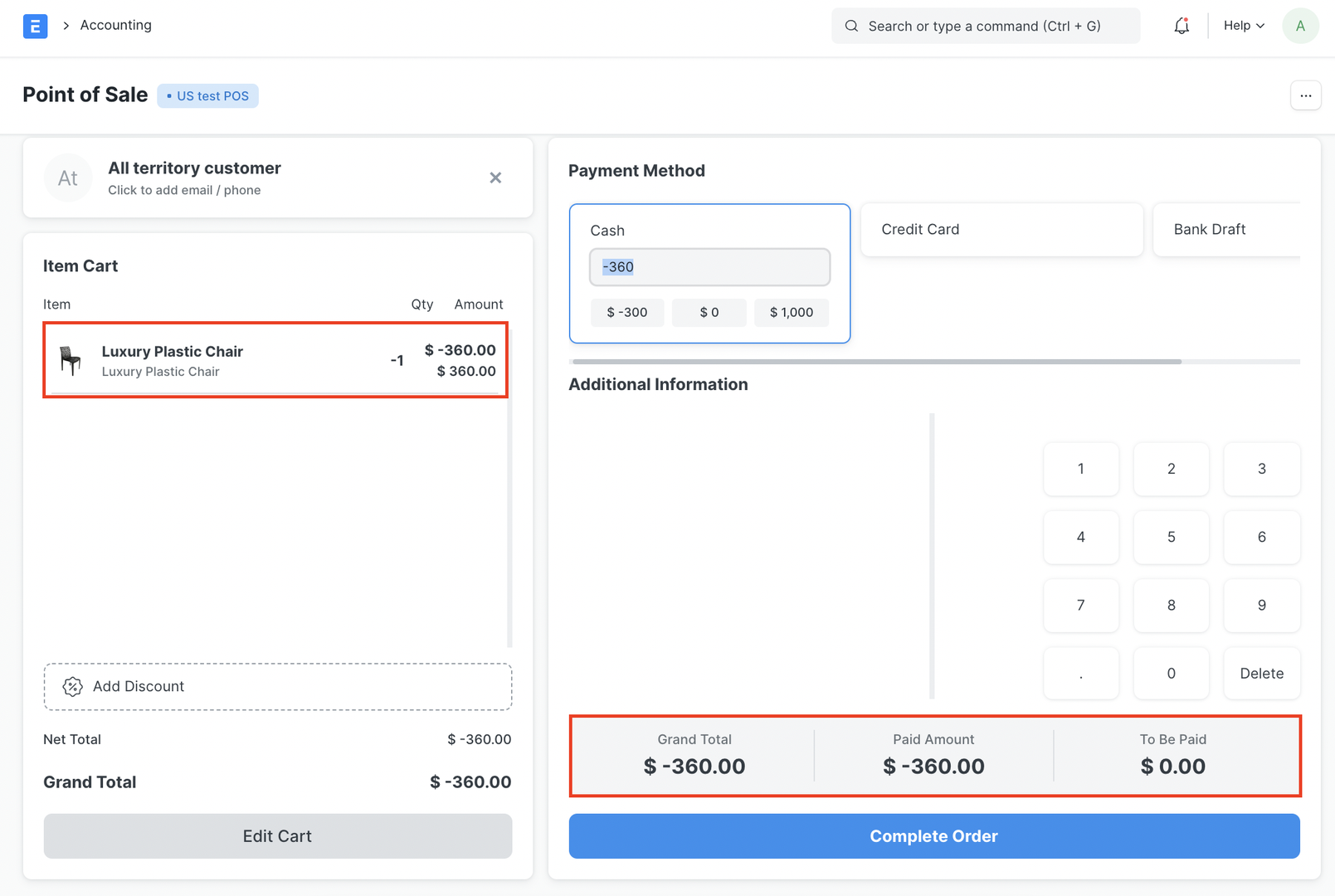
Once you checkout, you'll see the Grand Total, Paid Amount and Taxes too if applicable.
Clicking on Complete Order will complete the process and create the final return credit invoice and display the bill on the screen like a normal order
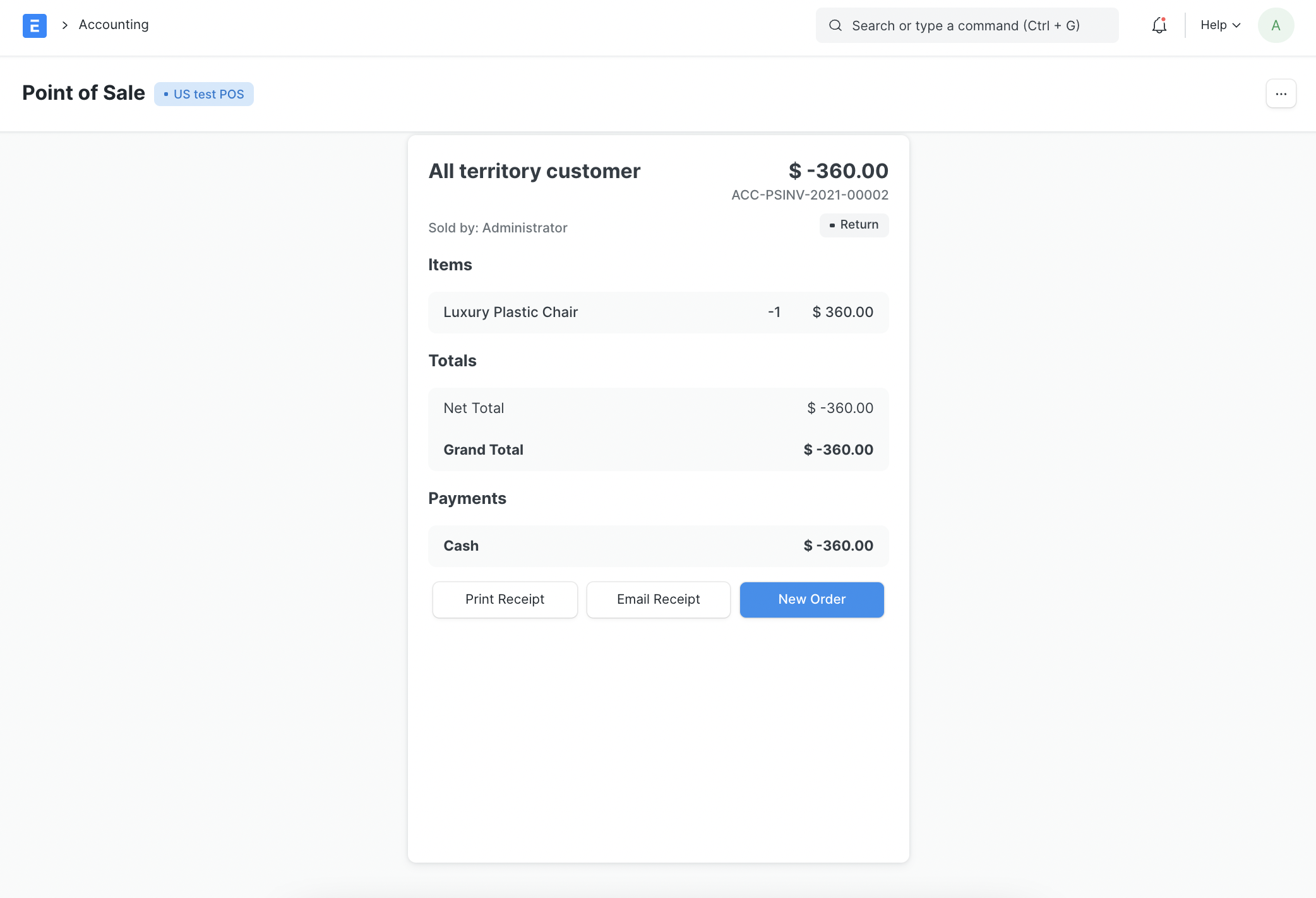
3.5 POS Closing Voucher
The cashier can close their PoS at the end of the day by creating a POS Closing Voucher. Choose "Close the POS" from the menu by clicking on it. To recover every sale that has been recorded, choose the period, your POS Profile, and your user. The cashier can conclude their shift by creating a POS Closing Voucher at the end of the day.
Choose "Close the POS" from the menu by clicking on it. To recover every sale that has been recorded, choose the period, your POS Profile, and your user.
All of the POS invoices fetched for the chosen time will be combined into a single final Sales Invoice when a POS Closing Voucher is created. When all of the POS invoices are successfully combined into a single sales invoice at closure, their status will change from "Paid" to "Consolidated."
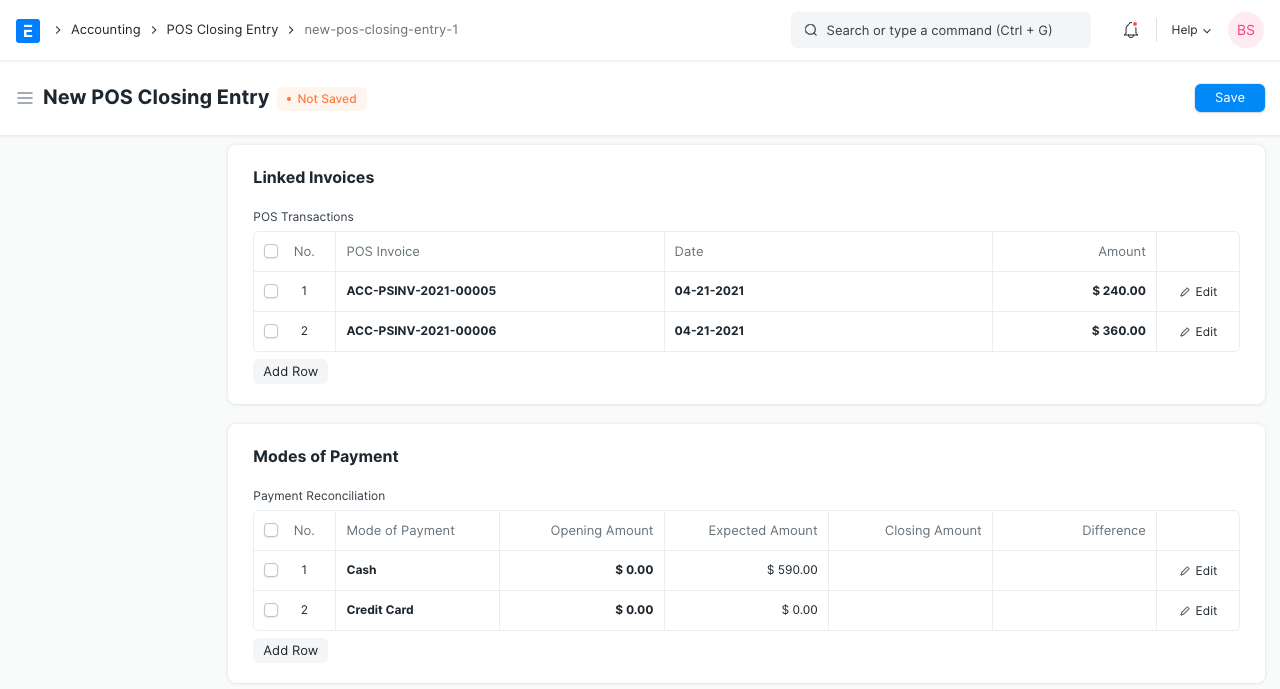
On closing a POS, if there are more than 10 invoices, the invoices will be consolidated in a background job and submitted once the background task is finished. Only until the Closing Voucher is successfully submitted and the combined sales invoices are produced will the Accounting Ledgers be affected.