Email Dropbox
You might want to tie emails you receive from leads, customers, suppliers, or other business partners to the appropriate Geer ERP entries. You can accomplish this by downloading the email and uploading it as an attachment. But this may become a laborious procedure. Geer ERP's "Email Dropbox" feature provides a better approach to address this.
When enabled, Geer ERP records each have their own distinct email address that you can use to forward emails to. The email address can be clicked to be copied to your clipboard, where it can then be pasted into the "To," "Cc," or "Bcc" fields of the email you want to send.
1. Enable Email Dropbox Feature
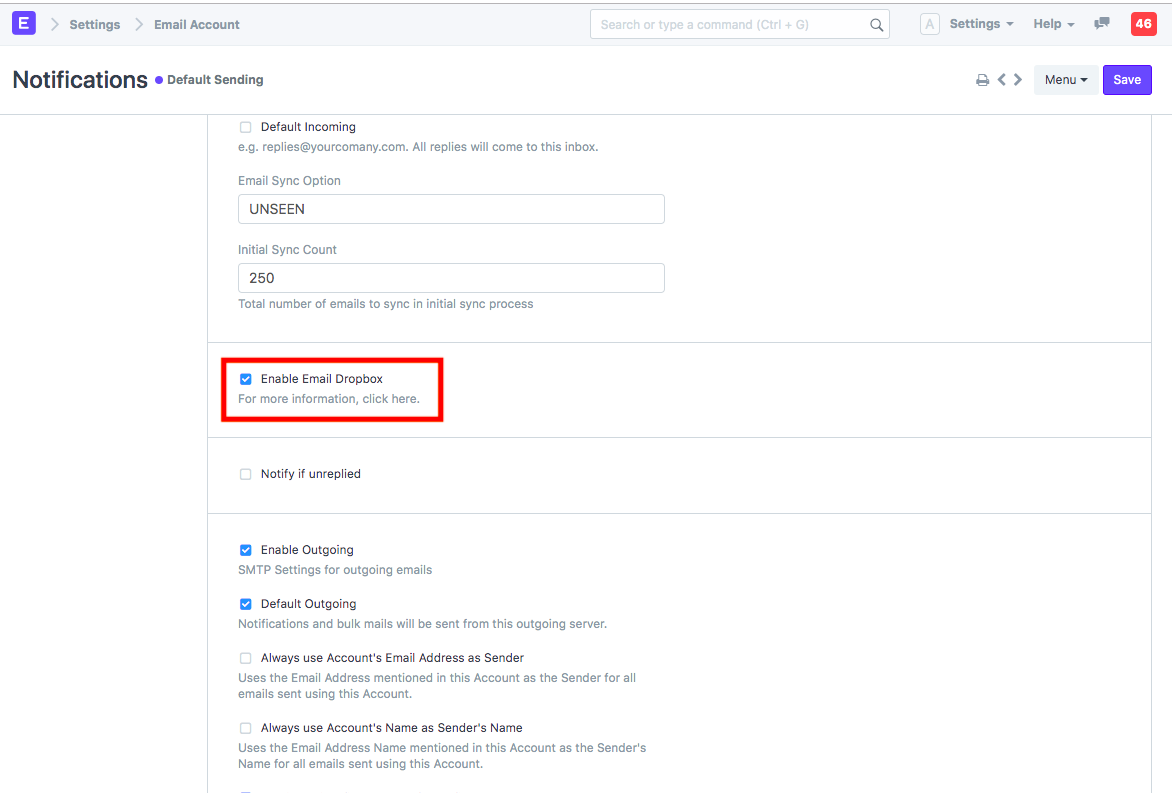
Enable Email Dropbox by checking the box in Email Account.
2. Copy Unique Email Address in Any Record
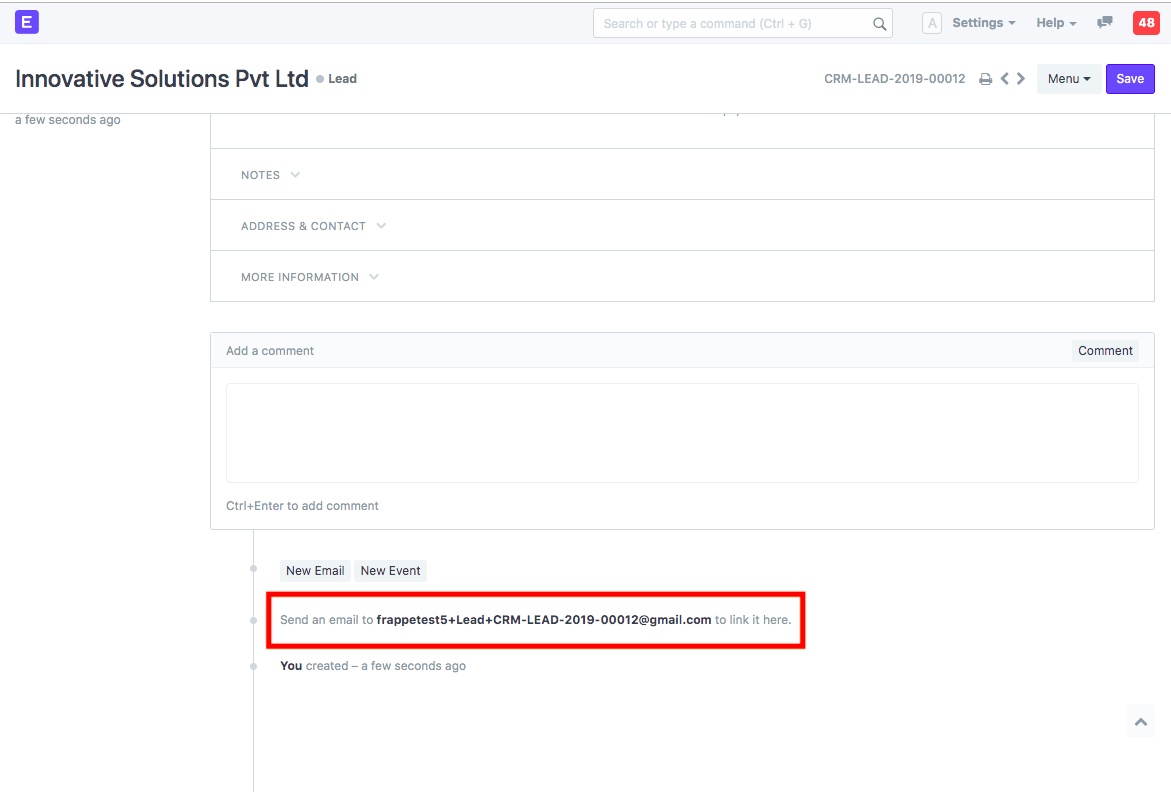
The specific email address is made available in all the data once the Email Dropbox option is turned on. The address gets copied to your clipboard when you click on the same link. You can send the email by simply pasting it in the "To," "Cc," or "Bcc" fields.
3. Email in Timeline
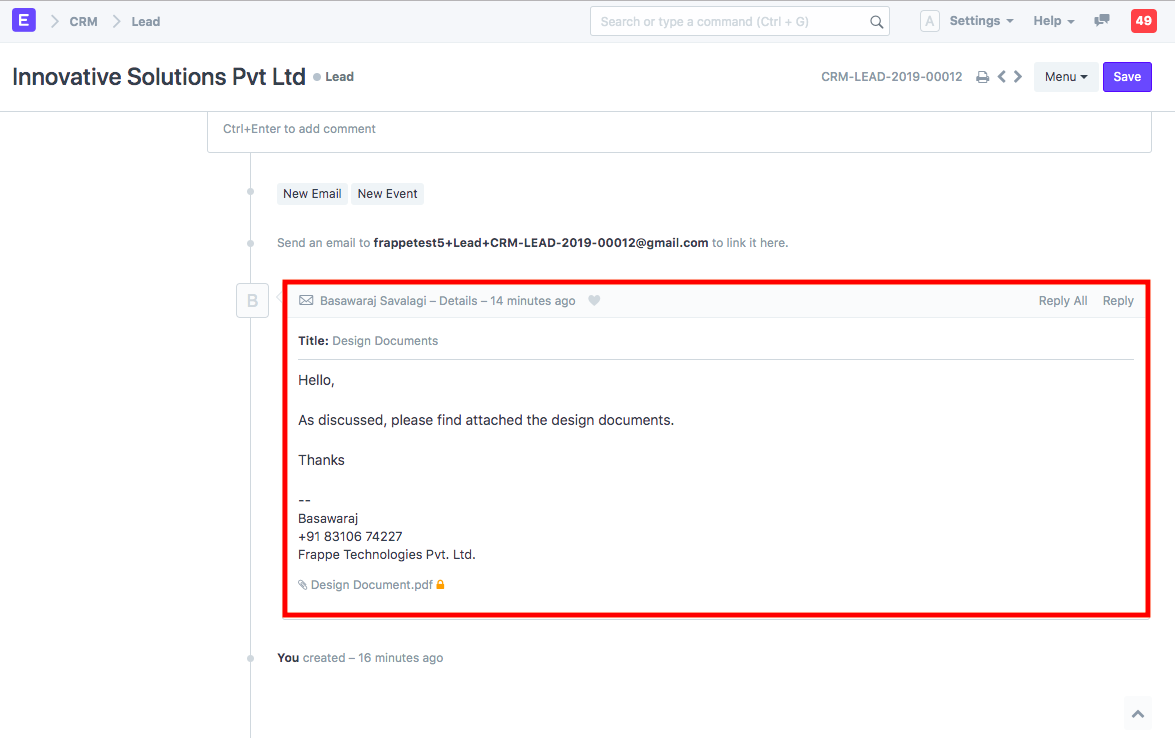
Geer ERP receives the email, connects it to the relevant record, and makes it available in that record's timeline.