Address
Address
The addresses connected to a lead, customer, supplier, shareholder, sales partner, or warehouse might be noted.
An Address can also be added as a stand-alone record without being connected to any of the aforementioned organizations.
Go to: to access the Address list.
Home > CRM > Address
1. How to create an Address
1.Choose New from the Address list.
2.Decide on Address Type.
3.Fill out the fields for the address, line 1, line 2, city or town, county, state, and country.
4.Include your phone number, fax number, and email address.
5.To link this address to a client, supplier, etc., enter the Link DocType and Link Name.
6.Save.
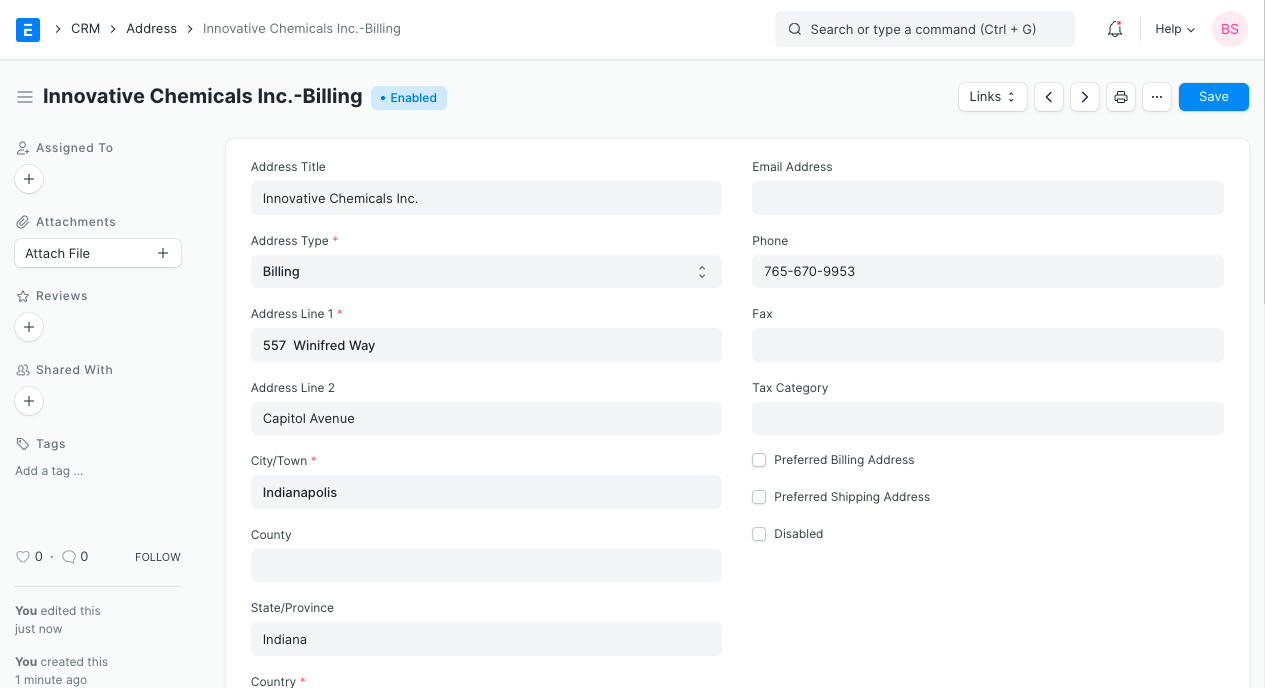
By selecting the "New Address" button as displayed below, you may easily add an address from the customer or supplier record.
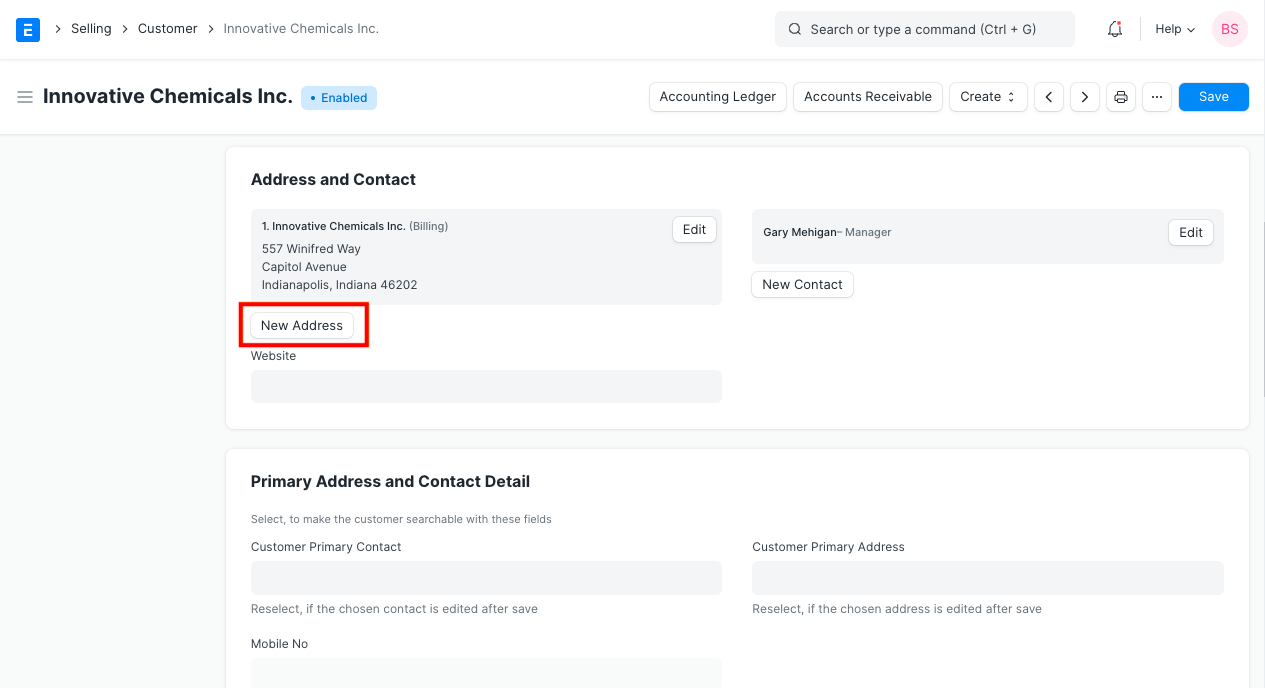
Use the Data Import Tool to import several addresses from a spreadsheet.
2. Features
2.1 Link an Address to Multiple Entities
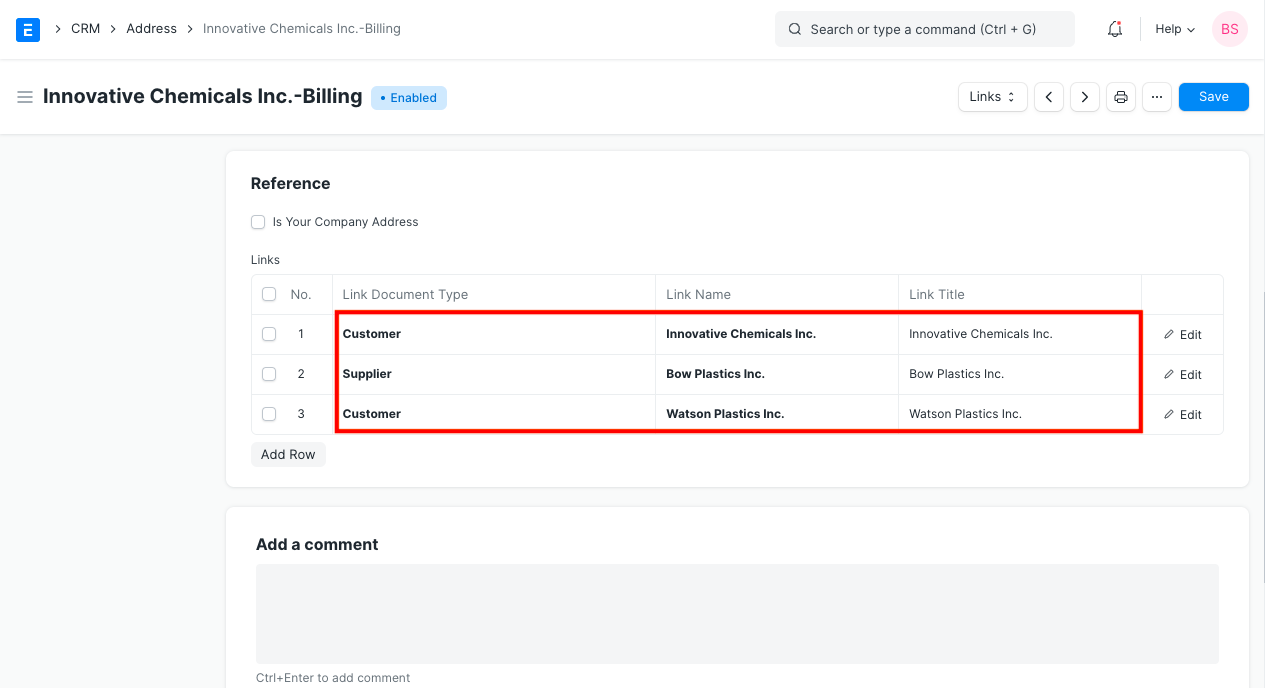
A single address may be connected to numerous clients or vendors.
Moreover, a single address can simultaneously be connected to both clients and vendors.
2.2 Address Title
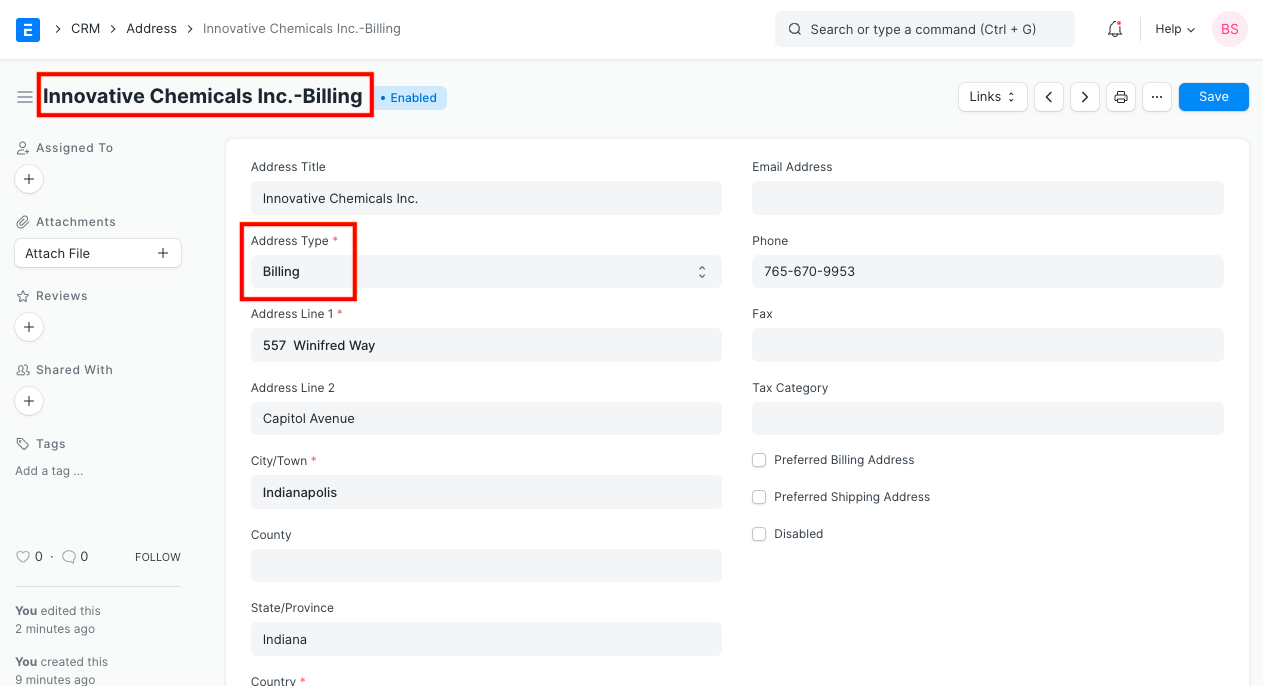
You must manually add a title if the address is not associated with any entities.
The title is generated automatically in the format "Entity Name-Address Type" if the address is associated with an entity, such as a client or supplier.
2.3 Preferred Billing Address and Shipping Address
The address will be added automatically to the Shipping Address in Sales Order, Sales Invoice, and Delivery Note transactions if you check the "Preferred Shipping Address" box.
The address will also be added automatically to the billing address in transactions for sales orders, sales invoices, and delivery notes if you tick the box labeled "Preferred Billing Address."
2.4 GST Localization for India
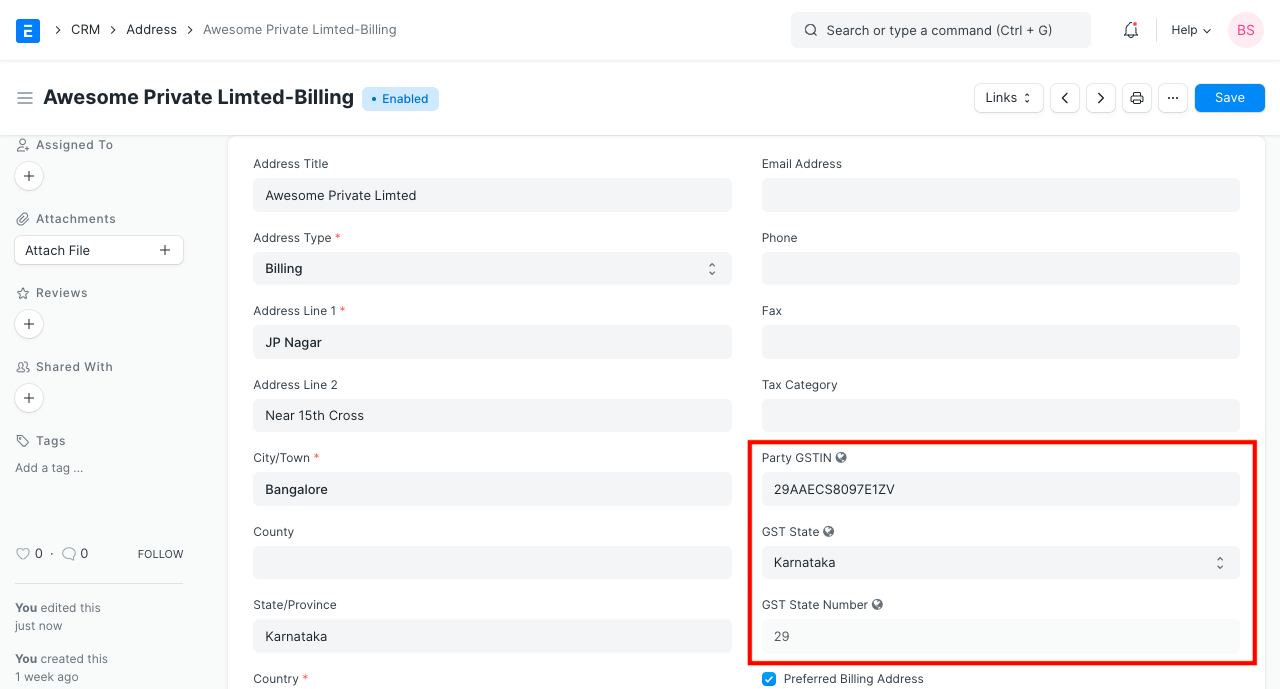
You can enter GSTIN and GST State in Address if the client or supplier has registered for GST. Ensure that the GSTIN you enter is in a correct format.
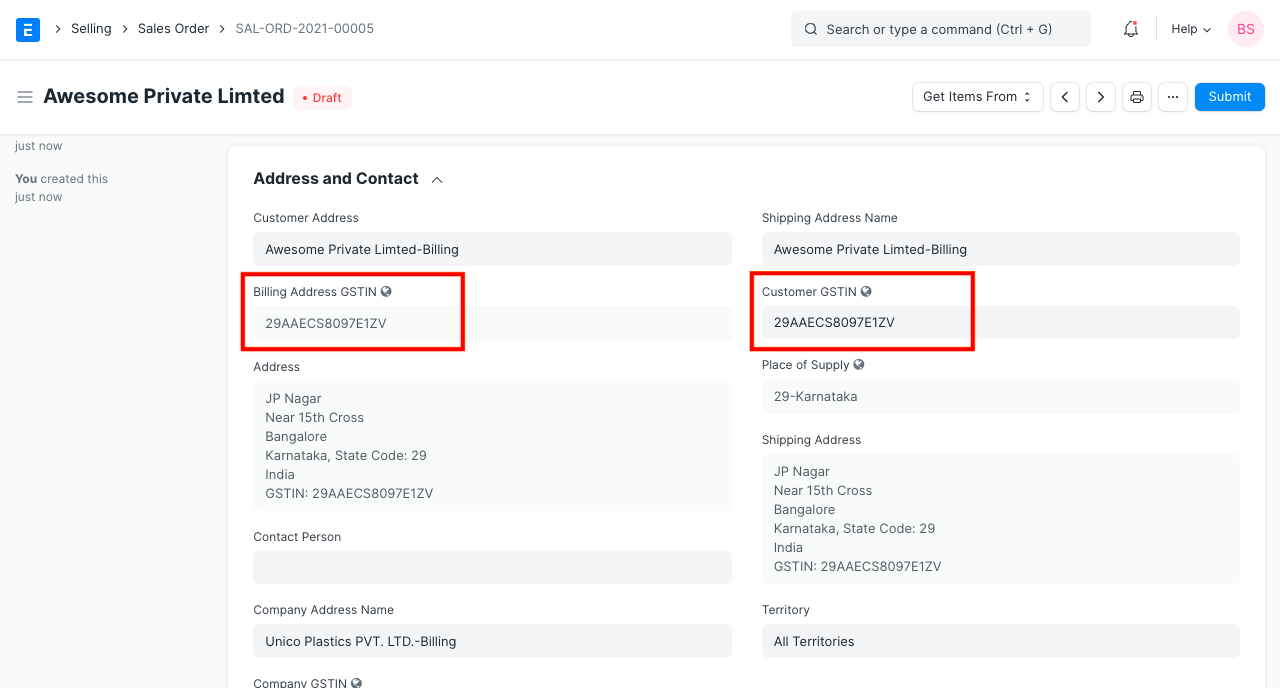
GSTIN is also fetched in sales transactions along with the address.
I Also, you can add the locations of your own business. To print your own address, check the box next to "Is Your Business Address," choose Company in the link doctype drop-down menu, and your company name in the link name drop-down menu.

Because that one customer or supplier may have more than one GSTIN, the GSTIN should be appended to the address rather than the customer or supplier (one for each state where he conducts his business).