Education Settings
Education Settings
You can define the Academic Year, Academic Term, and other defaults for your ERPNext account under the Education Settings, which will allow you to perform a basic setup for your Institute.
All throughout the module, these setup options will be taken into consideration.
Go to: to access Academic term.
Home > Education > Settings > Education Settings
1. Steps to configure Education Settings
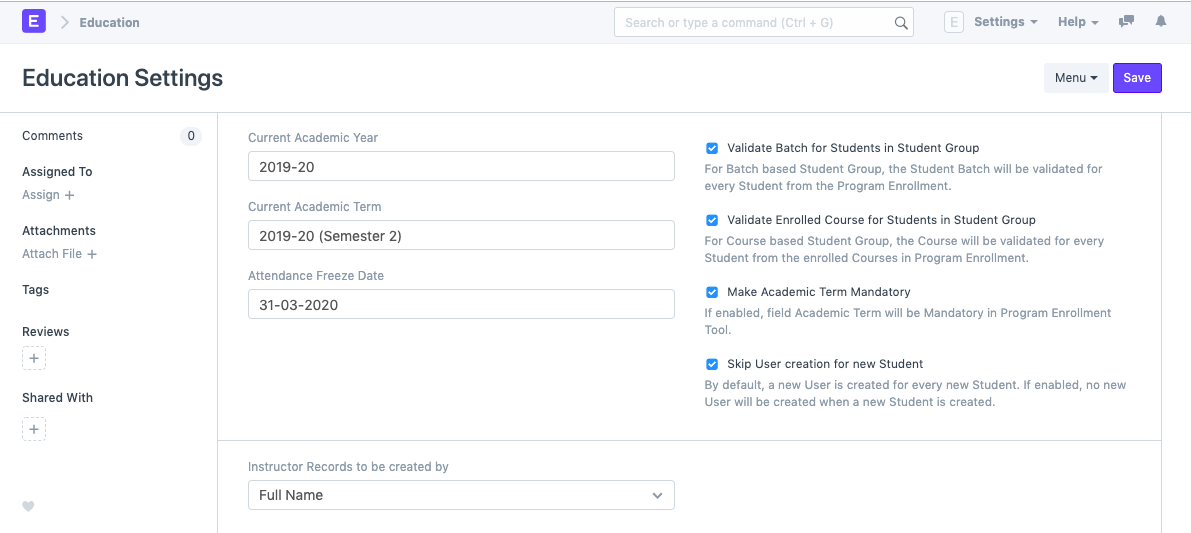
The current academic year can be chosen. This will be used as your account's academic year by default.
Choose the presently running academic term. This will be used as your account's academic term by default.
Choose the date for the attendance freeze. After the Attendance Freeze Date, any attendance recorded would no longer be legitimate.
Choose whether to build the instructor records using the full name, the naming series, or the employee number.
Create the instructor record by: You can choose whether the Teacher Records in your ERPNext system should be produced using the Full Name, the Naming series, or the Employee Code.
1.1. Configuring Properties
- Validate Batch for Students in Student Group: When students are added to a student group through batch, the system checks to see if the student is a part of that batch or not; if not, an error is displayed when storing the student group.
- Validate Batch for Students in Student Group: When students are added to a student group via a course, the system checks to see if they are enrolled in that course or not; if not, an error is displayed while saving the student group.
- Make Academic Term Mandatory: When enabled, this option will make sure that the user must provide the Academic Term while creating a Program Enrollment using the Program Enrollment Tool.
- Skip User Creation for New Student: A User is automatically created whenever a new student is created. When a new student is created with this option selected, no new User will be created.
1.2. LMS Settings
Out of the box, the Education module comes with a Learning Management System (LMS). This enables institutions to provide information about their programs on their website. Programs may include movies, quizzes, and articles with rich content. Both the desk and the portal allow you to keep track of the progress of specific students.
If you enable LMS for your ERPNext Education module, you can configure the following settings:
- LMS Title: Put the LMS's title here. That can be your institute's name.
- Description: On your LMS, you may include the course description.
In order to add courses, articles, or quizzes to your LMS, you can also go to LMS Activities. You can navigate to the URL "yourdomainname.erpnext.com/lms" to access your LMS portal.