Accounting Reports
Accounting Reports
Major accounting reports include the following:
1. Company and Accounts
General Ledger
Navigate to General Ledger under Accounts > Company and Accounts.
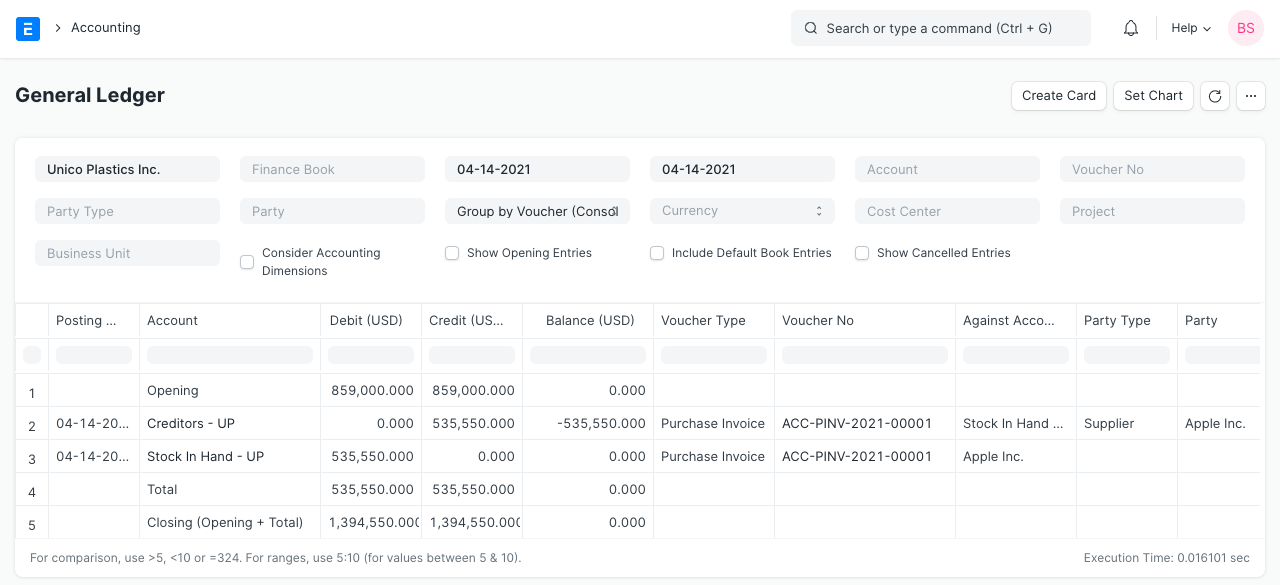
Every transaction has a Credit and Debit account, hence the General Ledger is a thorough report that includes every transaction that has been posted to every account.
The report is built using the GL Entry table, and it may be filtered using a variety of pre-defined options, including Account, Cost Centers, Party, Project, and Period, among others. This enables you to receive an accurate update for all postings made during a given period against any account. Each group's beginning and ending balances can be classified by Account, Voucher/Transaction, and Party. There is also the ability to review the sums in any other currency except the company's base currency in the case of multi-currency accounting.
2. Accounting Statements
2.1 Accounts Receivable and Accounts Payable (AR / AP)
Choose Accounts > Accounting Statements > Accounts Receivable from the menu.
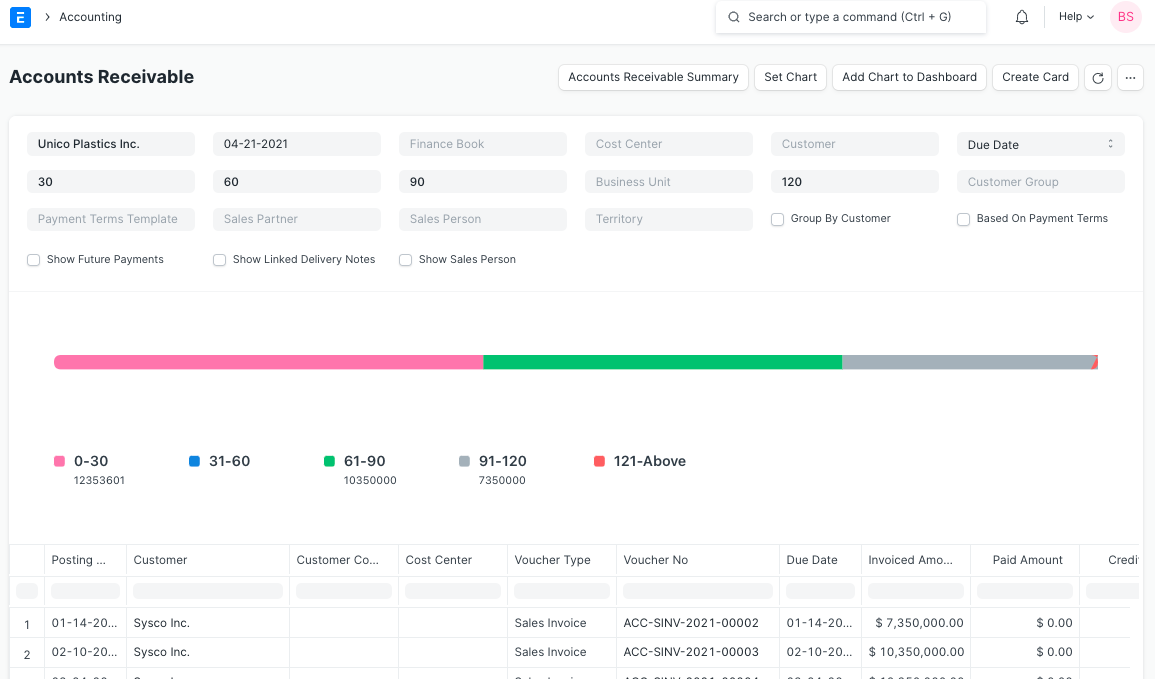
You may keep tabs on the balances owed by Customers and Suppliers with the aid of these reports. It also offers ageing analysis, which is a breakdown of outstanding amounts based on how long they have been outstanding.
2.1.1 Accounts Receivables based on Payment terms
Accounts Receivables based on Payment Conditions are another option.
By selecting the checkbox labeled "Based On Payment Conditions," as seen in the accompanying screenshot, the Accounts Receivable report based on payment terms can be viewed.
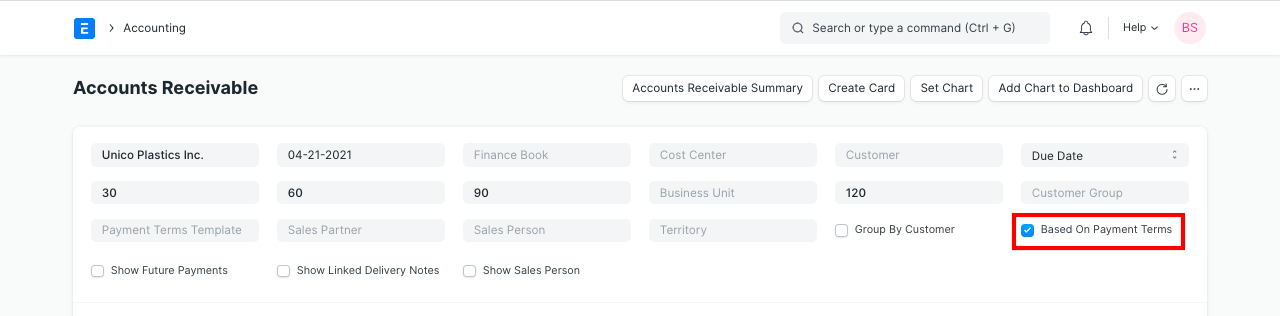
You can view the amount due for each payment term. Each payment term's amount is shown in the invoiced amount, and each payment term's paid amount is shown in the paid amount. Payment is awarded against each term in FIFO order.

2.2 Trial Balance
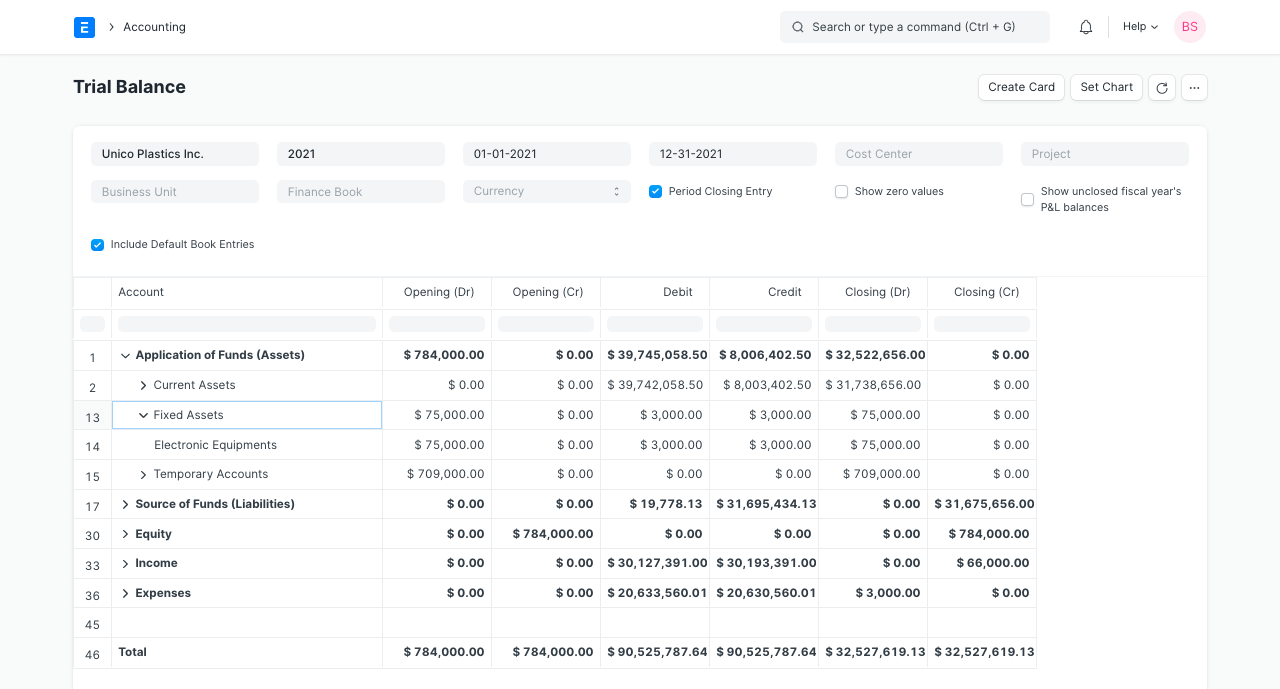
Get the Trial Balance by going to Accounts > Accounting Statements.
The account balances for all of your Accounts (including "Ledger" and "Group") for any given reporting period are listed in a trial balance, which is an accounting report. A corporation occasionally creates a trial balance, often at the conclusion of each reporting period. To check if the entries in a company's bookkeeping system are mathematically correct, a trial balance is generally produced. To guarantee that the entries are accurate for any particular period, the totals of the Debit and Credit columns must match. The report in ERPNext displays the following columns:
*As of the From Date, the opening debit balance is
*Opening (Cr): As of the selected period, the opening credit balance. Debit: The total amount owed against the account.
*Credit: The total amount credited to the account during the chosen period
*Closure (Dr): As of today's closing debit balance
*Closing (Cr): Current closing credit balance
Other settings include showing or hiding accounts with a zero balance, period closing entries, and P&L (Income & Expenditure) balances from previously closed fiscal years. The report's data are all presented in the company's base currency.
2.3 Balance Sheet
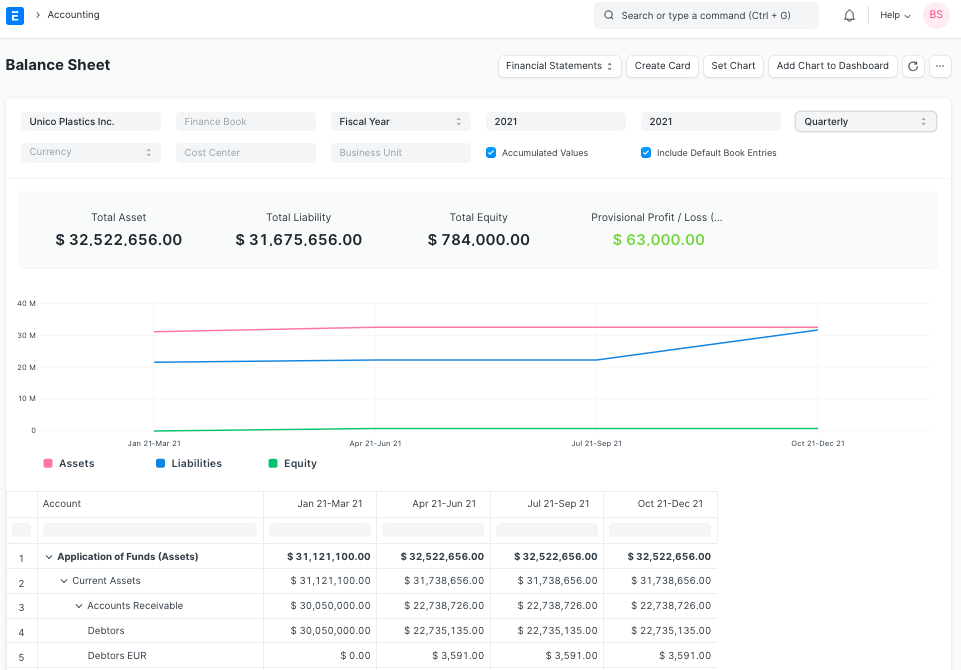
To access the balance sheet, go to Accounts > Accounting Statements.
The financial statement of a corporation that lists assets, liabilities, and equity at a specific time is called a balance sheet.
You have more freedom to examine your financial condition thanks to the balance sheet in ERPNext. The report can be performed across several years to compare values. Values for a particular Finance Book or Cost Center can be checked. The balances can also be shown in any other currency you select.
2.4 Cash Flow Statement
Go to Cash Flow under Accounts > Accounting Statements.
A financial statement called a cash flow depicts a company's inflow and outflow of cash and cash equivalents. It is employed to evaluate the company's liquidity position.

2.5 Profit and Loss Statement
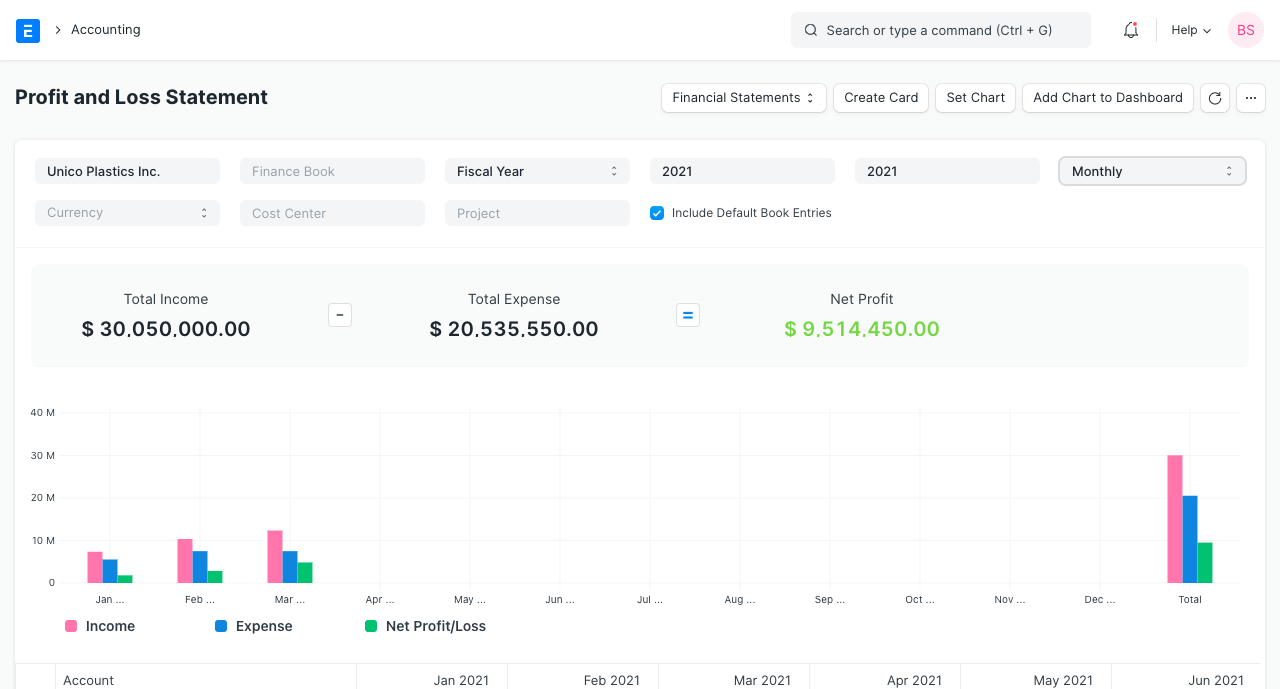
Get the profit and loss statement by going to Accounts > Accounting Statements.
A financial statement called a profit and loss statement lists all the income and expenses for a specific time period. P&L Statement is another name for the document.
To compare the data, you can run the report in ERPNext over a number of years or time periods. Moreover, values for a particular Financial Book, Project, or Cost Center can be checked. The balances can also be shown in any other currency you select. You can select whether you want to see accumulated balances or only balances for each period when running the report to view quarterly or monthly amounts.
2.6 Consolidated Financial Statements
Go to Accounts > Accounting Statements > Consolidated Financial Statement.
By combining the financial accounts of all the subsidiary companies, the report provides a consolidated view of the balance sheet, profit and loss statement, and cash flow for a group company. It displays total balances for each individual company as well as the accumulated totals for a group of companies.

3. Taxes
3.1 Sales and Purchase Register
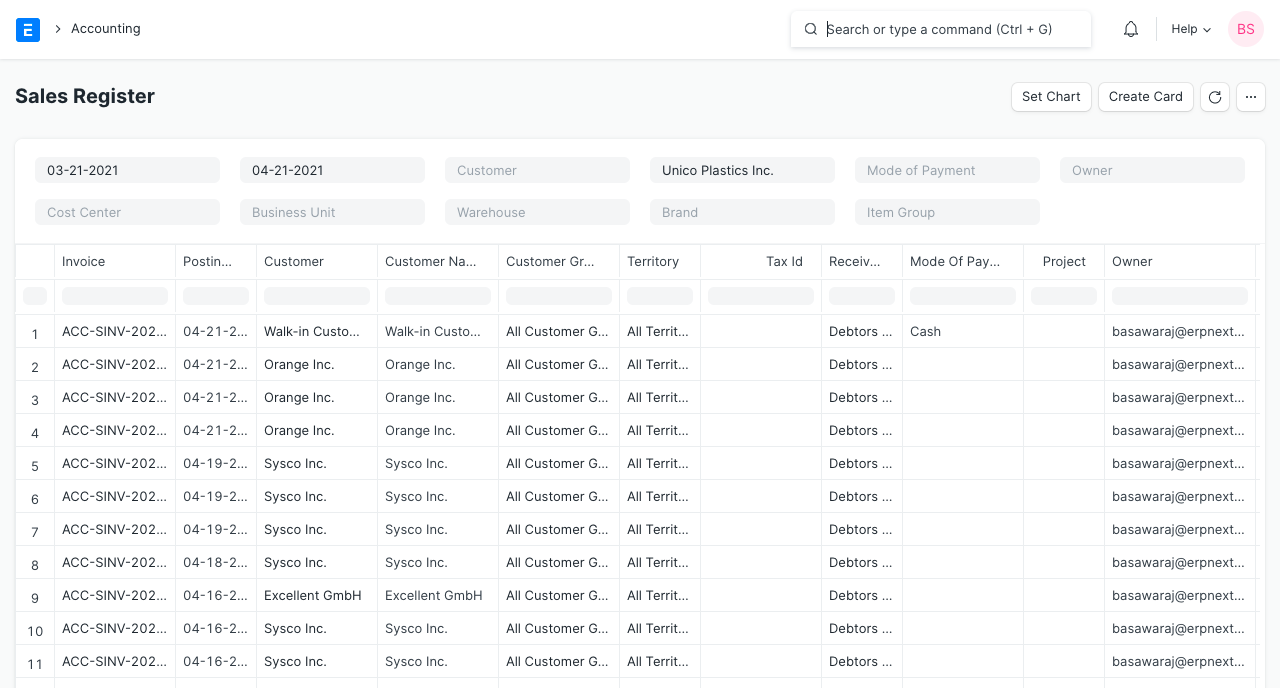
Access the Sales Register or Purchase Register by going to Accounts > Taxes.
The Sales and Purchase Register report includes information on all sales and purchases made during the specified time period, including tax information and the invoiced amount. Each tax has its own column in this report, making it simple to determine the total amount of taxes received or paid for a certain time period for each distinct tax type. This makes it easier to pay taxes to the government.
4. Budget and Cost Center
4.1 Budget Variance
Get the Budget Variance Report by going to Accounts > Budget and Cost Center.
In ERPNext, you may associate a cost center-specific expense budget with a single expense account. This report compares actual spending to the budgeted amount as well as the variance—the difference between the two—in a monthly, quarterly, and annual perspective.

5. Tax reports for India
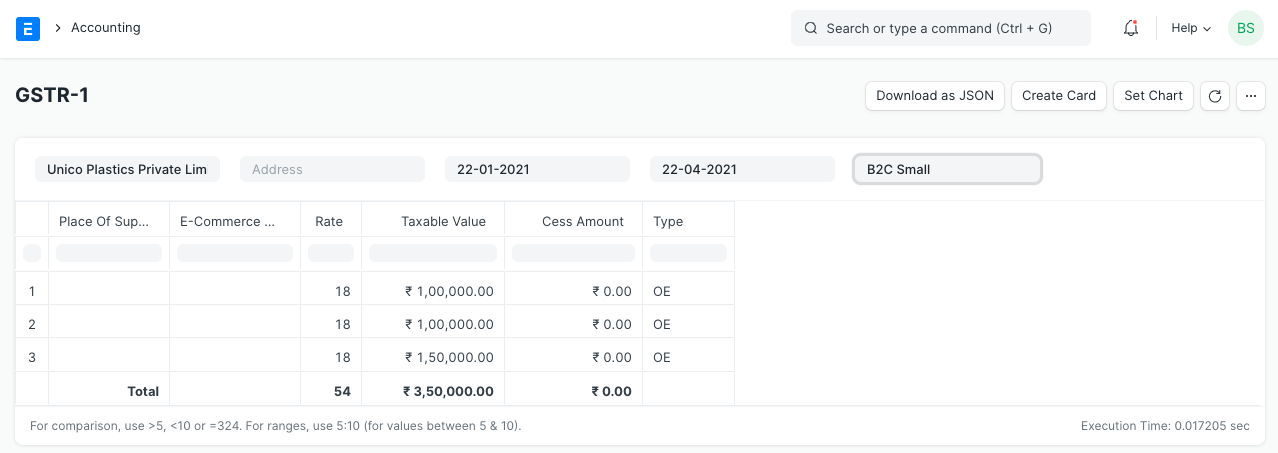
5.1 GSTR-1 (India)
Get the GSTR-1 by going to Accounts > Goods and Services Tax (GST India).
The GSTR-1 report aids Indian users in submitting their monthly returns for imported goods. This report displays all of the company's sales transactions in the manner required by the government. Depending on the chosen business type, the report's output changes (B2B, B2C Large, B2C Small, CDNR and Export).
5.2 GSTR-2 (India)
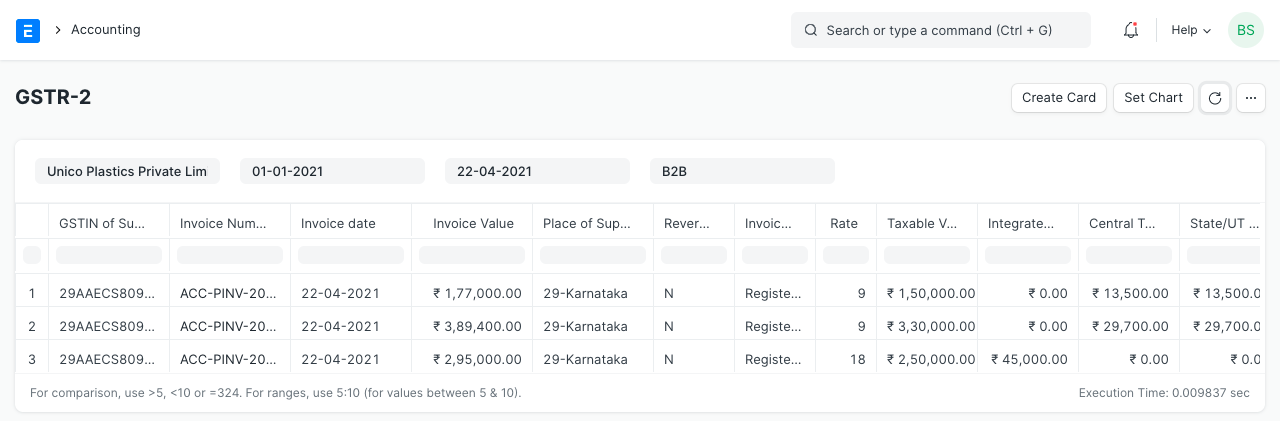
Get GSTR-2 by going to Accounts > Goods and Services Tax (GST India).
Indian consumers can file a monthly return of incoming supplies with the aid of the GSTR-2 report. The report provides information on all incoming supplies of goods or services received over the course of a month in a manner required by the government.
6. Analytics
6.1 Item wise Sales and Purchase Register
Get GSTR-2 by going to Accounts > Goods and Services Tax (GST India).
Indian consumers can file a monthly return of incoming supplies with the aid of the GSTR-2 report. The report provides information on all incoming supplies of goods or services received over the course of a month in a manner required by the government.
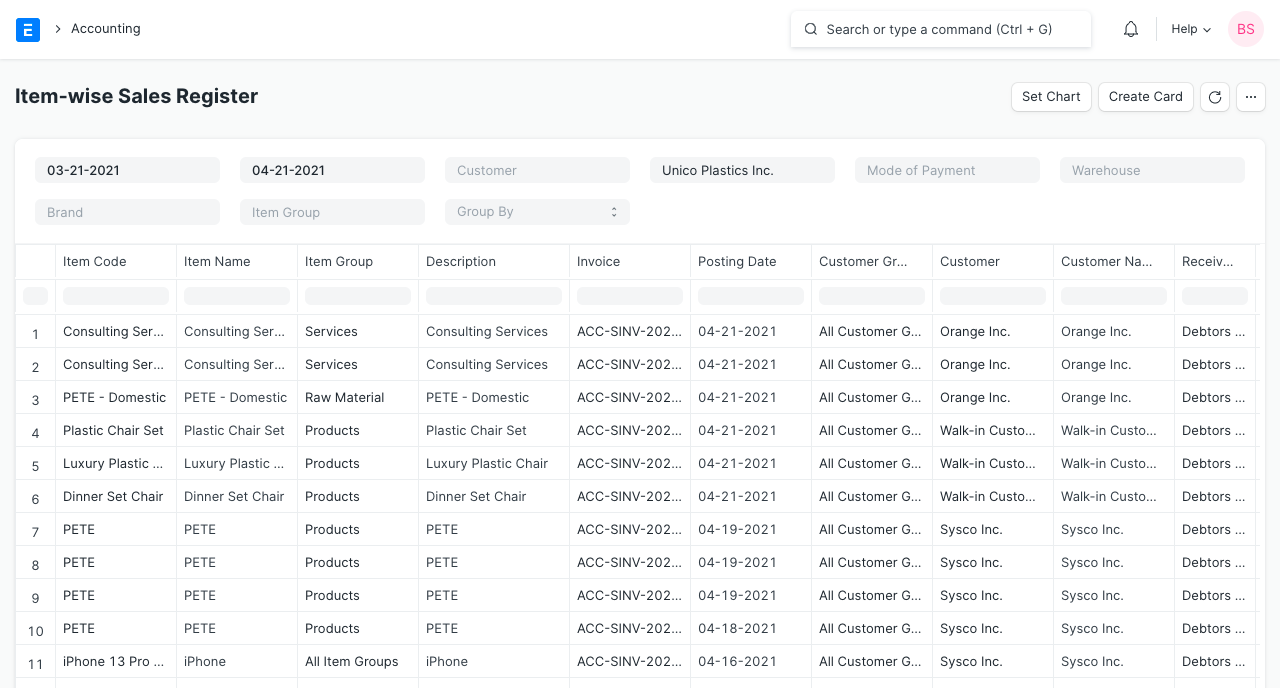
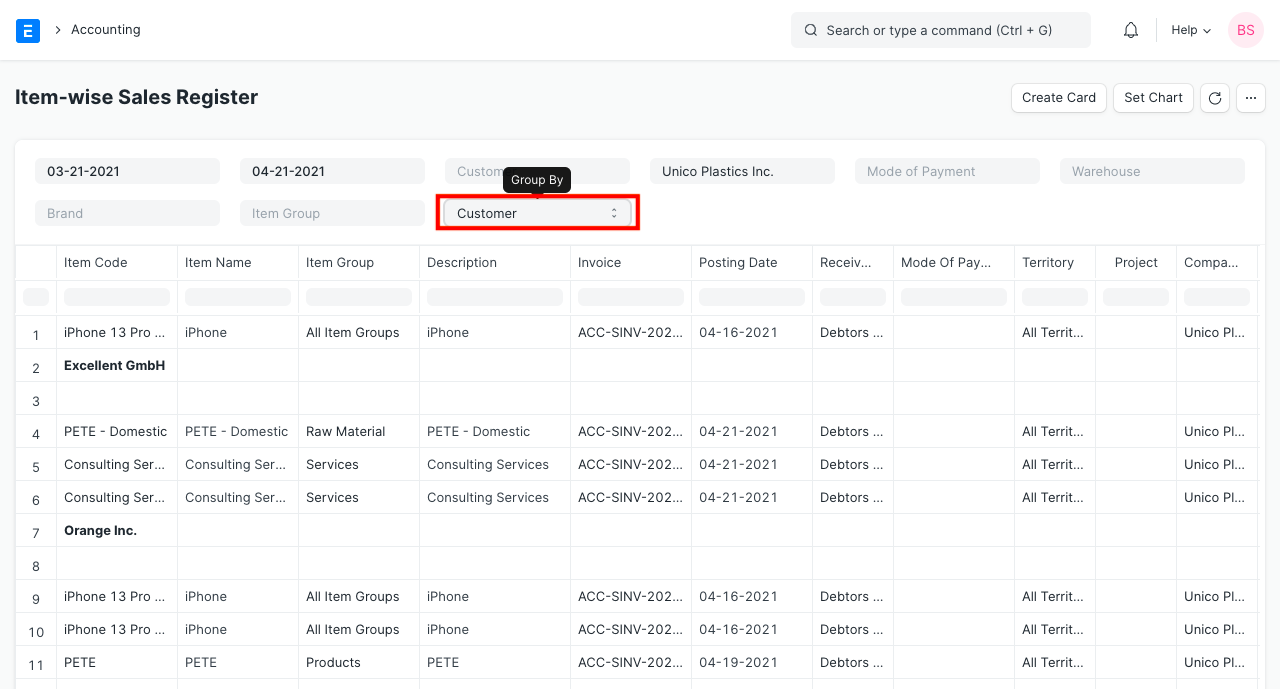
The 'Group By' filter, which provides sales data for a given Customer, Supplier, Region, etc., can also be used to conduct further in-depth analysis. You can discover which product is more well-liked in which area or which customer purchases a given product more frequently.
6.2 Sales or Purchase Invoice Trends
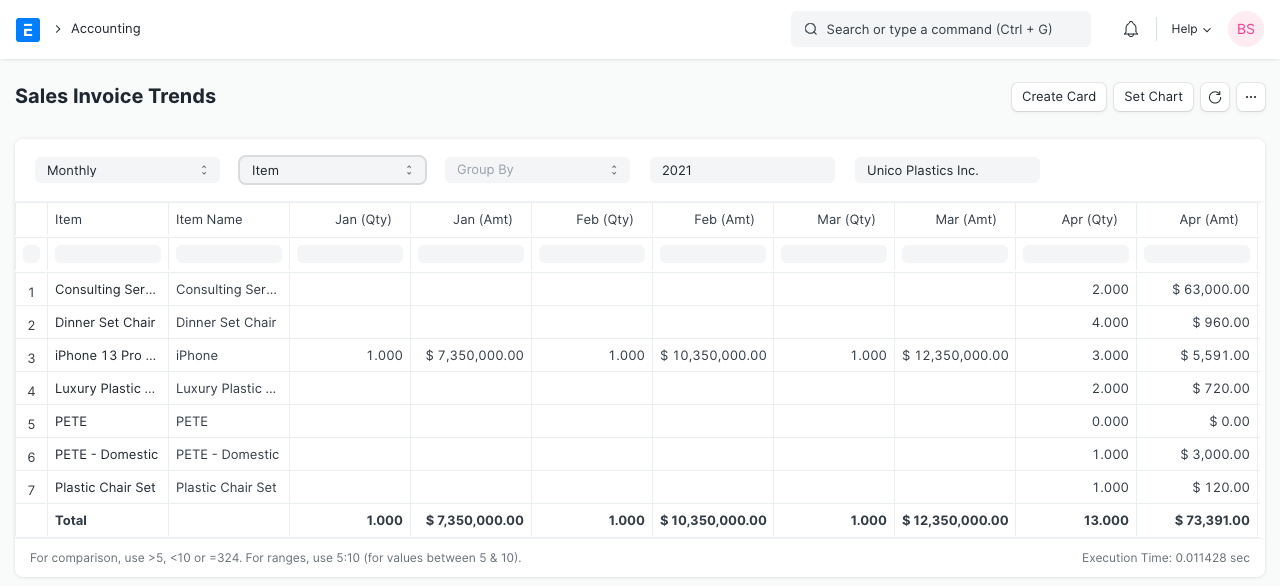
Access the Sales Invoice Trends or Purchase Invoice Trends page by going to Accounts > Analytics.
Invoice trends is another really helpful report that you can use to quickly identify the items that are trending on a monthly, quarterly, half-yearly, or annual basis. You will gain an understanding of sales and purchases in terms of quantity and sum.
7. To Bill
Ordered Items To Be Billed: The report lists the merchandise that consumers have requested but for which a sales invoice has not yet been prepared or has only partially been created.
Delivered Items To Be Billed: Items that have been delivered to clients but for which a sales invoice has not yet been prepared or has only been partially created.
Purchase Order Items To Be Billed: The report lists the things that were ordered from the vendors, but the purchase invoice has not yet been fully or completely completed.
Received Items To Be Billed: Items that have been received from suppliers but for which a purchase invoice has not yet been prepared or has only been partially created.
8. Other Reports
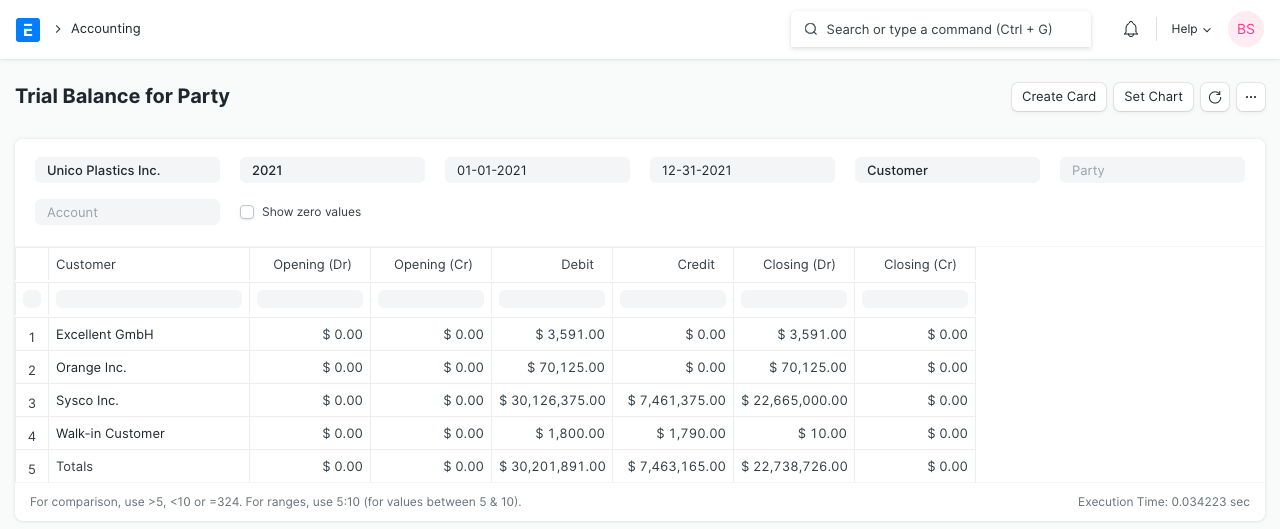
8.1 Party Wise Trial Balance
Navigate to Trial Balance for Party under Accounts > Additional Reports. The trial balance for your customers and suppliers may often be required. You may quickly obtain for each of your clients or vendors as well as for an individual.
8.2 Customer Credit Balance
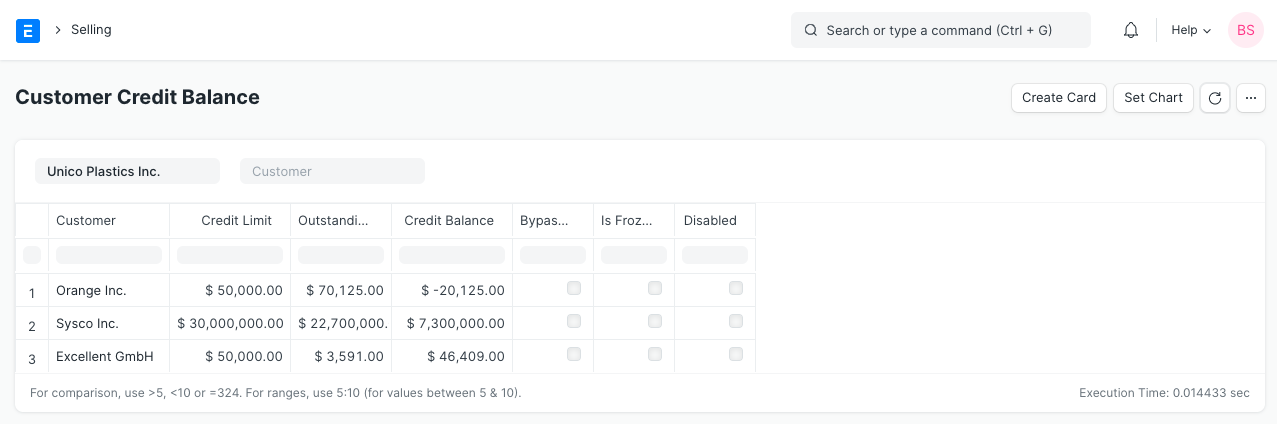
Each customer's credit limit, amount, and outstanding balance are displayed in the report.