Data Import Tools
The Data Import Tool lets you import records from a CSV/Excel file.
The Data Import Tool makes it simple to upload (or change) large quantities of data, particularly master data, into the system.
Go to: to start importing data.
Home > Data Import and Settings > Import Data
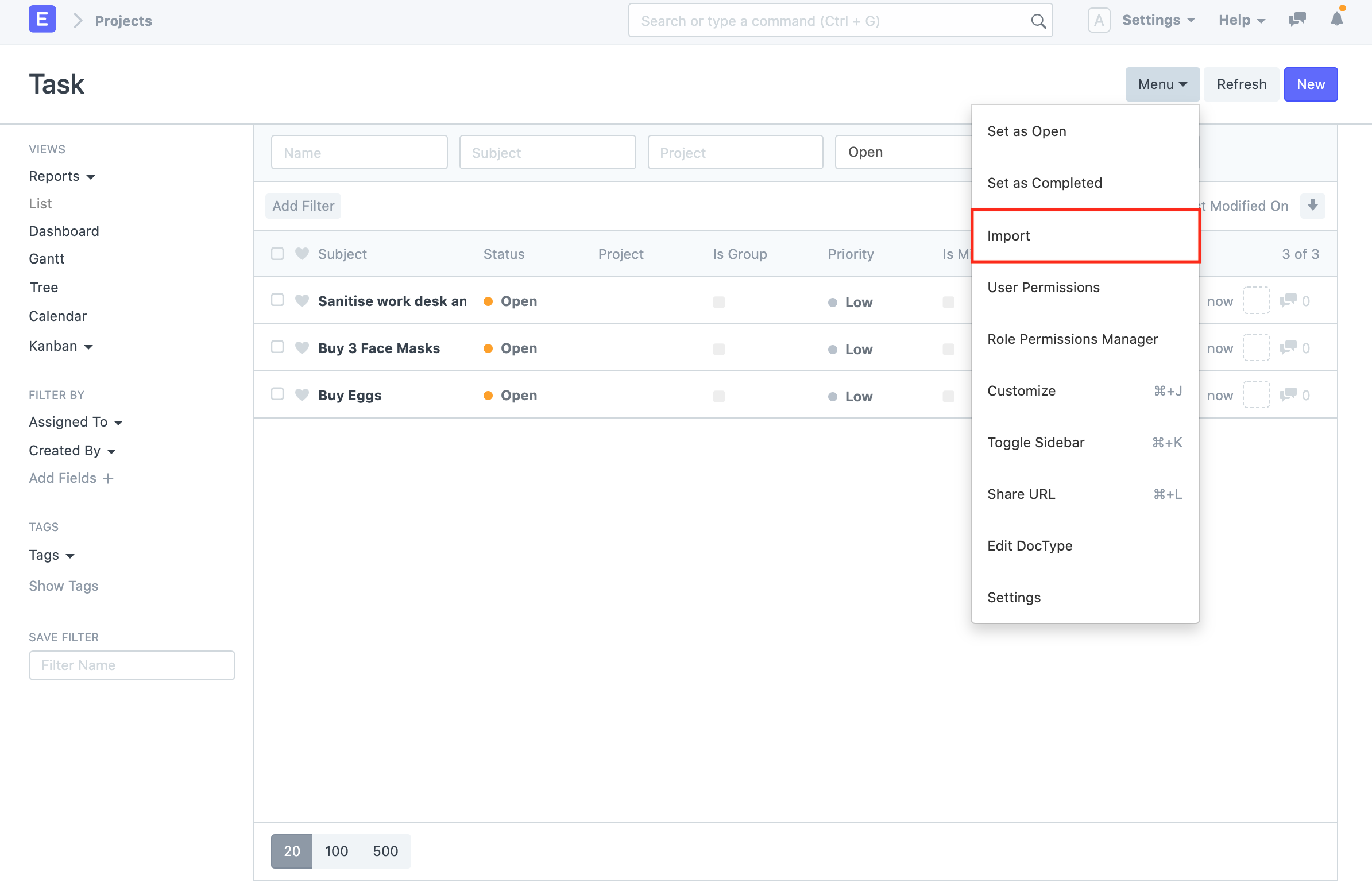
Alternatively, open the document you wish to import and select Menu > Import:
Make sure all of your data is prepared before utilizing Data Import.
1. Inserting New Records
Imagine you wish to import your previous system's customer list into Geer ERP. Downloading a template into which we can input our data is the first step.
1.1 Download the Template
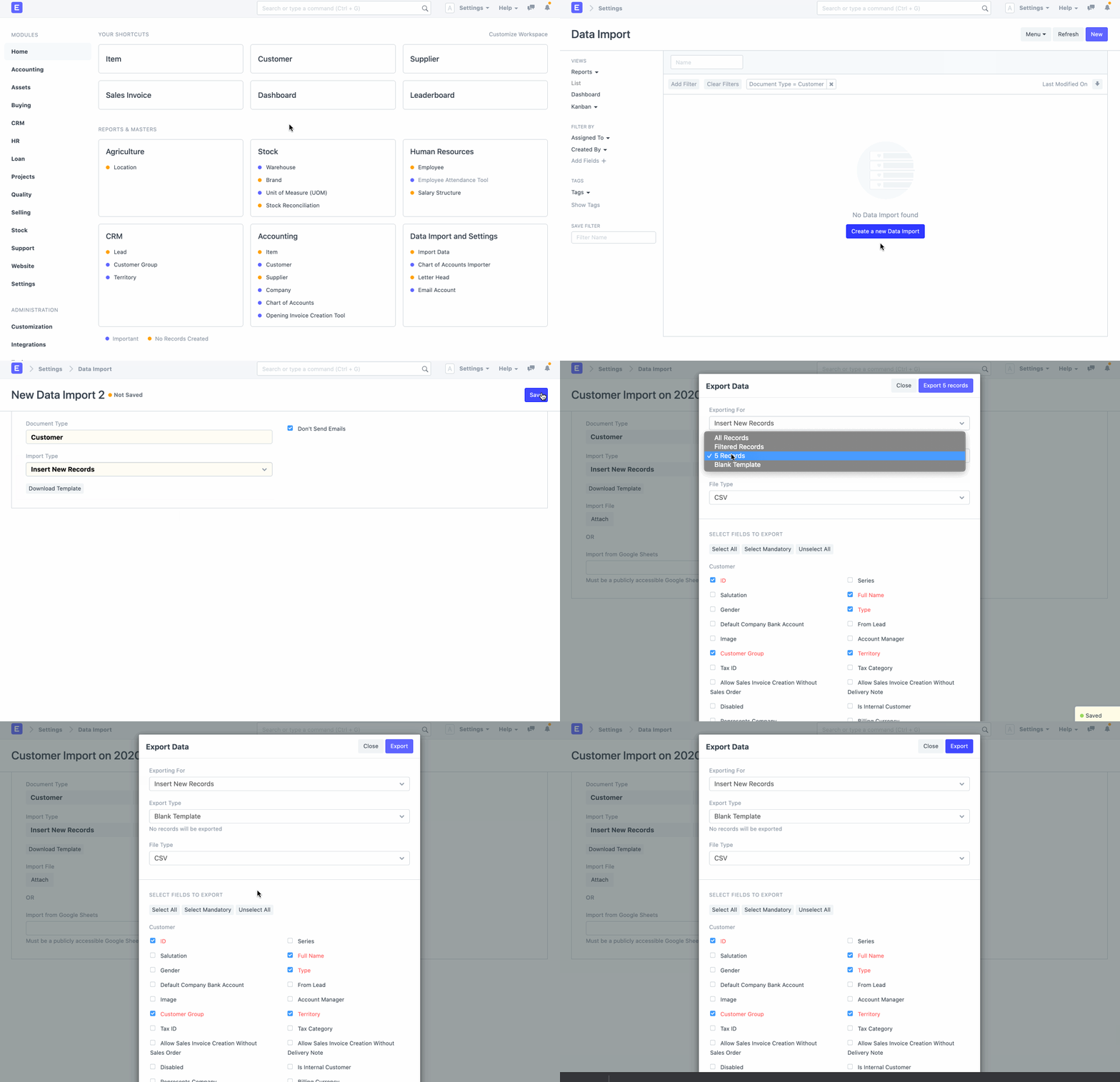
1.Go to Customer List, click on Menu > Import. Click on New.
1. Select Import Type as Insert New Records.
1. Click on Save.
1. Now, click on Download Template.
1. While inserting new records, the template should be blank. If you have a few Customers in your system, you can select Export Type as "5 Records" to see the format in which you have to enter the data in the template.
1. Select the File Type of the export template.
1. Select the fields that you want to fill in as the Customer details.
1. Click on Export.
1.2 Entering Data in the Template
This is how your downloaded template will appear:

Open the downloaded template in a spreadsheet program (such as Libre Office, Numbers, or Excel) and add the information underneath the indicated column headers as follows:
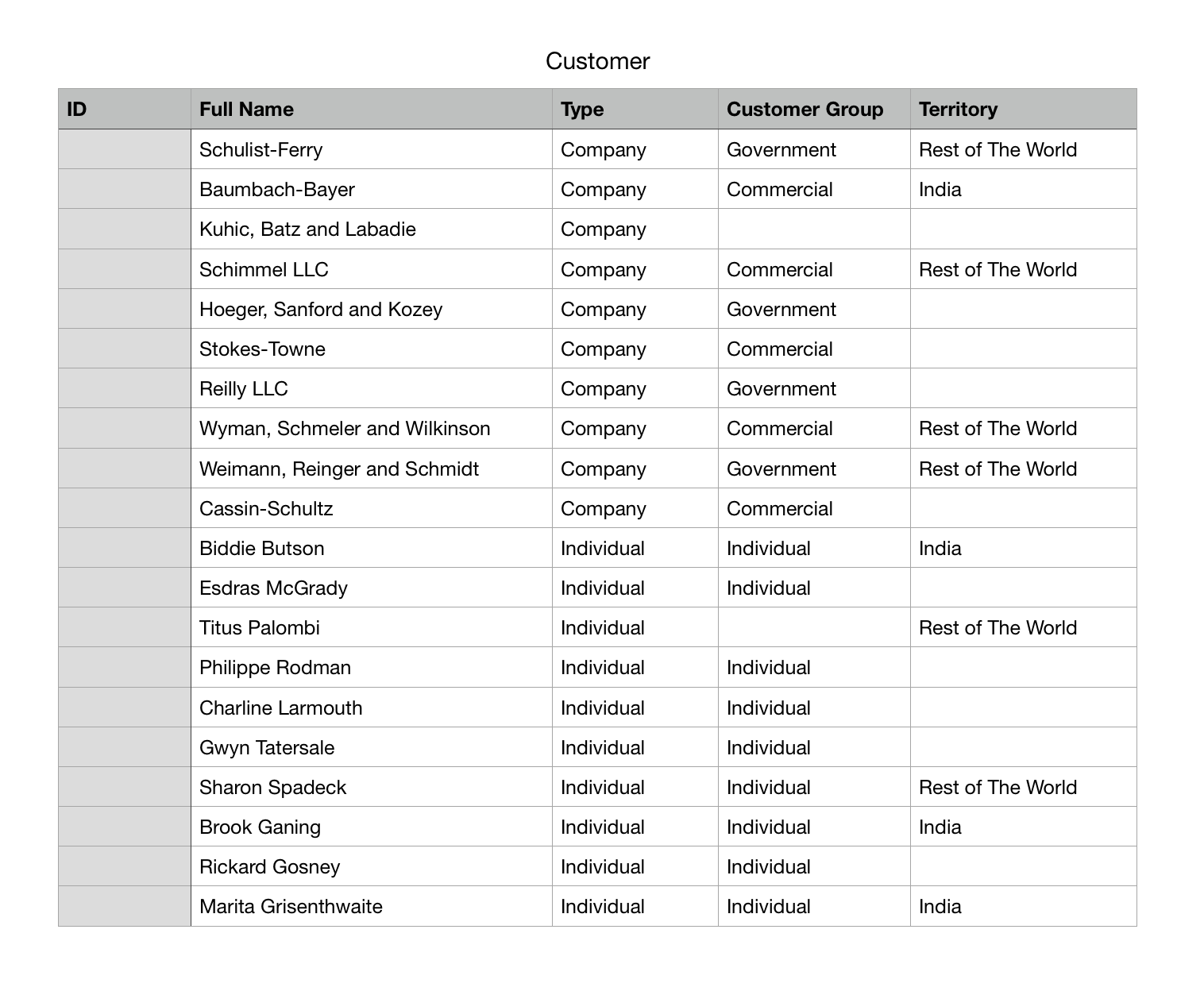
In the following step, save your template as an Excel or CSV file.
You can leave the ID column as blank while inserting new records.
Each row will create a Customer record in the system when you import this template.
1.3 Importing the Template
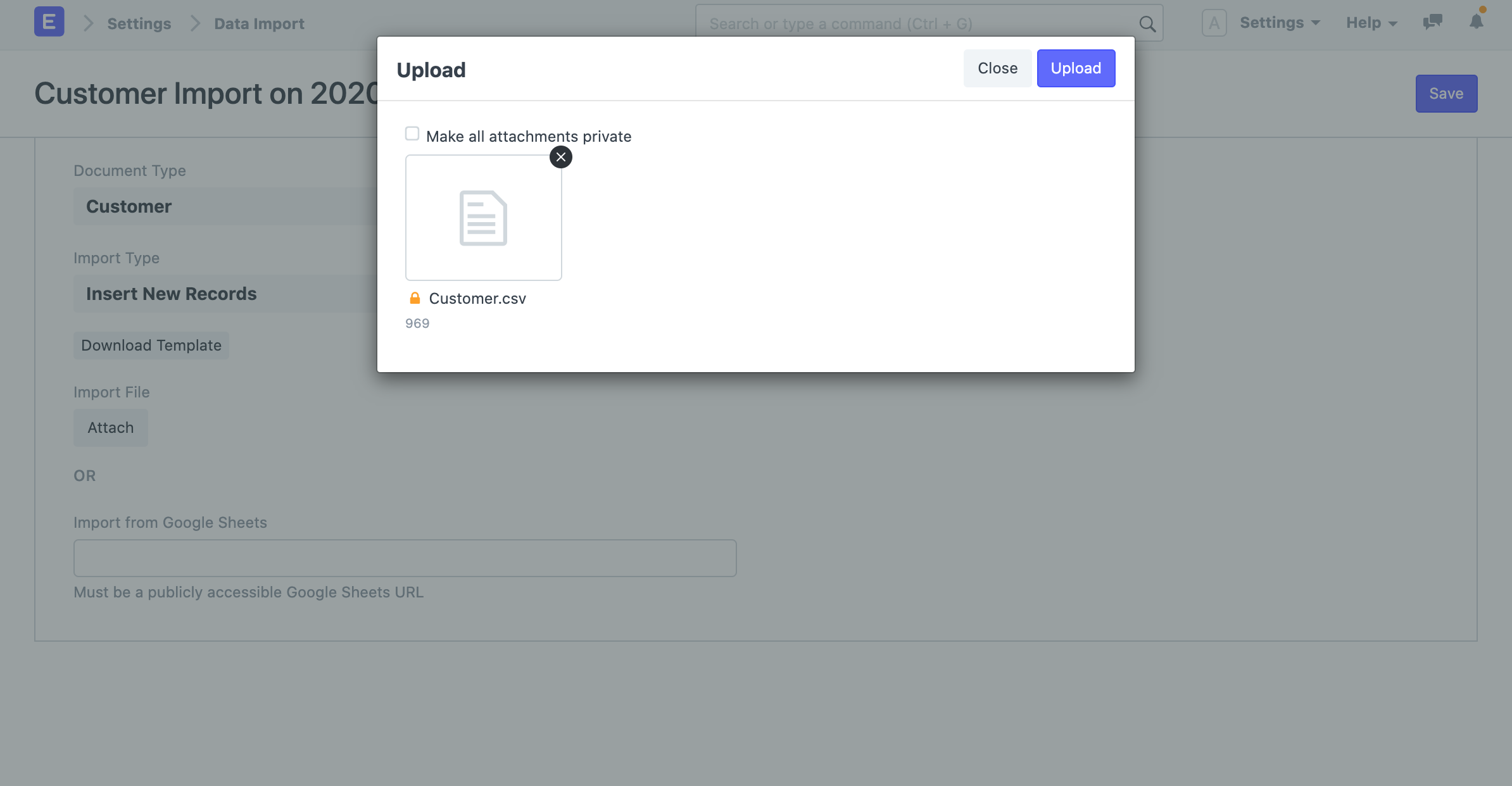
- After updating your template file, go back to the Data Import form and attach the file by clicking on the Attach button.
- Select the template file and click on Upload.
- After the upload is successful, click on Start Import
Your template's errors will be displayed in the Warnings section if there are any. To make it simple for you to locate and address the warnings in the template, they will be organized by Row or Column along with their corresponding number. Before you may import the data, all of the cautions must be addressed.
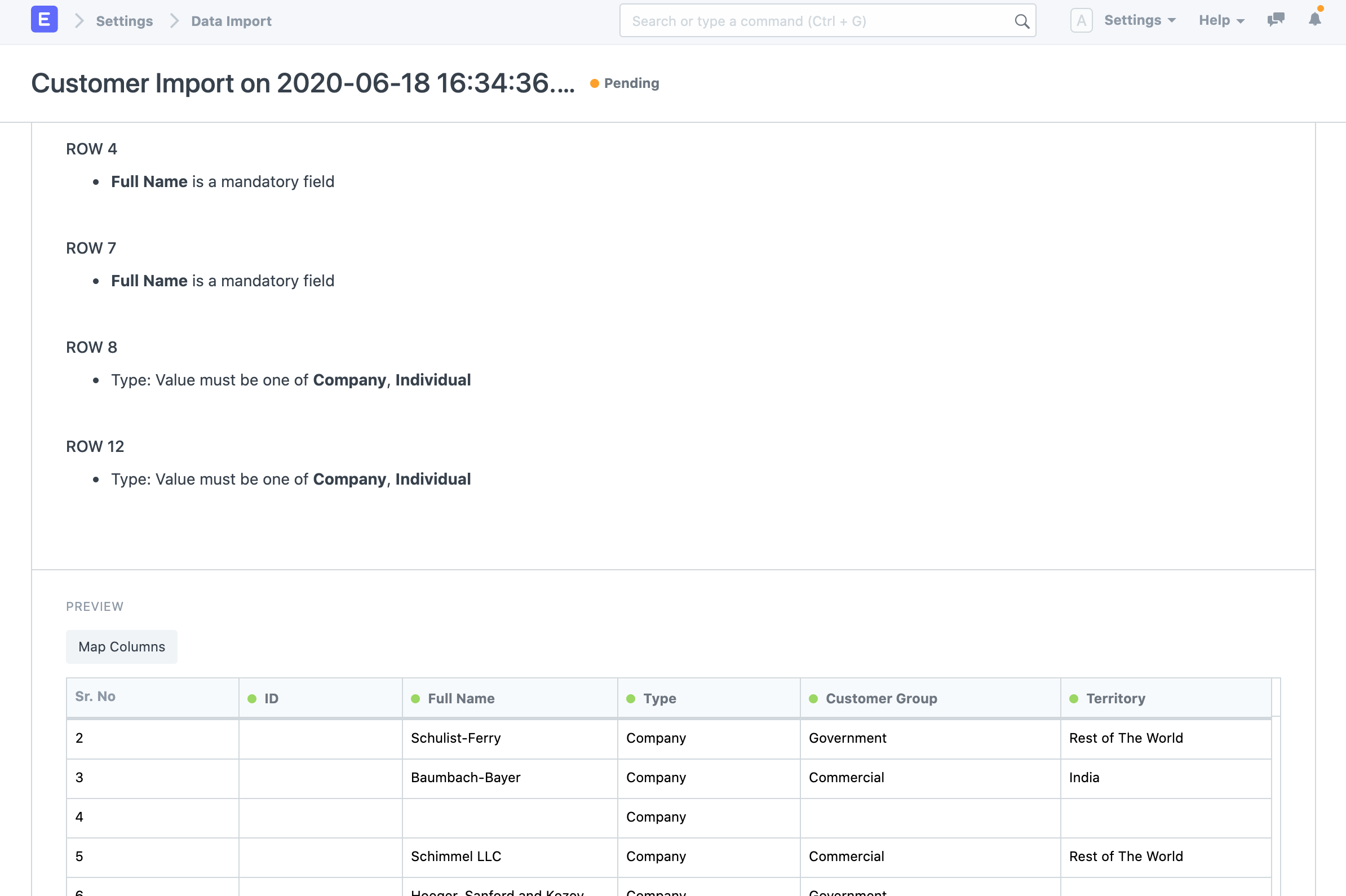
After addressing the warnings, click Start Import once more to continue with the data import. You may view a log of each record created following a successful data import in the Import Log section.
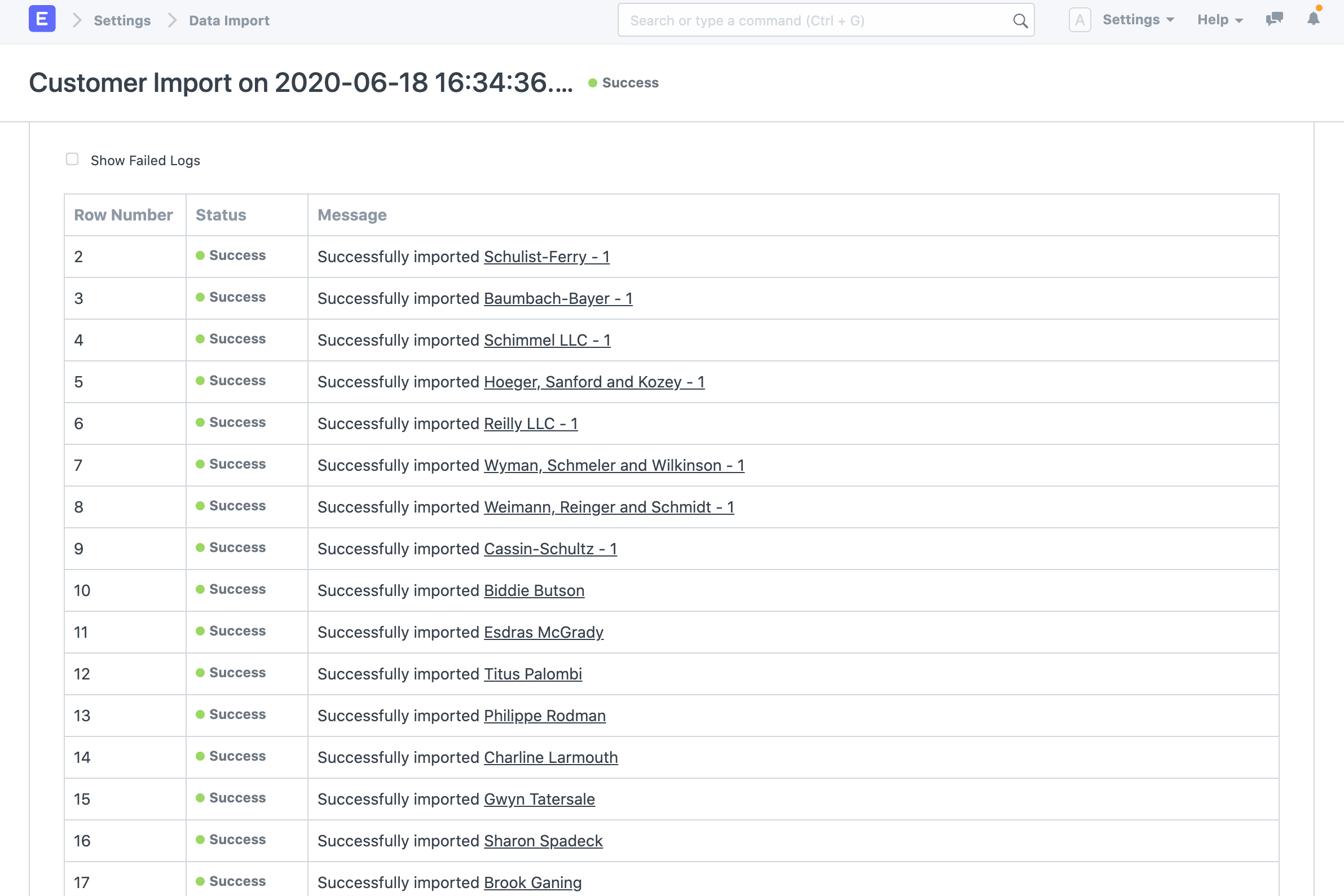
2. Updating Existing Records
Imagine you wish to change Customer data in your system in bulk. Downloading the template containing the data is the first step.
2.1 Download the Template
- Go to Customer List, click on Menu > Import. Click on New.
- Select Import Type as Update Existing Records
- Click on Save.
- Now, click on Download Template.
- While updating existing records, you must export the records from the system with the ID field and the fields that you want to update. You can choose All Records or Filtered Records depending on your case.
- Select the fields that you want to update for the Customer records.
- Click on Export.
2.2 Updating Data in the Template
This is how your downloaded template will appear:
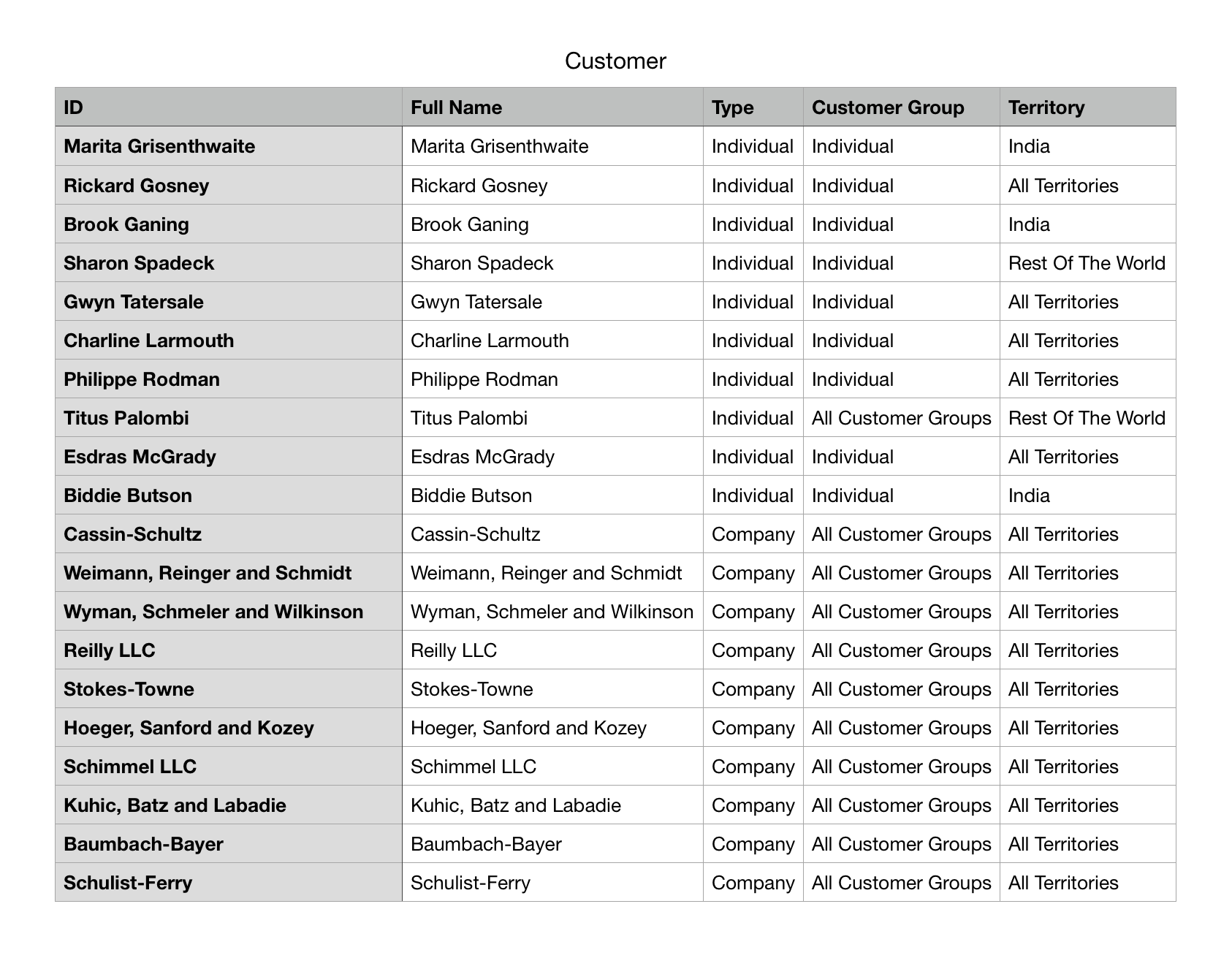
Change the values in your template now, then save the CSV or Excel file.
While exporting records for updating them, ensure that the ID column is exported and is untouched. The values in the ID column are used to identify the records in the system. You can update the values in other columns but not in the ID column. If you remove some child table row, the system will consider that the row is supposed to be deleted.
2.3 Importing the Template
Follow the directions in the section above on importing the template.
3. Importing Child Records
In Geer ERP, data is kept in tables that resemble spreadsheets with rows and columns of data. There are numerous fields on each form, including Customer, Company, and Sales Order. Additionally, it includes tables like the tax table and item table. The rows inside the child table (item table) are handled as the child table for data import, while the set of fields in the sales order are treated as the main table.
Geer ERP allows enables the creation of many child tables for each form. Where there are multiple values for any property, the child tables are used and are linked to the parent tables. For instance, a sales invoice may have many items and taxes, and each item may have multiple prices.
For instance, each child row will display on a separate row but will be linked to a single parent row when you export a document containing child tables. The parent columns' succeeding values will be left empty. When importing them via Data Import, you must make sure that this order is maintained.

4. Import Options
4.1 Import from Google Sheets
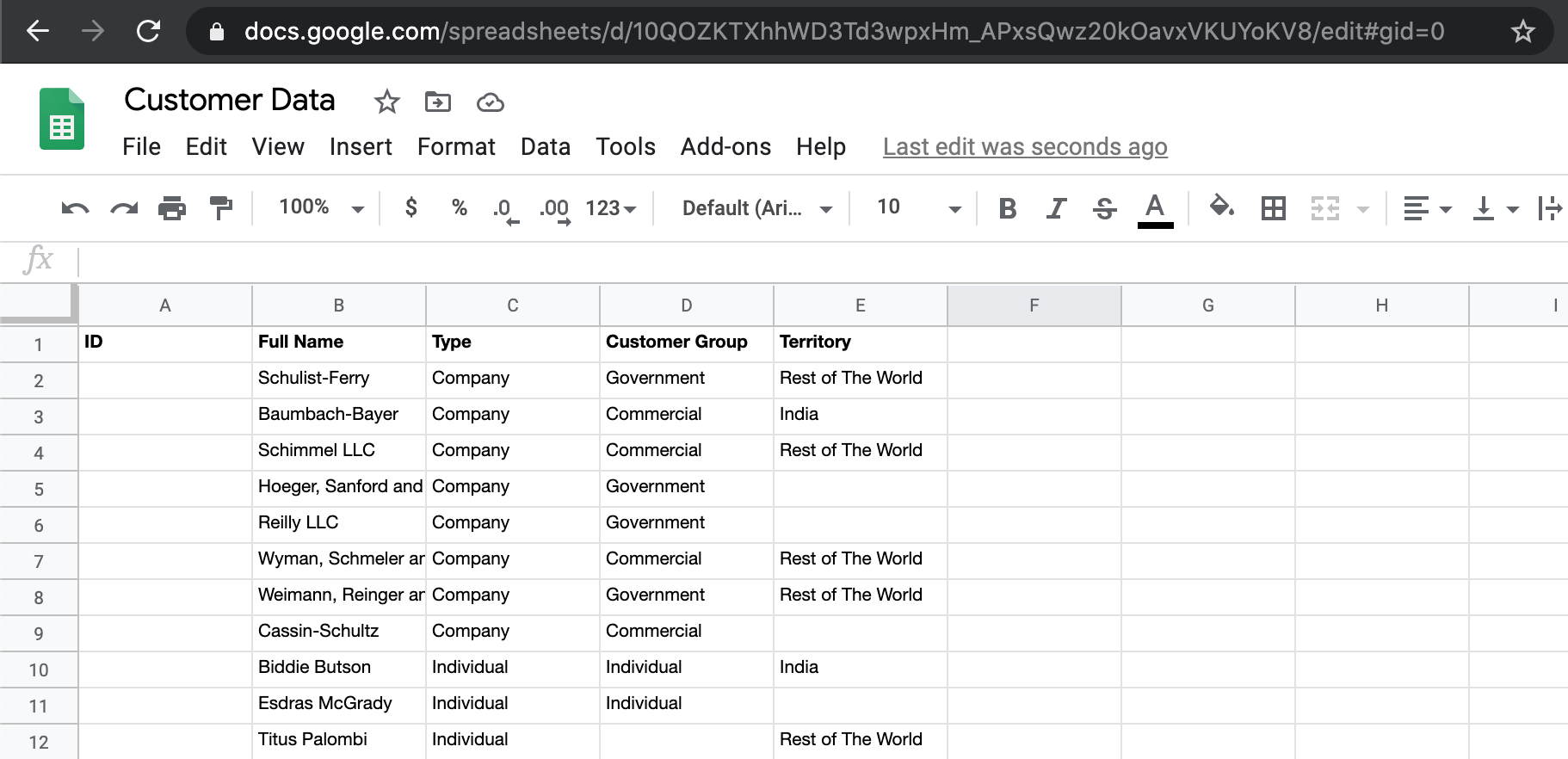
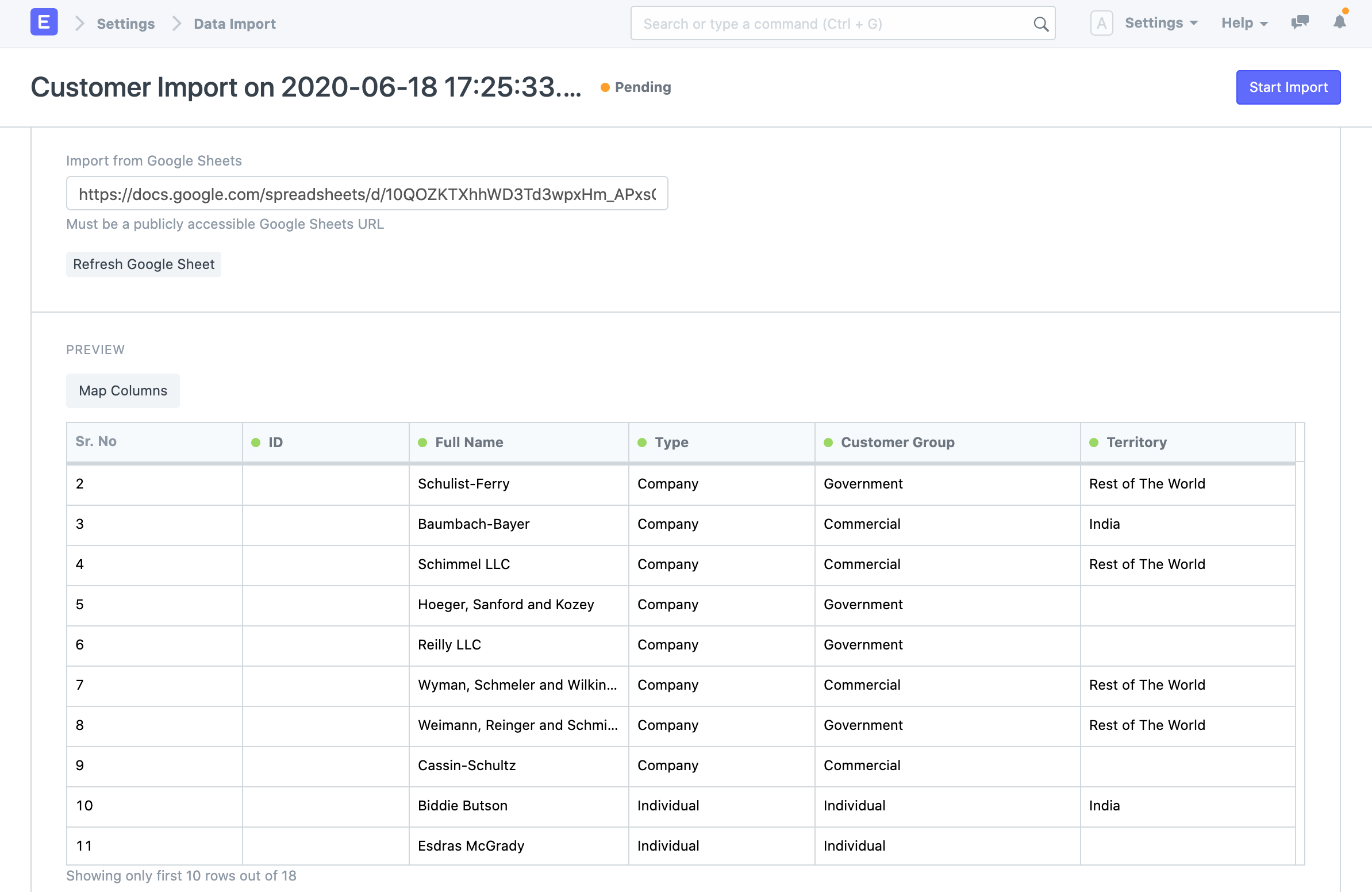
Google Sheets data can also be imported. Enter the data into Google Sheets after importing your template. A Google Sheet should be made public. By accessing the Google Sheets URL in a private browser tab, you may verify this.
4.2 Submit After Import
The two basic sorts of document types in Geer ERP are masters and transactions. Records like Customers and Tasks that can only be saved, not submitted, are considered masters. Sales orders and purchase invoices are examples of transactions that can be filed as submitTable documents.
You can check the Submit After Import box when choosing a submittable document type for Import in order to submit the document after it has been imported.
4.3 Don't Send Emails
Let's imagine you set up a Notification in your system so that an email is delivered each time a Lead is formed. Now, a lot of emails will be sent if you import Leads in bulk, which may not be what you want. To stop sending emails, you can turn off this setting.
5. Additional Notes
5.1 Upload Limit
The volume of records that can be imported has no set upper limit. However, you should attempt to upload no more than a few thousand records at once. If 50,000 records are imported, the system may become noticeably slower for the people who are already utilizing it.
5.2 CSV Files
You can change various data in ERPNext by uploading a CSV (Comma Separated Values) file. A CSV file can be created from any spreadsheet created with widely used spreadsheet programs like MS Excel or Open Office Spreadsheet.
Make sure to save your file encoded as UTF-8 if you're using non-English characters in Microsoft Excel.
It is unclear how to save as UTF-8 in earlier versions of Excel. In order to save your file as "UTF-8," first save it as CSV, then open it in Notepad. (Or, improve Excel!)