Taskss
Tasks
In project management, a task is an actionable unit or activity which needs to be completed.
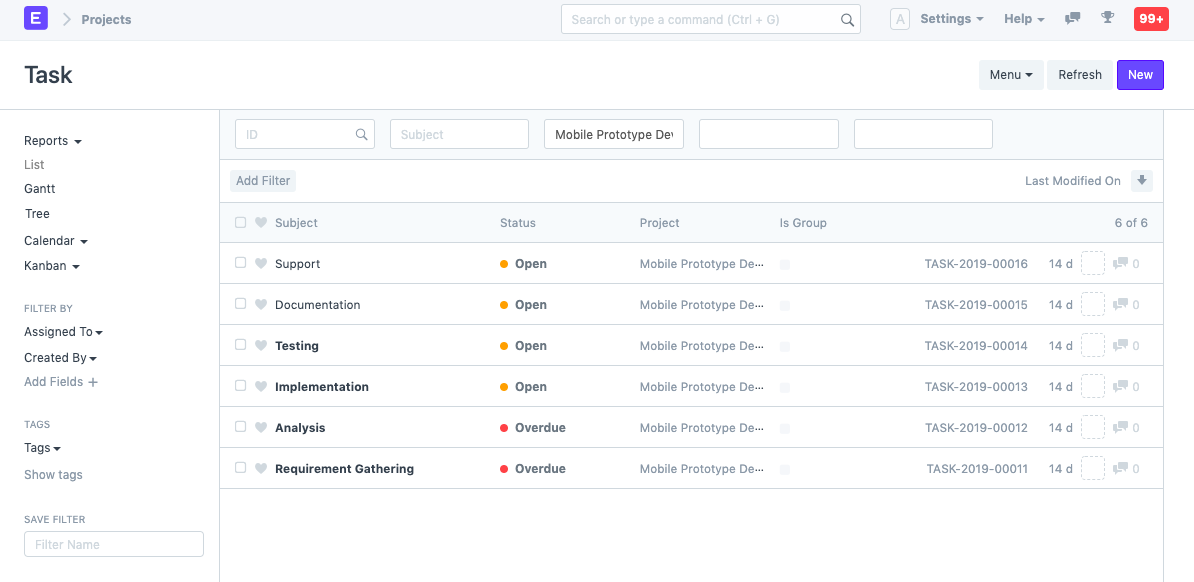
To access Tasks, go to,
Home > Projects > Projects > Task
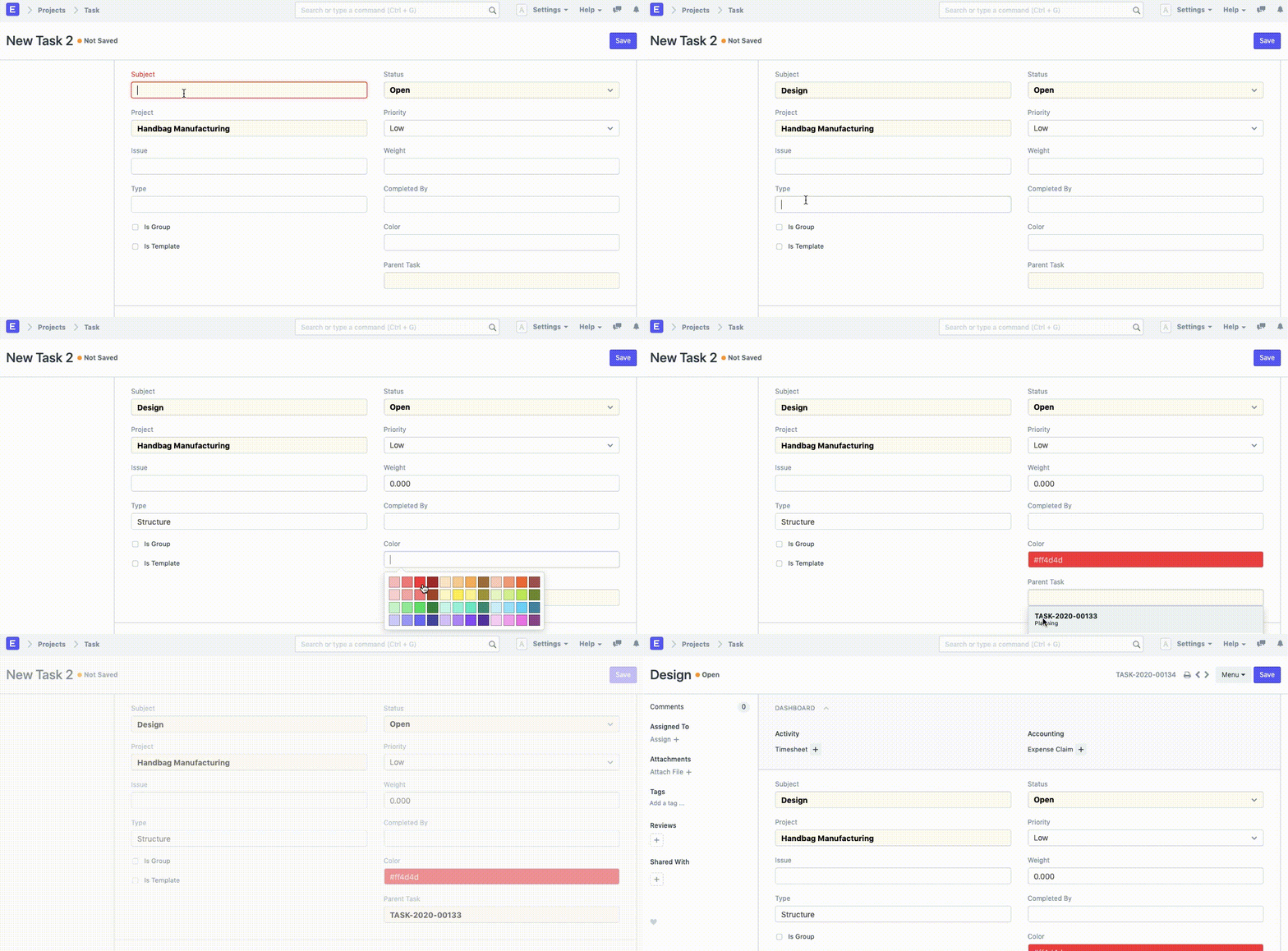
1. How to Create a Task
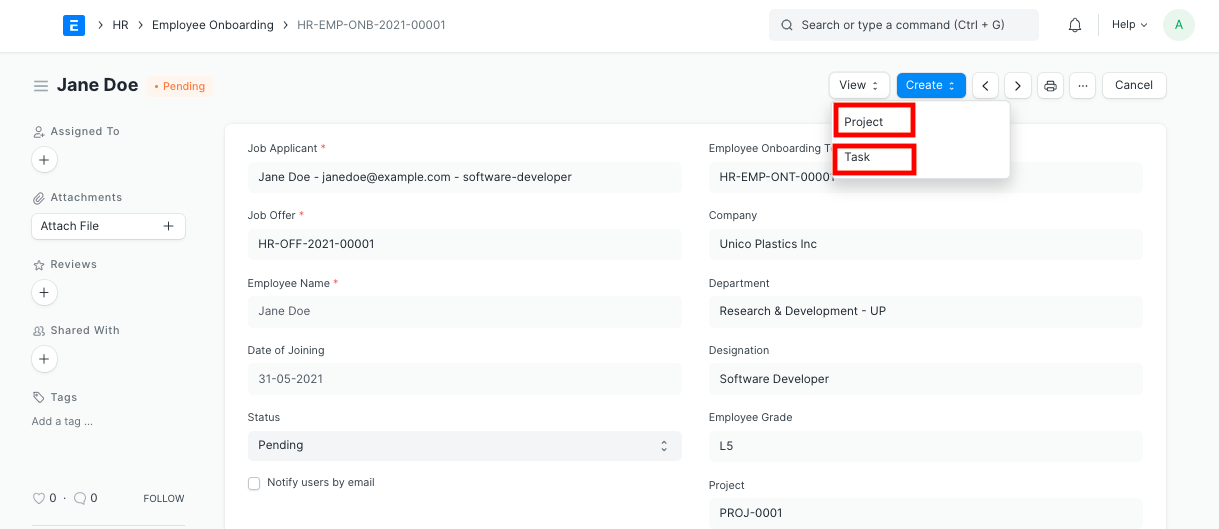
Click New on the Task List page.
Include the assignment's topic.
Save.
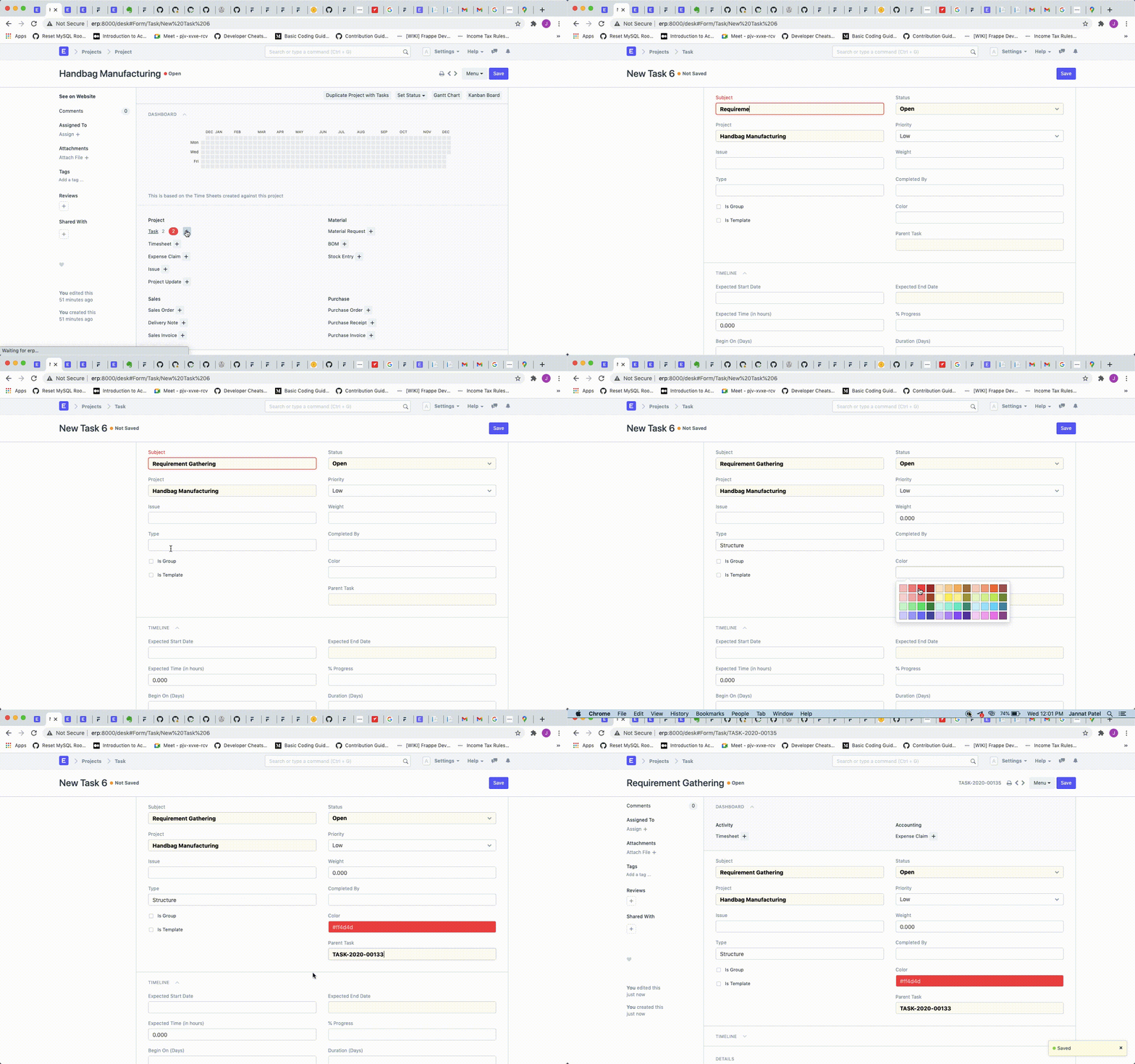
As an alternative, the following method can also be used to create a task from a Project:
Make your way to the Project where you wish to add a new task.
Go to Task in the Dashboard's Project section. You could access the task creation page by clicking the plus sign (+) here.
Include the assignment's topic.
Save.
1.1 Additional Options while creating a Project
When revising a brand-new job, the following extra information may be added:
Status: You can add or modify the project's status as needed, such as changing it from "Open" to "Working," "Overdue," "Pending Review," "Completed," or "Cancelled."
Project: Whenever a task is created on its own, you can decide to associate it to a certain Project. The information from the Project will be automatically added if the task is created from one.
Priority: You have the option of defining the task's priority as Low, Medium, High, or Urgent.
Issue: This field can be used to tag an issue with the task if it is an actionable task that results from the issue.
Weight: This field can be used to specify the weight of a job in relation to the overall project. This weight is determined by task weight when using the percentage task completion method.
Type: If your task falls under one of the Task Types listed above, such as User Training or User Demo, you can enter it here. Based on Task Types, it can be used to filter the Tasks.
Color: A different color might be used to identify each duty. This aids in task identification when making Gantt charts.
Is Group: This checkbox can be selected to show that a task has the ability to be broken down into several sub-tasks and is a parent task.
Is Template: You can check this box to show that this work belongs in a project template and is a template task.
Parent Task: The parent task can be linked to a specific task using this field if it is a subtask of a group task.
2. Features
2.1. Timeline and Details
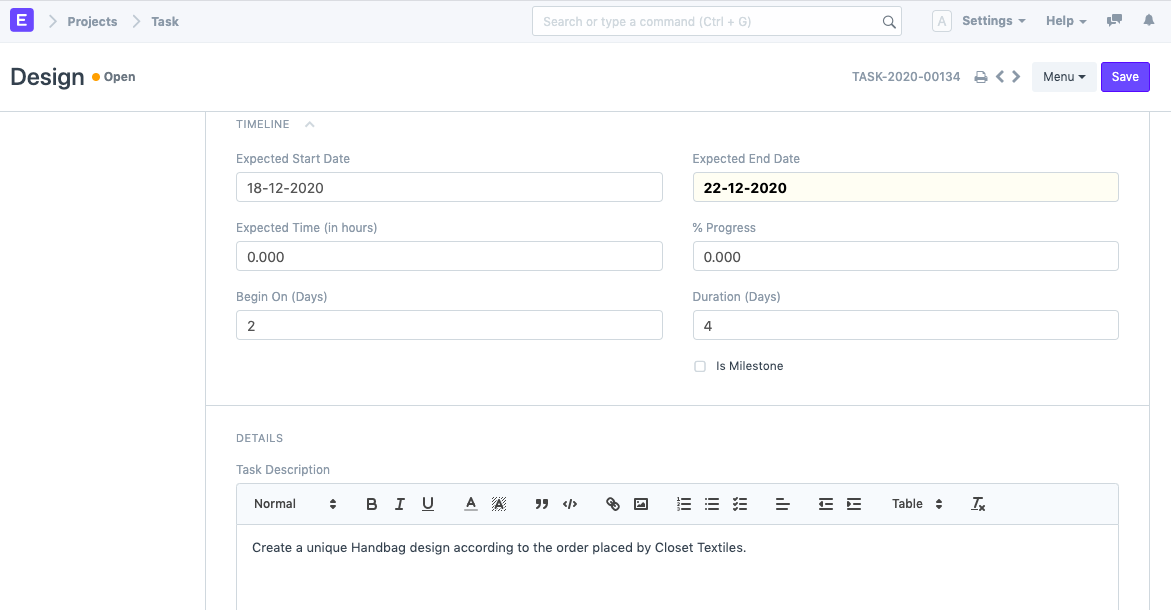
Expected Start Date: This field allows you to specify the day you anticipate the Task to begin.
Estimated Finish Date: This field allows you to choose the day you anticipate this Task to be completed.
Expected Time: You can indicate how many hours you anticipate spending on this assignment.
Progress: A task's progress percentage can be entered.
Begin: If the task is a template task, you can use this field to define the day that the task will start once the project has started.
Duration: If the task is a template task, you can enter a specified number of days in this area to provide the assignment.
Is Milestone: If a specific task is a Milestone in a project, this box can be checked.
Description: Here, you may provide a task description.
Note: For Project Tasks generated using Project Template, the Expected Start Date and Expected End Date are determined based on the values of the Begin and Duration fields. Based on your company's holiday list, this computation excludes weekends.
2.2. Dependencies and Actual Time
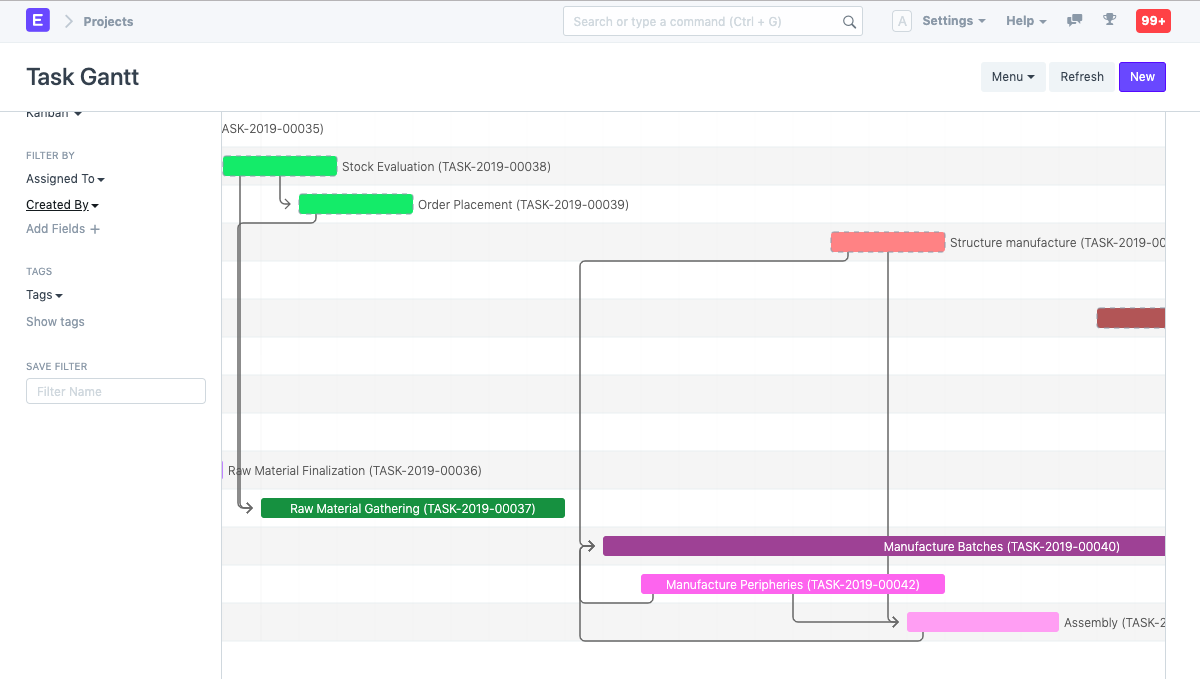
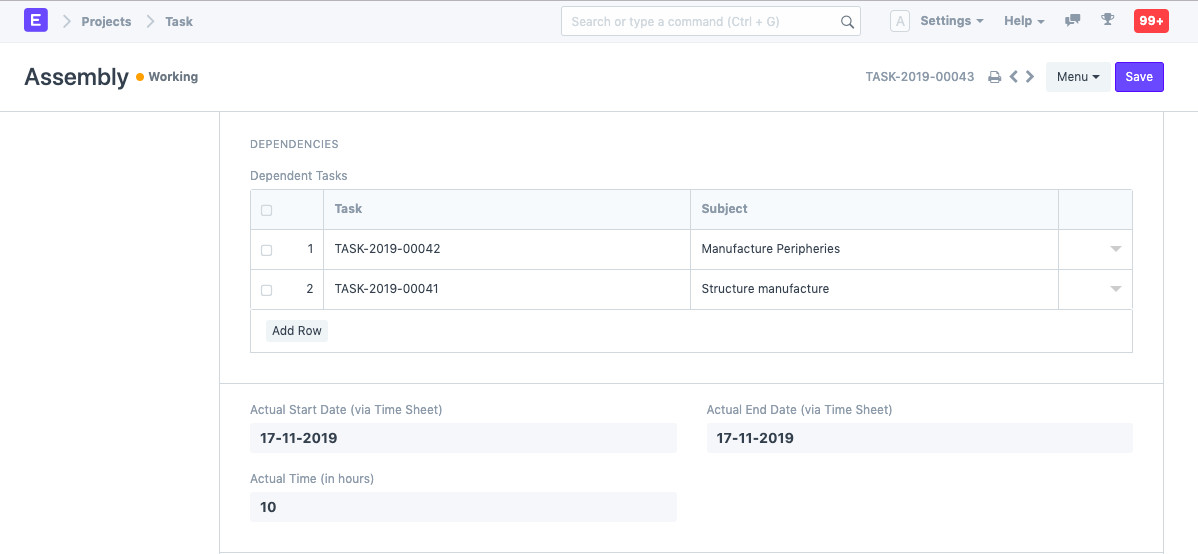
- Dependent Tasks: Dependent tasks signify that one task is dependent on another, and that the former cannot be finished before the latter.
The following is how task dependencies can be seen in Gantt charts.
Actual Start Date: The time and date that the task really began are noted using the timesheets.
Actual End Date: The timesheets used here serve as a record of the precise day and time the task was completed.
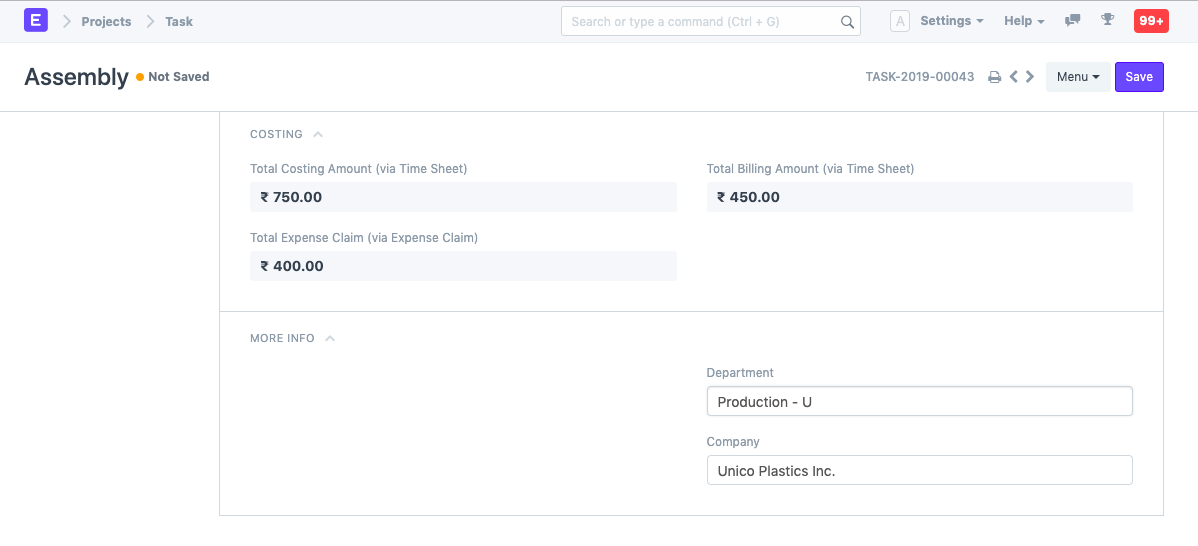
2.3. Costing
Total Costing Amount: The timesheets that the user has submitted while working on this task are used to calculate the Total Costing Amount.
Total Billing Amount: This section of the timesheets records the Total Amount that the Customer will be billed for this work.
Total Expense Claim: This page records and displays the Total Amount of Expenses claimed by an Employee for the accomplishment of this Work.
2.4. More Info
Department: For the task, you can go to the Owner Department. Each duty can be completed by a different department, regardless of the project's owner department.
Company: The Company performing this Work on your behalf is changeable. This can be applied in situations where a corporation is working on a task for a subsidiary, parent company, or sister company.