Batch
Batch
You can group several units of an item using the batch capability in ERPNext and give each group a special value, number, or tag called a Batch No.
Based on the Item, this is done. Every stock transaction must include the batch number if the item is packaged. Both manual and automatic batch number maintenance is possible. Several Items can be moved together to separate Warehouses or have their expiration dates specified using this capability.
Go here: to see the Batch No list.
Home > Stock > Serial No and Batch > Batch
1. Prerequisites
It is suggested that you first create the following things before producing and using a batch:
- Item
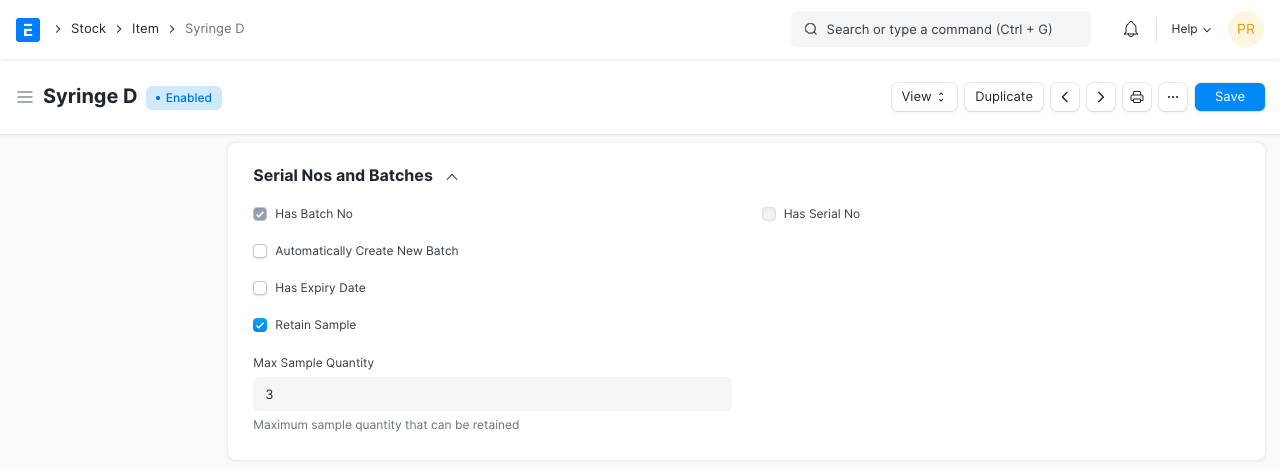
- Enable 'Has Batch No' in the Item master
2. How to create a new Batch
The "Has Batch No" field in the Item master needs to be checked in order to set an item as a batch item. If "Automatically Generate New Batch" was not chosen while creating an item, you will have to manually create batches as you go.
Go to: to create a new Batch No. master for the item.
Click New from the Batch list.
Choose a Batch ID.
Choose the item.
The batch cannot be set or unset after any transaction involving an item has been completed.
Save.
The choice to keep sample stock is made available when batches are enabled for an item.
2.1 Batch Auto Creation
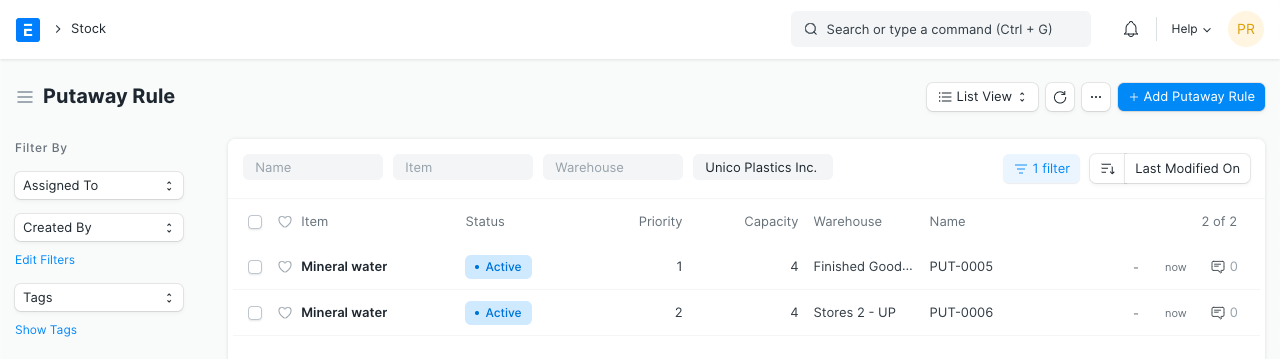
You must check the box next to "Automatically Generate New Batch" in the item master if you want batch creation to happen automatically at the time of purchase receipt:
3. Features
3.1 Splitting and Moving Batches
When you open a batch, the website will display all of the quantities associated with that batch.
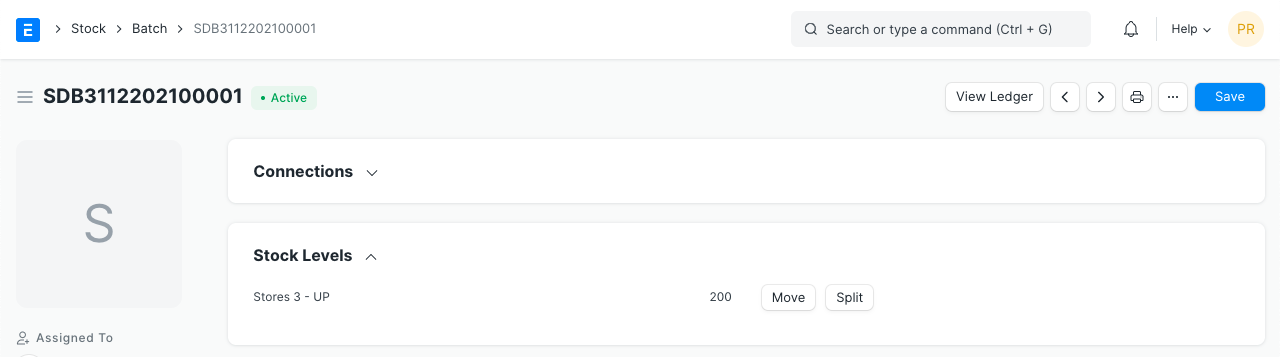
You can click the Move option to transfer the batch between warehouses.
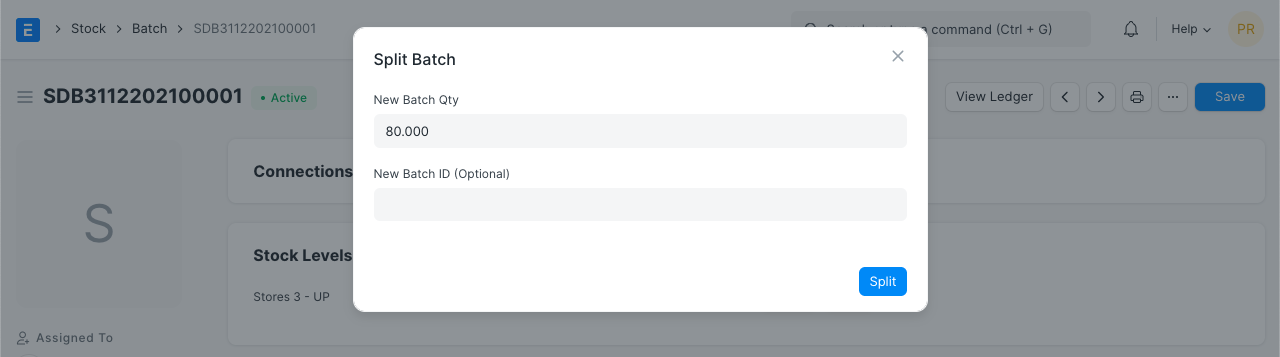
By selecting the Split button, you can also divide the batch into smaller ones. The quantities will be divided throughout the batches, and this will produce a new Batch based on this Batch.
If you specify an expiration date, the batch will display "Not Expired" up until the specified date before changing to "Expired." The Batch will display "Not Set" if a date has not been set.
3.2 Transacting Items with Batches
Prior to creating a Purchase Receipt, a Batch master should be constructed. As a result, each time you produce a Purchase Receipt or Work Order for a batch item, you must first create its Batch No before selecting it in the Purchase order or Stock Entry.
You must include the batch number for each stock transaction (purchase receipt, delivery note, or invoice) involving a batch item.
As a reminder, batch IDs for stock transactions will be filtered based on Item Code, Warehouse, Batch Expiry Date (compared with a Transaction Posting Date), and Actual Qty in Warehouse. Actual Qty filter will not be used when looking for Batch IDs without a value in the Warehouse field.