Delete Submitted Document
You must first cancel a submitted document before deleting it. The processes to remove a submitted document are as follows. These actions are predicated on your having the necessary permissions for the document you want to cancel and remove.
Step 1: Cancel Submitted Document
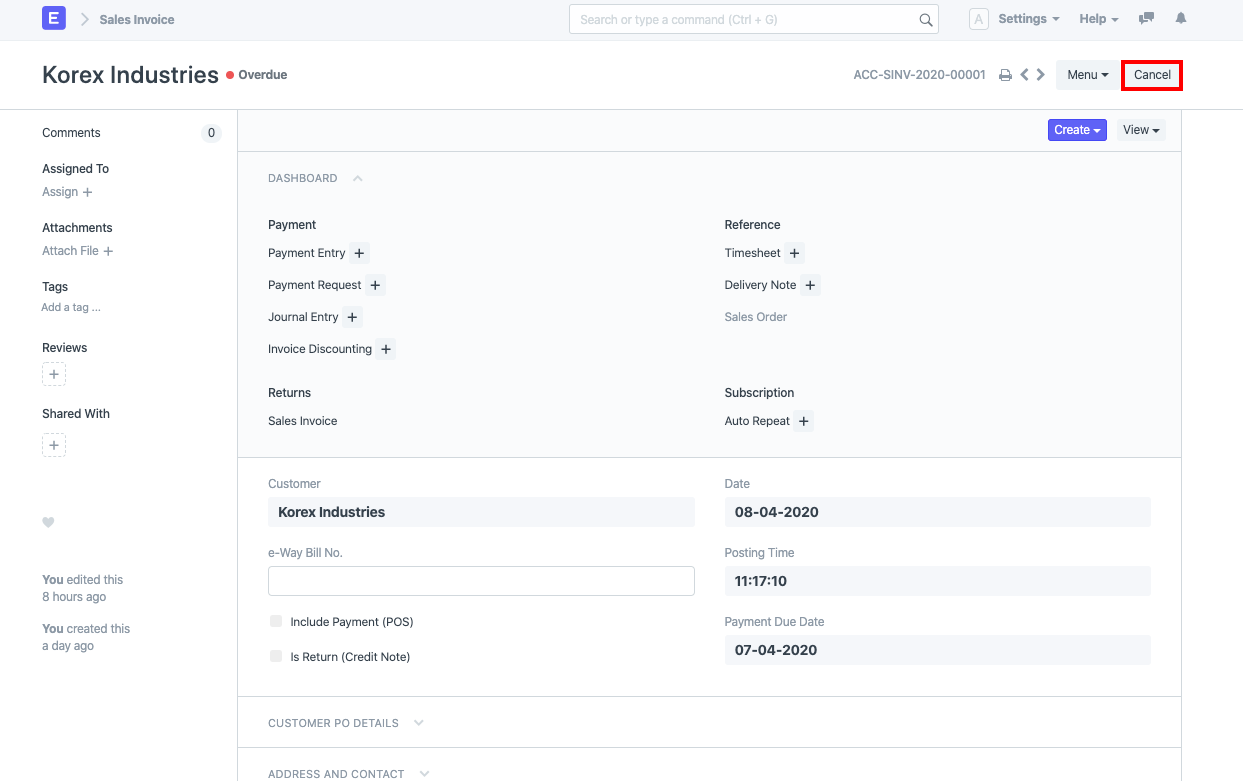
On the submitted document's upper right corner, there is a Cancel button.
Step 2: Delete the document
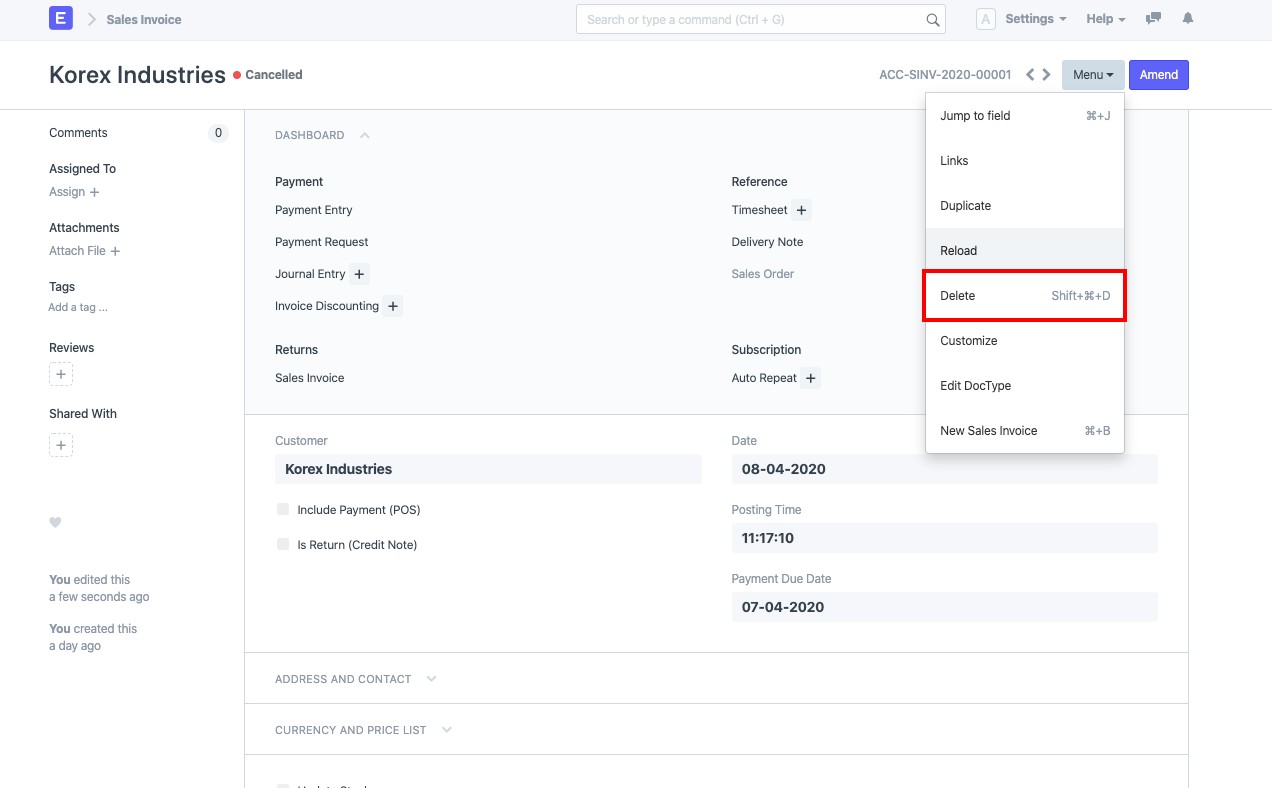
When a submitted document is canceled, the Amend button is made available and the document's status is changed to Cancelled. This indicates that the cancellation of the document was successful.
Now select Menu, then Delete to remove the document. The chosen document will be deleted as a result.
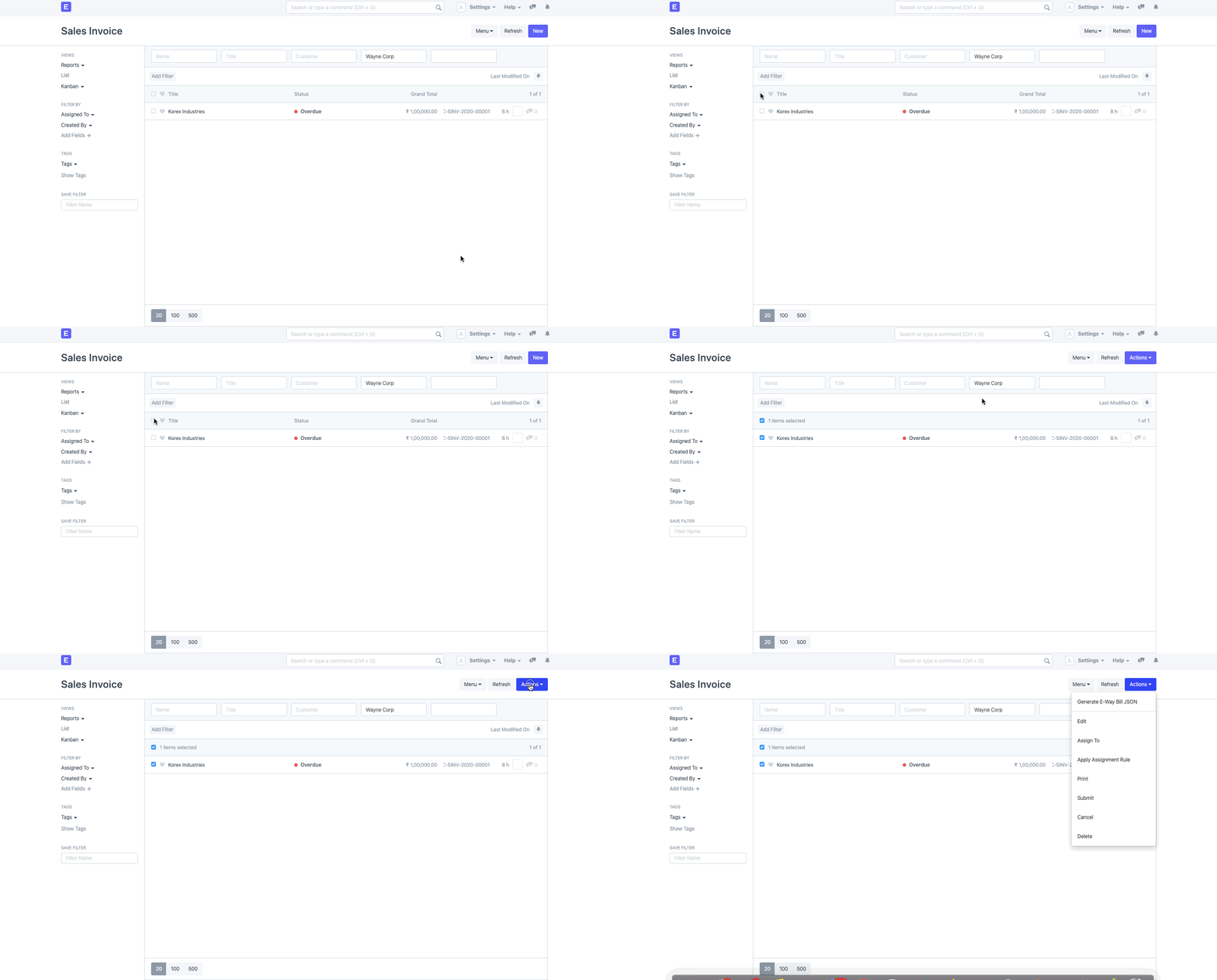
Note: You can select multiple submitted documents in the list view before choosing Cancel and Delete to remove them all at once.
You must cancel the dependent document if your document is linked to another document before attempting to delete the parent document.
Example: If you need to change a sales order for which a delivery note and sales invoice have already been created, you should first cancel those documents. After making changes, save and re-submit the Sales Order.