Notification
You can configure various notifications in your system to remind you of important activities.
The completion date of a Task.
- Expected Delivery Date of a Sales Order.
- Expected Payment Date.
- A reminder of follow up.
- If an Order greater than a particular value is received or sent.
- Expiry notification for a Contract.
- Completion/Status change of a Task.
Go to: to access notification setup.
Home > Settings > Notification
1. Setting Up An Alert
Making a Notification:
- Choose the Document Type for which you want to monitor changes.
Under Send Alert On, specify the events you want to keep an eye on. There are:
- When a brand-new document of the chosen type is created.
- When an electronic document of the chosen type is stored, sent, or canceled.
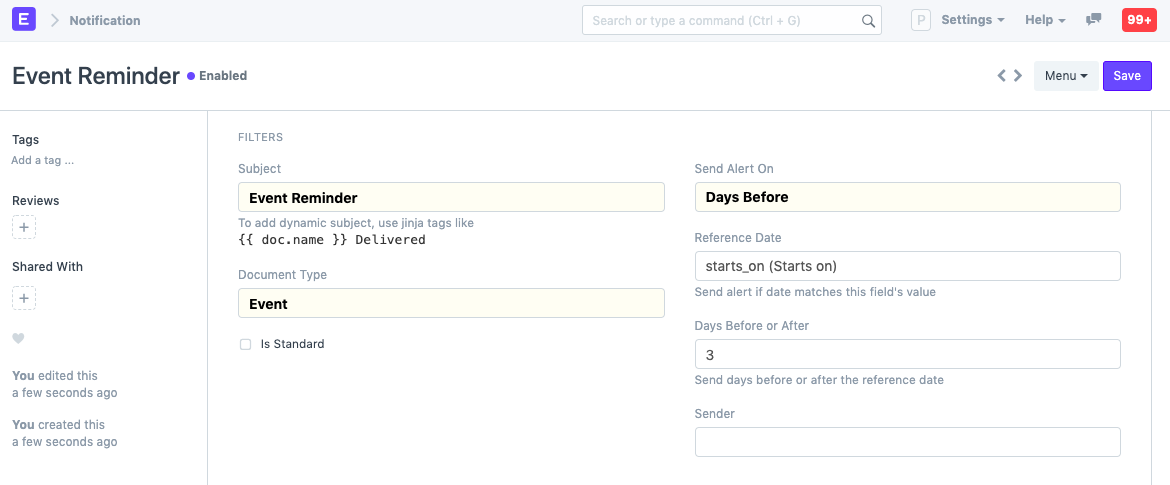
- Days Prior/Days Post: Set this alert off a few days prior or post the Reference Date. Select Days Before or After to set the days. This might serve as a helpful reminder for impending deadlines or for you to follow up on certain leads or quotations.
- Value Change: Any time a specific value of the chosen type changes.
- Method: Notifies the user when a particular method is activated. such as before insert.
- Custom: Select an email account to get a notification from.
Add more conditions if necessary.
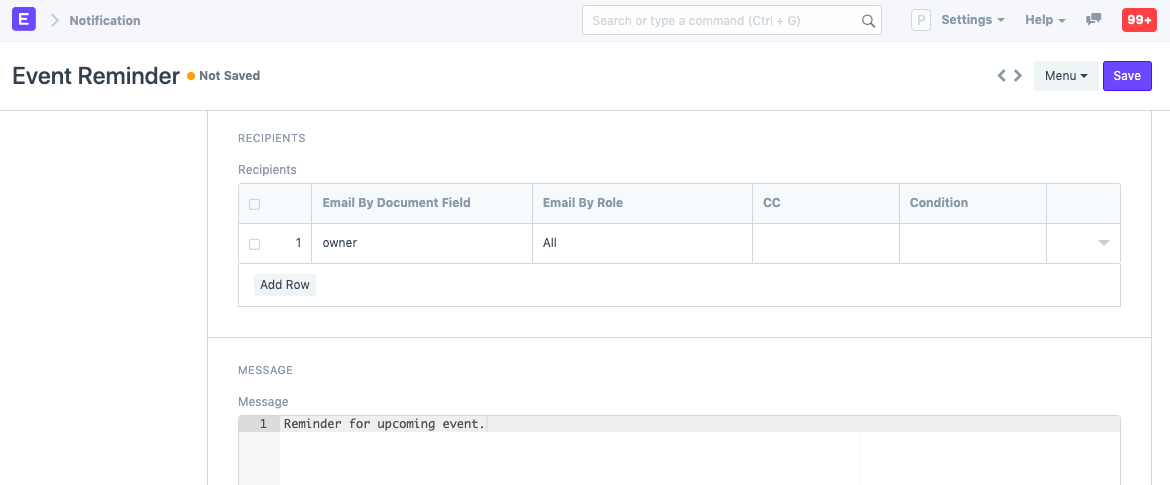
- Decide who will receive this alert. A document's field or a list of predetermined email addresses could serve as the recipient.
- writing the message
- save.
1.1 Setting a Subject
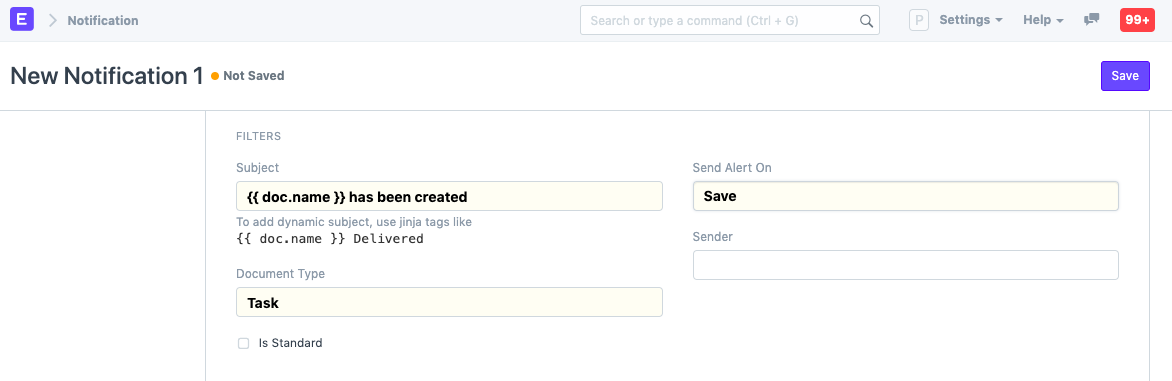
Using doc.[field name], you can get the information about a specific field. To utilize it, you must include it in %raw% and %endraw% in your topic or message. They're referred to as Jinja tags. For instance, you can use % raw% doc.name % endraw% to retrieve a document's name. The email "TASK#### has been created" is sent after a task is saved in the example below.
1.2 Setting Conditions
You can specify conditions for notifications based on the field data in your papers. For instance, you could enter doc.status == "Interested" in the conditions textbox to get an email if a lead has been stored with the status "Interested". By combining them with the operator and or or, you can also create more complicated conditions.
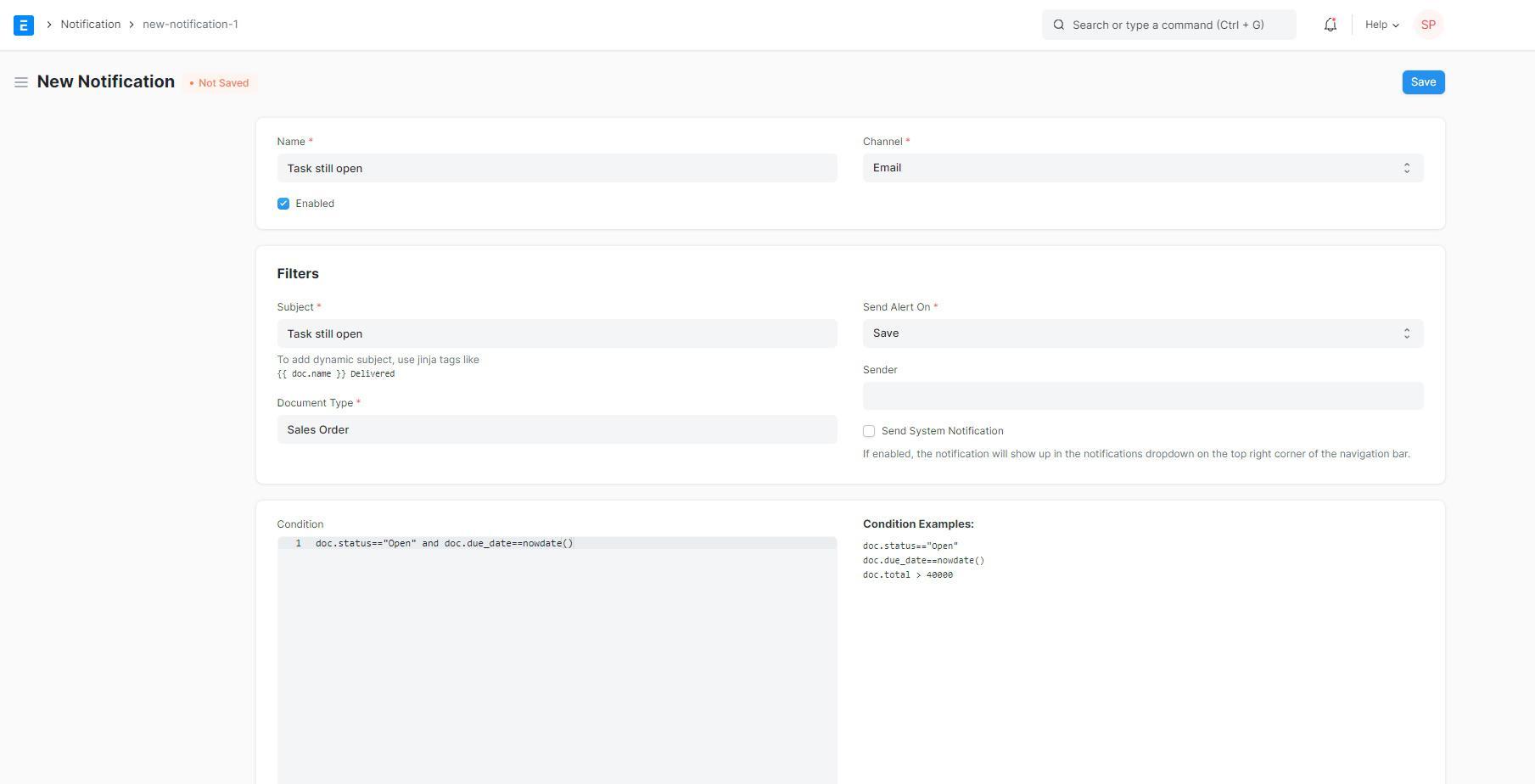
When a task is saved with the state "Open" and its "Expected End Date" is the same date or earlier than when it was saved, the example above will issue a notification.
1.3 Setting a Message
In the message textbox, you can insert both Jinja Tags (% raw% doc.[field name] % endraw%) and HTML tags.
1.4 Setting a Value after the Alert is Set
You can define a custom property (through Customize Form), such as "Notification Issued," and set it after the alert is sent by setting the Set Property After Alert field in some cases to ensure that the notification is not sent more than once.
Then, to prevent emails from being sent more than once, you can use that as a condition in the Condition rules.
1.5 Example
Specifying the Standards
Choosing the Sender and the Recipients
2. Slack Notifications
You may also select "Slack" from the channel options and provide the appropriate Slack Webhook URL if you prefer to have your notifications sent to a specific Slack channel.
2.1 Slack Webhook URL
A URL that leads directly to a Slack channel is known as a Slack webhook URL.
You must construct a new Slack app in order to generate webhook URLs:
- Visit slack-apps.api.slack.com.
Then select "Create a Slack App."
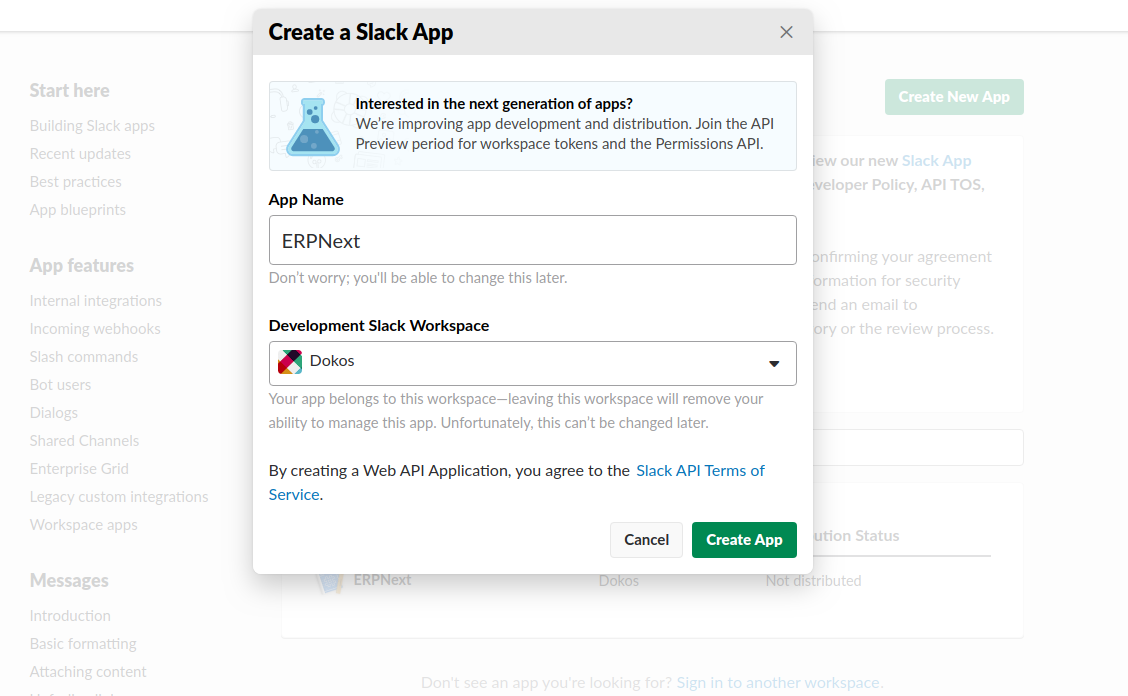
Choose the appropriate workspace and give your app a name. Go to the "Incoming Webhooks" section after creating your app and add a new Webhook to Workspace.
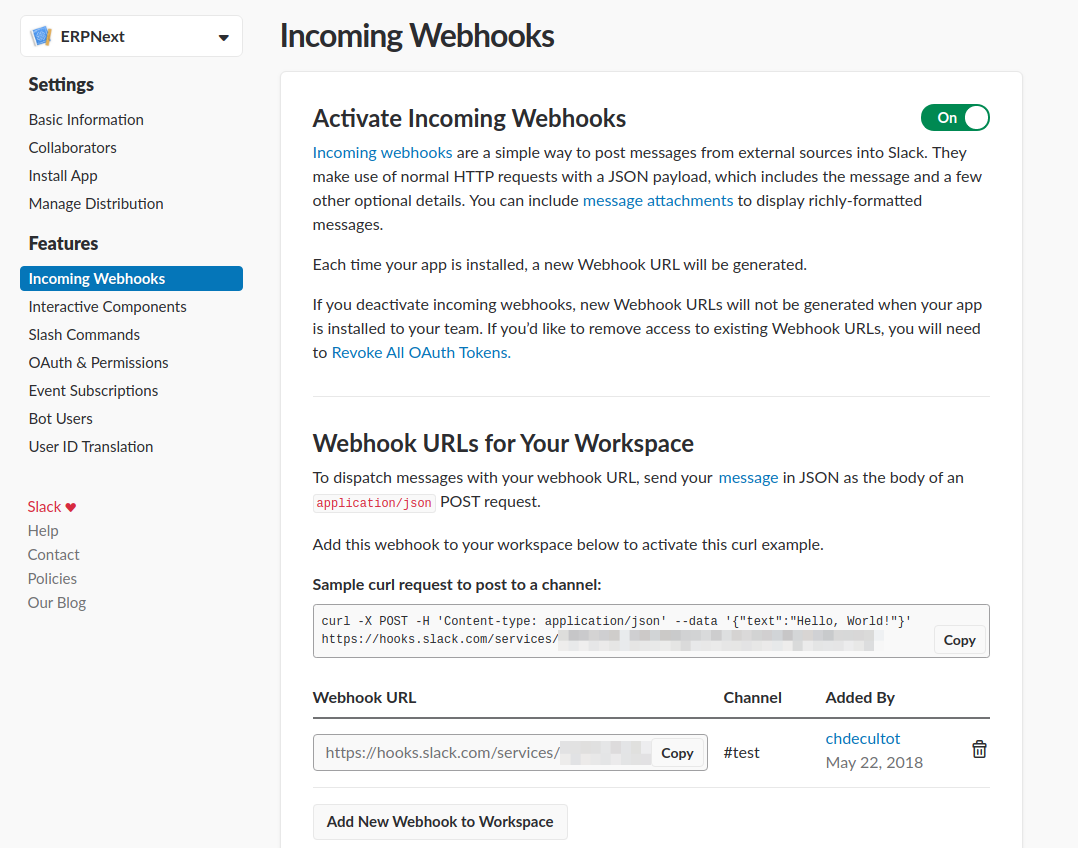
Take the generated link and paste it into Geer ERP's Integrations > Slack Webhook URL to create a new Slack Webhook URL.

In the channel and Slack channel fields of your notification, choose Slack and your Slack channel.
2.2 Message Format
Slack messages cannot be formatted in HTML, unlike emails.
Instead, you can format documents using Markdown: Documentation on Slack
For instance: "% raw%" Order Overdue
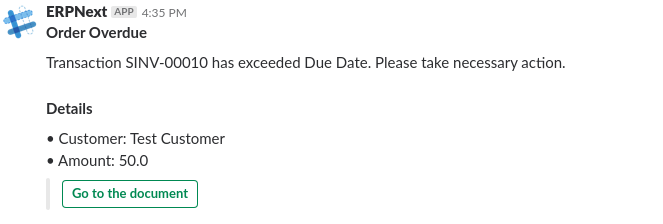
3. System Notifications
System notifications for Assignments, Mentions, Shared Documents, and Energy Points were added in Version 12. These notifications are displayed in the notifications menu on the upper right of the navigation bar.
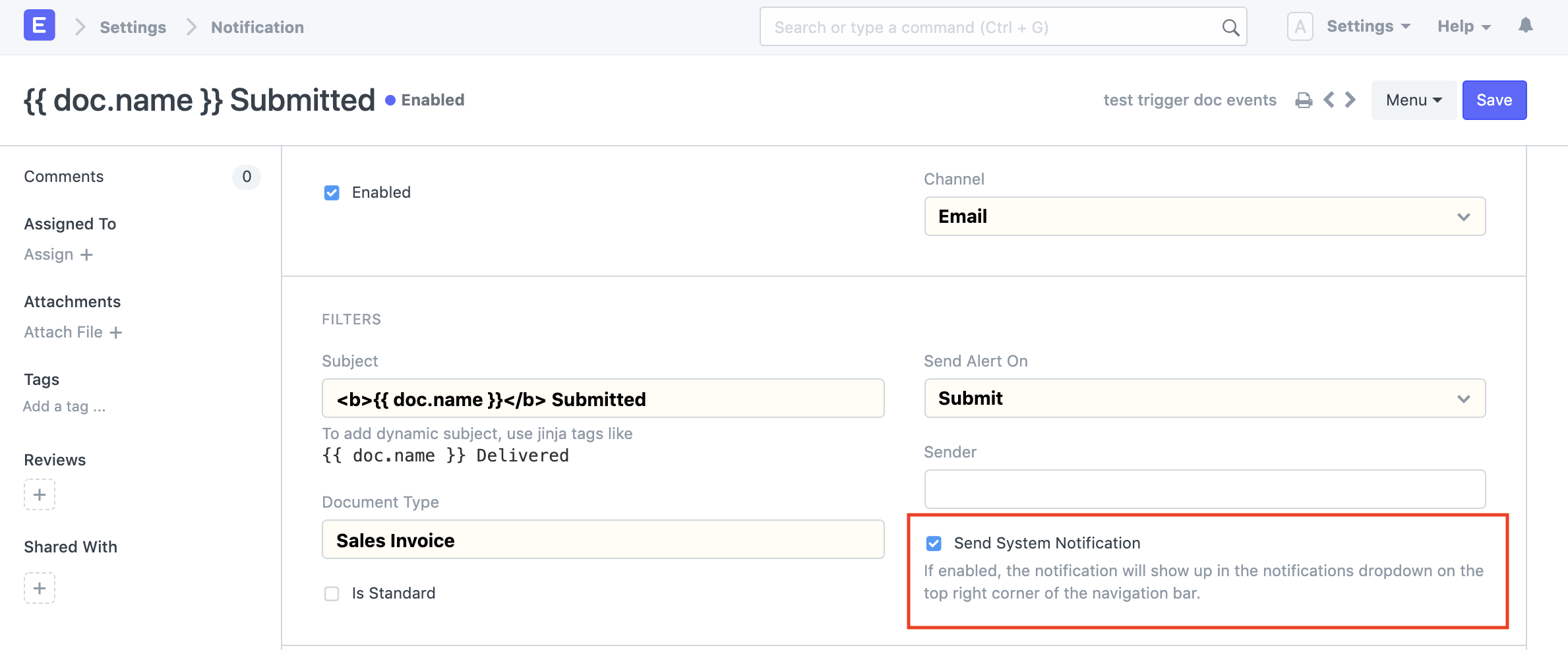
System Notifications is a new channel for sending notifications that we've added in Version 13:
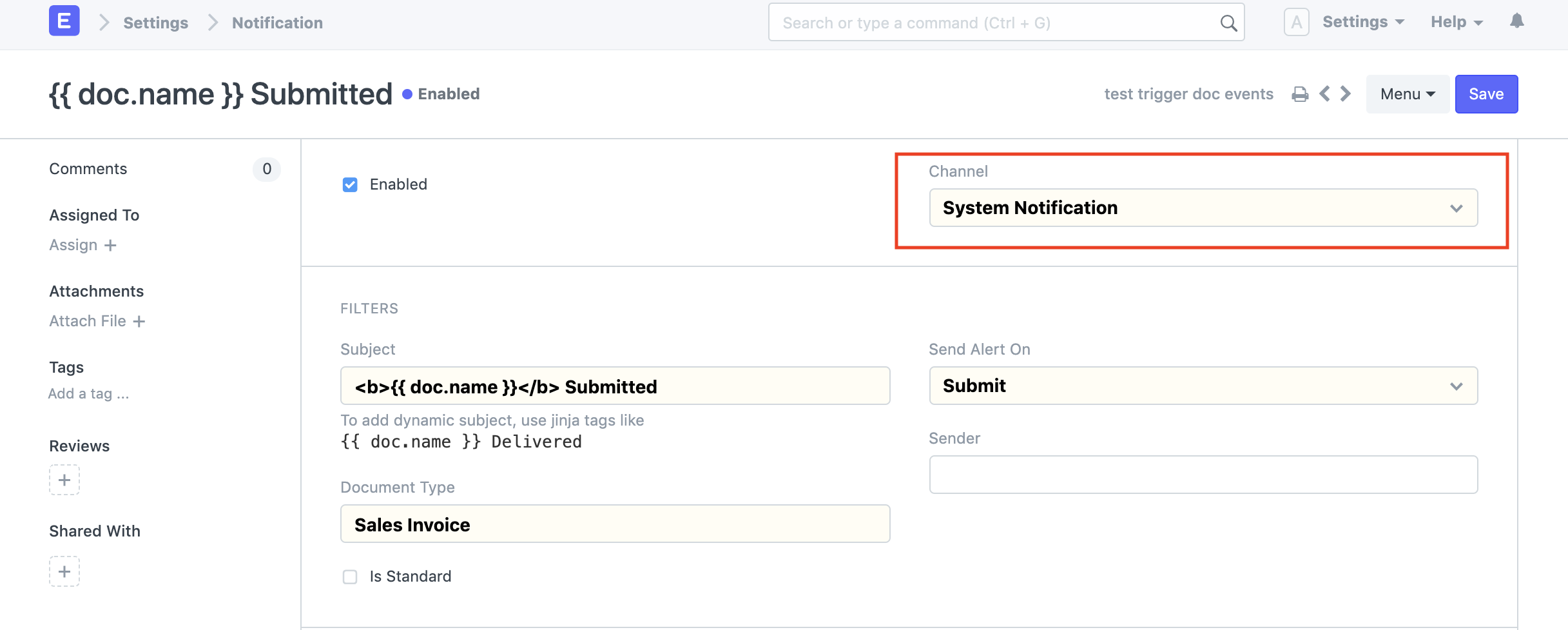
Selecting this channel will prevent emails or Slack notifications from being sent when a notification is triggered.
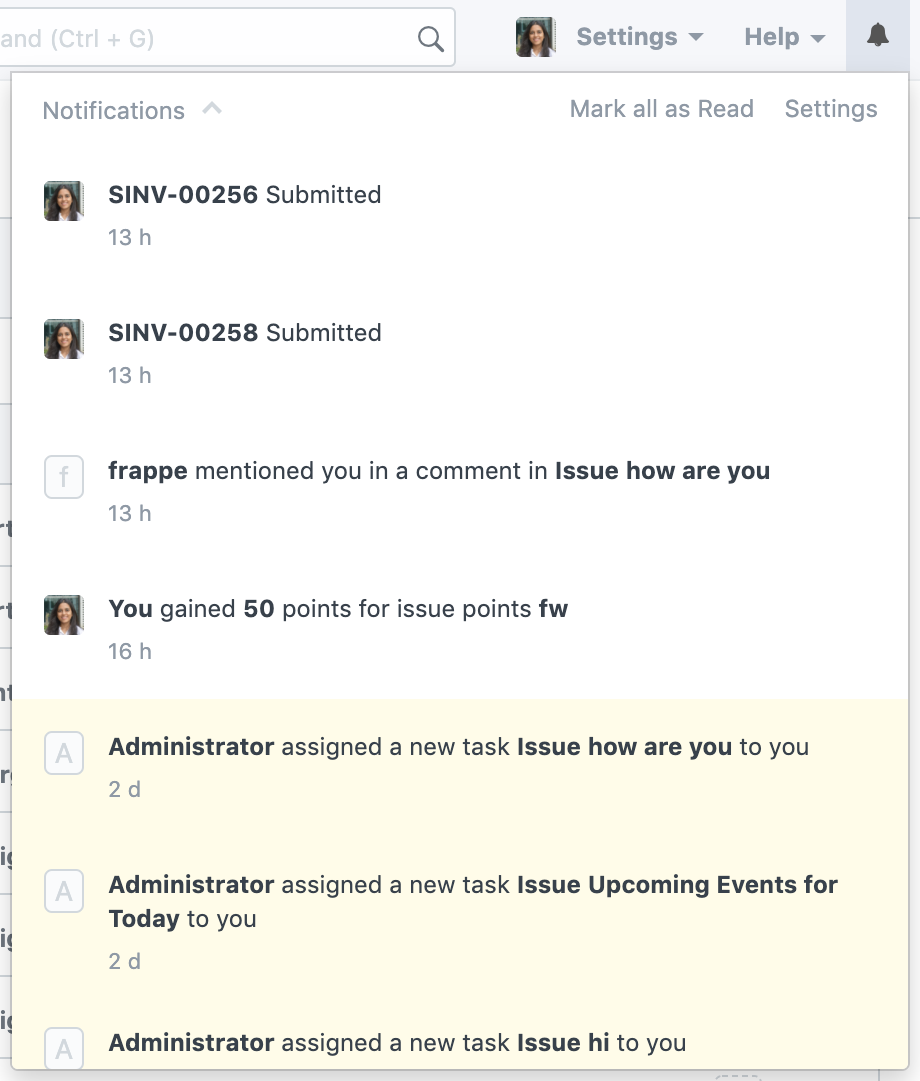
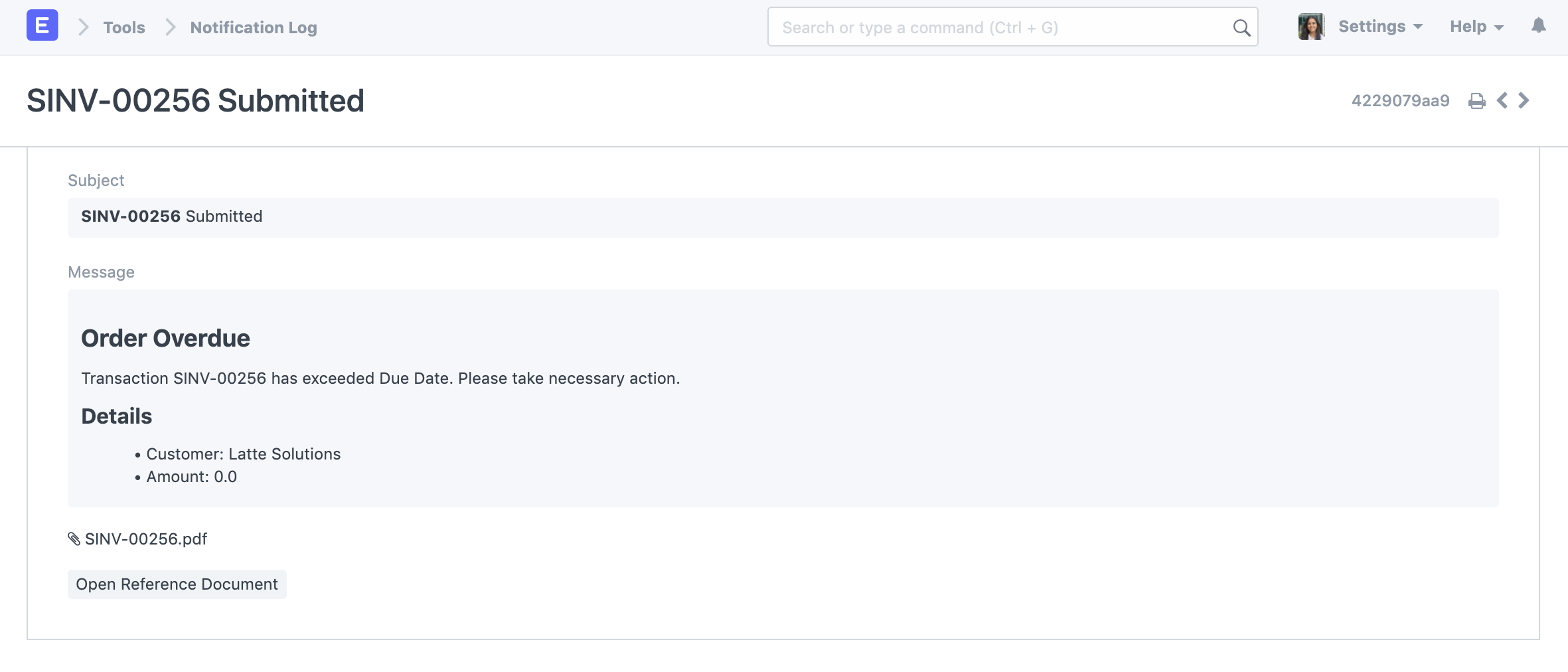
If Attach Print is enabled, clicking the notice takes you to the Notification Log page, which includes the configured subject, message, and any attached files:
The main channel can be set to Email or Slack and this option can be ticked if both System Notifications and Email/Slack notifications are needed.
4. WhatsApp
A new channel for sending warnings has been added in Version 13: WhatsApp:
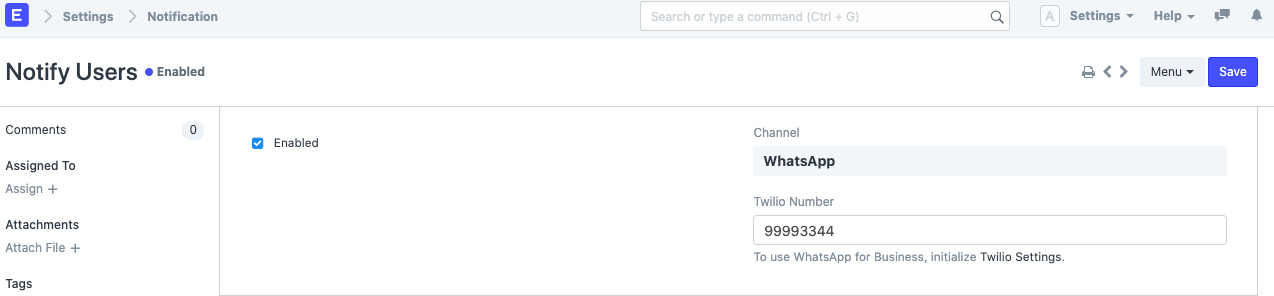
The "WhatsApp" option in the channel choices and the corresponding Twilio Number can also be selected if you choose to have your notifications sent to a WhatsApp number. Twilio Numbers may be added to Frappe's Twilio settings. Only phone numbers with country codes can receive WhatsApp messages.
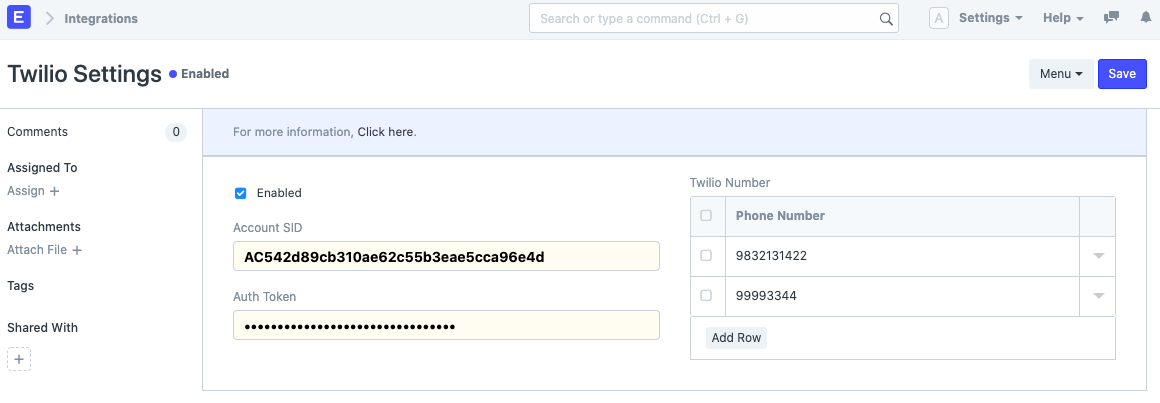
4.1 Twilio Settings
You must first obtain Twilio credentials from your Twilio Account's account settings in order to configure Twilio settings. Only those phone numbers that have been granted access to WhatsApp through your Twilio account can be added.
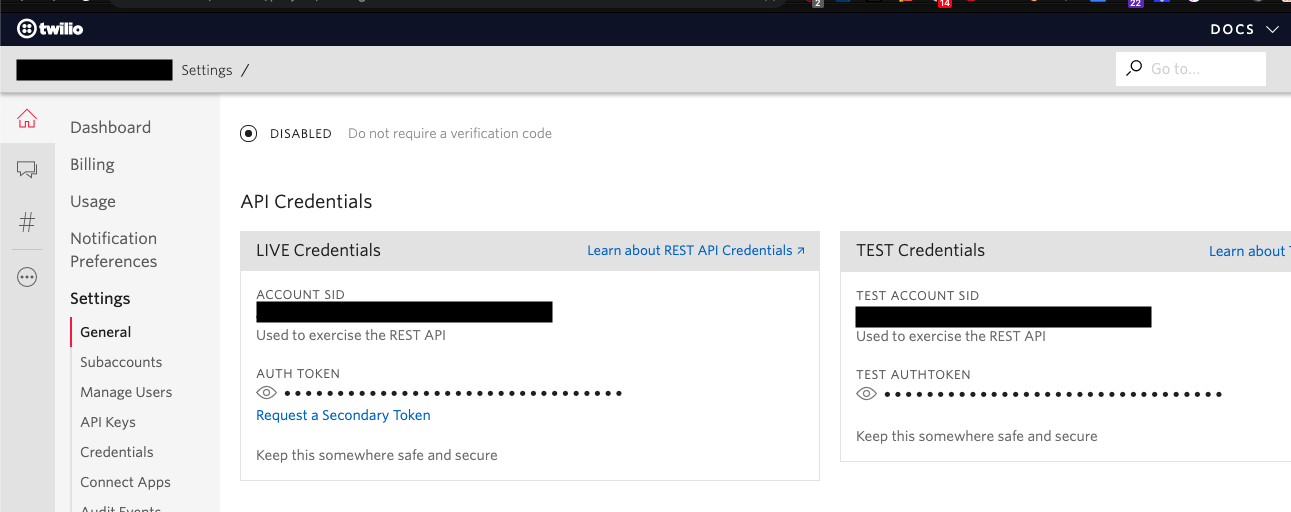
4.2 Message Format
Only message templates that have already been approved by WhatsApp can be sent to your clients. Your Twilio account may be restricted if you don't comply.

5. SMS
We added an extra channel to transmit alerts in Version 13 - SMS:
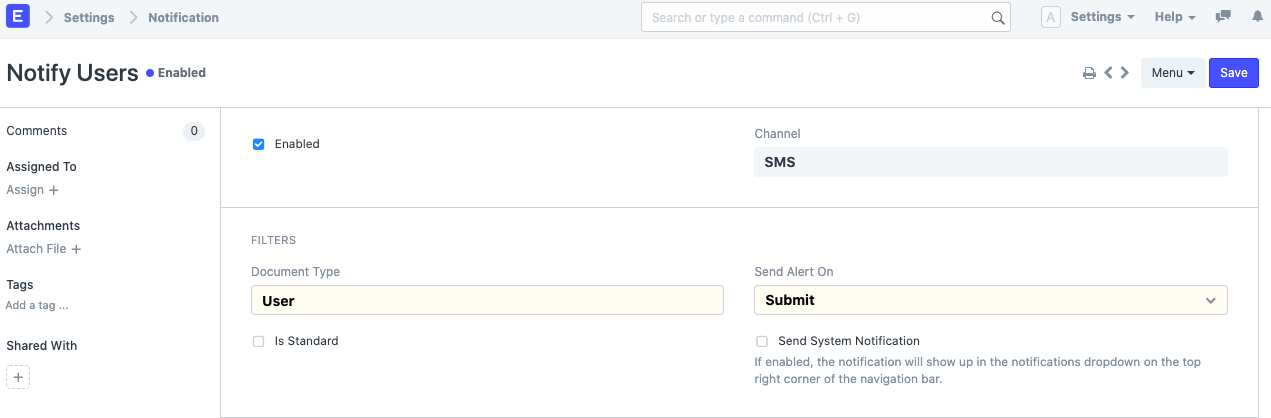
You need to finish configuring SMS Settings before you can use this channel.