Journal Entry
A Journal Entry is an entry made in the general ledger and it indicates the affected accounts.
A journal entry is a flexible transaction that allows the user to choose between debit and credit accounts.
The journal entry is used for all accounting transactions other than sales and purchase transactions. A journal entry is a common accounting transaction where the total of the debits and credits equals the total of the credits and affects numerous accounts. The main ledger is affected by a journal entry.
Bank payments, opening entries, contra entries, excise entries, and other entries can all be made in a journal. For instance, recording operating expenses, direct costs like gas or transportation, incidentals, adjustment entries, and invoice amount adjustments.
Note: From version-13 onwards we have introduced immutable ledger which changes the way cancellation of accounting entries works in Geer ERP. Learn more here.
To access the Journal Entry list, go to:
Home > Accounting > General Ledger > Journal Entry
1. How to create a Journal Entry
- Click New from the Journal Entry list.
- Journal Entry will be the default Entry Type. This entry type serves a variety of purposes. To learn more about entry kinds, go to section 3.
- The Posting Date is editable.
- Expand the table and choose the Account to which you want to debit the amount.
- With the 'From Template' field, the aforementioned information can also be inserted from a Journal Entry Template.
- If the entry is a debtor, choose the Party Type and Party.
- Create a row to credit the amount to.
- Keep in mind that the sum of the debit and credit amounts should equal one at the end.
- Publish and save.
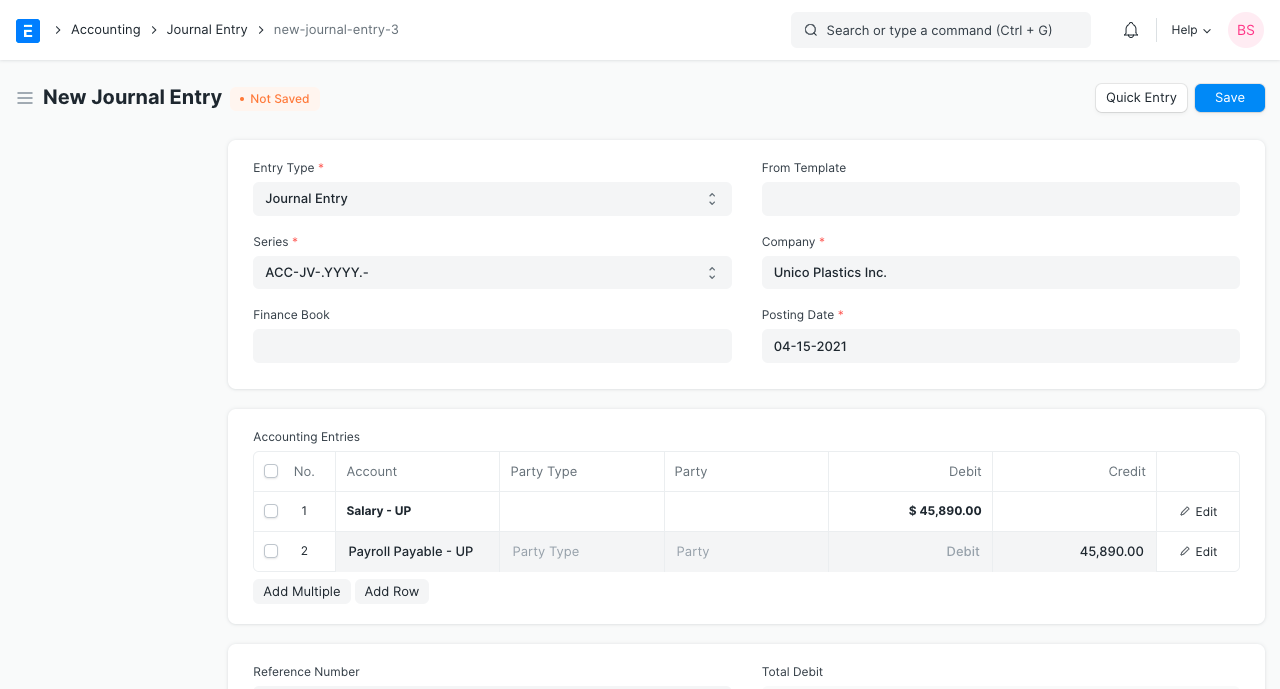
Finance Book: This entry may be posted to a particular Finance Book. This Journal Entry will appear if this area is left empty in all Finance Books. This field will only be available if the checkbox next to "Enable Finance Books" in the Company master's Fixed Asset Defaults section is selected.
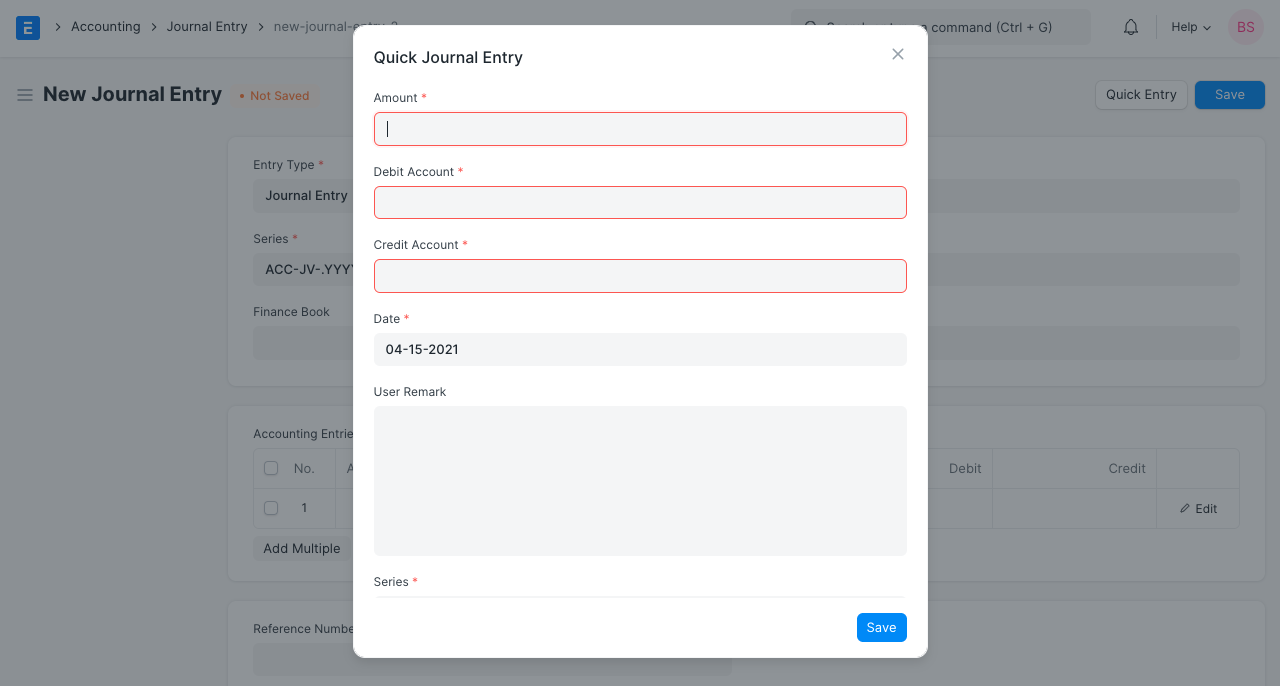
1.1 Quick Entry
A Quick Entry button is present while generating a Journal Entry and is located in the upper right corner. As a result, writing the journal entry is a little simpler. Enter the money, choose the accounts, and then type a comment. By doing this, the chosen information will be added to the table labeled "Accounting Entries."
2. Features
2.1 Accounting Entries
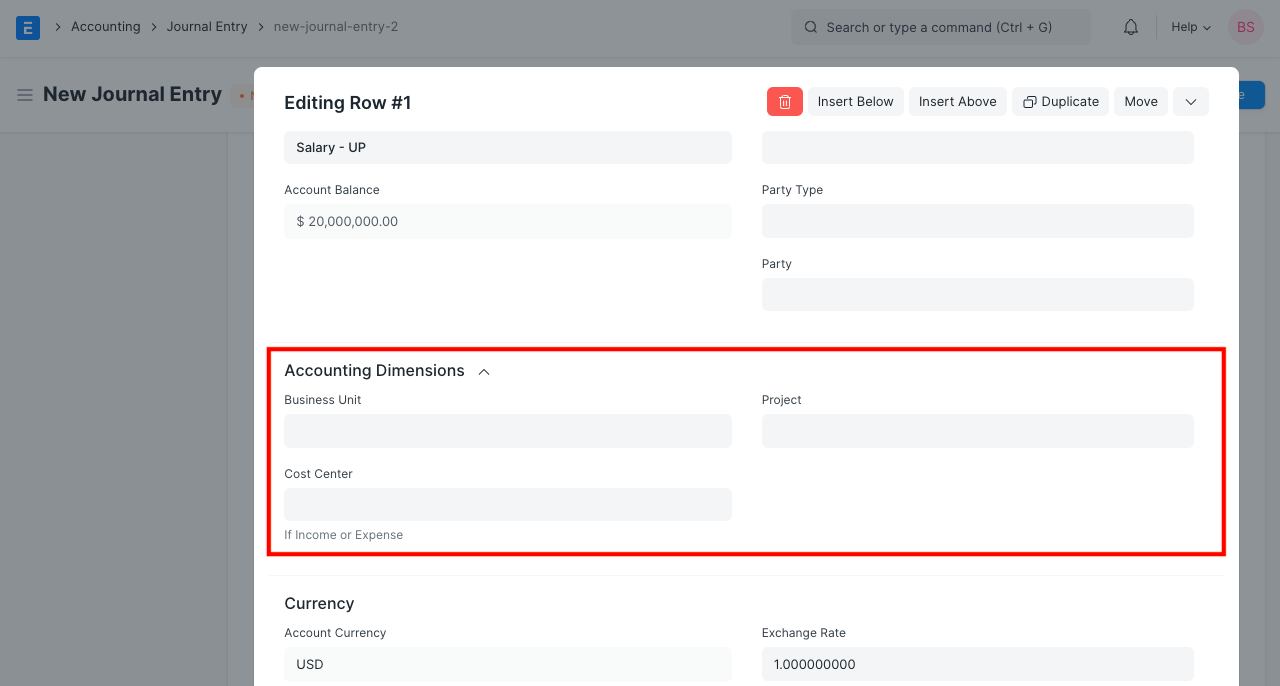
- Accounting Dimensions: To track the costing independently, you can attach a project or cost center here. Please visit this page to learn more.
- Bank Account No: The number connected to any bank accounts you have added will be retrieved.
- Reference Type: It may be mentioned here if this Accounting Entry is connected to another transaction. Choose the Reference Type, then choose the particular document. As an illustration, suppose you're making a journal entry in reference to a certain sales invoice. Link the invoice to this journal entry. That invoice's "outstanding" balance will be impacted.
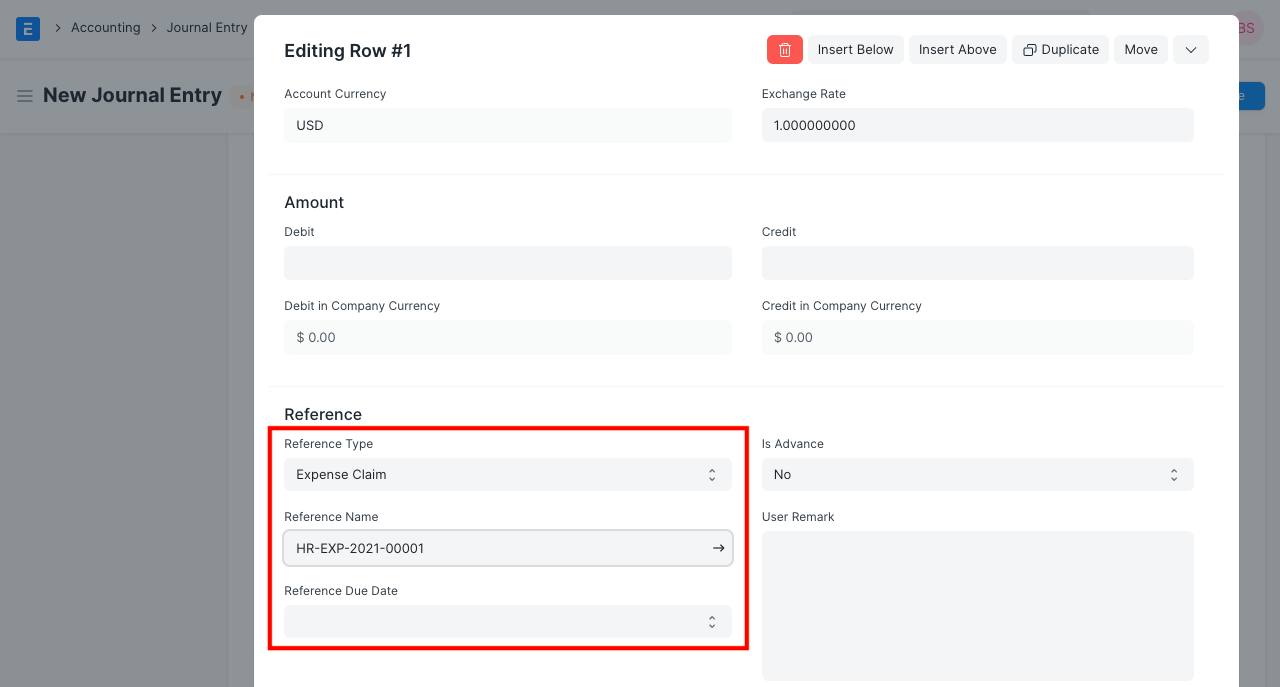
Following are the documents that can be selected in the Journal Entry under Reference Type:
- Sales Invoice
- Purchase Invoice
- Journal Entry
- Sales Order
- Purchase Order
- Expense Claim
- Asset
- Loan
- Payroll Entry
- Employee Advance
- Exchange Rate Revaluation
- Invoice Discounting
- Is Advance: Set this option to "Yes" if the customer is making an advance payment. When a "Reference Type" form has been connected to this Journal Entry, this is helpful. By choosing "Yes," the transaction chosen in the "Reference Name" column will be linked to this Journal Entry. Visit the Advance Payment Entry page to learn more.
- User Remark: In this box, you are free to make any extra comments regarding the entry.
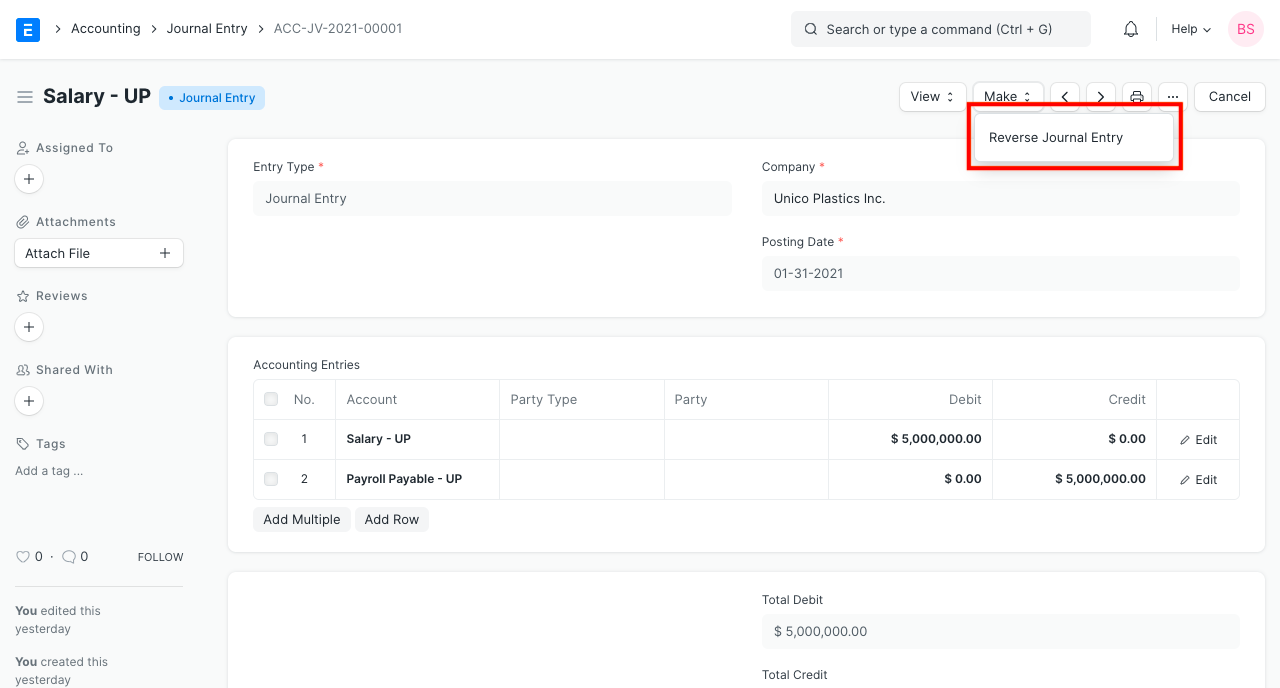
2.2 Reverse Journal Entry
There is a specific button to go back and edit any submitted Journal Entry. The system creates a new Journal Entry by reversing the debit and credit amounts against the appropriate accounts when you click the "Reverse Journal Entry" button.
2.3 Difference Entry
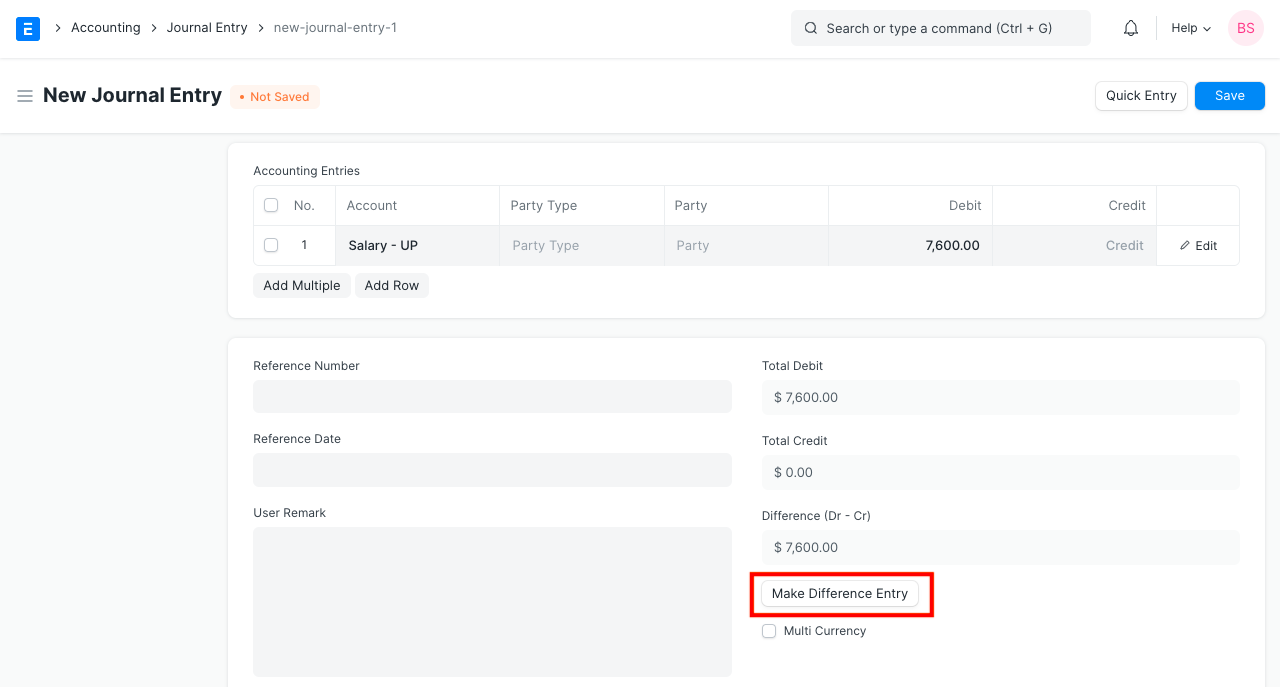
The difference that remains after adding up all of the debit and credit amounts is known as the "Difference."
The total debit and total credit must equal one another according to the double entry accounting system.
If the journal entry is to be "Submitted," its value should be zero. When you click "Make Difference Entry," the system will automatically add a new row with the amount needed to make the total equal zero if this number is not zero. Choose the account to debit or credit, then move on.
2.4 Referencing
Both a Reference Date and a Reference Number can be manually input. When entering a reference number, a "Remark," such as the following, will appear:
Note: supplier
Reference #2321 dated 30-09-2019 ₹ 1,000.00 against Sales Invoice ACC-SINV-2019-00064
If the bill was recorded offline and not in the Geer ERP system, the following fields in the Reference section can be filled in manually. This is merely being used as a reference.
- Bill No
- Bill Date
- Due Date
2.5 Multi Currency entries
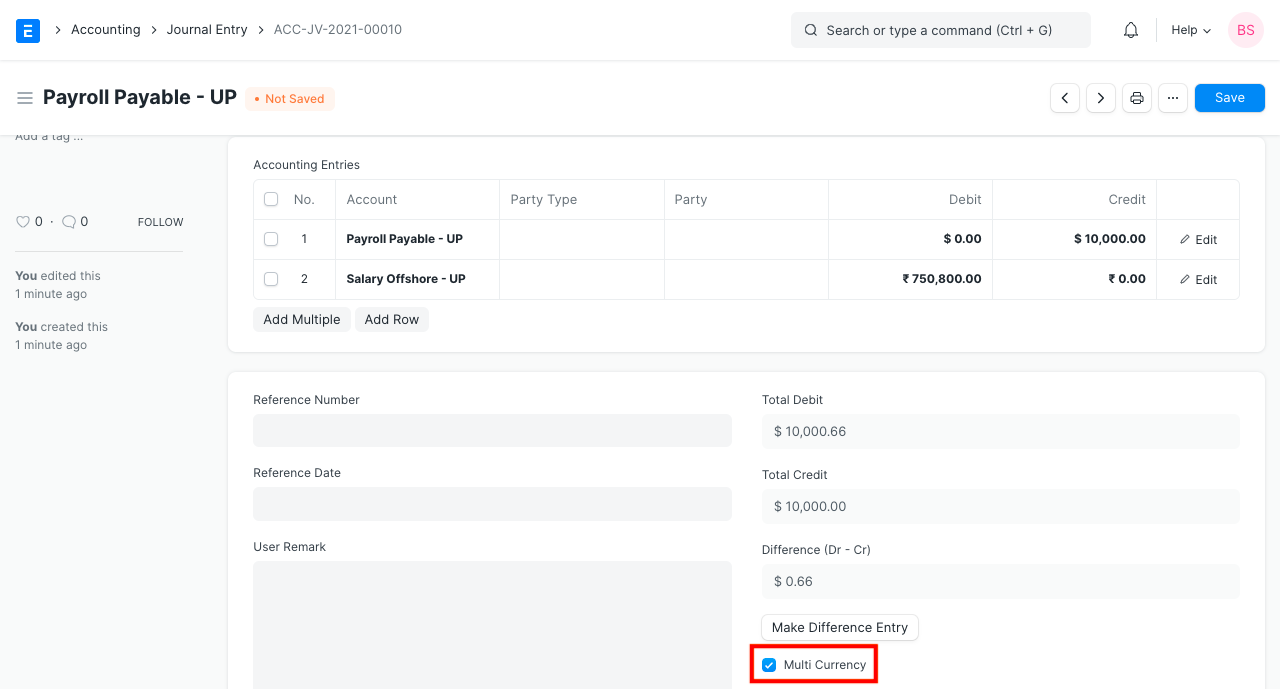
Tick the "Multi Currency" checkbox if the accounts you've chosen are in various currencies. You won't be able to choose any foreign currencies for the Journal Entry if this checkbox is not checked. This will display the various currencies and retrieve the "Exchange Rate." Visit the Multi Currency Accounting website to learn more.
2.6 Journal Entry Template
From Template field: When a choice is made, information from a Journal Entry Template will be loaded.
It will fetch and add the following details to the entry:
- Entry Type
- Company
- Series
- Accounts in Accounting Entries
- Is Opening
To learn more go to the Journal Entry Template page.
2.7 Print Settings
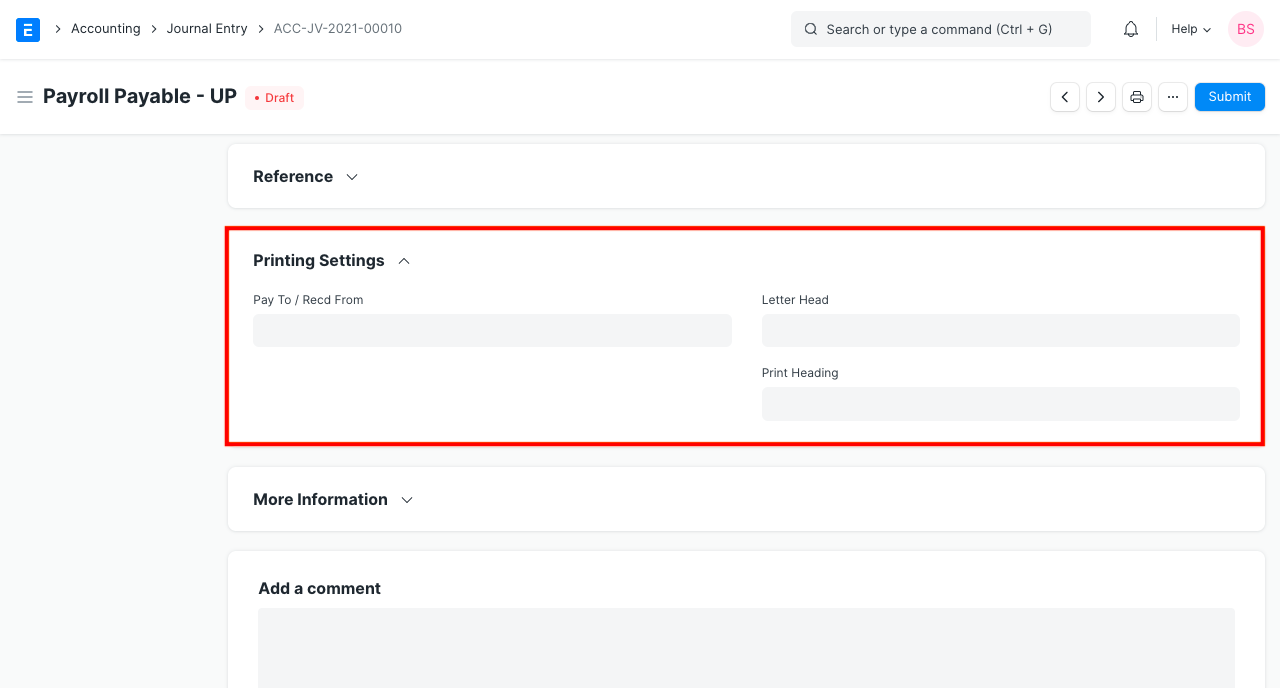
Pay To / Recd From: This name will appear on the sales invoice that you enter. Checks can be printed with this. Select the Cheque Printing Format in the Journal Entry's print view.
Letterhead
Your journal entry can be printed on letterhead from your business. Find out more here.
Print Headings
For publishing purposes, journal entries can sometimes have distinct titles. This can be accomplished by choosing a Print Heading. Go to: to create new Print Headings.
Home > Printing > Print Heading in the Settings
Read Print Headings for more information.
2.7 More Information
- Mode of Payment: Whether a wire transfer, bank draft, credit card, check, or cash was used to make the payment. It is also possible to develop new payment methods. When the Mode of Payment is chosen, if a Bank Account is set in the Mode of Payment, it will be fetched here.
- Is Opening: This field will be set to "Yes" if the journal entry is of the "Opening Entry" type. Visit the Opening Balance page for further information.
- From Template: When a template is chosen, the 'Accounting Entries' table is initially emptied before the template's accounts are loaded. After that, you can add more account entries.
3. Journal Entry Types
Let's explore at a few of the typical accounting transactions that may be performed using Geer ERP's Journal Entry feature.
3.1 Journal Entry
This entry type serves a variety of functions and is general-purpose. Let's look at a few instances.
Expenses (non accruing)
Often, an item can be promptly booked against an expense Account after payment rather than having to be accrued first. a phone bill or a travel allowance are two examples. In place of your telephone provider, you can directly debit Telephone Expense and credit your bank upon payment.
- Debit: Expense Account (like Telephone expense).
- Credit: Bank or Cash Account.
Crediting Salaries
Journal Entry type is used to credit employee wages. In this instance
- Debit: The salary components.
- Credit: The bank account.
3.2 Inter Company Journal Entry
This option can be used to create an inter company journal entry if a transaction takes place between a parent and child firm, sister companies, or two businesses that are part of the same group.
Visit the Inter Company Journal Entry page for further information.
3.3 Bank Entry
When sending or receiving payments through a bank account, use this kind. Using the Company's bank account, for instance, to pay for entertainment costs, etc.
3.4 Cash Entry
Similar to "Bank Entry," but with payment made through a Cash Account.
3.5 Credit Card Entry
This kind of entry makes it simple to recognize all credit card entries.
3.6 Debit Note
When returning goods or items, a client (your Company) sends a document to a supplier (your Supplier).
A purchase invoice can also be used to create a debit note.
When a business returns items, a "Debit Note" is created for the supplier against a purchase invoice or accepted as a credit note from the supplier. The Company can either accept payment from the Supplier following the issuance of a Debit Note or change the amount in another invoice.
- Debit: Supplier Account.
- Credit: Purchase Return Account.
To know more, visit this page.
3.7 Credit Note
When a consumer returns products or items, a supplier will send them this paperwork.
When a corporation wants to alter a payment for returned items, a "Credit Note" is created for a customer against a sales invoice. When a credit note is issued, the seller has two options: they can either pay the consumer directly or make an adjustment to another invoice.
- Debit: Sales Return Account.
- Credit: Customer Account.
To know more, visit this page.
A debit/credit note is usually issued for the value of the goods returned or lesser.
3.8 Contra Entry
When the transaction is recorded within the same Company of types, a Contra Entry is made:
- Cash to Cash
- Bank to Bank
- Cash to Bank
- Bank to Cash
This is used to document when money is taken out of or deposited into a bank account. When this entry is utilized, the money stays in the business until it is once more used to make a purchase.
3.9 Excise Entry
When a Company purchases products from a Supplier, the Company reimburses the Supplier for the applicable excise duty. Additionally, an organization gets excise duty when it sells these products to customers. The company will subtract the excise duty that must be paid and deposit the remaining funds in the government's account.
When a Company buys goods with Excise duty:
- Debit: Purchase Account, Excise Duty Account.
- Credit: Supplier Account.
When a business sells products subject to excise duty:
- Debit: Customer Account.
- Credit: Sales Account, Excise Duty Account.
Note: Applicable in India, might not be applicable for your country. Please check your country regulations.
3.10 Write Offs or Bad Debts
If you are writing off an invoice as a bad debt, you can produce a Journal Voucher that is identical to a payment but debits an expense account named Bad Debts rather than your bank.
- Debit: Bad Debts Written Off
- Credit: Customer
Note: There may be regulations in your country before you can write off bad debts.
3.11 Opening Entry
Any time of the year, this entry is helpful when switching from another piece of software to Geer ERP. This entry type can be used to record your unpaid debts, unrealized gains, and other items in Geer ERP. When type is chosen, the balance sheet accounts are retrieved.
3.12 Depreciation
Depreciation is the process of writing off a portion of the asset's value as an expense. For instance, if you plan to use a computer for five years, you can spread out the cost over that time and record a journal entry at the end of each year to deduct a specific amount from the value of the machine.
- Debit: Depreciation (Expense).
- Credit: Asset (the Account under which you had booked the asset to be depreciated).
To know more, visit the Asset Depreciation page.
Note: There may be regulations in your country that define by how much amount you can depreciate a class of Assets.
3.13 Exchange Rate Revaluation
A Journal Entry of type "Exchange Rate Revaluation" is helpful in this circumstance if your Chart of Accounts has accounts in several currencies. The Exchange Rate Revaluation form should be used to produce this entry. Visit the Exchange Rate Revaluation website for further information.