Budgeting
Budgeting
Budgeting is a financial strategy that aids in reining in business spending.
You can create and manage budgets in ERPNext for a Cost Center or a Project. This helps you manage your spending. Version 12 now allows you to build distinct Accounting Dimensions to categorize transactions with various information.
For instance, if you are engaged in online sales, you can use ERPNext to prevent or alert you if you go over your budget for search marketing.
Budgets are also excellent for planning. Typically, when creating preparations for the upcoming fiscal year, you would set your spending based on a target revenue. By creating a budget, you can prevent your spending from ever getting out of control.
Go to: to view the Budget list.
Home > Accounting > Cost Center and Budgeting > Budget
1. How to Create a new Budget
1.Go to the Budget list and click on New.
2.Select what to budget against, Cost Center, Project, or an Accounting Dimensions.
3.In the accounts table, select an income/expense account for which a budget is to be set. Let's set a budget for telephone expenses for the year.
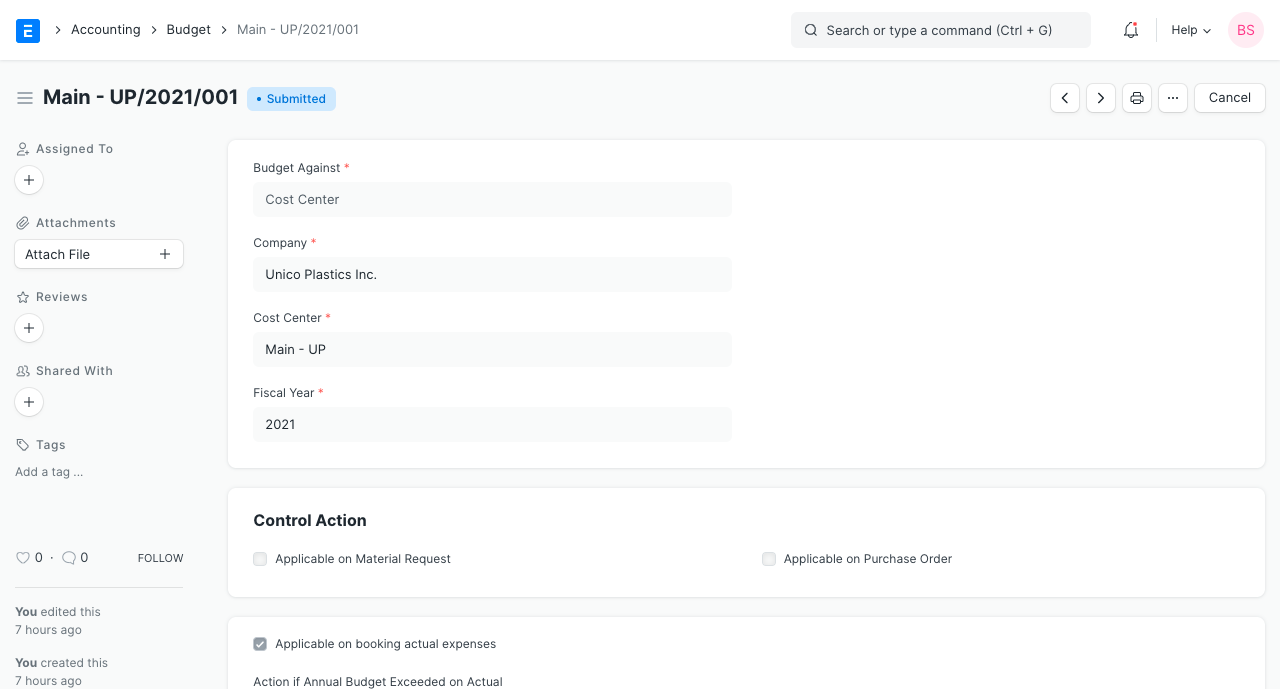
4.Enter the budget amount for that account.
5.Save and Submit.
2. Features
2.1 Monthly Distribution
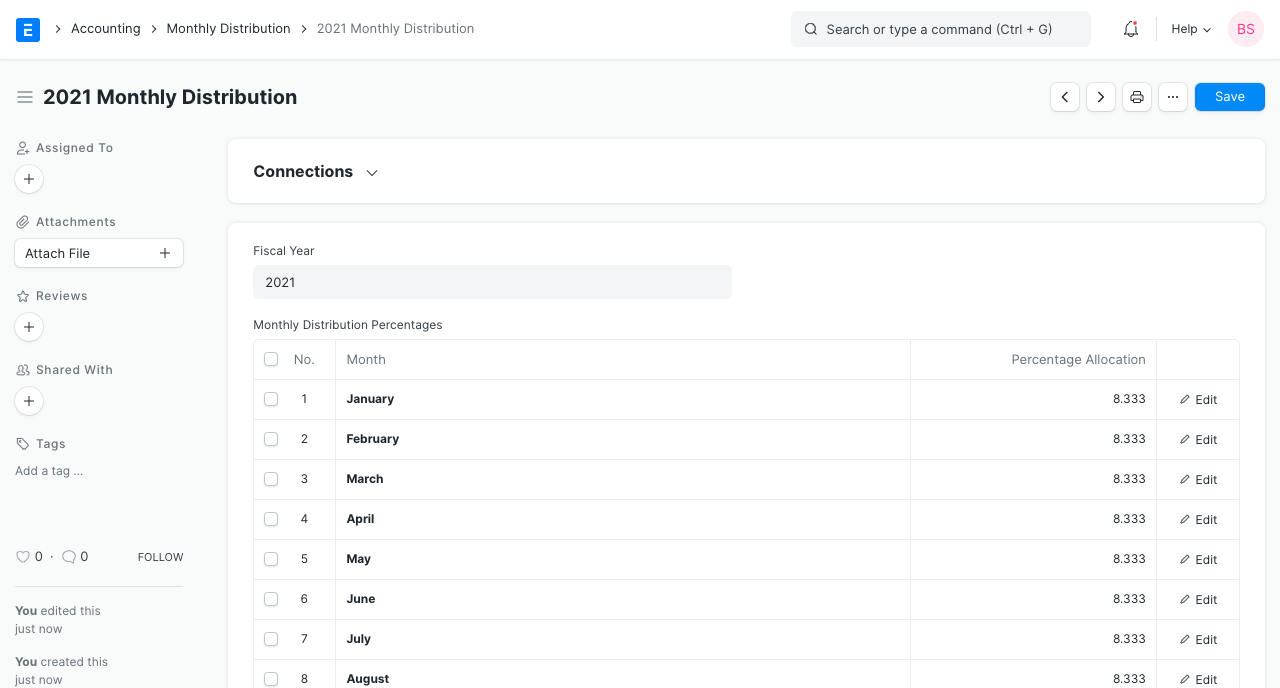
Moreover, you can create a Monthly Distribution record to divide the budget across the months. In the absence of a monthly distribution setting, ERPNext will determine the budget annually or equally for each month.
2.2 Control Actions (Alerts)
Control activities may start to take effect when:
1.There is a Material Request being made.
2.There is a purchase order being sent.
3.whenever a real expense is recorded (through a journal entry or a purchase invoice).
The Budget allows you to define a control action based on actual spending, purchase orders, or material requests. You can also set a control action for monthly or annual budgets.
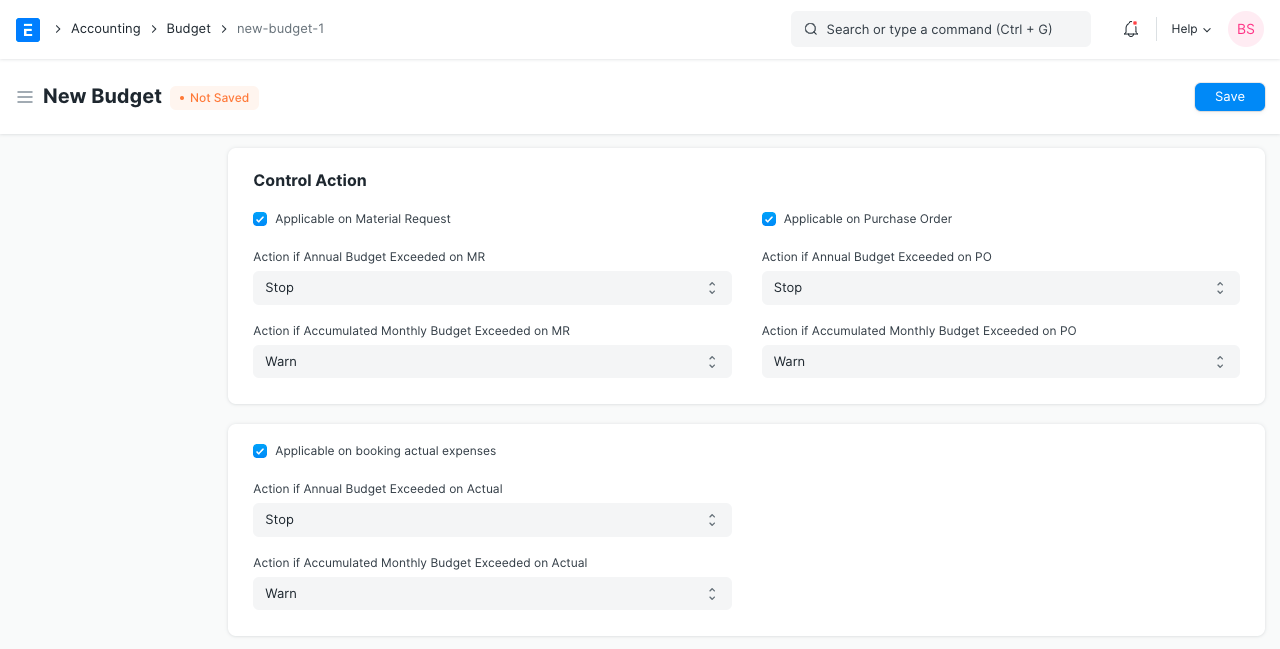
The three different kinds of control actions.
1.Users won't be able to submit the transaction because of this.
2.Warn: Although a warning message is displayed, the user is still able to submit the transaction.
3.Ignore: This will not display an error notice or stop the user from submitting transactions.
Actions for monthly and annual budgets can be established separately. You will see a warning if you go over budget:
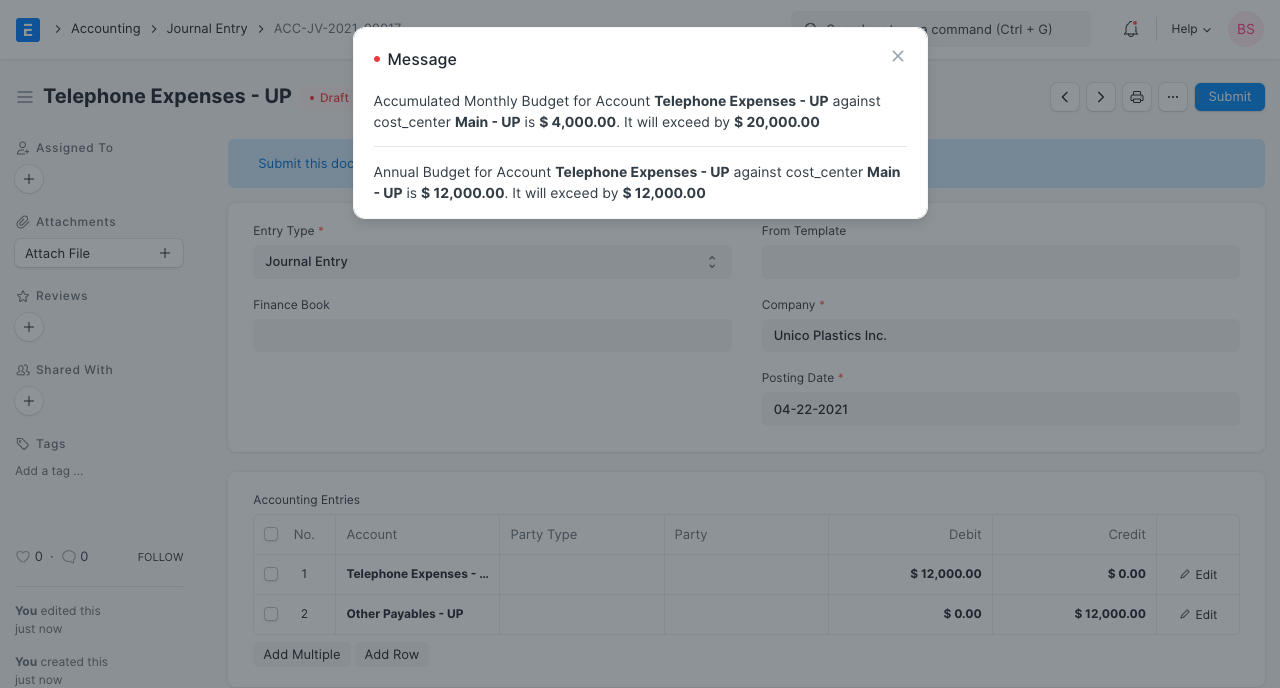
Remember that any type of transaction specified in the budget for the specific Account heads will result in a warning of this nature.
3. Budget Variance Report
You can review the Budget Variance Report at any time to compare the costs that were actually incurred and those that were budgeted for against a cost center or a project.
Go to: to view the Budget Variance report.
Home > Accounting > Cost Center and Budgeting > Budget Variance Report
